

Table of Contents
Class times belong to each class group. You add them on the Class Groups step of the Setup Wizard, and a group can run once a week or several times a week.
Adding times to a class group #
Step 1: Open Class Groups in the Setup Wizard (0:00) #
- In the left sidebar, click Settings Hub.
- Under System Settings, click Setup Wizard.
- If the wizard opens on Pick up where you left off, click Continue setup. It may then open on another step, such as Subscriptions.
- Click Class Groups in the step list at the top. There’s no separate class times step: times are added here, on each group.
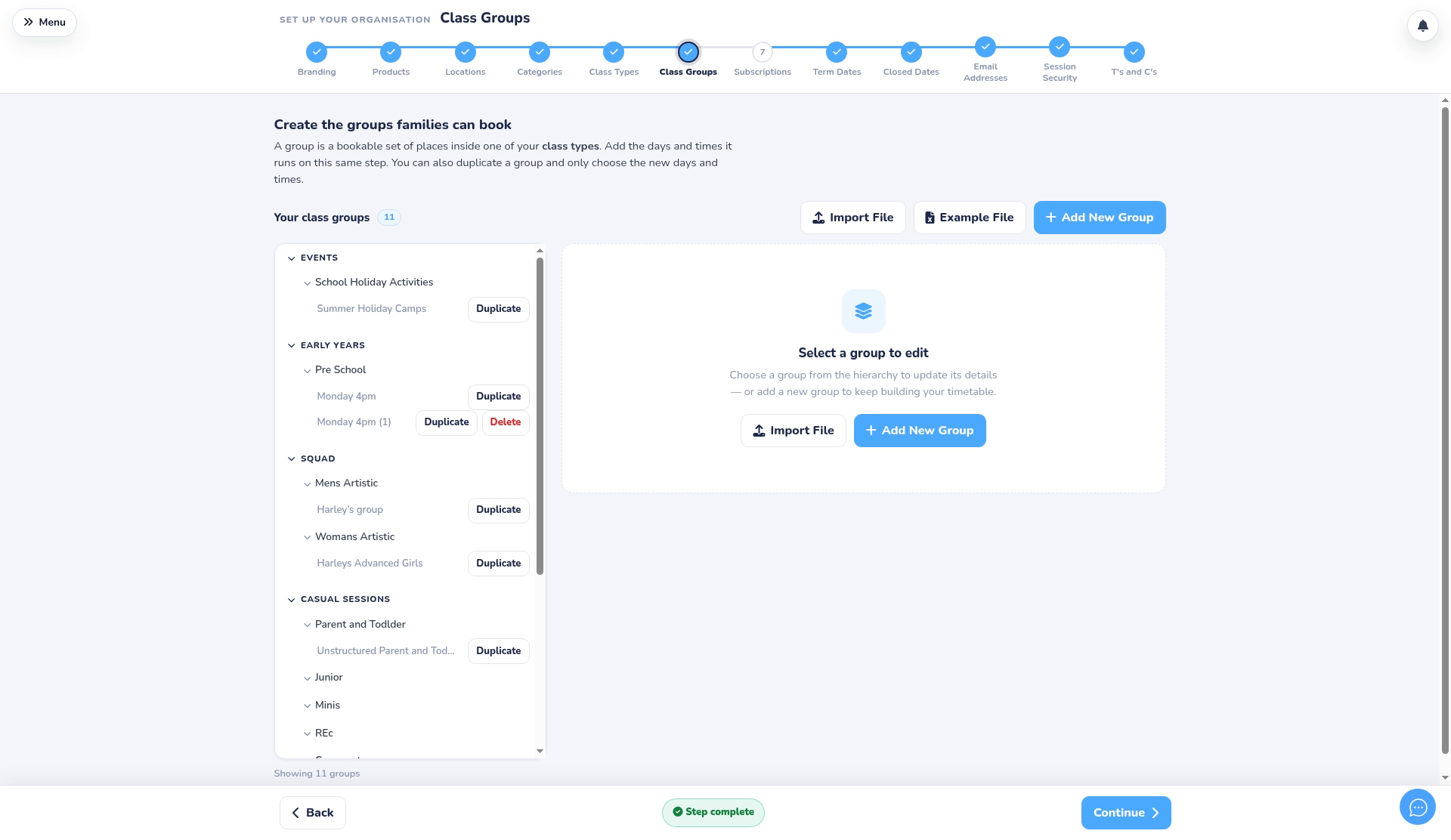
- Your class groups lists every group under its category and class type. Click the arrows to open or close each level.
Step 2: Add a new group (0:36) #
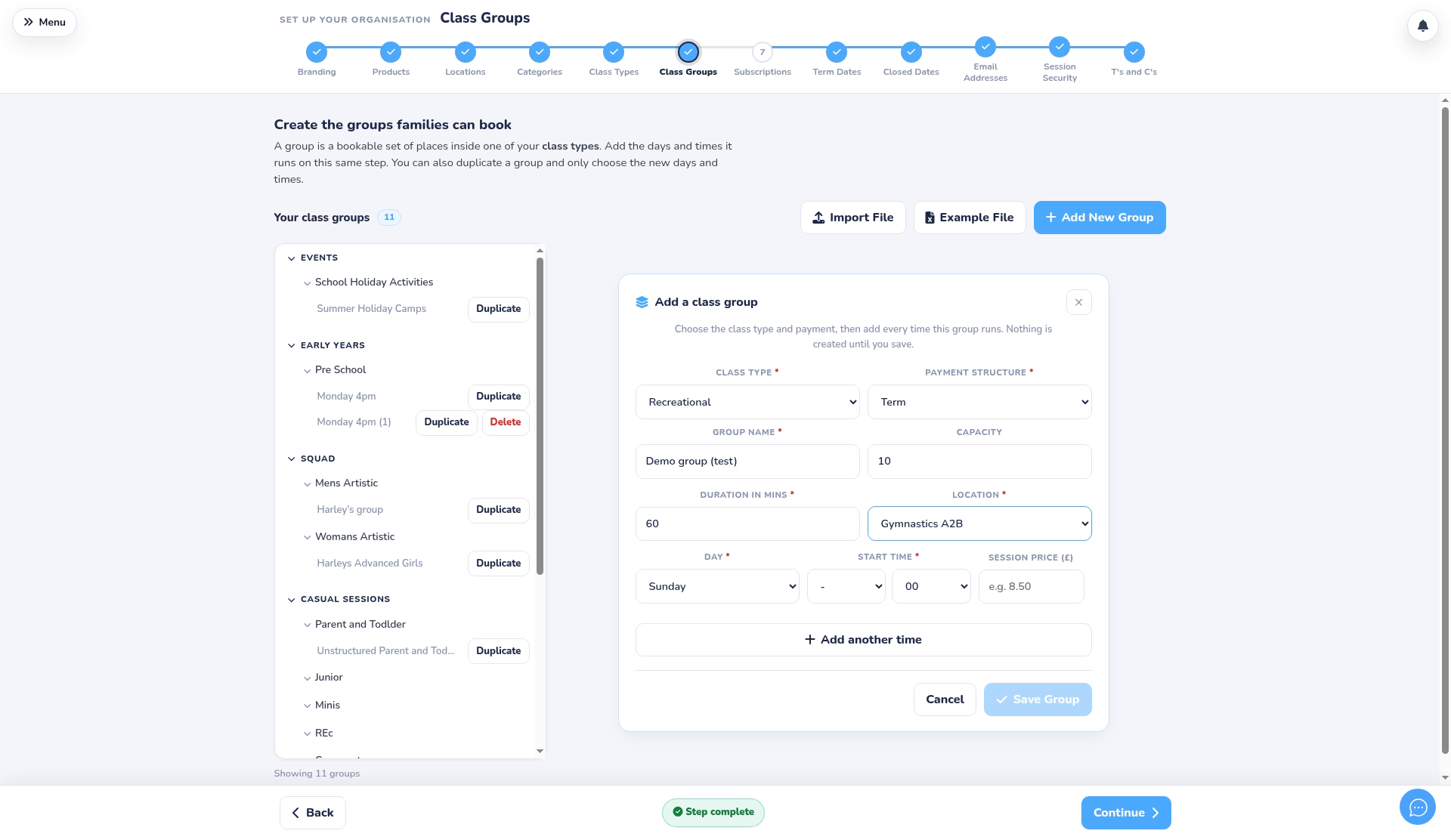
- Click Add New Group. The Add a class group panel opens on the right. Nothing is created until you save.
- Choose the Class type and Payment structure, then enter a Group name, for example “Monday 4pm”.
- Enter the Capacity (shown for term and subscription groups), the Duration in mins and the Location.
Step 3: Add the day and start time, then save (1:21) #
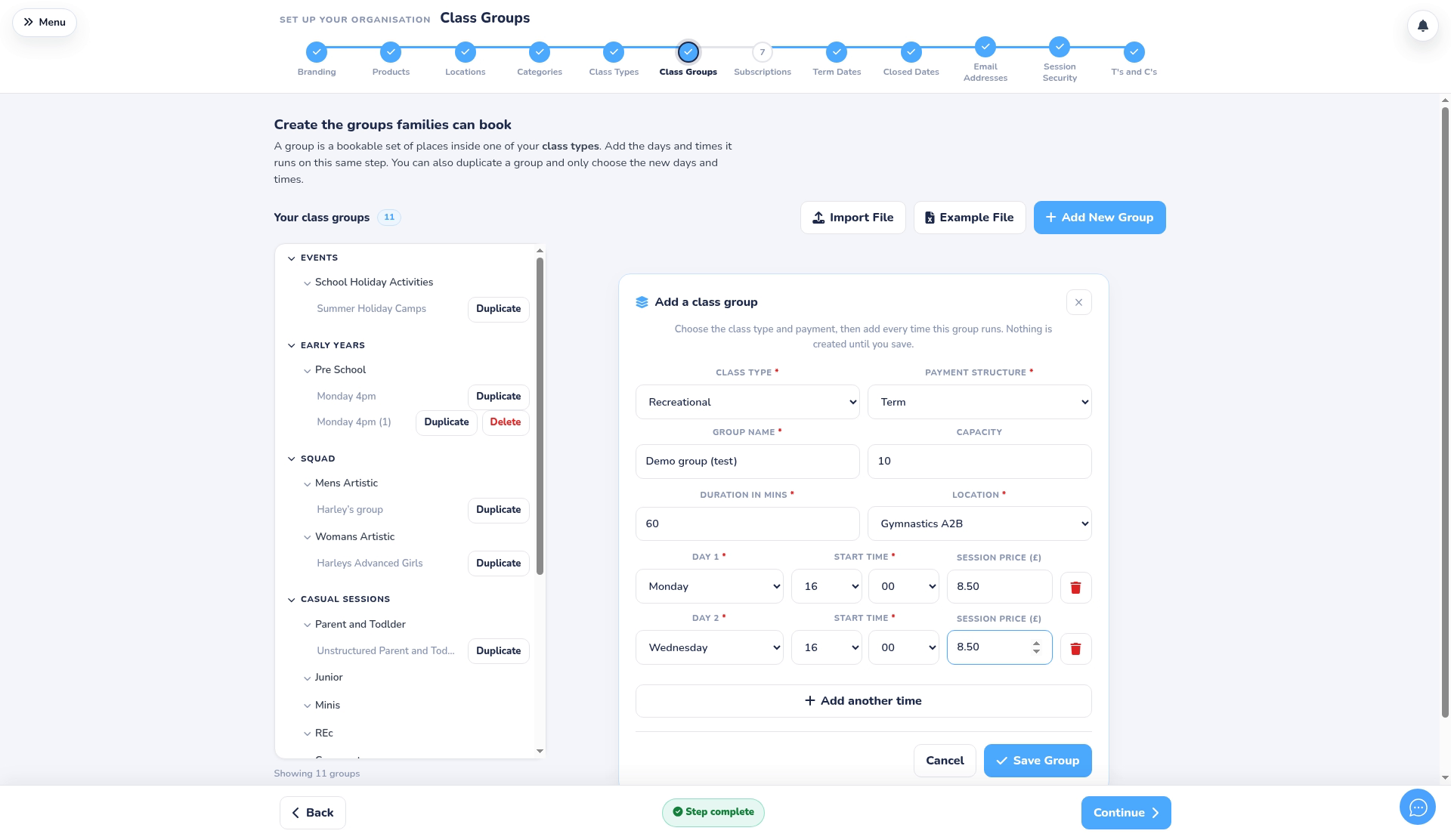
- Each time is a row labelled Day 1, Day 2 and so on. Choose the Day and Start time (hour and minutes).
- For term groups, the Session price (£) field appears once you choose Term as the payment structure. Pay-as-you-go groups show Price per session (£).
- If the group trains more than once a week, click Add another time and add each session. All of these times belong to the same group. Use the bin icon to remove a time you don’t need.
- Click Save Group. The group appears in the list under its class type.
Step 4: Change times later, or duplicate a group (2:17) #
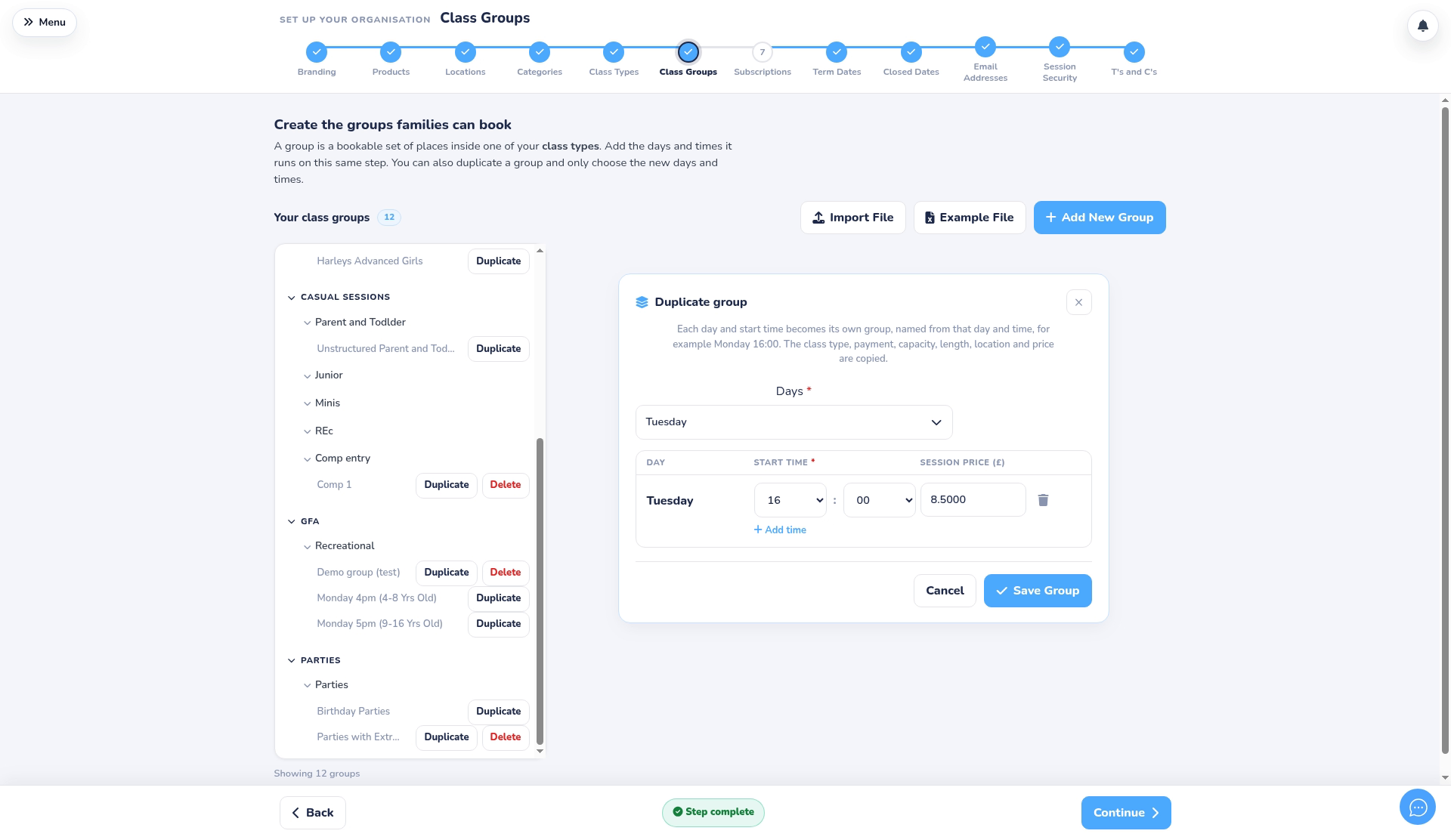
- Click a group’s name to open Edit class group. You can change, add or remove its times, then click Save Group. A time you remove is deleted when you save. Prices may show with four decimal places here, for example 8.5000 for £8.50; the price itself is unchanged.
- Click Duplicate when each time should be its own group instead. Pick the Days, set a start time for each (use Add time for more than one on the same day), then click Save Groups (the button may read Save Group when only one time is set). Each day and time becomes a new group named after it, for example “Monday 16:00”, copying the class type, payment, capacity, length, location and price.
- Click Cancel to close the panel without saving.
Good to know #
- Multi event groups ask for a Date for each session instead of a day of the week.
- Lots of groups? Use Import File to upload an Excel or CSV file. Click Example File for a template.
- Deleting a group: Delete only appears for groups that have never had a child on their class list, trial list, priority list or waiting list.
- More settings: active status, add-ons, age ranges and capacities for each time are edited in Class Management.
- If you see “Please choose a class type, payment structure, name, duration and location, and complete every time.”, fill in the missing fields and save again.


