

Table of Contents
If a payment fails or the club sends you an invoice, it appears on your Payments page until it’s paid.
Paying an outstanding invoice #
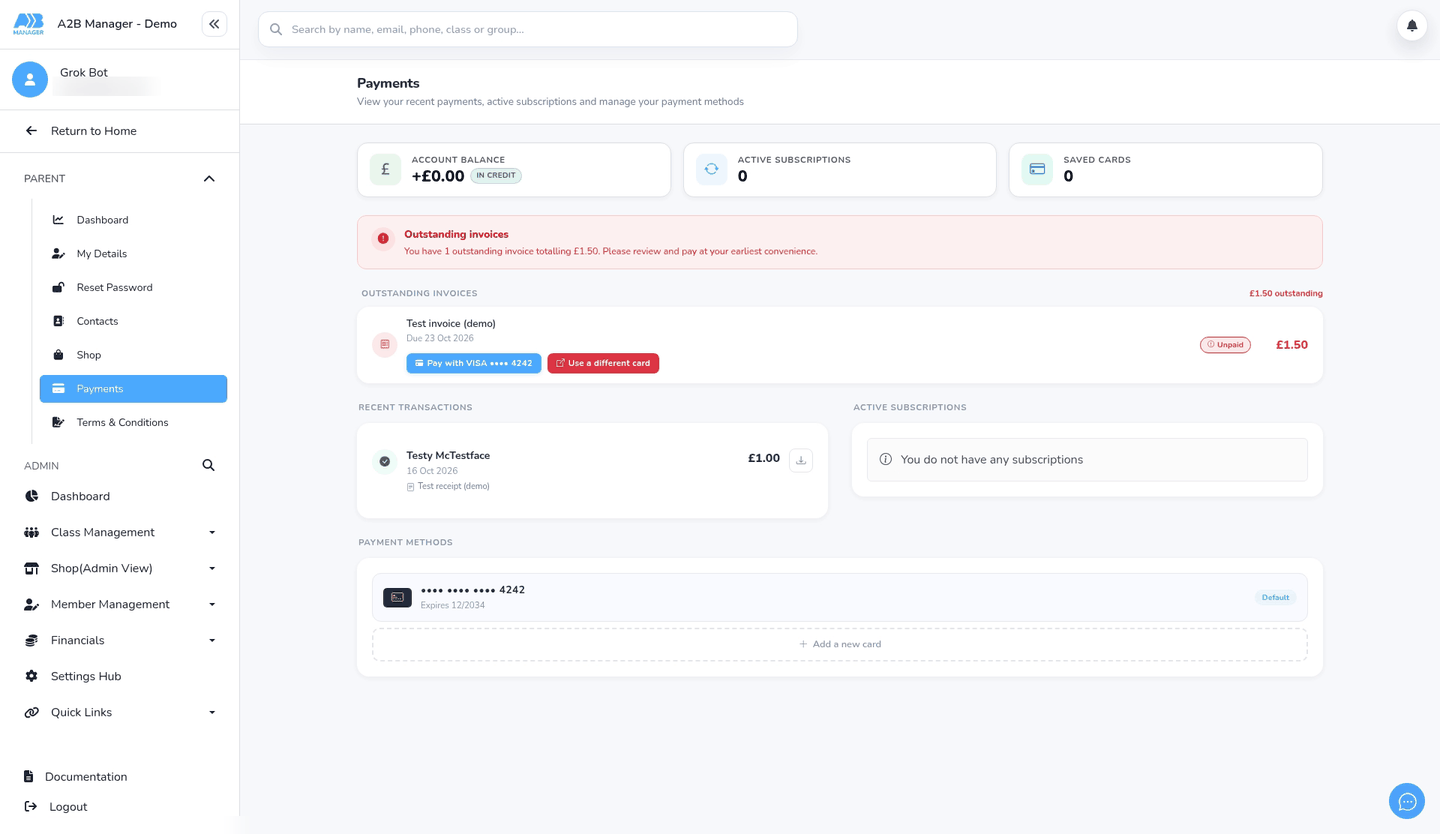
Step 1: Open Payments and check the banner (0:00) #
- In the left-hand menu, open the Parent section if it’s collapsed, then click Payments.
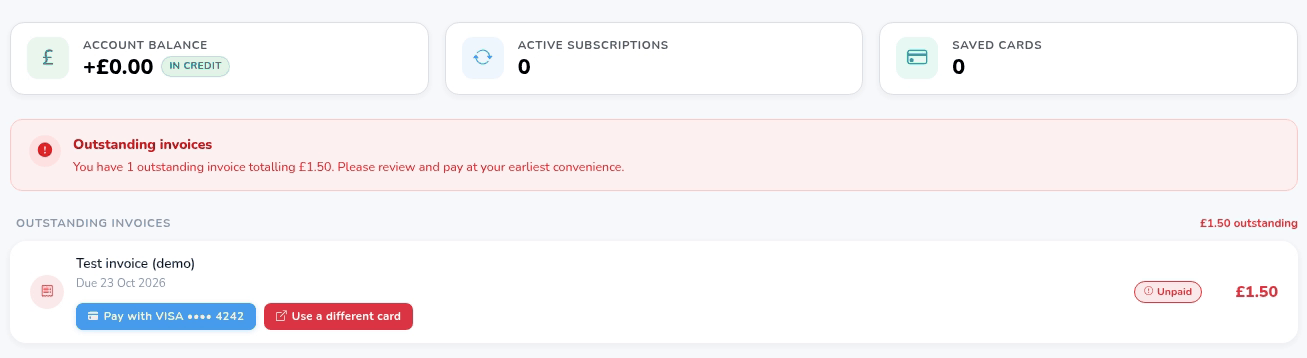
- If you owe anything, a red Outstanding invoices banner says how many invoices you have and the total, for example “You have 1 outstanding invoice totalling £1.50”.
- If nothing is owed, there’s no banner and no Outstanding Invoices section.
Step 2: Review the invoice (0:21) #
- Under the banner, each invoice shows what it’s for, Due and the date, an Unpaid label and the amount.

Step 3: Pay it (0:28) #
- Pay with your saved card (for example Pay with VISA •••• 4242): this takes the payment straight away. There’s no second confirmation, so check the amount first. The button only shows if you have a default card.
- Use a different card: opens Stripe’s secure invoice page in a new tab, where you can pay with any card.
- Apply £x credit: only shown if you have account credit. Click it, then Apply credit to confirm, or Keep credit to cancel. Any remainder is still due.
Step 4: After you pay (0:40) #
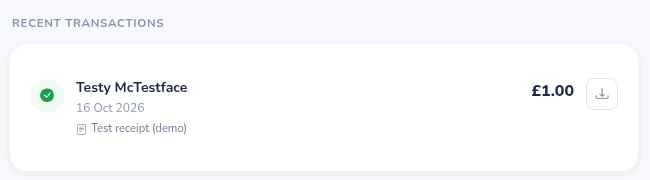
- Once paid, the invoice disappears from Outstanding Invoices and the payment appears in Recent Transactions, where you can download a receipt.
- A payment that failed also shows in Recent Transactions with a Payment failed label and the same Pay with and Use a different card buttons.
Good to know #
- Invoices are usually sent by email with a payment link. You can pay from the link or from your Payments page.
- Once paid, the invoice disappears from Outstanding Invoices and the receipt appears in Recent Transactions. See How parents find payments and download receipts.
- To change the card used, add a new card under Payment Methods.
- If you think an invoice is wrong, contact the club. Only the club can cancel (void) it.


