

Table of Contents
End a member’s place in a class from their profile, either straight away or after a last lesson you choose.
Removing the member #
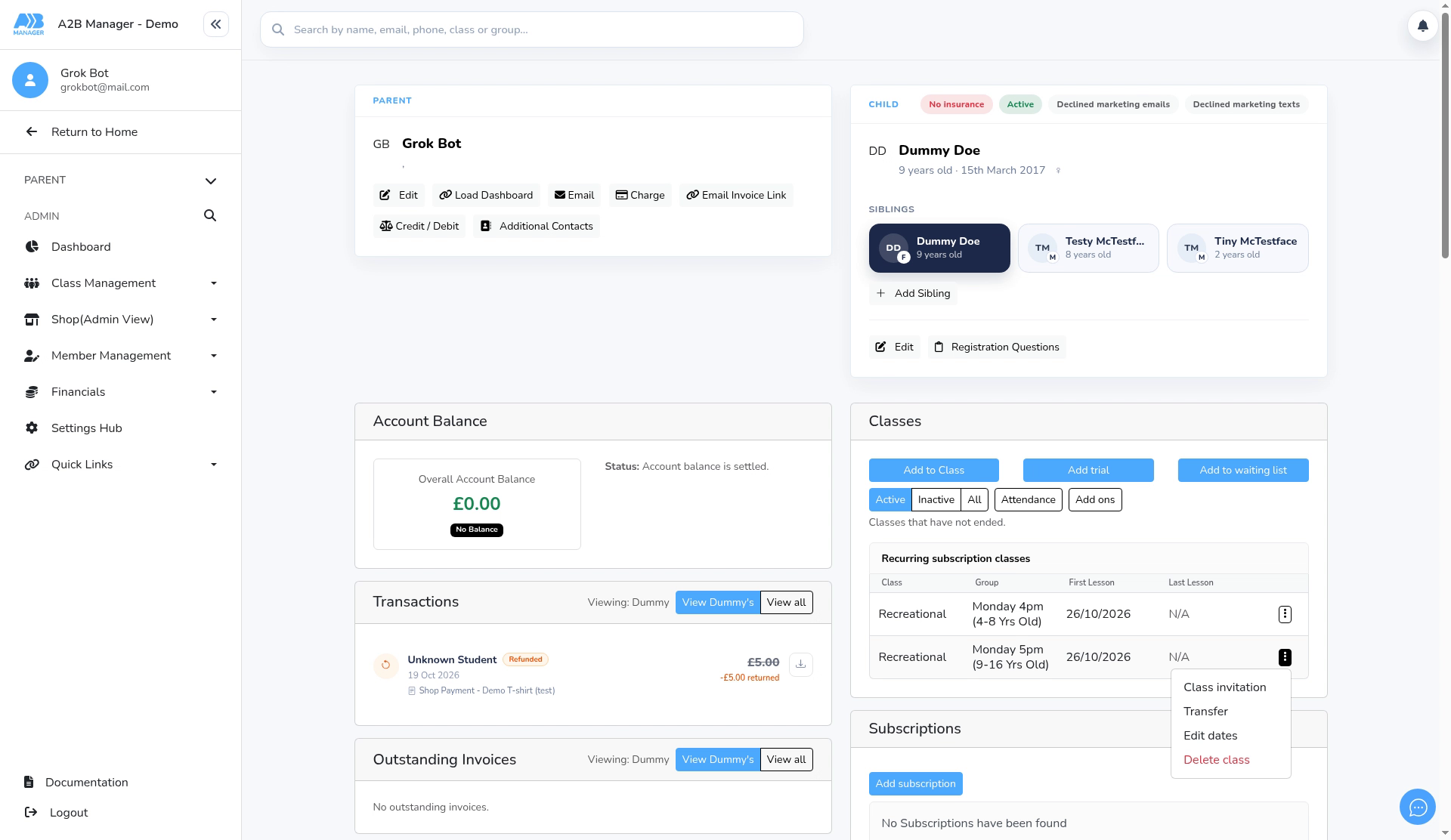
Step 1: Choose Delete class (0:00) #
- Open the member’s profile. In the Classes card, click the three dots next to the class and choose Delete class.
Step 2: Remove now or set a last lesson date (0:10) #
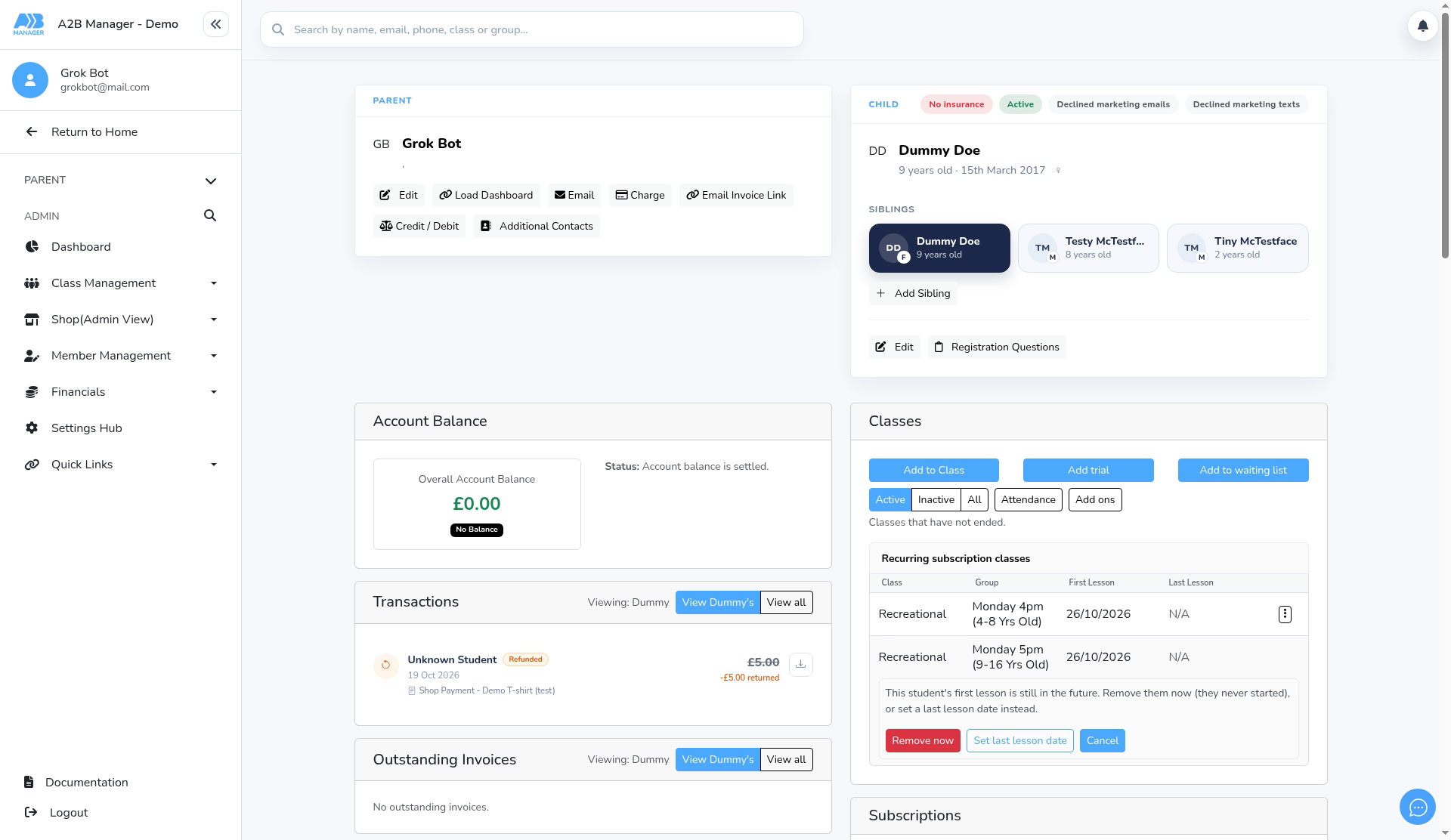
- If the member’s first lesson is still in the future, you get two options:
- Remove now takes them off the class straight away. They never attend, and the place shows Removed before start under Inactive.
- Set last lesson date lets you choose the last session they’ll attend.
- If the place has already started, you go straight to the End Date list.
Step 3: Choose the end date (0:20) #
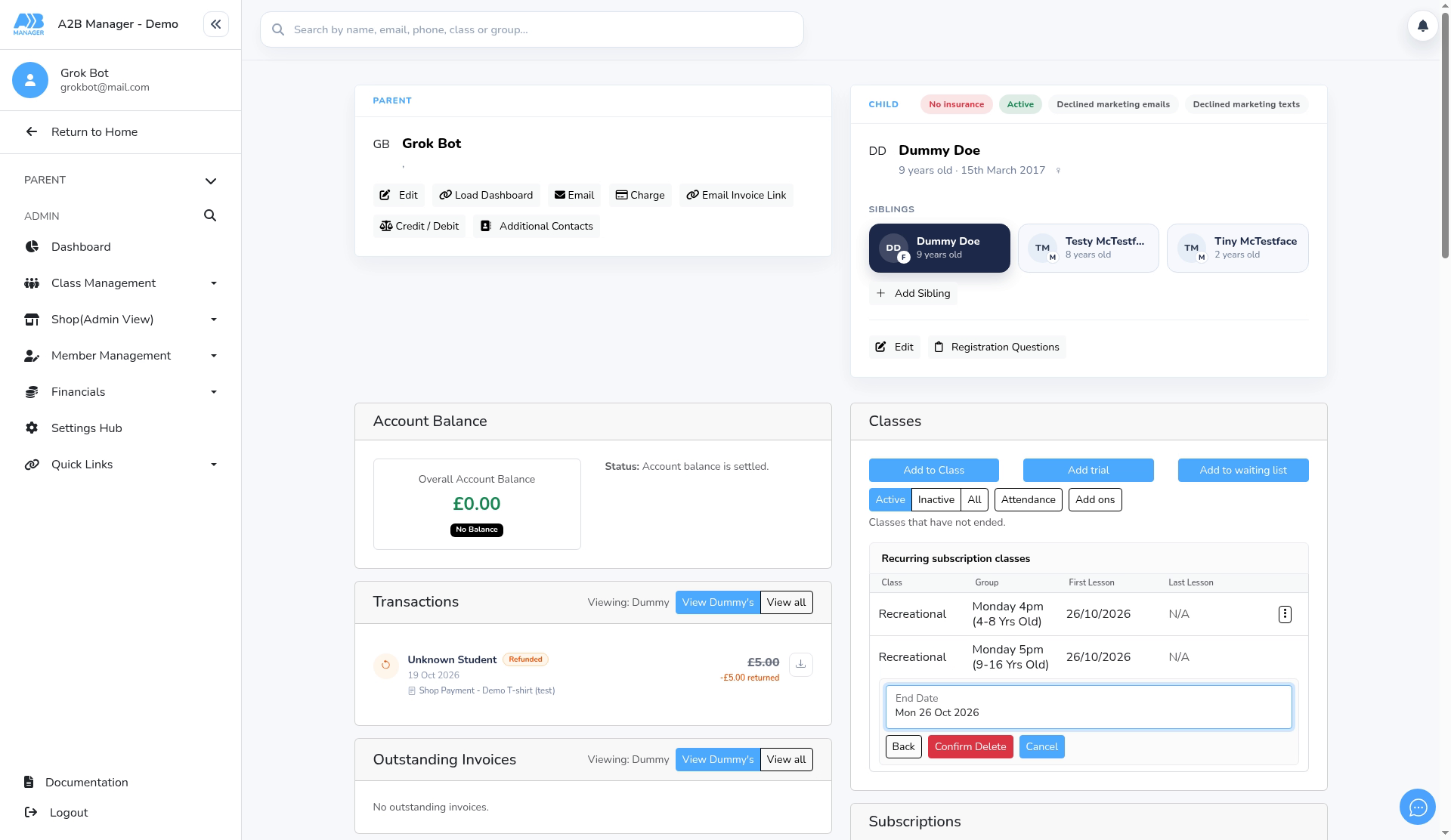
- Pick the last session in the End Date list. Back returns to the two options.
Step 4: Confirm (0:30) #
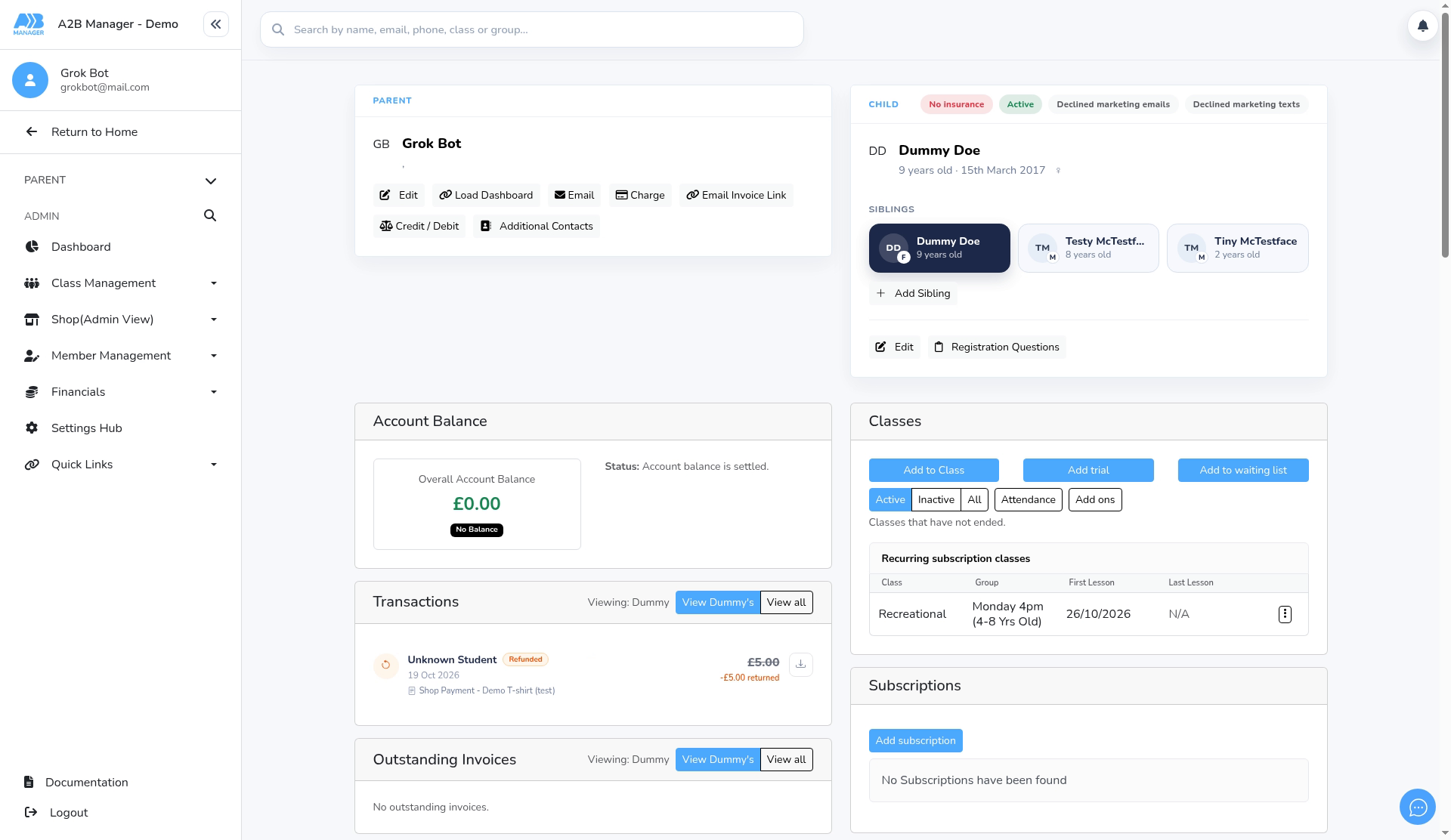
- Click Confirm Delete. The class leaves the Active list and moves to Inactive once its last lesson has passed.
The Inactive list #
- Click Inactive in the Classes card to see places that have ended, are in the past or belong to an inactive group.
- A place that was removed before it started shows Removed before start in the Last Lesson column.
- If a member was removed and then added back to the same group, you’ll see the old place under Inactive and the new one under Active. This is expected.
Good to know #
- Deleting a class doesn’t cancel the member’s subscription. Cancel it separately in the Subscriptions card if needed.
- If you choose the member’s first lesson as the last lesson date, it’s saved the same way as Remove now and shows Removed before start.


