

Table of Contents
You can add a guest to a session’s register, such as a child from the class waiting list coming to try a session, or a member from another class making up a missed lesson. A guest is on the register for the date you choose only. They aren’t enrolled in the class and aren’t charged.
Adding a guest #
Step 1: Open the register (0:00) #
- In the left menu, open Class Management and click Register.
- Use the arrows either side of the date to go to the day of the session.
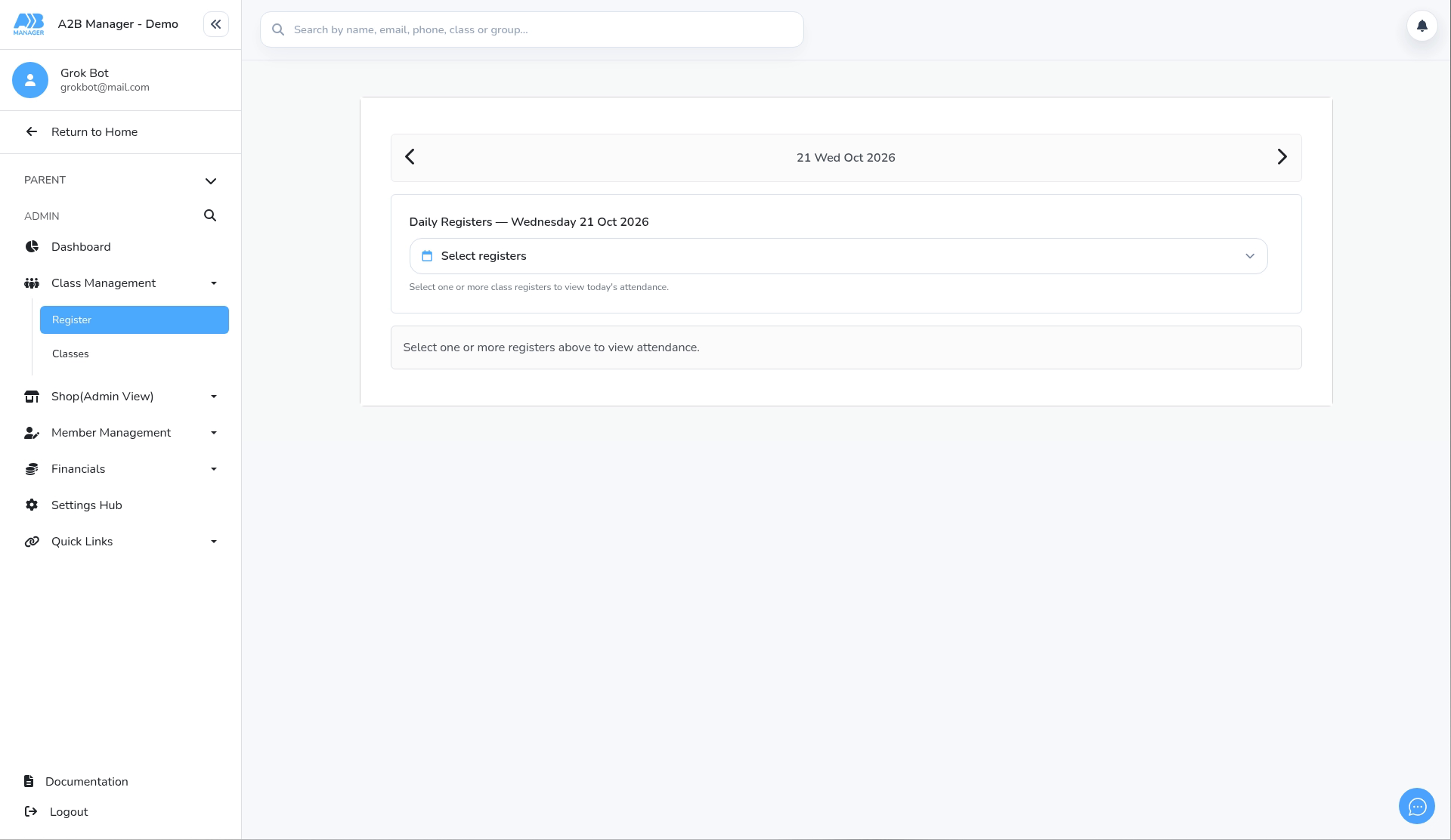
Step 2: Choose the class register (0:08) #
- Click Select registers, type the class name in Search today’s registers…, tick the register and click Apply.
- The register opens below, showing who’s booked on and how many are present.
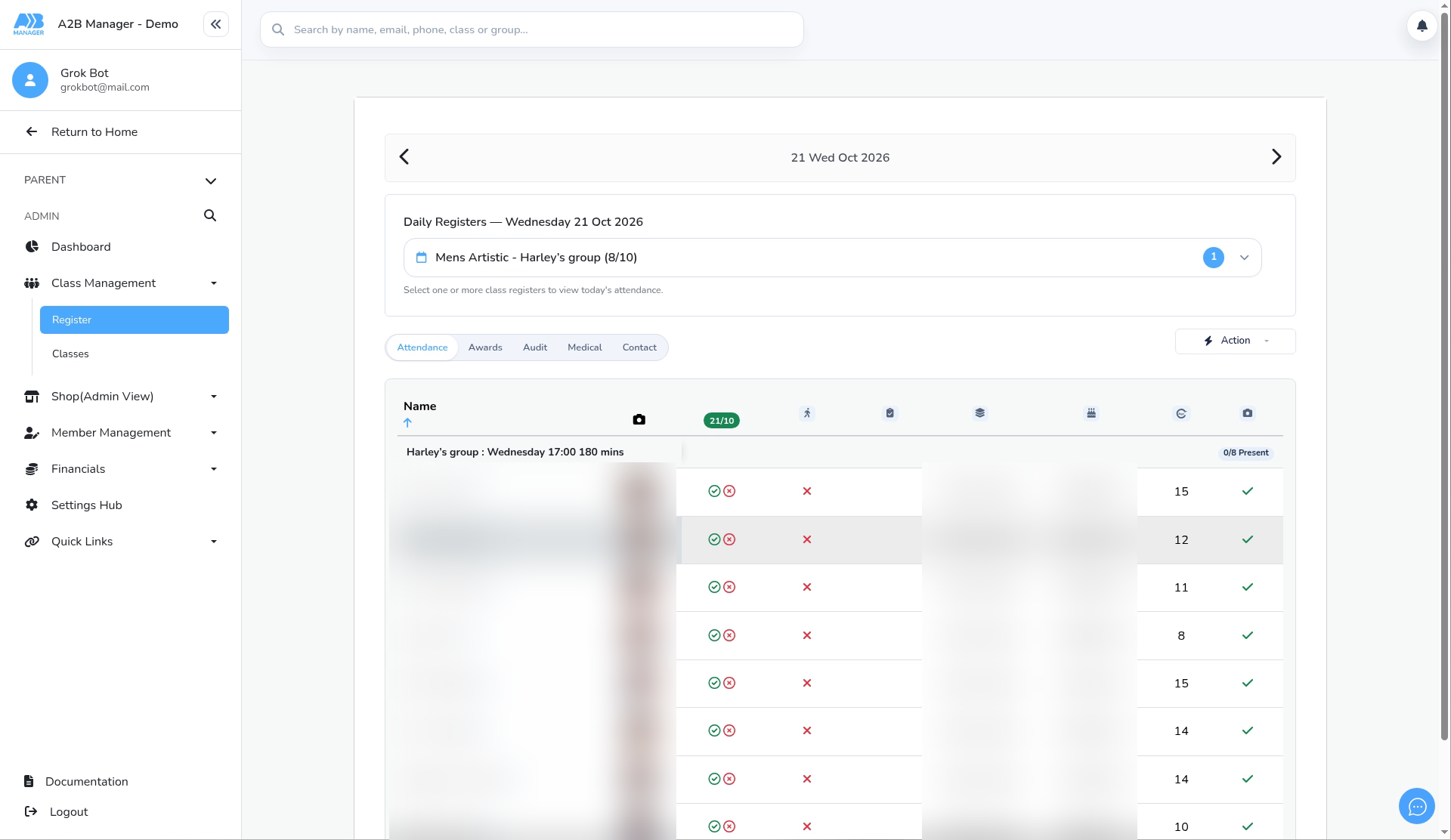
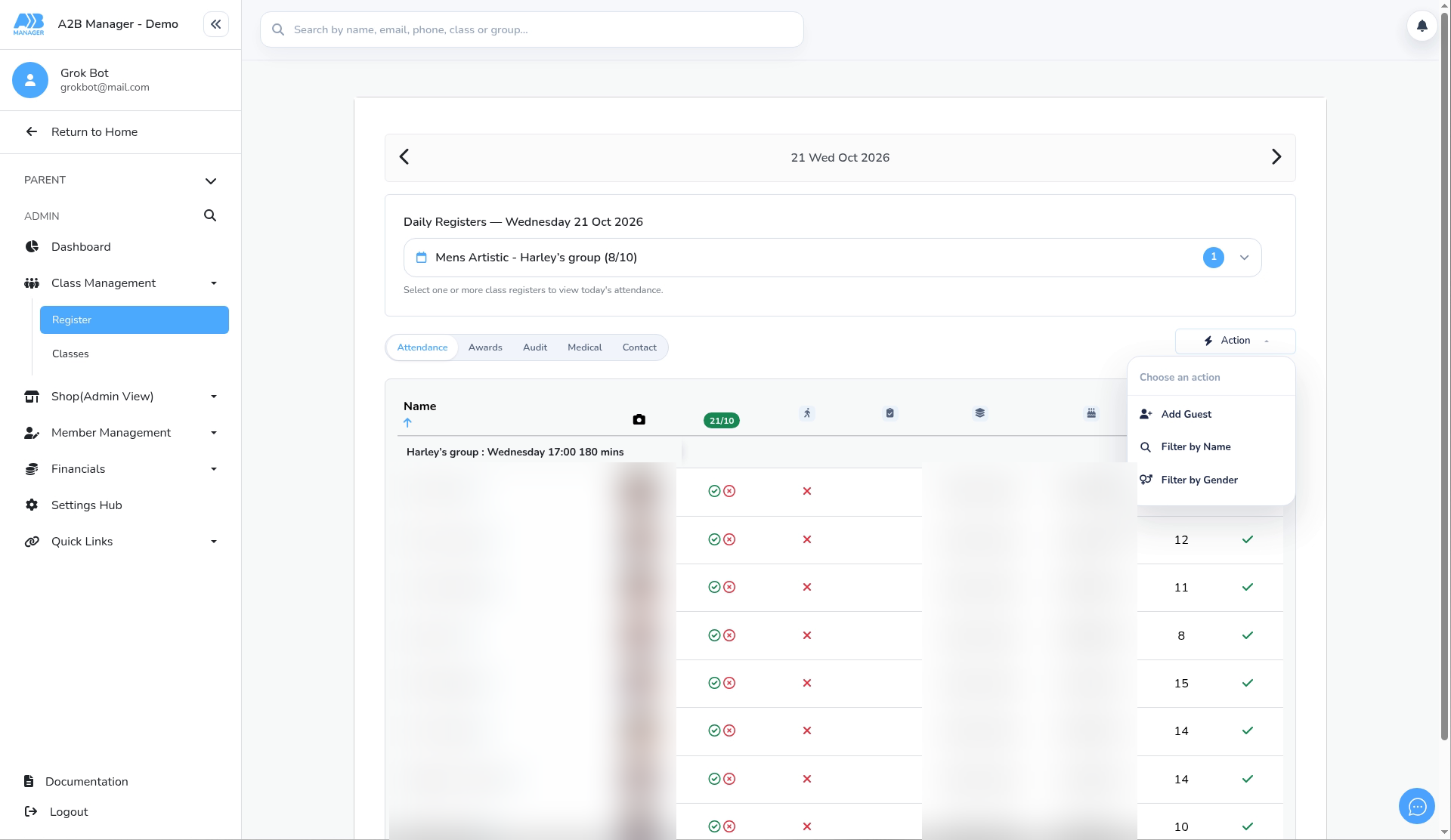
Step 3: Open Add Guest (0:24) #
- Above the register, click Action, then choose Add Guest.
Step 4: Choose the date and student (0:34) #
- In the Add Guest window, choose the Date of the session.
- In Student, type at least two letters of the child’s name in Search students to add as guest…. Each result shows the child’s name and date of birth, so you can pick the right child. Click Select.
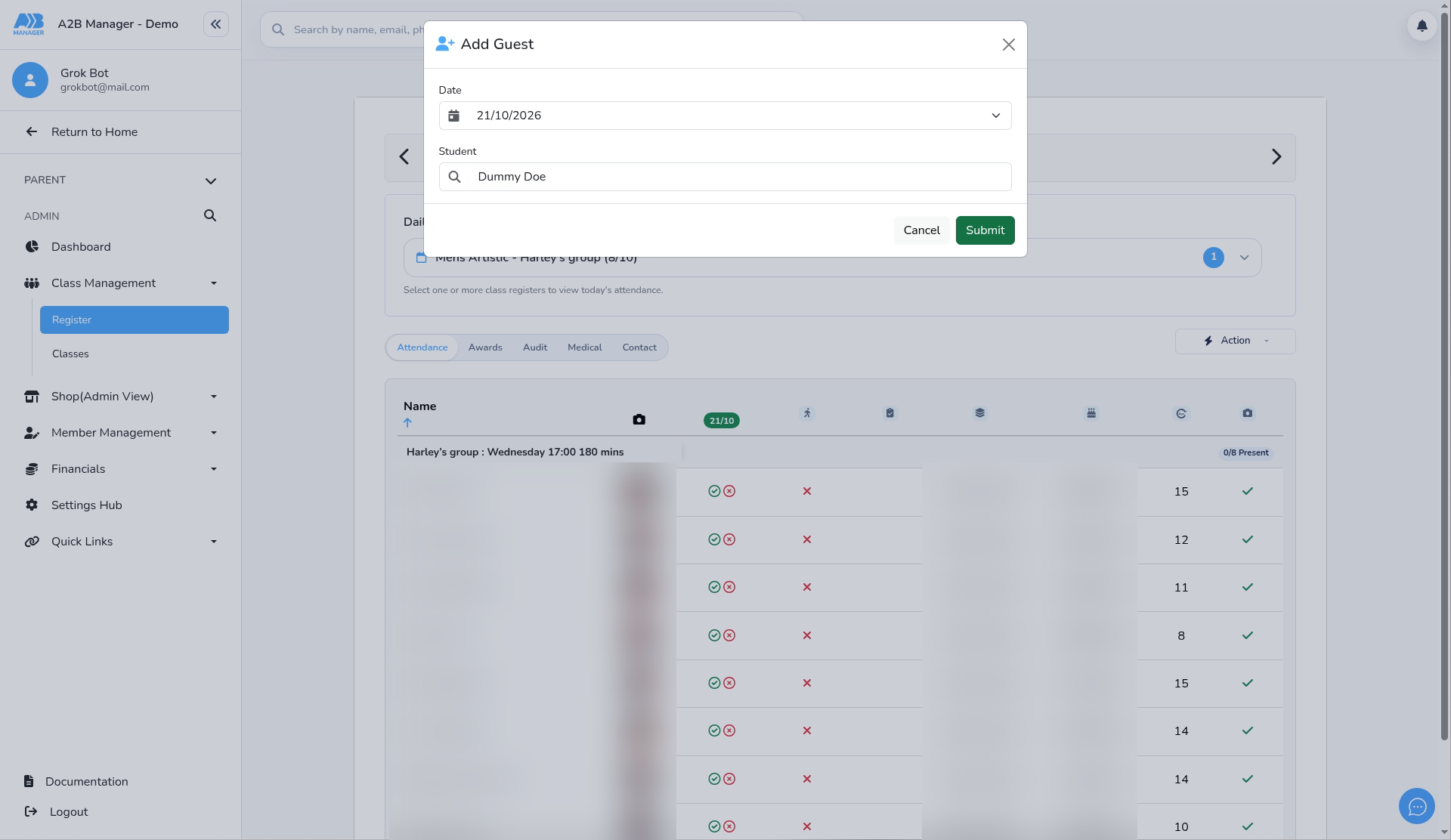
Step 5: Submit (0:57) #
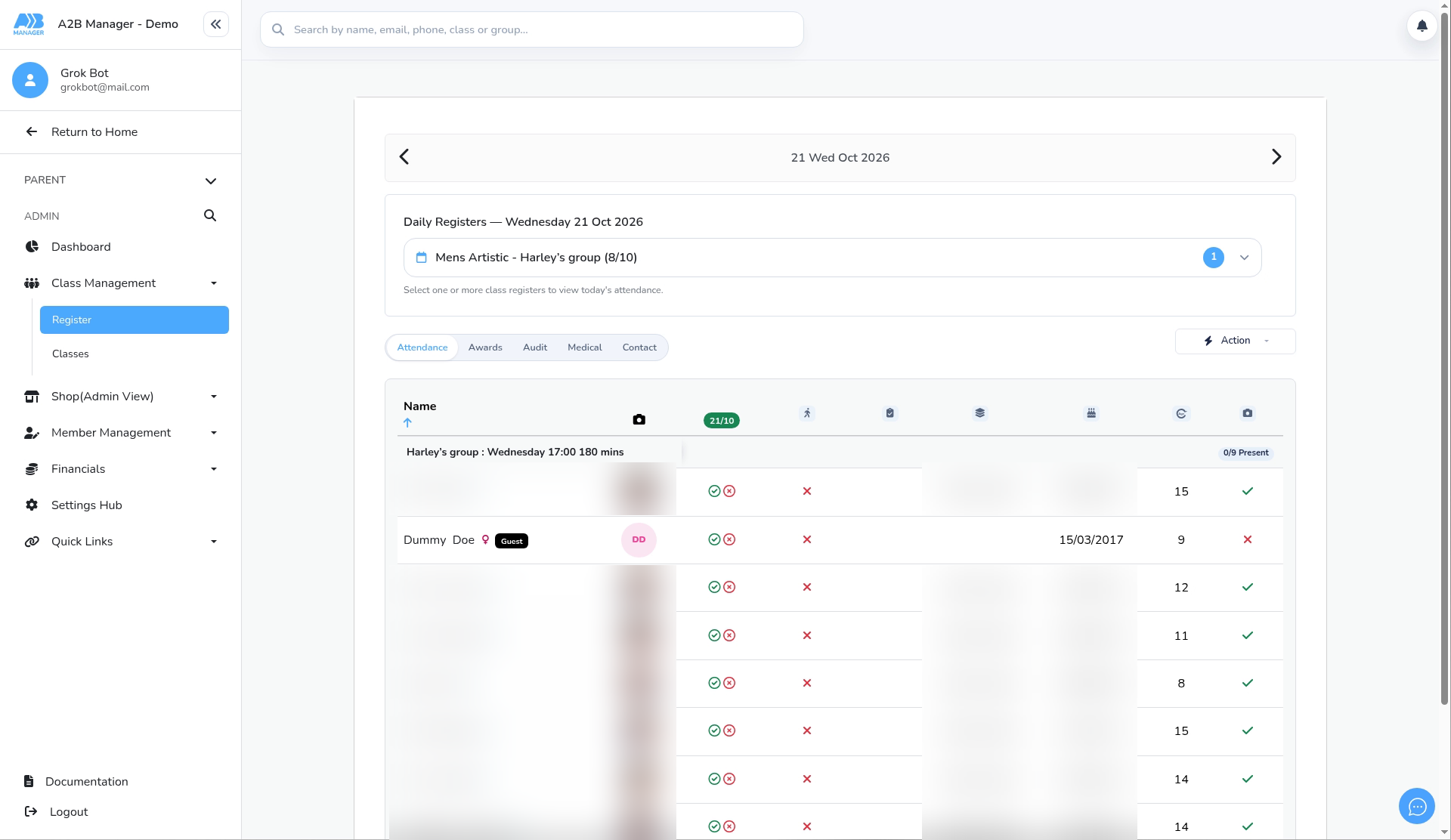
- Click Submit. The child appears on the register with a Guest badge, and the present count goes up by one place (for example, from 0/8 to 0/9 Present).
- Take their attendance in the usual way.
Step 6: Removing a guest (1:08) #
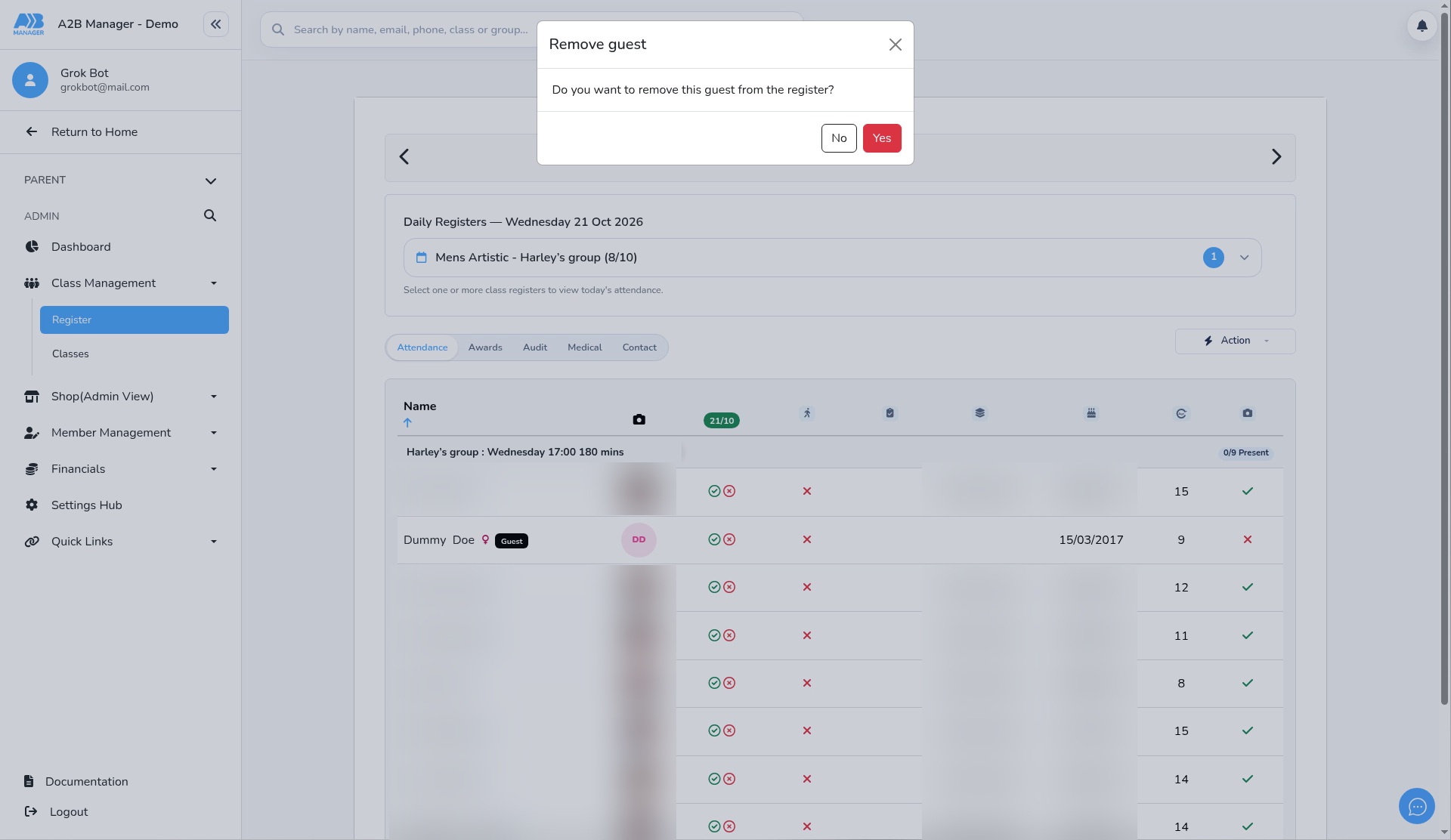
- Click the Guest badge next to the child’s name. The Remove guest window asks Do you want to remove this guest from the register?
- Click Yes to remove them, or No to keep them. The register goes back to its usual count (for example, 0/8 Present).
- This removes the child as a guest from every date on that class register, including attendance you’ve already marked, not just the date you’re looking at.
Before you start #
- Coaches and admins can add guests.
- The guest must already be a member of your club with an active profile. You can’t create a new member from this window, so add a new child first and then add them as a guest.
- Any active member can be added, including children on a waiting list.
What happens next #
- The guest is on the register for the chosen date only. They don’t stay on for future sessions and they’re not added to the class.
- No charge is taken and no credit is used. Adding a guest doesn’t email the parent.
- A child on the waiting list stays on the waiting list. To give them a permanent place, enrol them from the waiting list.


