

Table of Contents
Deactivated classes and groups aren’t deleted. They’re hidden from your class list and from parents, and you can switch them back on at any time. This guide shows where to find them and how to reactivate them.
Reactivating a group #
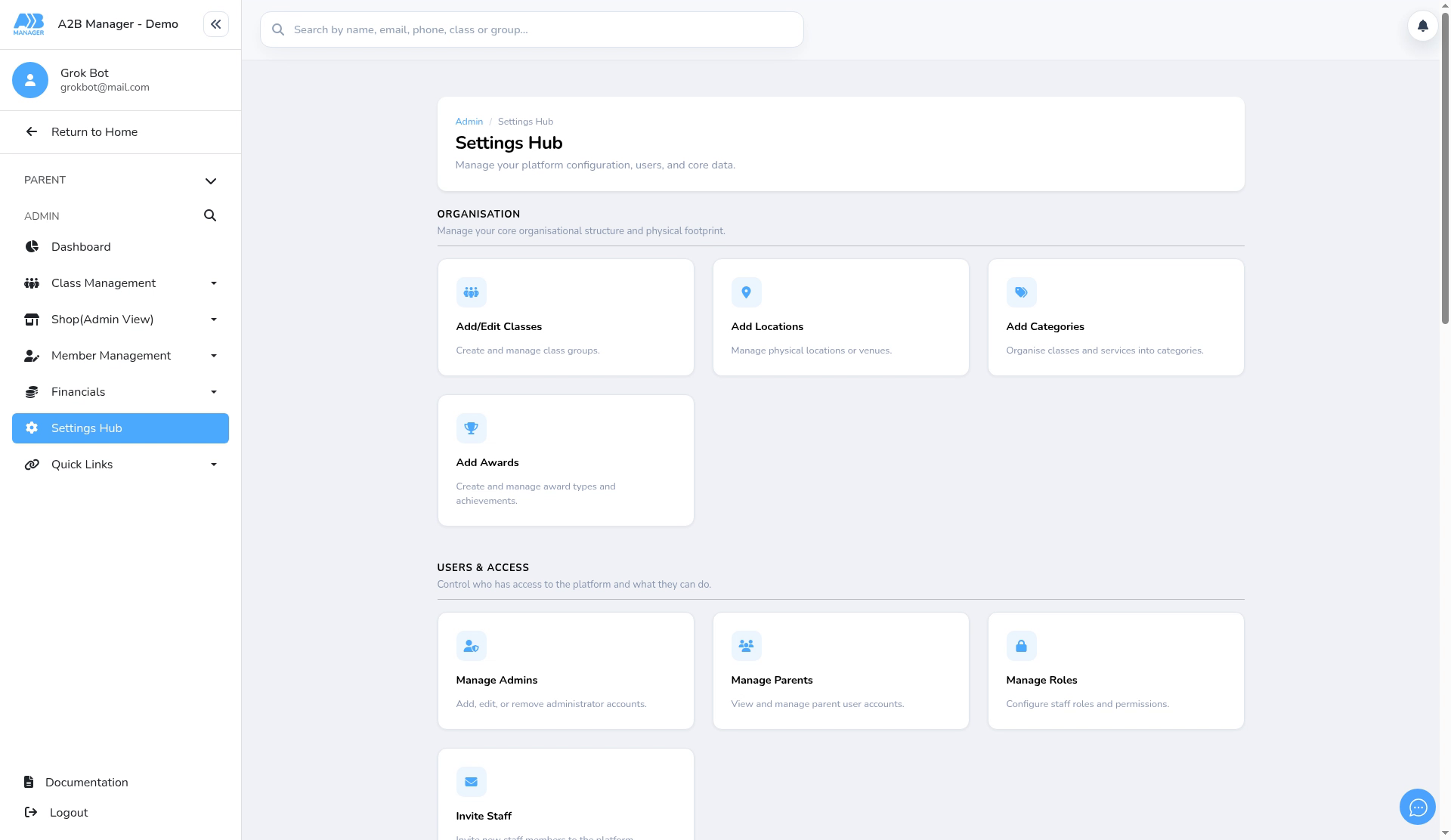
Step 1: Open Add/Edit Classes (0:00) #
- Go to Settings Hub and click Add/Edit Classes.
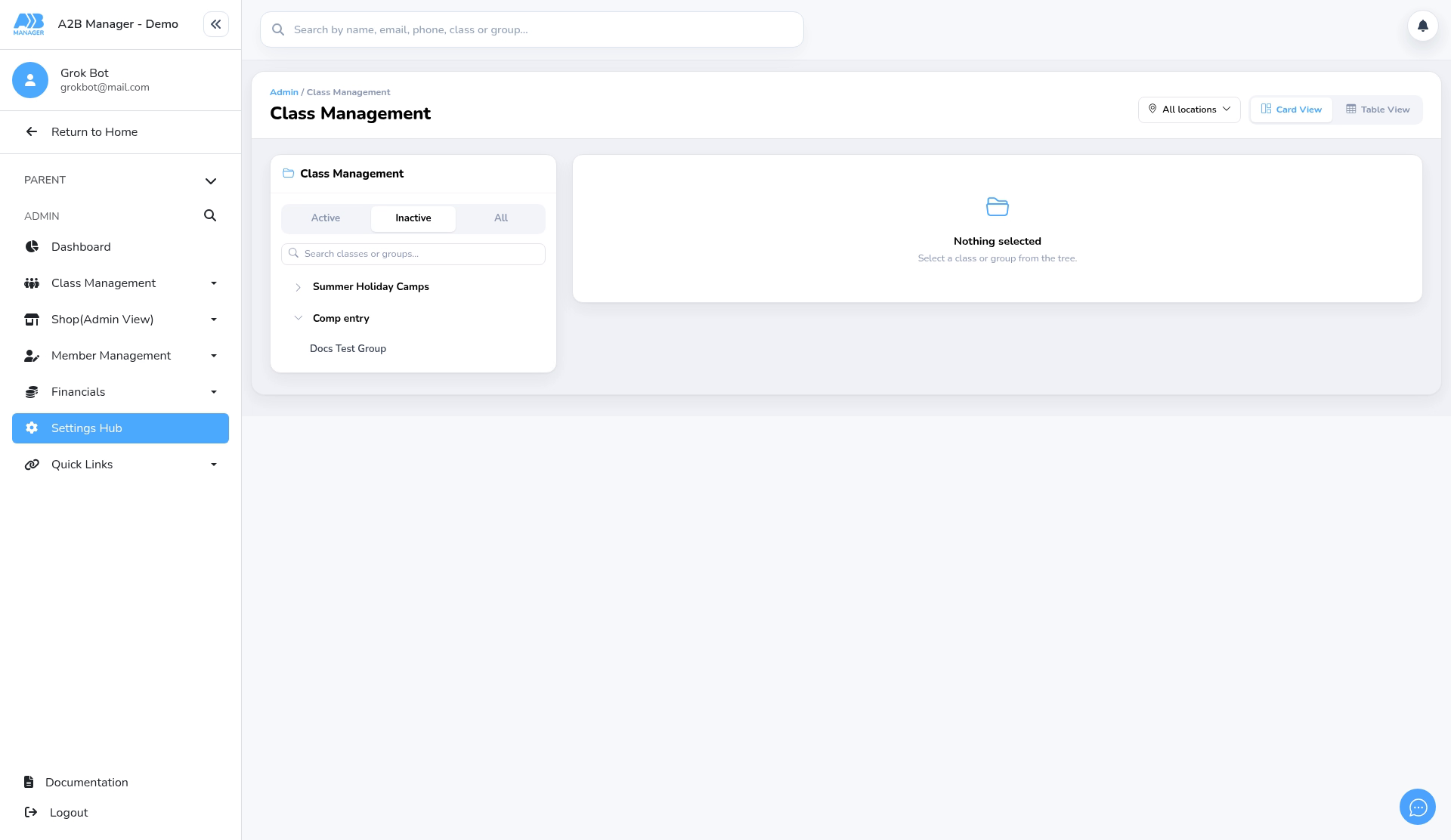
Step 2: Show inactive groups (0:11) #
- At the top of the Class Management panel, click Inactive. The default is Active, and All shows both.
- The list shows inactive classes, and active classes that have at least one inactive group. Under each class, only the inactive groups are listed.
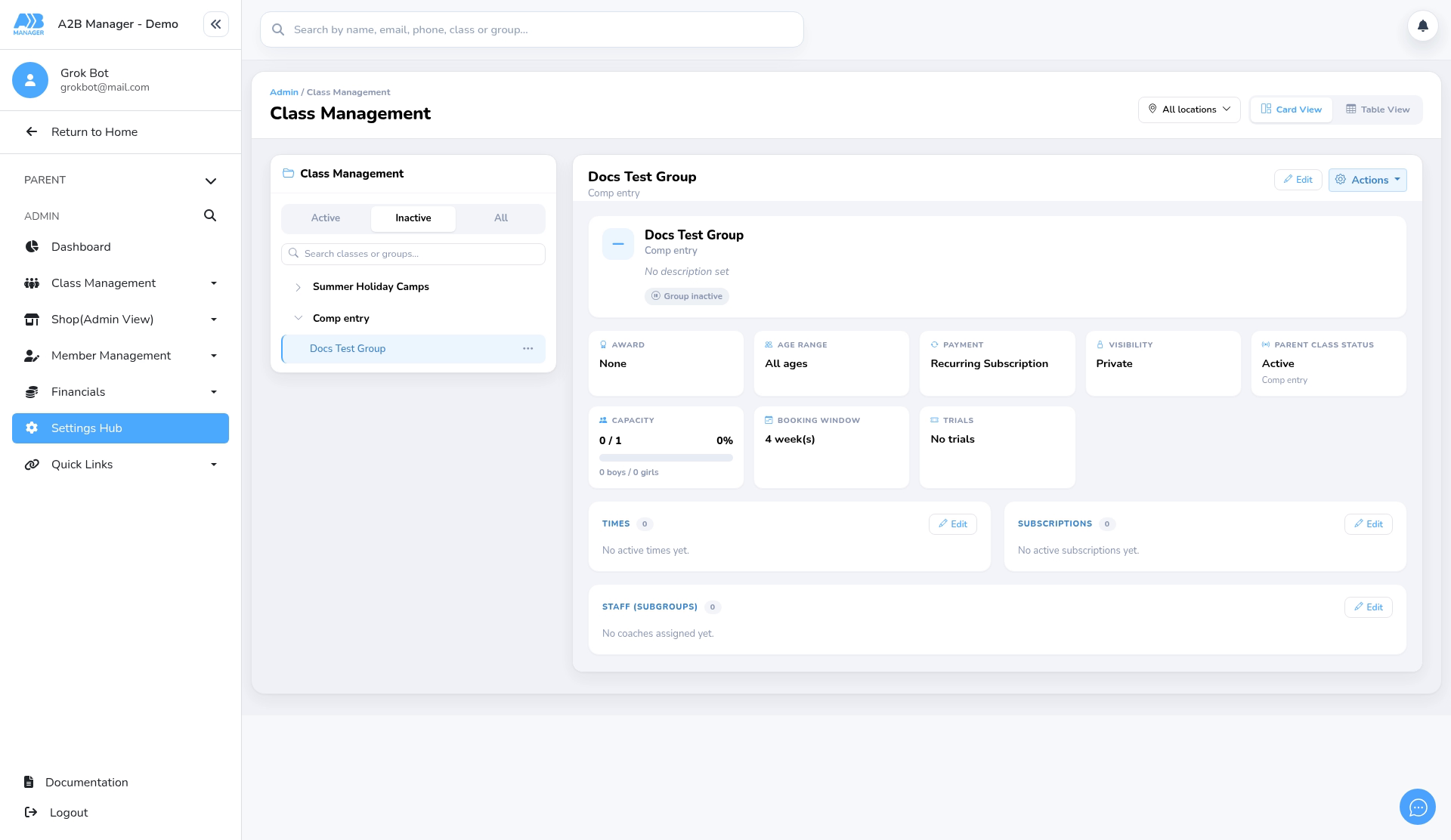
Step 3: Open the group (0:23) #
- Expand the class and click the group. Its overview opens on the right.
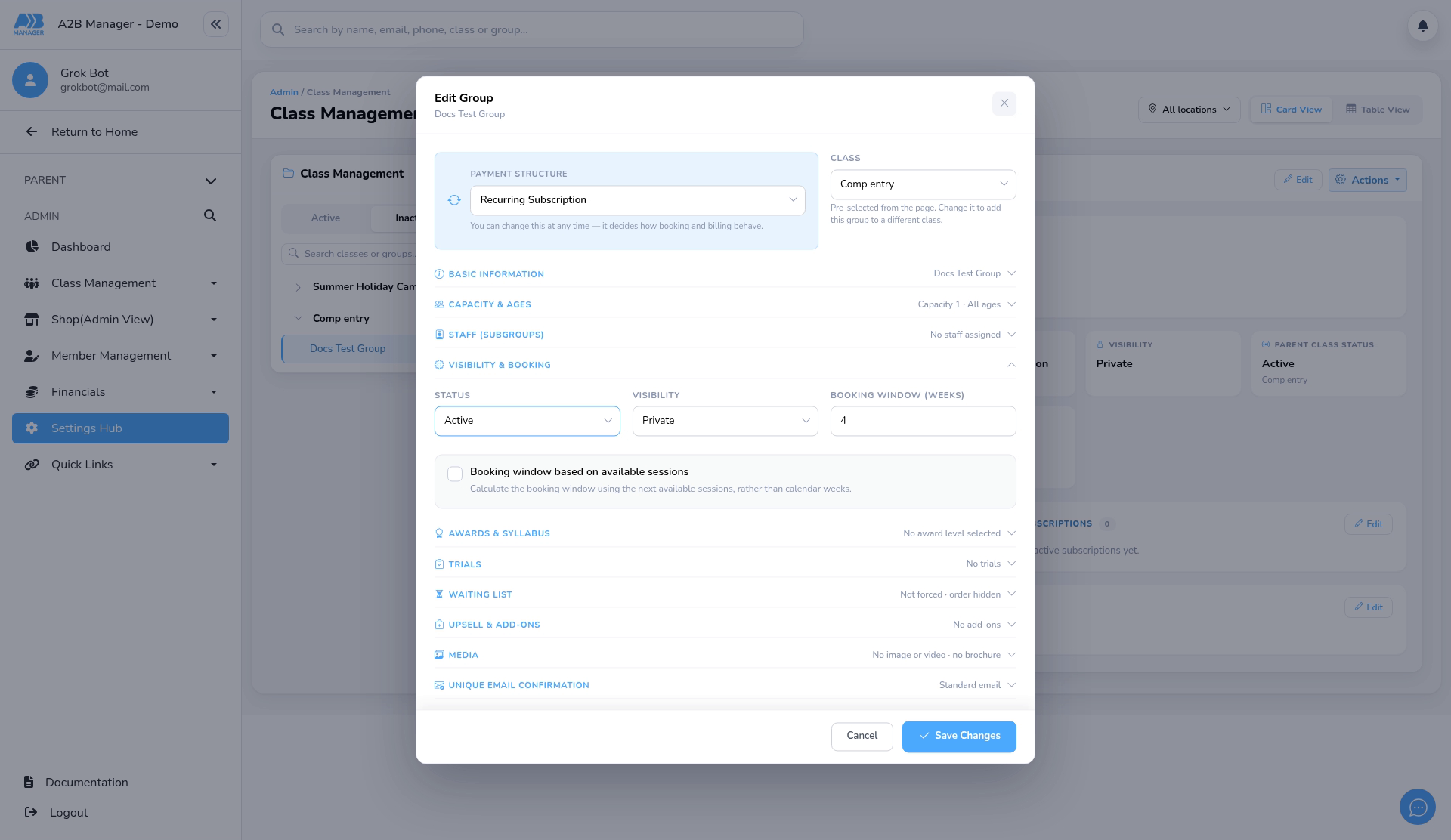
Step 4: Set the status to Active (0:27) #
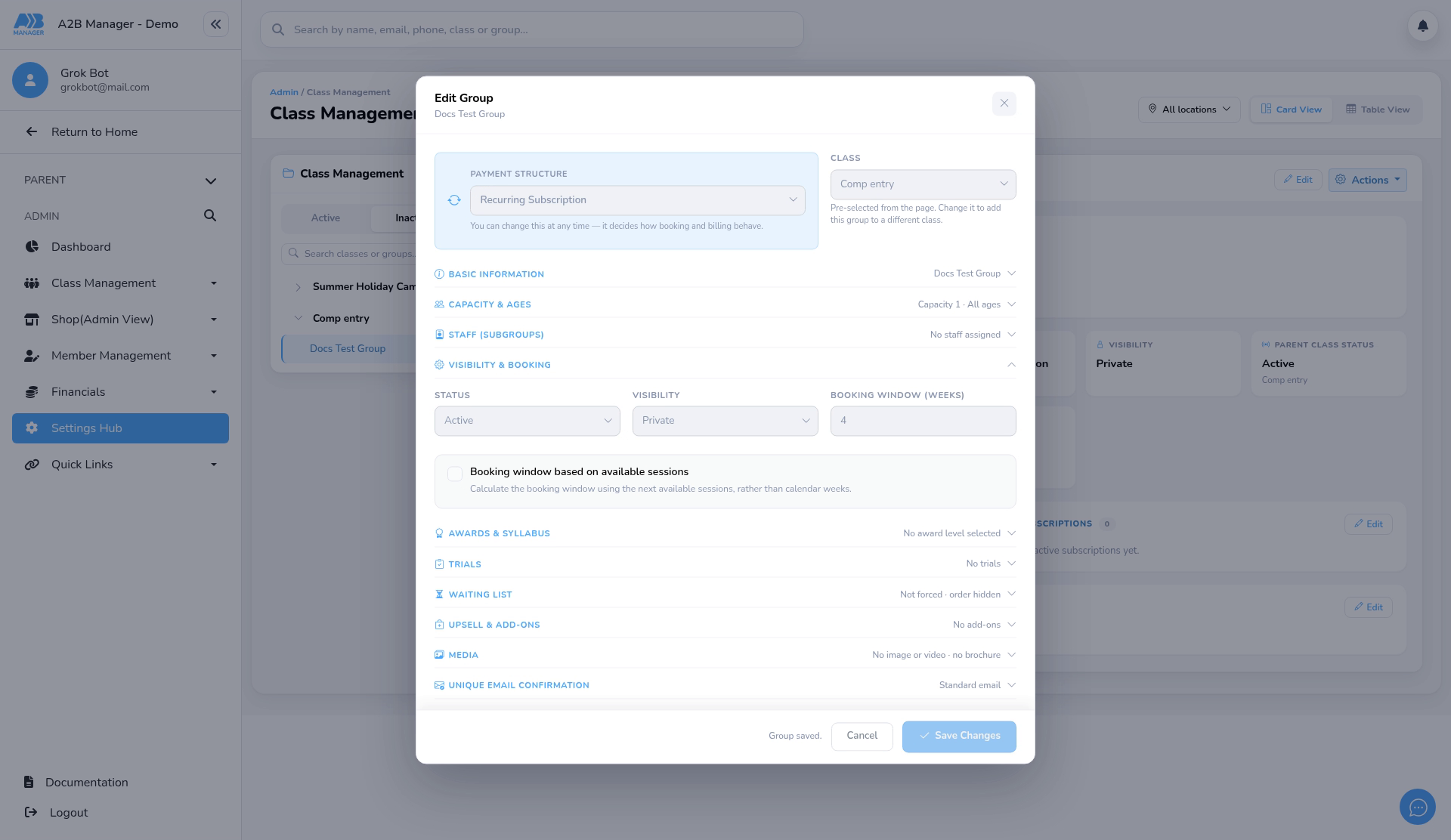
- Click Edit to open the Edit Group window.
- Open VISIBILITY & BOOKING and change STATUS from Inactive to Active.
Step 5: Save the change (0:47) #
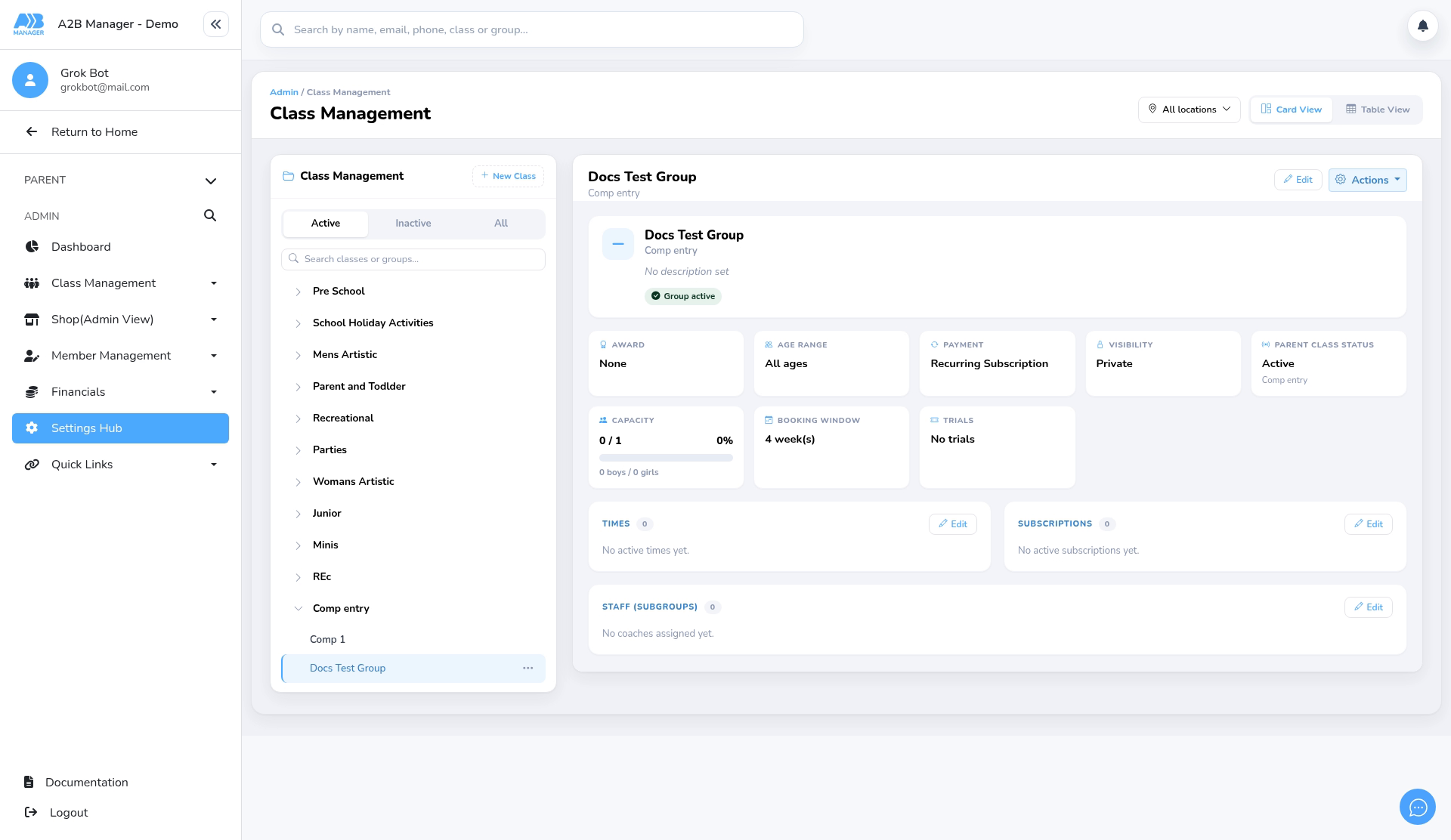
- Click Save Changes. You’ll see Group saved. The group’s overview shows Group active, and it disappears from the Inactive list.
Step 6: Check it’s back (0:58) #
- Click Active. The group is listed under its class again. Parents can see and book it, subject to its Visibility setting.
Reactivating a class #
- Click Inactive, click the class name, then click Edit. In Settings, change Status to Active and save.
- Reactivating a class doesn’t reactivate its groups. Check each group is set to Active too. Parents only see a group when both the class and the group are active.
How classes and groups get deactivated #
- Group: click the three dots next to the group in the Class Management panel and choose Deactivate, or set STATUS to Inactive in the Edit Group window and save.
- Class: set Status to Inactive when editing the class. There’s no Deactivate option in the menu for a class.
- When you save a class or group as Inactive and it still has members, trials or a waiting list, you’re shown the counts and names. You can choose Make inactive (keep everyone) or Make inactive and remove members.
- The three-dots Deactivate option works straight away, without showing that window, and keeps the members.
What happens to members and bookings #
- Make inactive keeps everyone. Their places, trials and waiting list entries are still there when you reactivate.
- Make inactive and remove members ends each member’s place with a last lesson date of yesterday, deletes trials that haven’t started and clears the waiting list. Reactivating doesn’t bring these back, so you’d need to add members again.
- While a class or group is inactive, parents can’t see or book it, it drops out of session lists, and its waiting list entries are hidden.
- Deactivating doesn’t cancel any subscriptions. Cancel them separately on each member’s profile if needed.
- No emails are sent to parents when you deactivate or reactivate.
Good to know #
- Only staff who can manage your club’s classes can deactivate or reactivate them.
- If you open an inactive group from a direct link, the panel switches to All so you can see it.
- The New Class button is hidden while the Inactive filter is on.


