

Table of Contents
When a space comes up, you can offer a child on the waiting list a trial. They get an email and the offer appears on their parent dashboard.
Sending the offer #
Step 1: Find the waiting list entry (0:00) #
- Open the child’s profile. Under Classes, the Waiting list table shows the class, group, position and Offer sent.
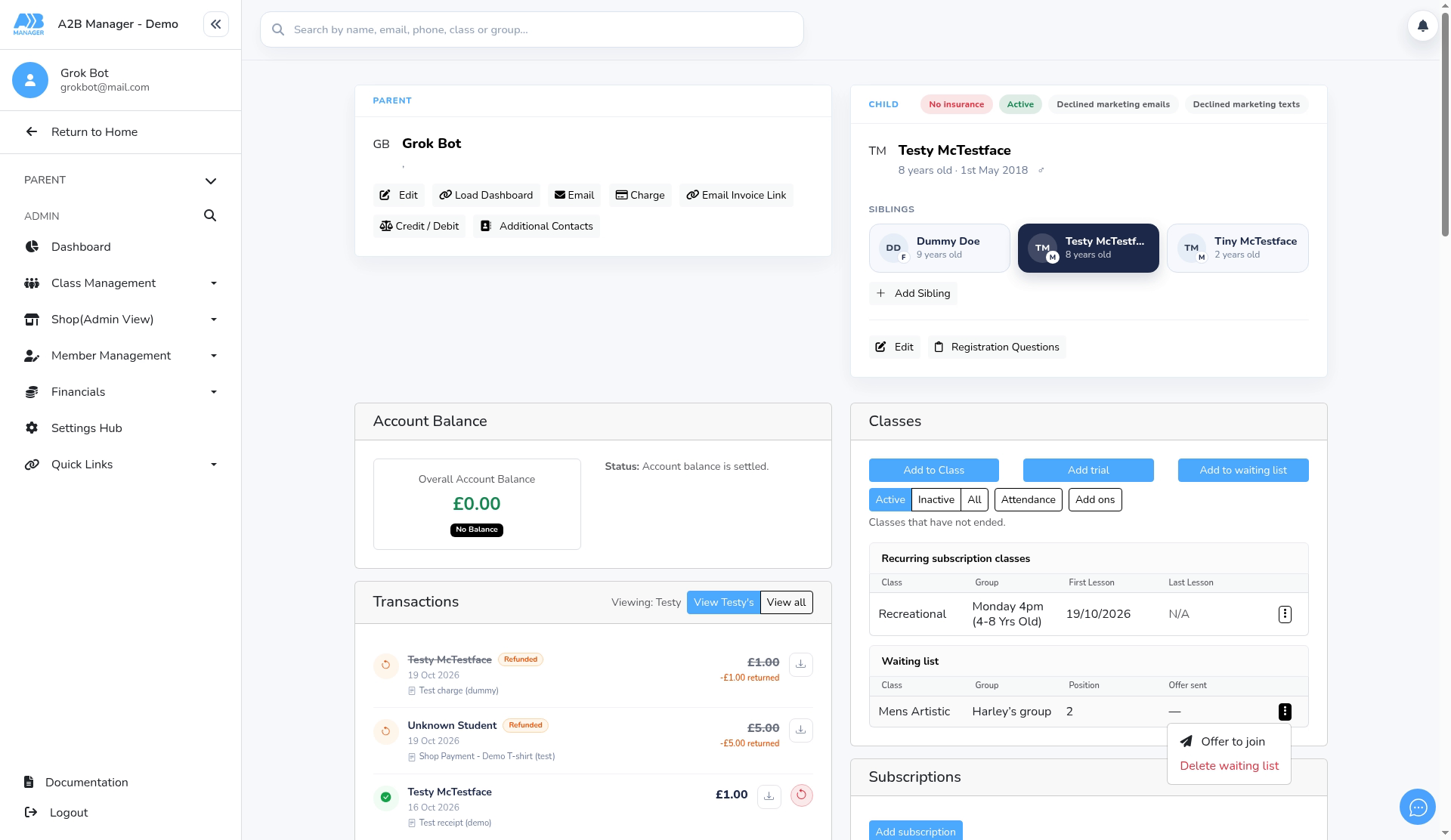
Step 2: Choose Offer to join (0:08) #
- Click the menu (⋮) on the row and choose Offer to join.
- The same option is used for trial offers and paid places.
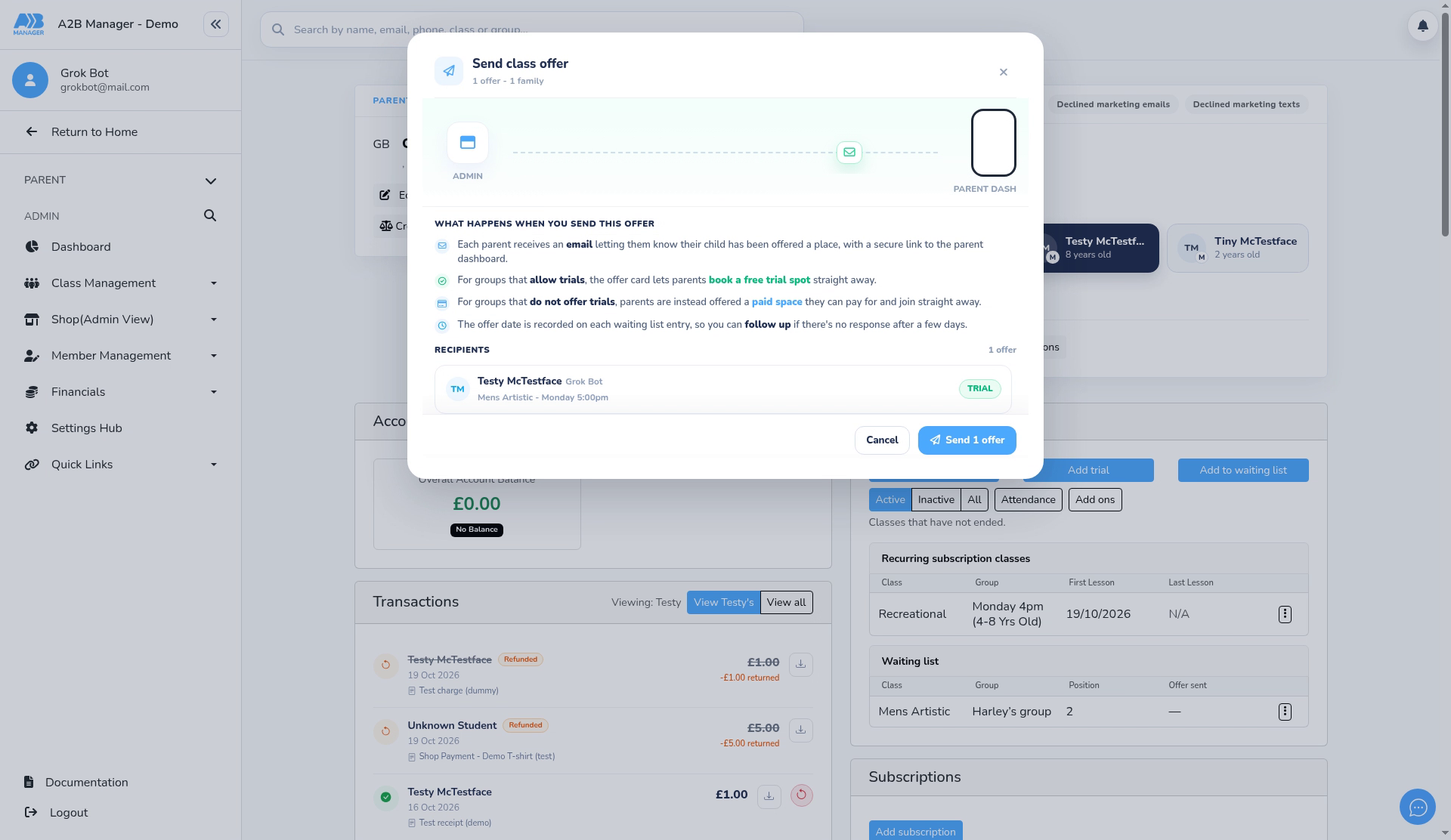
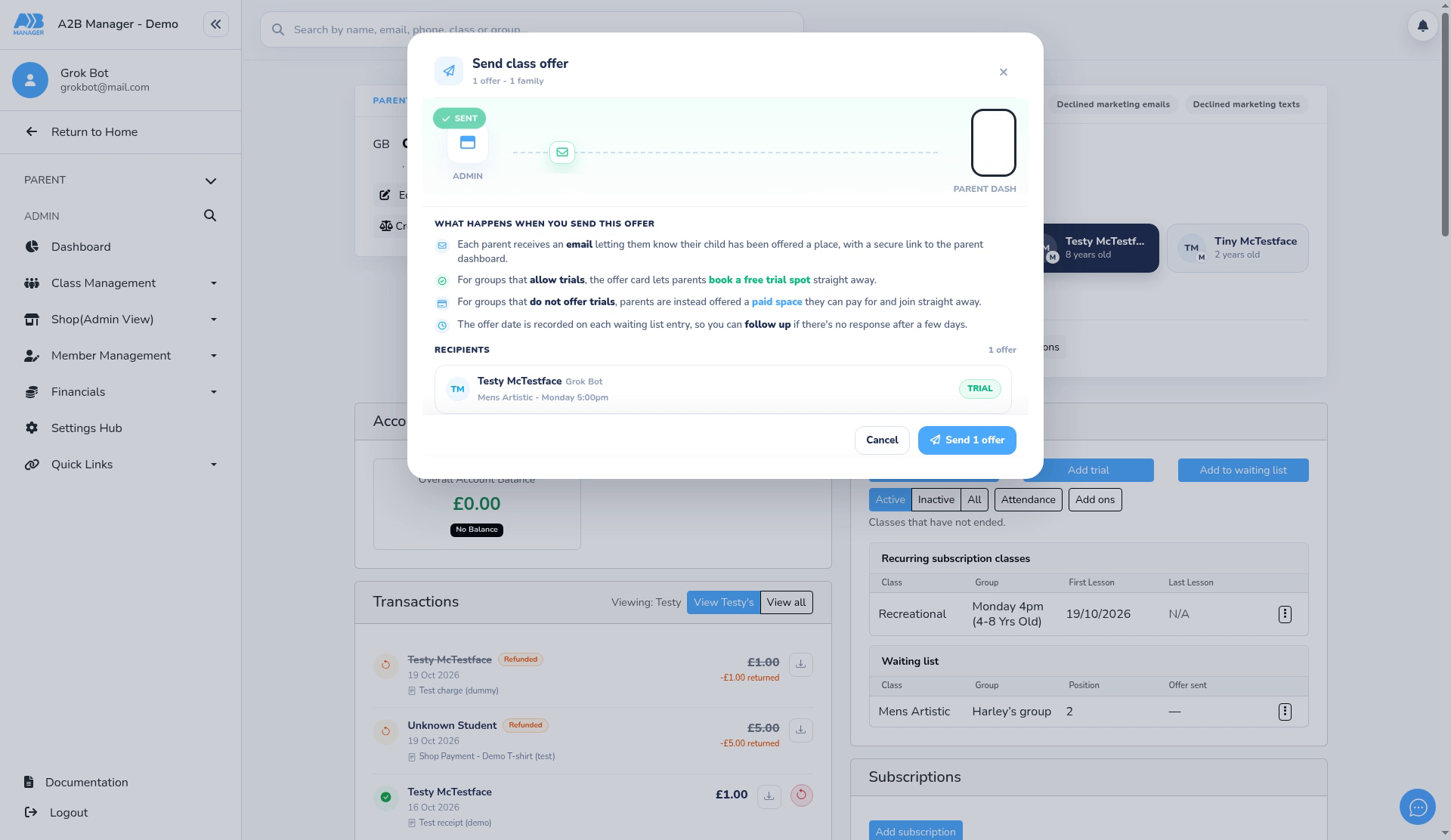
Step 3: Check the offer (0:11) #
- The Send class offer window explains what happens and lists each recipient.
- The tag next to the child shows what they’ll be offered: TRIAL or OFFER.
- Click Send 1 offer.
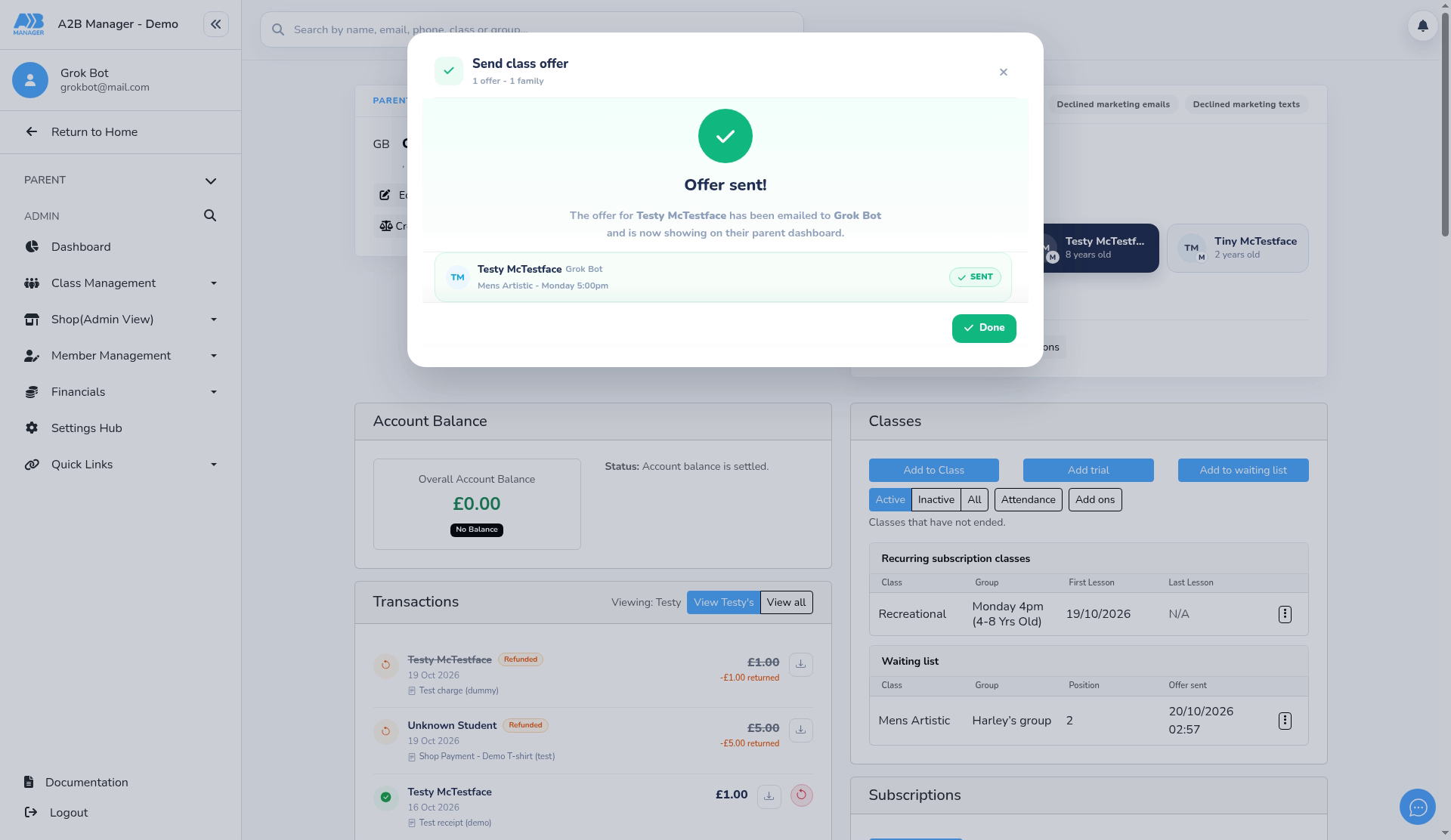
Step 4: Offer sent (0:20) #
- You’ll see Offer sent!: the offer has been emailed to the parent and is showing on their parent dashboard. Click Done.
- The row’s Offer sent column now shows the date and time.
Which email is sent #
- There’s one Send class offer window for both cases. Each recipient is tagged TRIAL or OFFER.
- TRIAL: the group has a trial price set (shown as Trial on the class page) and the child isn’t already on a trial in that group. The Offer a trial email is sent, and the parent’s dashboard card lets them book a trial.
- OFFER: the group has no trial price, or the child has already had a trial there. The Invited To Join email is sent, and the parent can pay for a place and join straight away.
- Term groups use their own templates instead: Term Invited To Trial and Term Invited To Join.
- Edit the wording under Settings Hub > Email Templates. The default trial email still contains the placeholder text (Session, days, times, address), and the default join email contains (class day times etc ), so replace these with your own details.
The email #
- The default Offer a trial email says the child has been offered to book a trial for the class below, followed by the class, group and a booking link.
After the offer #
- The waiting list row shows the date and time in Offer sent, so you can follow up if there’s no reply.
- The offer stays on the parent’s dashboard until they accept or decline it. Deleting the child from the waiting list does not remove the offer.


