

You set your term dates once for the whole club. Your term-based classes use the current term’s name and dates, and registers use the term you’re in (or the next one if you’re between terms). When you add a term, you can also choose to charge existing members for it automatically on a payment date, either from their saved card or by emailing them an invoice.
Adding a term #
Step 1: Open Terms (0:00) #
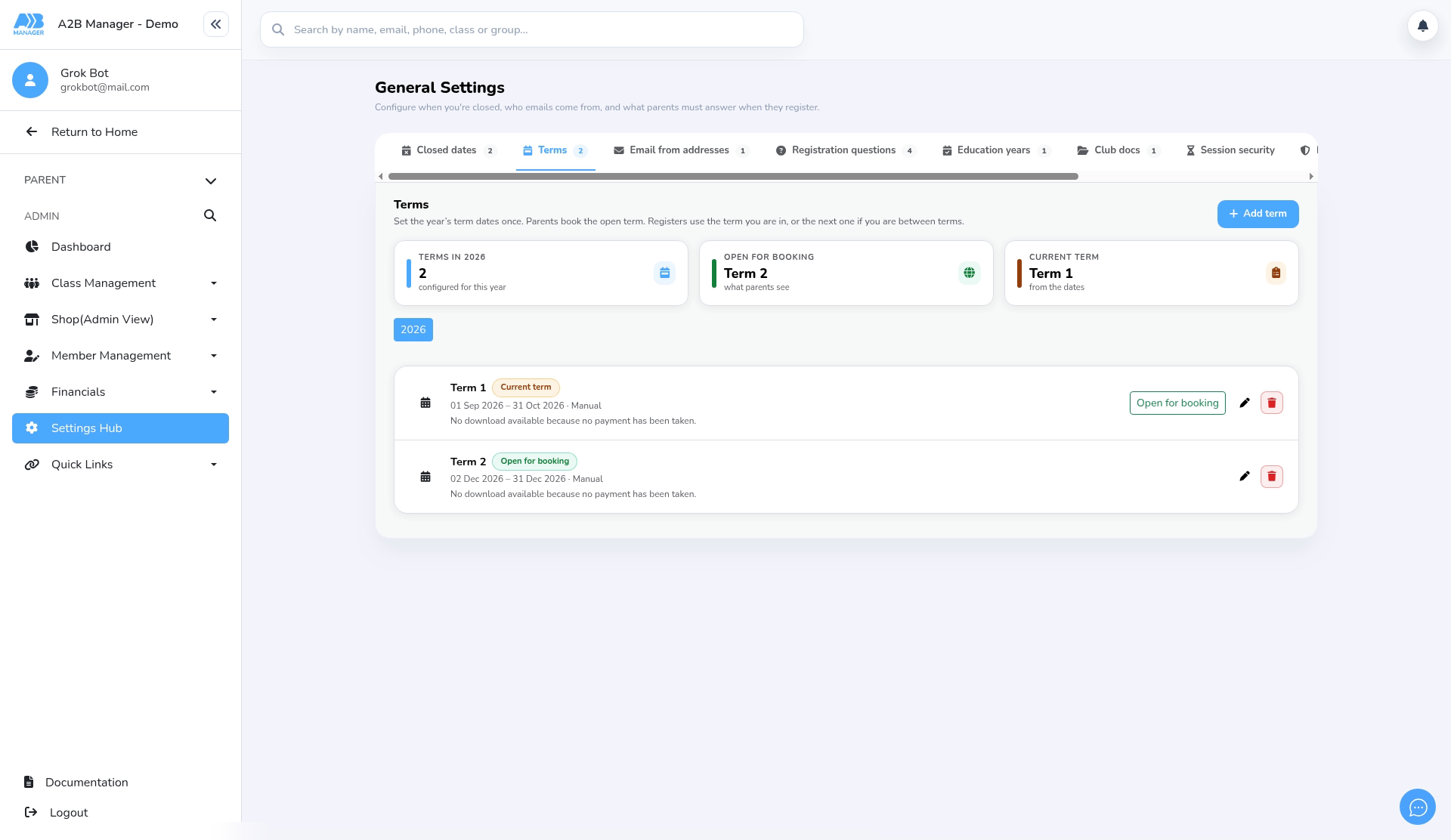
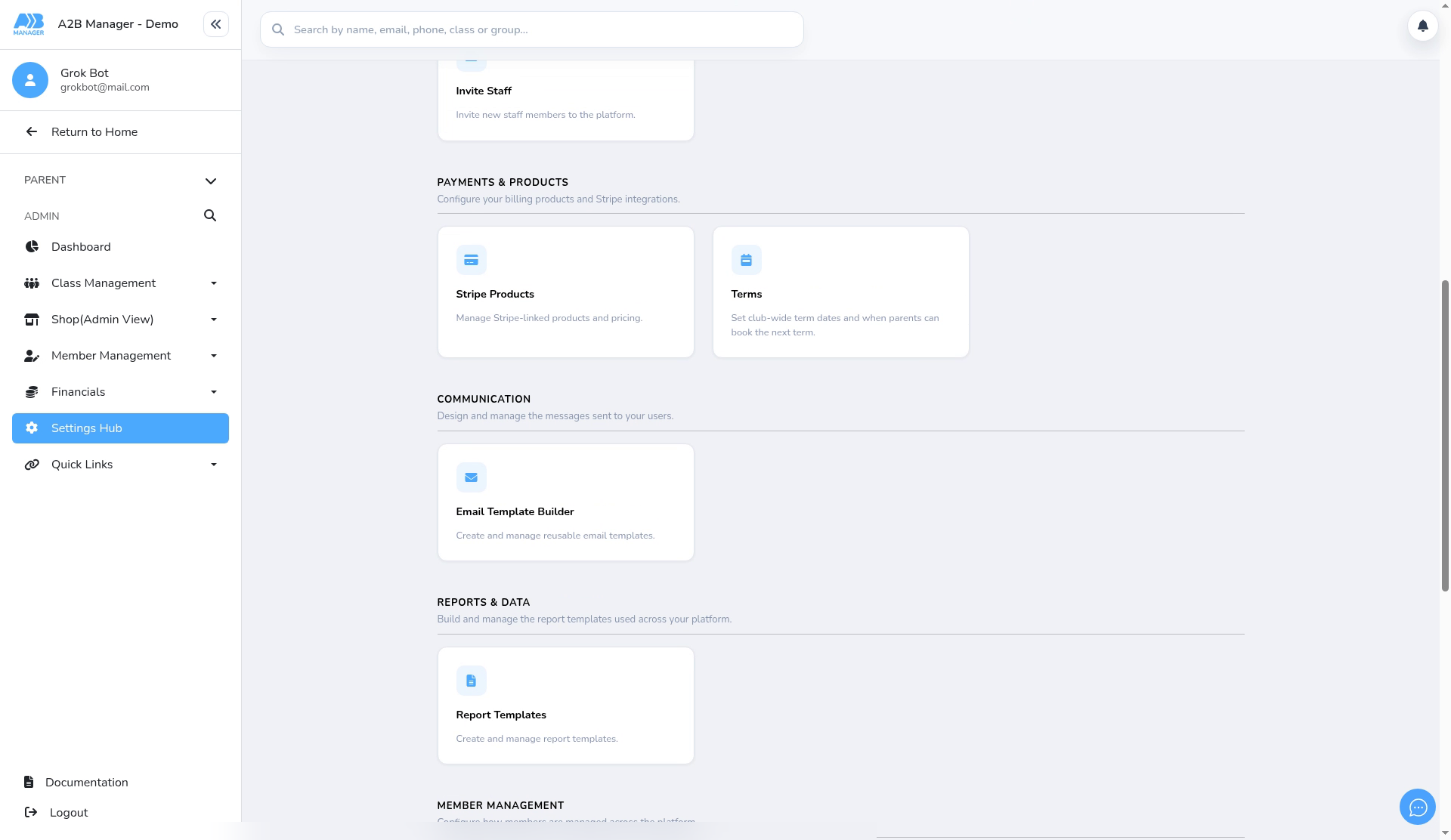
- In the left-hand menu, click Settings Hub.
- Under Payments & Products, click the Terms card. You can also get there from System Settings > Settings by clicking the Terms tab.
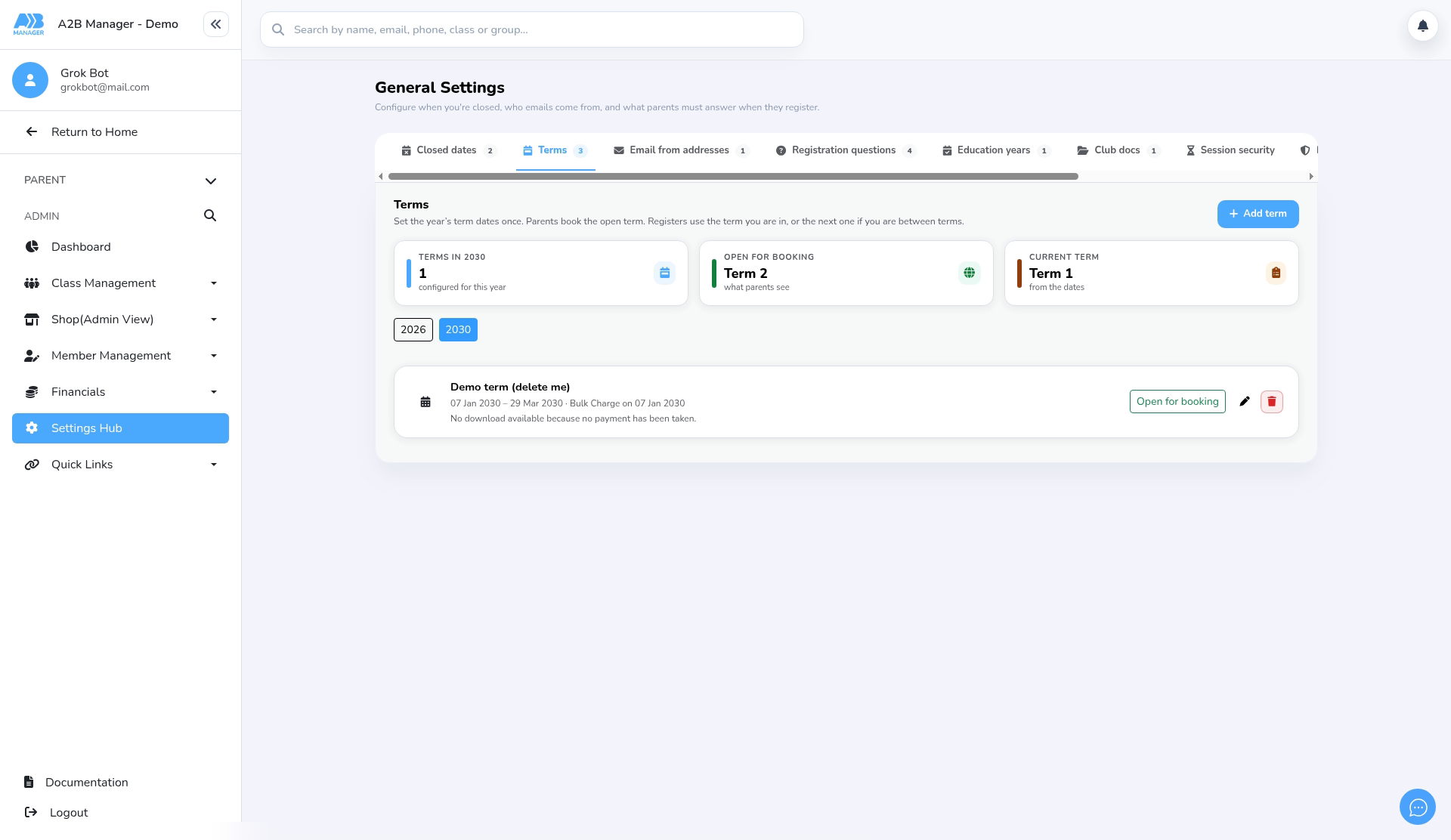
- At the top you’ll see Terms in (the year you’re viewing), Open for booking (the term parents can book) and Current term.
- Current term is the term in progress today. If you’re between terms, it’s the next one. Registers and your term-based classes use this term’s name and dates.
- In the list, terms are labelled Current term or Open for booking. To choose which term parents book, see How to Open the Next Term for Booking.
Step 2: Add the term details (0:23) #
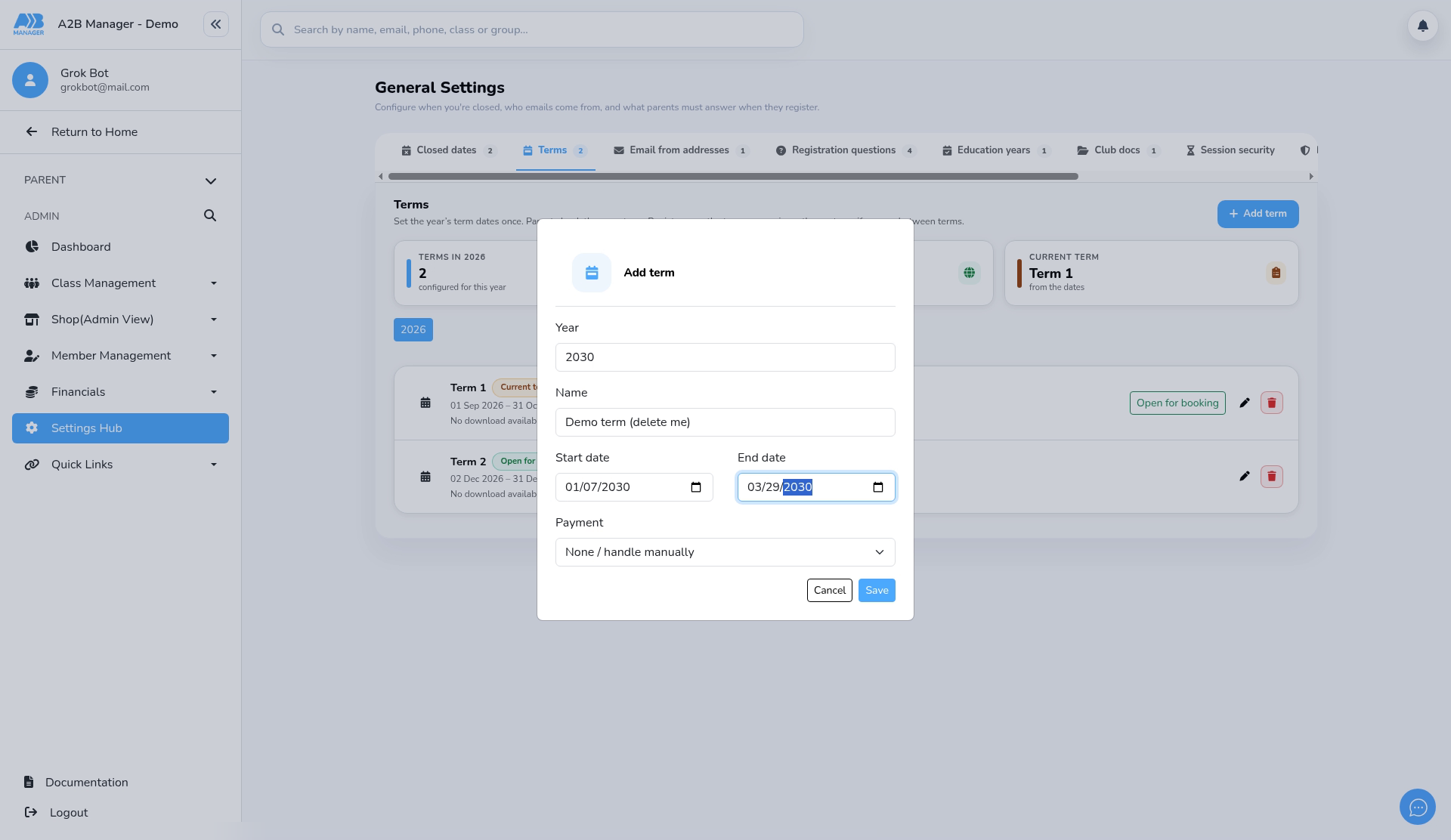
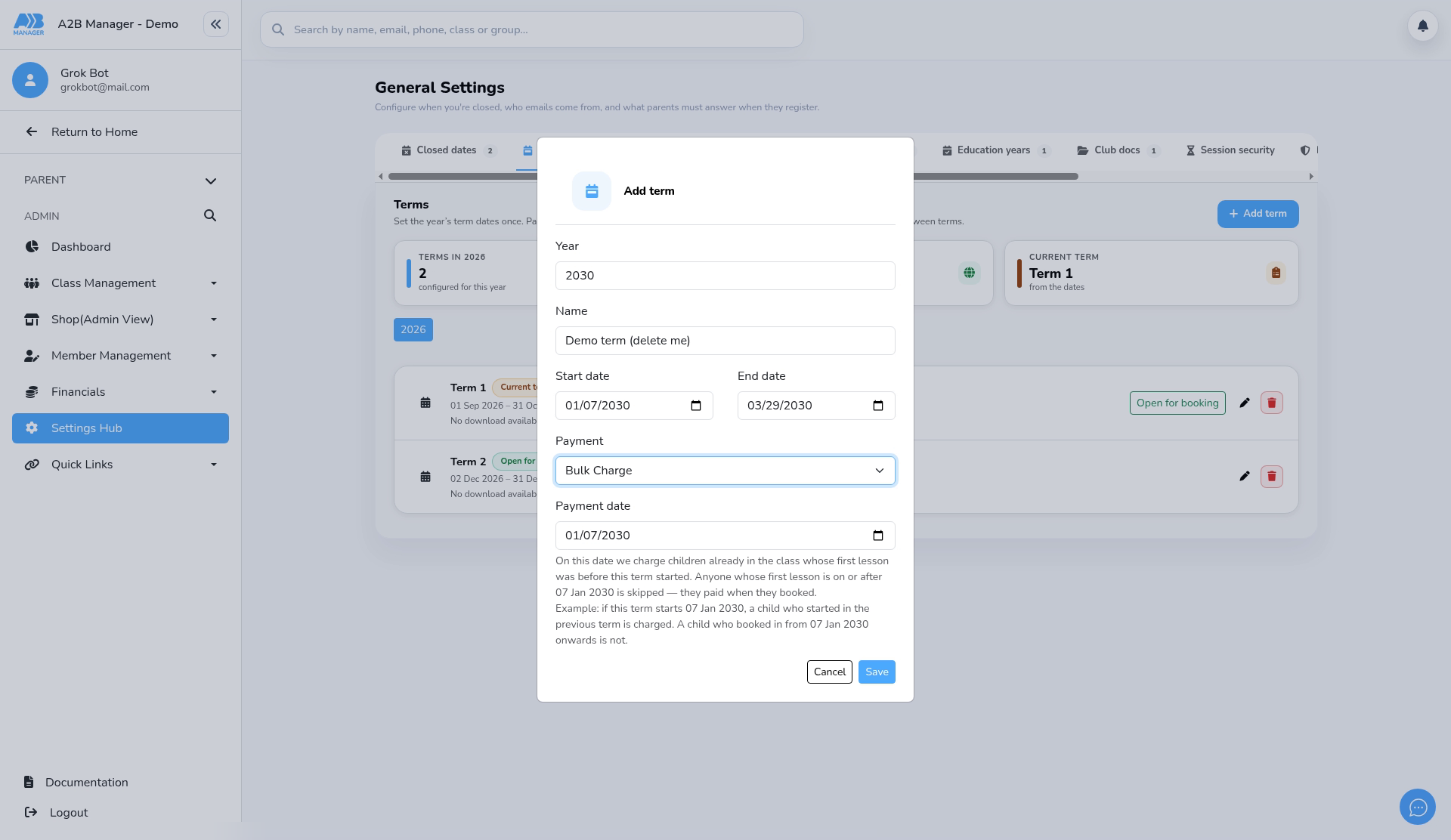
- Click + Add term.
- Year: this is filled in with the year you’re viewing. Change it if the term belongs to another year.
- Name: enter a name parents and staff will recognise, such as Spring term. It’s filled in with the next term number to start you off.
- Start date and End date: choose the first and last day of the term. The date boxes follow your browser’s date format, so UK users see dd/mm/yyyy. Our demo browser used mm/dd/yyyy.
- Terms can’t overlap. If the dates clash with another term, you’ll see These dates overlap another term. Terms cannot share the same dates.
Step 3: Choose how to charge (0:58) #
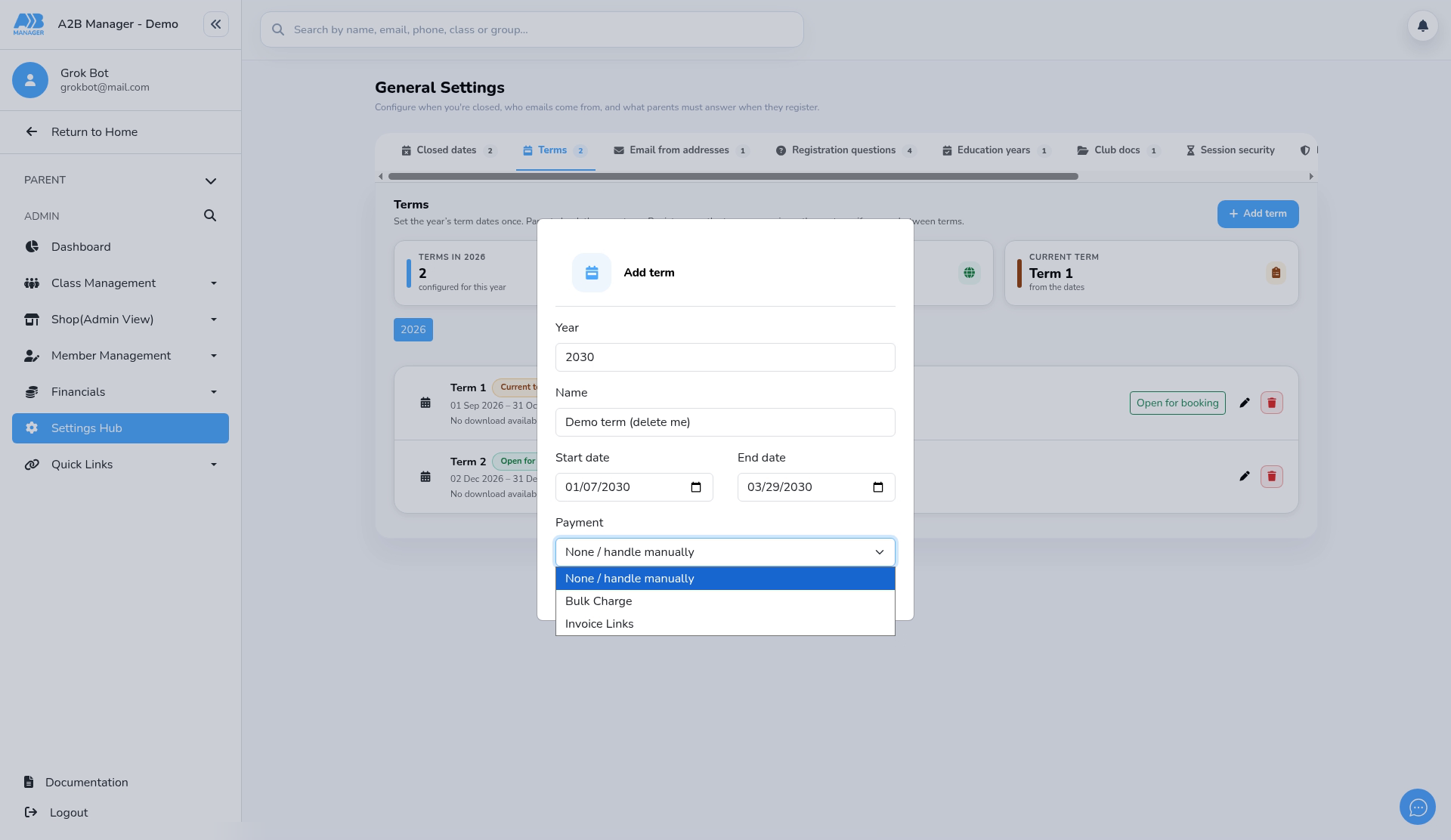
- Under Payment, choose one of:
- None / handle manually: nothing is charged automatically. Take payment for the term yourself.
- Bulk Charge: on the payment date, each parent’s saved card is charged for the term. If a parent has no saved card or the card payment fails, they’re emailed a Stripe invoice instead. Parents whose card is charged also get your Bulk Charge Success email (Email Template Builder > Member Management), if that template is switched on.
- Invoice Links: on the payment date, each parent is emailed a Stripe invoice for the term, due the next day.
- Who’s charged: children already in your term-based classes whose first lesson was before the term’s start date. Children who start on or after the start date aren’t charged, because they paid when they booked. Children who have left the class before the payment date aren’t charged either.
- How much: the full term, made up of each session in the term at its session price. Dates you’ve fully closed are left out. Dates closed for new bookings only still count, because existing members still attend.
Step 4: Pick the payment date (1:29) #
- When you choose Bulk Charge or Invoice Links, a Payment date box appears. Choose the date the charges or invoices should go out.
- The earliest date you can choose is tomorrow. Earlier dates show Choose a payment date from [date] onwards.
- The text under the box explains who’s charged, using your term’s start date. For example: On this date we charge children already in the class whose first lesson was before this term started. Anyone whose first lesson is on or after 07 Jan 2030 is skipped — they paid when they booked.
- Charges and invoices run automatically early in the morning on the payment date.
Step 5: Save the term (1:52) #
- Click Save. Saving doesn’t charge or email anyone. Nothing happens until the payment date.
- The list shows one year at a time. If you added a term for another year, click that year’s button above the list to see it.
- Each term shows its dates and payment plan, for example 07 Jan 2030 – 29 Mar 2030 · Bulk Charge on 07 Jan 2030. Terms with no automatic payment show Manual.
- Until a payment has been taken, the term shows No download available because no payment has been taken. After the payment date, a download button (Download payment record) appears. It gives you a spreadsheet (CSV) listing each child, their class and group, the method, the date and the result: Successful, Email sent or Failed.
- If anything is missing or wrong when you save, you’ll see Check the name, dates, and payment date, then try again. Terms cannot overlap.
Step 6: Edit or delete a term (2:12) #
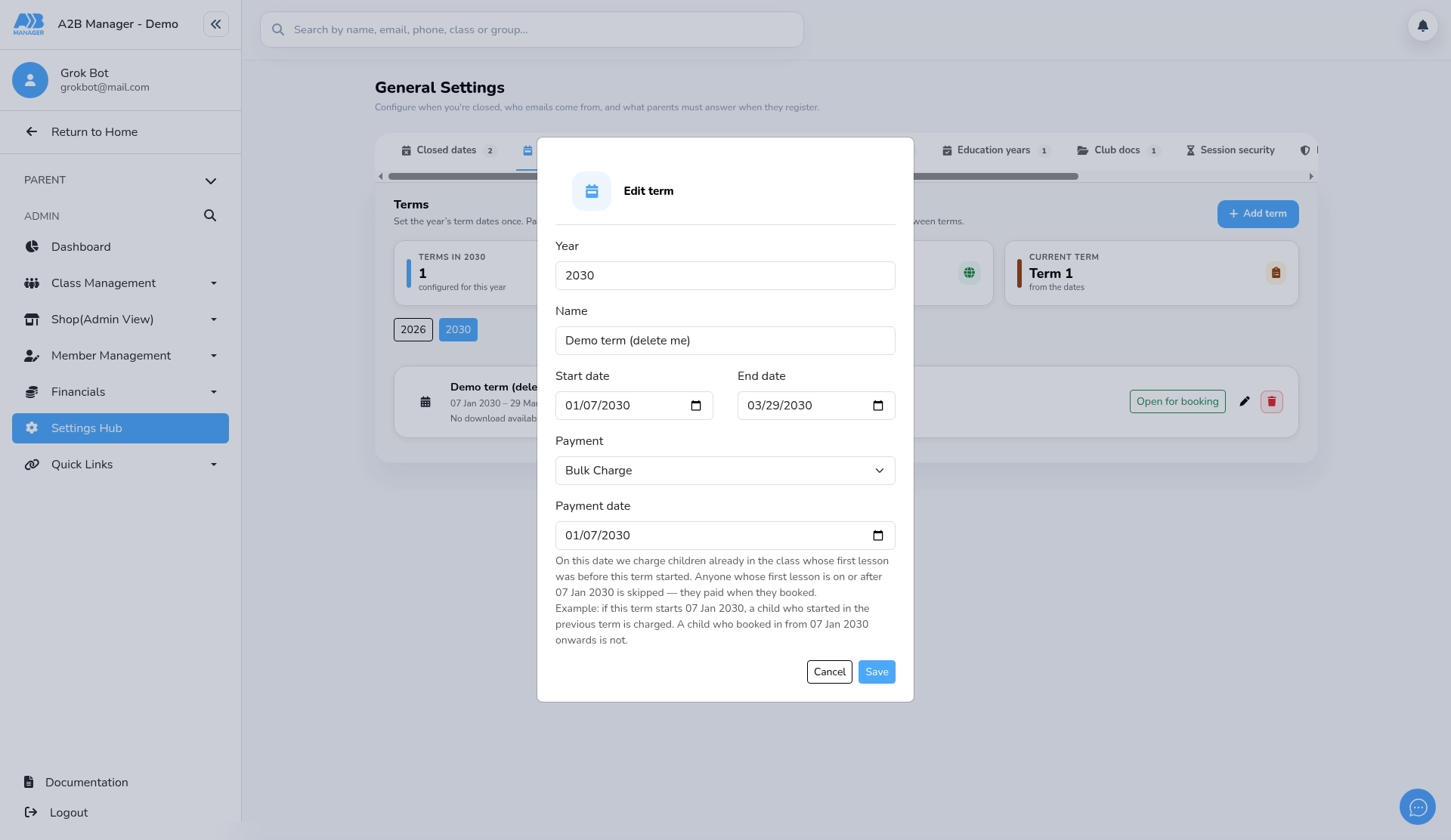
- To change a term, click its pencil icon. Make your changes in Edit term and click Save, or click Cancel to close without changes.
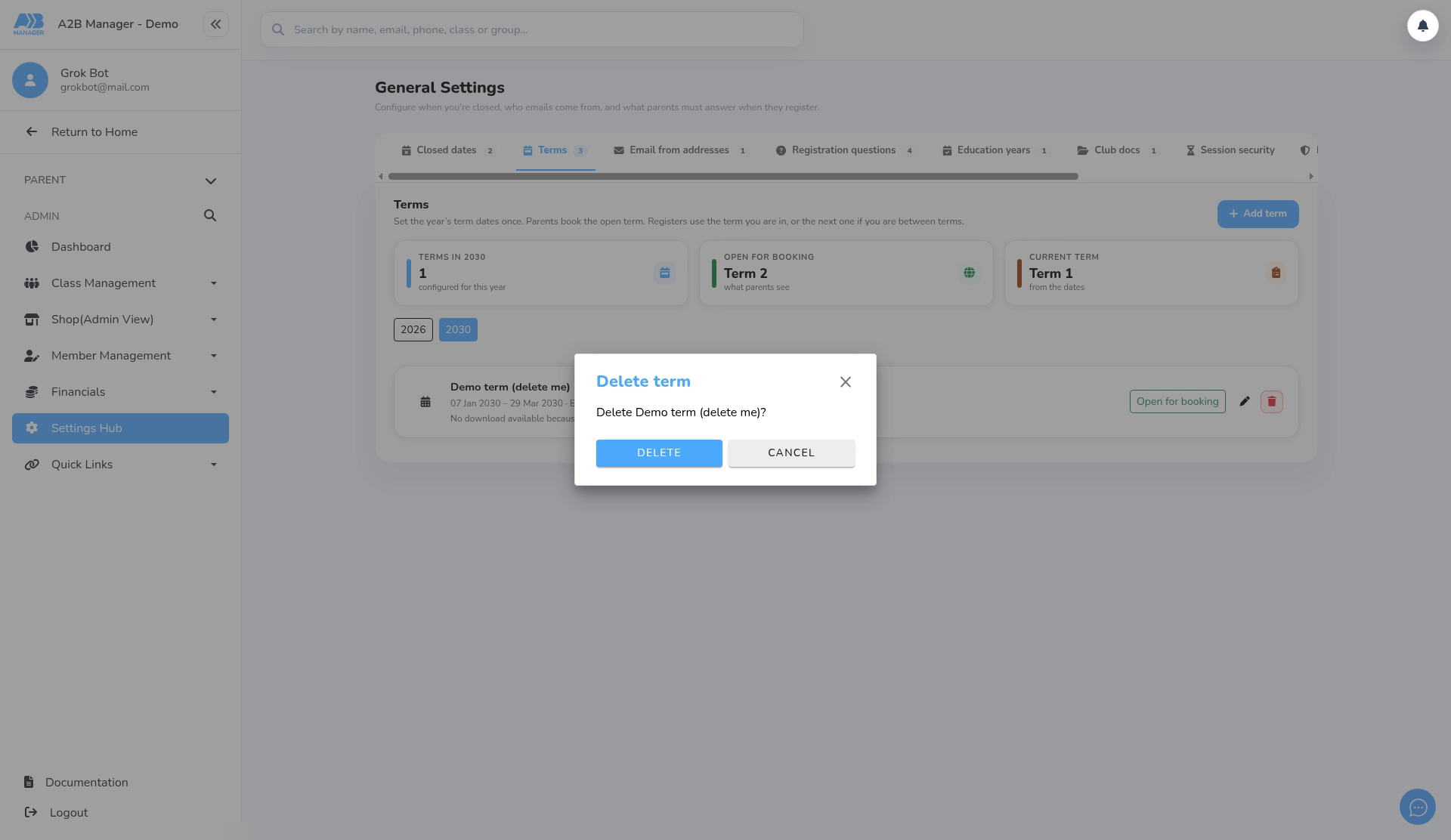
- To remove a term, click its bin icon. The Delete term box asks Delete [term name]? Click Delete, or Cancel to keep it.
- Deleting a term also removes its payment date, so nothing is charged for it, and removes its payment record.
Warning: Deleting a term is permanent and can’t be undone. It removes the term’s dates, its payment date and its saved payment record (the report of who was charged or emailed). It does not refund payments that have already been taken. Check the term carefully before you delete it.
Good to know #
- Important: don’t change the Payment option or Payment date of a term that has already been charged (one with a payment record to download). Changing either one sets the term up to charge again, so parents could be charged or invoiced a second time on the new date, and the term’s payment record is cleared.
- Term charging covers all of your term-based classes at once, so check the dates and payment date carefully before you save.
- Your term-based classes take their term name and dates from the current term, so adding, editing or deleting terms can change what those classes show.
- The setup wizard also lets you add terms. They appear in the same list.
Tip: Add all of the year’s terms in one go, each with its own payment date. Charges then go out automatically through the year.
FAQs #
- Does saving a term charge parents? No. Charges and invoices only go out early in the morning on the payment date.
- What if a parent has no saved card? With Bulk Charge, they’re emailed a Stripe invoice instead.
- Are new joiners charged again? No. Children whose first lesson is on or after the term’s start date paid when they booked, so they’re skipped.
- Can I pick today as the payment date? No. The earliest is tomorrow.
- How do I see who paid? After the payment date, click the download button on the term to get the payment record.


