

Table of Contents
- Transferring members
- Step 1: Open the group (0:00)
- Step 2: Tick the members (0:15)
- Step 3: Choose Member Transfer (0:23)
- Step 4: Pick the last lesson date (0:33)
- Step 5: Choose the destination group (0:46)
- Step 6: Check the start date and summary (0:58)
- Step 7: Transfer and confirm (1:10)
- Step 8: Or start from the member's profile (1:21)
- Billing
- Emailing parents
- Good to know
- FAQs
A transfer moves one or more members from their current group into a new group. You choose their last lesson in the current group and the date they start in the new one, and A2B Manager updates both groups for you. It’s useful when a child moves up a level, changes day, or needs a different time slot.
Transferring members #
Step 1: Open the group (0:00) #
- You can start a transfer from two places: the group’s class list on the Classes page (steps 1 to 7), or the member’s profile (step 8). Both open the same Transfer Members window.
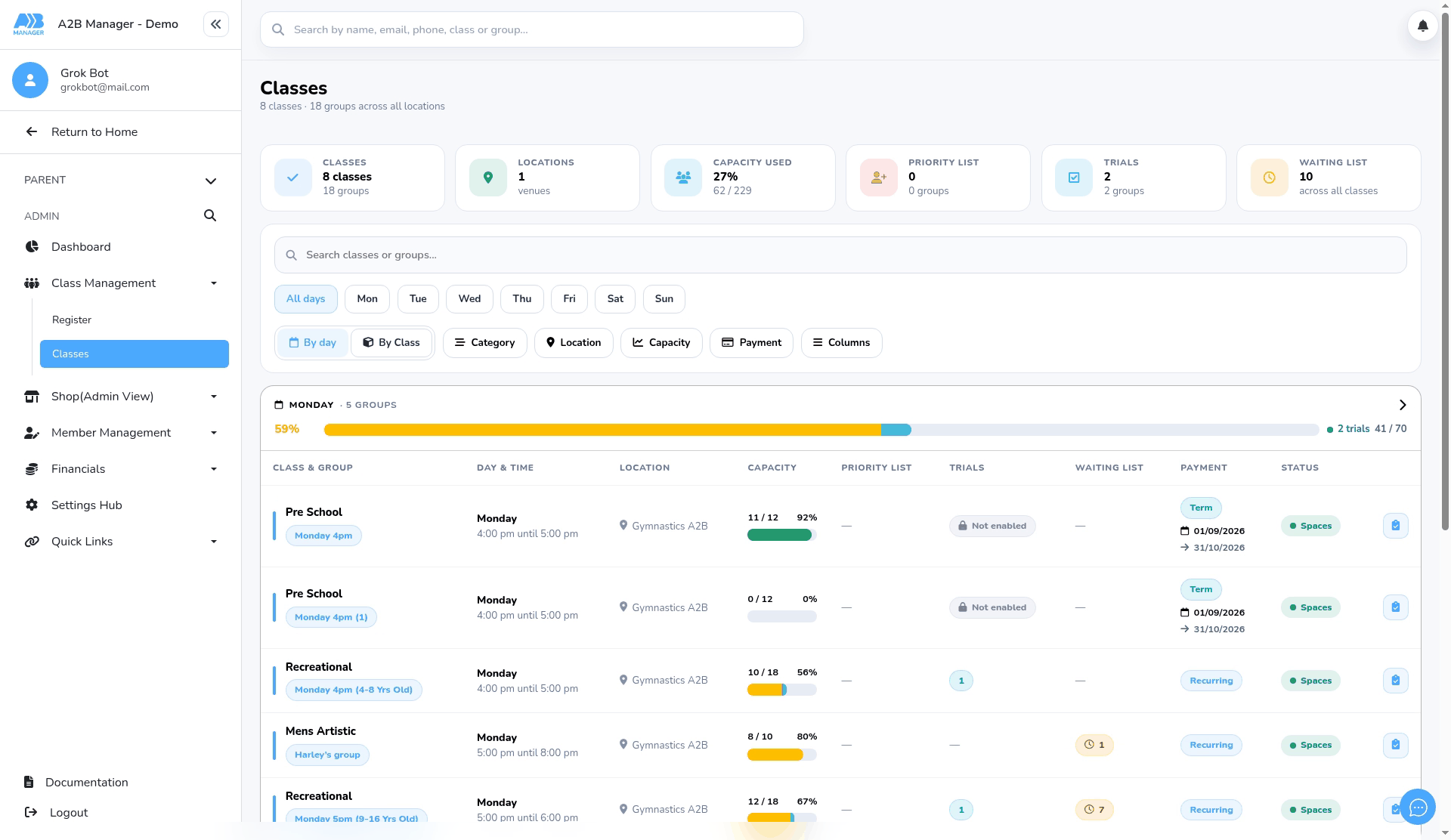
- In the left-hand menu, open Class Management and click Classes.
- Click the group the member is leaving, for example Recreational, Monday 4pm. The group’s Class List opens.
Step 2: Tick the members (0:15) #
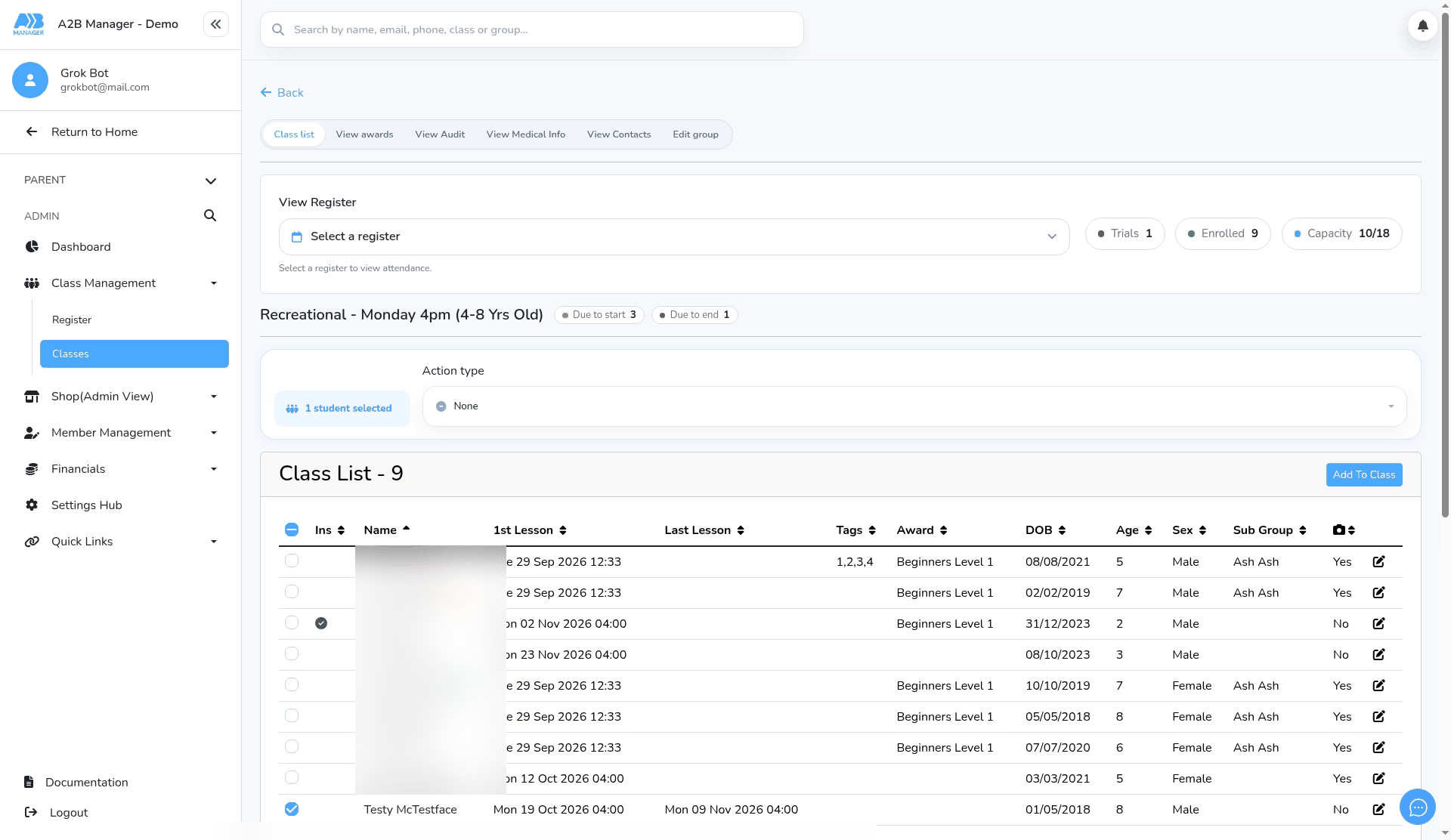
- In the Class List, tick the member you want to move. You can tick several members to move them together.
- The bar above the list shows how many are selected, for example 1 student selected.
Step 3: Choose Member Transfer (0:23) #
- Open Action type and choose Member Transfer.
- The Transfer Members window opens.
Step 4: Pick the last lesson date (0:33) #
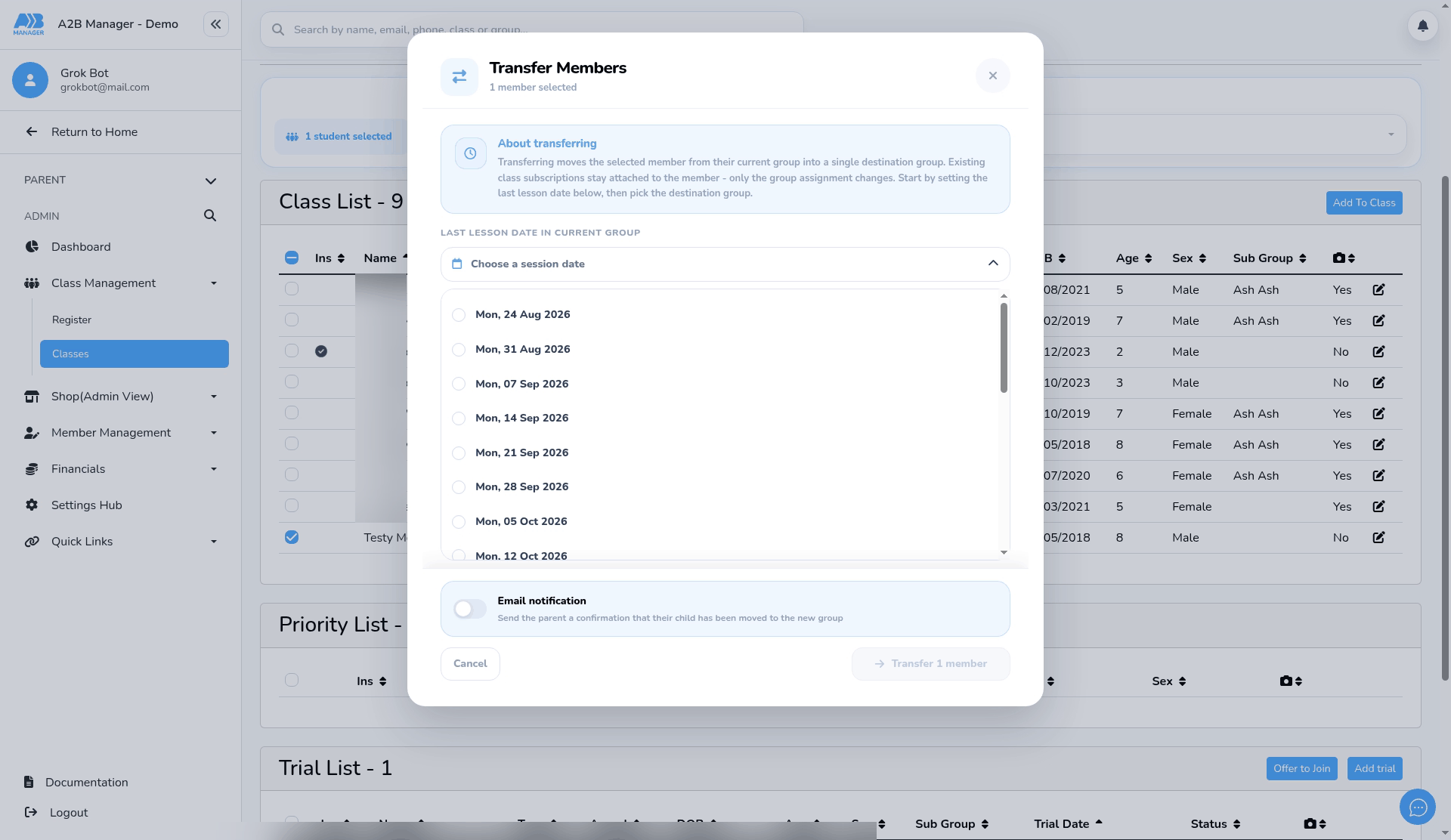
- Open Last lesson date in current group and pick the member’s final session in this group.
- Always pick an upcoming date. The list also shows past sessions, so check you’ve picked one under Upcoming sessions.
Step 5: Choose the destination group (0:46) #
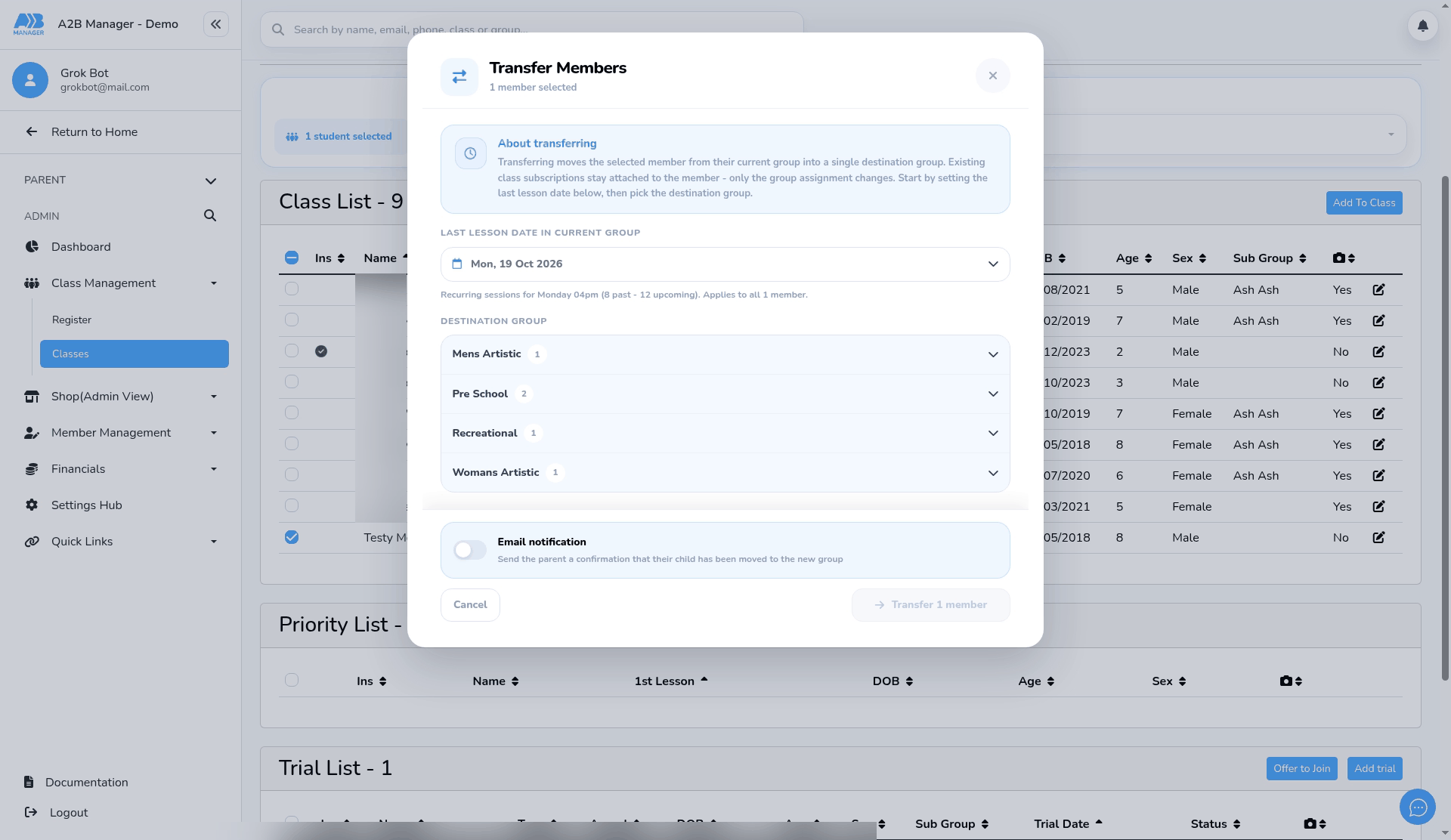
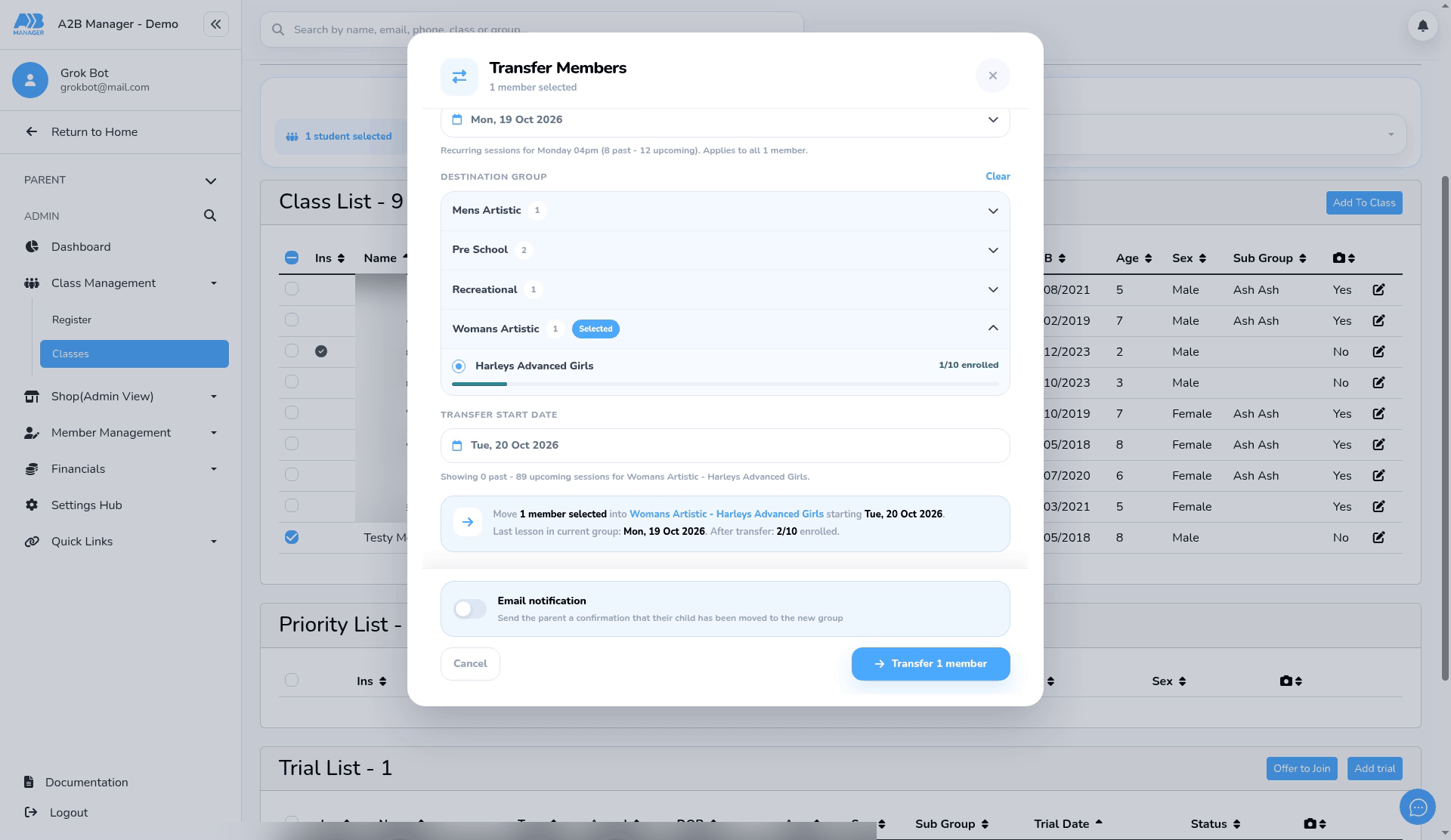
- Under Destination group, expand the class and click the new group.
- The bar under each group shows how many places are taken, for example 1/10 enrolled.
- Multi-event and pay-as-you-go (PAYG) groups can’t currently be chosen as destinations.
Step 6: Check the start date and summary (0:58) #
- Transfer start date defaults to the first session after the last lesson date. Change it if you need to, but pick an upcoming date.
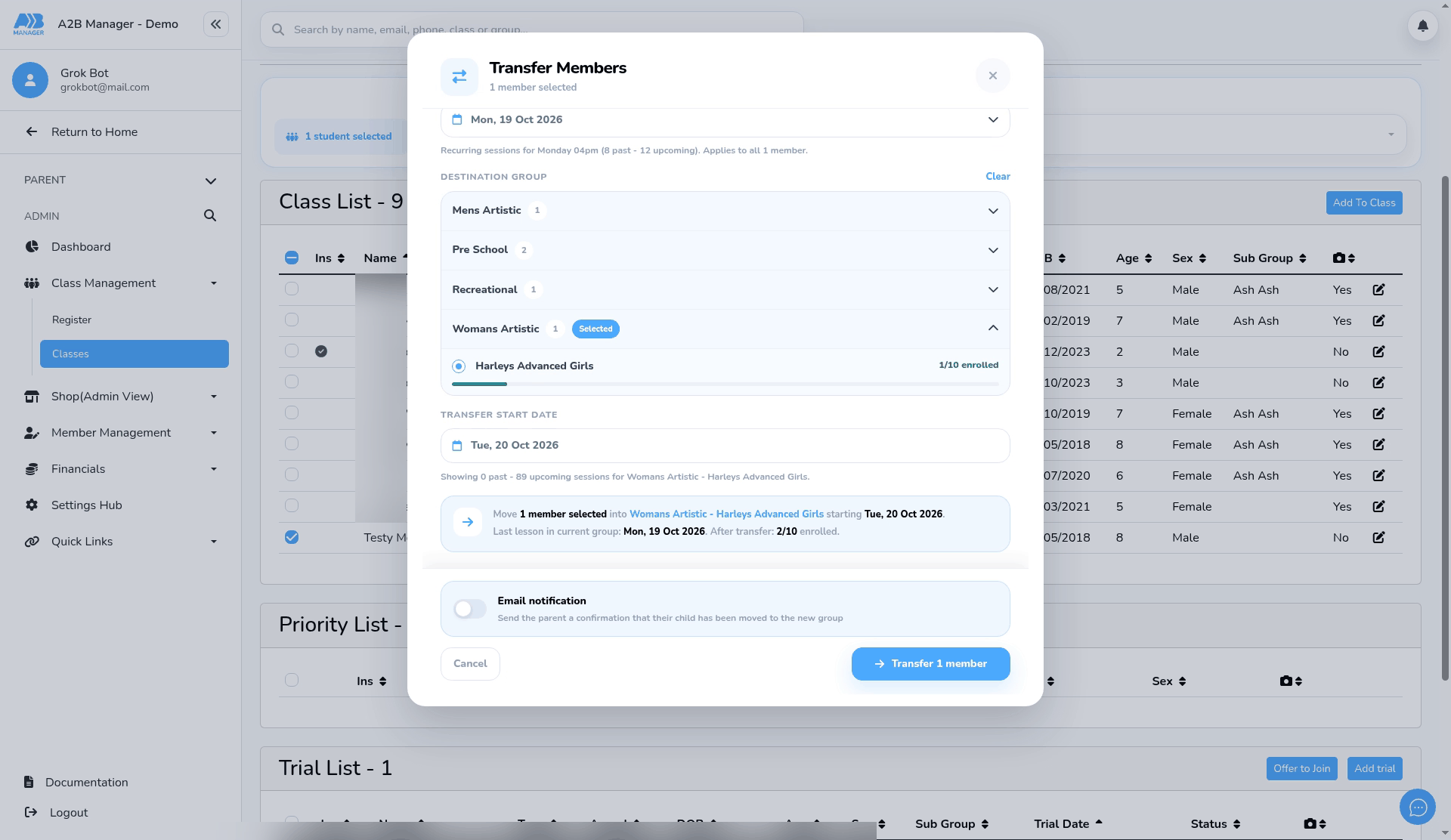
- The summary shows who is moving, the new group, the start date and the last lesson in the current group. Check it carefully.
- Leave Email notification off unless you’ve already edited the Move To Class email wording (see Emailing parents below).
Step 7: Transfer and confirm (1:10) #
- Click Transfer 1 member (the button shows how many members you’ve selected).
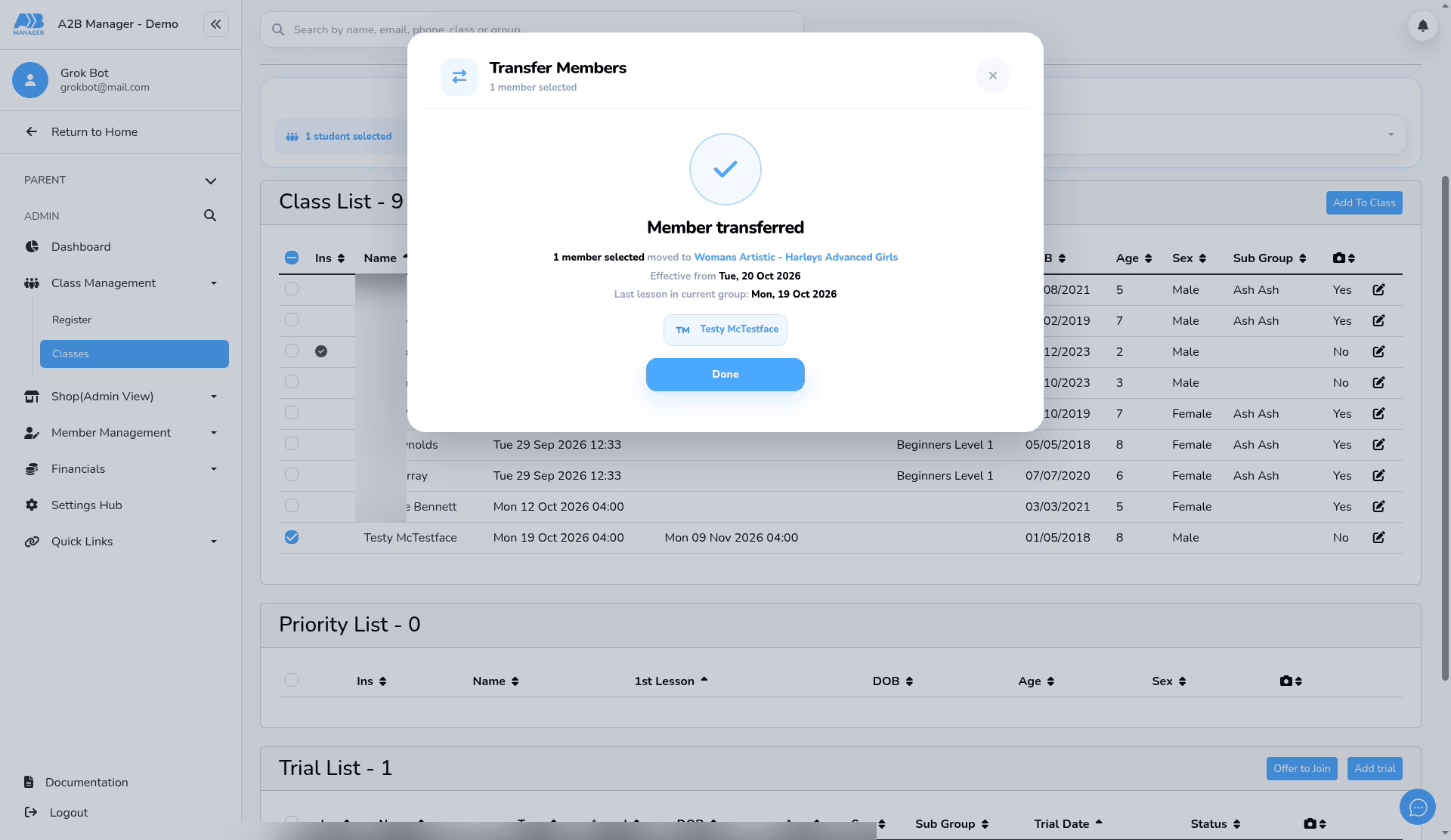
- Member transferred confirms the new group, the date it takes effect and the last lesson in the current group. Click Done.
Step 8: Or start from the member’s profile (1:21) #
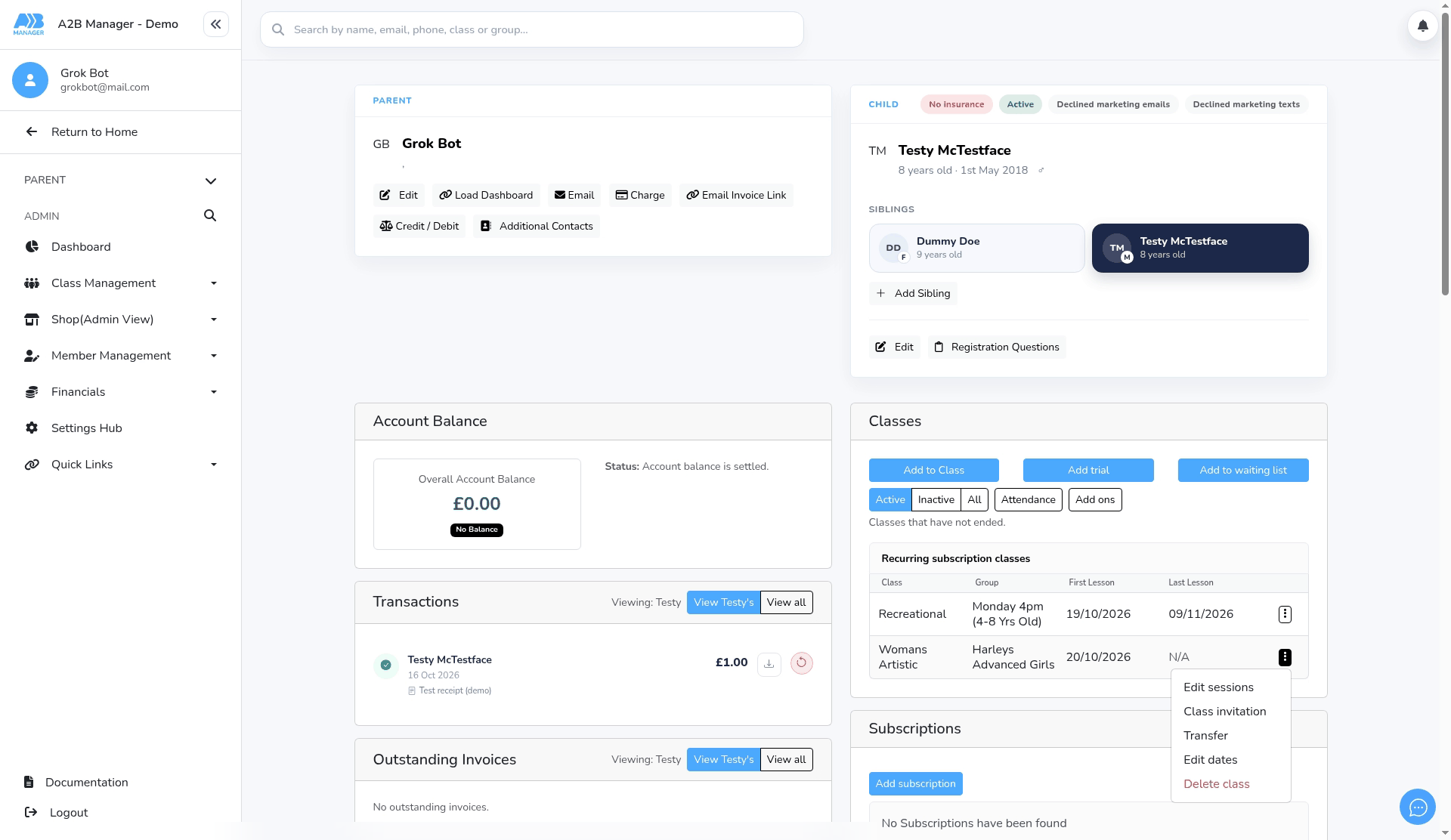
- Open the member’s profile. In the Classes section, click the menu on the class row you want to move them from.
- Choose Transfer. The same Transfer Members window opens for that member, so follow steps 4 to 7.
Billing #
- A transfer doesn’t change billing. The member’s existing subscription carries on at the same price.
- If the new group costs a different amount, change the subscription separately in Subscription management.
Emailing parents #
- Ticking Email notification sends each parent the Move To Class email template.
- The same template is also sent when you move a child off a priority list, and its default wording talks about the priority list. Before you tick the email option on a transfer, edit the template’s wording so it makes sense for both.
Good to know #
- Use upcoming dates only, for both the last lesson date and the transfer start date.
- Multi-event and PAYG groups can’t currently be destinations.
- If the member was on a waiting list for the new group, or for other groups in the same class, they’re taken off it.
- There’s no undo. To reverse a transfer, transfer the member back.
Tip: Moving a whole group up a level? Tick all the members who are moving and transfer them in one go.
FAQs #
- Can I move more than one member at once? Yes. Tick them all in the group’s class list before choosing Member Transfer.
- Does the price change? No. Change the subscription in Subscription management if the new group costs a different amount.
- Are parents told? Only if you tick Email notification. Edit the Move To Class template wording first.
- Can I undo a transfer? Not directly. Transfer the member back to their original group instead.


