

Table of Contents
Settings Hub > Settings > Email from addresses
You can verify your club’s whole email domain (for example yourclub.co.uk) instead of confirming each sender address one by one. Once your domain is verified, any address you add at that domain can be used straight away.
Why verify a domain? #
- Emails sent from any address at your domain are authenticated, so fewer of them land in families’ junk folders.
- You don’t need to wait for a confirmation email for each new address.
Before you start #
- You’ll need access to your domain’s DNS settings (usually with the company you bought your domain from, or whoever manages your website).
- If you can’t edit your DNS, choose I can’t edit this domain’s DNS. Add one address instead. and follow Add new email sender address.
Verifying your domain #
Step 1: Open Email from addresses (0:00) #
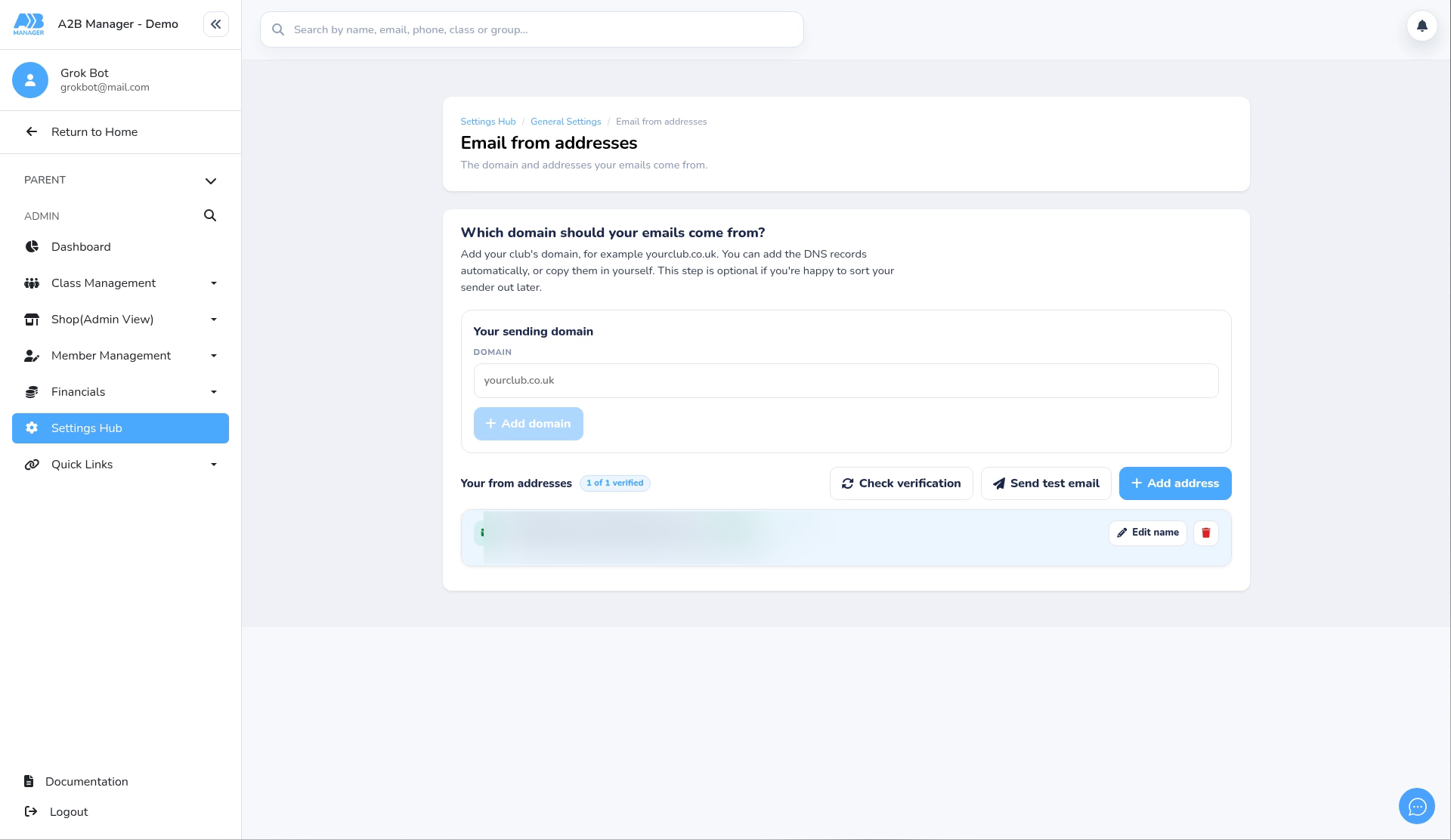
- Go to Settings Hub > Settings and open Email from addresses.
- Under Your sending domain you’ll see the Domain box.
Step 2: Add your domain (0:09) #
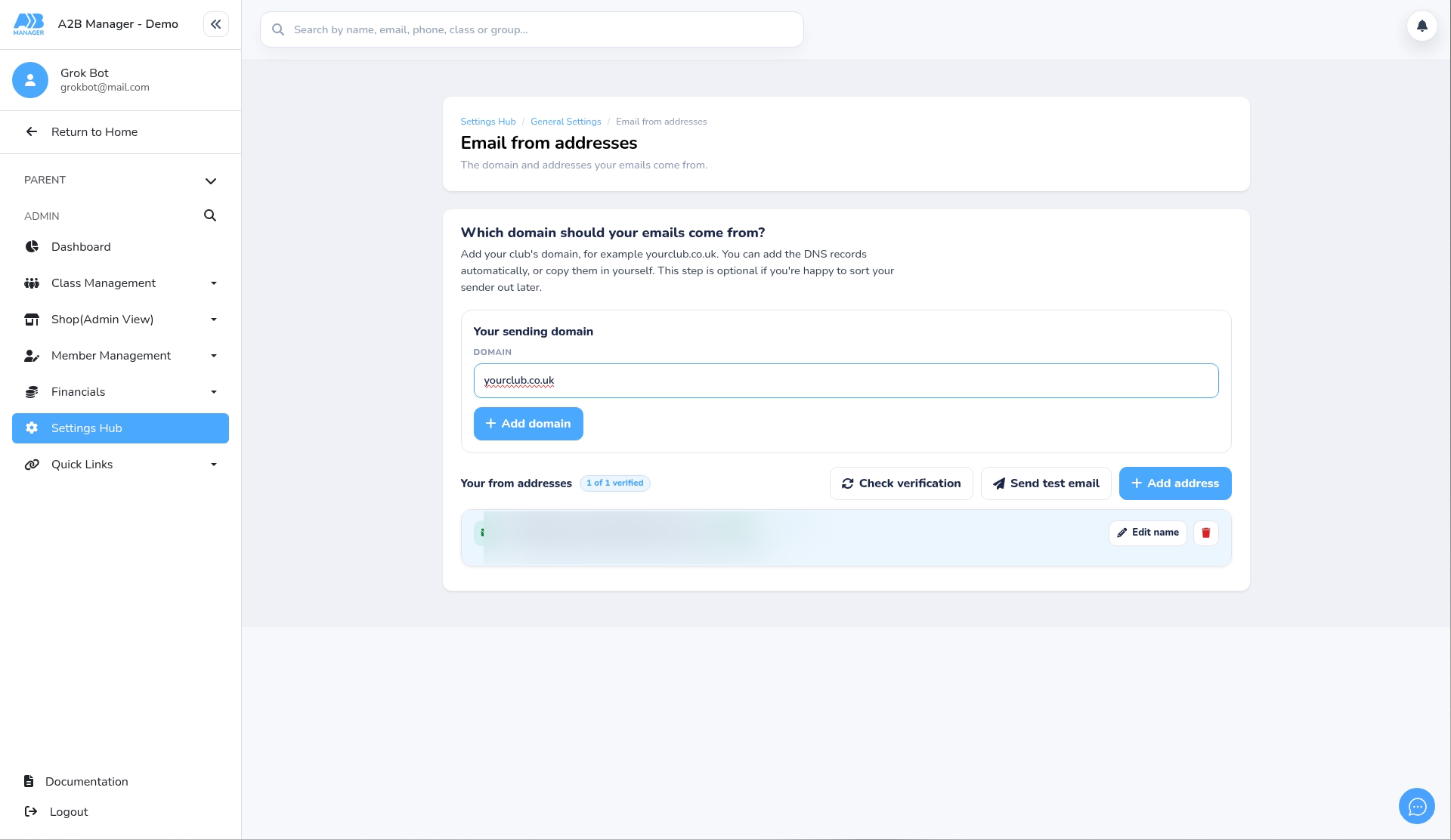
- Type your domain in the Domain box, for example yourclub.co.uk. Enter the domain only, not an email address.
- Click Add domain.
Step 3: Choose how to add the DNS records (0:17) #
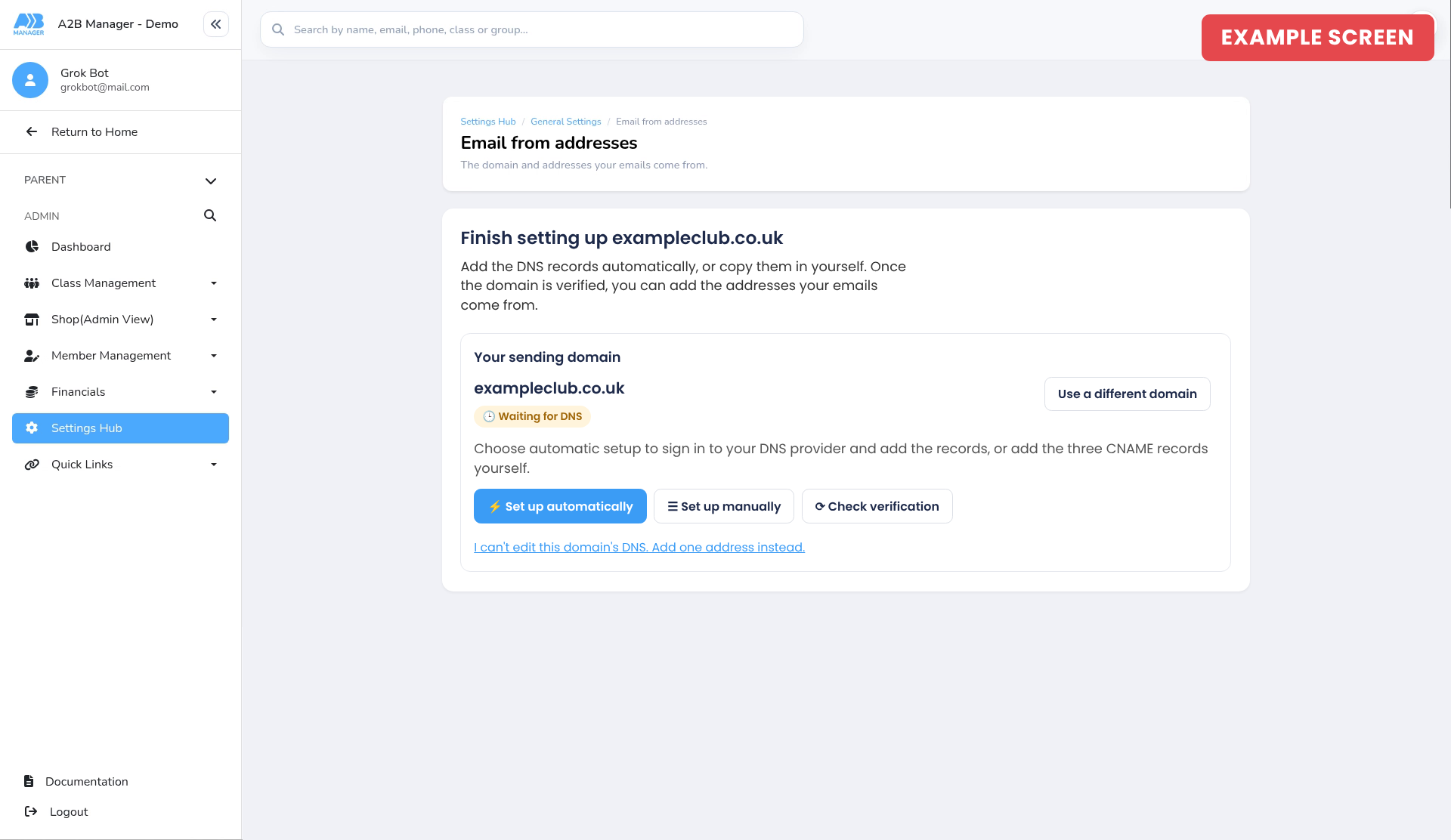
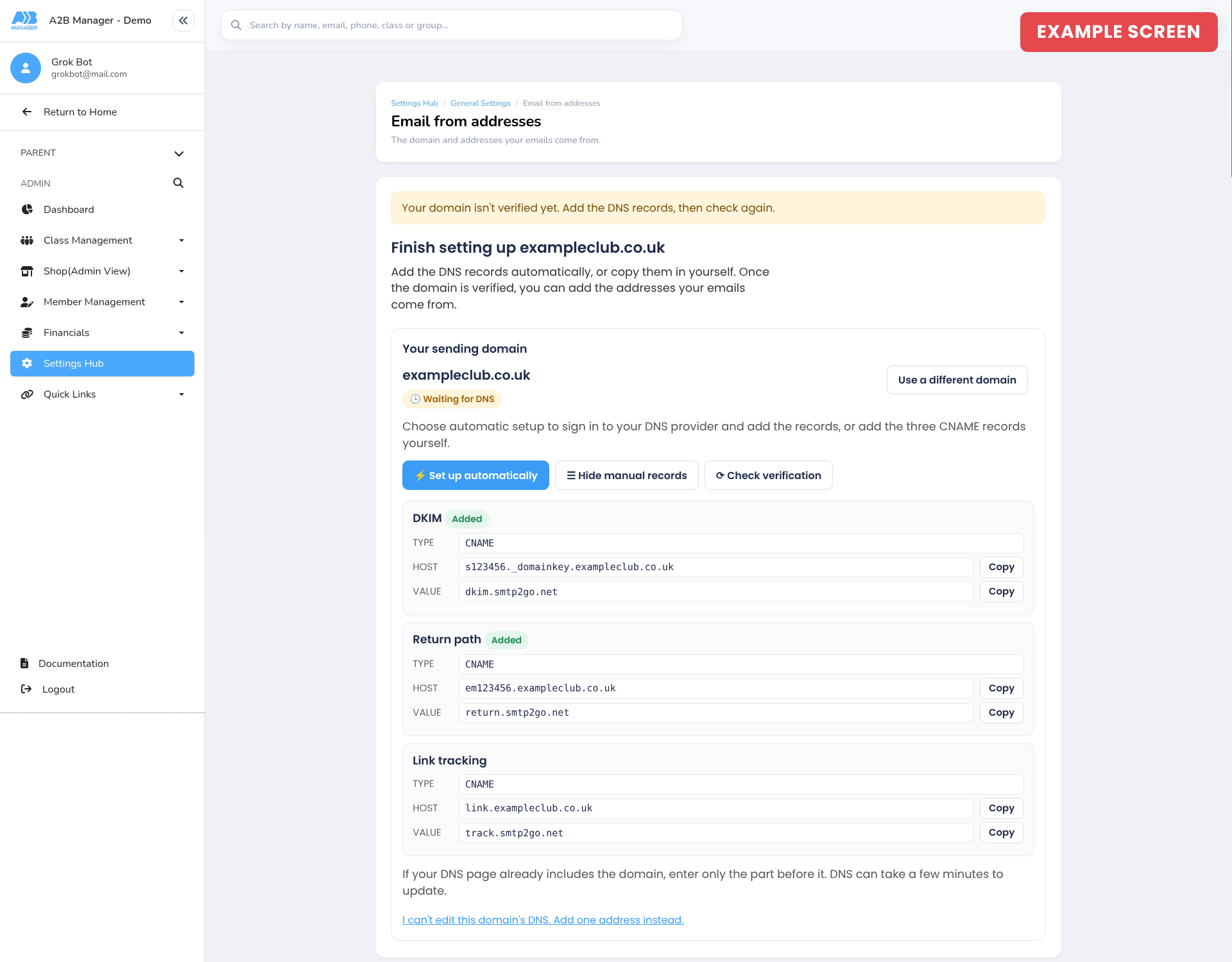
- Your domain now shows Waiting for DNS.
- Set up automatically: if this button shows, click it and sign in to your DNS provider to add the records for you.
- Set up manually: click this to see the records to copy in yourself.
Step 4: Add the three CNAME records (0:27) #
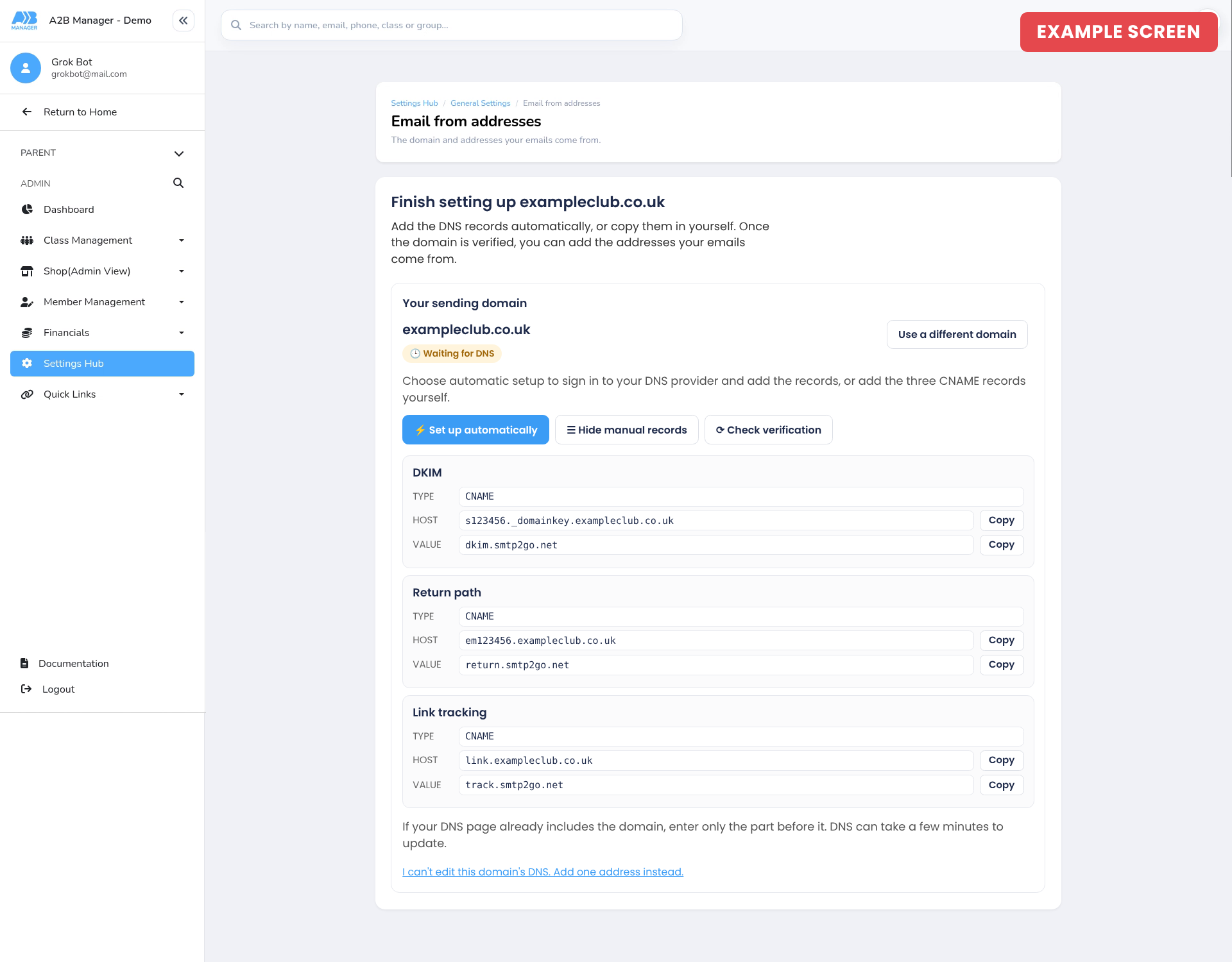
- You’ll see three CNAME records: DKIM, Return path and Link tracking.
- For each one, use the Copy buttons to copy the Host and Value into a new CNAME record in your domain’s DNS settings.
- If your DNS page already adds your domain to the end of the host, enter only the part before it.
Step 5: Check verification (0:27) #
- Back in A2B Manager, click Check verification. Each record shows Added once it’s found.
- If you see “Your domain isn’t verified yet”, wait a little and click Check verification again. DNS can take a few minutes to update, and sometimes longer depending on your domain host.
Step 6: Add your from addresses (0:41) #
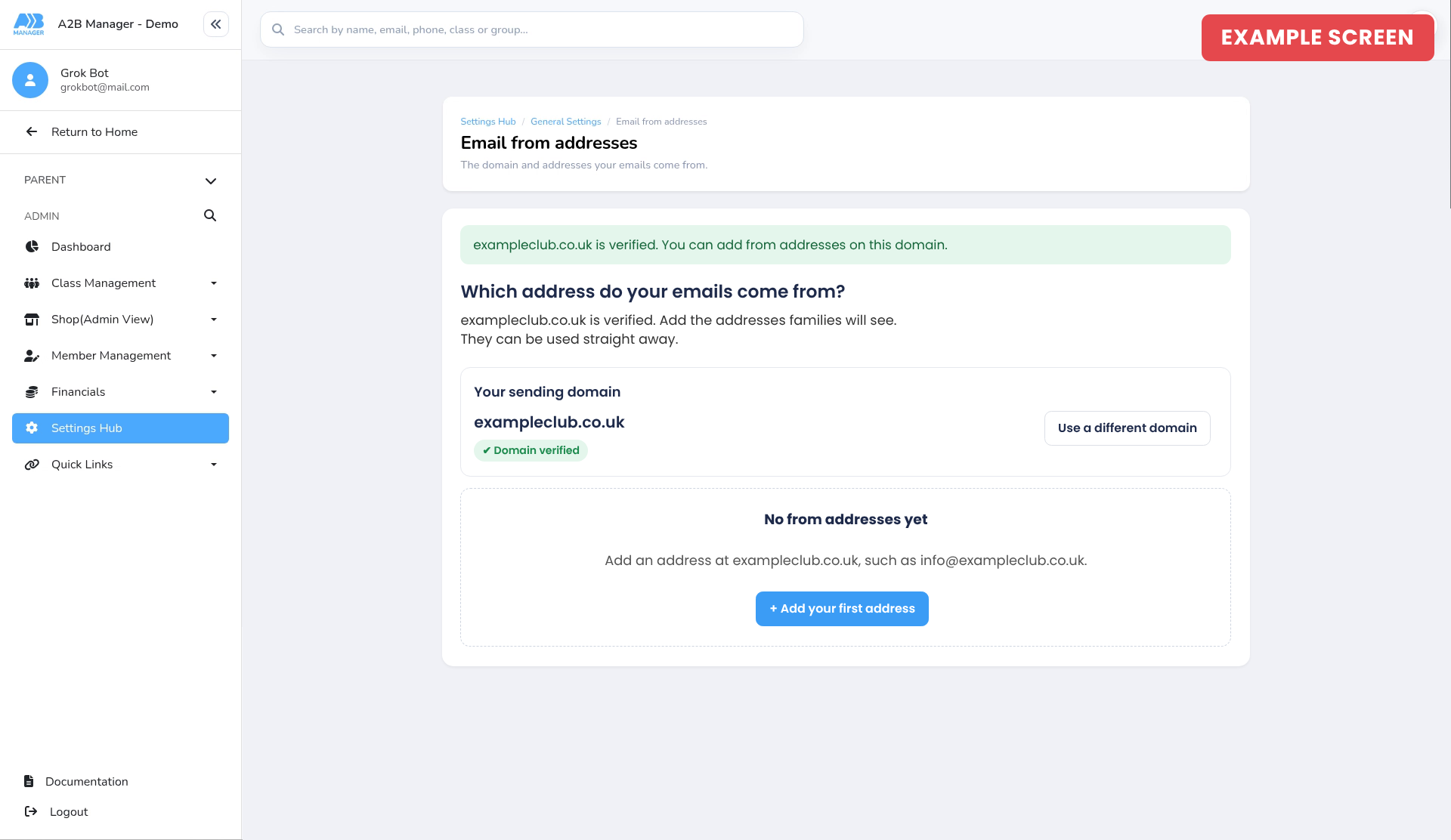
- When all the records are found, your domain shows Domain verified.
- Click Add your first address and add an address at your domain, such as info@yourclub.co.uk. It can be used straight away, with no confirmation email. Sender name, default and test emails work as described in Add new email sender address.
Changing your domain #
- Click Use a different domain, then Confirm remove. You can then add a new domain.
- Addresses at the old domain will need to be verified again before they can be used.
Related guides #
Tip: The screens for steps 3 to 6 are examples using exampleclub.co.uk. Your own screens will show your domain and the record values for your club.


