

Table of Contents
Track shop orders from payment to collection: mark them ready so the parent knows to collect, then mark them collected. You can also refund an order.
Ready and collected #
Step 1: Open Shop Orders (0:00) #
- Go to Shop (Admin View) > Orders.
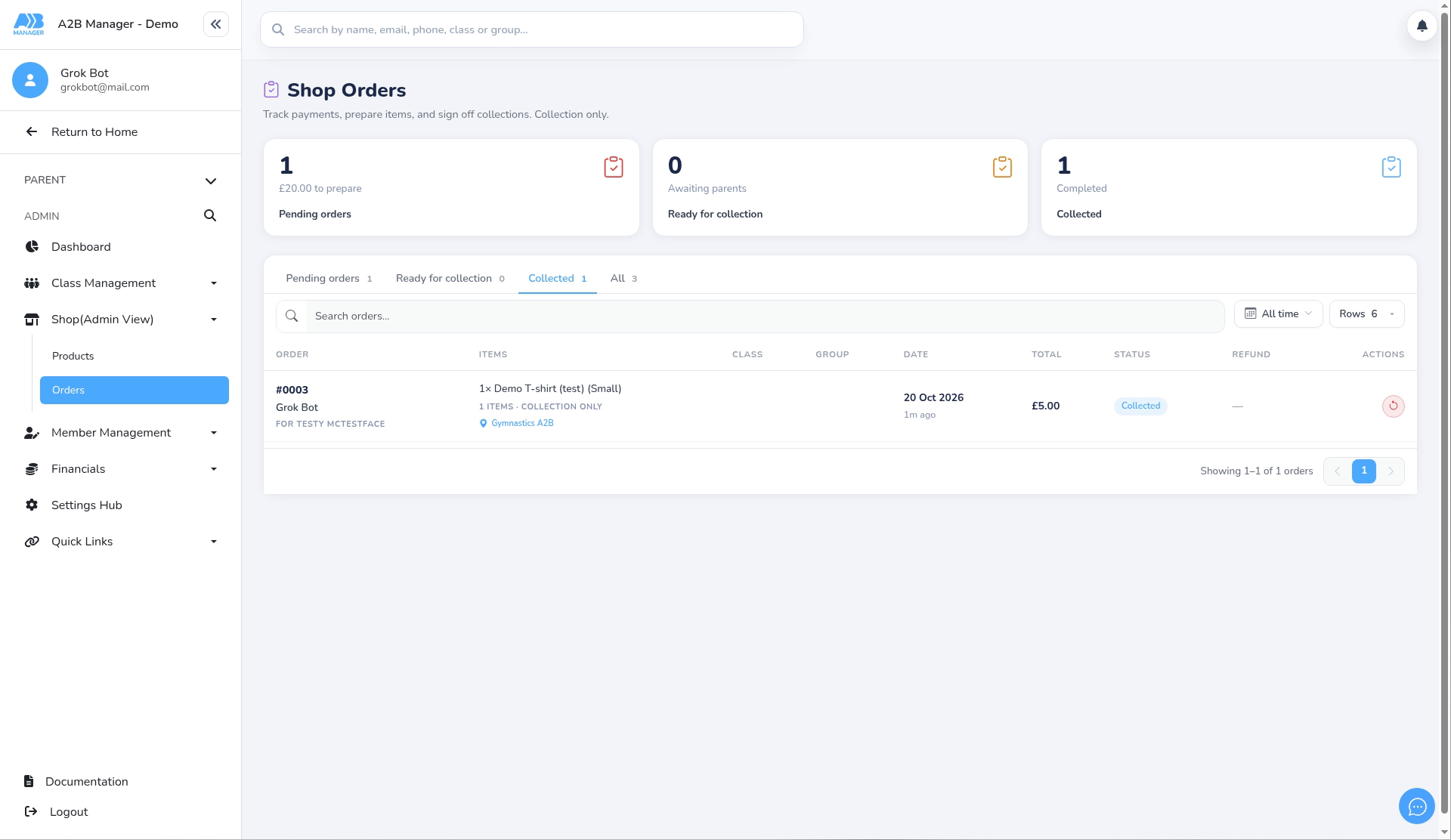
- The summary cards show Pending orders, Ready for collection and Collected. The tabs below filter the list, and you can search or filter by date.
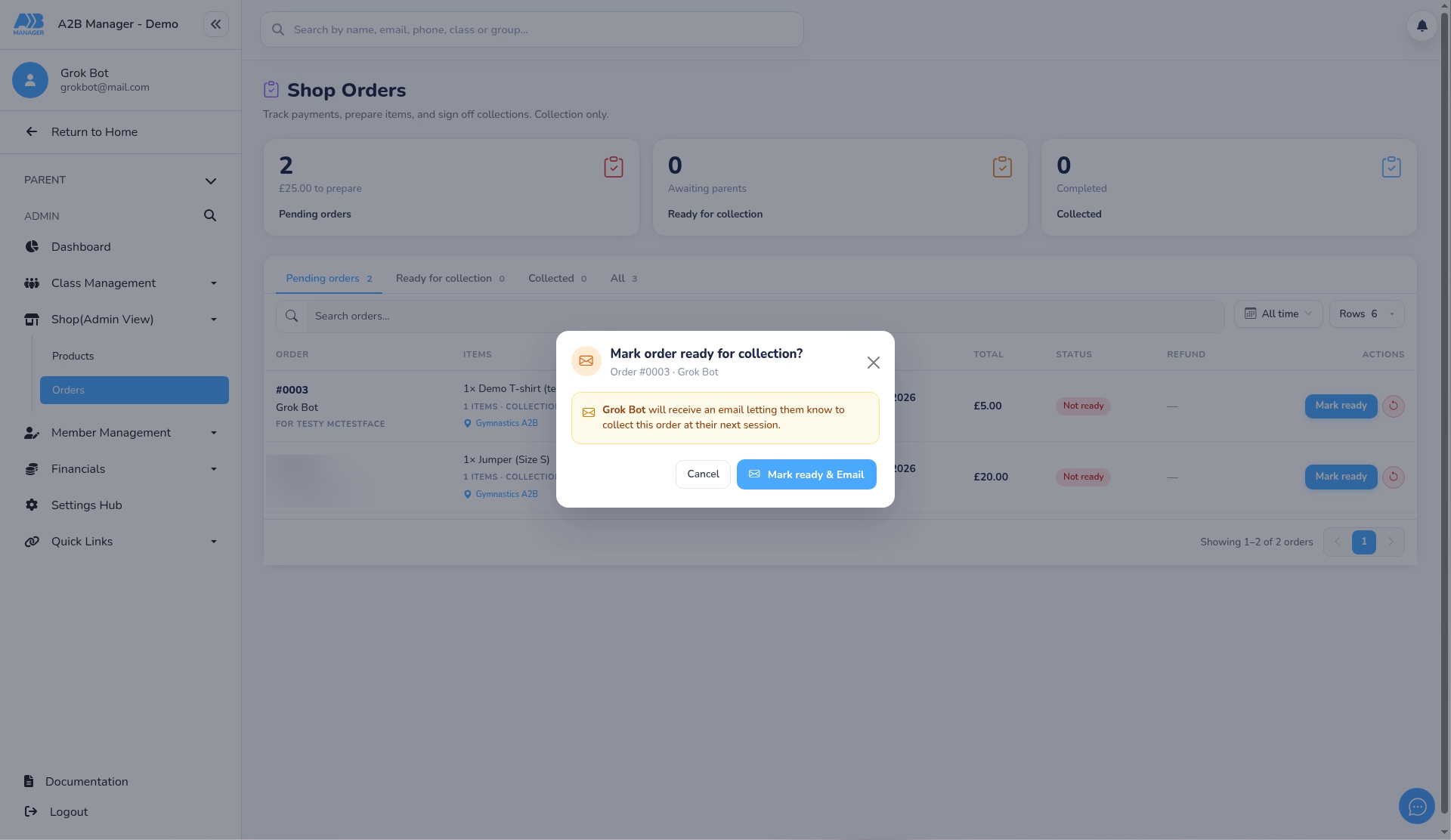
- New orders are on the Pending orders tab with the status Not ready. Click Mark ready on the order.
Step 2: Mark the order ready (0:09) #
- The window Mark order ready for collection? explains that the parent will get an email to collect the order at their next session.
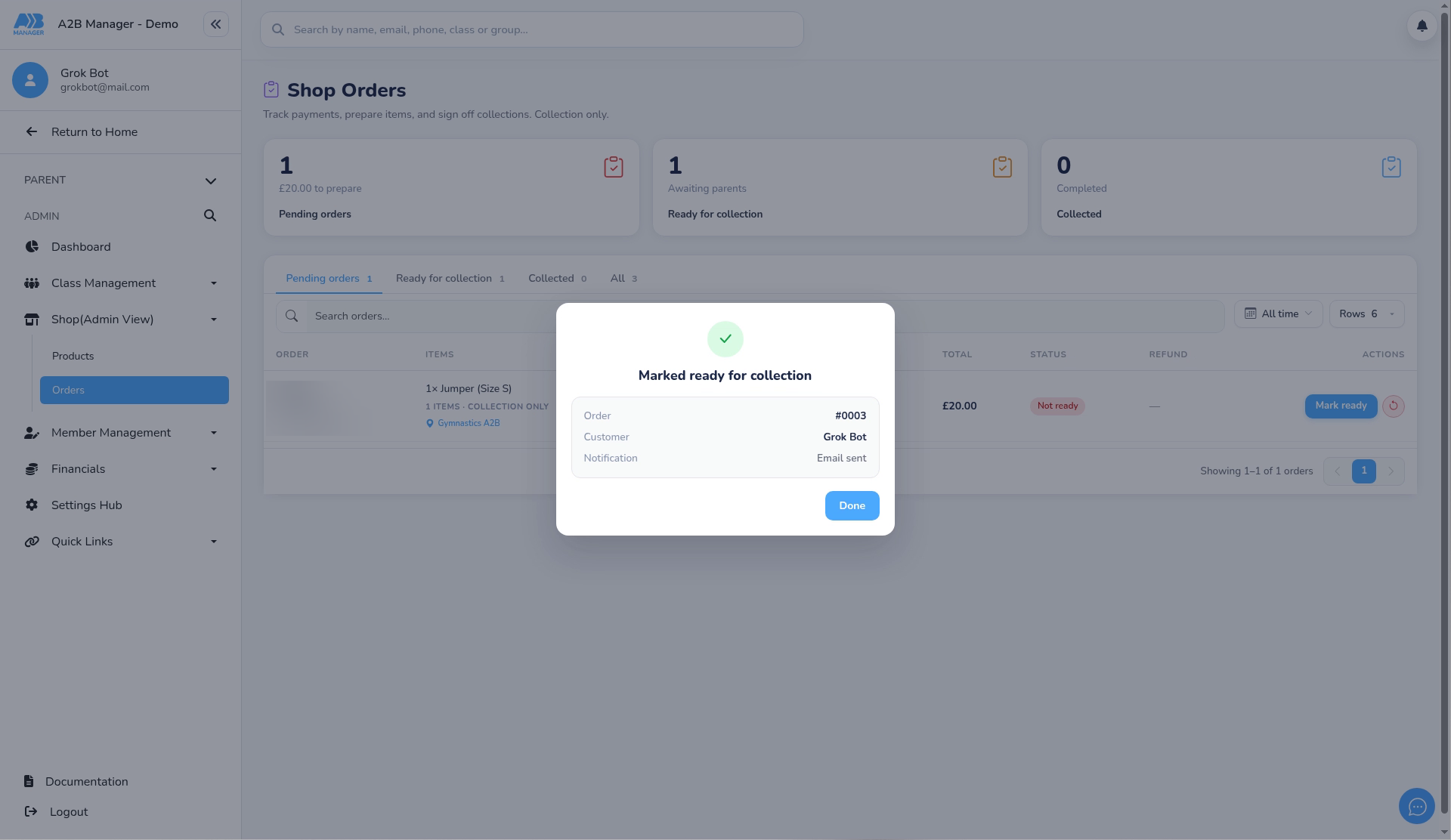
- Click Mark ready & Email. You’ll see Marked ready for collection with the order, customer and notification. Click Done.
Step 3: Open Ready for collection (0:27) #
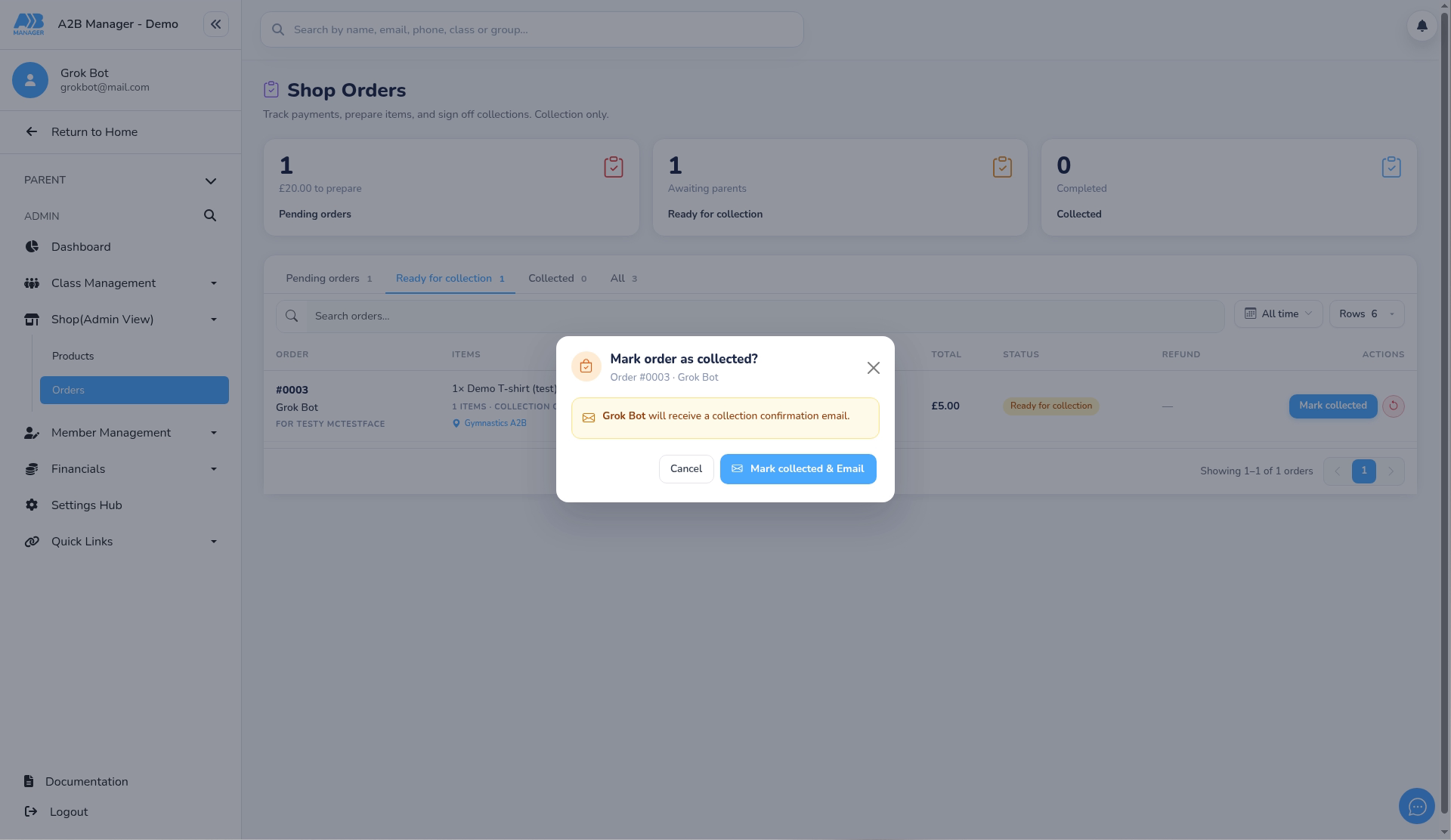
- Click the Ready for collection tab. When the parent collects the order, click Mark collected.
Step 4: Mark the order collected (0:38) #
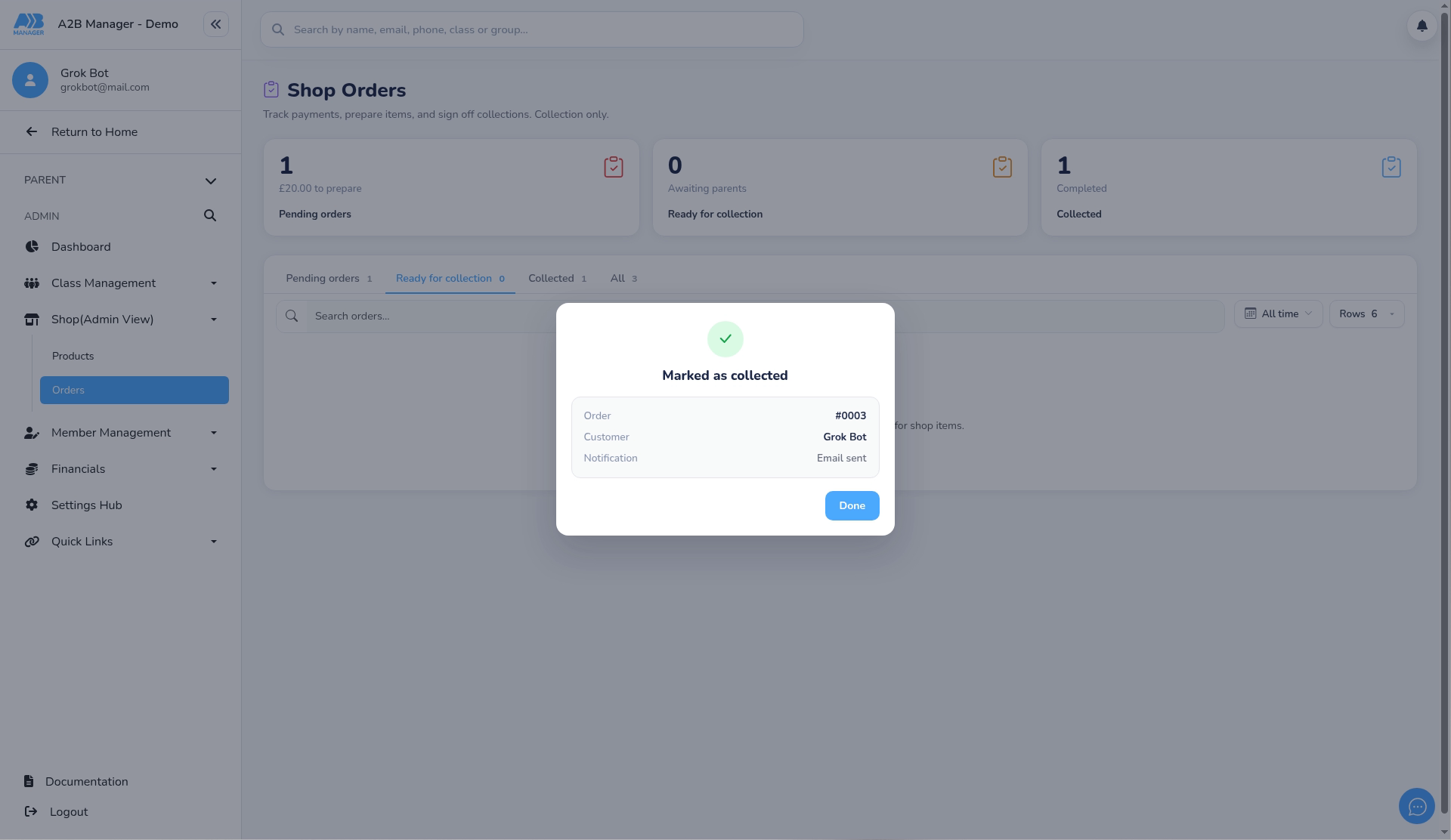
- Click Mark collected & Email, then Done.
Step 5: Check the Collected tab (0:54) #
- The order moves to the Collected tab with the status Collected.
Viewing the items #
- Click an order’s items to open Order items. It shows the order number and customer, each product with its quantity, option (such as size) and price, and the order total. All shop orders are collection only.
Refunding an order #
- Click the red refund icon (Refund payment) on a paid order. The refund window shows the Original amount and the amount Available to refund.
- Enter the Amount to refund (up to the maximum refundable) for a full or partial refund, and confirm. The result shows the amount refunded to the card and any remaining balance.
- The Refund column then shows the amount, and a full refund shows Refunded.
- Refunds don’t put items back in stock, so adjust stock yourself. The parent isn’t emailed about a refund, so let them know.
Good to know #
- The ready and collected emails only send if their templates are active under Settings Hub > Email Templates.


