

Table of Contents
Education years let you open a class group to children by UK school year, using their date of birth, instead of by age. Set up your year groups once, then choose which ones can book each class group.
Setting up education years #
Step 1: Open Education years (0:00) #
- In the left-hand menu, click Settings Hub.
- In the System Settings section, click the Settings card (Configure general platform settings.).
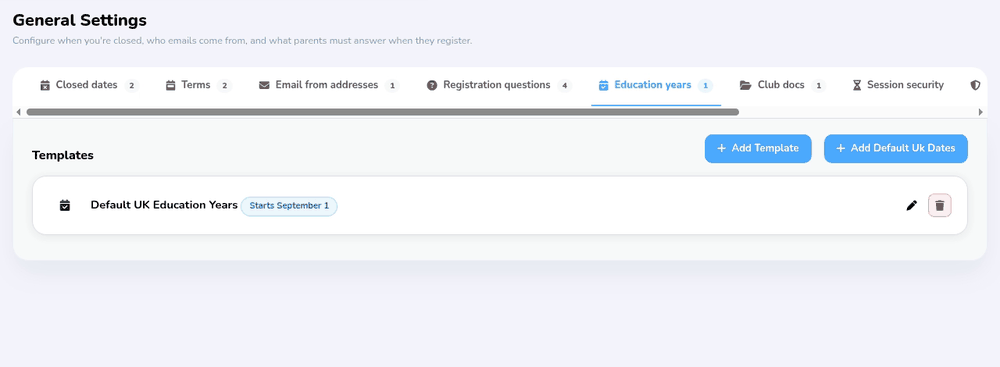
- Click the Education years tab. Your templates are listed under Templates.
Step 2: Add a template (0:36) #
- For standard UK school years, click + Add Default Uk Dates and confirm. This creates a Default UK Education Years template with Nursery, Reception and Year 1 to Year 13, each covering 1 September to 31 August birthdays. Only do this once, as each click adds another copy.
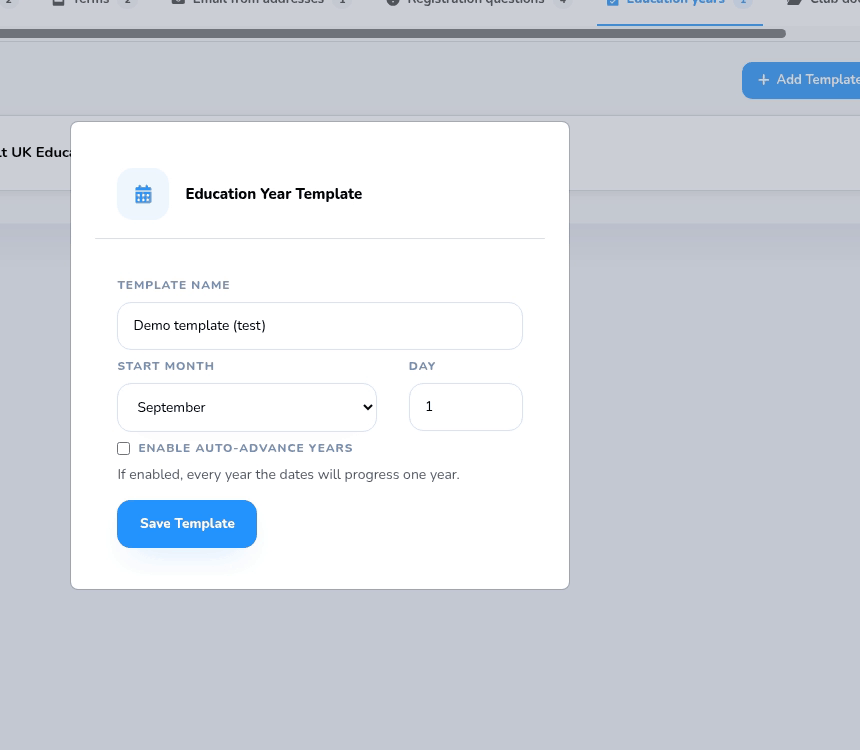
- To build your own, click + Add Template. Enter a Template Name, then the Start Month and Day your school year starts.
- Untick Enable Auto-advance Years only if you don’t want the year groups to move on automatically. If your club uses school years, we recommend leaving it ticked, so every year group moves on by one year on that date each year. Click Save Template.
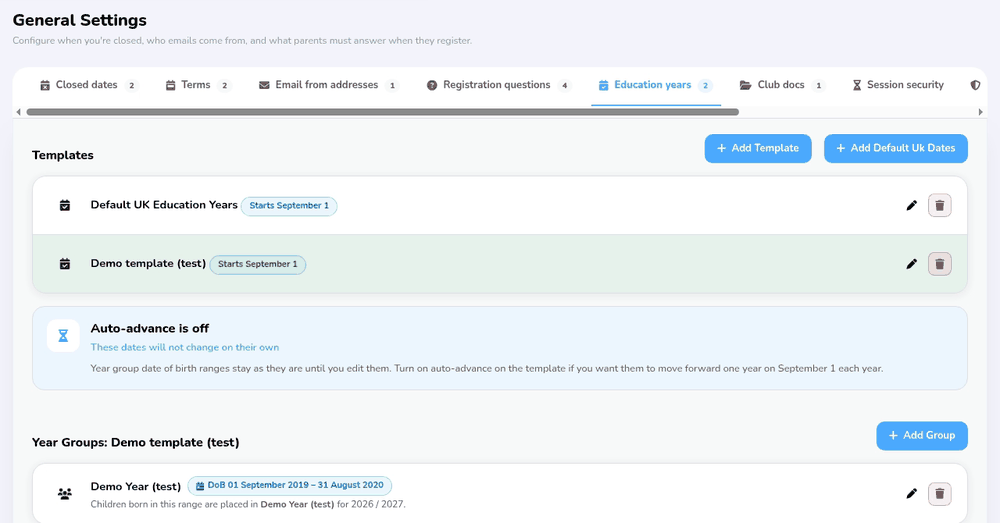
- Click the template in the list to select it. A card shows when the next school year starts, or Auto-advance is off if you unticked it.
Step 3: Add year groups (1:32) #
- With the template selected, click + Add Group.
- Enter a Group Name, such as Year 1, and the date of birth Range Start and Range End. The date fields use the format mm/dd/yyyy (month first), so 1 September 2019 is 09/01/2019. The start must be before the end.
- Click Save Year Group. The row shows the date of birth range, for example DoB 01 September 2019 – 31 August 2020, and the school year it applies to.
- The default UK template already has its year groups, so you only need this step for your own template or to add extra groups.
Step 4: Open the class group (2:30) #
- Go back to the Settings Hub and, in the Organisation section, click Add/Edit Classes.
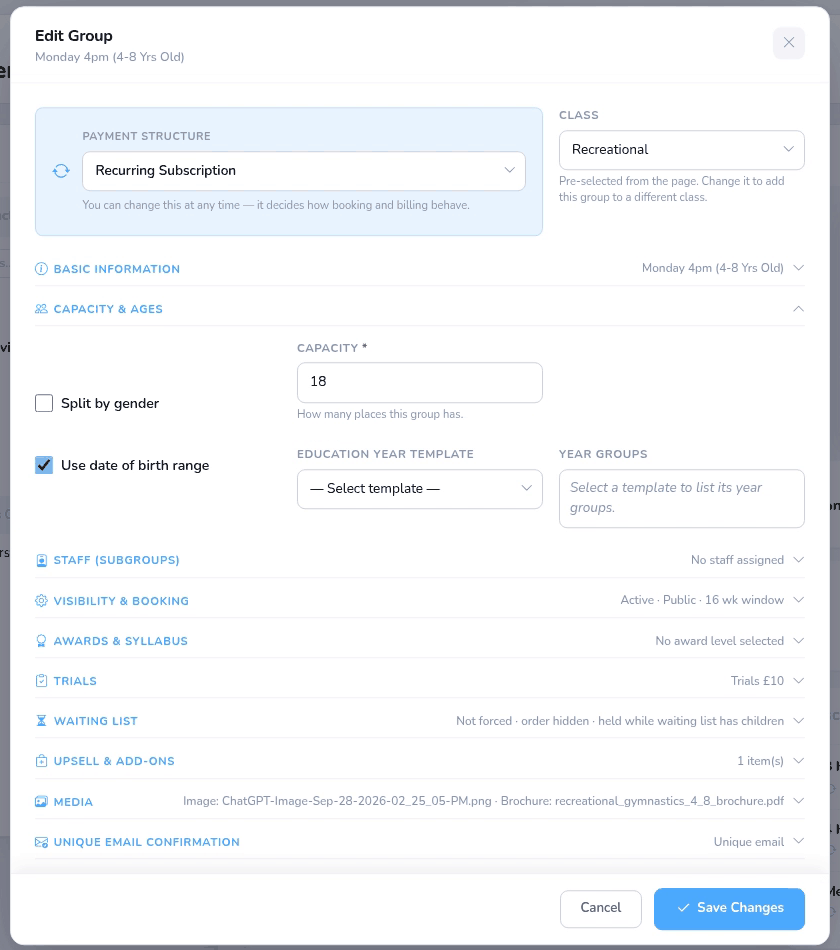
- Open the class, select the class group you want to restrict and click Edit.
- Open the Capacity & Ages section and tick Use date of birth range. Age From and Age To are replaced by the year group options.
- Capacity & Ages only appears for term and monthly subscription groups.
Step 5: Choose the year groups and save (3:13) #
- Under Education Year Template, choose your template.
- Under Year groups, tick each year group that can book this class group.
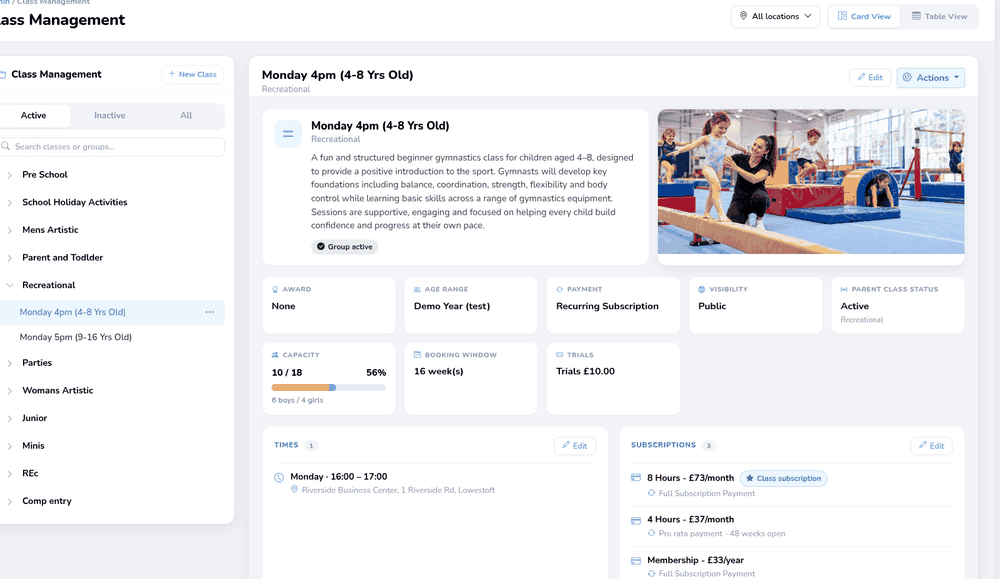
- Click Save Changes. The group’s Age Range now shows the year group names instead of an age range.
What education years do #
- Bookings: only children whose date of birth falls inside one of the ticked year groups can book the class group or a trial. Others are shown as Too old or Too young. The group’s age range is no longer used.
- What parents see: the class shows the year group names, such as Year 1 and Year 2, instead of an age range.
- Waiting lists: if the group is set to ignore age restrictions on its waiting list, any child can still join the waiting list.
- Sessions: a session with its own date of birth range uses that range instead of the group’s year groups.
- New school year: with auto-advance on, every year group’s date range moves on one year on the template’s start date, and you get a School years have been updated notification. Children already in a class are not moved, and they aren’t flagged if they no longer fit the class group’s year groups, so check your class lists at the start of each school year.
Tip: If Use date of birth range is on but no year groups are ticked, the class group has no age limit, so children of any age can book. Tick at least one year group if you want to restrict it.
Editing or removing year groups #
- Use the pencil to change a template or year group, or the bin to delete it, then confirm with Delete.
- A year group, or a template containing one, can’t be deleted while a class group or coach still uses it. Untick it on those class groups first.


