

Table of Contents
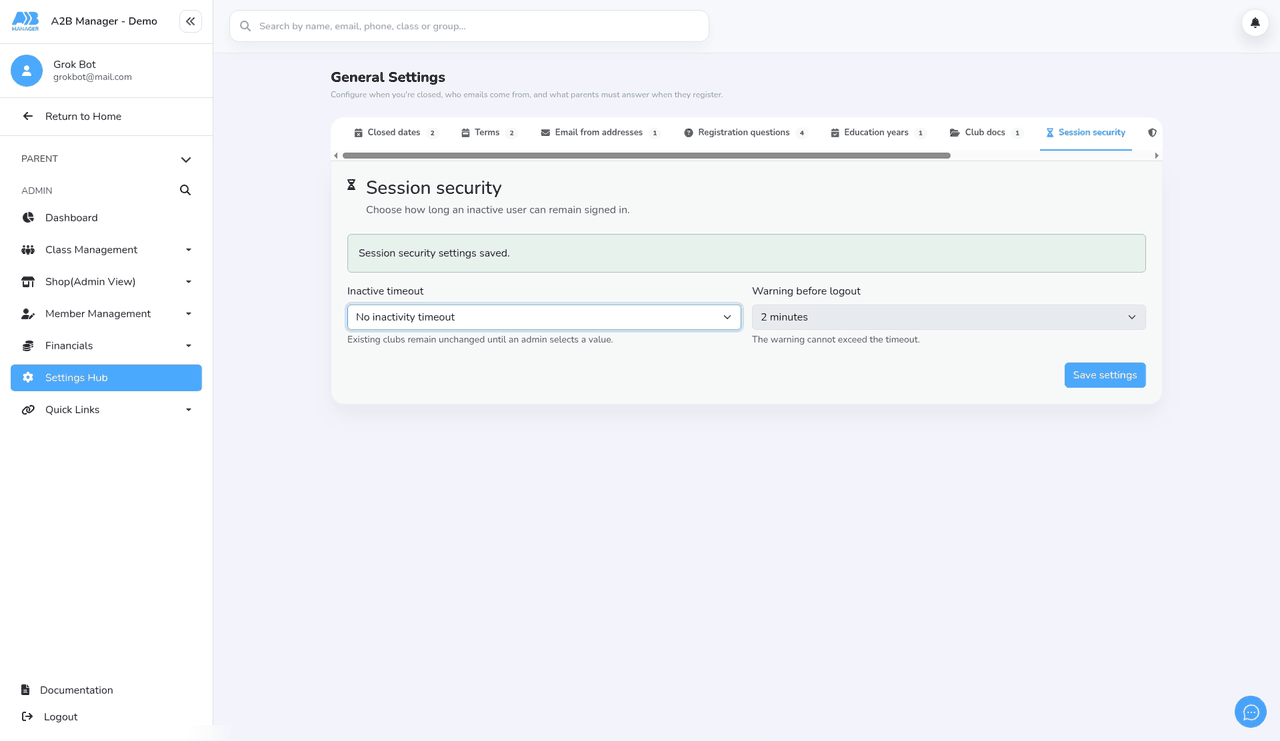
Session security signs people out of your club’s A2B Manager pages after they’ve been inactive for a set time, with an optional warning first. It helps keep accounts safe on shared computers, such as a front-desk PC or a coach’s tablet. It’s off until an admin chooses a timeout.
Changing the session security setting #
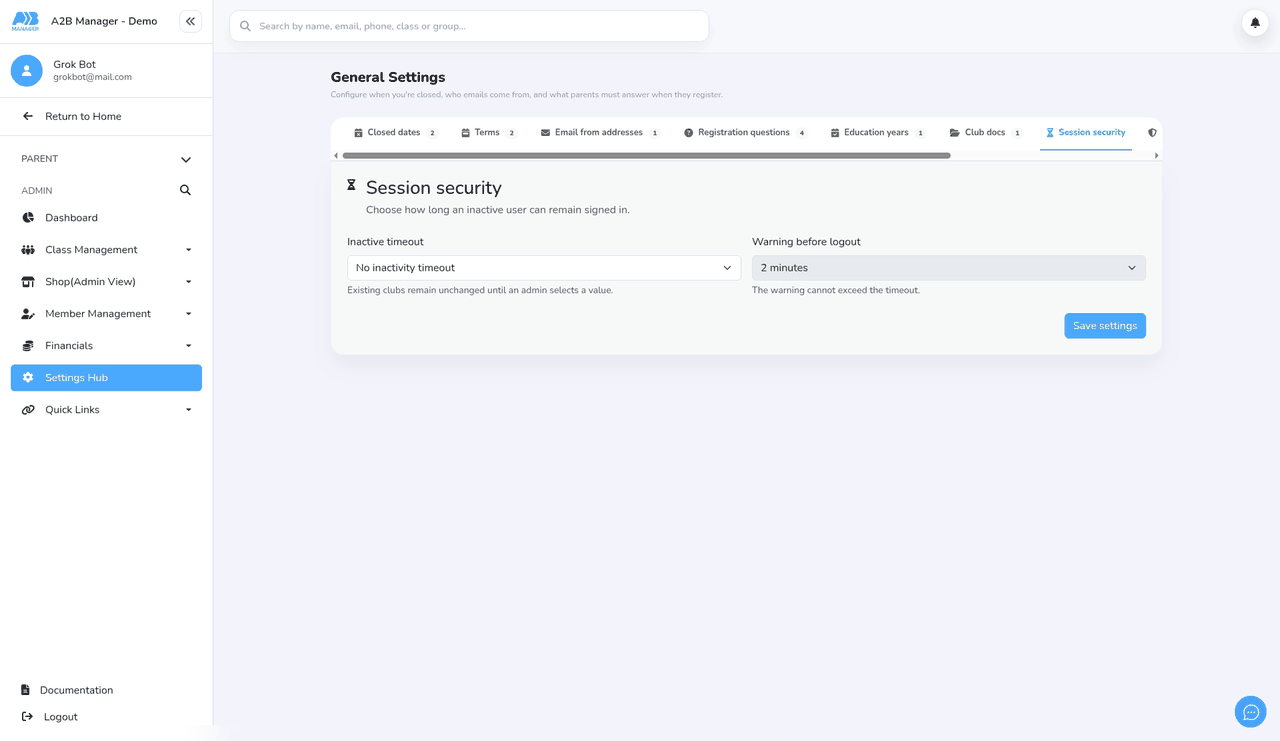
Step 1: Open Session security (0:00) #
- In the left-hand menu, click Settings Hub.
- Scroll down to System Settings and click the Settings card. General Settings opens on its first tab.
- Click the Session security tab. You may need to scroll the row of tabs to the right to find it. On a phone, choose it from the tab list instead.
Step 2: Choose an inactive timeout (0:47) #
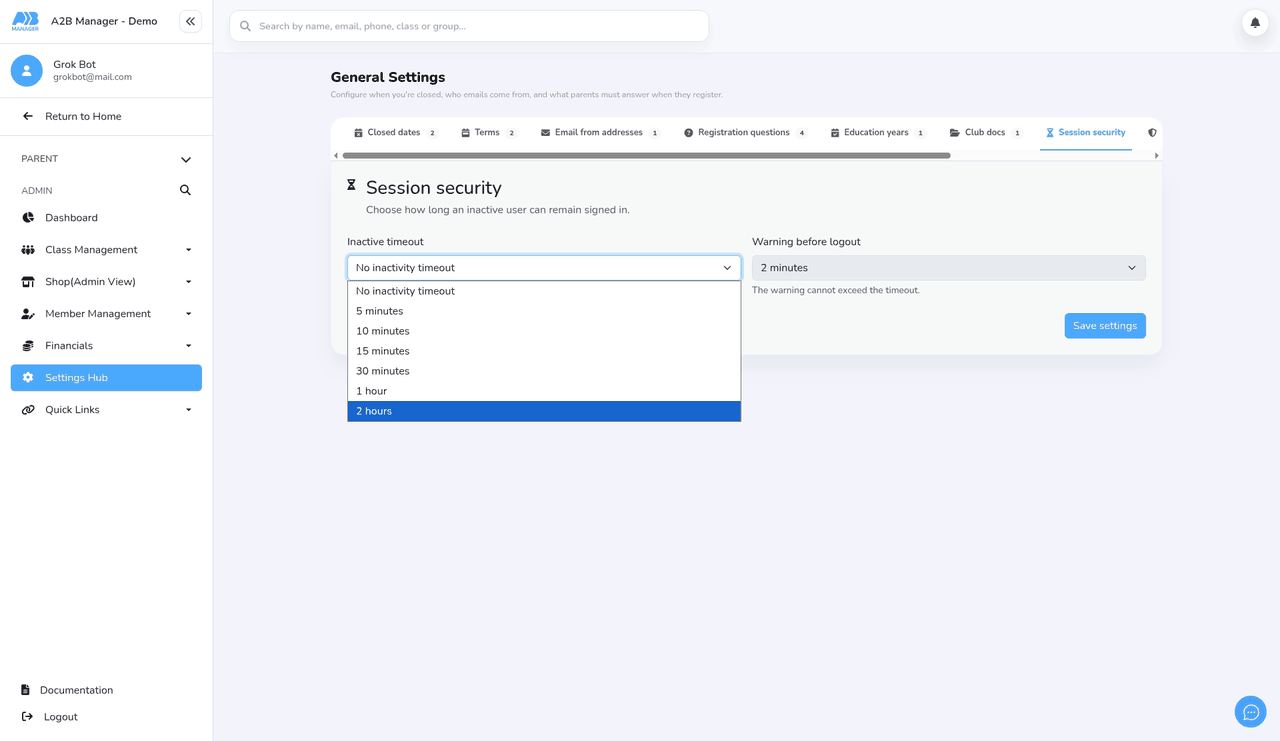
- Under Inactive timeout, choose how long someone can be inactive before they’re signed out: 5 minutes, 10 minutes, 15 minutes, 30 minutes, 1 hour or 2 hours.
- No inactivity timeout means no one is signed out for being inactive. This is where every club starts until an admin chooses a value.
- We recommend 15 minutes for most clubs.
Step 3: Choose a warning (1:26) #
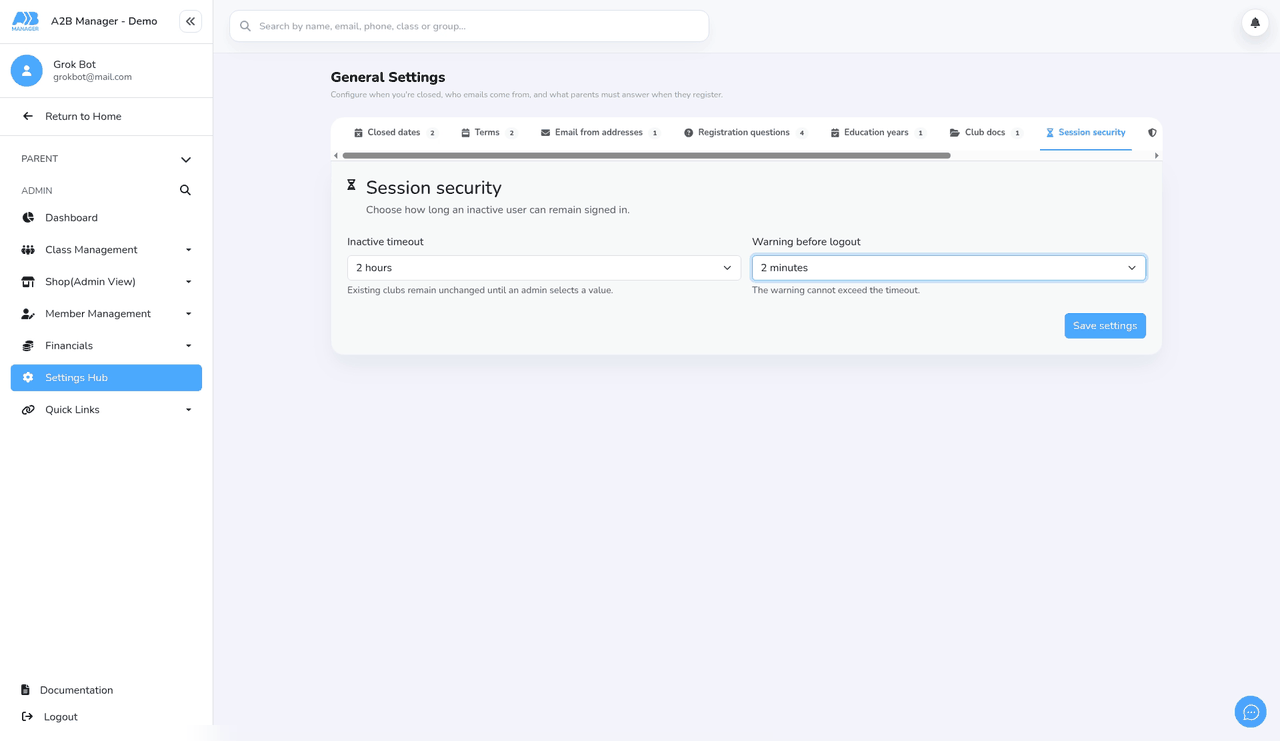
- Under Warning before logout, choose how much notice people get before they’re signed out: No warning, 1 minute, 2 minutes or 5 minutes. We recommend 2 minutes.
- The warning must be shorter than the timeout (The warning cannot exceed the timeout.). If you choose one that’s too long, it’s shortened to 1 minute less than the timeout when you save.
- This box is greyed out while No inactivity timeout is selected.
Step 4: Save settings (1:44) #
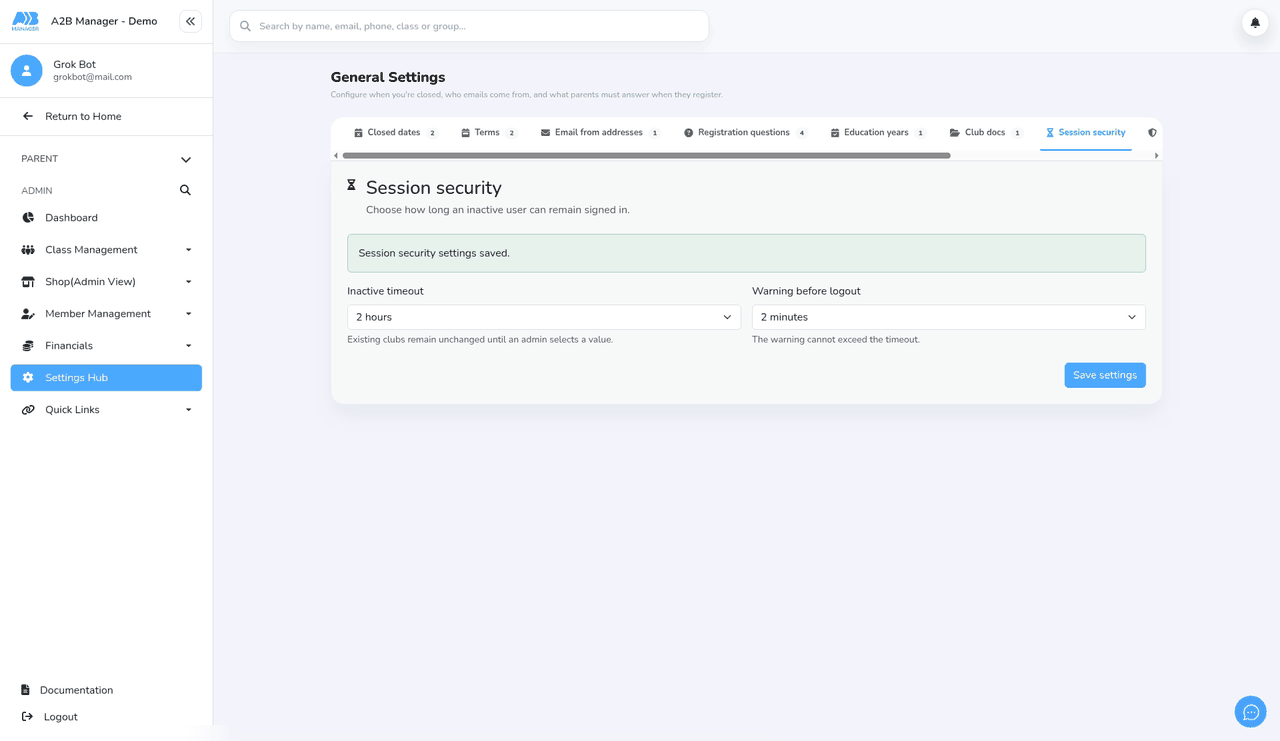
- Click Save settings. You’ll see Session security settings saved.
- People who are already signed in pick up the new setting the next time they load a page.
Step 5: Turn it off (2:02) #
- To stop signing people out, choose No inactivity timeout. Warning before logout goes grey.
- Click Save settings again.
What people see #
- If you’ve set a warning, a Your session is about to expire box appears with a countdown. Clicking Continue session keeps them signed in.
- If they don’t respond, or you chose No warning, they’re signed out and taken to the sign-in page, which says Your session ended because of inactivity. Please sign in again to continue.
- Only clicks or taps, key presses, touches and scrolling count as activity. Moving the mouse on its own doesn’t, so someone reading a long page without scrolling can still be signed out.
Good to know #
- The timeout applies to everyone signed in to your club’s pages: admins, coaches and parents.
- Being signed out for inactivity signs that person out on all their devices, not just the one they left idle. Their other devices are signed out within about 15 seconds if one of your club’s pages is open, or otherwise the next time they open or refresh a page. Clicking Logout is different: it only signs them out of the browser they’re using.
- Each browser tab keeps its own timer. A tab left idle in the background can time out and sign the person out of the tab they’re using.
- Remember me on the sign-in page doesn’t stop the timeout.
- The setup checklist has the same setting, under the labels Sign people out after and Warn them first. Changes there save straight away.
Tip: For most clubs, 15 minutes with a 2-minute warning balances security and convenience. Choose a shorter timeout if your club uses shared computers.
FAQs #
- Can I turn it off? Yes. Choose No inactivity timeout and click Save settings.
- Why was I signed out on my phone too? An inactivity sign-out ends your sessions on all your devices. Clicking Logout only signs you out of the browser you’re using.
- Why was I signed out while reading a page? Moving the mouse doesn’t count as activity. Click or scroll now and then to stay signed in.
- I changed the setting but nothing happened. Pages that are already open keep the old timer until they’re reloaded.


