

Table of Contents
You can add a card, choose your default card and remove old cards from your Payments page.
Managing your payment methods #
Step 1: Open Payment Methods (0:00) #
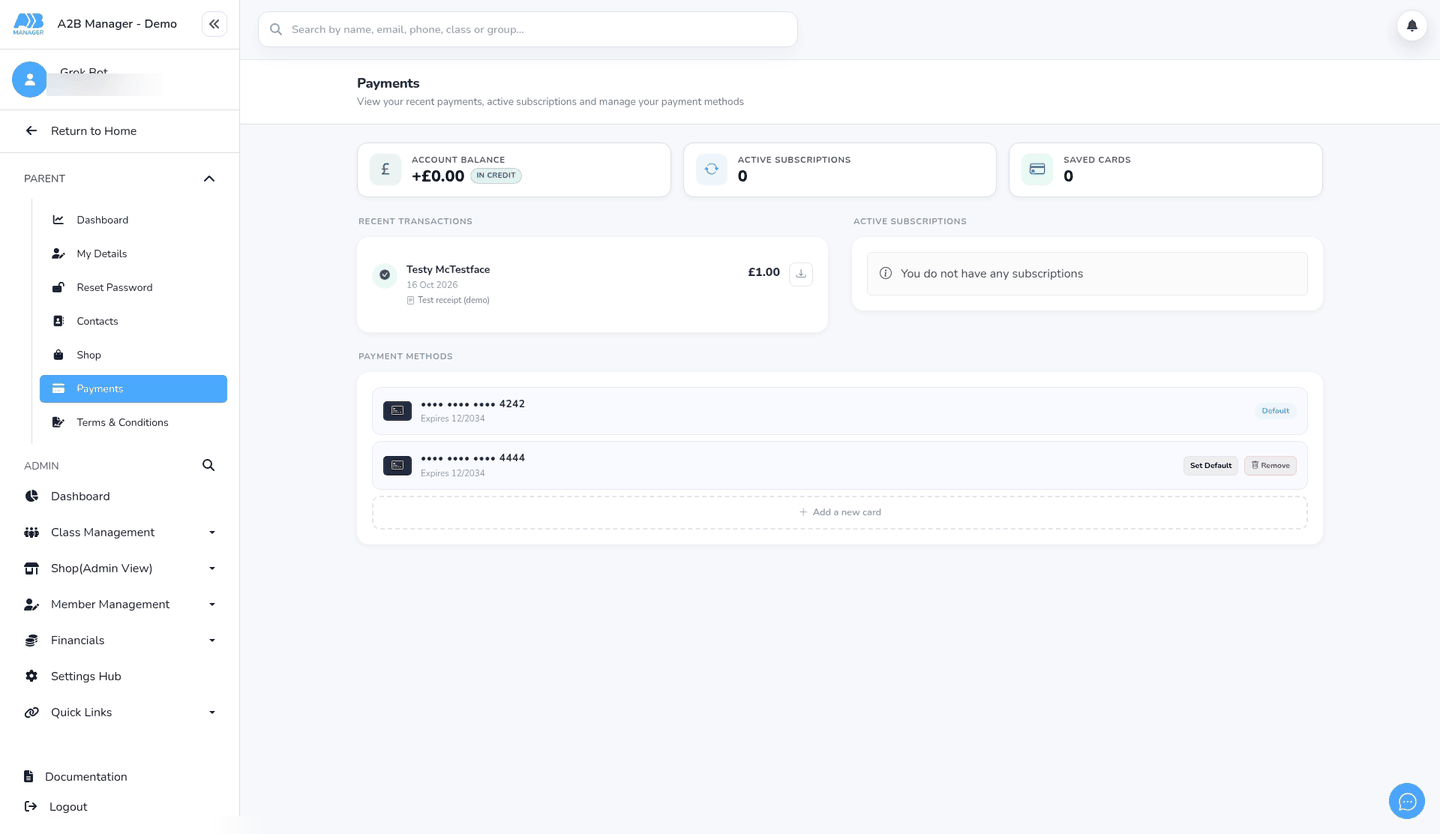
- In the left-hand menu, open the Parent section if it’s collapsed, then click Payments.
- Scroll to Payment Methods at the bottom of the page. Each saved card shows its last four digits and expiry date, and your default card has a Default label.
Step 2: Add a new card (0:25) #
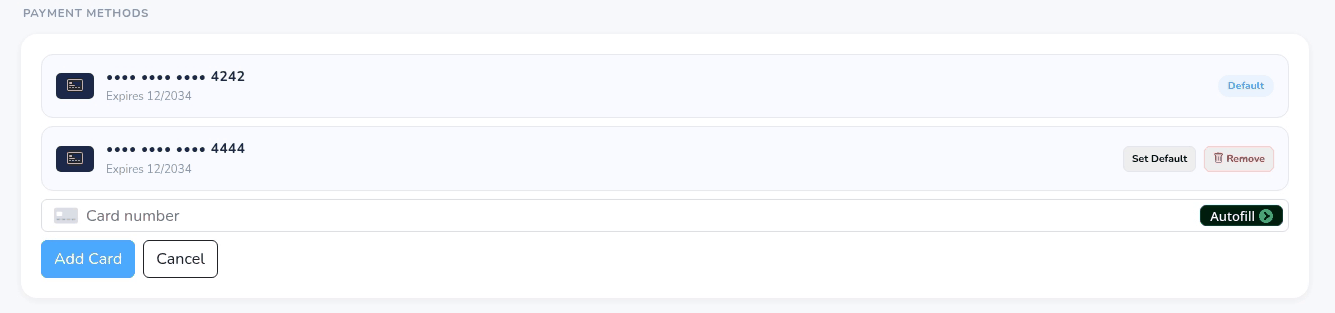
- Click Add a new card.
- Enter the card number, expiry date and security code, then click Add Card. Click Cancel to close the form without saving.
- If you have no default card yet, the new card becomes your default. Otherwise it’s added alongside your existing cards.
Step 3: Change your default card (0:41) #
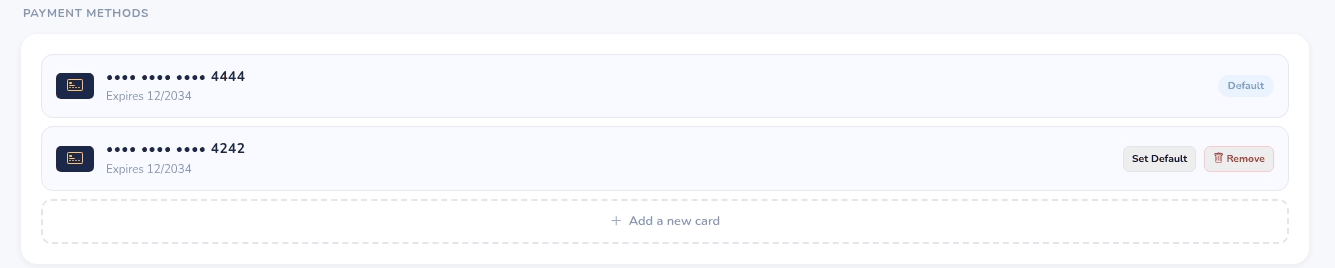
- Click Set Default next to the card you want to use. The Default label moves to that card straight away, and the default card jumps to the top of the list.
- Your default card is used for future payments and for the Pay with button on outstanding invoices.
Step 4: Remove a card (1:01) #
- Because the list reorders when you change your default card, check the last four digits before you click.
- Click Remove next to the card. It’s removed straight away, with no confirmation and no message, so make sure you’ve picked the right card.
- You can’t remove your default card, so there’s no Remove button next to it. To remove it, set another card as default first.

Good to know #
- If you have more than three cards, click View all to see them all.
- The Saved cards count at the top of the page may show 0 even when you have cards saved. Your cards are still listed under Payment Methods.
- To see your payments and download receipts, see How parents find payments and download receipts.
- To pay an unpaid invoice, see How parents pay outstanding invoices.


