

Table of Contents
On subscription and term groups you can give each coach their own share of the group’s places. Places start equal and must add up to the group (including boy and girl totals when you split by gender). Staff shows used and places — for example 3/5. A child, including a trial, takes a place with the coach who matches them. Parents are told the class is full, or that no boys or girls coach is available, when they cannot be placed.
Before you start #
- You need admin access to Class Management.
- Open a subscription or term class group. Recurring PAYG and multi-event groups do not use this Staff places switch.
- Set the group’s overall places (or boy and girl places) first, and add the coaches who will teach the group.
Giving coaches their own places #
Step 1: Open Staff (subgroups) #
- Go to Class Management and open the class, then the group.
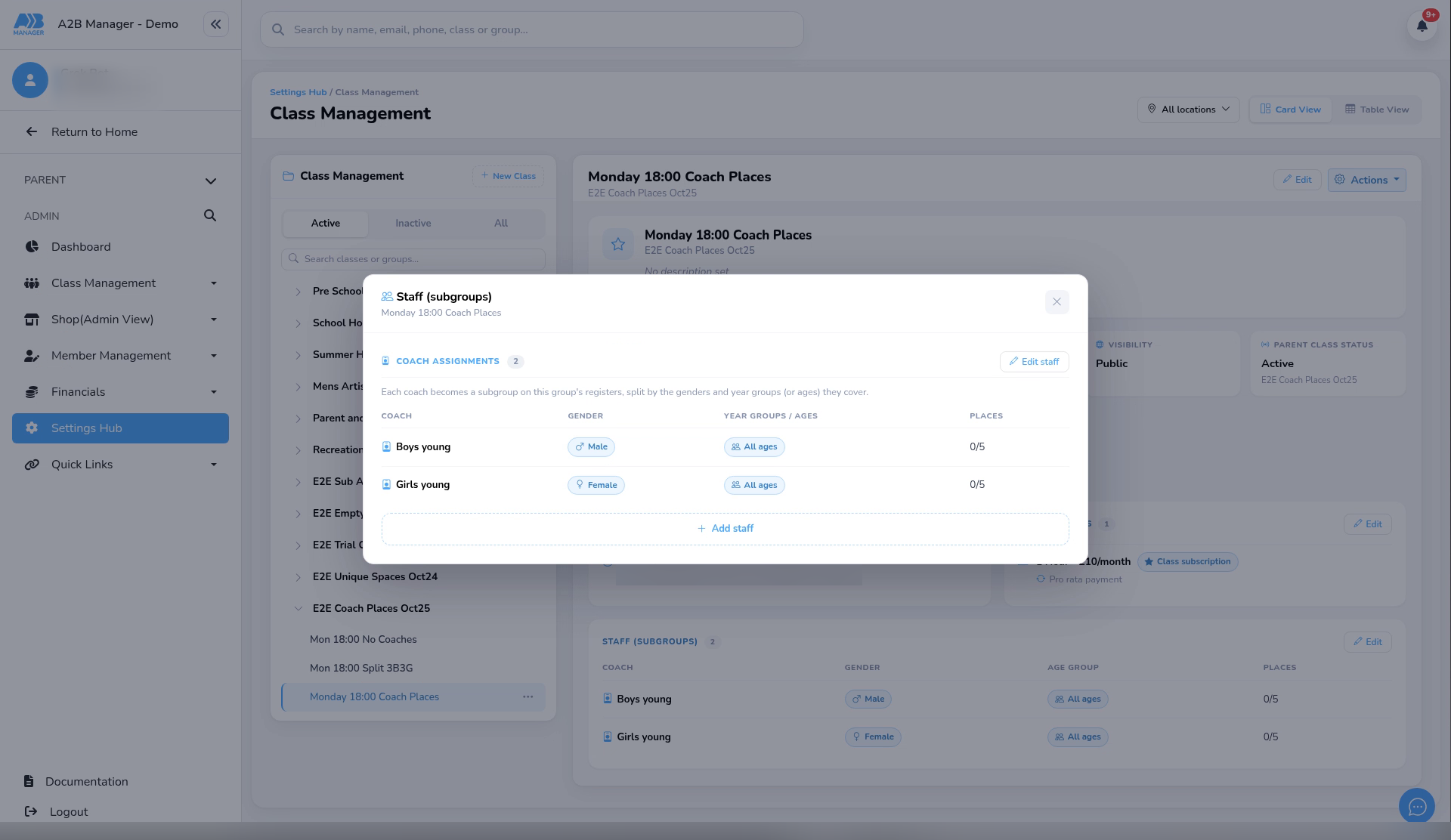
- Open Staff (subgroups) — on the group form it is an accordion; on the class overview it is a Staff pop-up with Edit staff.
Step 2: Turn on Give each coach their own places #
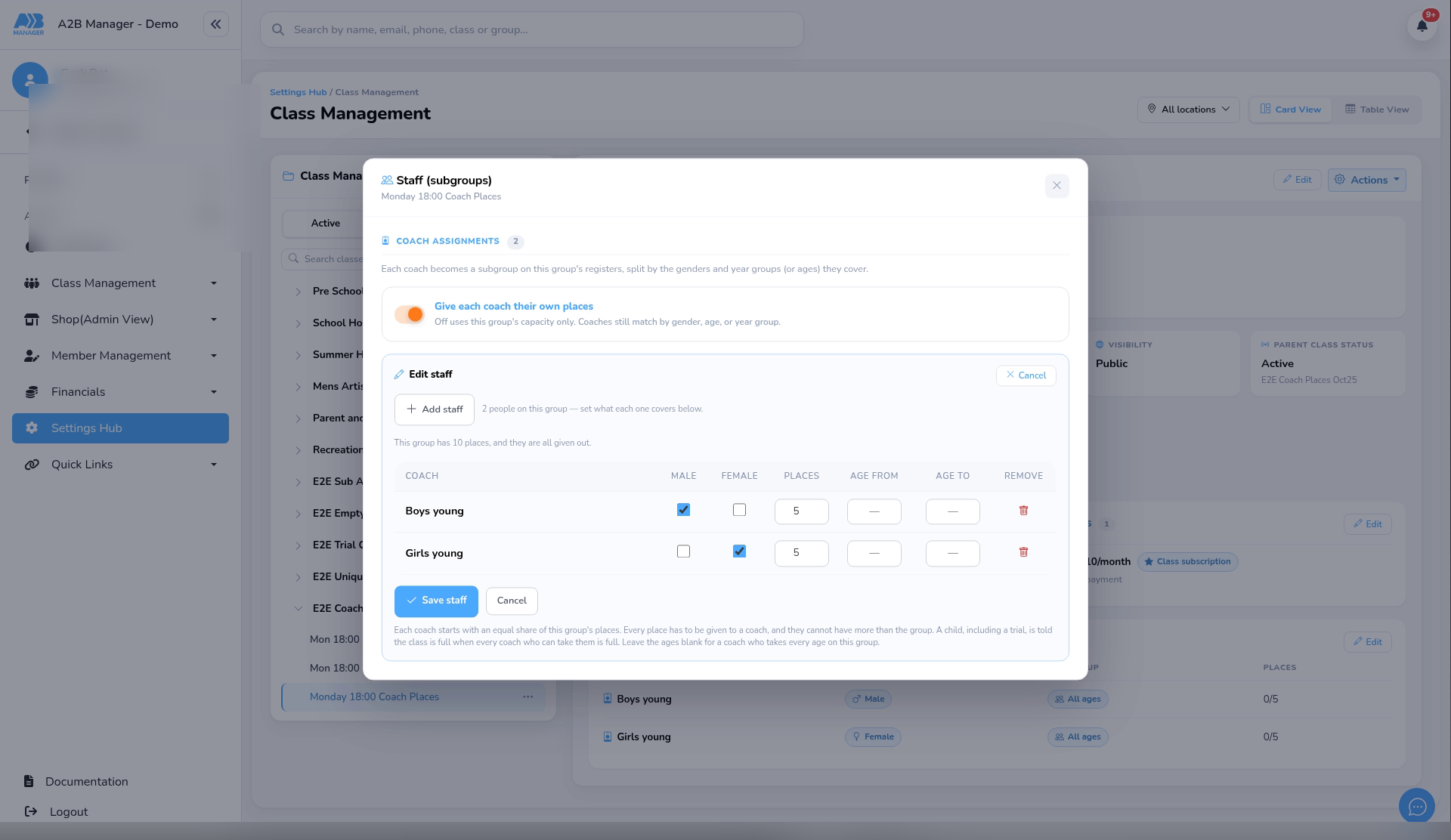
- Find the switch Give each coach their own places.
- It is off by default. Off uses this group’s capacity only. Coaches still match by gender, age, or year group.
- Turn it on when you want each coach to have their own place limit.
Step 3: Share and edit Places #
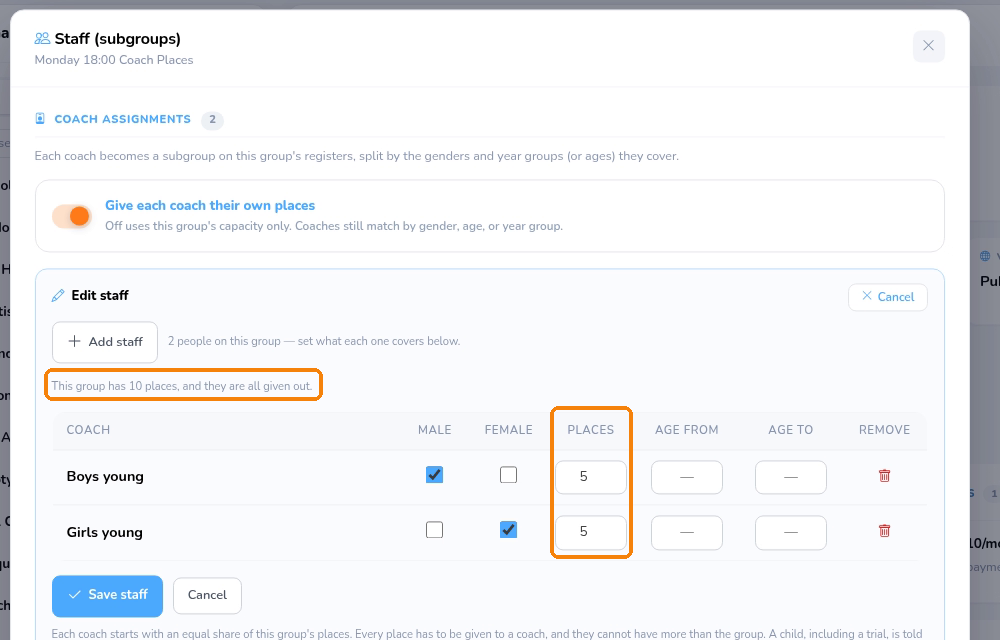
- A Places column appears for each coach. Each coach starts with an equal share of the group’s places (any remainder goes to the first coaches).
- Edit the numbers if you need unequal shares. Every place has to be given to a coach, and coaches cannot have more than the group.
- If the group splits capacity by gender, boy places go to coaches ticked for boys, and girl places go to coaches ticked for girls.
- A status line shows how many places are given out and how many are left. You cannot save until the totals are right.
Step 4: What staff and parents see #
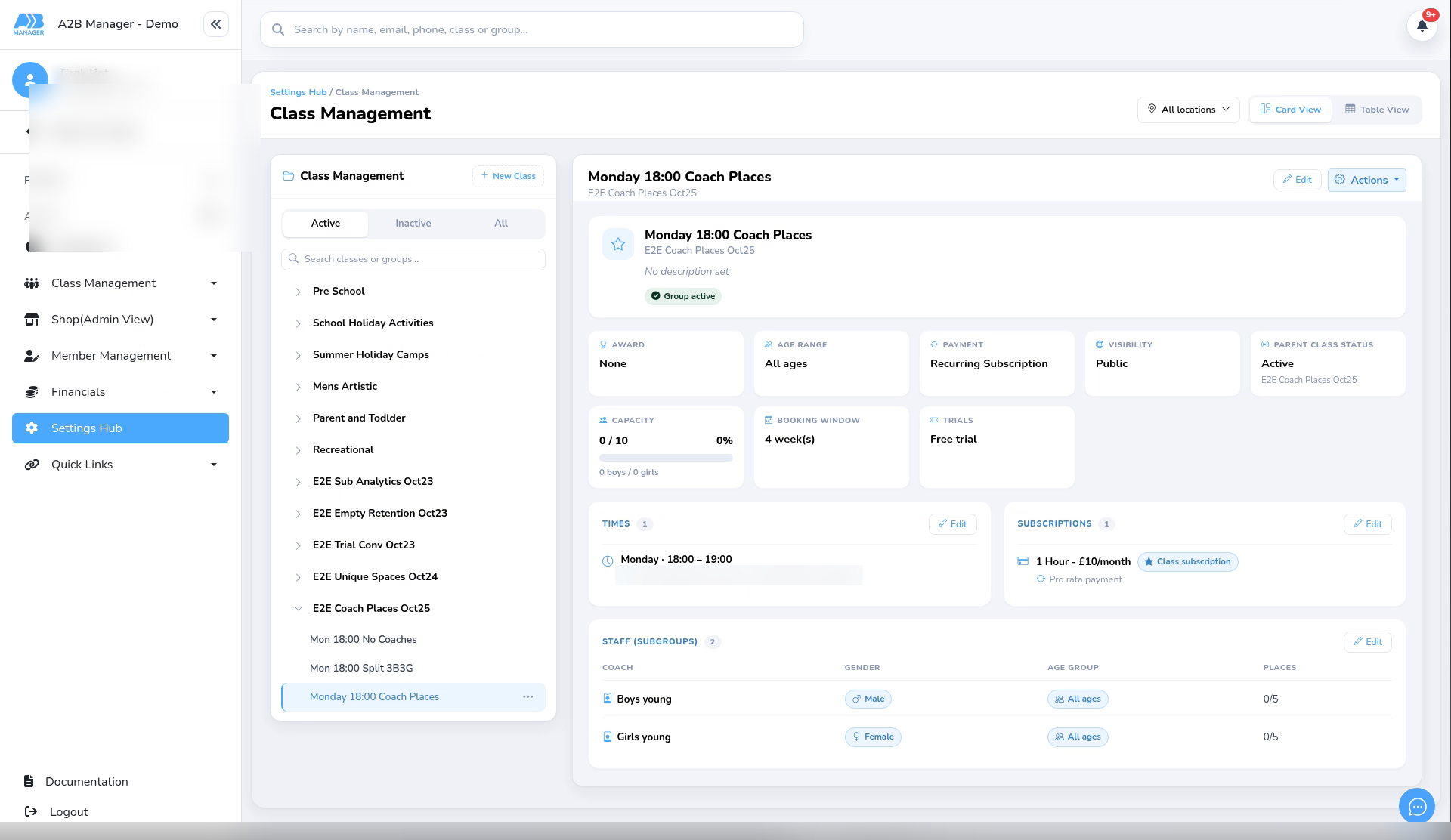
- On Staff, used and places show as a fraction — for example 3/5.
- A child is placed with a matching coach who still has room. A trial uses one of that coach’s places.
- When every matching coach is full, parents are told the class is full (or that the coach for a boy or girl is full). If no coach matches, they see No boys coach available or No girls coach available (and year group wording when year groups are used).
- On the Waiting List, the Capacity column can swap to Coach places. When you set a child’s sub group, assigned coaches are listed first and show their places.
Good to know #
- This is separate from the general sub-group guide — that guide does not cover per-coach places.
- Turning the switch off again clears coaches’ own place limits and goes back to the group capacity only.
- Staff without a login can still be assigned and given places (they show as No login in the staff picker).
Tip: Set places so each coach’s share matches how you run the hall — then check Waiting List Coach places and a parent booking view before you rely on it in term.


