

Table of Contents
- Before you start
- Setting up and using two-factor authentication
- Step 1: Open the Secure your account page (0:00)
- Step 2: Add A2B Manager to your authenticator app (0:18)
- Step 3: Enter the code and turn it on (0:36)
- Step 4: Save your recovery codes (0:47)
- Step 5: Sign in with your code (1:05)
- Step 6: Sign in with a recovery code (1:26)
- Step 7: Get new recovery codes (1:42)
- Lost your phone, or need 2FA turned off?
- Good to know
Every club admin account in A2B Manager must use two-factor authentication (2FA). As well as your password, you’ll enter a six-digit code from an authenticator app on your phone when you sign in. This guide shows admins how to set it up, sign in with a code or a recovery code, and get new recovery codes.
Before you start #
- This applies to club admins. You can’t skip it: until 2FA is set up, A2B Manager takes you to the Secure your account page after you sign in or open any club page.
- Coaches aren’t required to use two-factor authentication.
- Install an authenticator app on your phone, for example Google Authenticator or Microsoft Authenticator.
- Make sure the time on your phone is set automatically. Codes only work if your phone’s clock is right.
Setting up and using two-factor authentication #
Step 1: Open the Secure your account page (0:00) #
- Sign in as normal. If 2FA isn’t set up yet, you’ll see Secure your account straight away.
- You can also go to it directly: type your A2B Manager address followed by /Account/Manage/TwoFactorAuthentication.
Step 2: Add A2B Manager to your authenticator app (0:18) #
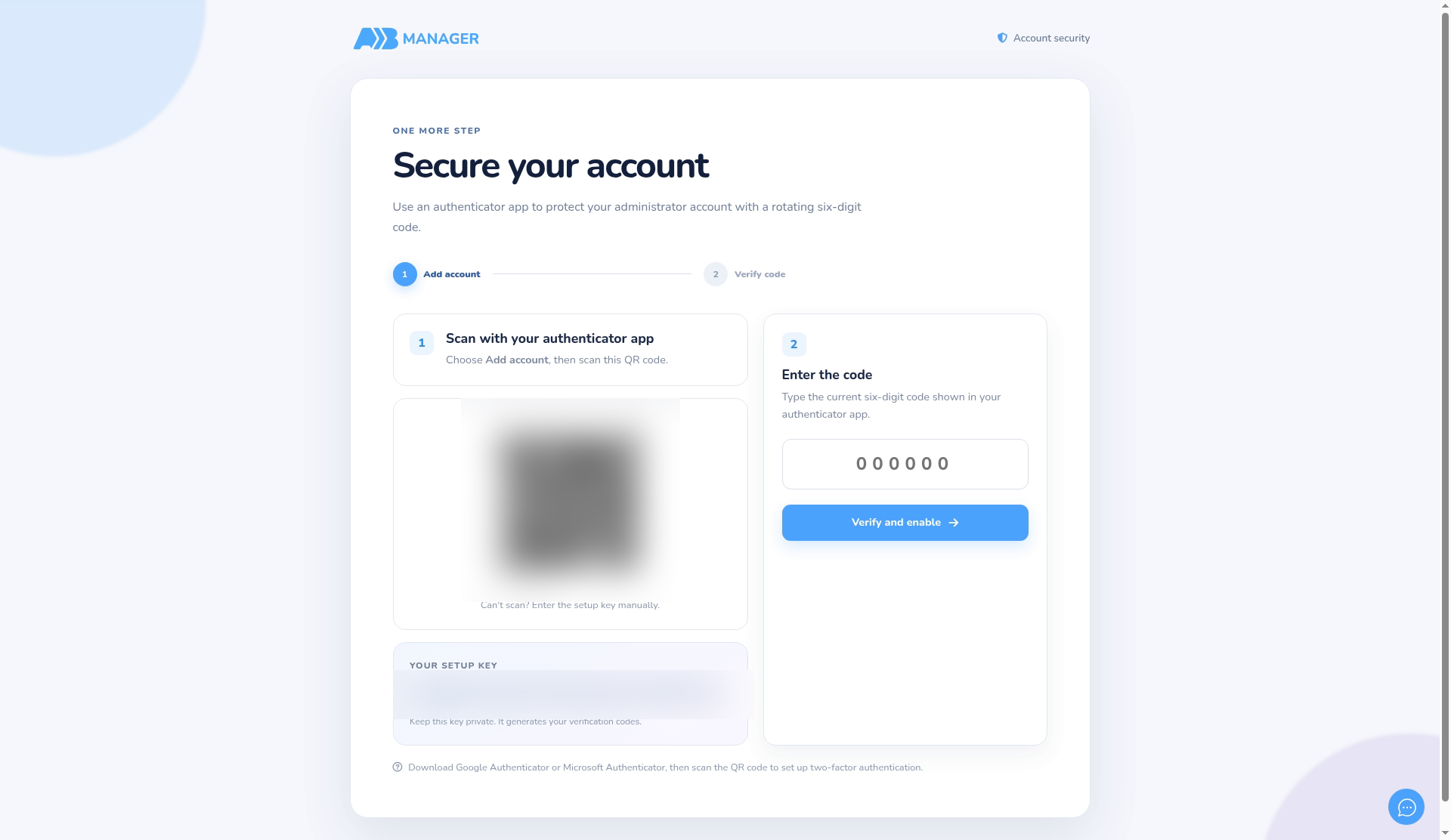
- In your authenticator app, choose Add account, then scan the QR code on the screen. The account appears as A2B Manager.
- Can’t scan? As the page says, Can’t scan? Enter the setup key manually. Type the code shown under Your setup key into your app instead.
- Keep the QR code and setup key private. Anyone who has them can make your codes.
Step 3: Enter the code and turn it on (0:36) #
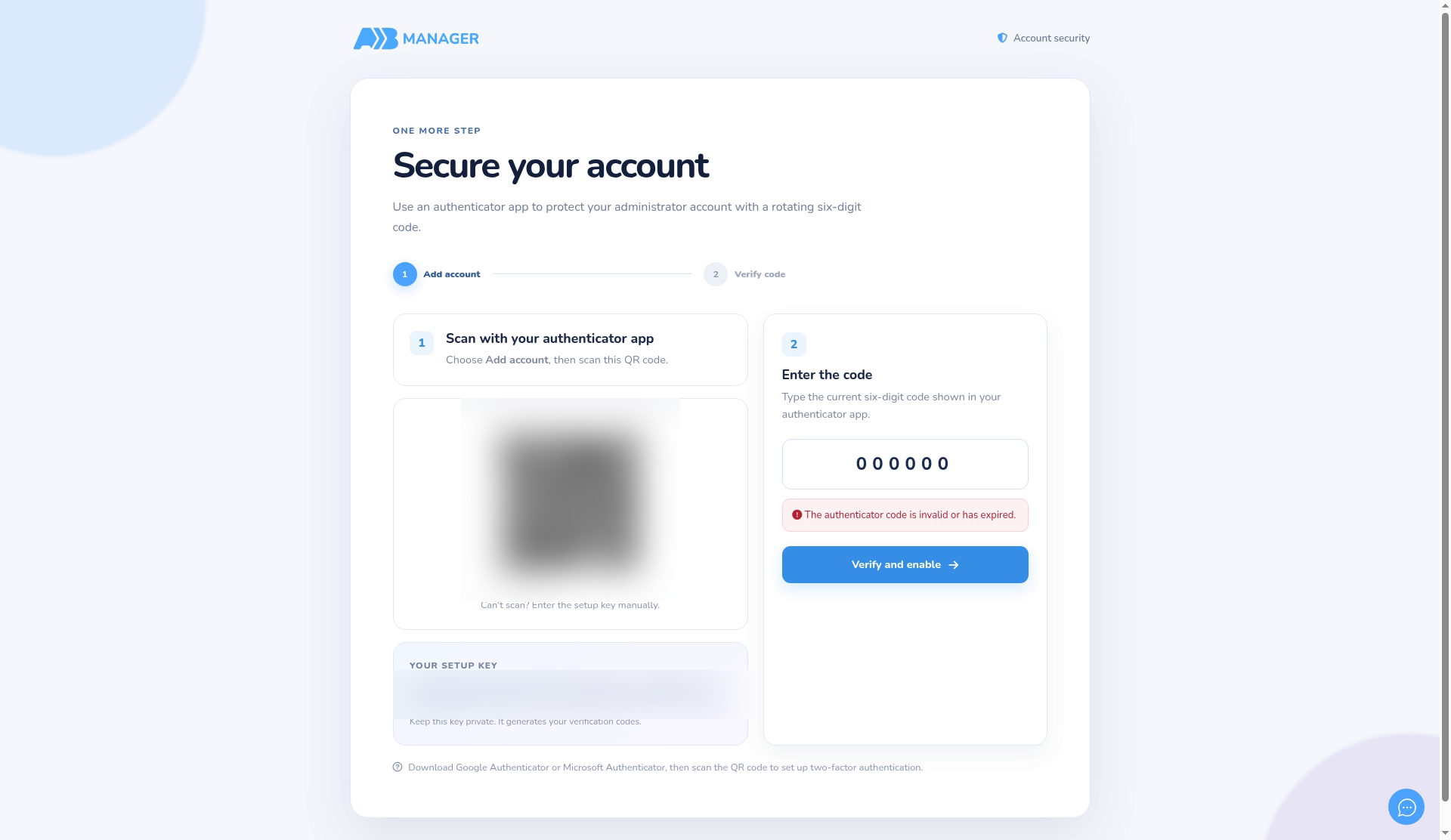
- Under Enter the code, type the six-digit code your app is showing now, then click Verify and enable.
- If you see The authenticator code is invalid or has expired., wait for the next code and try again.
Step 4: Save your recovery codes (0:47) #
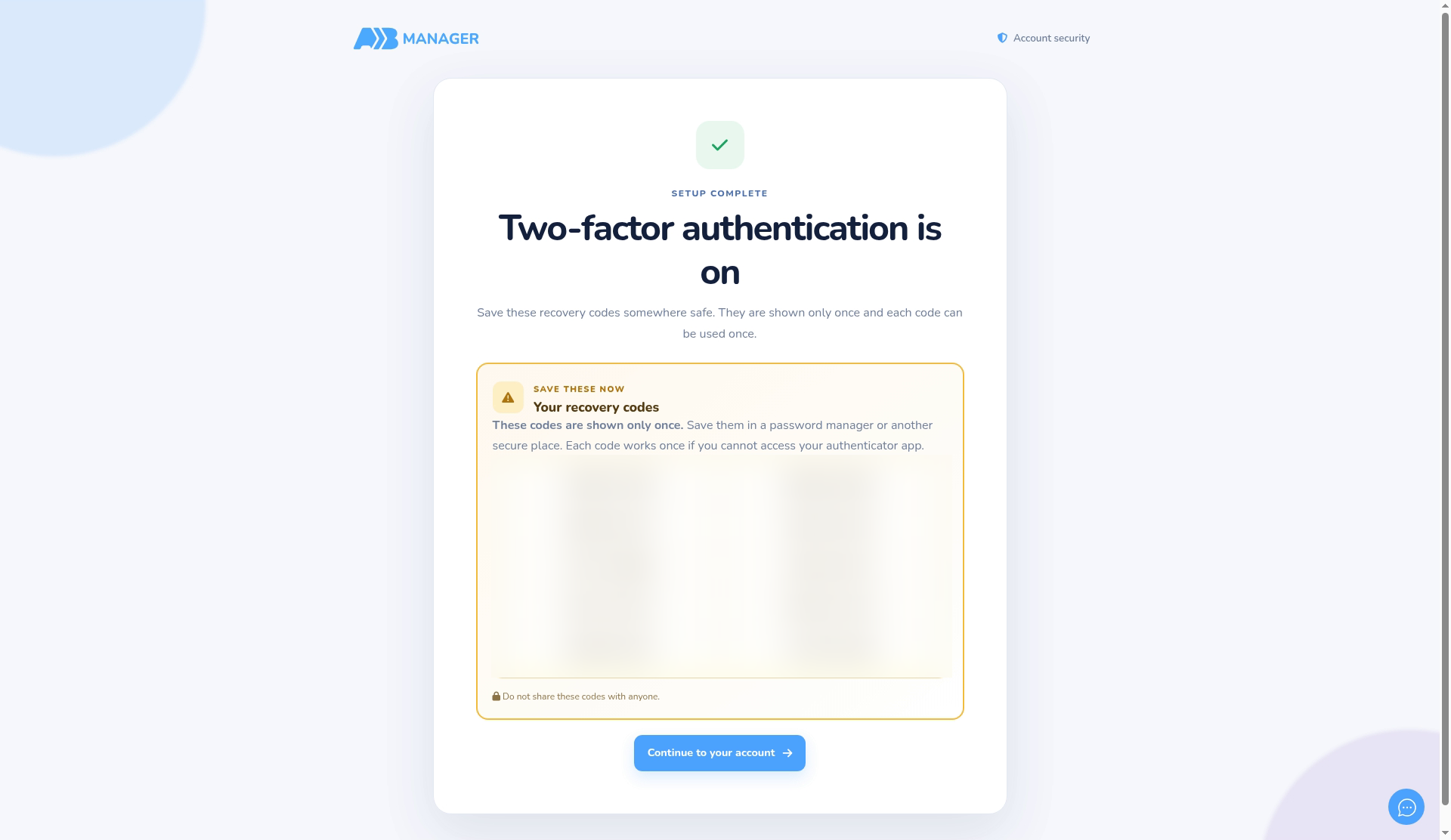
- You’ll see Setup complete, Two-factor authentication is on and 10 recovery codes.
- Save them somewhere safe, such as a password manager. They’re shown only once, and each code works once.
- Click Continue to your account. You may first be asked to accept updated Terms & Conditions before you can carry on.
Step 5: Sign in with your code (1:05) #
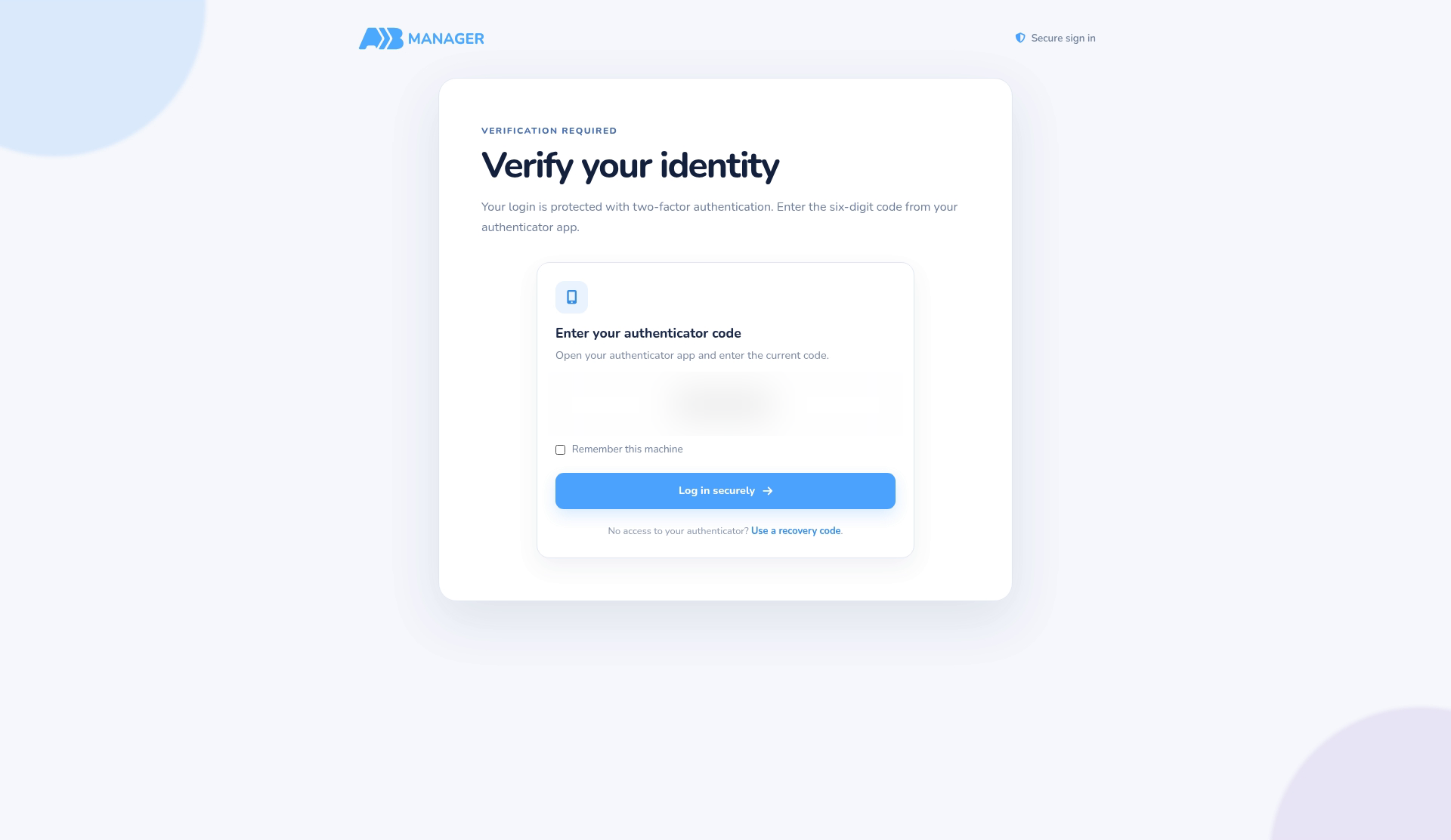
- Sign in with your email and password as usual. You’ll then see Verify your identity.
- Enter the code from your app and click Log in securely.
- Tick Remember this machine to skip the code on that browser for about 14 days. Only tick it on your own computer, never a shared one.
- As after setup, you may be asked to accept updated Terms & Conditions first.
Step 6: Sign in with a recovery code (1:26) #
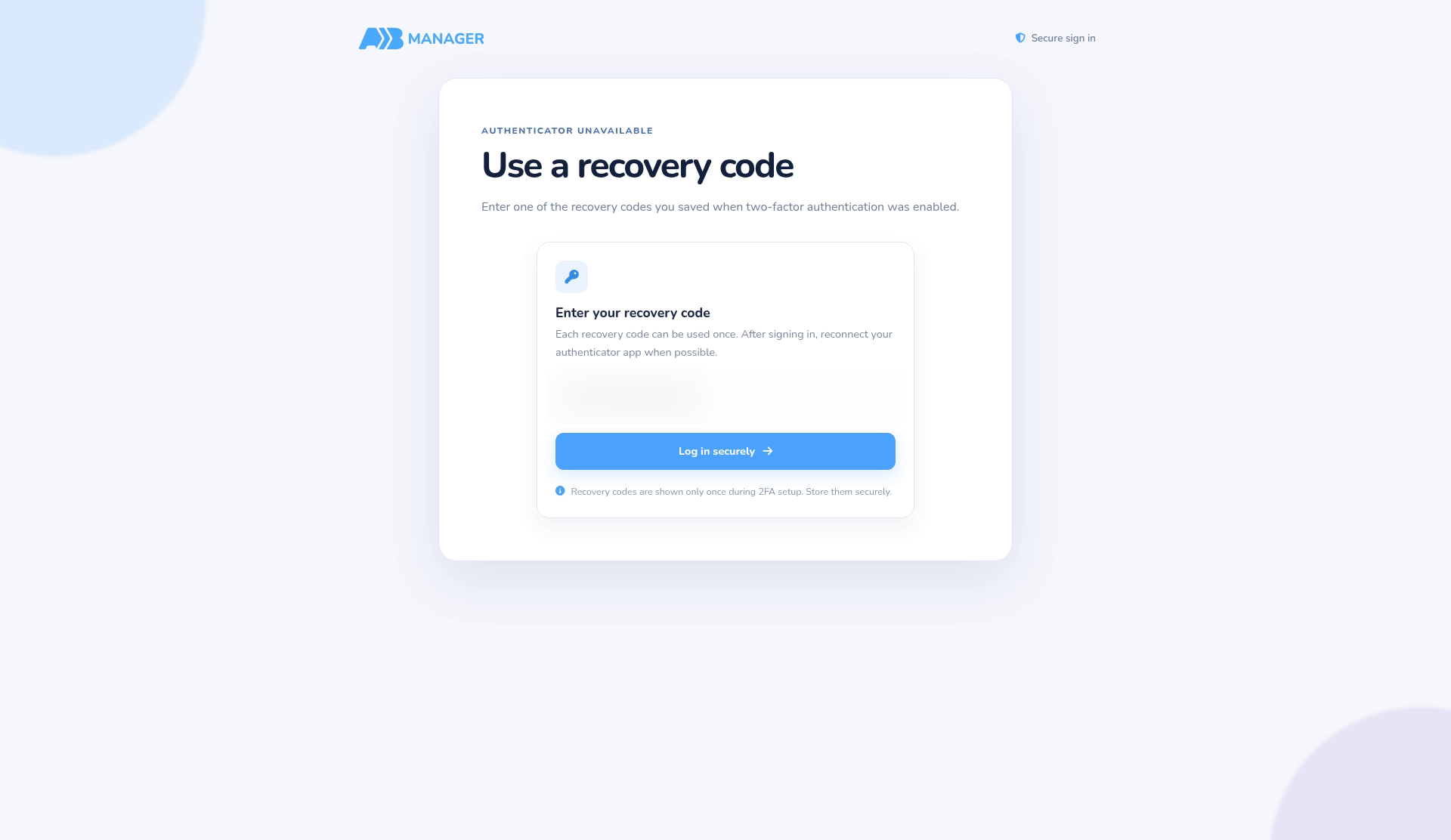
- If you don’t have your phone, click Use a recovery code. (under No access to your authenticator?) on the Verify your identity page.
- On the Use a recovery code page, enter one of your saved codes and click Log in securely.
- Each recovery code works once. When you’re running low, get new ones (step 7).
Step 7: Get new recovery codes (1:42) #
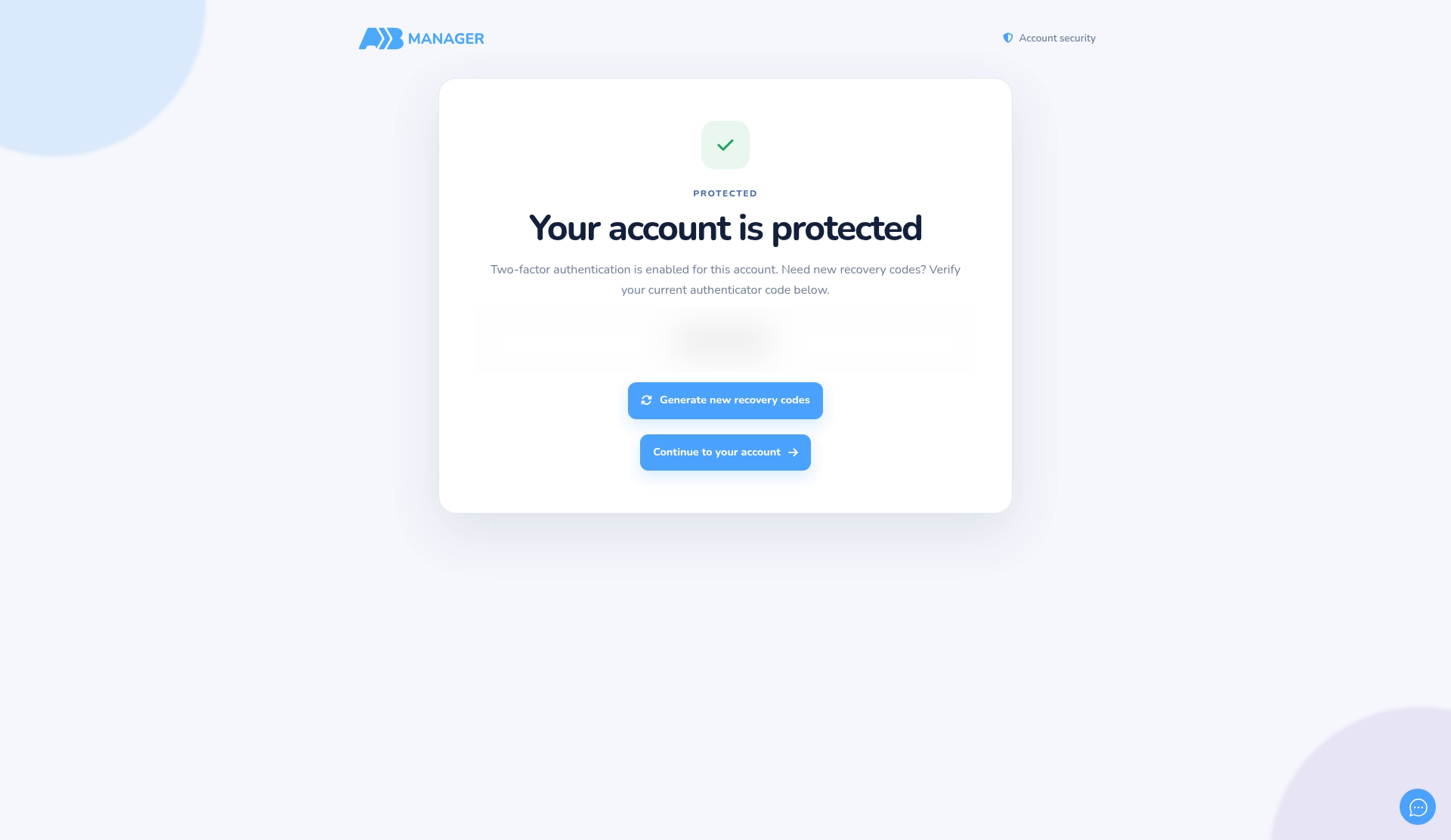
- Go to your A2B Manager address followed by /Account/Manage/TwoFactorAuthentication. You’ll see Your account is protected.
- Enter your current authenticator code and click Generate new recovery codes.
- You’ll see Your new recovery codes with 10 new codes. Your old codes stop working, so save the new ones.
Lost your phone, or need 2FA turned off? #
- You can’t turn two-factor authentication off or move it to a new phone yourself.
- If you’ve lost your phone, use a recovery code to sign in, then email info@a2bmanager.com.
- If you’ve lost your phone and your recovery codes, or need 2FA turned off or set up on a new phone, email info@a2bmanager.com. The A2B Manager team can reset it, and you’ll be asked to set it up again next time you sign in.
Good to know #
- After 6 wrong attempts your account is locked for 5 minutes.
- There’s no way to make a browser forget it was remembered. To stop it skipping the code, clear that browser’s cookies.
- No emails are sent when you turn on 2FA or get new recovery codes.
Tip: Save your recovery codes in a password manager or print them and keep them somewhere safe, away from your phone.


