

Table of Contents
Closing for new bookings only stops anyone booking new places on chosen dates, while your existing members keep coming to their sessions as normal. It’s useful for weeks like badge week, when you want classes to run but don’t want new children joining. Unlike a full closure, sessions still run and appear on registers, and members are charged as usual.
Closing for new bookings only #
Step 1: Open Closed dates (0:00) #
- In the left-hand menu, click Settings Hub.
- Scroll down to System Settings and click the Settings card. It opens on the Closed dates tab.
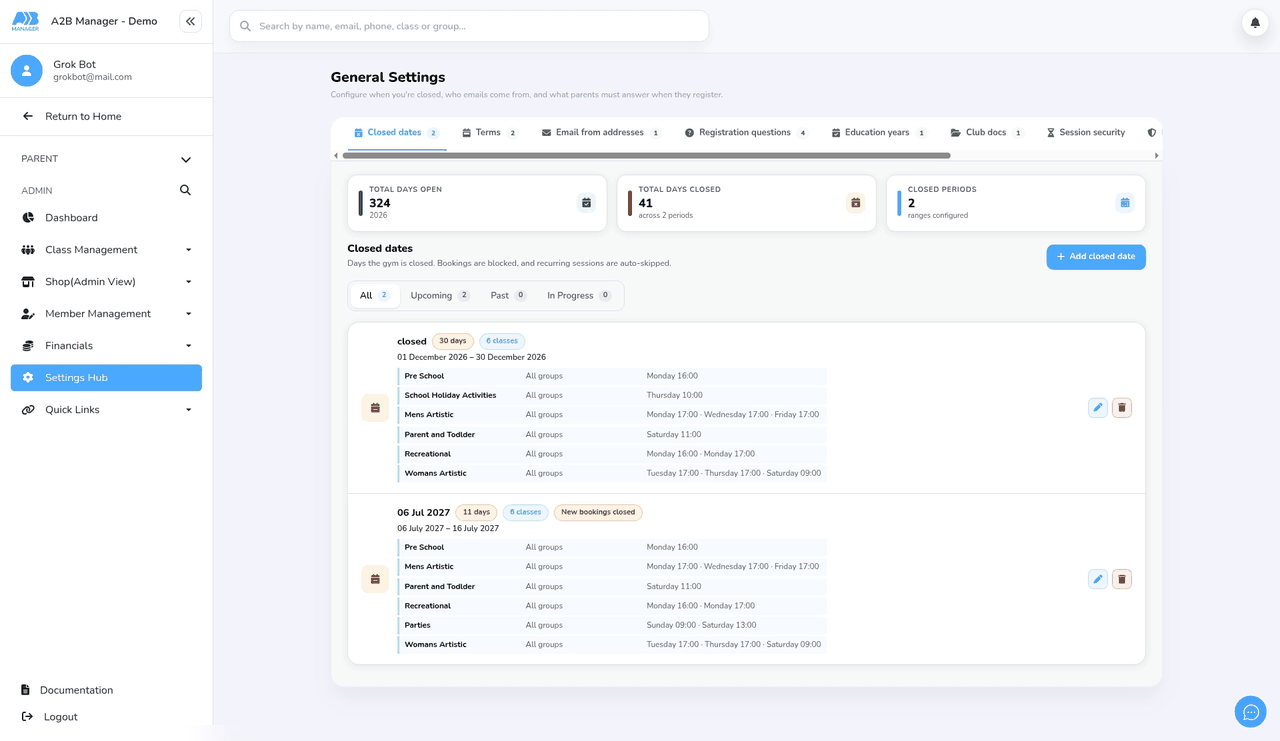
Step 2: Add a name and dates (0:21) #
- Click Add closed date.
- Under Closure name, enter a name your team will recognise, such as Badge week. The name is optional; without one, the list shows the start date.
- Choose a Start date and an End date. Both are required, and the closure includes both days. The box underneath shows how many days you’re closing for, for example Closed for 7 days. Check this number before you save.
- The date boxes use your browser’s date format, which is usually day/month/year in the UK. Our demo browser used month/day/year.
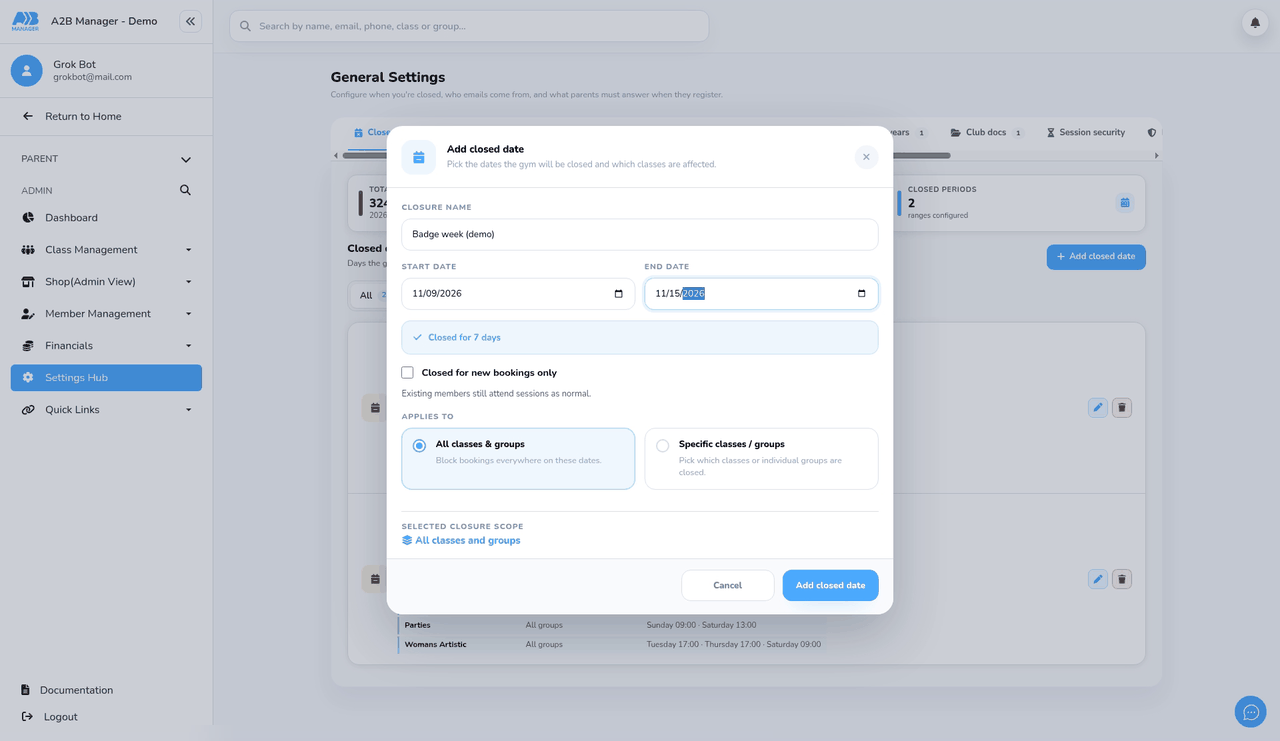
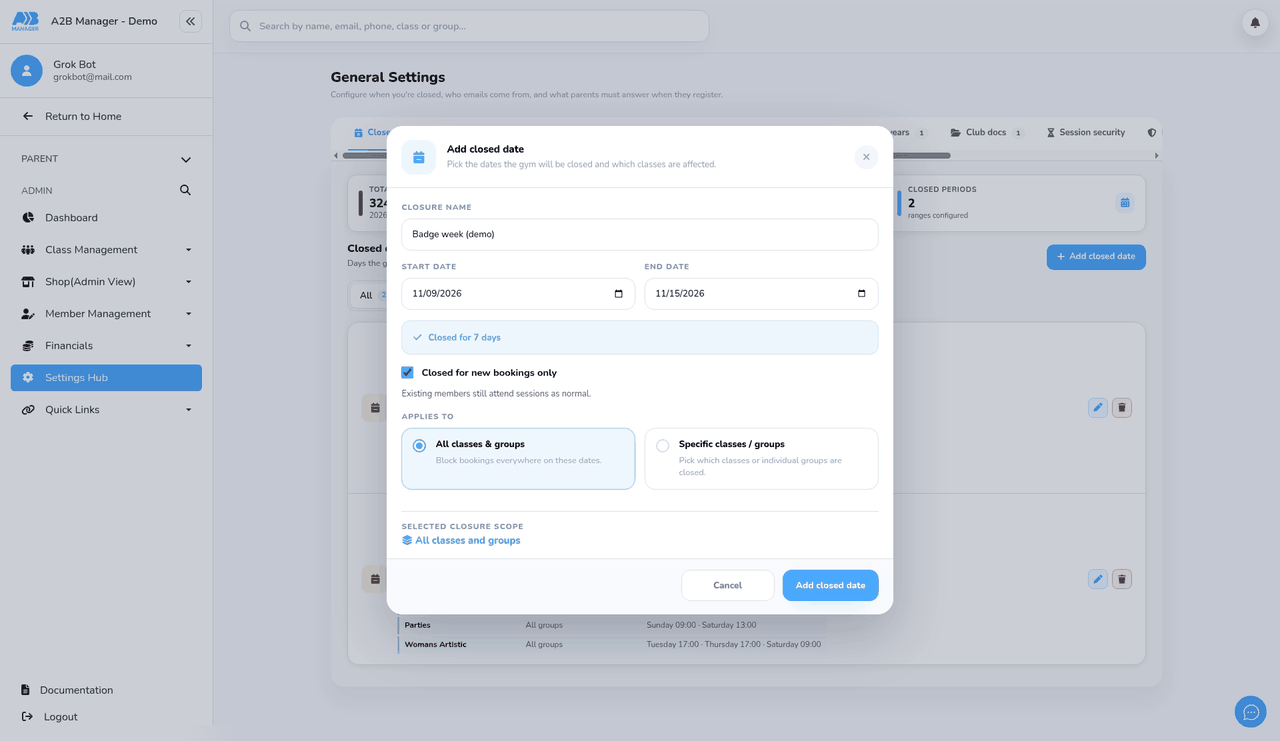
Step 3: Tick Closed for new bookings only (0:53) #
- Tick Closed for new bookings only (Existing members still attend sessions as normal.).
- If you leave it unticked, it’s a full closure instead: sessions show as Closed and recurring sessions are skipped.
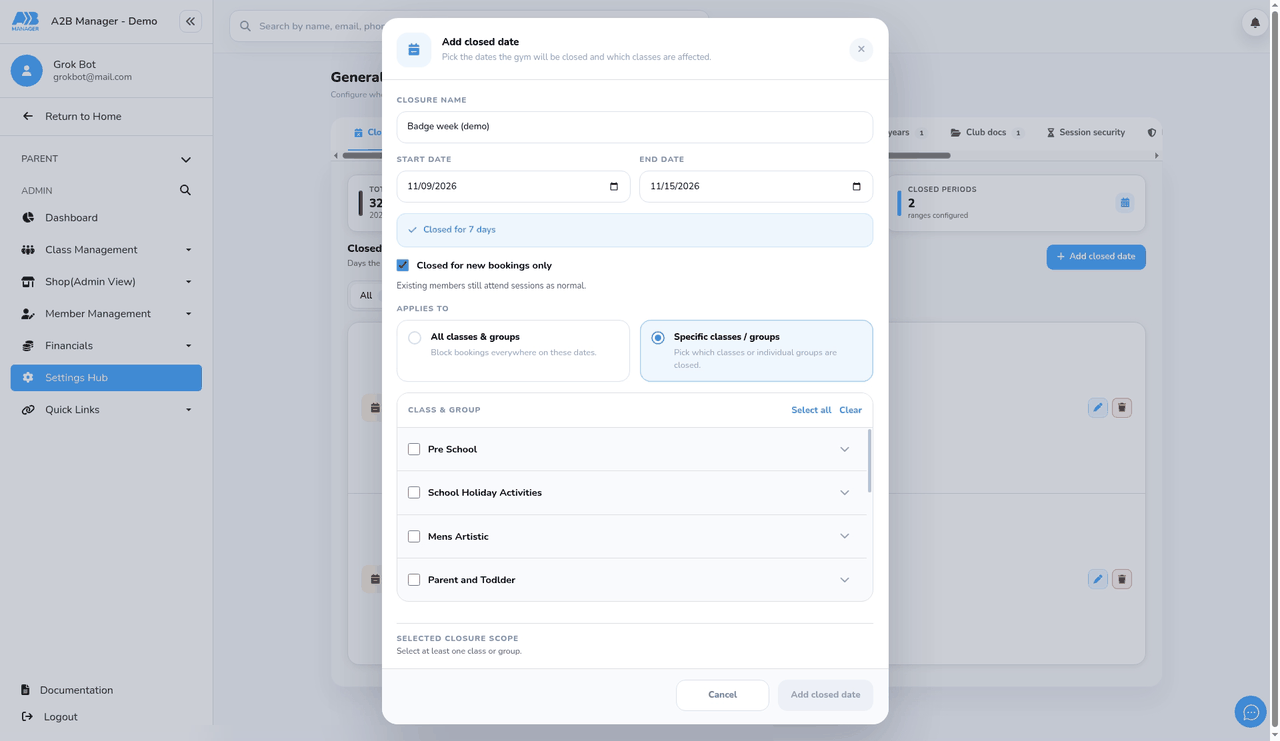
Step 4: Choose what it applies to (1:04) #
- Under Applies to, keep All classes & groups to close everything.
- Or choose Specific classes / groups and tick the classes you want. Expand a class to pick individual groups, or use Select all and Clear.
- Selected closure scope at the bottom shows what you’ve picked.
Step 5: Save the closed date (1:18) #
- Click Add closed date.
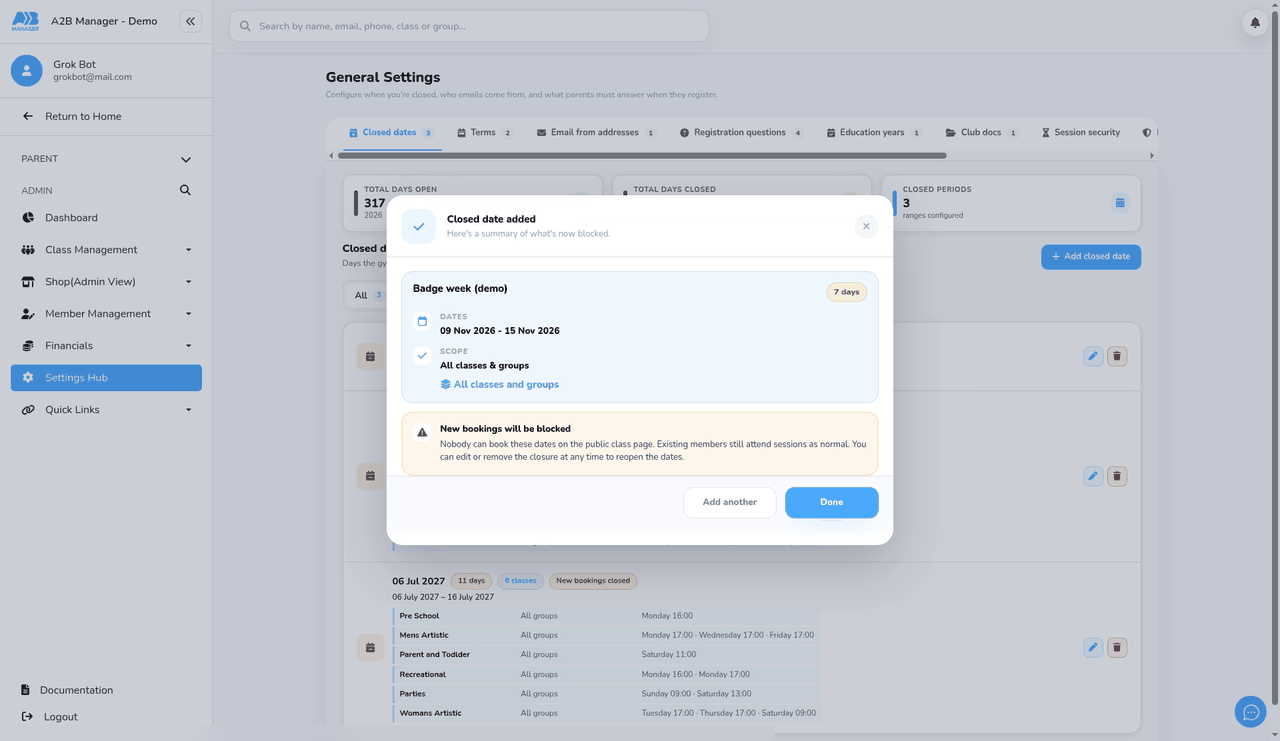
- Closed date added shows the dates, the scope and New bookings will be blocked.
- Click Done, or Add another to add a further closure.
Step 6: Check where it shows (1:30) #
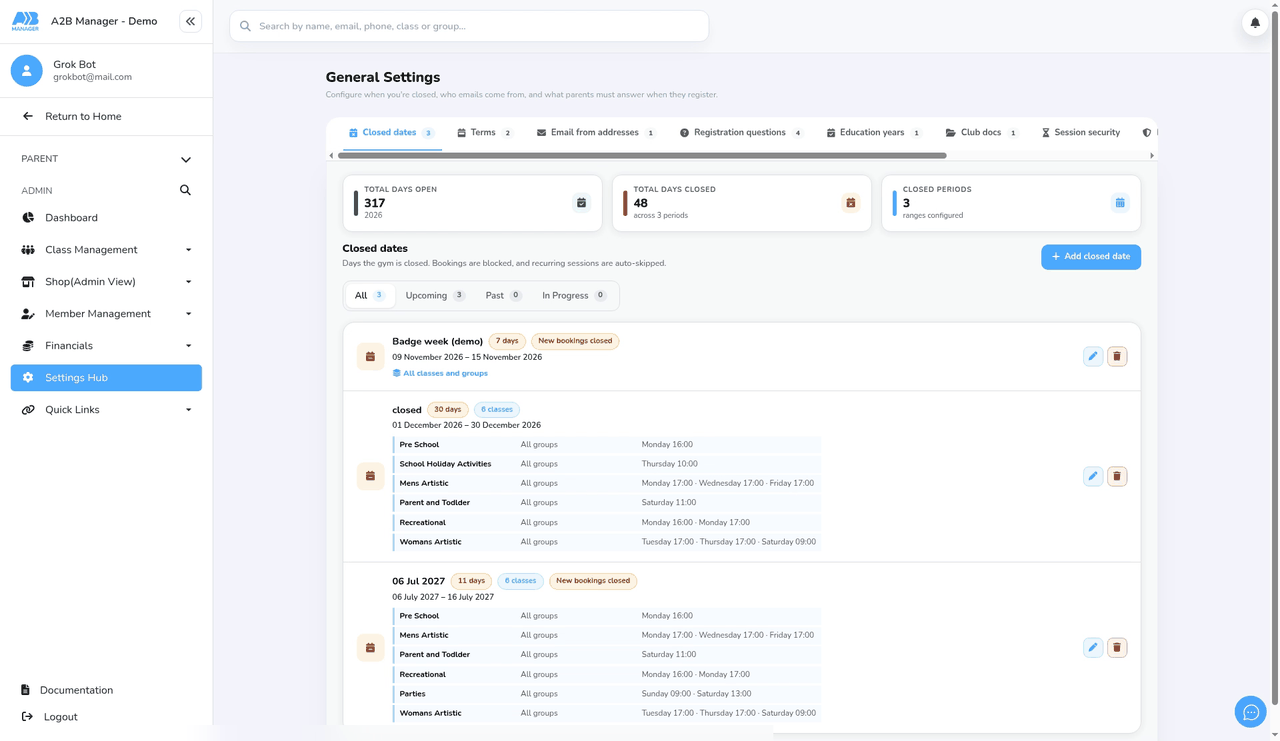
- In the Closed dates list, the closure has a New bookings closed label and the number of days. Use All, Upcoming, Past and In progress to filter the list.
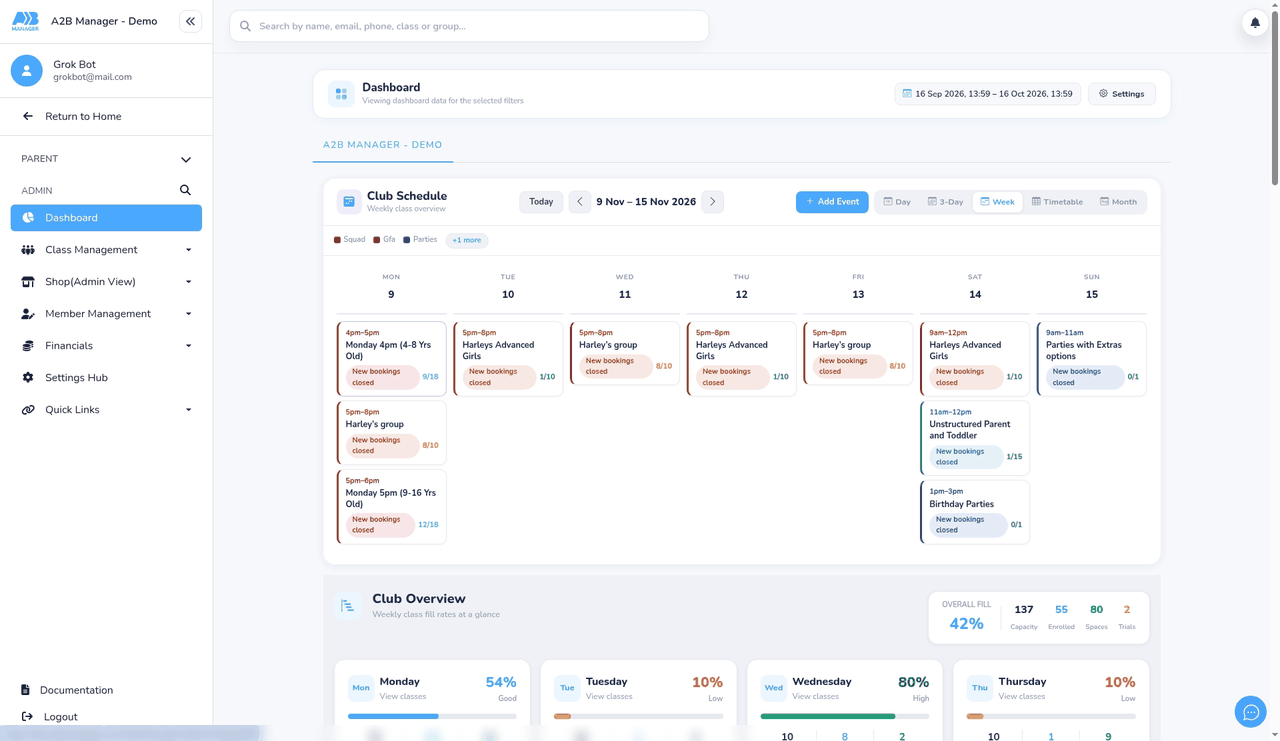
- On the dashboard’s Club Schedule, sessions on those dates show a New bookings closed label. They still run, and registers and attendance work as normal.
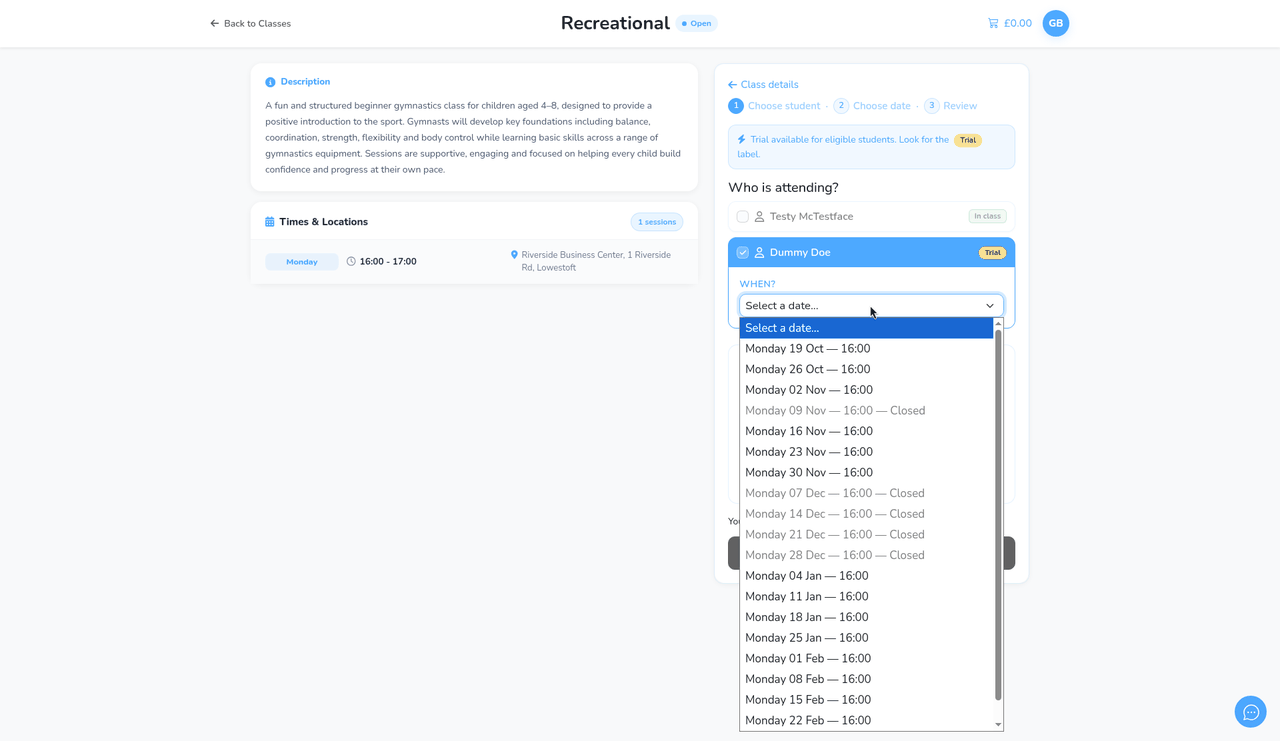
- On a class’s booking form, parents still see those dates in the date list, but they’re greyed out and marked Closed, so they can’t be picked.
Step 7: Edit or delete it (2:32) #
- To change a closure, click its pencil icon, make your changes and click Save changes.
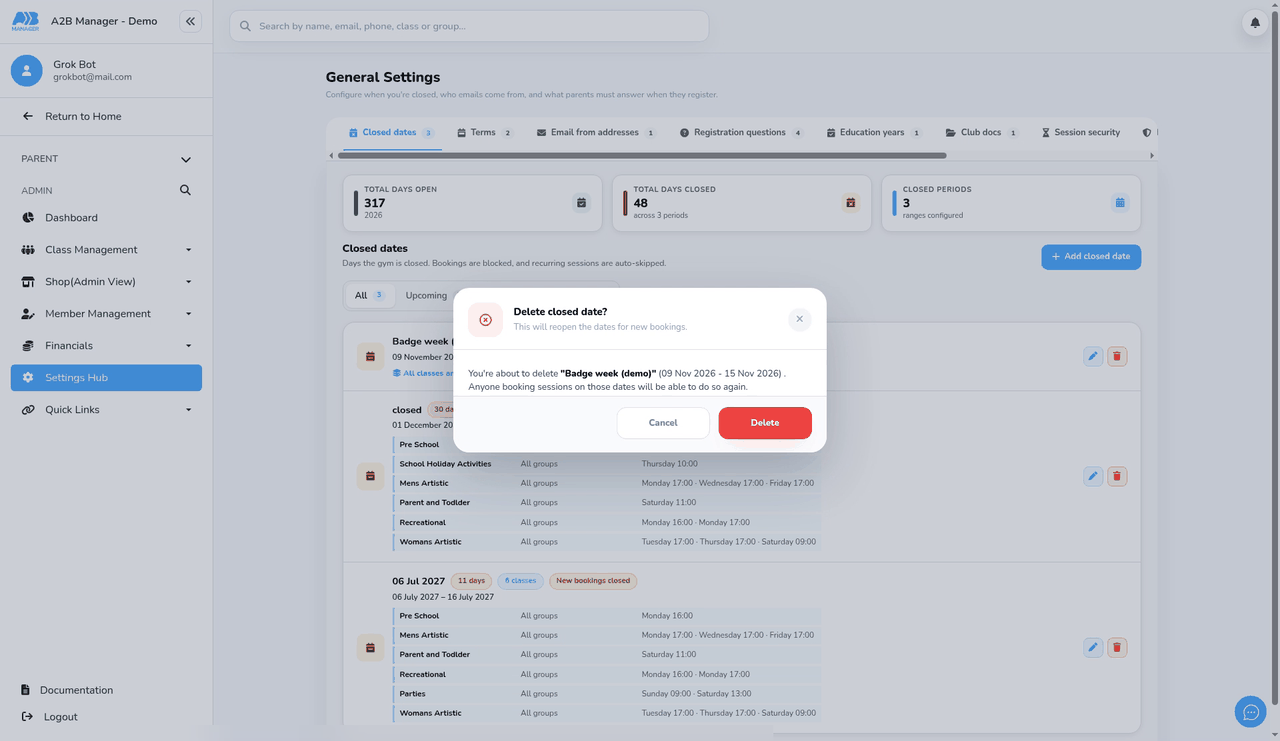
- To remove it, click its bin icon. You’ll see Delete closed date? This will reopen the dates for new bookings. Click Delete.
- A message confirms it’s been deleted, and the dates are open for new bookings again.
What members still get #
- Existing members’ regular sessions carry on as normal. They appear on registers and attendance, and recurring sessions aren’t skipped.
- Members are charged as usual for those dates. Only the price of a new booking treats them as closed.
- Nothing is emailed to parents when you add or remove a closure. If you want families to know, tell them yourself.
Good to know #
- The block applies to everyone booking through your club’s booking pages, including admins and parents whose child already attends. So existing members can’t add extra or pay-as-you-go sessions on those dates either.
- Nothing stops you adding two closures for the same dates, or a closure in the past, so check the list before you add one.
- The Total days open and Total days closed figures count new-bookings-only closures as closed days, even though your sessions still run.
Tip: Badge week is a good use for this: classes run as normal for your members, but no new children can book in that week.
FAQs #
- Will my members miss their classes? No. Their sessions run as normal. Only new bookings are blocked.
- Can I close only some classes? Yes. Choose Specific classes / groups under Applies to.
- How do I reopen the dates early? Edit the closure to change the end date, or delete it.
- Are parents told? No. Nothing is emailed, so let families know yourself if you need to.


