

Table of Contents
Add a member to a class straight from their profile page, with or without a subscription plan.
Adding the member #
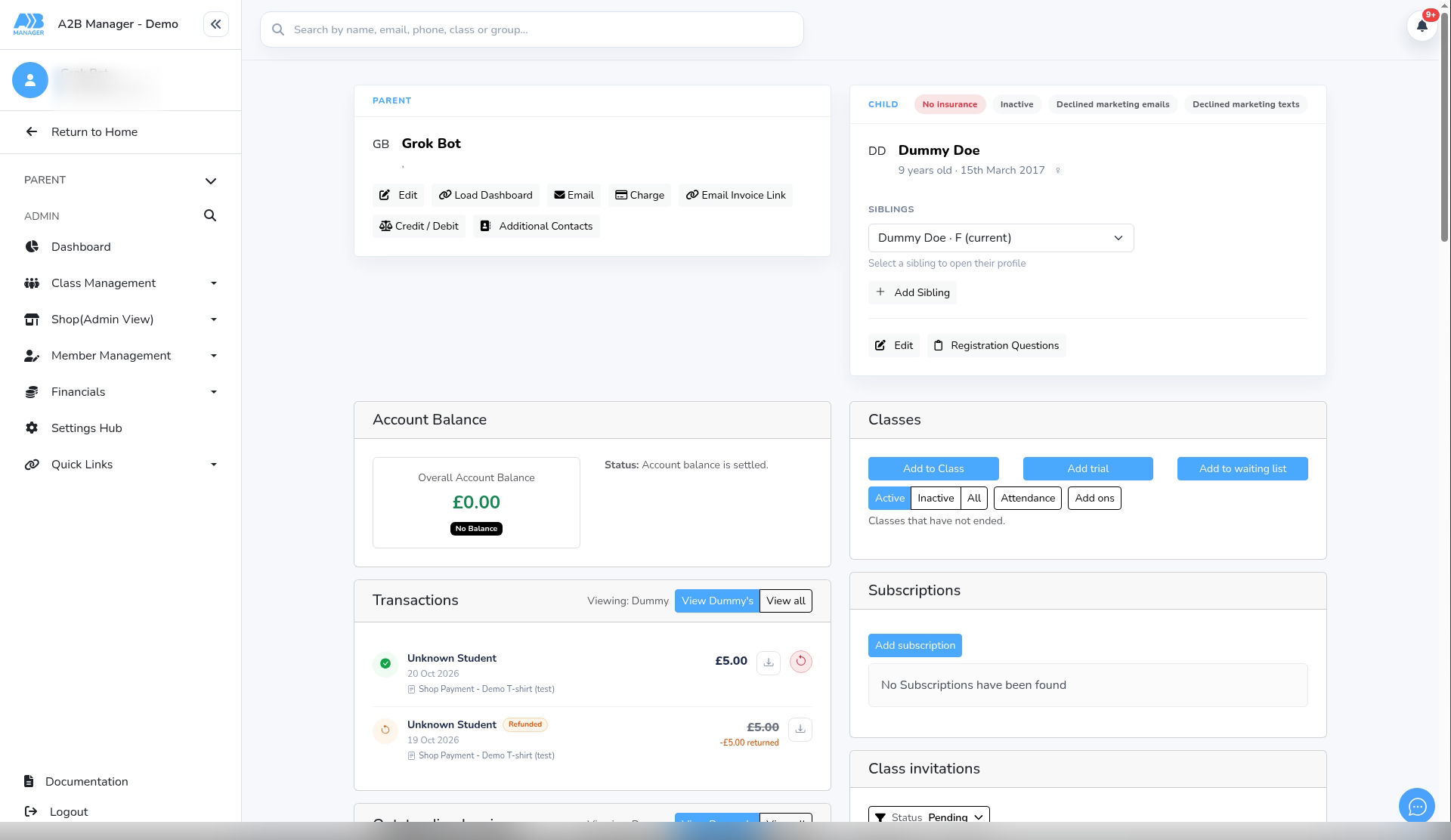
Step 1: Open the member’s profile #
- Go to Member Management > Members and click the member’s name.
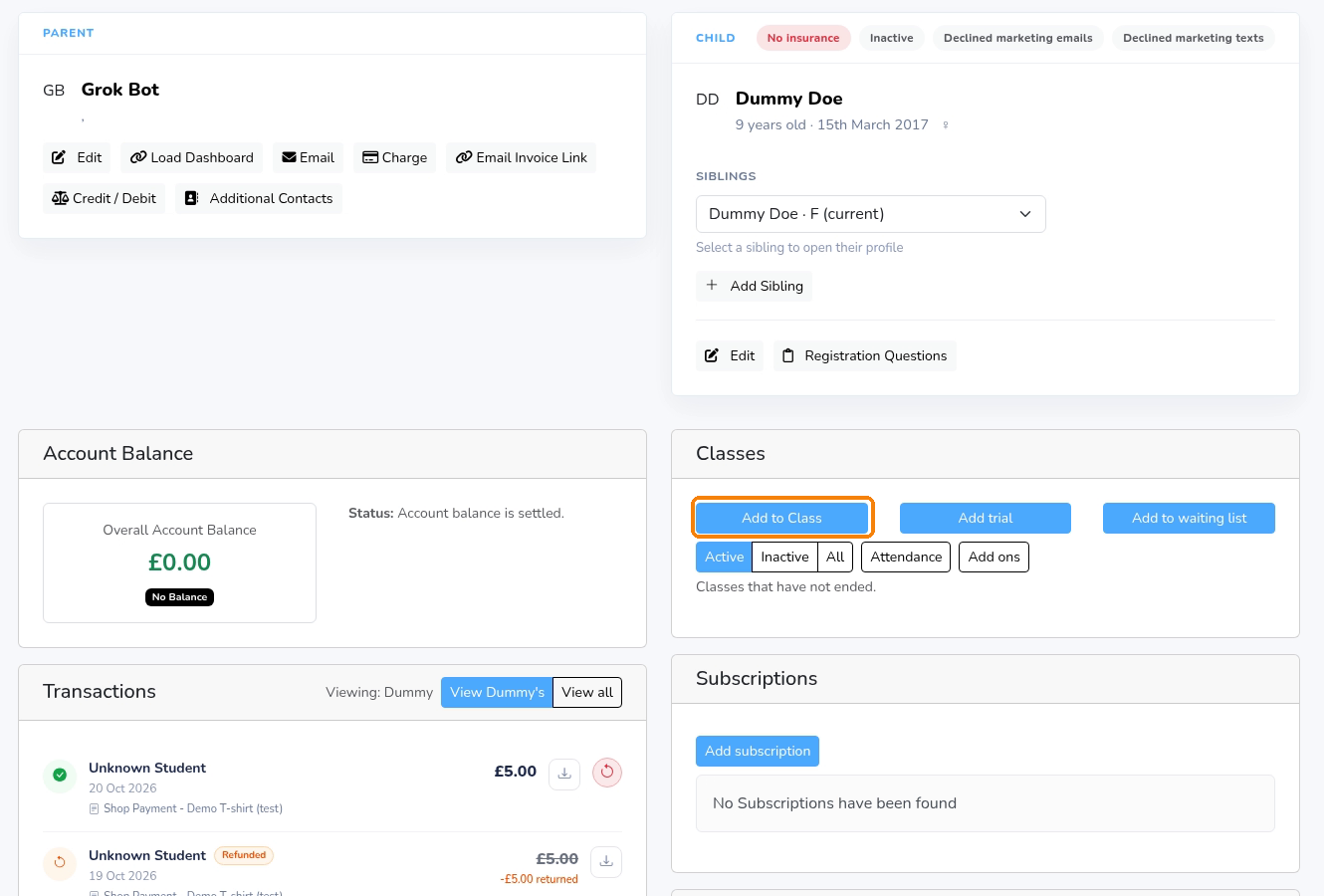
Step 2: Click Add to Class #
- In the Classes card, click Add to Class.
- The same card has Add trial and Add to waiting list.
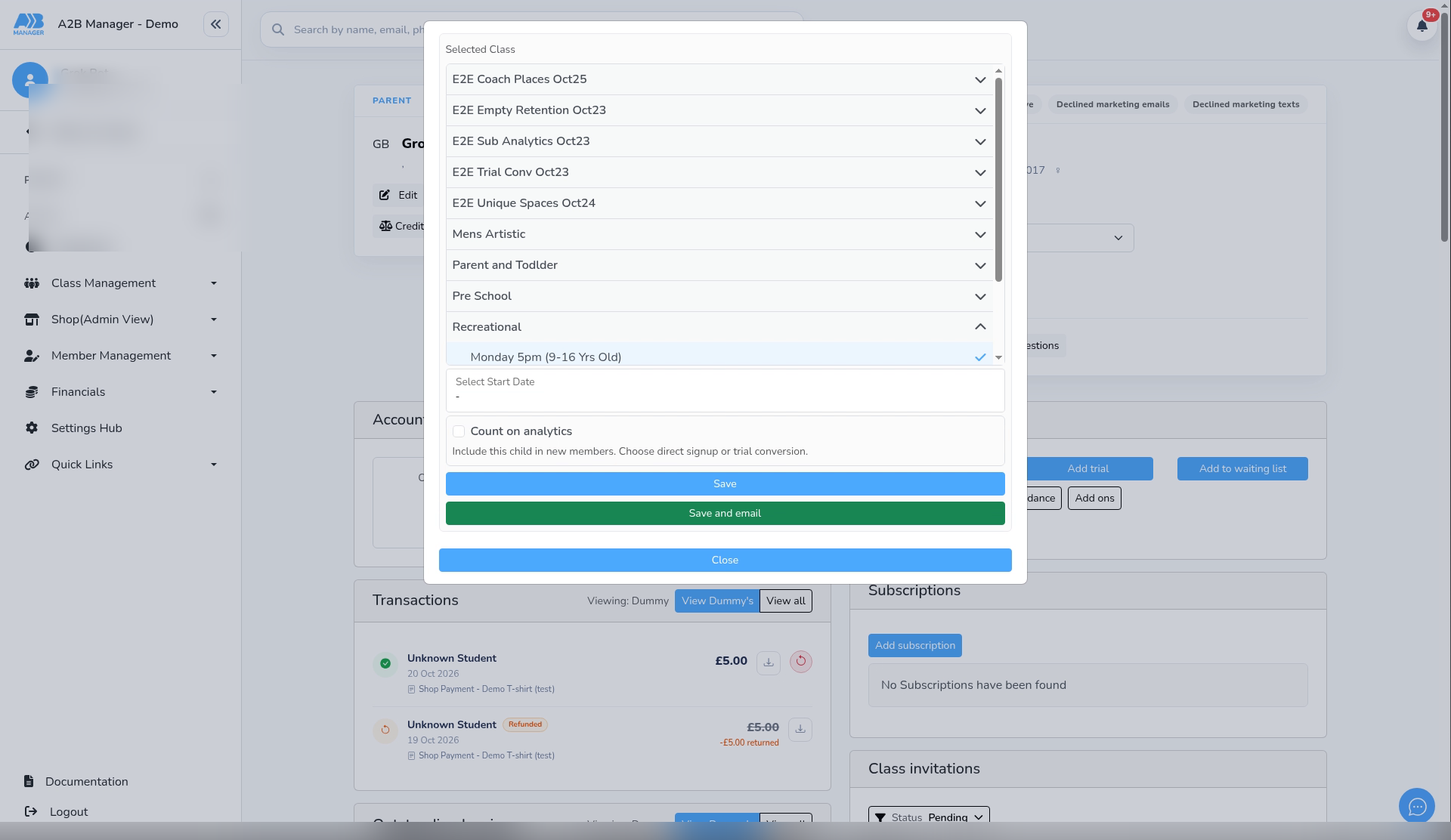
Step 3: Choose the class and group #
- Open a class under Selected Class and click the group. Groups the member is already in show (already on this class).
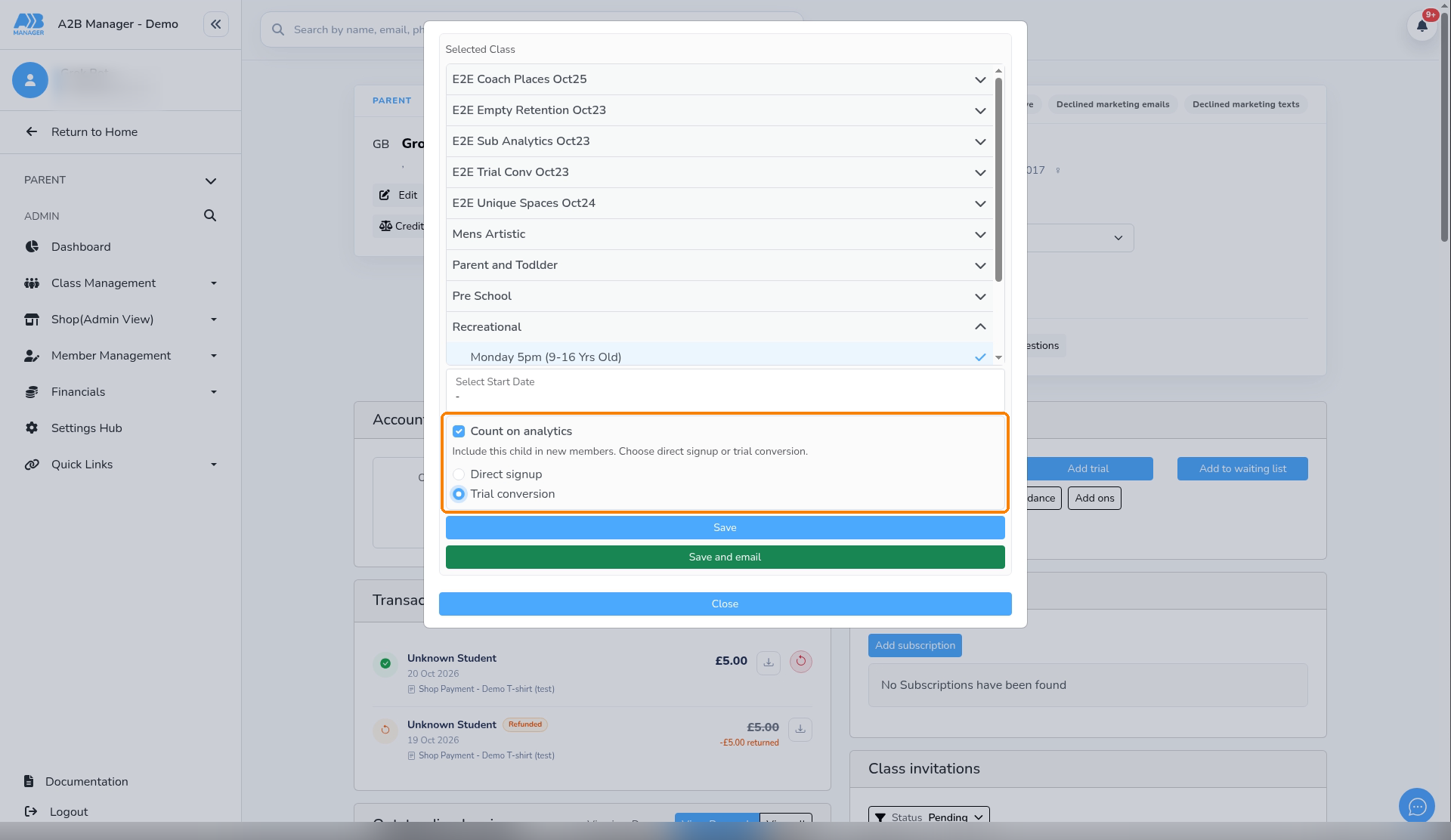
Step 4: Count on analytics (optional) #
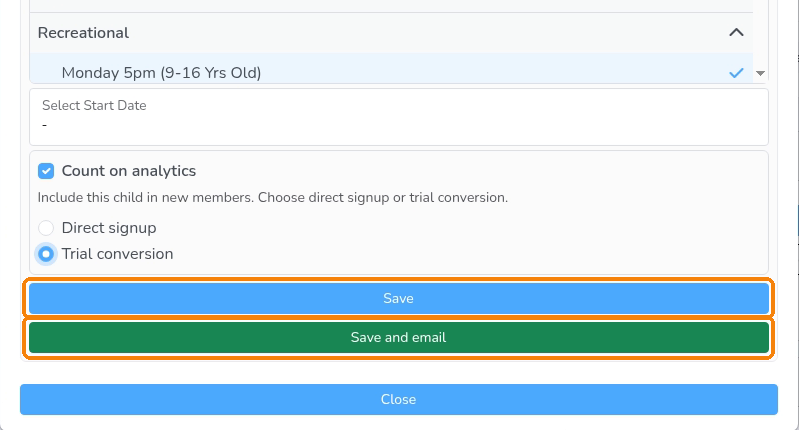
- Tick Count on analytics if this child should count in Subscription Analytics as a new member.
- The hint reads: Include this child in new members. Choose direct signup or trial conversion.
- Choose Direct signup or Trial conversion. You must pick one before you can save when the tick is on.
- The count uses the child’s first lesson date in the analytics date range. Leave the tick off when you are only moving someone and they should not count as new.
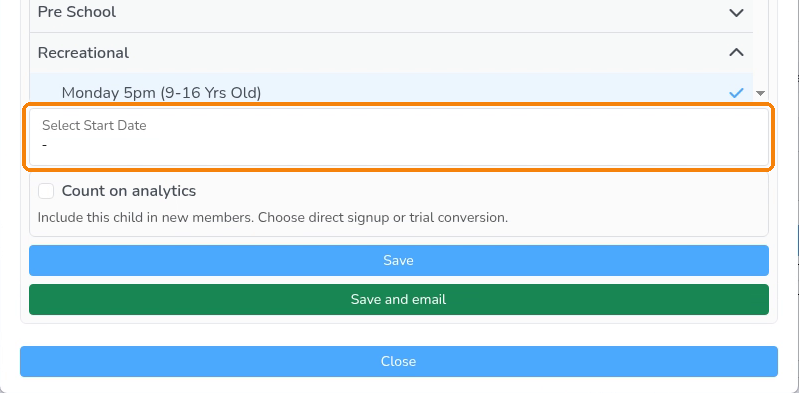
Step 5: Choose the start date #
- Pick the first lesson in Select Start Date.
- Select plan lists your active plans. Choosing one sets up a subscription, and its date is the first payment date (at least tomorrow). Leave it blank to add the place without a subscription.
Step 6: Save #
- Click Save. The class appears in the member’s Classes list with its first lesson date.
- Click Save and email to also send the parent a booking confirmation.
The booking confirmation email #
- Save and email sends the booking confirmation for the group’s type: Class, Term, PAYG or Multi-event Booking Confirmation.
- Edit these under Settings Hub > Email Templates.
Good to know #
- If you choose a plan, a subscription is set up and the first payment is taken on the first payment date. Check the plan and date before saving.
- Count on analytics only affects Subscription Analytics new-member figures. Unticked adds do not count as new members.
- See How to Use Subscription Analytics for how New members, Direct signups and Trial conversions are counted.


