

Table of Contents
You can add a report, such as an accident report, for a child straight from the register. The report is saved on the child’s profile, and you choose whether their parent can see it.
Adding a report from the register #
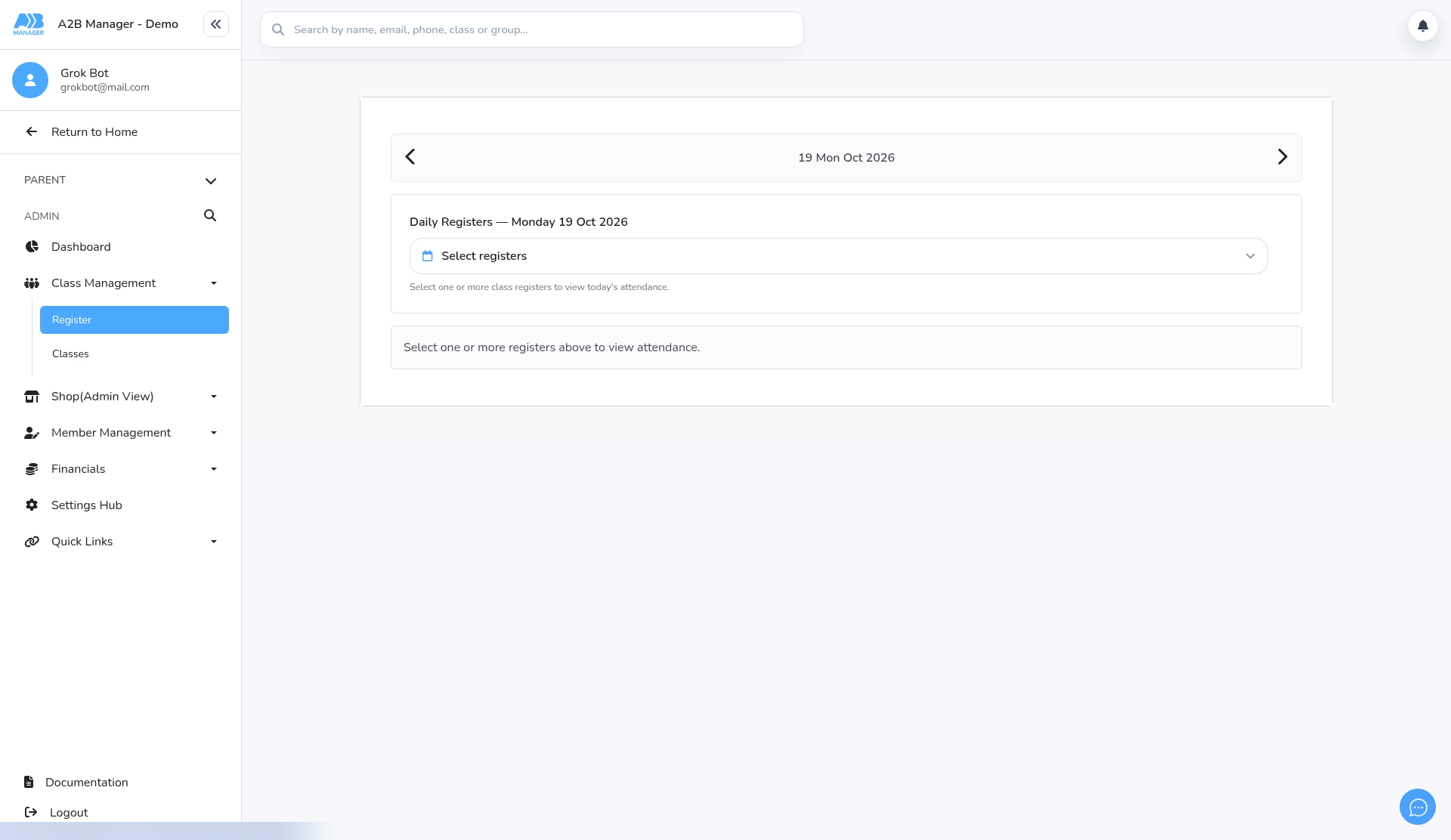
Step 1: Open the Register (0:00) #
- Go to Class Management > Register.
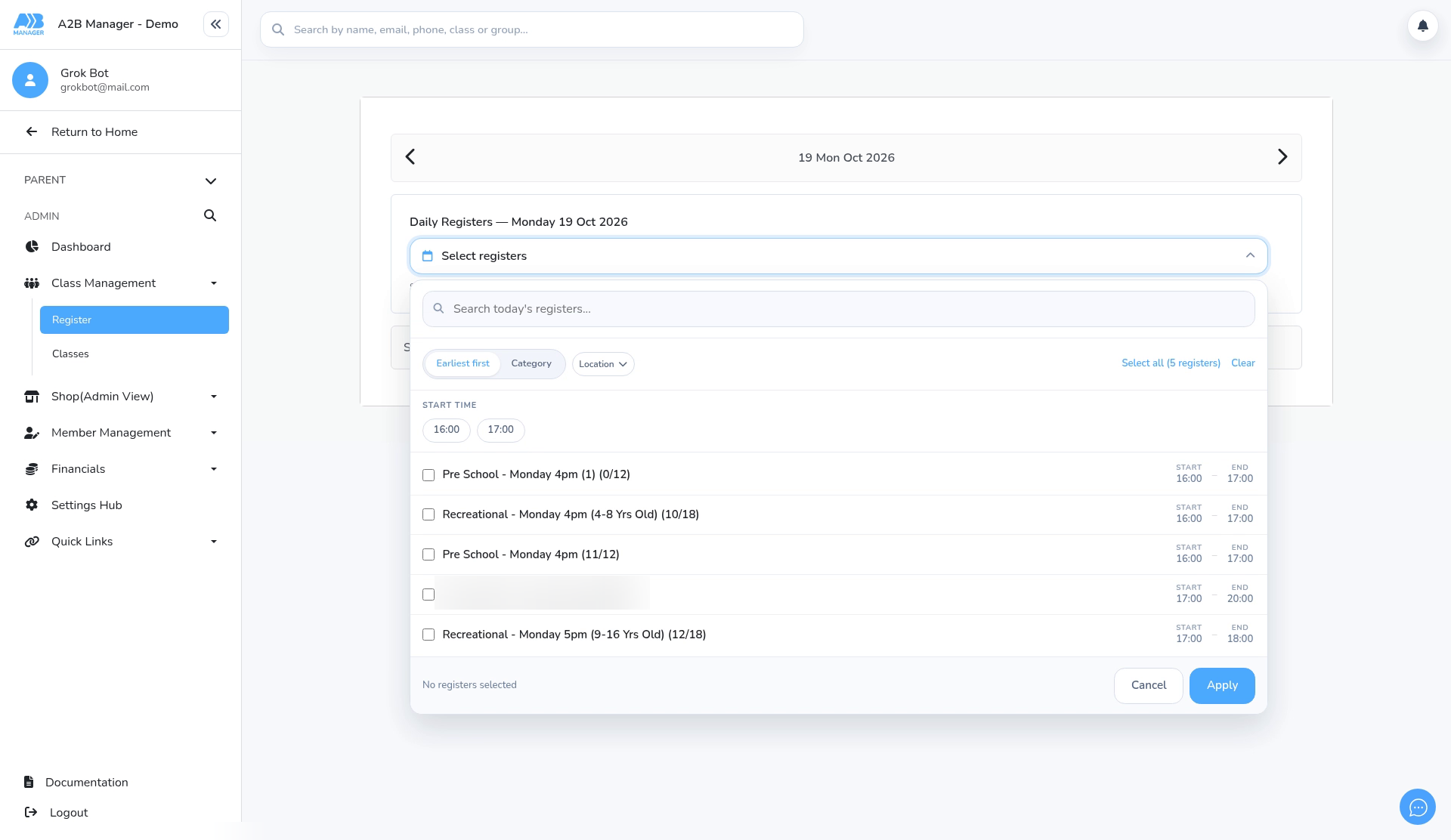
Step 2: Choose the class register (0:07) #
- Pick the date, click Select registers and tick the class, then click Apply.
- You can also search, filter by location, or tap a start time to tick every class at that time.
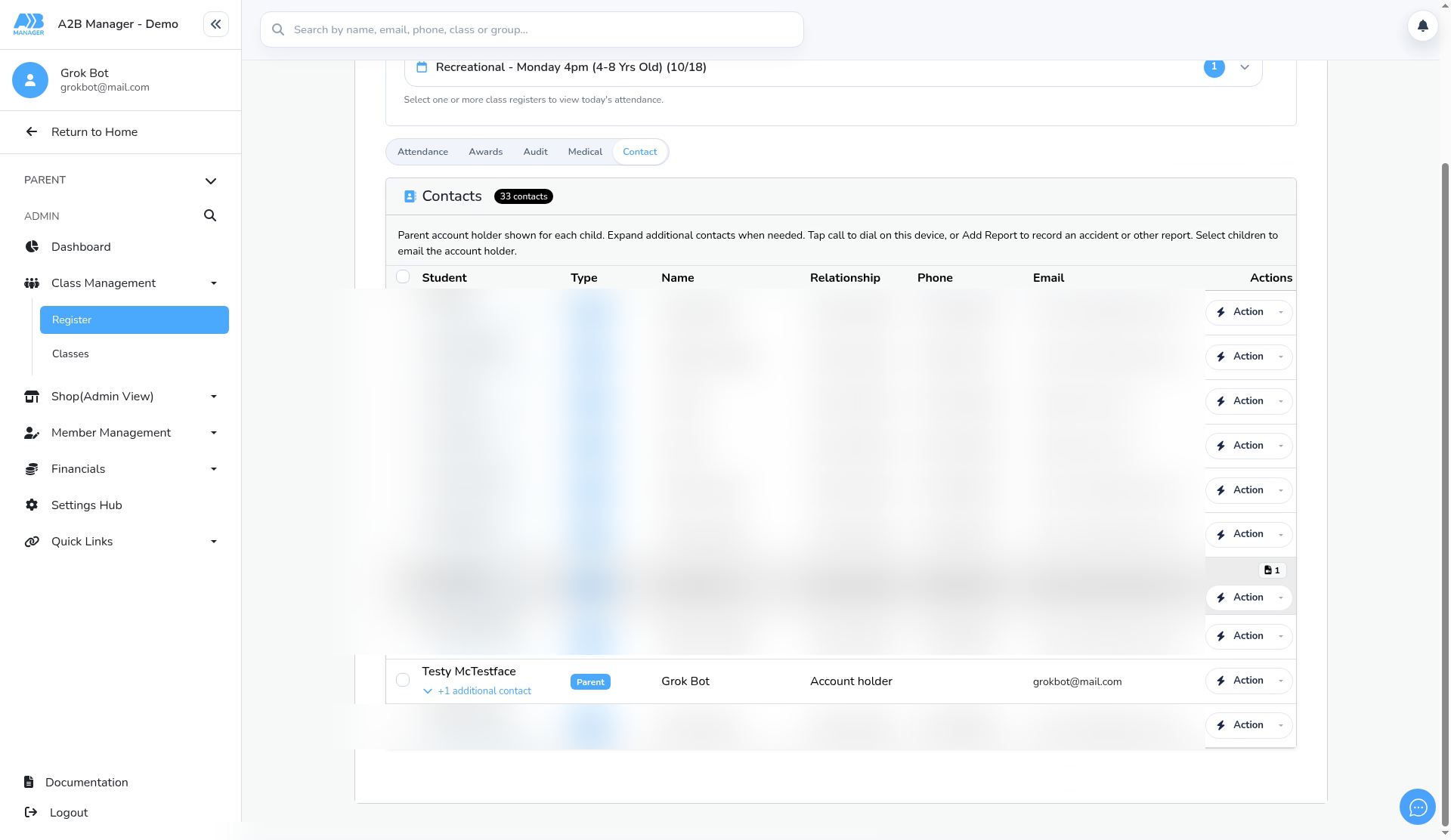
Step 3: Find the child on the Contact tab (0:16) #
- Click the Contact tab and find the child in the list.
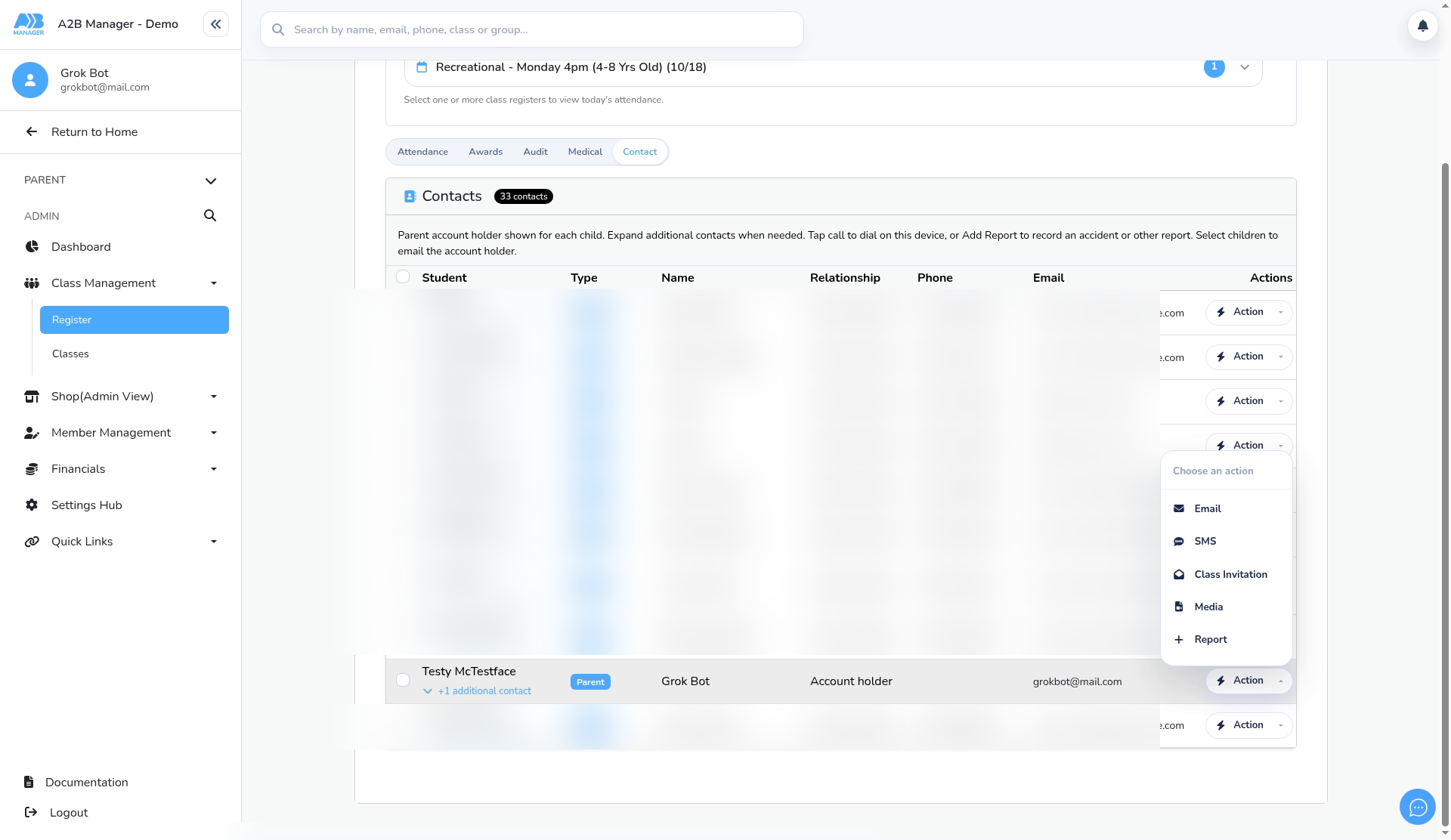
Step 4: Open Action, then Report (0:32) #
- Click Action on the child’s row. The menu offers Email, SMS, Class Invitation, Media and Report.
- Choose Report.
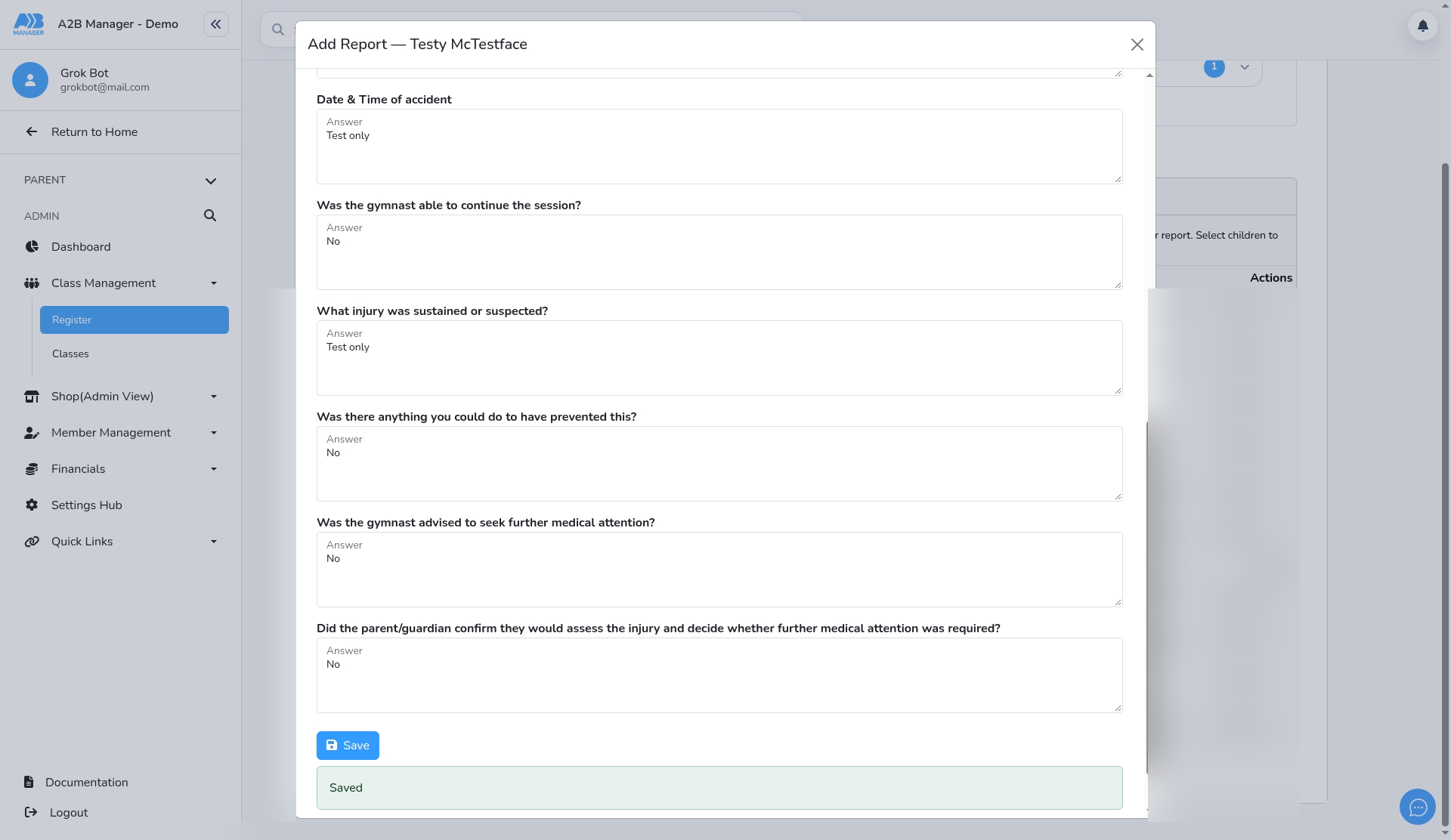
Step 5: Complete and save the report (0:50) #
- In Add Report, choose the report type from Select Report, for example Accident Report.
- Enter a Title and answer every question.
- Display to parent is set to No, so the parent won’t see the report. Change it to Yes to show it on their account; a Save & Email Parent button then appears if you also want to email them.
- Click Save.
Step 6: Find the report on the profile (1:12) #
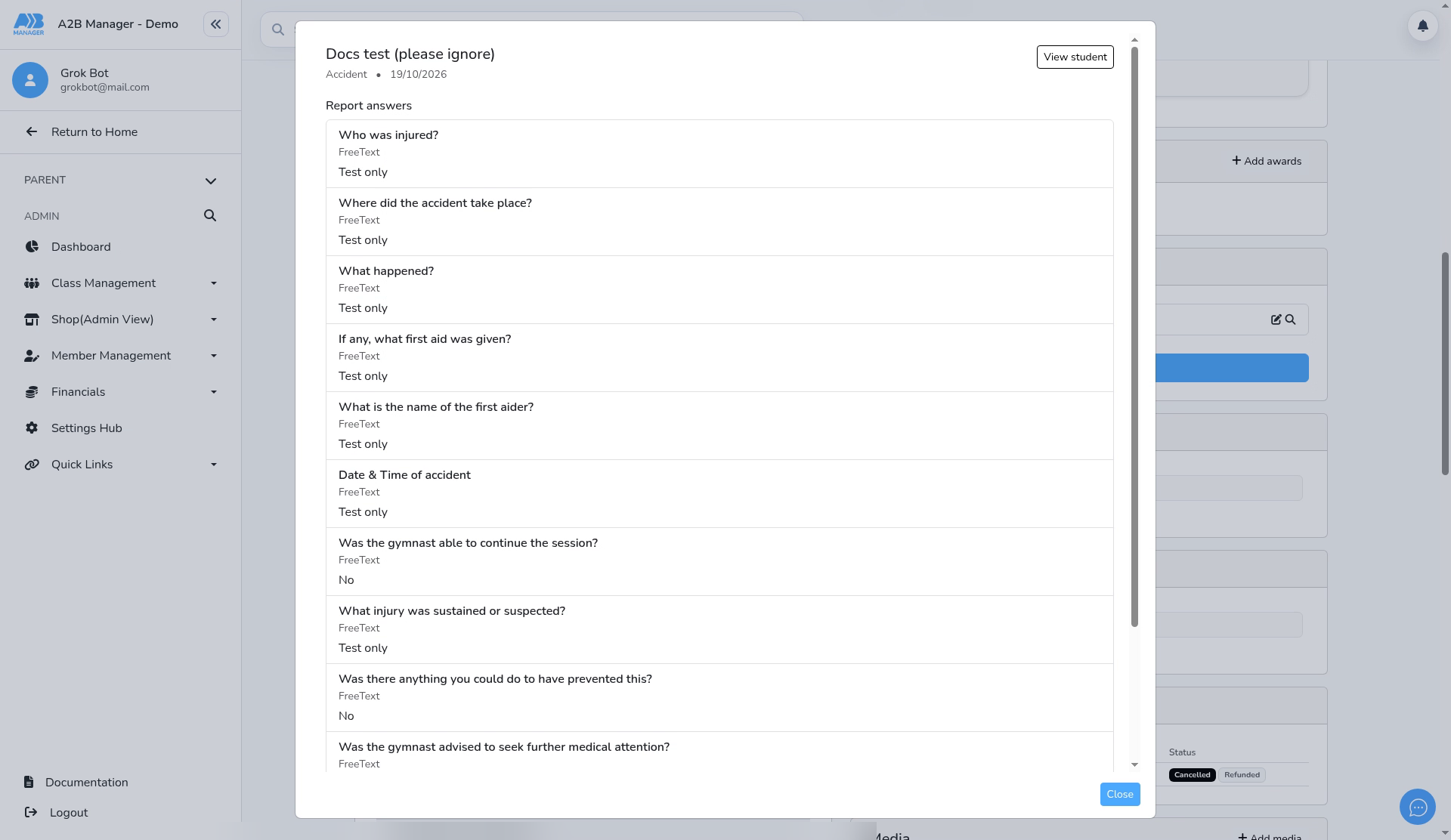
- Open the child’s profile. The report is listed under Add Report, by report type.
- Click the magnifier to view it, or the pencil to edit it.
Good to know #
- The report types you can choose come from your club’s report templates in Settings Hub.
- You can also add a report from the member’s profile. See How to Add Reports to Member Profiles.
- Reports can’t be deleted at the moment, so check the details before you save. You can edit a report afterwards.


