

Table of Contents
You choose which term parents can book. Only one term is open for booking at a time, so when you’re nearing the end of a term and you’re ready for parents to book the next one, you open it in Settings Hub. Your current term carries on as normal, and nothing is emailed or charged when you switch.
Opening the next term #
Step 1: Open Terms (0:11) #
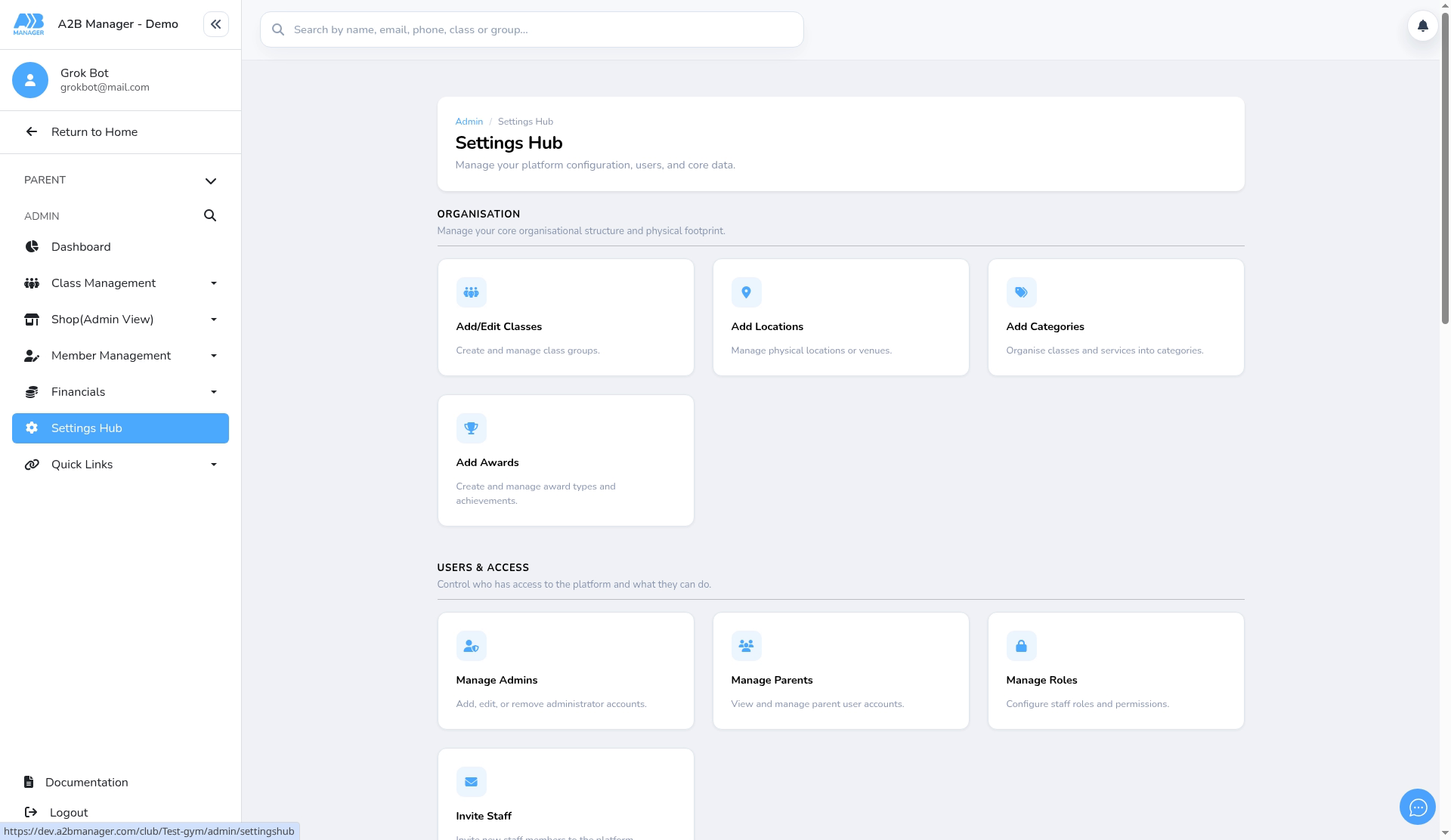
- In the left-hand menu, click Settings Hub.
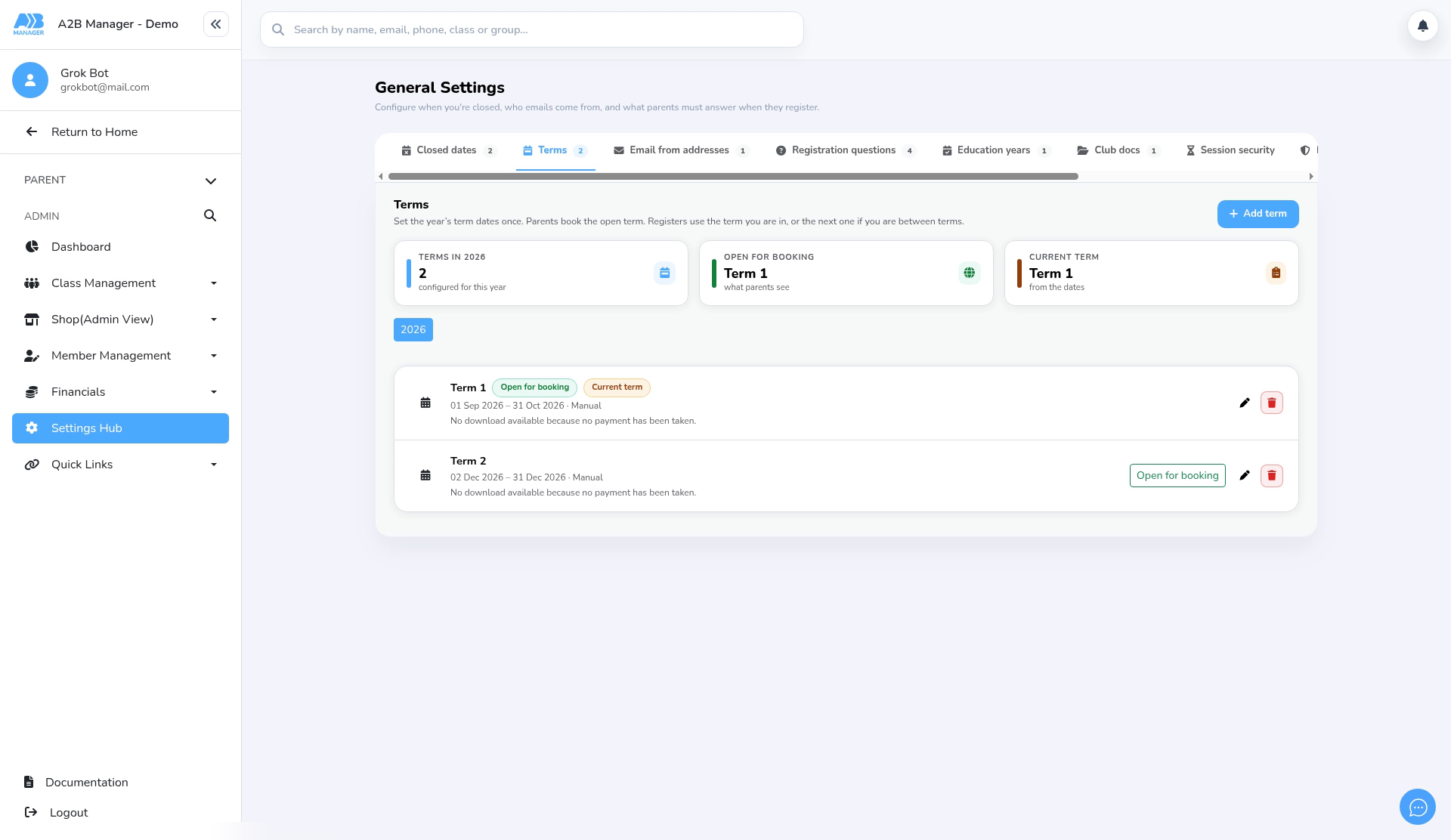
- Under Payments & Products, click the Terms card. You can also get there from System Settings > Settings by clicking the Terms tab.
Step 2: Check which term is open (0:24) #
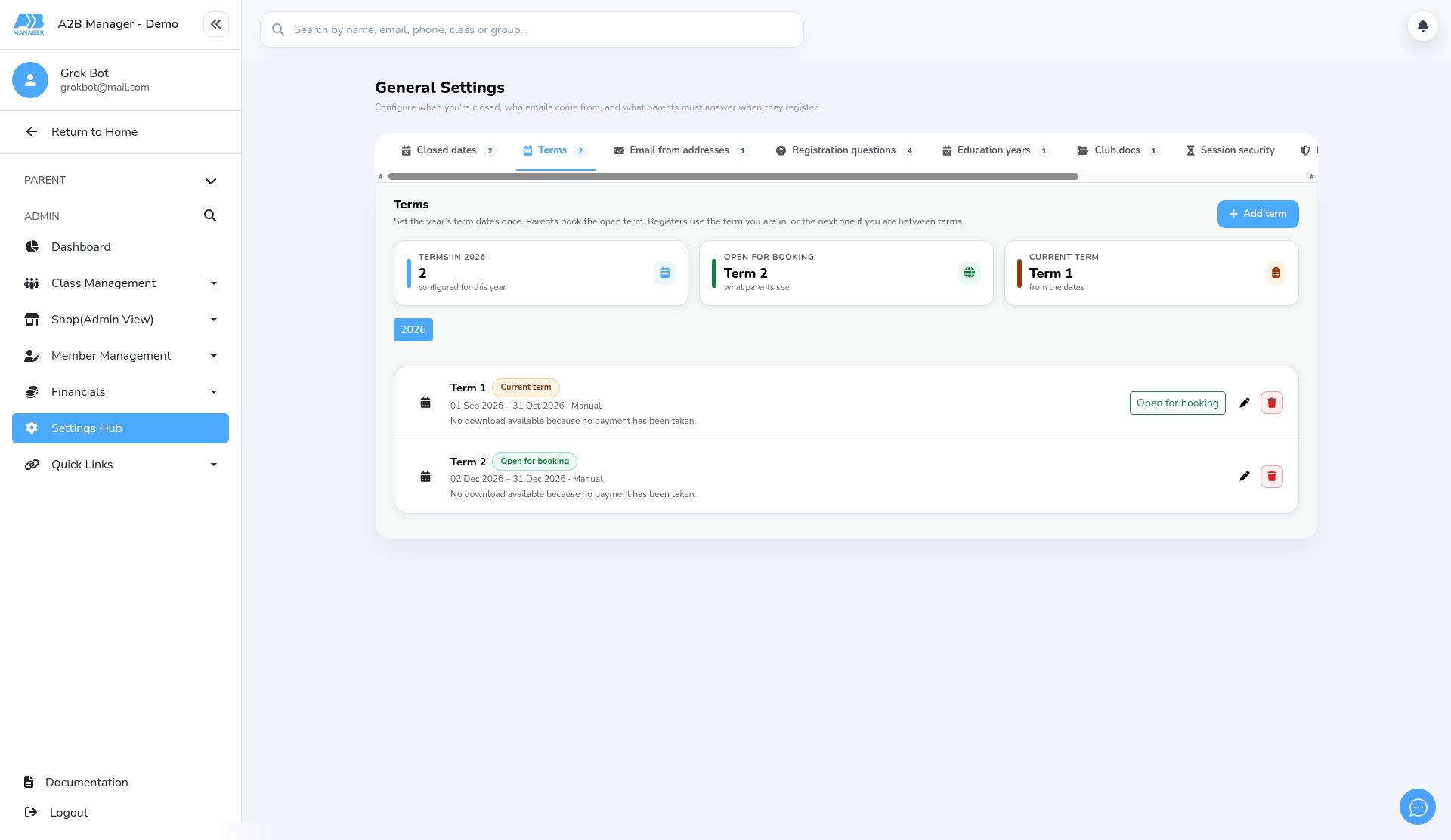
- The Open for booking tile shows the term parents see and book on your term-based classes.
- The Current term tile shows the term you’re in now (or the next one, if you’re between terms). Registers use the current term.
- In the list, the same terms are labelled Current term and Open for booking. One term can be both.
Step 3: Open the next term (0:37) #
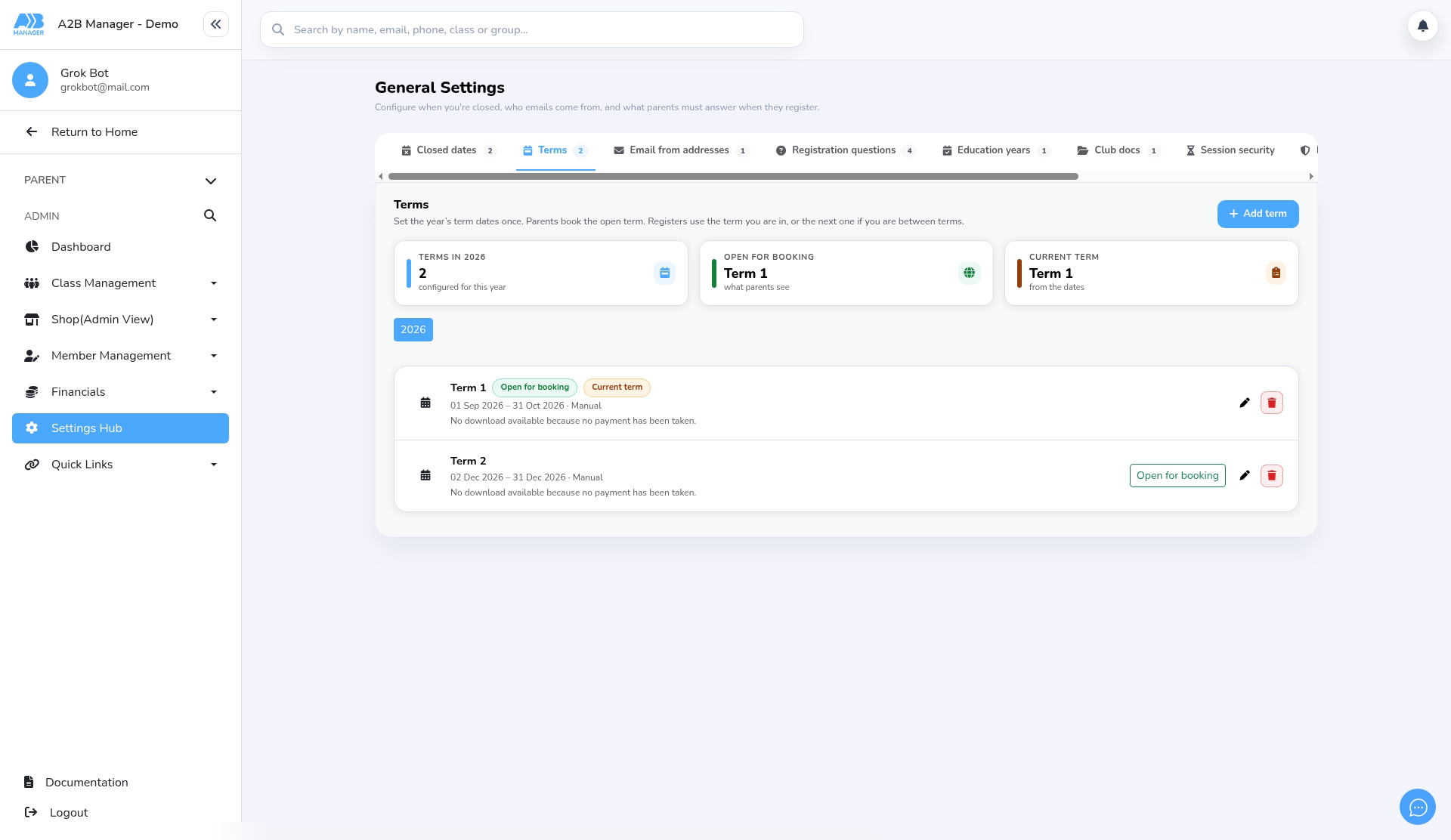
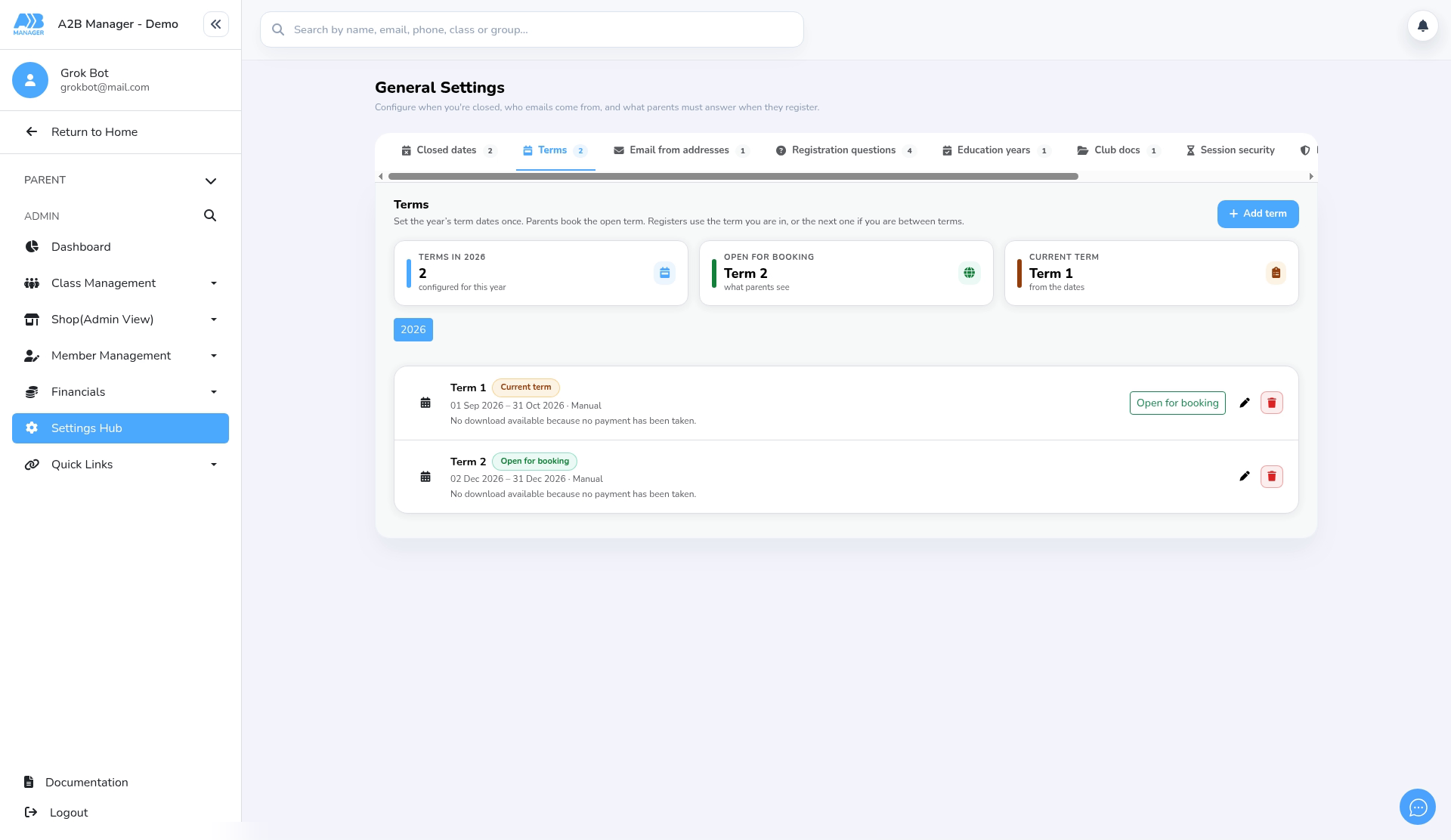
- Find the next term in the list and click its Open for booking button.
- It switches straight away. There’s no confirmation message, so check you’ve picked the right term.
- The Open for booking label and tile move to the new term. Your current term doesn’t change.
Step 4: Check what parents see (0:52) #
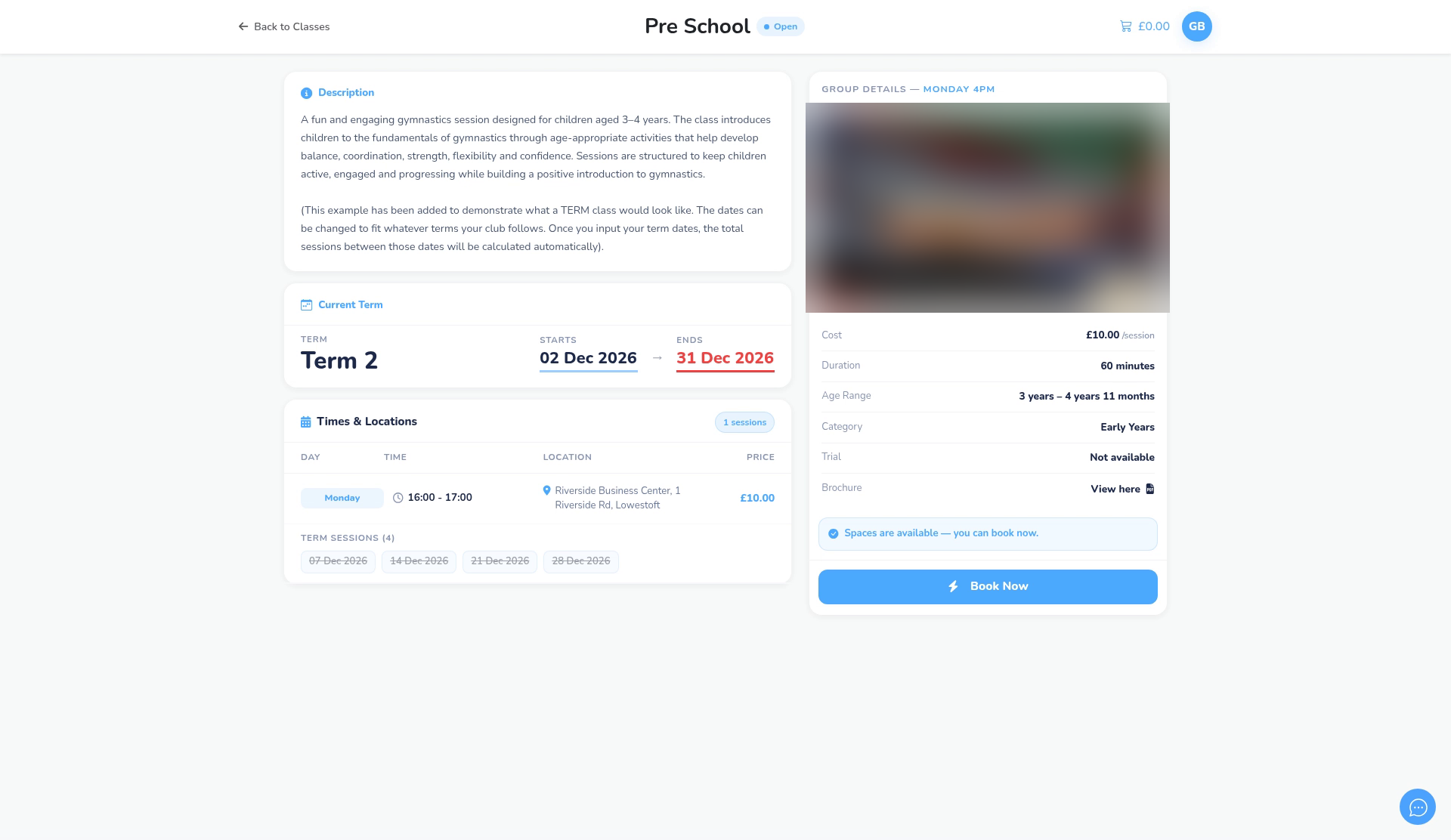
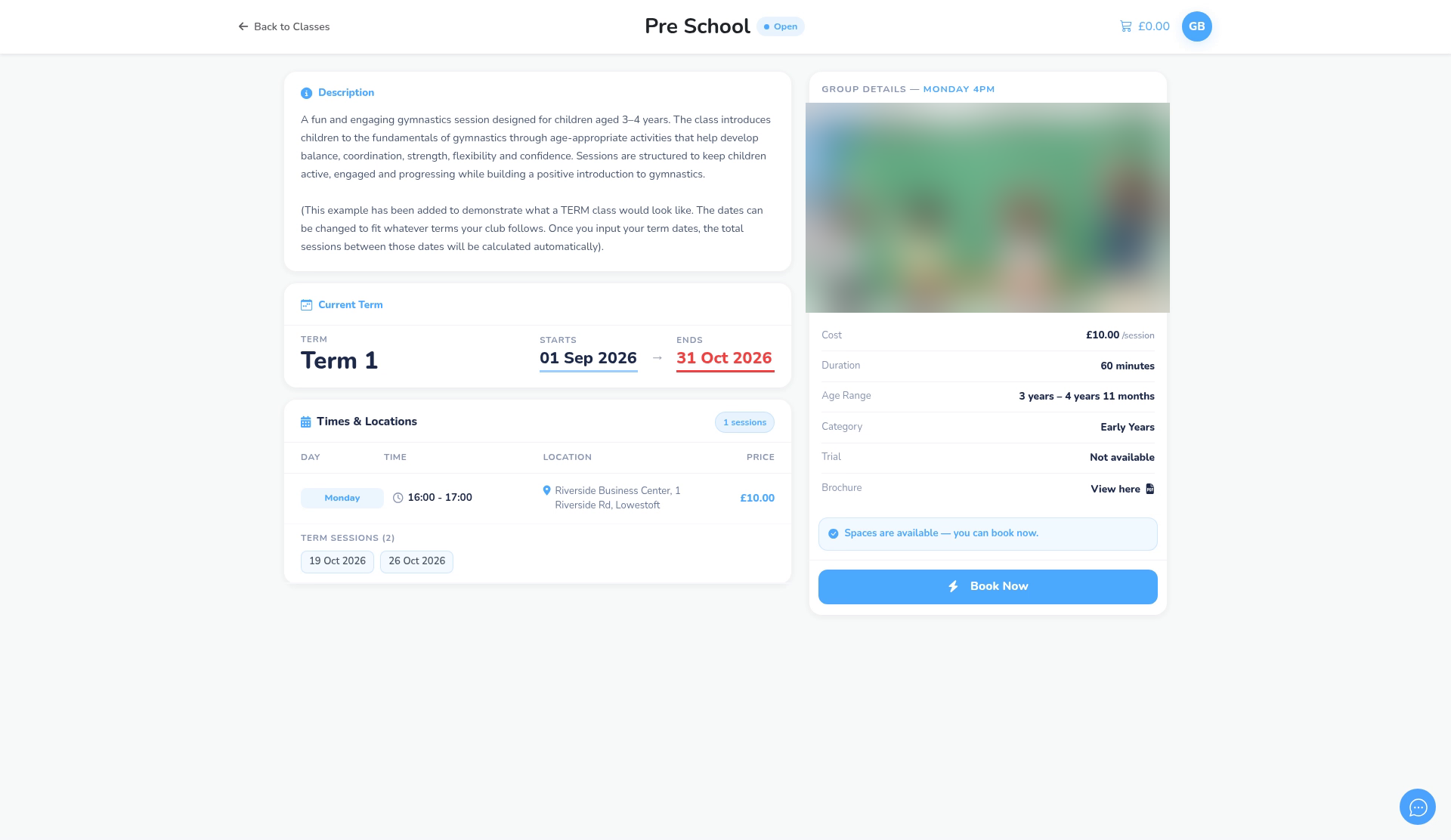
- Open one of your term-based class pages. The term card at the top shows the term that’s open for booking, with its name and dates. The card is headed Current Term, but it shows the open term.
- Under Term sessions, parents see the open term’s dates. If the term has already started, only dates from today onwards are listed.
- Dates that fall on your closed dates are crossed out. In the example, the club is closed for most of December, so all of Term 2’s sessions are crossed out. That’s because of the closed dates, not because the term was switched.
- New bookings are now for the open term. Parents can’t book the previous term any more.
Step 5: Switch back if you need to (1:07) #
- To switch back, click Open for booking on the term you want parents to book instead.
- One term always stays open once you’ve opened one. You can move it to another term, but you can’t set it back to no term.
Good to know #
- Opening a term doesn’t email anyone or charge anyone. To charge members for a term, set a payment and payment date on the term. See How to Add Term Dates and Charge For The Term in Settings Hub.
- Existing members aren’t affected. Their bookings and groups stay exactly as they are.
- The open term and the current term can be different. Parents book the open term, while registers keep using the current term.
- Only open a term that hasn’t ended yet. The button also appears on terms that have finished, so take care to pick the right one.
Tip: Open the next term when you’re nearing the end of the current one and nobody else needs to book onto it.
FAQs #
- Will parents be told when I open a term? No. Nothing is sent. Parents simply see the new term’s dates the next time they look at a class page.
- Does opening a term charge anyone? No. Term charges only happen if you’ve set a payment and payment date on the term.
- Will it change my registers? No. Registers use the current term, which is set by today’s date and your term dates.
- Why are some session dates crossed out? They fall on dates you’ve set as closed in Closed dates.
- I opened the wrong term. What do I do? Click Open for booking on the correct term. It switches straight back.


