

Table of Contents
You can email one member’s parent, a few members or a whole class straight from A2B Manager. Emails go to the parent’s email address on the account.
Emailing members from a class list #
Step 1: Select the member (0:00) #
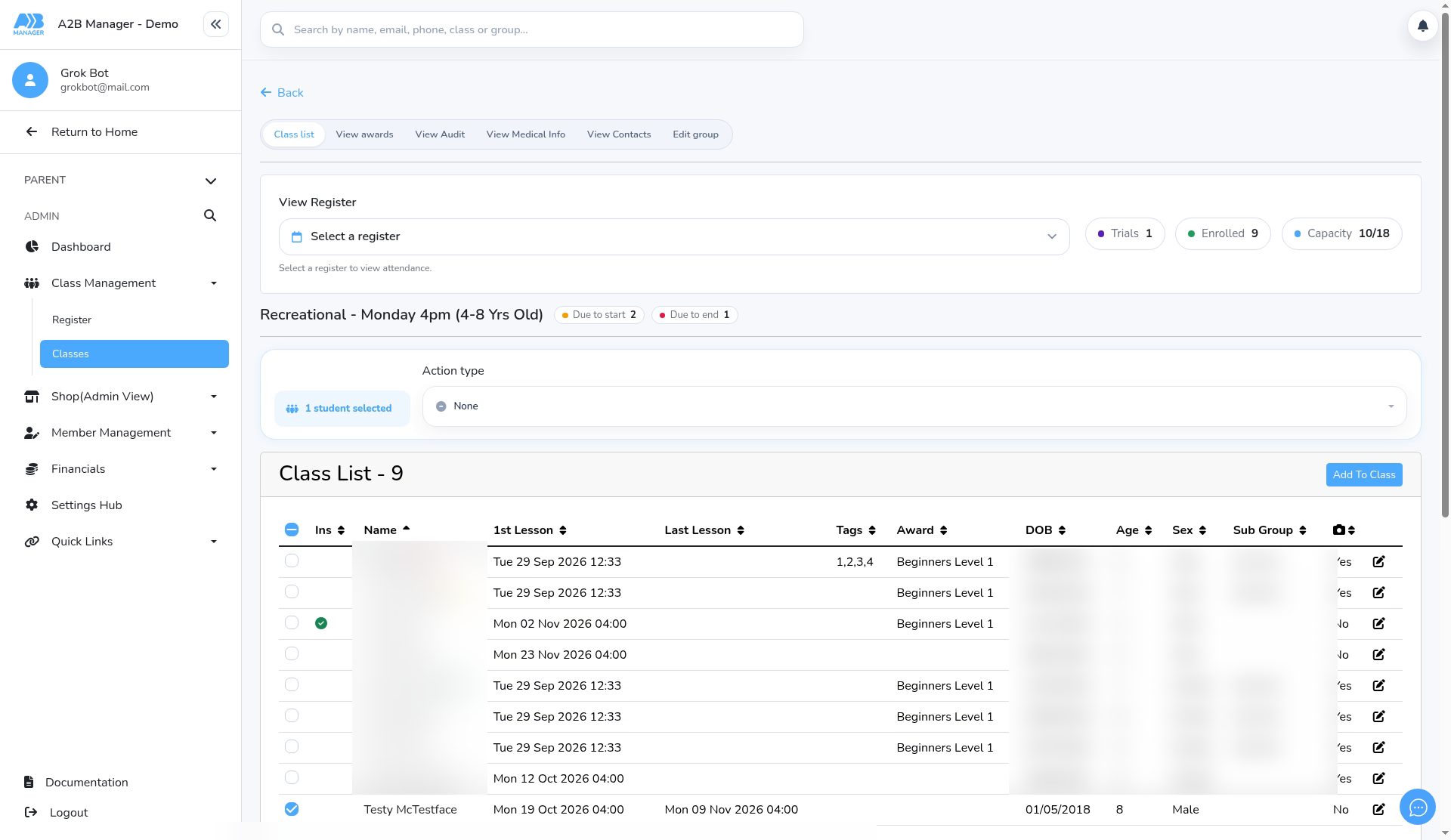
- Open the class (or Members, Trials or Waiting List) and find the member.
- Tick the round box at the start of their row. Tick more rows to email several members.
- The tick box in the header selects everyone shown. Check the count at the top, for example 1 student selected.
Step 2: Choose Email (0:14) #
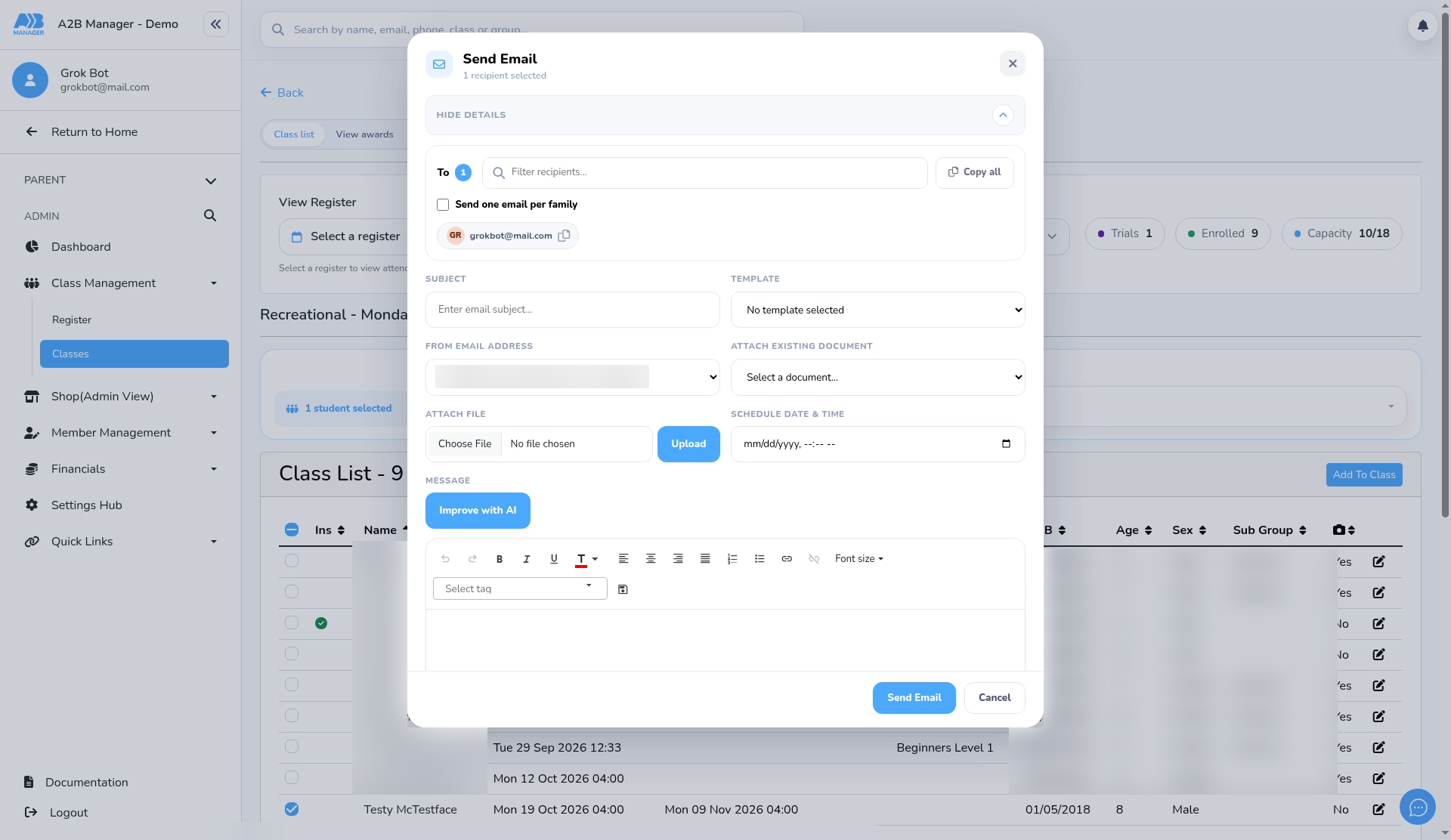
- Open Action type and choose Email.
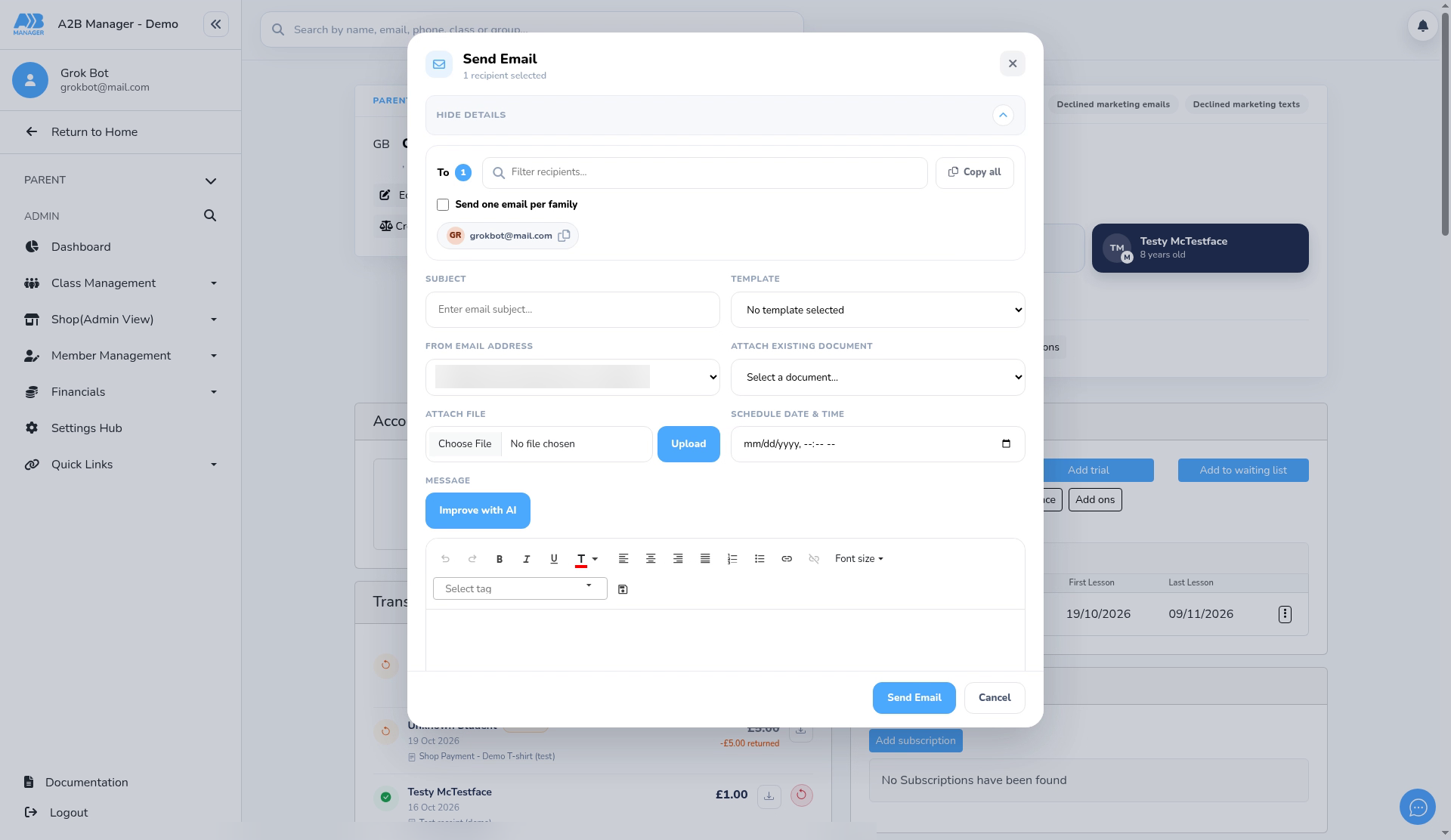
- The Send Email window shows how many recipients are selected, with each parent’s email address.
Step 3: Write the email (0:24) #
- Check the recipients. You can remove an address, or add a supplier’s email address. Saved Suppliers keeps addresses you use often.
- Emailing brothers and sisters? Tick Send one email per family so each parent gets one email.
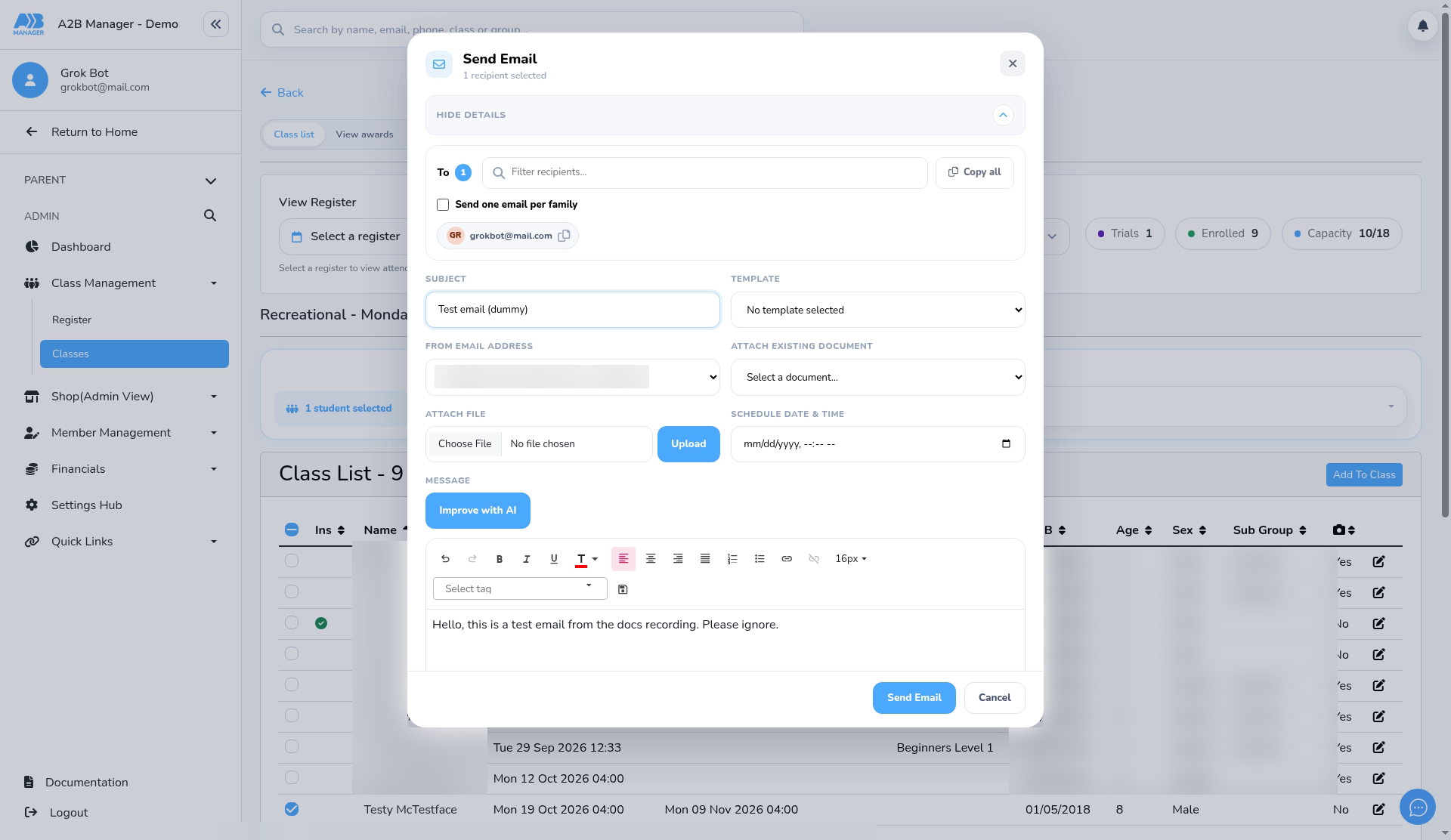
- Enter a Subject (required).
- Choose a Template if you have one. It fills in the message and may set the From address and attachments.
- Check the From email address. The list shows your club’s default address, plus your own verified address if it matches the email you log in with. Other staff members’ personal addresses aren’t listed.
- Write your Message. Use Select tag to add names, such as the child’s first name. Improve with AI can suggest a tidier version of your draft.
Step 4: Attach or schedule (optional) (0:41) #
- Choose a file from Attach existing document, or upload one with Attach file.
- To send later, set Schedule Date & Time. The button changes to Schedule Email.
- To change or cancel a scheduled email, open Email Schedules in the menu.
Step 5: Send the email (0:53) #
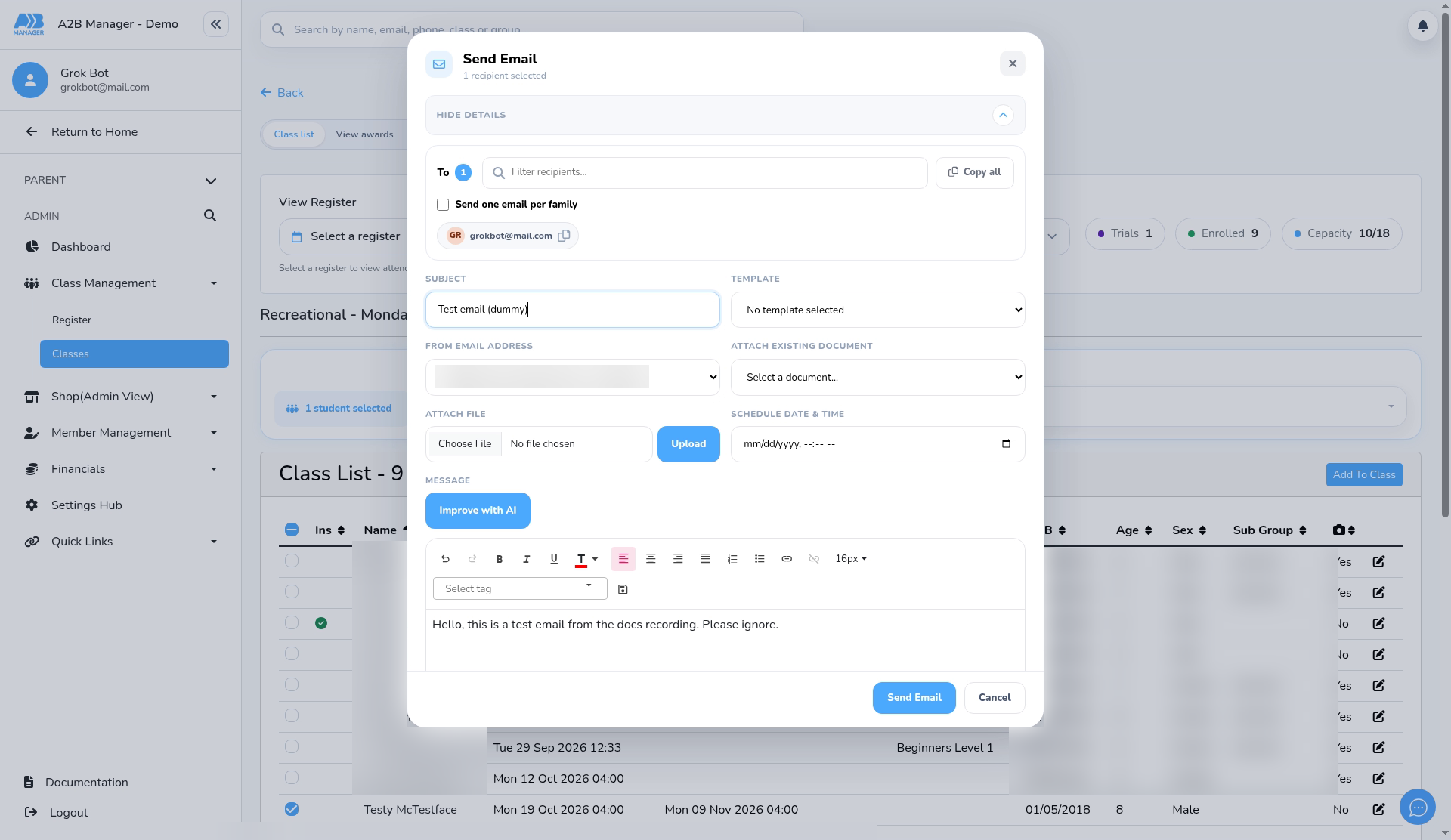
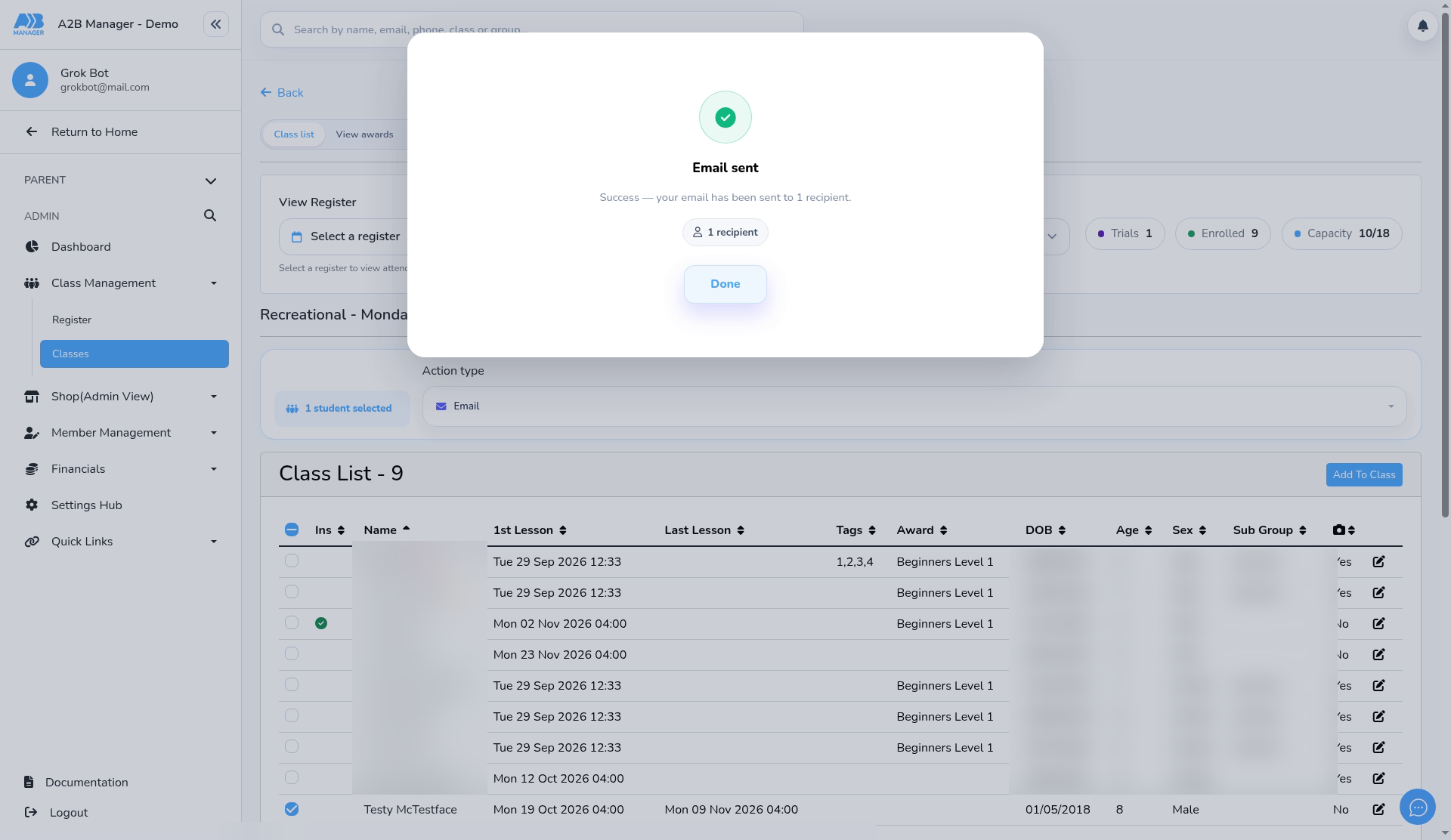
- Click Send Email. You’ll see, for example, your email has been sent to 1 recipient. Click Done.
- Emails to two or more people send in the background. Follow progress in the notification at the top right.
- Untick the member when you’ve finished.
Step 6: Email from the member’s profile (1:13) #
- On a member’s profile, click Email on the parent card. The same window opens, addressed to the parent.
- Contacts with an email address have their own Email button.
- Emails sent from the profile are recorded in the member’s activity.
Good to know #
- Emails go to the parent’s email address on the account.
- There’s no CC or BCC.
- If your own address isn’t in the From list, it needs to be added and verified first, and it must match the email you log in with.
- Text messages are a separate action (SMS).
Tip: Emailing a whole class? Tick Send one email per family so parents with more than one child don’t get the same email twice.
FAQs #
- Can I cancel a scheduled email? Yes. Open Email Schedules, then Cancel this email, or Cancel whole group for a group send. You can also reschedule a group.
- Is a subject required? Yes. The email won’t send without one.
- Can I email someone who isn’t a member? Yes, add their address as a supplier email in the recipients.


