

Table of Contents
You can copy a booking link that only shows one category of classes, such as Recreational, or only one of your venues. Send it to parents, add it to a button on your website, or use it in a social post. When a parent opens it, your booking page only shows the classes in that category or at that location.
Before you start #
- You copy these links in Settings Hub, so you need to be signed in as a club admin.
- The links use your club’s URL name. If you change the URL name later, these links stop working too. See How to Change Your Club’s Booking Link (URL Name).
Sharing a Link for One Category #
Step 1: Open Add Categories (0:00) #
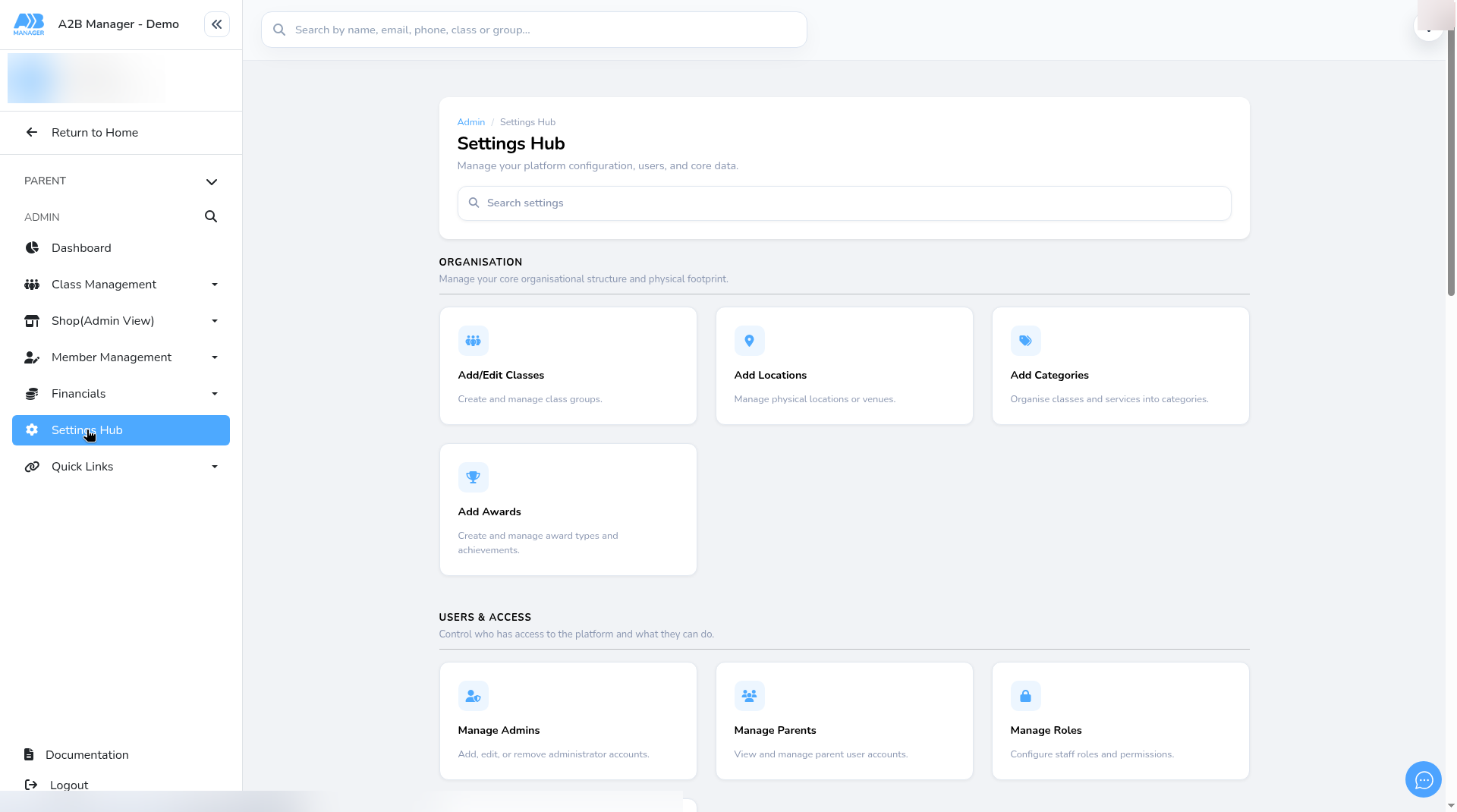
- Go to Settings Hub.
- Under Organisation, click Add Categories. The Categories page opens.
Step 2: Copy the category’s link (0:10) #
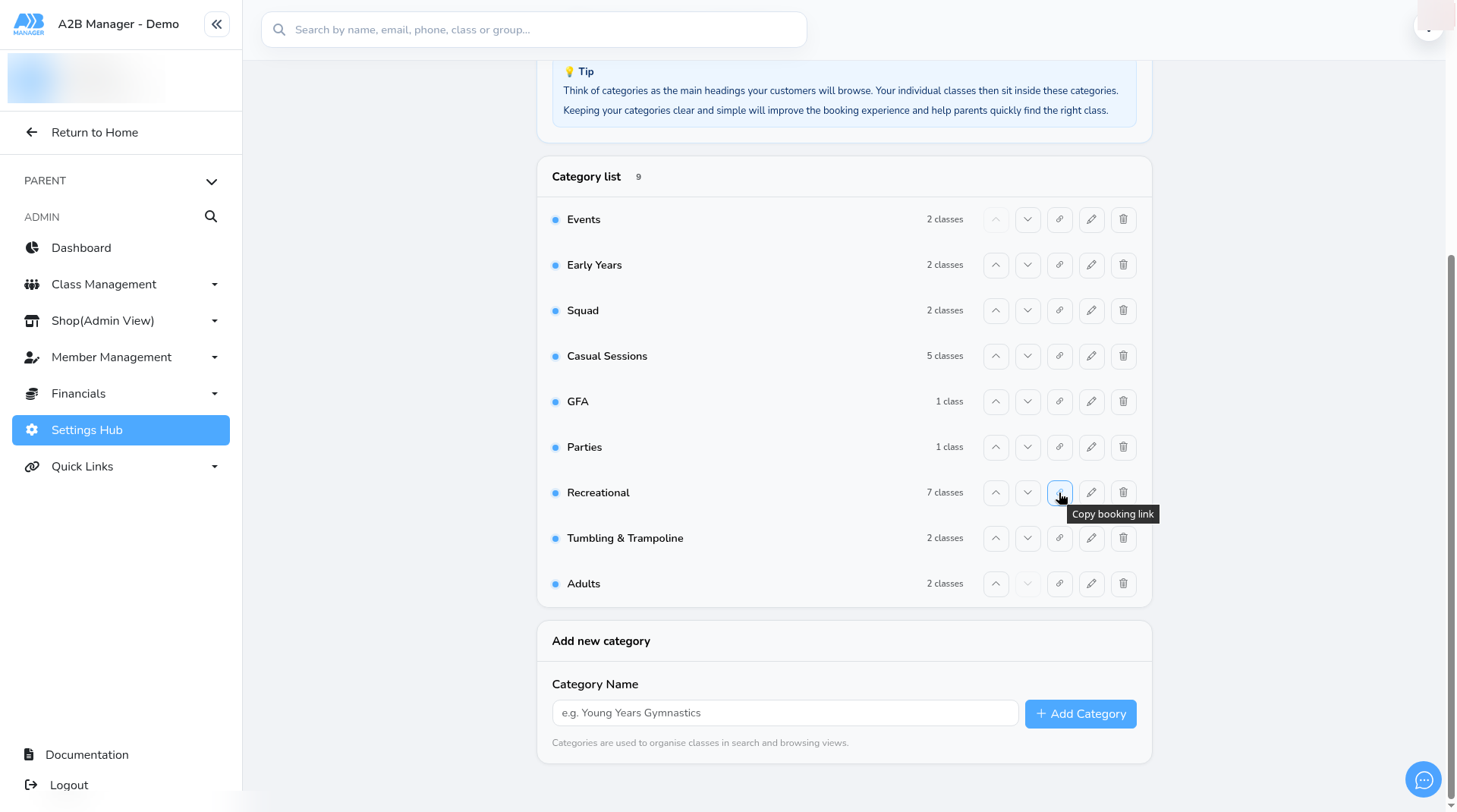
- Find the category you want to share in the Category list.
- Click the link icon on its row. Hover over the icon first and you’ll see Copy booking link.
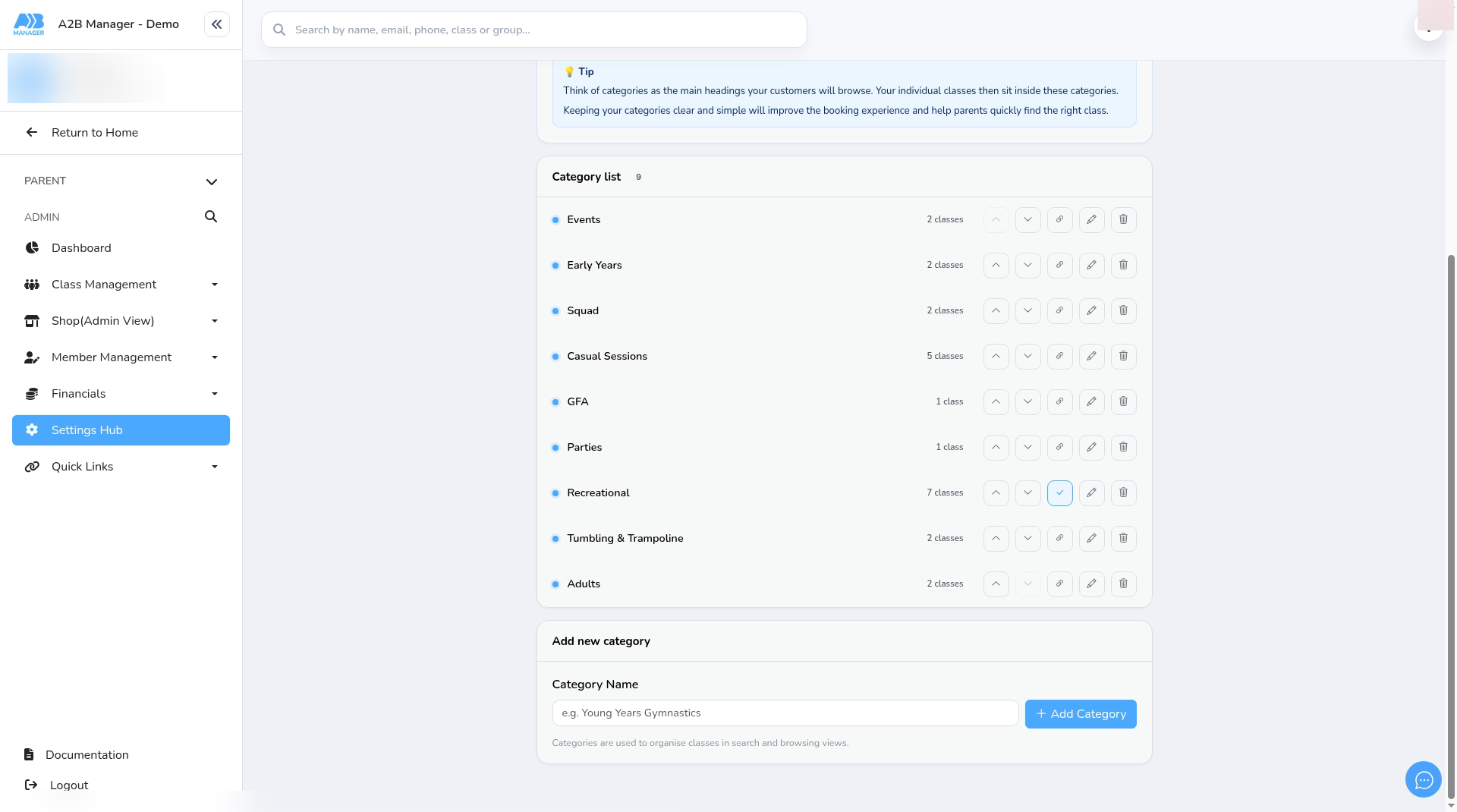
- The icon briefly turns into a tick to show the link has been copied.
Step 3: What parents see on a category link (0:25) #
- Paste the link wherever you need it, for example in an email or on a button on your website.
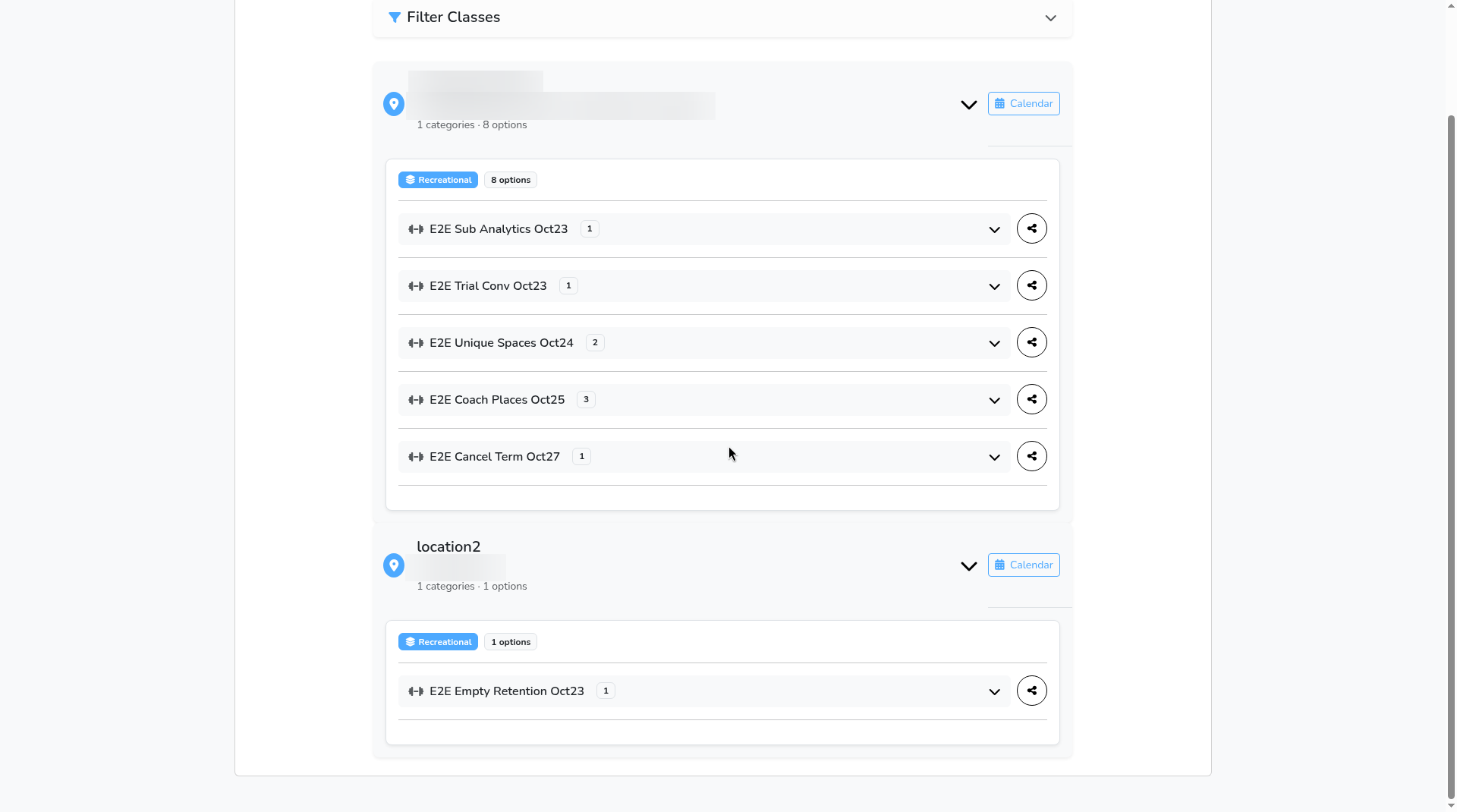
- When a parent opens it, your booking page only shows the classes in that category.
- Each venue’s list is already open, so parents don’t have to expand anything.
Sharing a Link for One Location #
Step 4: Open Add Locations (0:40) #
- Go back to Settings Hub.
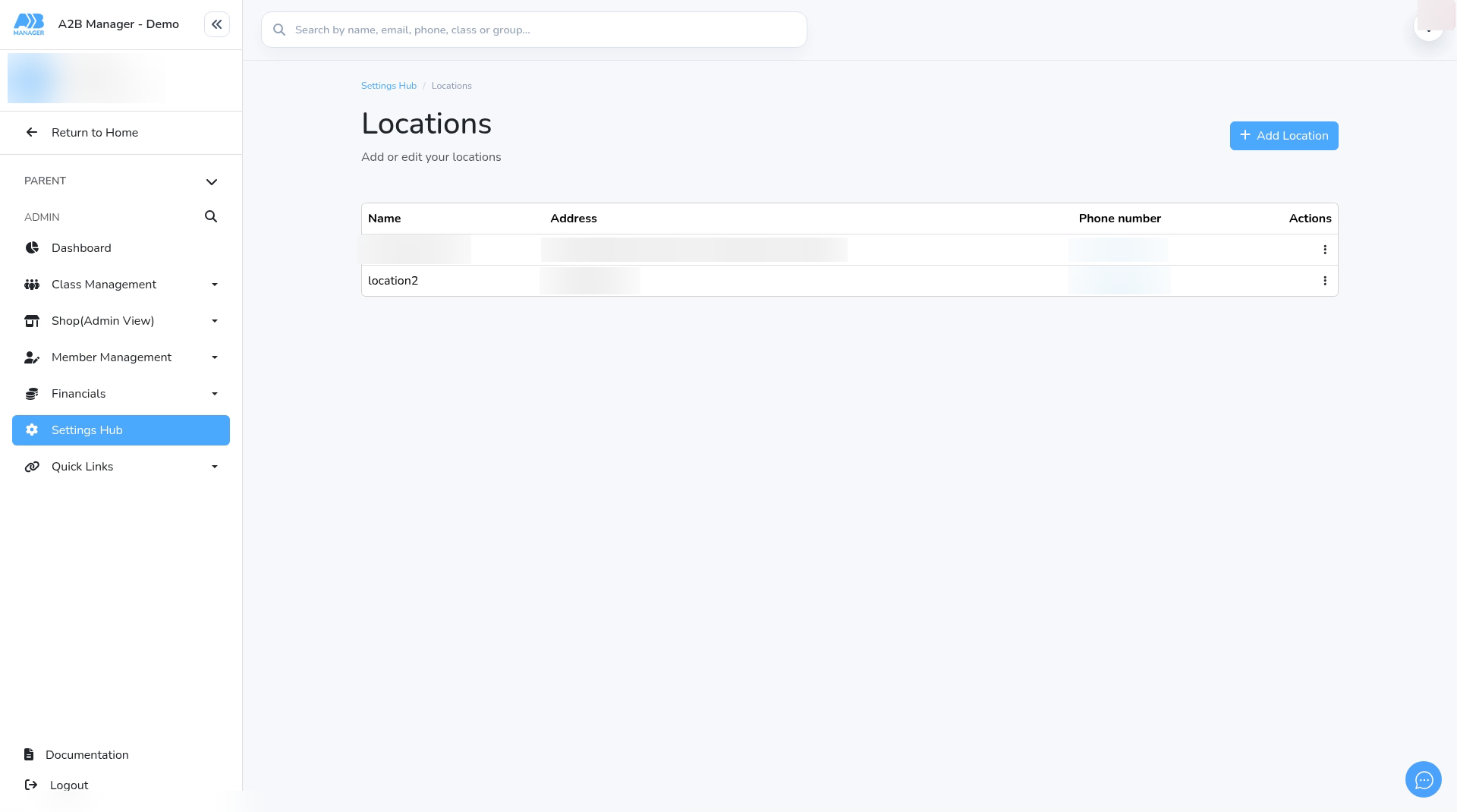
- Under Organisation, click Add Locations. The Locations page opens, listing your venues.
Step 5: Copy the location’s link (0:45) #
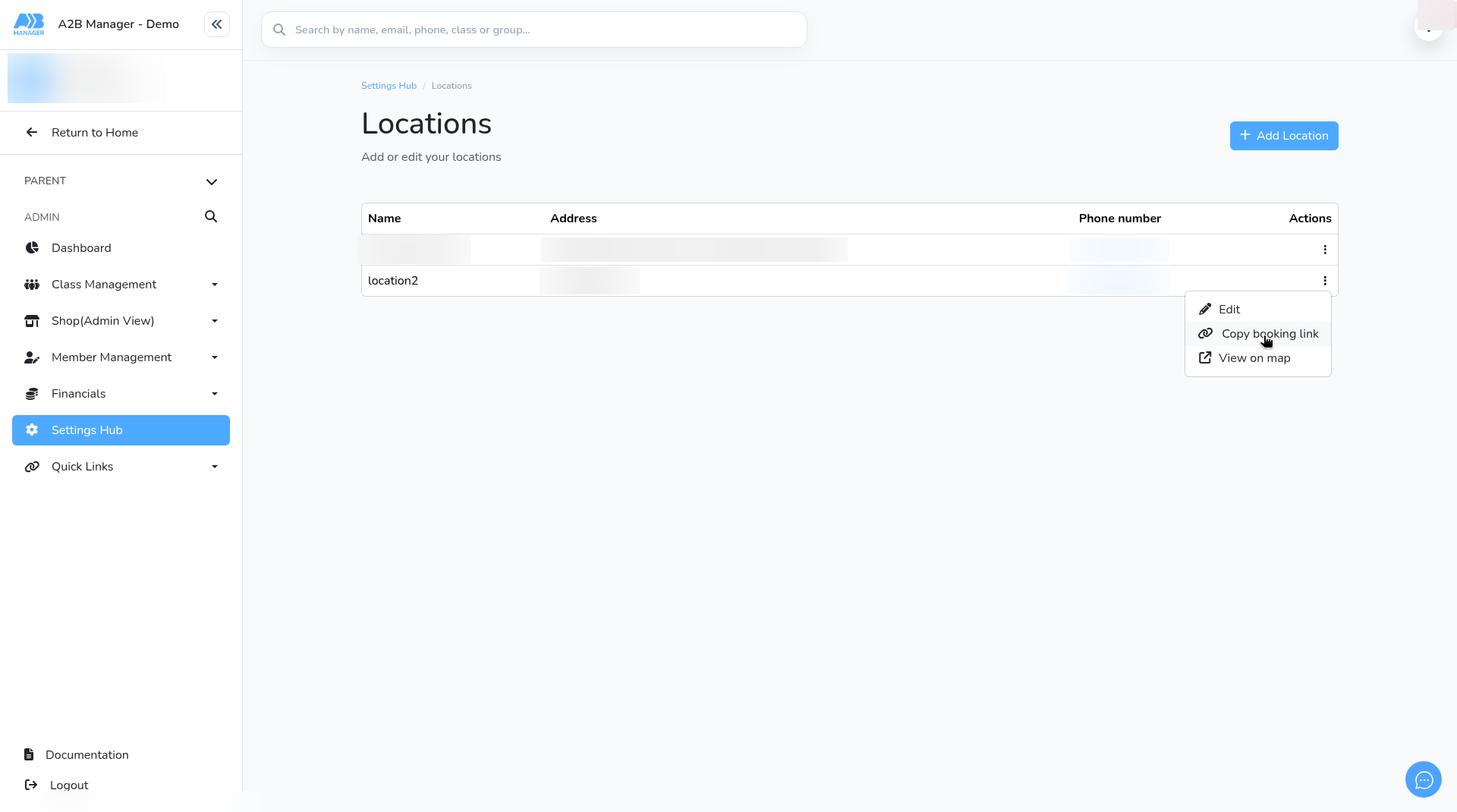
- Click the three dots in the Actions column next to the venue you want to share.
- The menu shows Edit, Copy booking link and View on map. Choose Copy booking link.
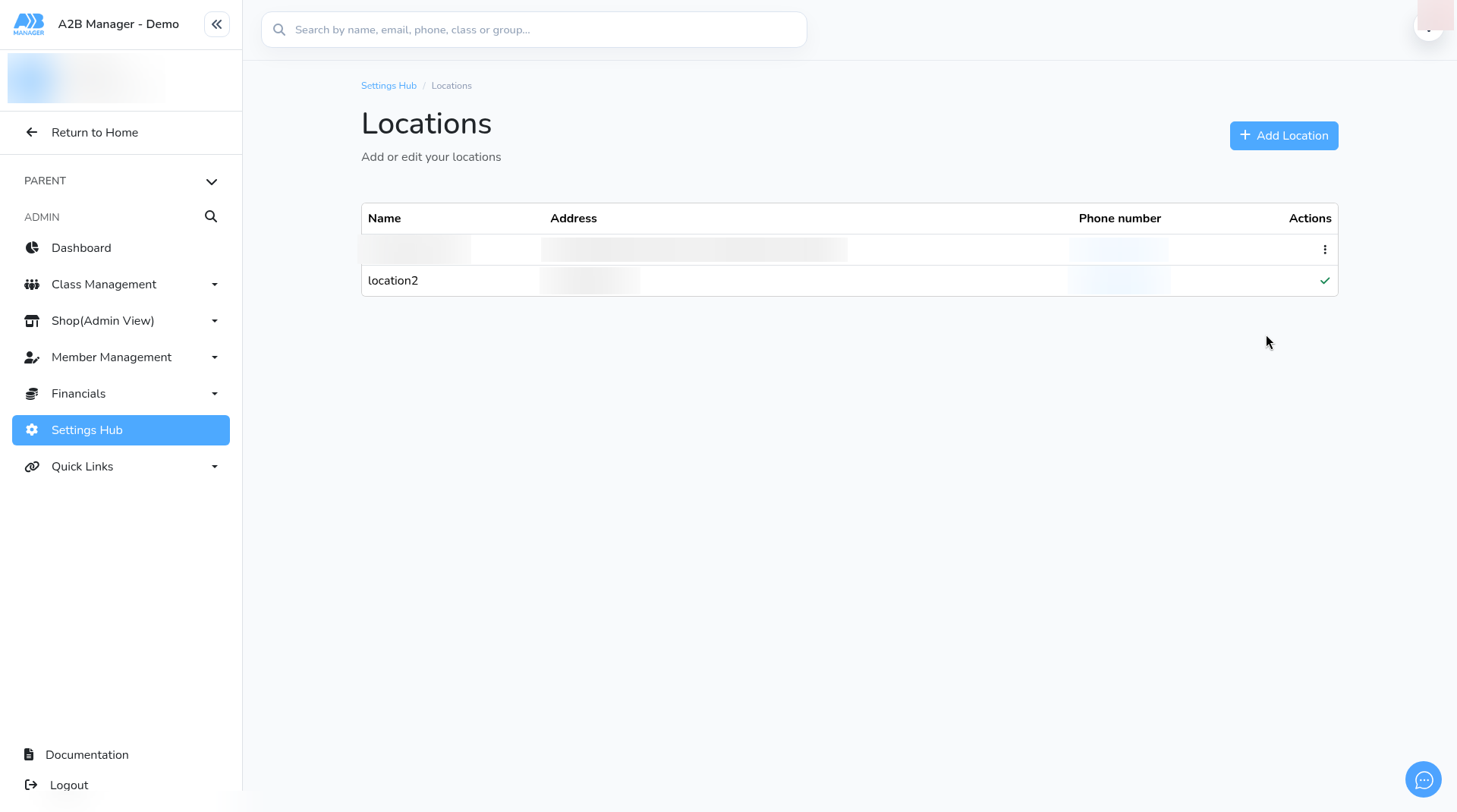
- The three dots briefly change to a green tick to show the link has been copied.
Step 6: What parents see on a location link (1:00) #
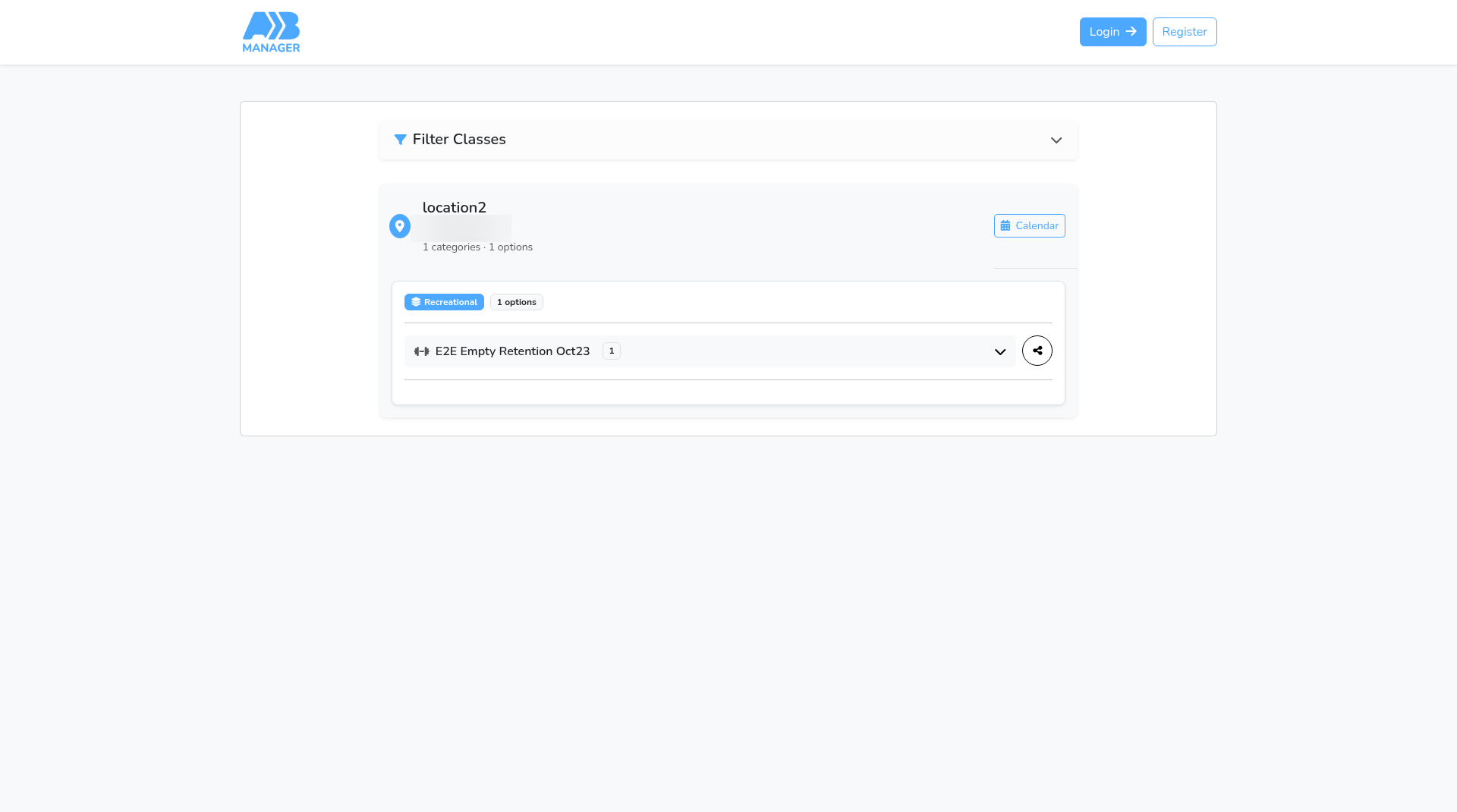
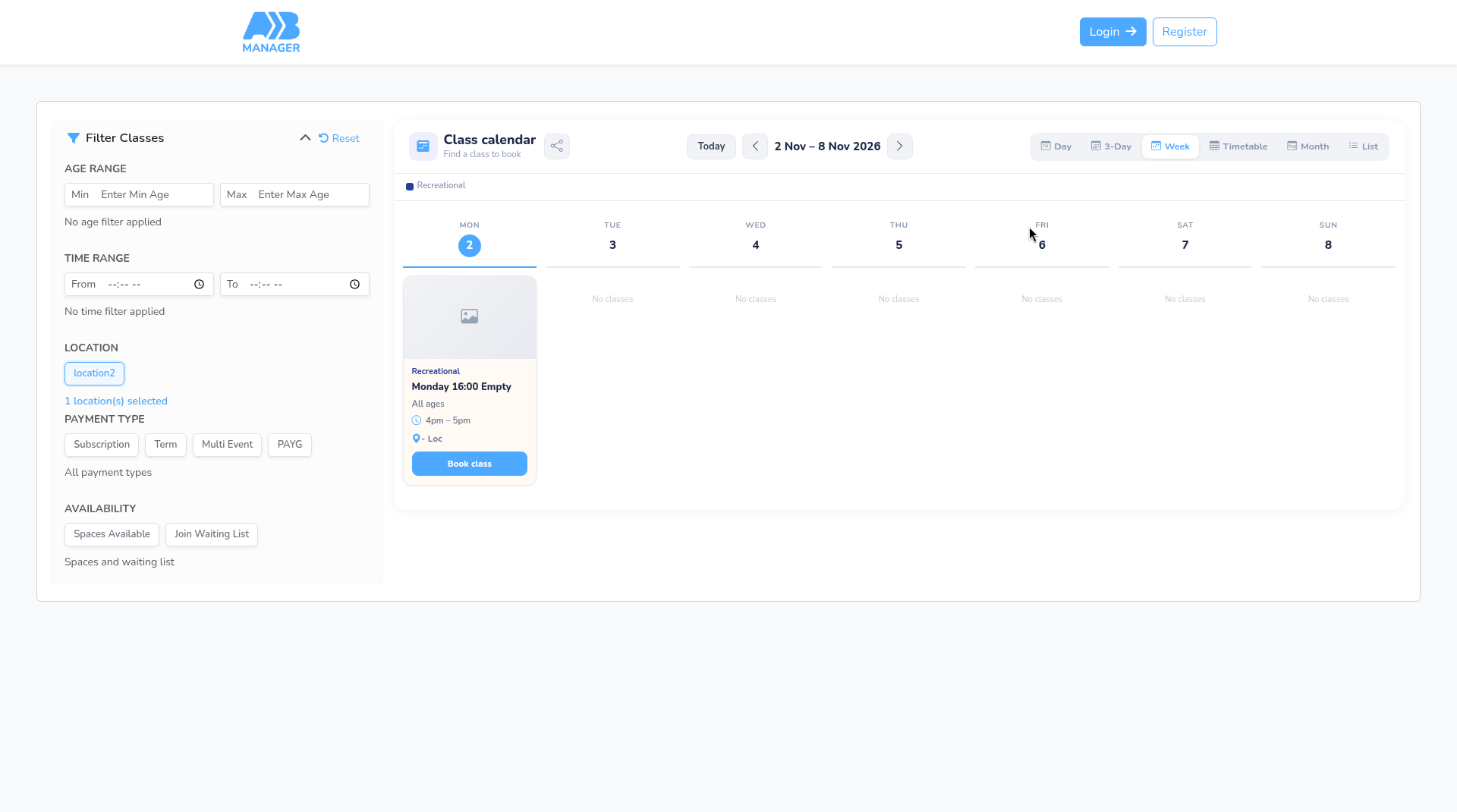
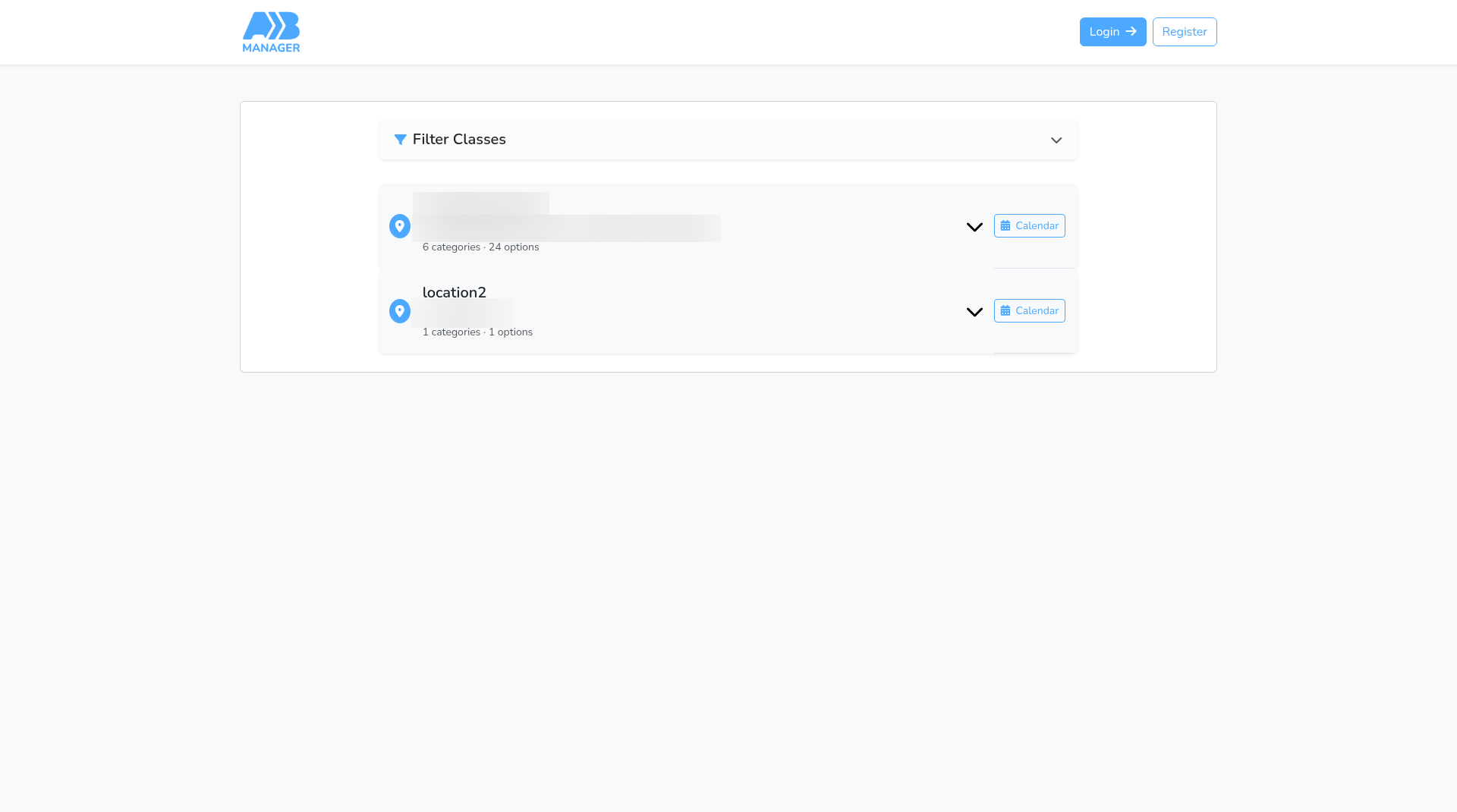
- When a parent opens the link, your booking page only shows that venue, and its list is already open.
- Classes that have no sessions at that venue are hidden.
- The Calendar button shows the same venue too.
Good to know #
- Your normal booking link, with no category or location, still shows every class at every venue, as before.
- The Calendar button keeps the same filter on a category link as well as on a location link.
- If a category has nothing open for booking, parents see No classes available right now.
- Parents book in the usual way from a filtered page: they open a class and press Book Now.
- Renaming a category doesn’t change its link, so links you’ve already shared keep working.
- The copied link is your club’s normal booking address with the category or location added to the end, for example
https://app.a2bmanager.com/club/your-club?categoryid=123.
Tip: Copy a link for each category you advertise, and use it on the matching page or button on your website, so parents land straight on the right classes.


