

Table of Contents
Club docs let you share files, such as a parent code of conduct or a kit list, with members. You can share each file with everyone or only with chosen classes or groups, and parents see it on their dashboard under each child.
Adding a club document #
Step 1: Open Club docs (0:00) #
- In the left-hand menu, click Settings Hub.
- Scroll down to System Settings and click the Settings card (Configure general platform settings.). General Settings opens on its first tab.
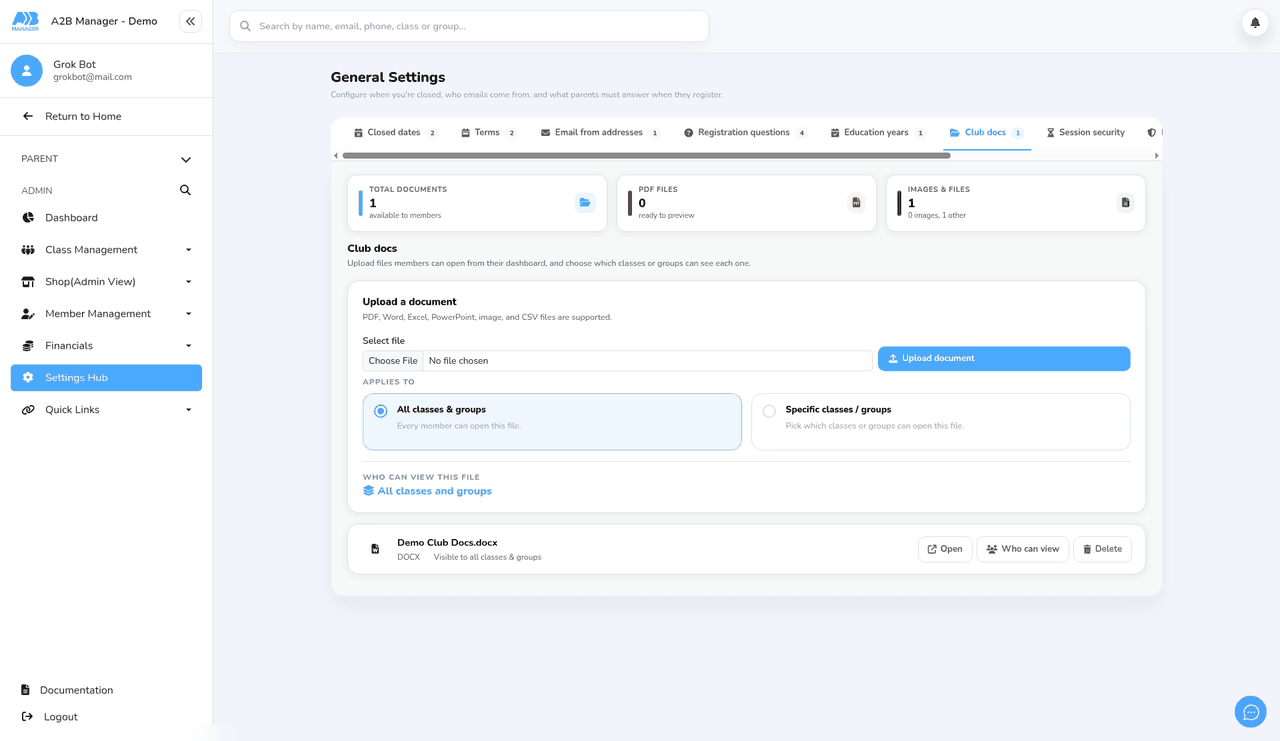
- Click the Club docs tab. The number on the tab shows how many documents you have, and the tiles show Total documents, PDF files and Images & files.
Step 2: Choose the file (0:40) #
- Under Upload a document, PDF, Word, Excel, PowerPoint, image (JPG, PNG, WebP) and CSV files are supported, up to 15 MB each.
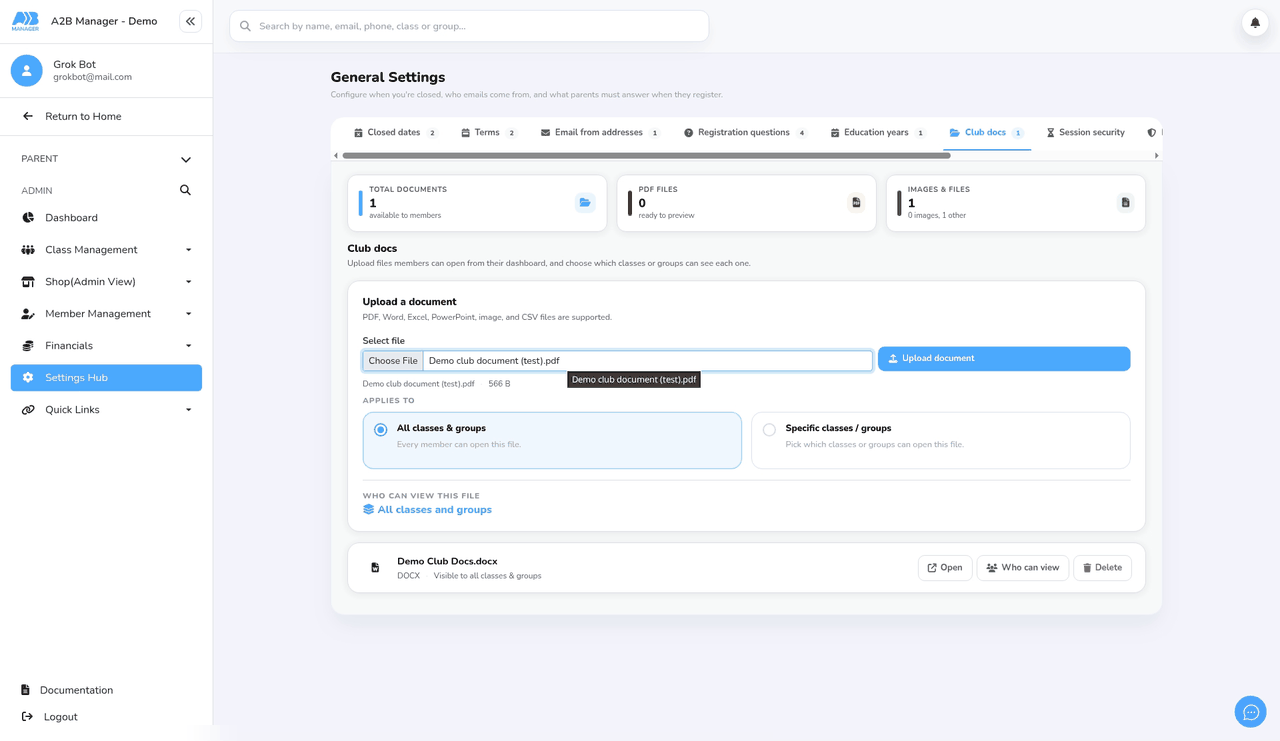
- Under Select file, click Choose File and pick the file. Its name and size appear underneath.
- The file name is the title members see, so rename the file on your computer first if needed, for example Parent Code of Conduct.pdf. Each file name must be unique within your club docs.
Step 3: Choose who can see it (1:03) #
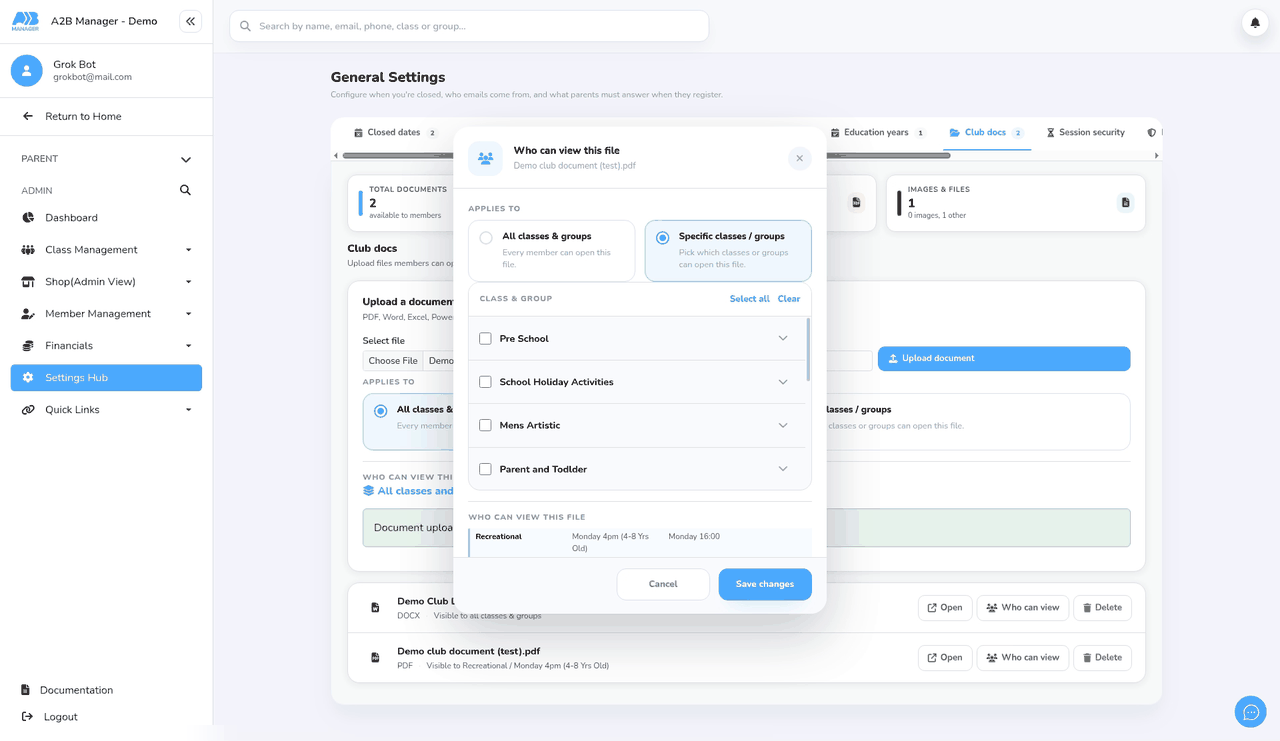
- Under Applies to, All classes & groups (the default) shares the file with every member.
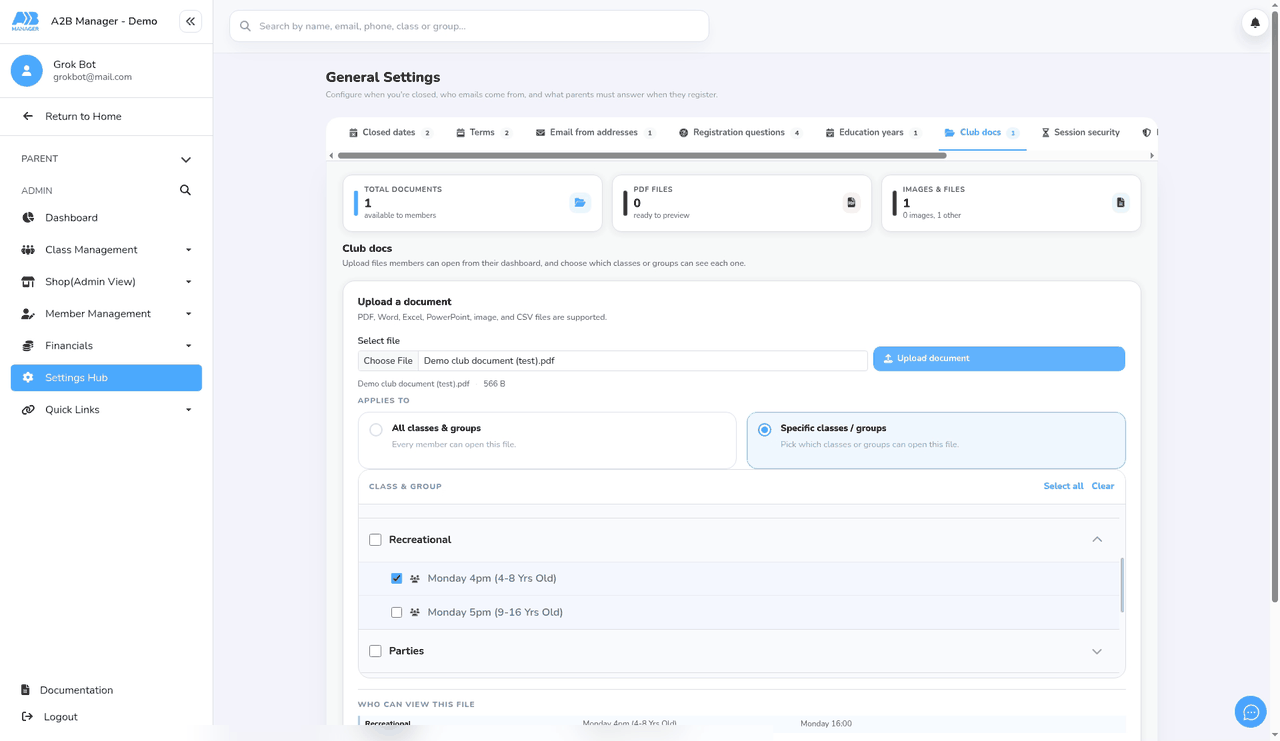
- To share it with only some members, select Specific classes / groups.
- Tick a class to include all of its groups, or click the arrow next to a class and tick only the groups you want. Select all and Clear are at the top of the list.
- Who can view this file shows your choice with each class or group and its day and time. If nothing is ticked, you’ll see Pick at least one class or group.
Step 4: Upload the document (1:41) #
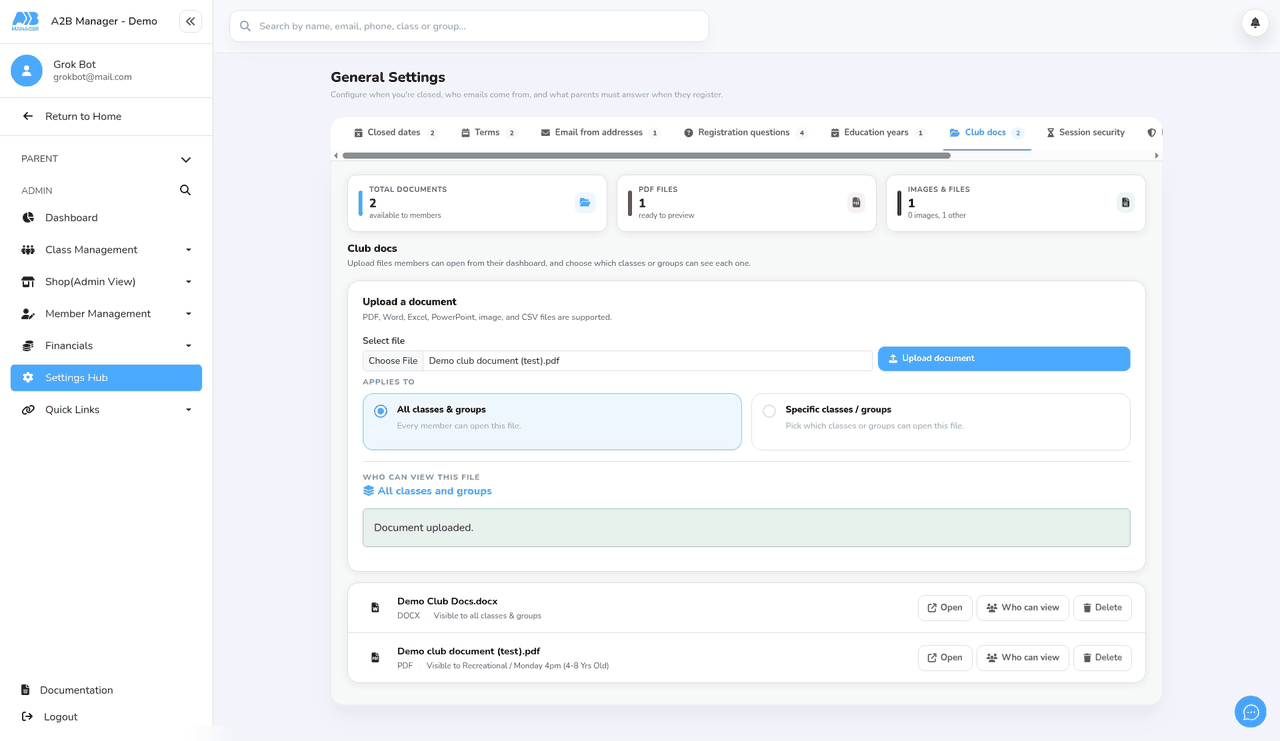
- Click Upload document. You’ll see Document uploaded.
- The file is added to the list with its type and who can view it, for example PDF · Visible to Recreational / Monday 4pm (4-8 Yrs Old) or Visible to all classes & groups.
Step 5: Preview or change who can view (1:57) #
- Click Open to preview a file. PDFs and images show in the window; Word, Excel and PowerPoint files open in Microsoft’s online viewer.
- Click Who can view to change who can see the file, then click Save changes. You’ll see Who can view this file has been updated. Click Cancel to close without changes.
Step 6: What parents see (2:30) #
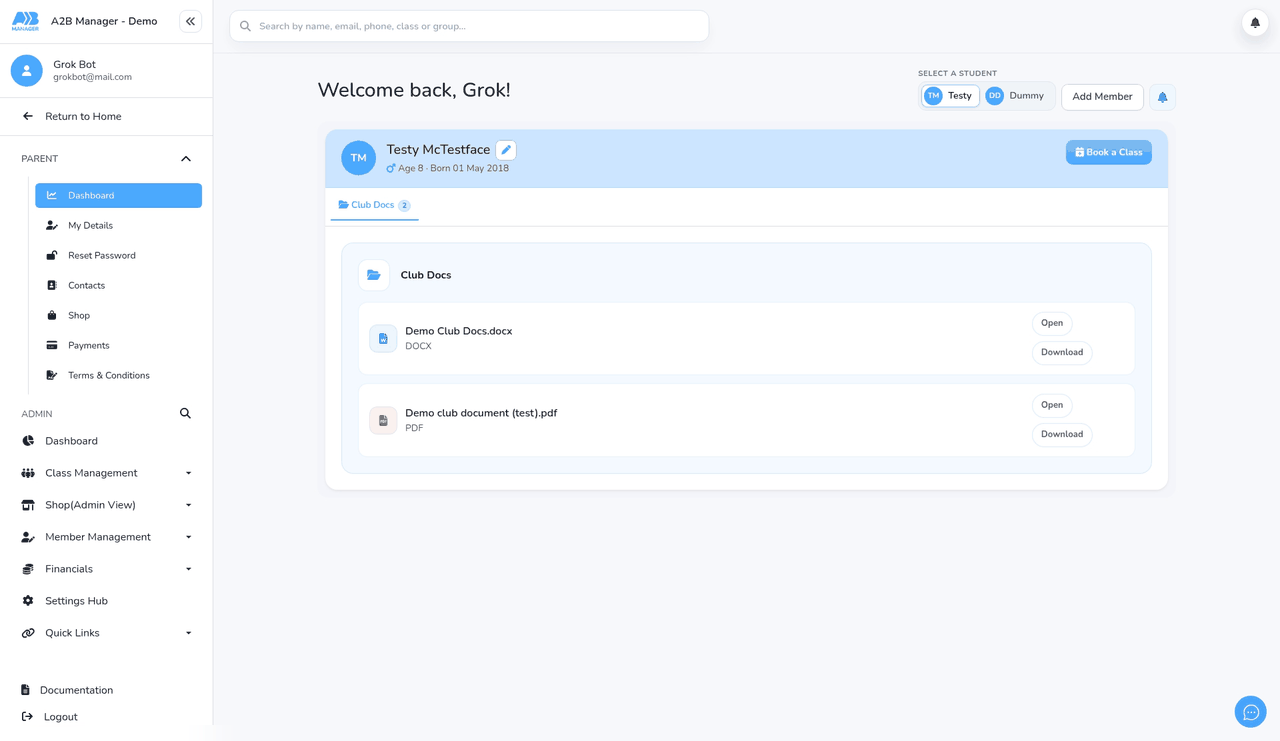
- On their Dashboard, parents select a child. A Club Docs tab shows the number of files that child can see.
- Each file shows its name and type, with Open and Download buttons.
- Files for all classes & groups show for every child. A file for specific classes or groups only shows for a child with an active place in one of them. If a child can’t see any files, the tab doesn’t appear.
Good to know #
- There’s no sign-off or read receipt: parents can open and download files, but they don’t confirm they’ve read them, and you can’t see who has opened them.
- Parents aren’t emailed or notified when you add a file. If you want them to know about it, email them separately.
- Because files can be shared with specific classes or groups, individual parents only see the files for the classes and groups their children are in.
- If a parent can’t see a file, check that their child has an active place in a class or group the file is shared with.
Tip: Share general documents, such as your code of conduct or privacy notice, with All classes & groups, and use Specific classes / groups for things like a squad kit list or competition information.
Changing or removing a file #
- You can’t rename a file or replace it with a new version. To change it, delete it and upload the new file.
- To remove a file, click Delete on its row, then Delete in the Delete document? window. You’ll see Document deleted. The file is removed for all members straight away and can’t be restored.


