

Table of Contents
In Manual mode, your club records each member’s insurance in A2B Manager, either one member at a time on the Members page or in bulk by importing your JustGo club members export. This guide covers setting up Manual mode, insurance levels, setting and removing cover, expiry reminders and the JustGo import. Missing or expired insurance doesn’t stop anyone booking, and parents never see insurance details.
Setting up Manual insurance tracking and importing from JustGo #
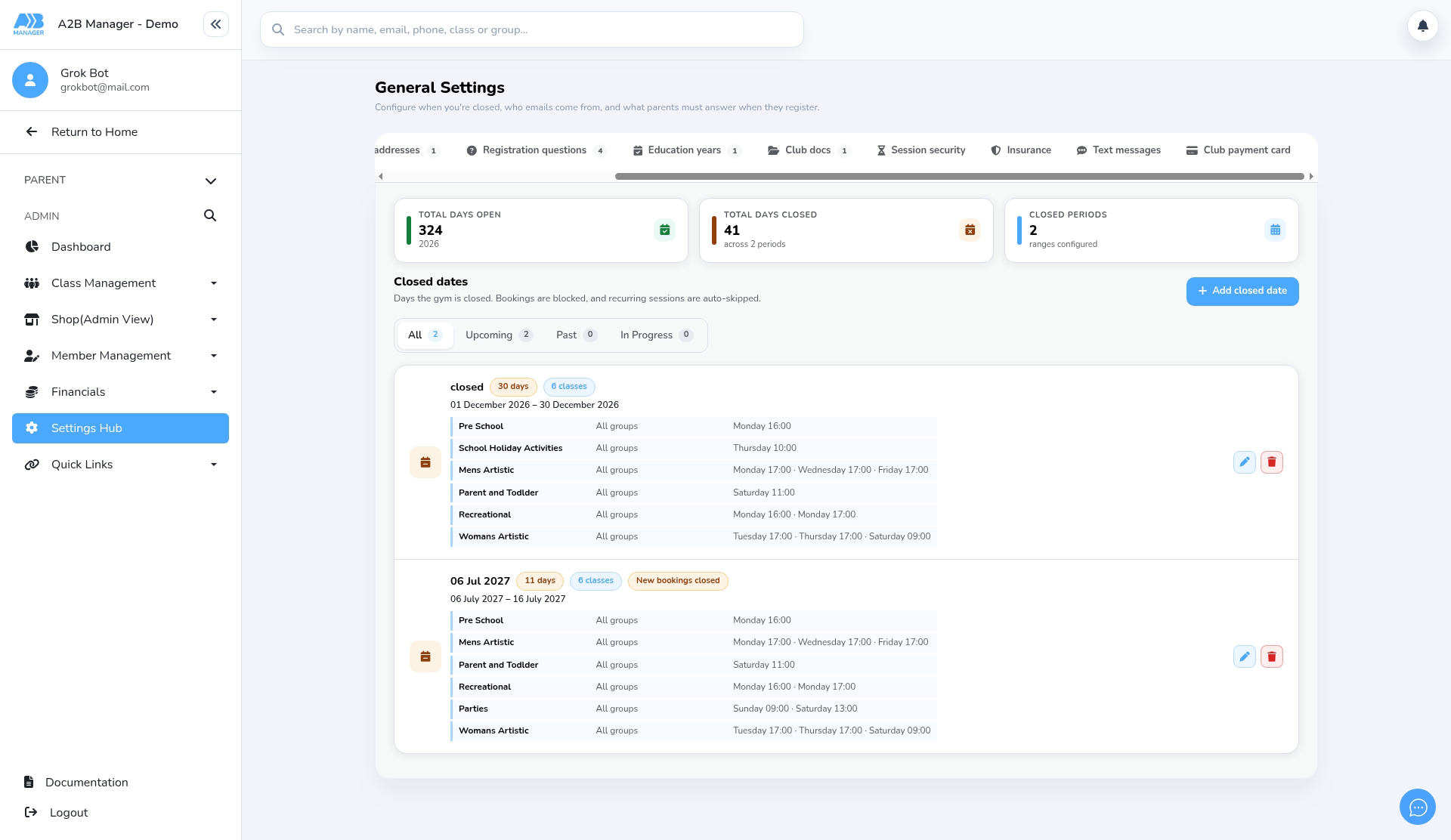
Step 1: Open the Insurance tab (0:00) #
- In the left-hand menu, click Settings Hub. In the System Settings section, click the Settings card.
- Click the Insurance tab. The panel is headed Insurance tracking.
Step 2: Choose Manual and add your levels (1:04) #
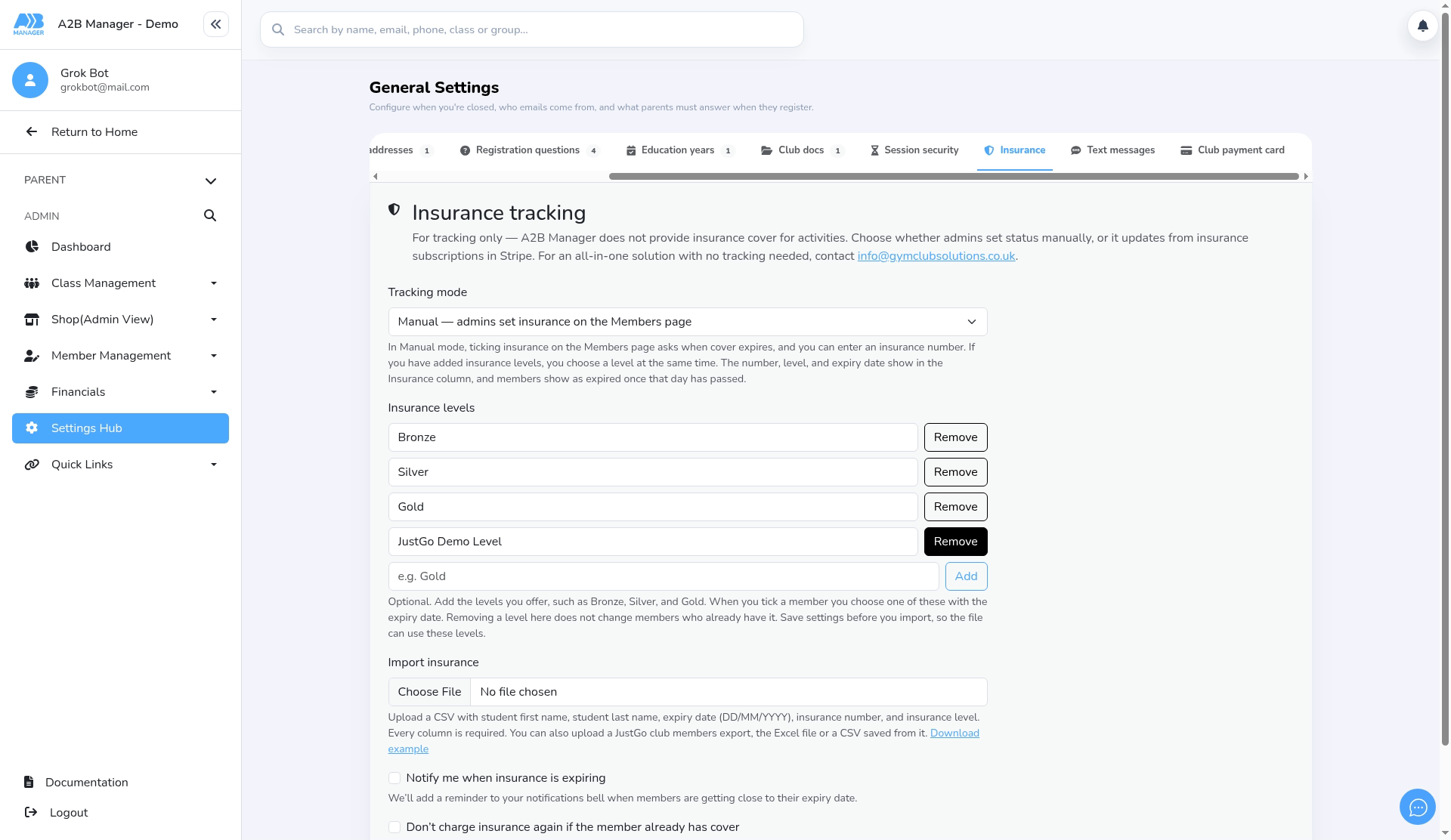
- Under Tracking mode, choose Manual — admins set insurance on the Members page. (There’s another tracking mode, which isn’t covered here.)
- Under Insurance levels, type a level name and click Add. You can add up to 20 levels, each up to 40 characters. Levels are optional unless you import from JustGo.
- If you’re importing from JustGo, add levels named exactly like your JustGo membership types, for example Community, Competitive, National and Enhanced. Any row whose membership type doesn’t match a saved level won’t import.
- Remove takes a level away straight away, with no confirmation. It doesn’t change members who already have that level.
Step 3: Set reminders and save (1:44) #
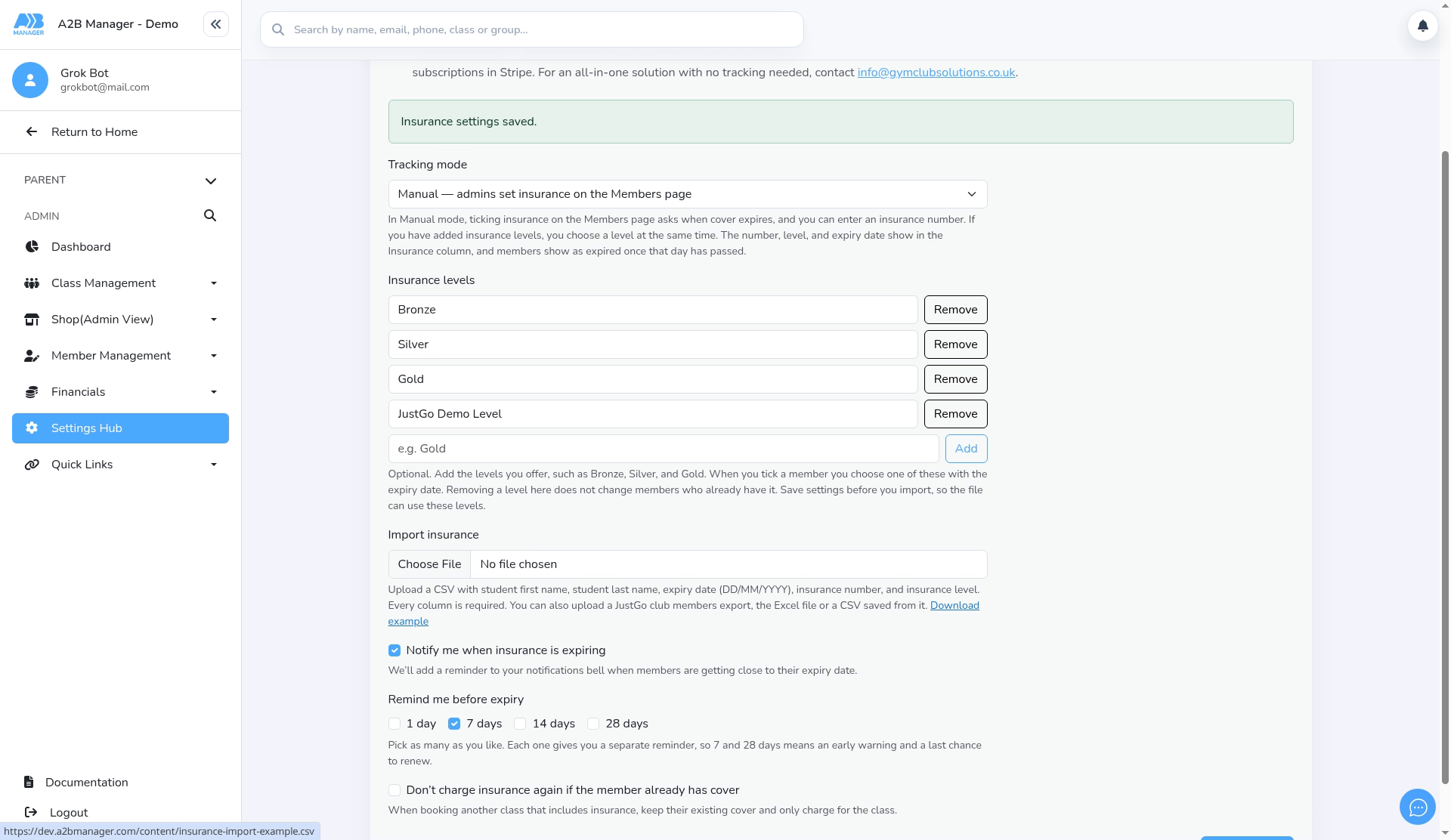
- To get a reminder in your notifications bell, tick Notify me when insurance is expiring.
- Under Remind me before expiry, tick one or more of 1 day, 7 days, 14 days and 28 days. Each one adds a separate reminder.
- A reminder is only created on the day a member’s cover is exactly that many days from expiring, so tick more than one if you want a safety net.
- Click Save settings. You’ll see Insurance settings saved. You must save in Manual mode, with your levels, before you import.
Step 4: Import your JustGo file (2:21) #
- In JustGo, export your club members list as Excel or CSV. A2B Manager recognises it from its headings: Firstname, Surname, Expiry Date, MID and Membership Type (the sheet is called Club Members). Other columns are ignored.
- The MID becomes the insurance number, and the membership type becomes the level.
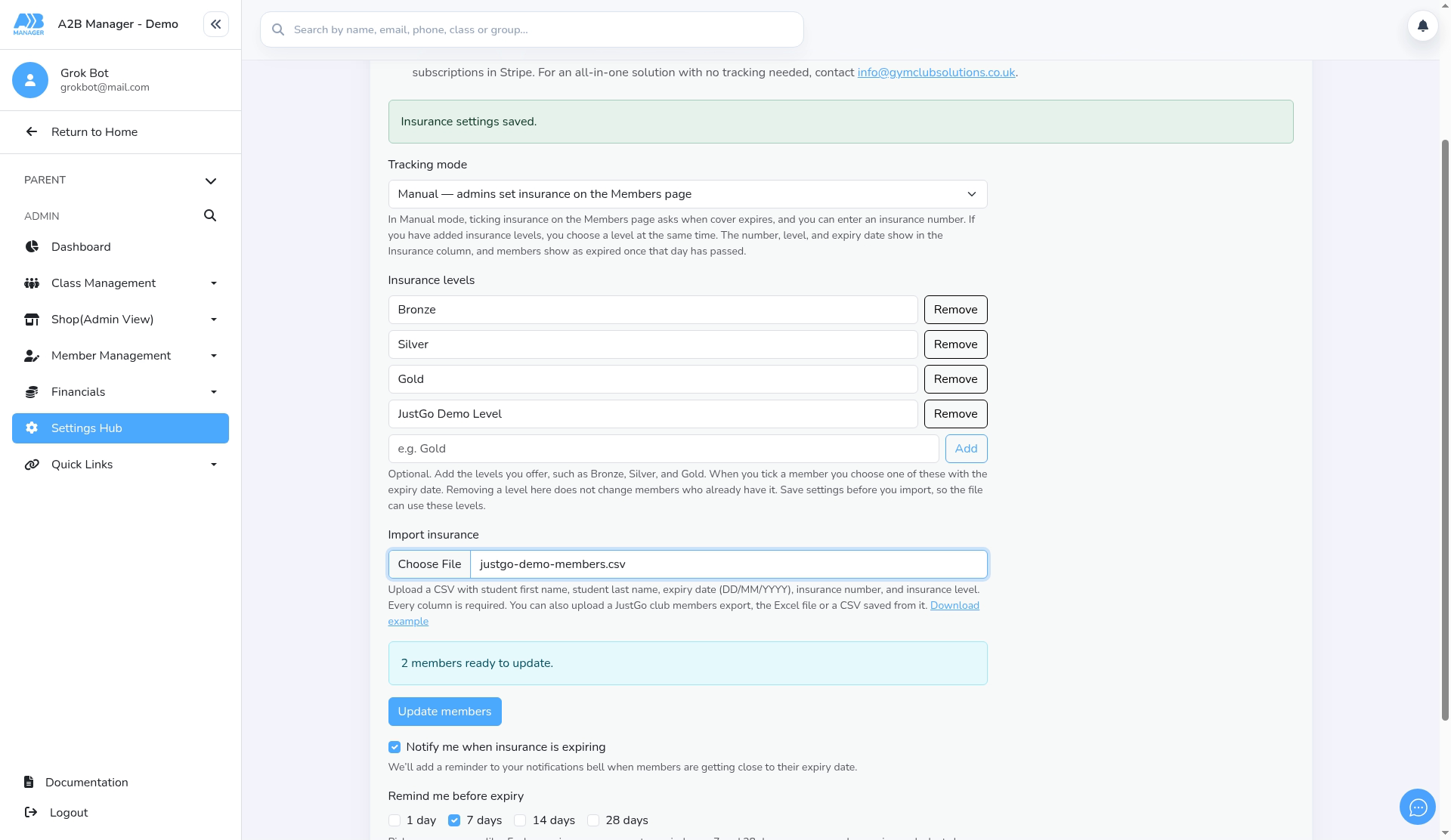
- Under Import insurance, click Choose File and pick the file (under 5 MB).
- Not using JustGo? Click Download example for a CSV with the columns Student first name, Student last name, Expiry date, Insurance number and Insurance level. Use these headings exactly. Every column is required.
- The review shows how many members are ready to update. Members are matched by first and last name. If more than one member has the same name, choose the right one from the list.
Step 5: Update members (2:51) #
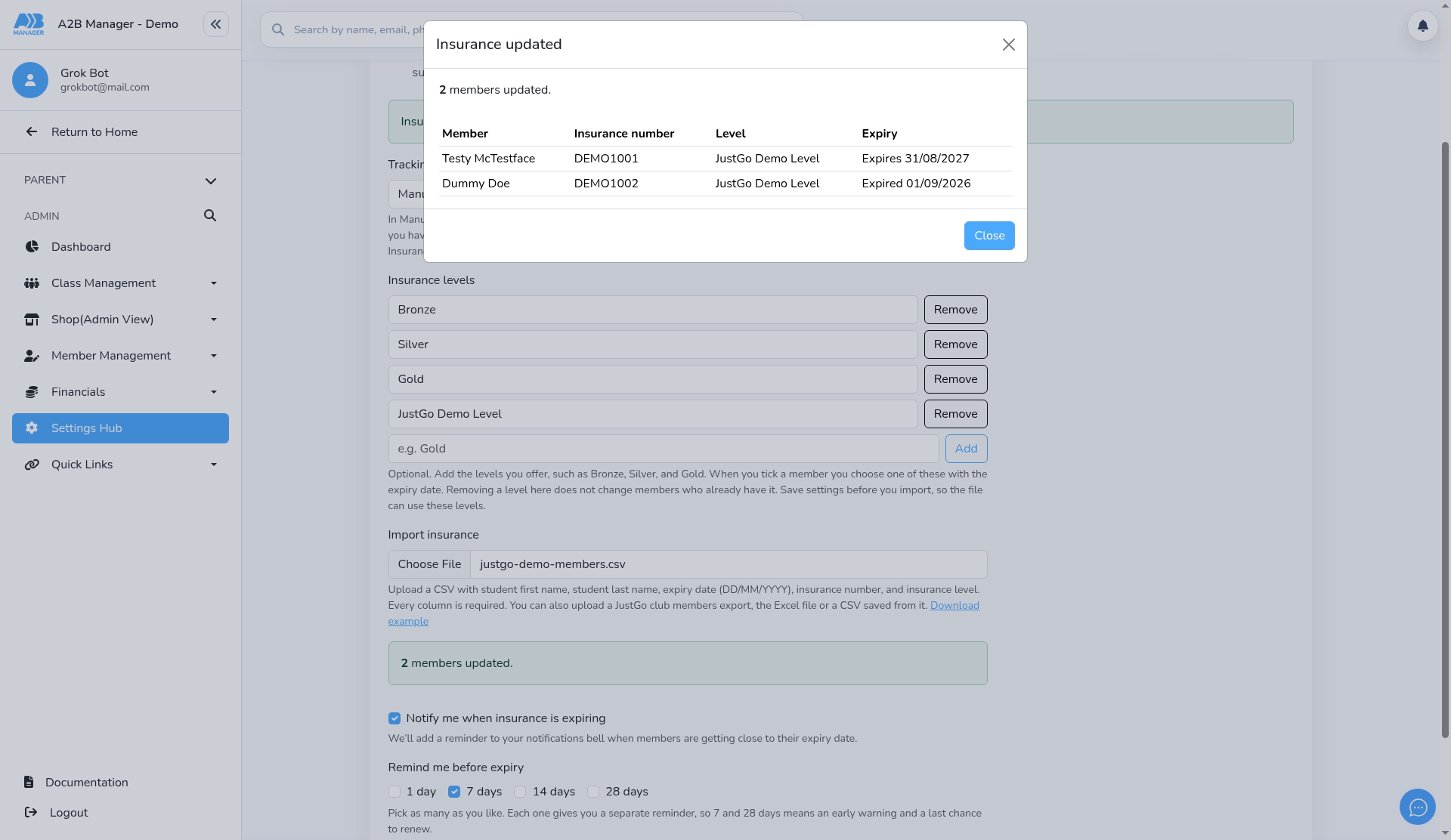
- Click Update members. The Insurance updated summary lists each member’s insurance number, level and expiry. Click Close.
- The import overwrites any cover a member already has, without warning, even if the new expiry date is earlier.
- If a file has two rows for the same person, the second row is rejected with This name is already in the file.
- Rows without a membership type or expiry date fail. They’re listed under Rows that were not updated; click Download rows to fix to get them as a file.
- The import only updates insurance. It doesn’t add members or change any other details.
Step 6: Check the Members page (3:14) #
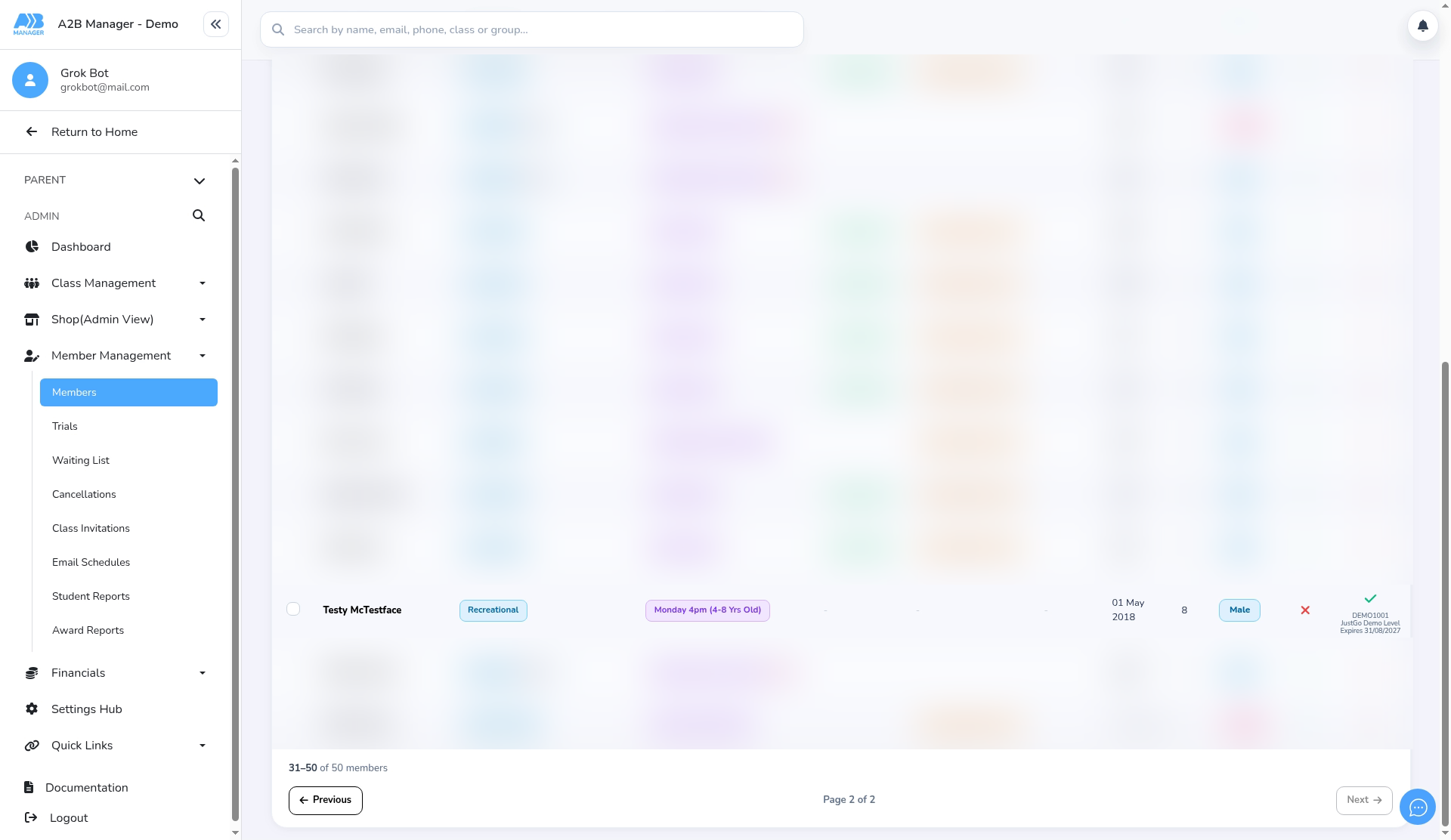
- Go to Member Management > Members. The Insurance column shows each member’s insurance number, level and Expires date, or Expired once the date has passed.
- The member’s profile also shows Insurance expires …, Insurance expired … or No insurance.
Setting cover for one member #
- On the Members page, click the member’s Insurance cell. In Insurance expiry date, enter the expiry date, an optional Insurance number and an Insurance level (needed if you’ve added levels), then click Save.
- To remove cover, click an insured member’s Insurance cell. Cover is removed straight away, with no confirmation.
Renewing cover #
- There’s no edit option. To renew, remove the member’s cover, then set it again with the new expiry date. You can also re-import an up-to-date JustGo file.
- If a member’s cover has already expired, there may be no remove option. Set the cover again with the new date instead.
Good to know #
- Insurance tracking is for your records only. Missing or expired insurance doesn’t stop a member booking.
- Parents never see insurance details in their account.
- Matching is by name only, so check the review count before you click Update members. Inactive members can be matched too.


