

Table of Contents
- Inviting a member of staff
- Step 1: Open Invite Staff (0:00)
- Step 2: Create a staff link (0:22)
- Step 3: Save the link, or save and email it (0:54)
- Step 4: Check the invitation and copy the link (1:05)
- Step 5: What your staff member sees (1:14)
- Step 6: View your staff in Manage Admins (1:30)
- Step 7: Remove someone's staff access (1:42)
- Admin or Coach: what's the difference?
- Inviting several people from a file
- Good to know
Give coaches and admins their own login to A2B Manager by sending them a staff link. This guide covers inviting staff, what Admin and Coach access allows, checking your staff list and removing someone’s staff access. Only club admins can do this.
Inviting a member of staff #
Step 1: Open Invite Staff (0:00) #
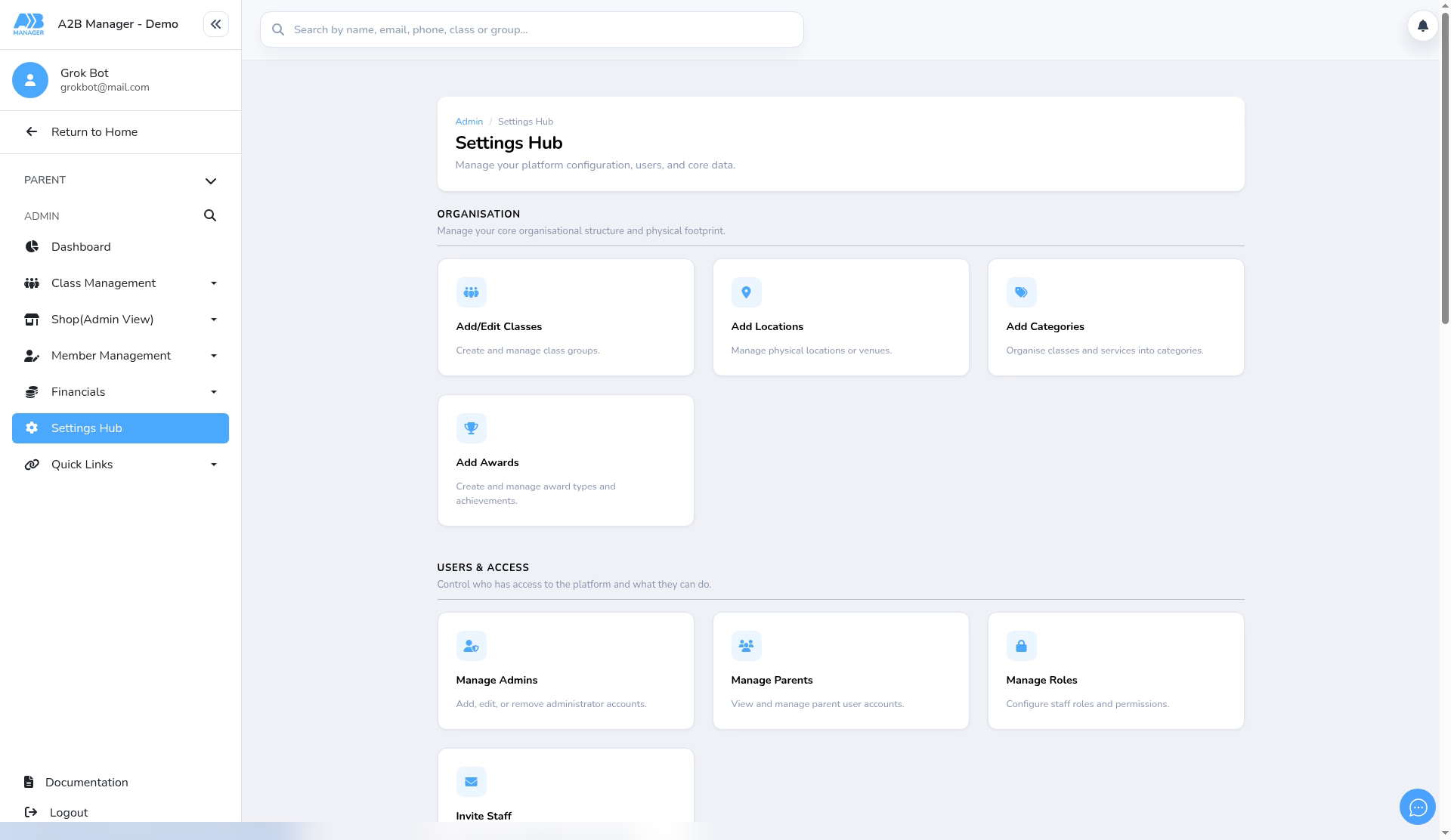
- In the left-hand menu, click Settings Hub.
- In the Users & Access section, click Invite Staff. The page is headed Invite Staff Members.
Step 2: Create a staff link (0:22) #
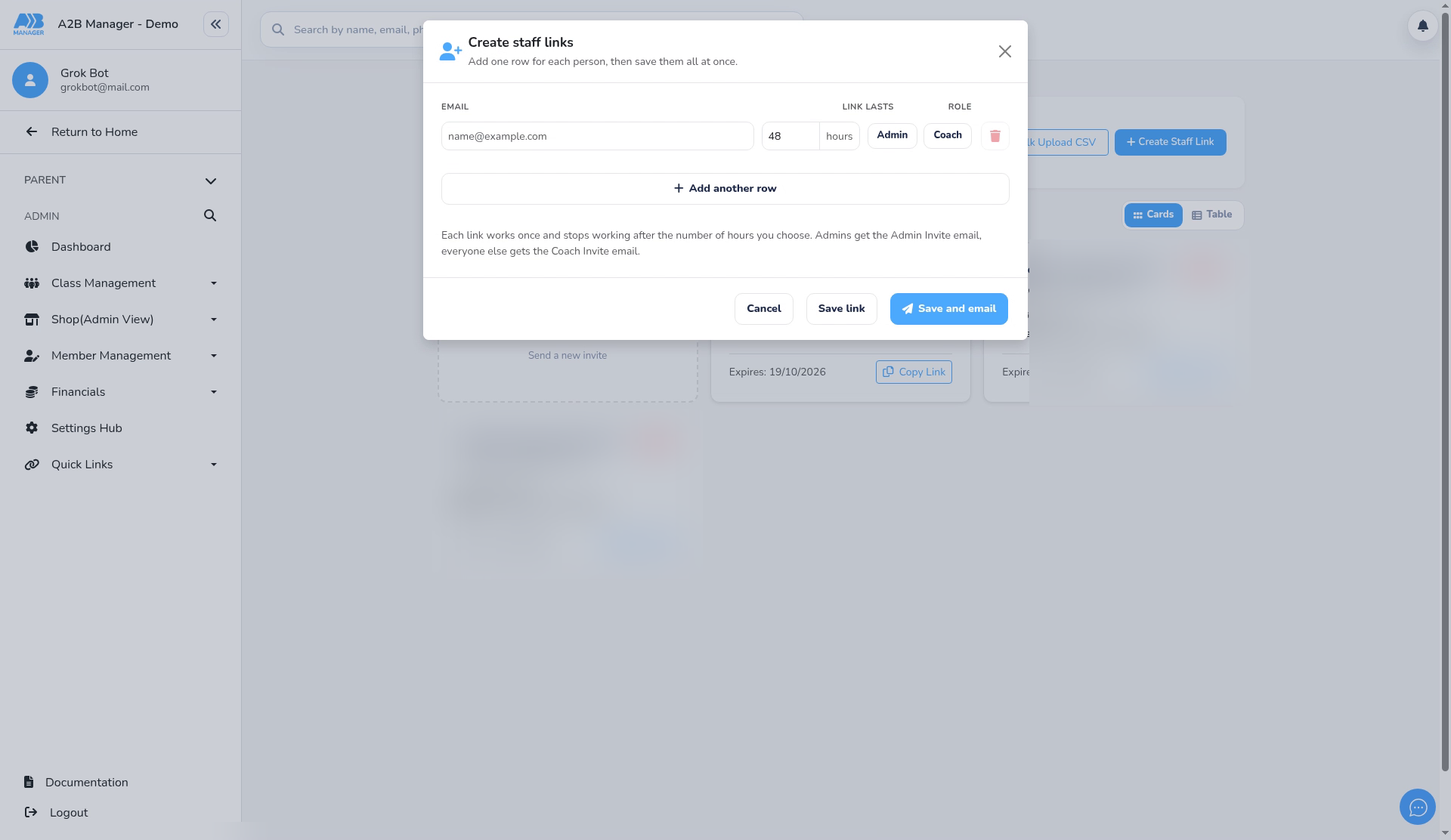
- Click Create Staff Link.
- Enter the person’s Email.
- Choose Admin, Coach or both. You must choose at least one.
- Set Link lasts in hours. The default is 48 hours. Keep it short, because a link can’t be cancelled once it’s saved.
- To invite more people at once, click Add another row.
Step 3: Save the link, or save and email it (0:54) #
- Click Save and email to send the invitation straight away. Admins get the Admin Invite email; everyone else gets the Coach Invite email. The email tells them they’ve been invited to join your club as a coach or an admin, gives them a link to set up their account, and says the link can only be used once and will expire.
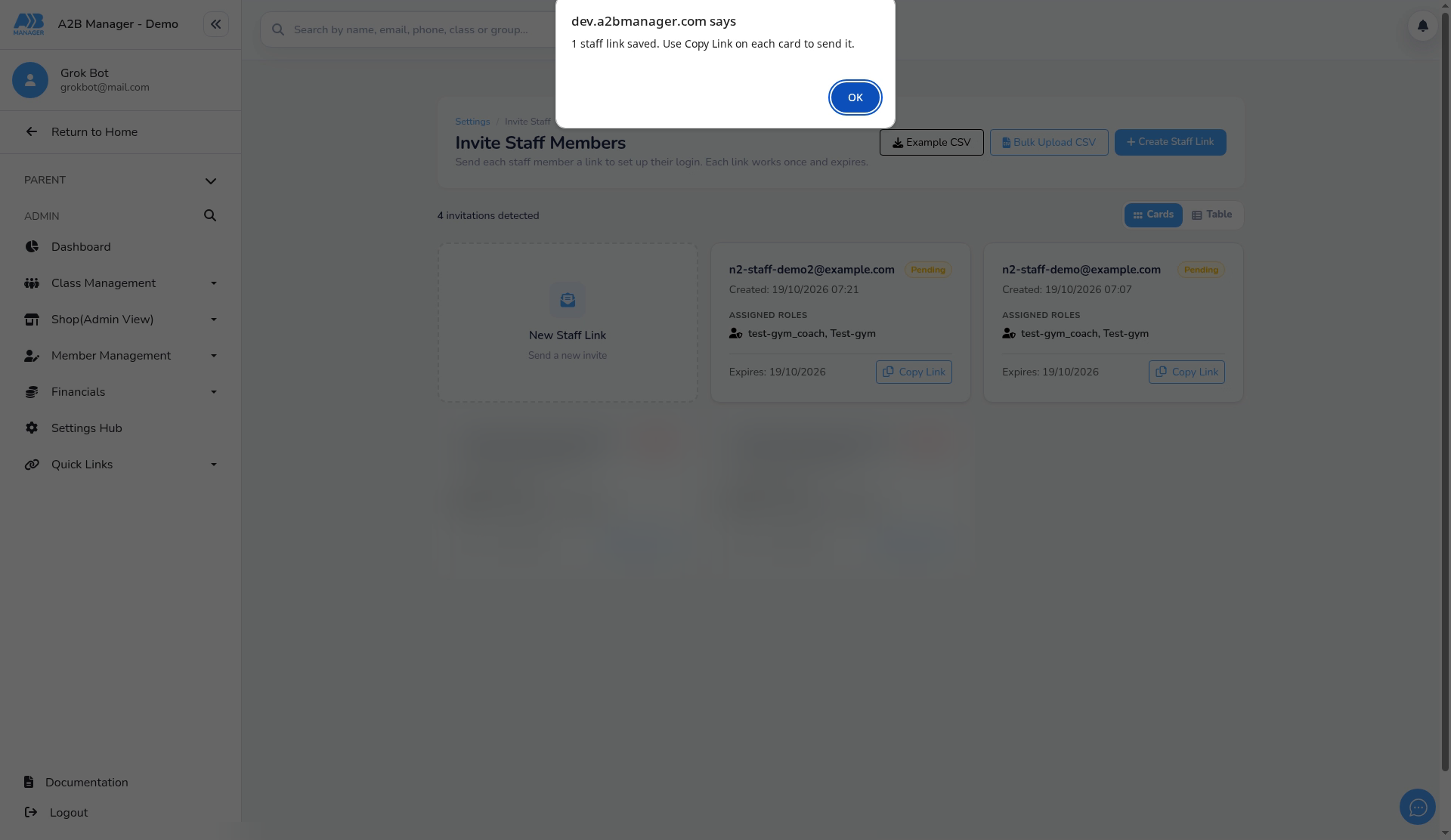
- Or click Save link to save it without sending an email. You’ll see 1 staff link saved. Use Copy Link on each card to send it. Then send the link yourself.
- If anything is wrong, nothing is saved and the row is marked, for example Enter an email address. or Choose Admin, Coach, or both.
Step 4: Check the invitation and copy the link (1:05) #
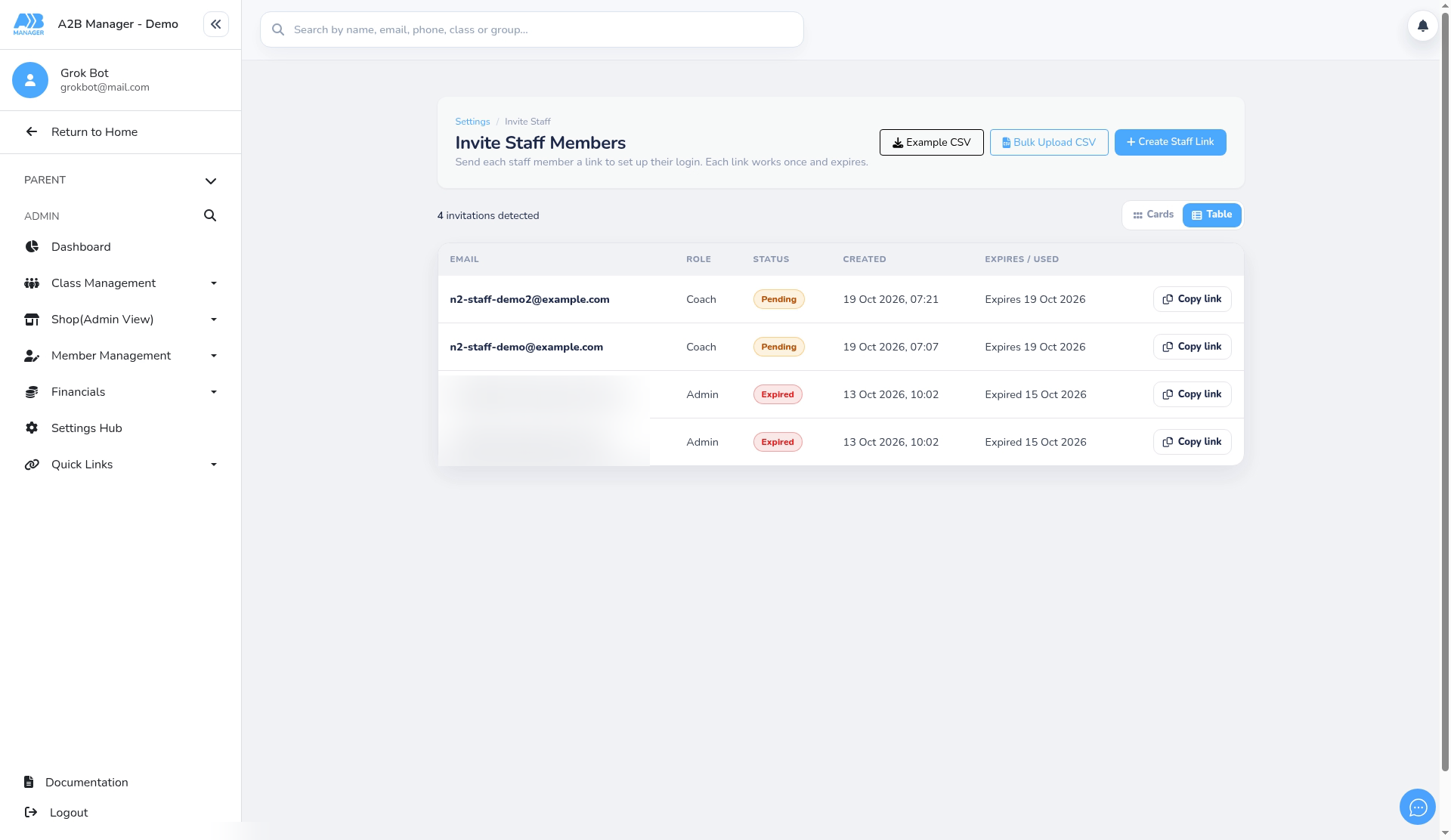
- The invitation appears in the list. Click Table to see Email, Role, Status, Created and Expires / used.
- Status is Pending until it’s used, Actioned once the person has set up their login, and Expired after the time runs out.
- Click Copy link to copy the link so you can send it yourself, for example by text message.
Step 5: What your staff member sees (1:14) #
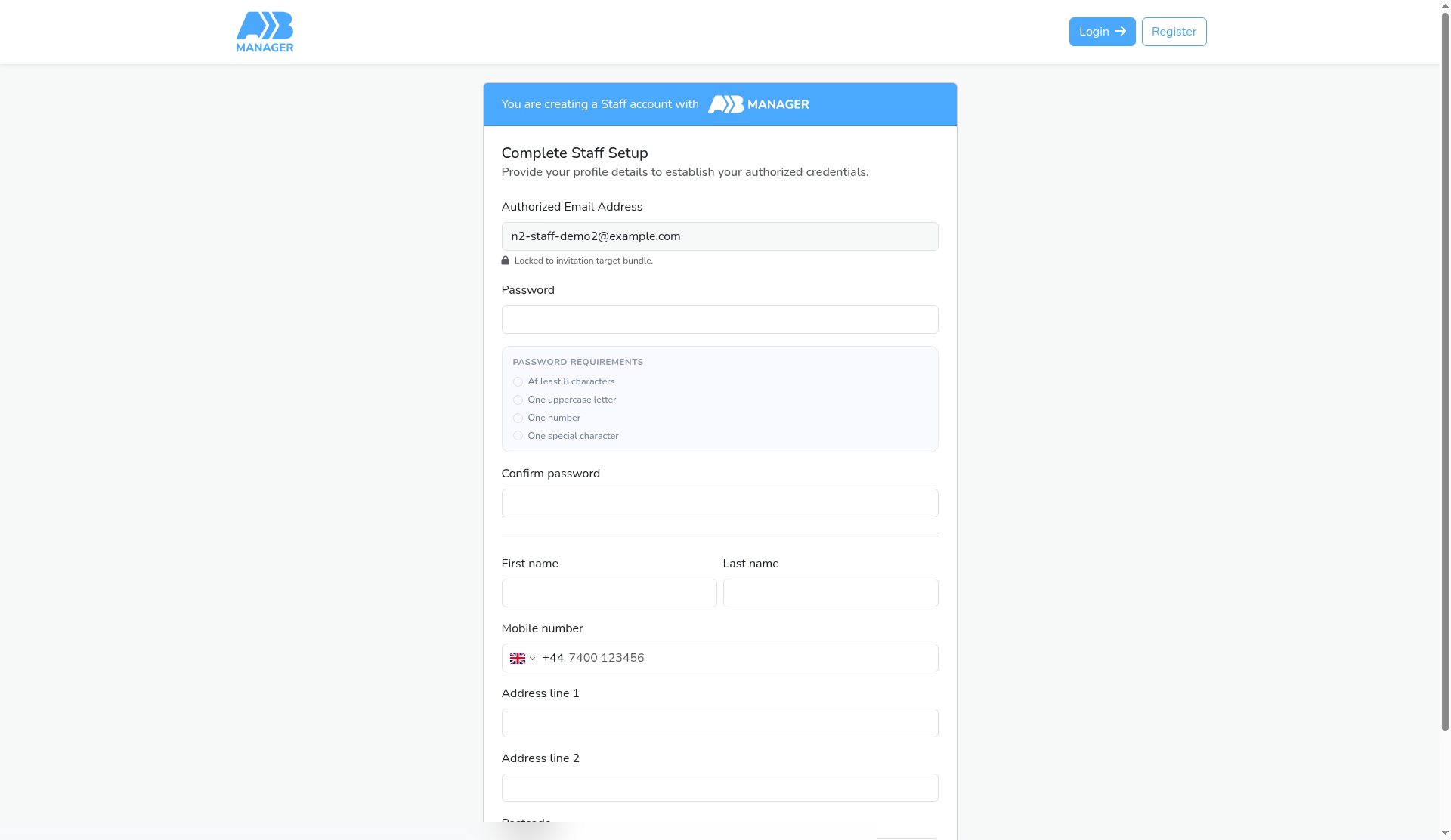
- The link opens a sign-up page with their email already filled in. They enter their name, choose a password and add their contact details.
- Each link works once. After that, they sign in normally.
- Staff with Admin access are asked to set up two-step sign-in the first time they sign in. Coaches aren’t.
Step 6: View your staff in Manage Admins (1:30) #
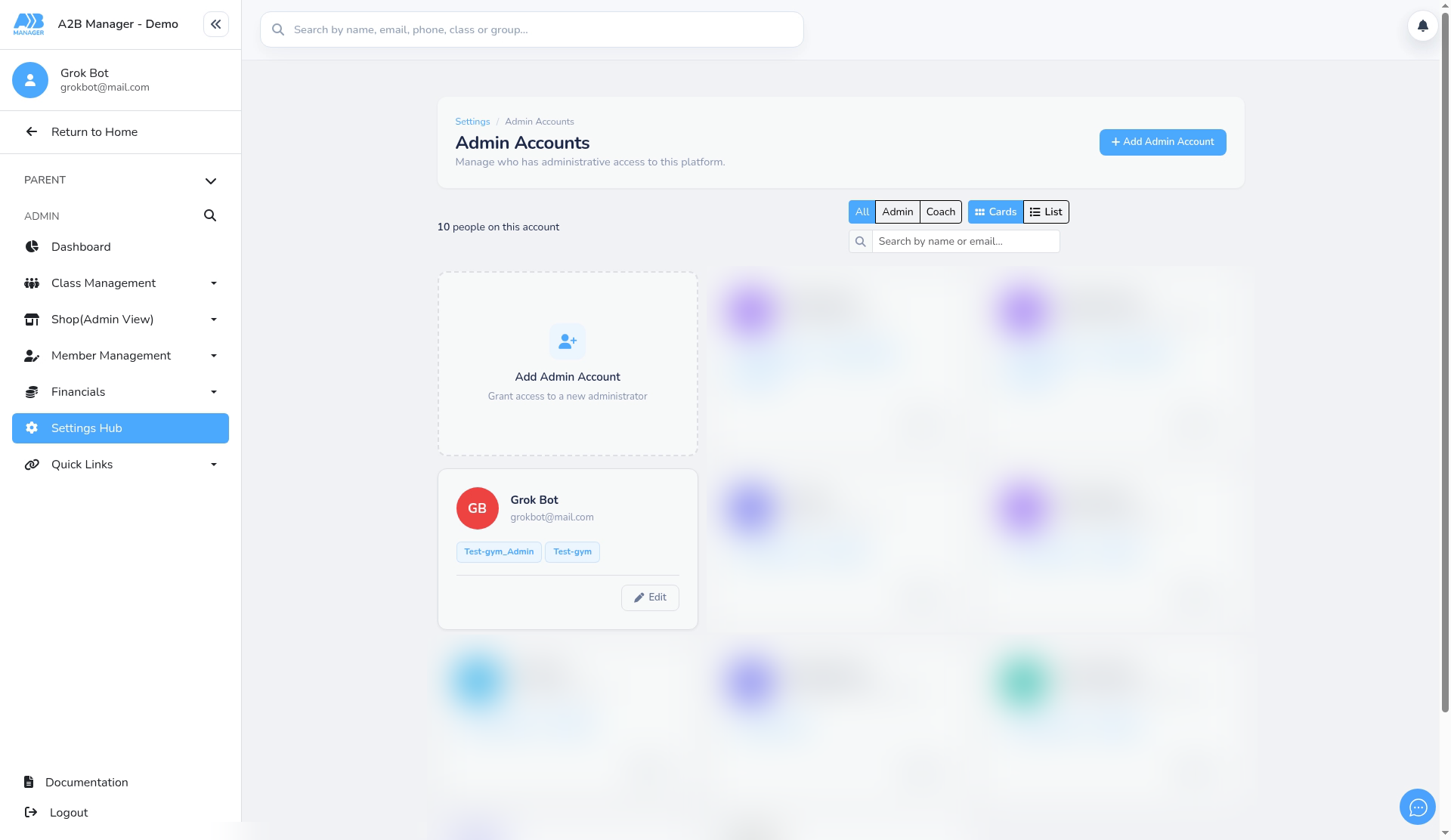
- Go back to Settings Hub and click Manage Admins. The page is headed Admin Accounts.
- Use All, Admin and Coach to filter the list, switch between Cards and List, or search by name or email.
Step 7: Remove someone’s staff access (1:42) #
- On the person’s card, click Edit.
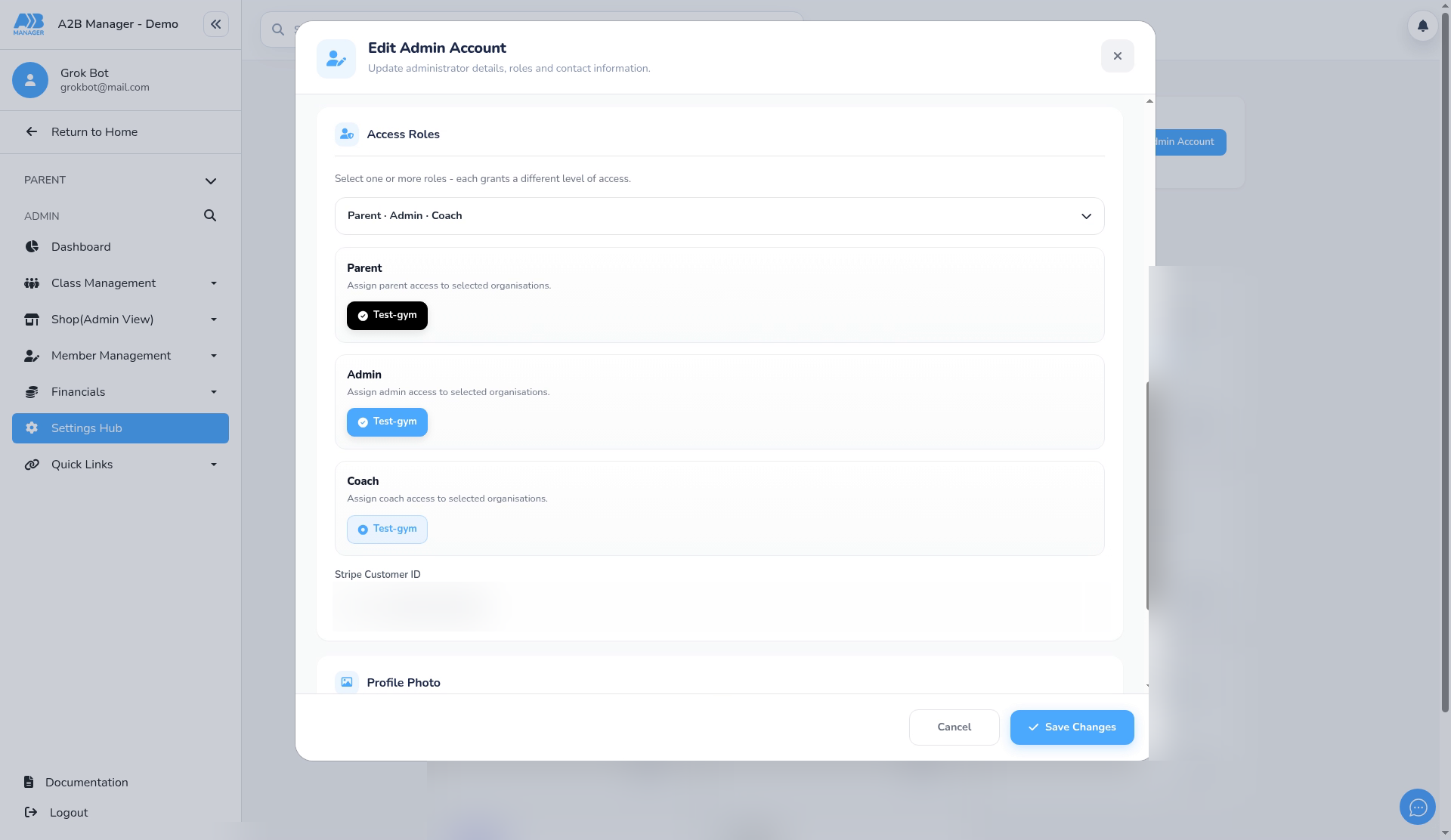
- Under Access Roles, untick Admin and Coach. Leave their parent role in place.
- Click Save Changes. They lose staff access straight away and drop off the Admin Accounts list, but can still sign in as a parent. There’s no delete button.
Admin or Coach: what’s the difference? #
- Admin gives full access to your club’s admin area, including settings, members and payments. Admins must use two-step sign-in.
- Coach gives access to Register by day and Classes only, so coaches can take registers.
- Staff can still book classes as parents with the same login.
Inviting several people from a file #
- Bulk Upload CSV lets you upload a list of email addresses (use Example CSV for the format) and set roles and link times for every row.
- Warning: Bulk Upload has no save-only option. Every row you add is emailed an invitation, so check the list carefully first.
Good to know #
- Invitation links expire after the time you set and can’t be cancelled or deleted before then. If you sent one to the wrong person, wait for it to expire. If they’ve already signed up, remove their staff access as in Step 7.
- An expired invitation still shows Copy link, but the copied link won’t work. Create a new link instead.
- The invitation can’t be used by an email address that already has an A2B Manager account, for example an existing parent. To give an existing parent staff access, please contact A2B Manager support.
- Manage Roles isn’t used by clubs. Use Admin and Coach as described above.
Tip: Use Save link and a short Link lasts time if you’d rather send the link yourself, for example by text message.


