

Table of Contents
You can add credit to a family’s account balance, or take a debit from it, straight from a member’s profile. The balance belongs to the parent’s account, so it’s shared by all their children. Credit is taken off the family’s next invoice automatically, and a debit is added to it.
Adding credit to a member’s account #
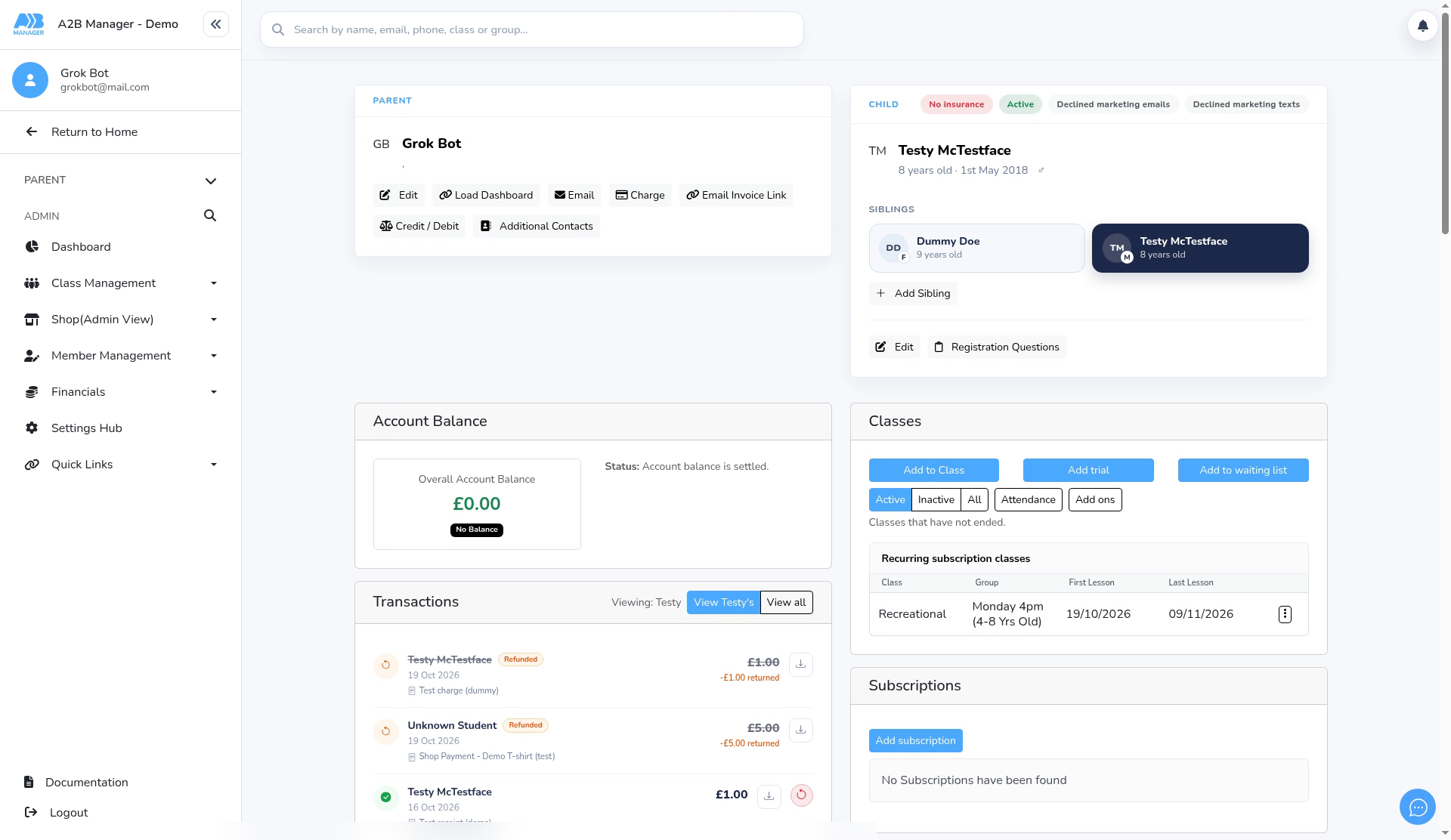
Step 1: Open the member’s profile (0:00) #
- Find the member and open their profile.
- The Account Balance card shows the family’s current balance, for example £0.00 No Balance.
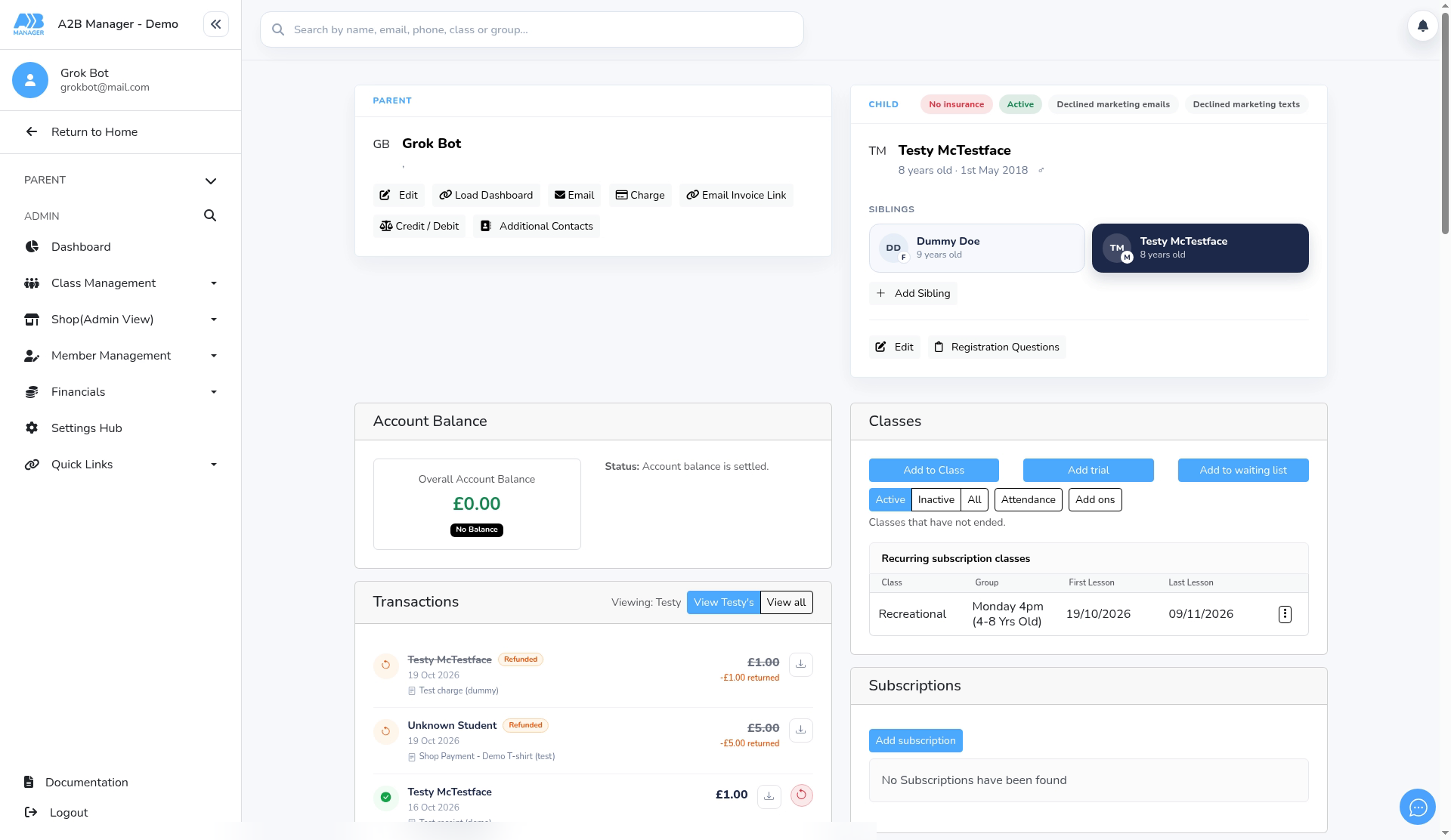
Step 2: Click Credit / Debit (0:06) #
- Click Credit / Debit at the top of the profile. The Credit / Debit Adjustment window opens.
- You can also tick members on a list, then choose Credit / Debit from the Action menu.
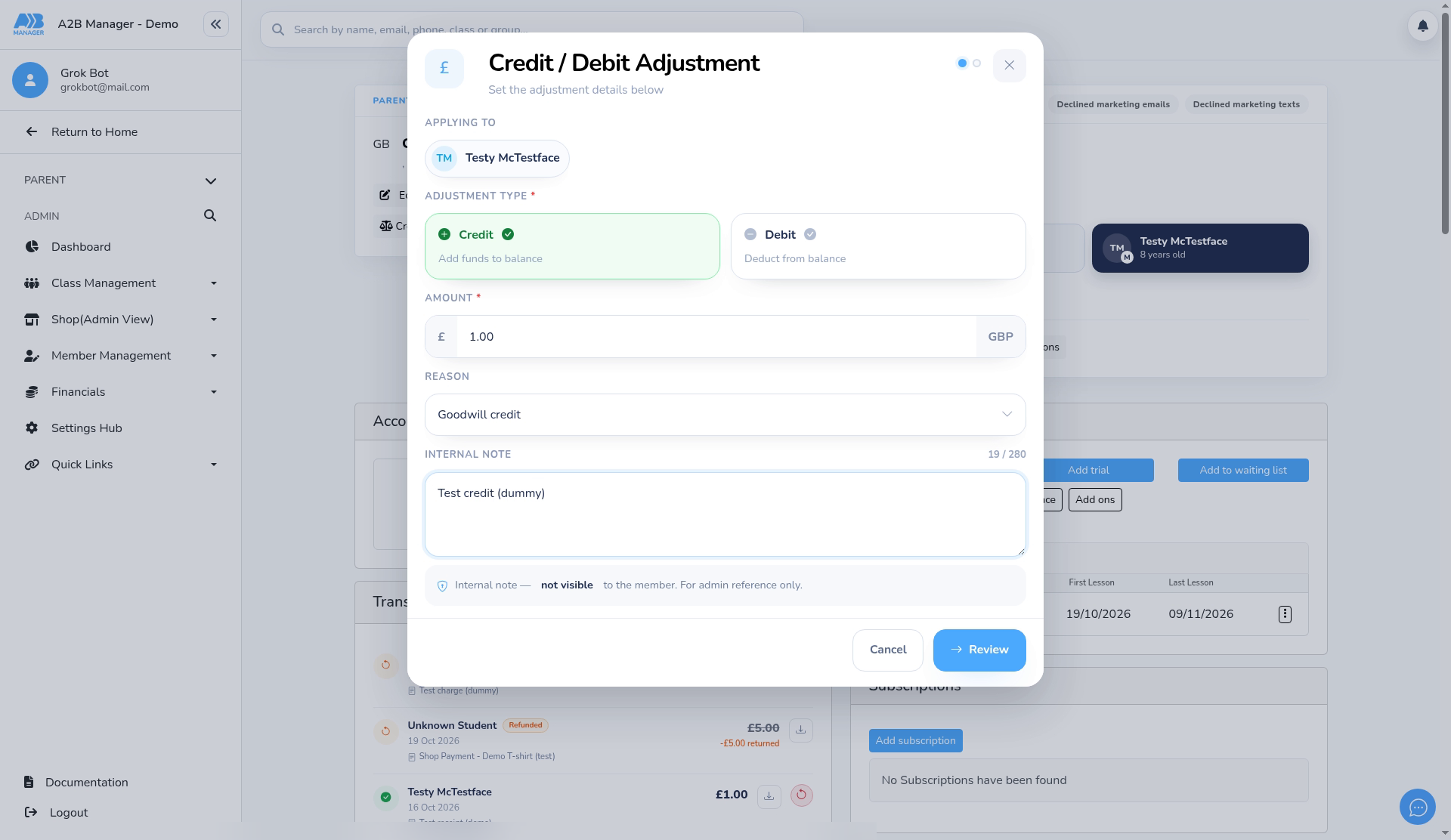
Step 3: Enter the adjustment (0:09) #
- Check Applying to shows the right member.
- Choose Credit to add funds to the balance, or Debit to take funds from it.
- Enter the Amount in pounds.
- Pick a Reason from the list if you like, for example Goodwill credit. It’s optional.
- Add a note for your records if you need to. Keep it factual.
Step 4: Review the adjustment (0:41) #
- Click Review.
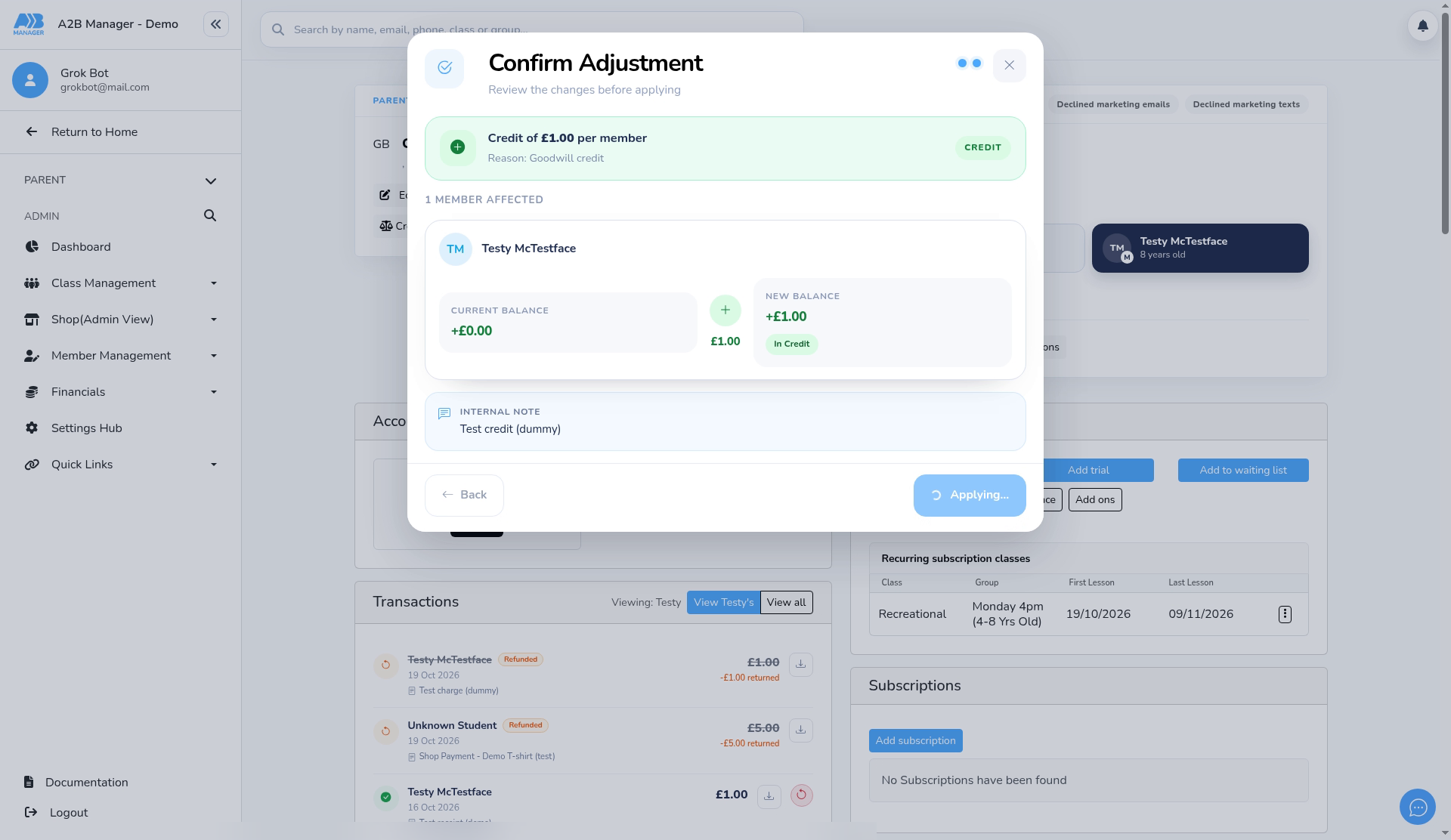
- Check the summary: the member, the current balance and the new balance.
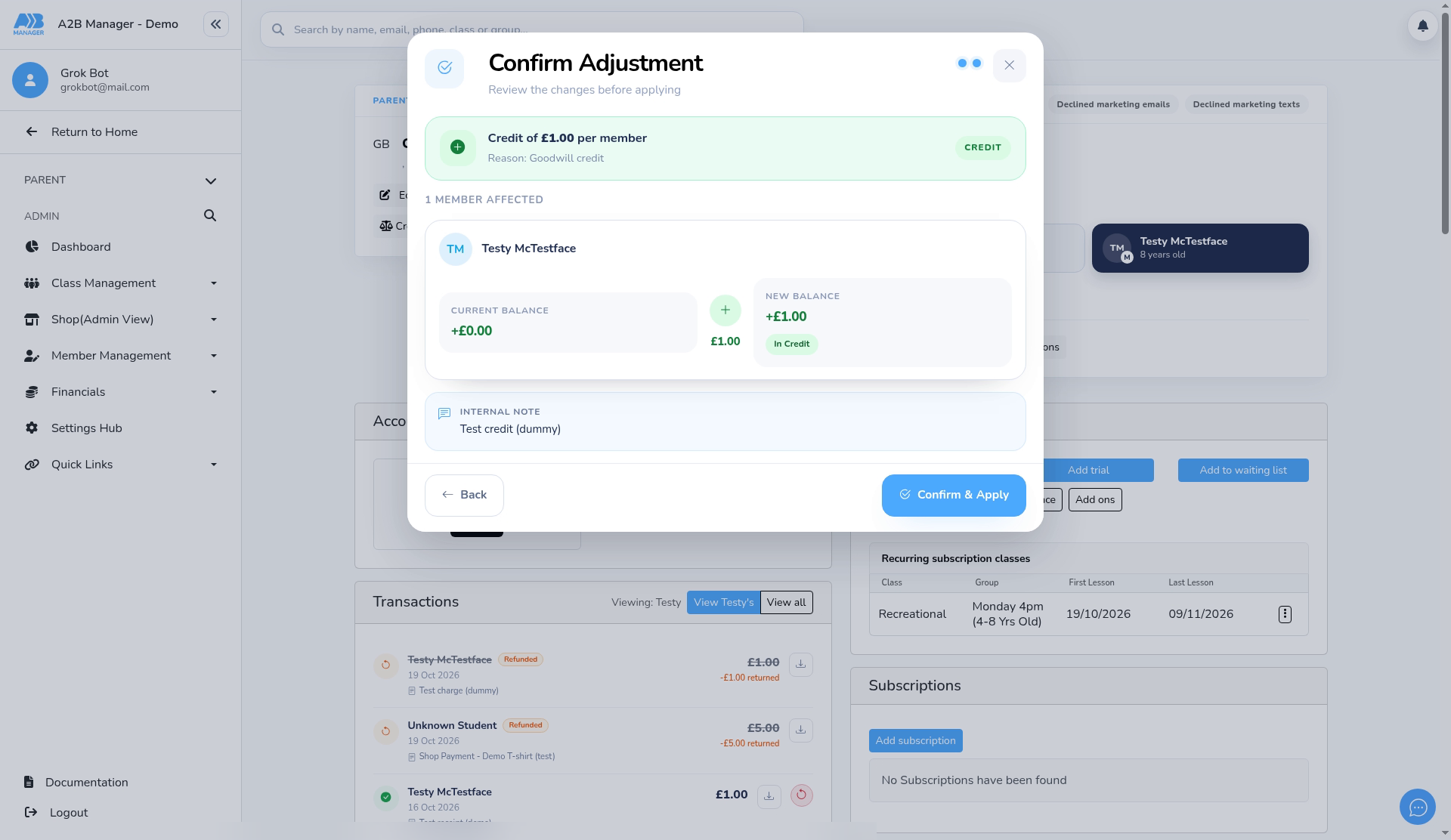
Step 5: Confirm and apply (0:49) #
- Click Confirm & Apply. The window closes and the profile reloads.
- To change something first, click Back.
Step 6: Check the new balance (0:56) #
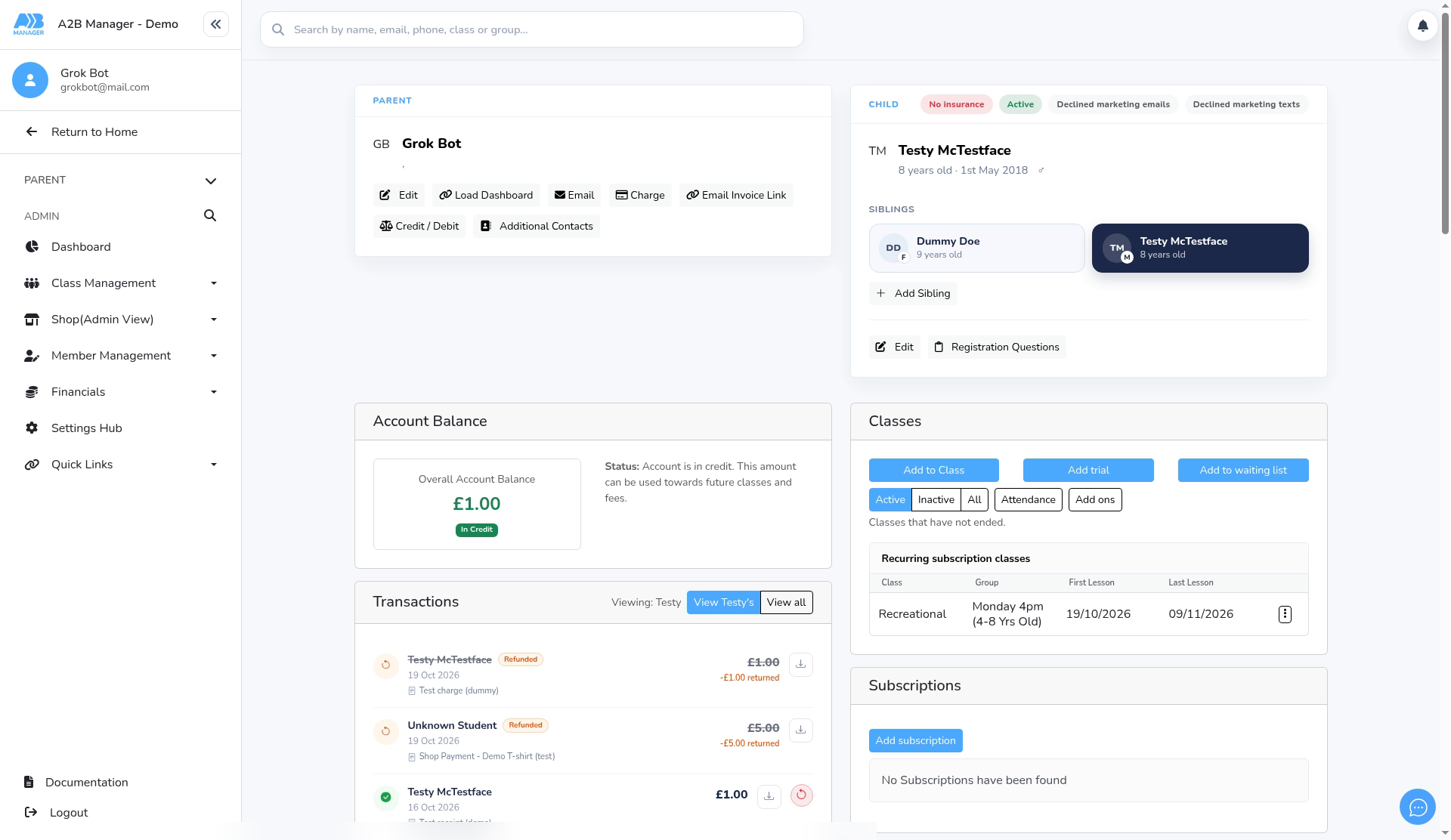
- The Account Balance card now shows the new amount, for example £1.00 In Credit.
- The credit comes off the family’s next invoice automatically.
Step 7: Reverse an adjustment (1:04) #
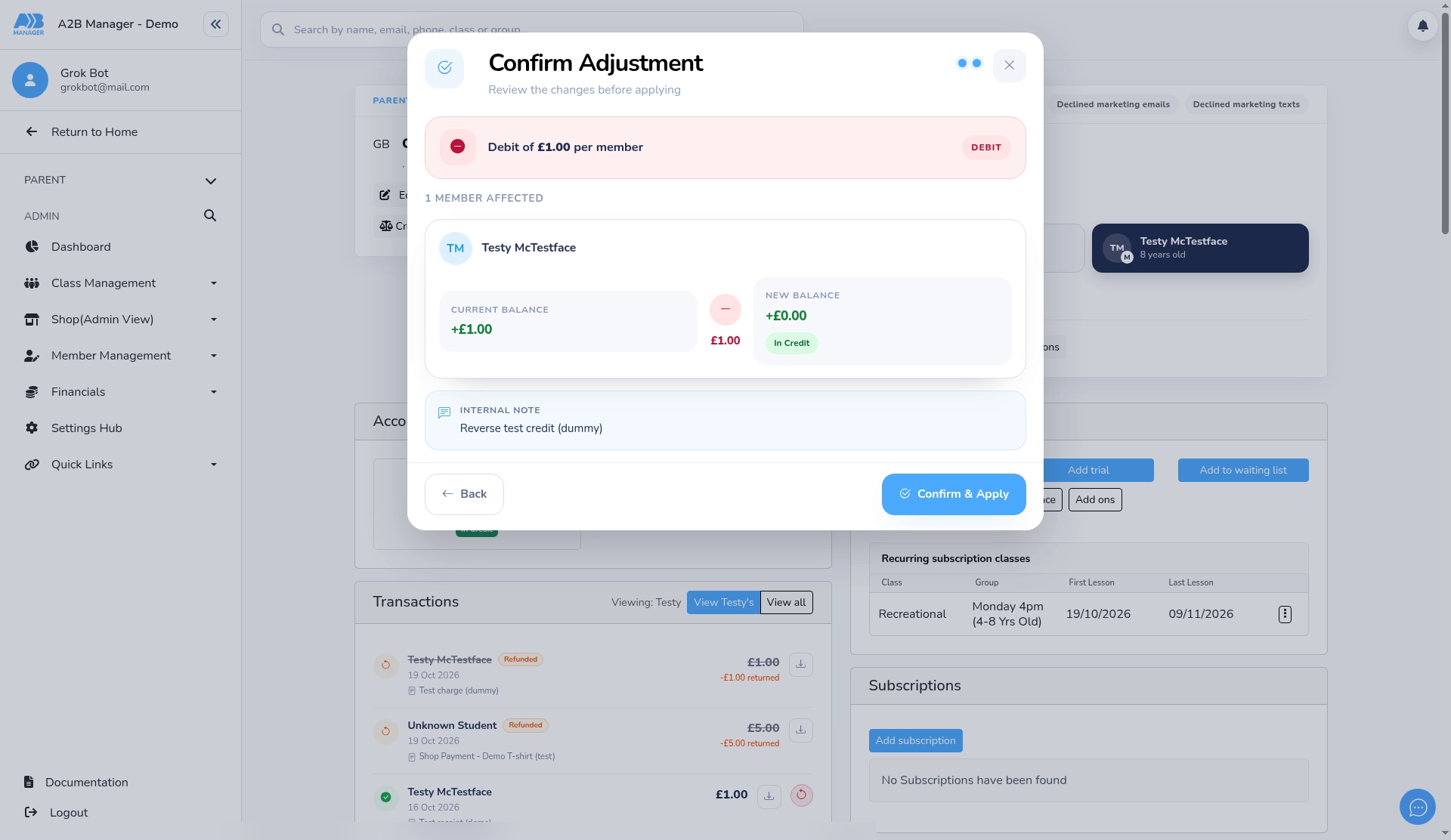
- You can’t delete an adjustment. To reverse one, apply the opposite: for a £1 credit, apply a £1 debit.
- Click Credit / Debit, choose Debit, enter the same amount, then Review and Confirm & Apply.
- The balance goes back to where it was (here, £0.00 No Balance).
Good to know #
- The balance is on the parent’s account, so brothers and sisters share it.
- Credit is used on the family’s next invoice automatically. You don’t need to do anything else.
- A debit is added to the family’s next invoice.
- Parents aren’t emailed about an adjustment.
- Each adjustment stays in the balance history, and is recorded in the activity log.
Tip: Adjusting several members at once? Select only one child per family. The balance is shared, so ticking two brothers or sisters applies the amount twice to the same family.
FAQs #
- How does the family use their credit? It’s taken off their next invoice automatically. You can also apply it to an outstanding invoice.
- Can I undo an adjustment? Not directly. Apply the opposite adjustment for the same amount.
- Do I have to pick a reason? No, it’s optional.


