

Table of Contents
When a parent asks to cancel their child’s place, the request goes to your Cancellations queue. This guide shows admins how to review requests, reject one with a reason, or accept one by choosing the last class date and deciding what happens to the child’s subscriptions. Only club admins can see the Cancellations page.
Before you start #
- Parents request a cancellation from their dashboard by clicking Request Cancellation on their child’s class card. They give a star rating, a reason and optional comments.
- You’ll hear about new requests by email if your Request Cancellation email template is active. There’s no notification in the bell, so check the Cancellations page regularly.
- A2B Manager doesn’t apply a notice period. If your club has one, apply it yourself when you choose the last class date.
Reviewing, rejecting and accepting requests #
Step 1: Open the Cancellations page (0:15) #
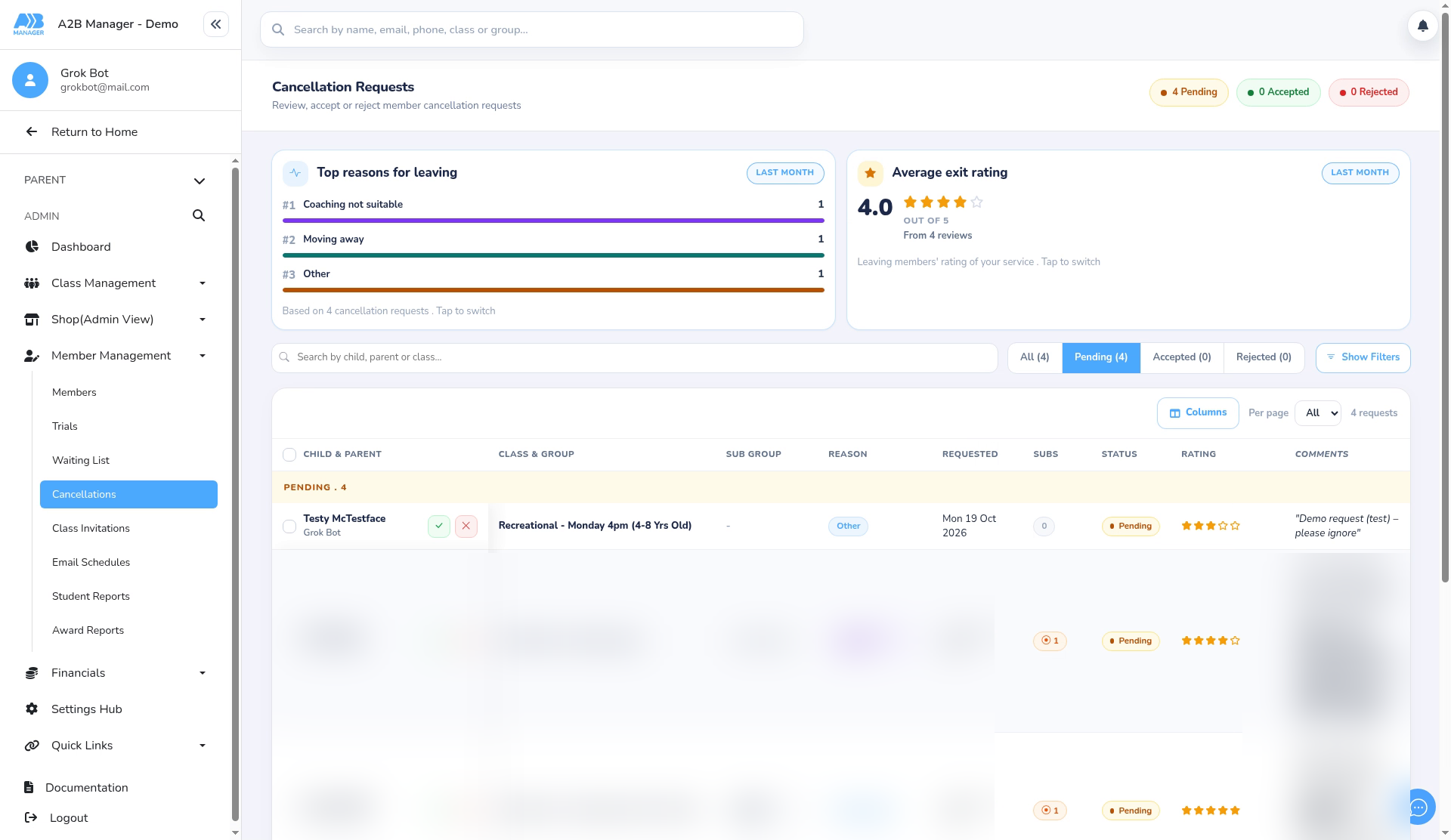
- In the left-hand menu, click Member Management, then Cancellations. The page is headed Cancellation Requests.
- Pending requests show the child, class and group, reason, date requested, subscriptions, rating and comments.
- Use the filters and Columns to narrow the list. Top reasons for leaving shows why members are leaving. The Accepted and Rejected tabs hold past requests.
Step 2: Reject a request (0:40) #
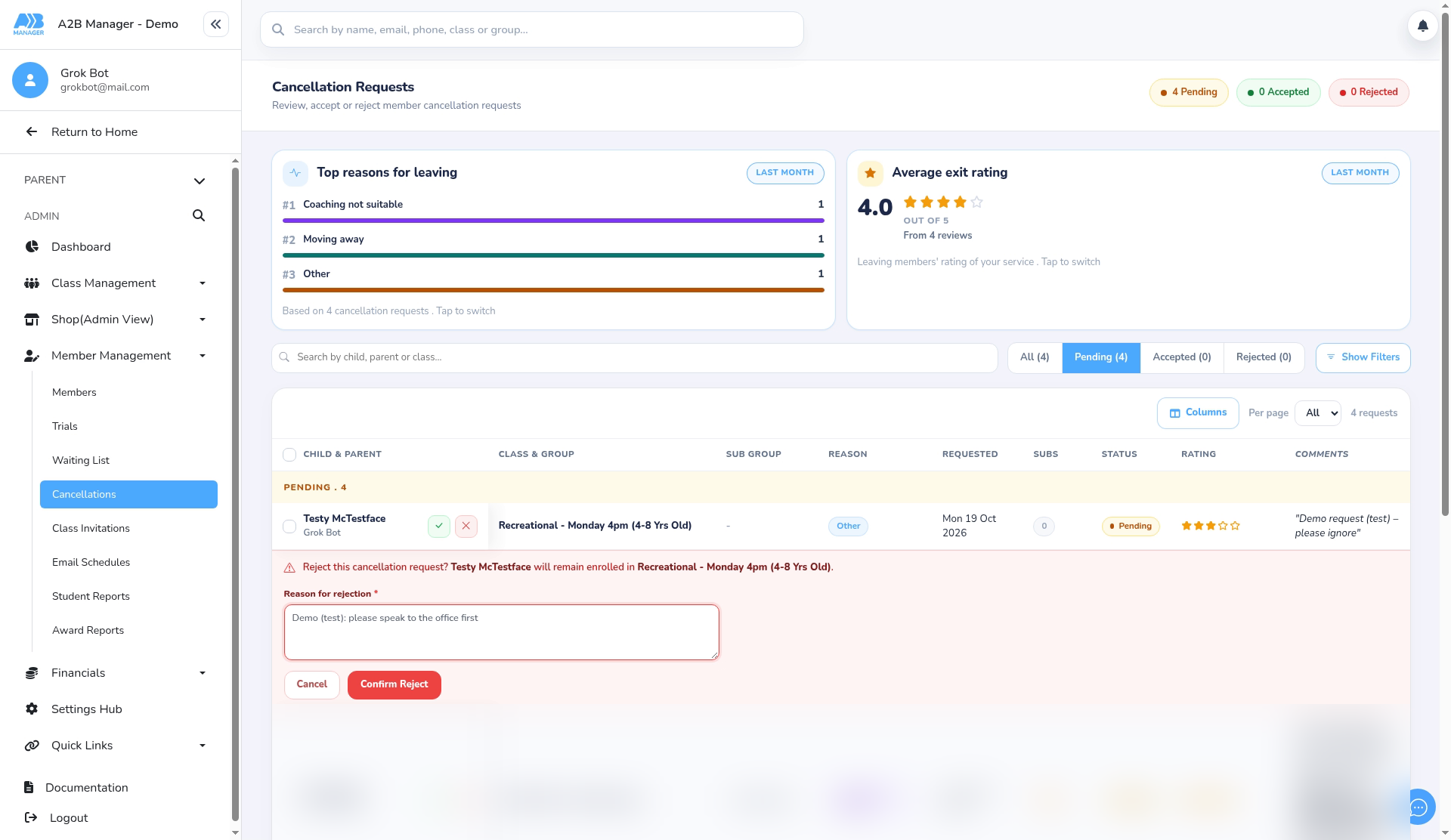
- Click Reject on the request.
- Type a Reason for rejection. You can’t confirm without one.
- Click Confirm Reject. You’ll see Cancellation rejected – student remains enrolled. The child keeps their place and nothing changes with their payments.
- The parent sees Rejected and your reason on their dashboard, and they can request again.
Step 3: Accept a request: choose the last class date (1:01) #
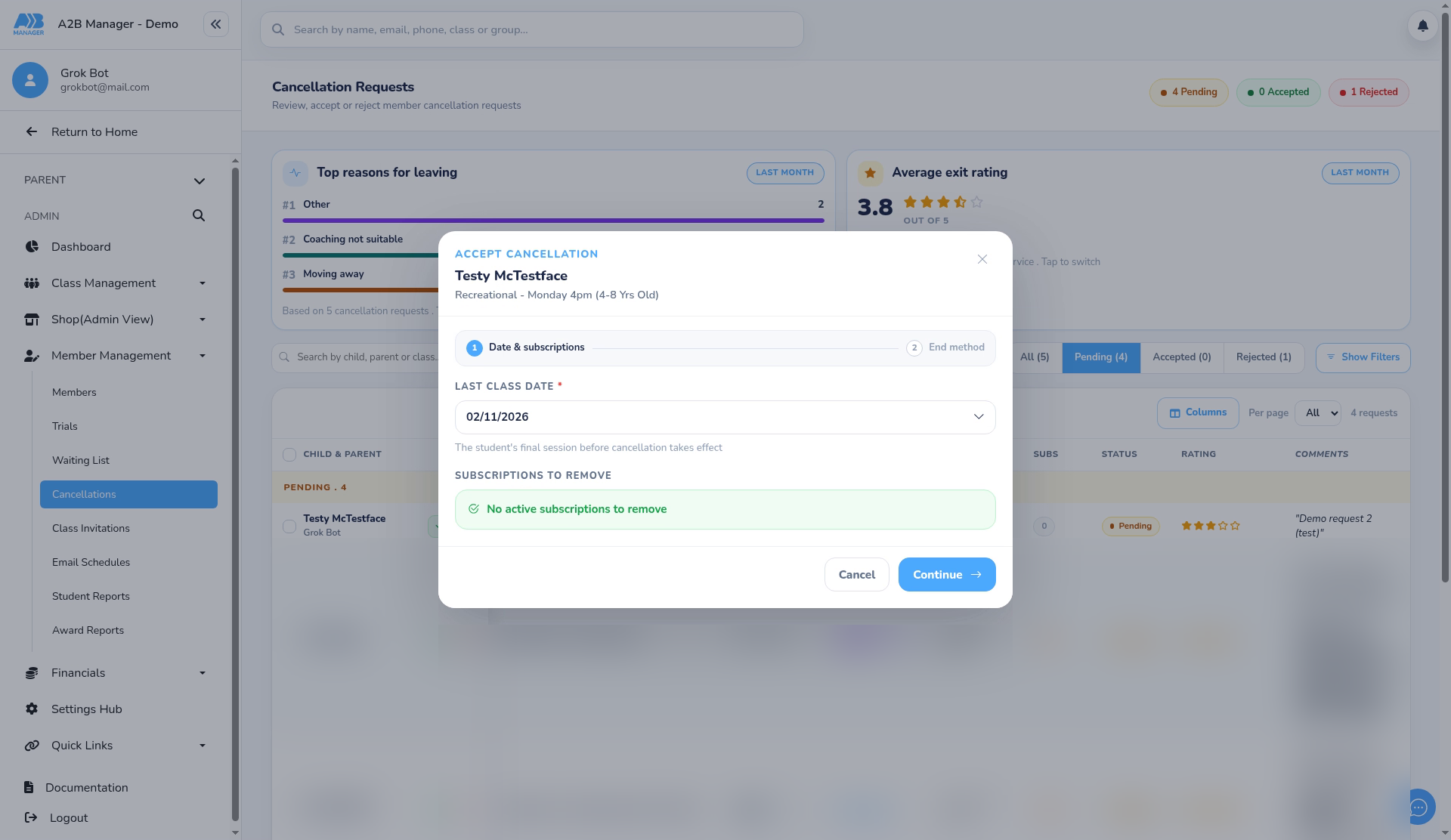
- Click Accept on the request.
- Choose the Last class date. This is the child’s final session; they stay in the class until then. If your club has a notice period, pick a date that allows for it.
- Under Subscriptions to remove, click each subscription you want to stop. It changes from Keep active to Will cancel. Subscriptions you don’t select keep running.
- Click Continue.
Step 4: Choose how subscriptions end (1:26) #
- Under How should selected subscriptions end?, choose a method:
- End after a final payment (recommended for most monthly leavers): the subscription runs to a payment date, and payments up to then are taken in full.
- Cancel now: ends straight away. No further payment is taken and nothing is refunded. This is selected to start with, so change it if you want another method.
- End on a specific date (pro rata): ends on the last class date, with a part-month charge or refund. You can only use it with a future last class date.
- If you didn’t select any subscriptions, you’ll see No subscriptions are selected to cancel. Accepting will still record the last class date.
Step 5: Confirm the acceptance (1:39) #
- Check the summary, then click Confirm Acceptance. You can’t undo this from the Cancellations page.
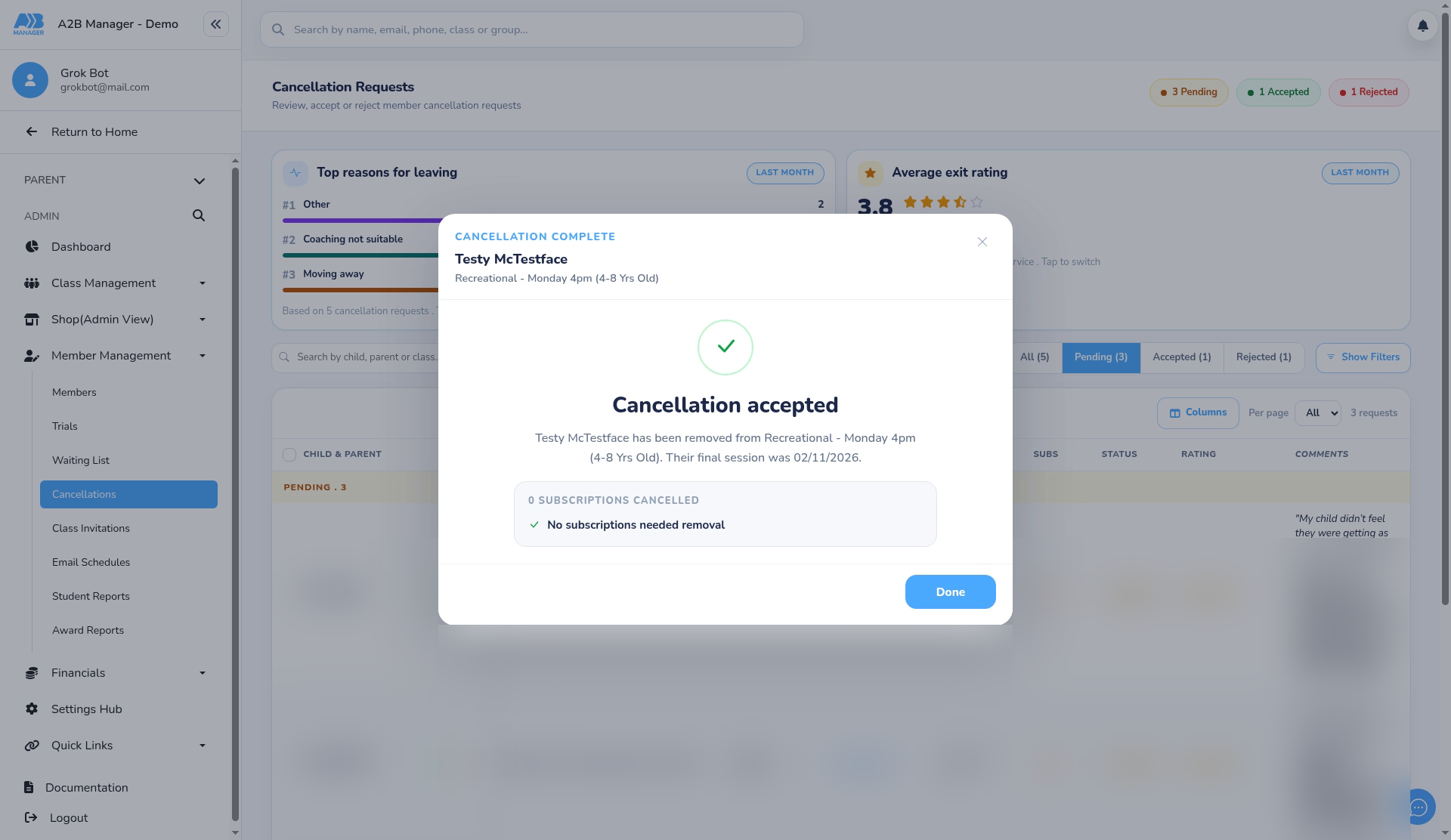
- When it’s finished, Cancellation accepted shows what happened to each subscription, for example a refund, a final charge or the date it’s scheduled to end.
- The last class date now shows on the child’s class in their member profile.
Emails to parents #
- Emails are only sent when the matching email template is active: Request Cancellation, Cancellation Confirmation and Cancellation Rejection, plus the Term versions for term classes.
- Your rejection reason isn’t added to the Cancellation Rejection email. The parent sees it on their dashboard, so if you want it in the email, write it to the parent separately.
- Check who each template sends to before you rely on it. You can edit them in your email templates.
If Accept or Reject doesn’t work #
- Accept and Reject don’t work if the parent has no card payment account with your club, for example if they’ve never paid by card. The request stays in the queue.
- Instead, remove the child from the class. See How to Remove a Member From Class.
Good to know #
- To change the last class date after accepting, edit the child’s class dates in their member profile.
- Once a request is accepted, the parent can’t request a cancellation again for that class group.
- A child with no other classes or subscriptions may show as inactive after their last class.
- Requests can’t be deleted. Accepted and rejected requests stay in the history tabs.
Tip: For a monthly subscription, End after a final payment is usually the simplest choice: the parent pays up to a payment date and nothing needs to be refunded.


