

Table of Contents
This guide covers the parts of buying from the club shop that aren’t in the main ordering guide: stock limits, the basket, your payment options, the Stripe payment page and the emails you’ll get about your order.
Before you start #
- For how to open the shop and choose items, See also: How parents order products from your shop.
Basket, payment and order emails #
Step 1: Stock limits (0:16) #
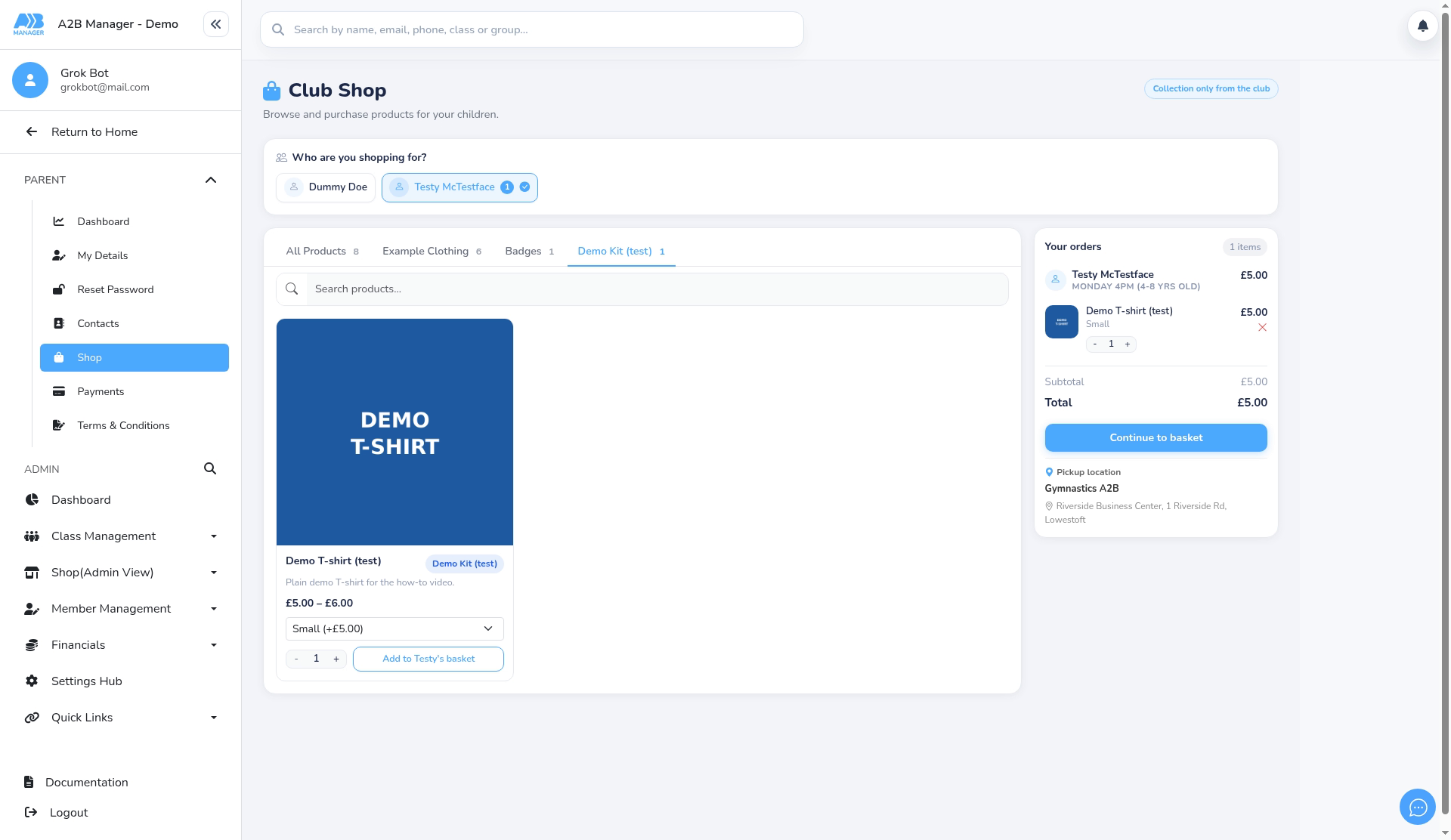
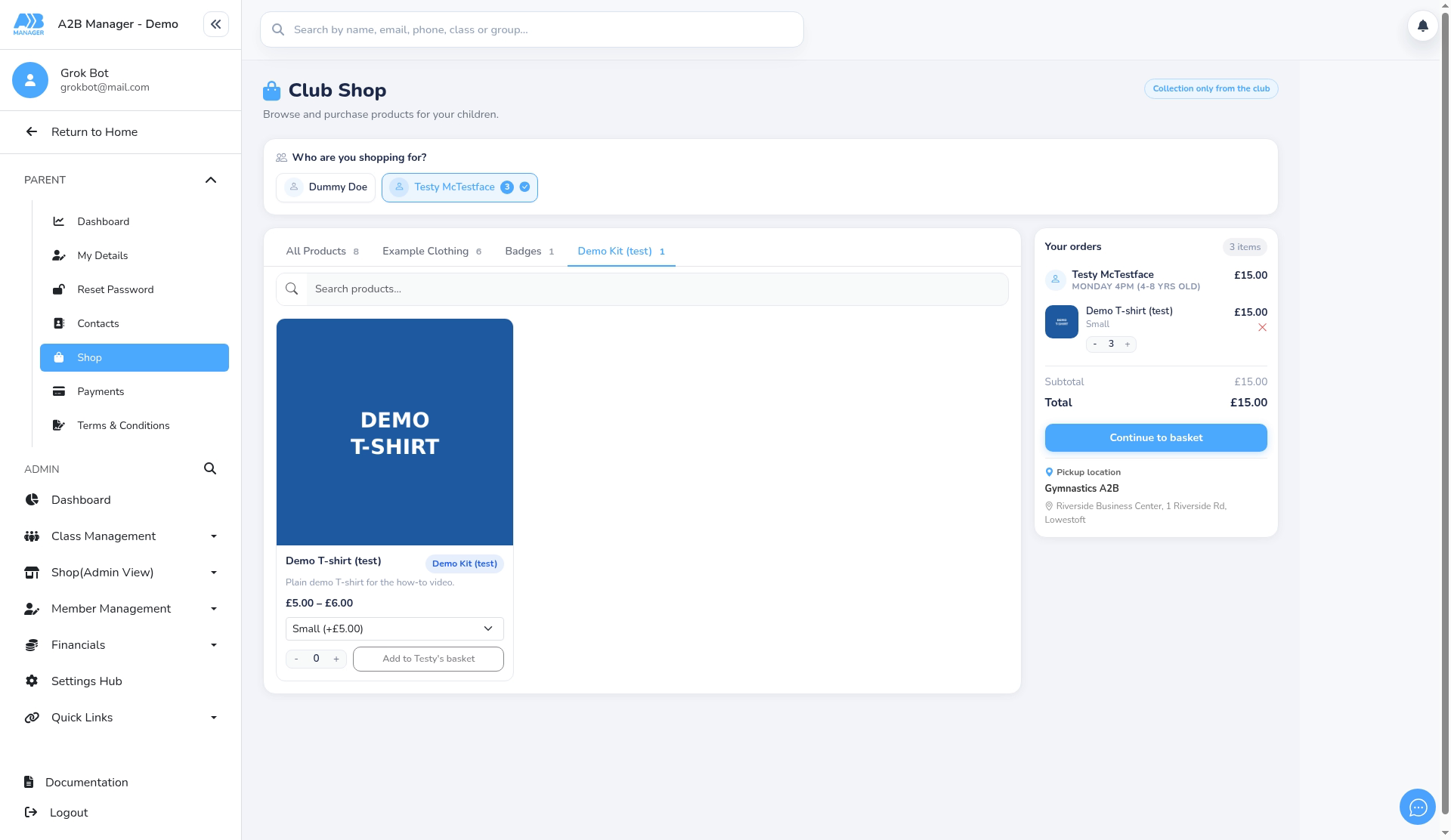
- You can’t add more of an item than the club has in stock. The quantity just stops at the limit, and it counts what’s already in your basket.
- If stock runs out while you’re shopping (for example, someone else buys the last one), you may see Not enough stock available. when you add the item or change the quantity. Lower the quantity or choose another size.
Step 2: Your basket (0:24) #
- The panel on the right of the shop is your basket, grouped by child. Use + and – to change quantities. + stops working at the stock limit.
- Each shop order is for one child.
Step 3: Choose how to pay (0:34) #
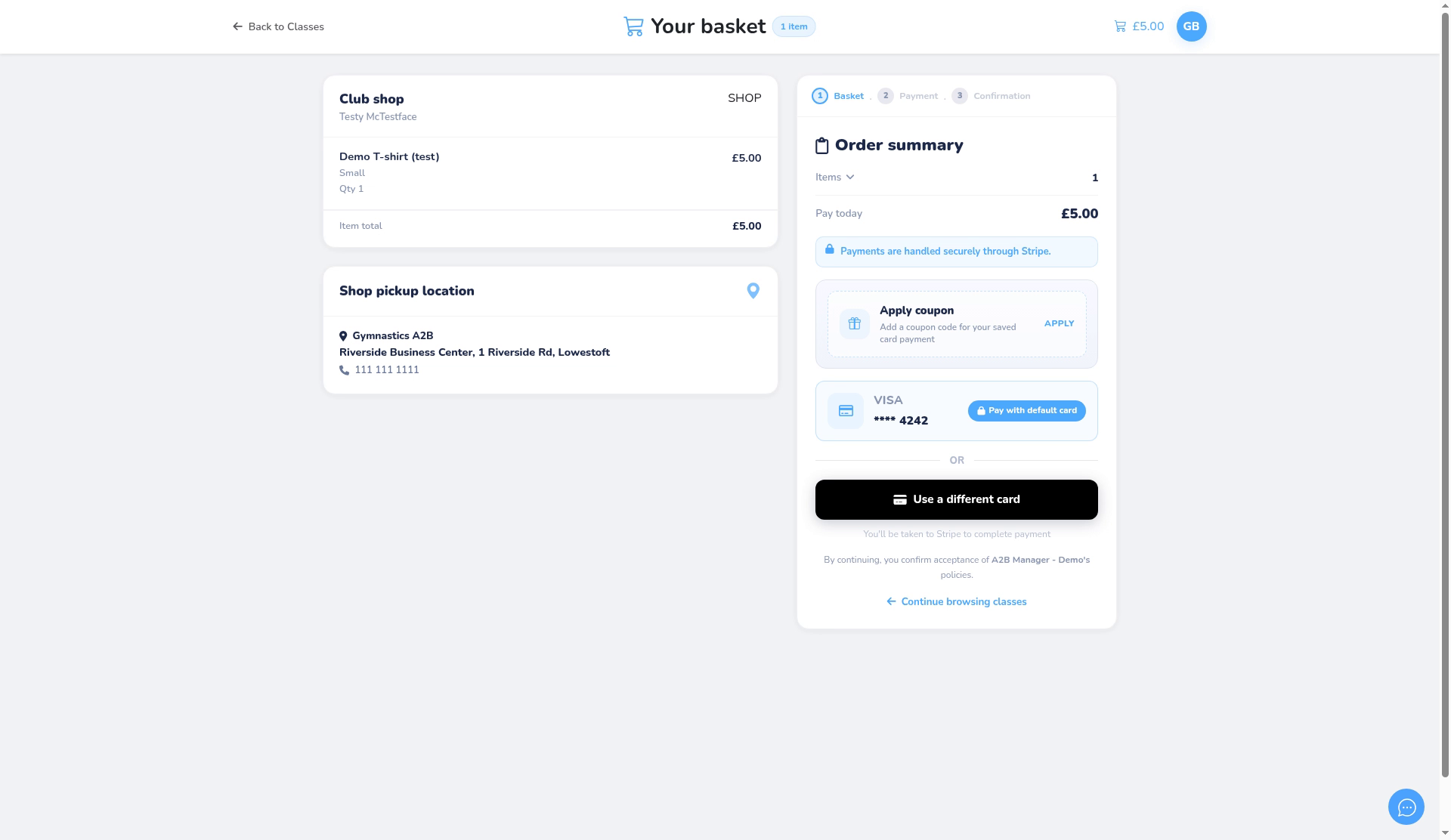
- Click Continue to basket. Shop items sit in the same basket as any class bookings, so you pay for everything together.
- Choose Pay with default card to use the card you’ve saved with the club, or Use a different card to pay on Stripe’s secure page.
Step 4: Pay on Stripe’s secure page (0:47) #
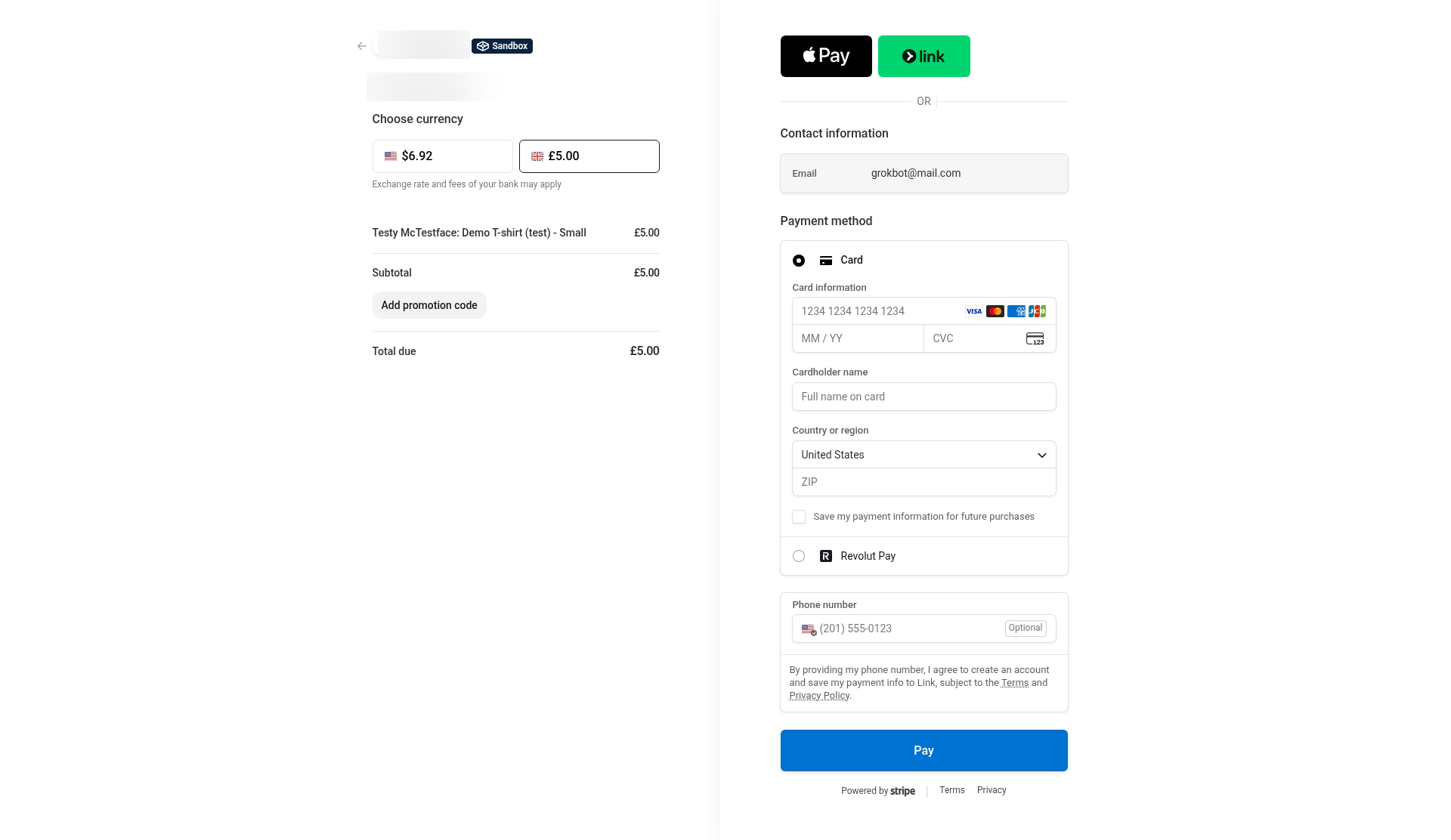
- Stripe may show the price in another currency first. Choose the £ option to pay in pounds.
- Enter your card details and click Pay.
- If you leave the Stripe page without paying, your basket stays locked. Go back to your basket and click Change basket to unlock it.
Selecting Change basket unlocks the basket straight away. Otherwise, it unlocks by itself after about an hour.
Step 5: Your confirmation and order emails (1:05) #
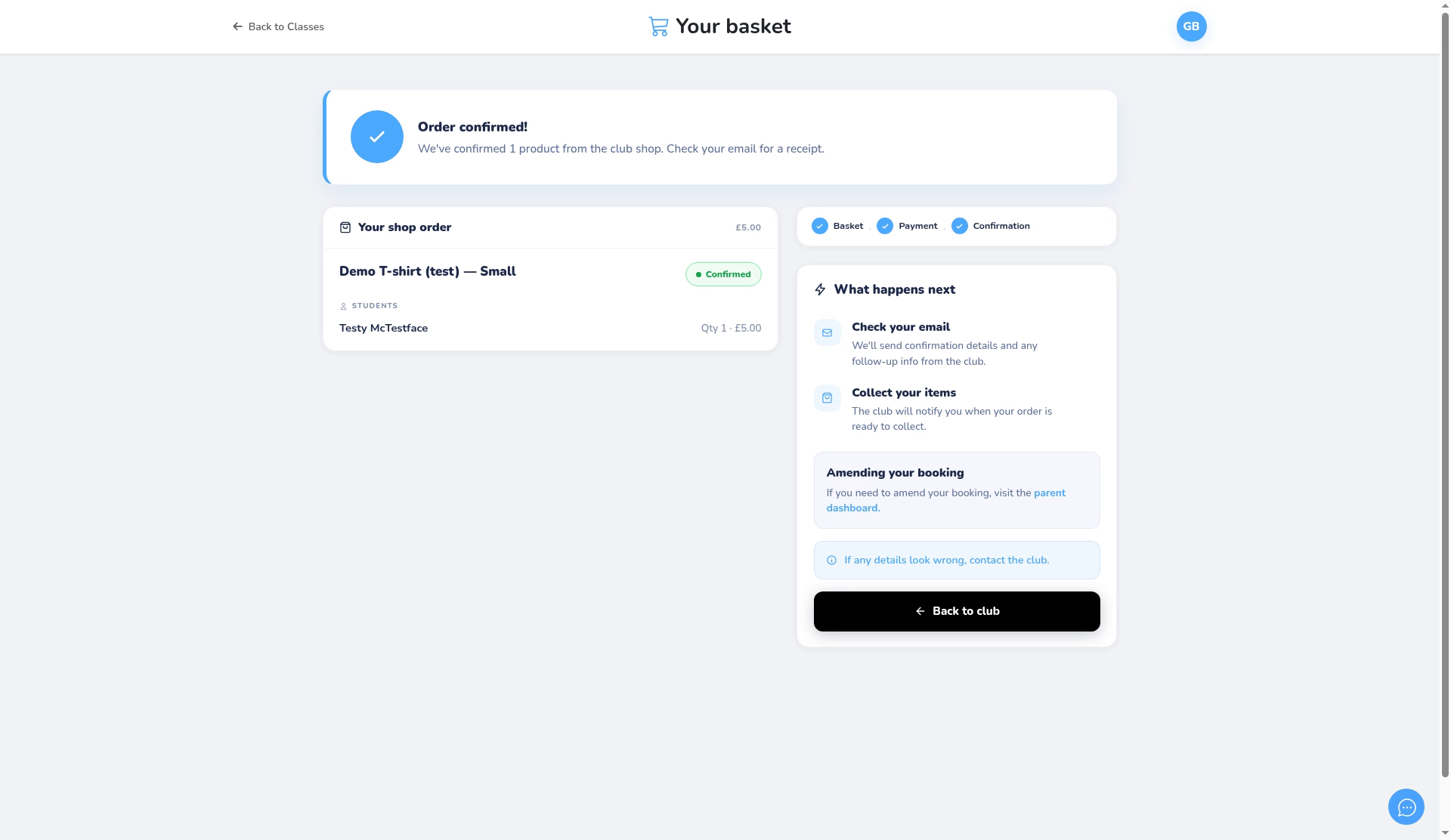
- When the payment goes through, you’ll see Order confirmed!.
- You’ll get an order confirmation email. The club may also email you when your order is ready to collect and when it’s been collected.
- There’s no order history page in the shop, so keep your order emails as your record.
After you order #
- Collect your order at the club, usually at your child’s next session. There’s no delivery.
- For questions about an order, including refunds, contact your club.


