

Table of Contents
Bulk Charge takes a one-off payment from the saved card of one or more members in one go, for example for kit, a competition entry or term fees. The card is charged as soon as you click Charge. If a card payment doesn’t go through, an invoice is emailed to the parent instead.
Charging a member #
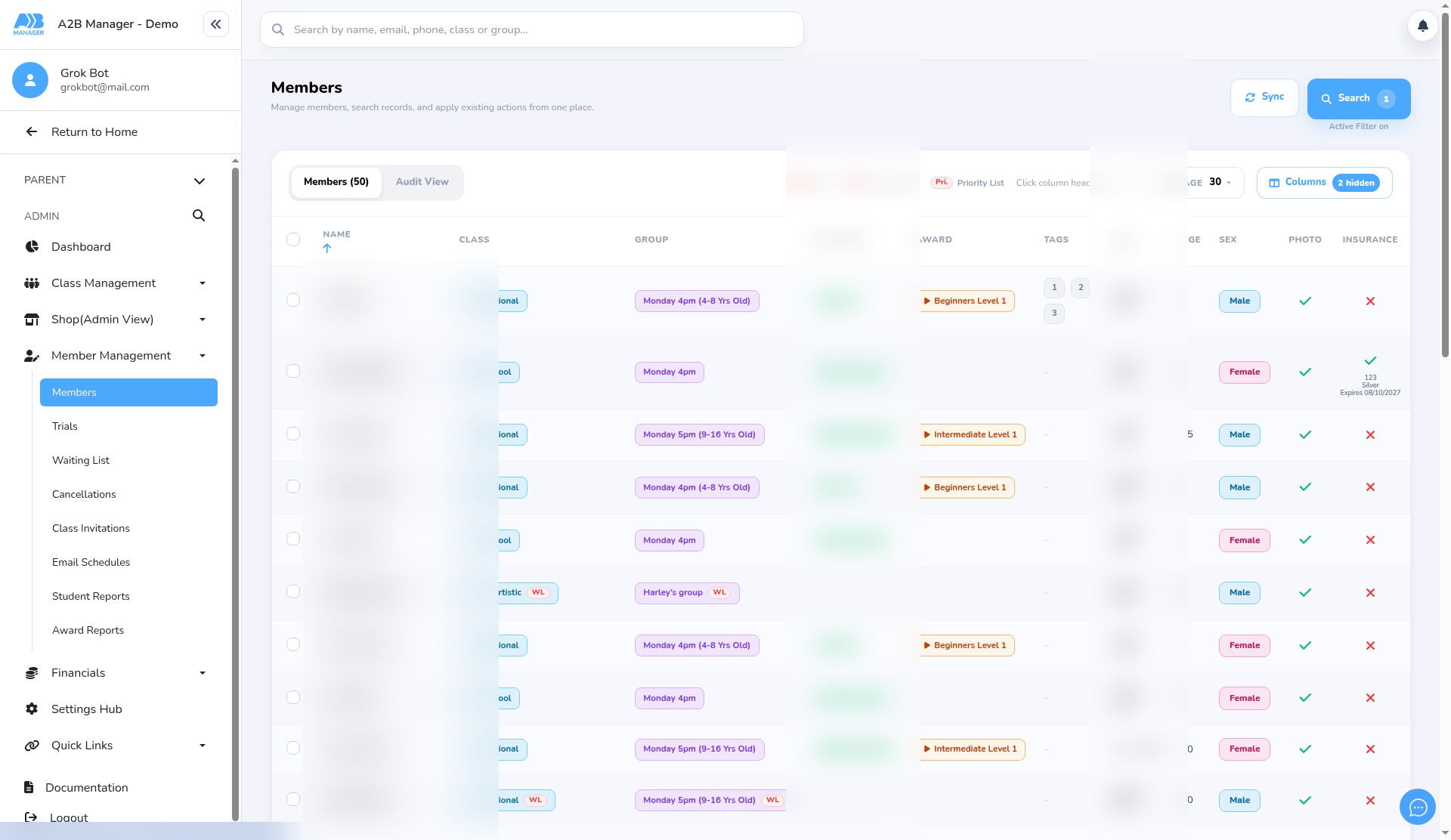
Step 1: Open Members (0:00) #
- In the left-hand menu, open Member Management and click Members.
- To find someone quickly, click Search on the Members page and search by name, or page through the list. The search bar at the very top of the screen only suggests names; it doesn’t filter the list.
- You can also bulk charge from a class’s member list, Trials, Waiting List and Cancellations.
Step 2: Select the member (0:15) #
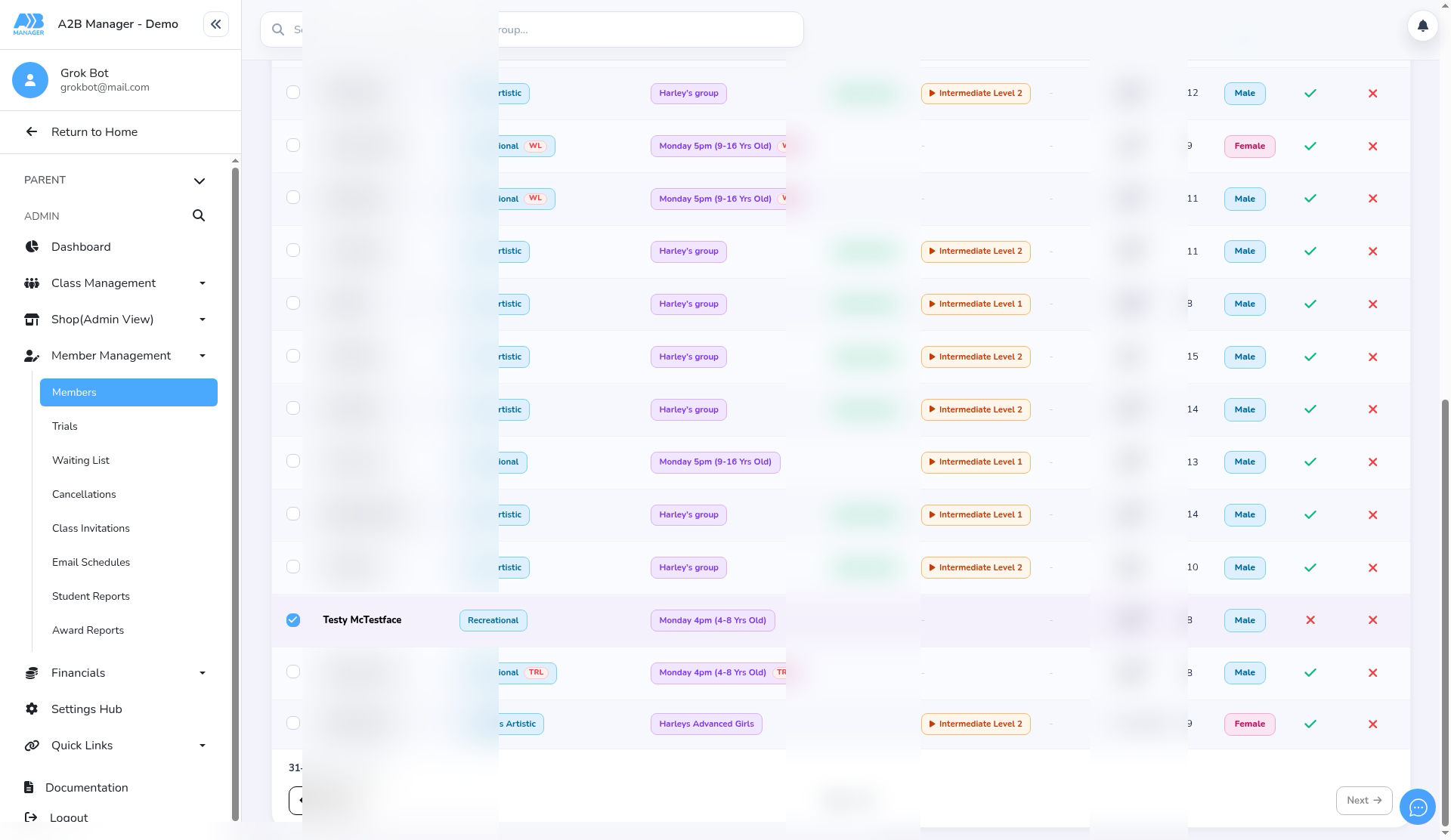
- Tick the round box at the start of the member’s row. Tick more rows to charge several members at once.
- Take care with the tick box in the header: it selects everyone shown on the page.
Step 3: Choose Bulk Charge (0:24) #
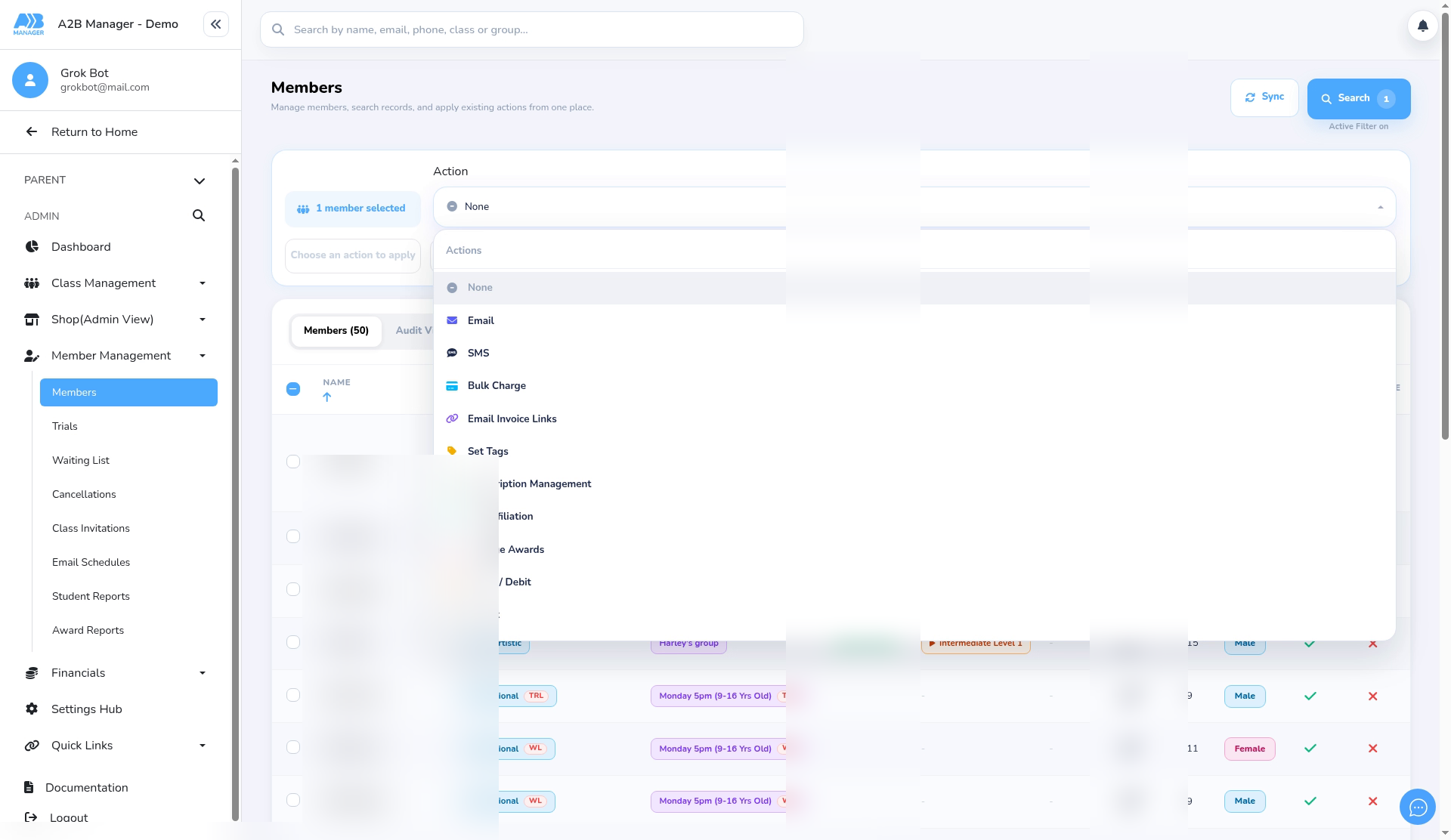
- At the top of the page, check it says the right number of members selected (here, 1 member selected).
- Open the Action menu and choose Bulk Charge. The Bulk Charge window opens straight away.
Step 4: Enter the charge details (0:42) #
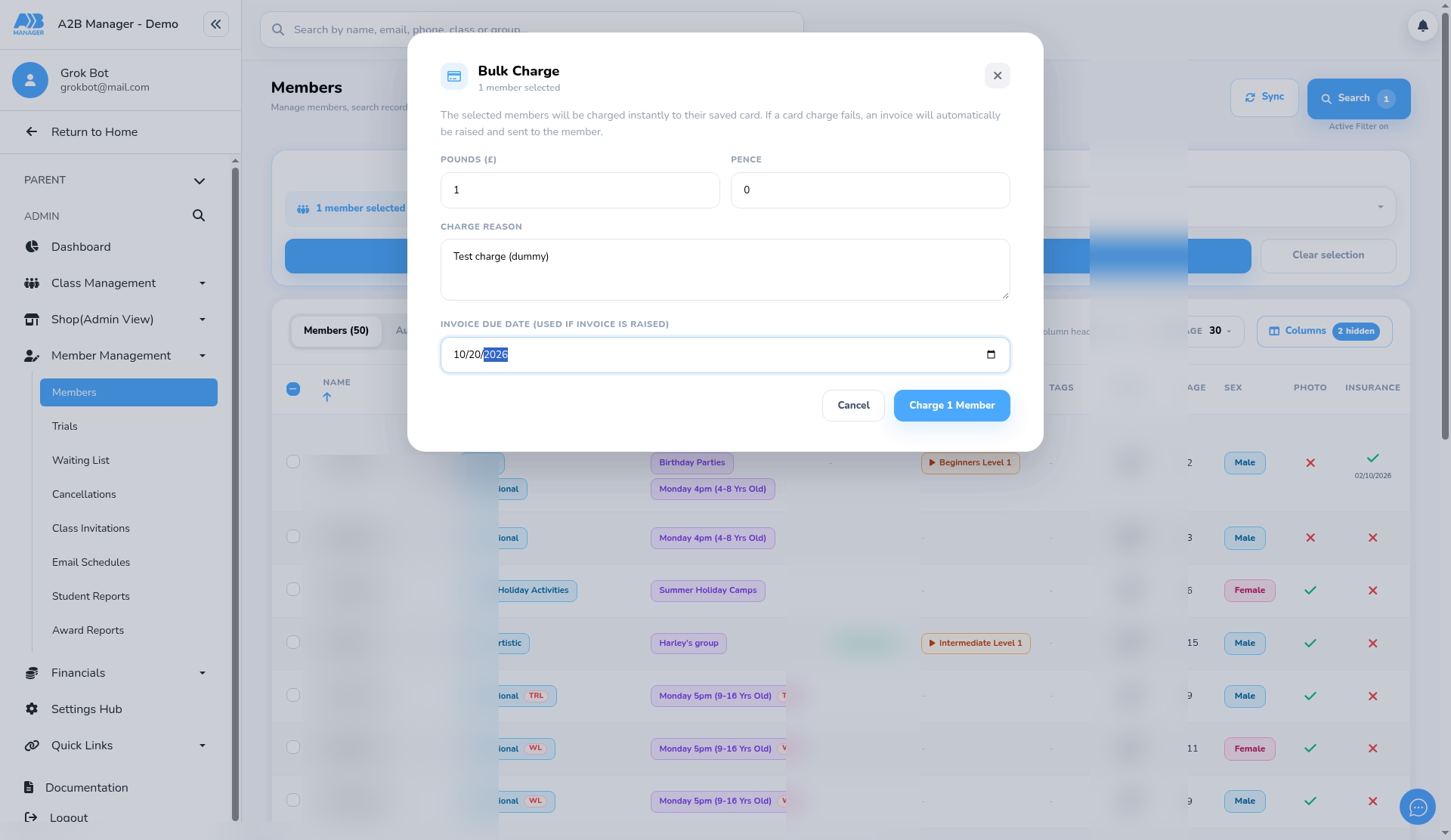
- Check the window says the right number of members selected.
- Enter the amount in Pounds (£) and Pence. The smallest charge is £1.
- Add a Charge Reason. Parents see it in their email and invoice.
- Pick an Invoice Due Date, tomorrow or later. It’s only used if the card payment fails and an invoice is sent instead. The date box follows your browser’s date format.
Step 5: Charge and check the results (1:14) #
- Important: there’s no review step. Before you click, check the button shows the right number (for example Charge 1 Member).
- Click Charge. Each member’s saved card is charged straight away.
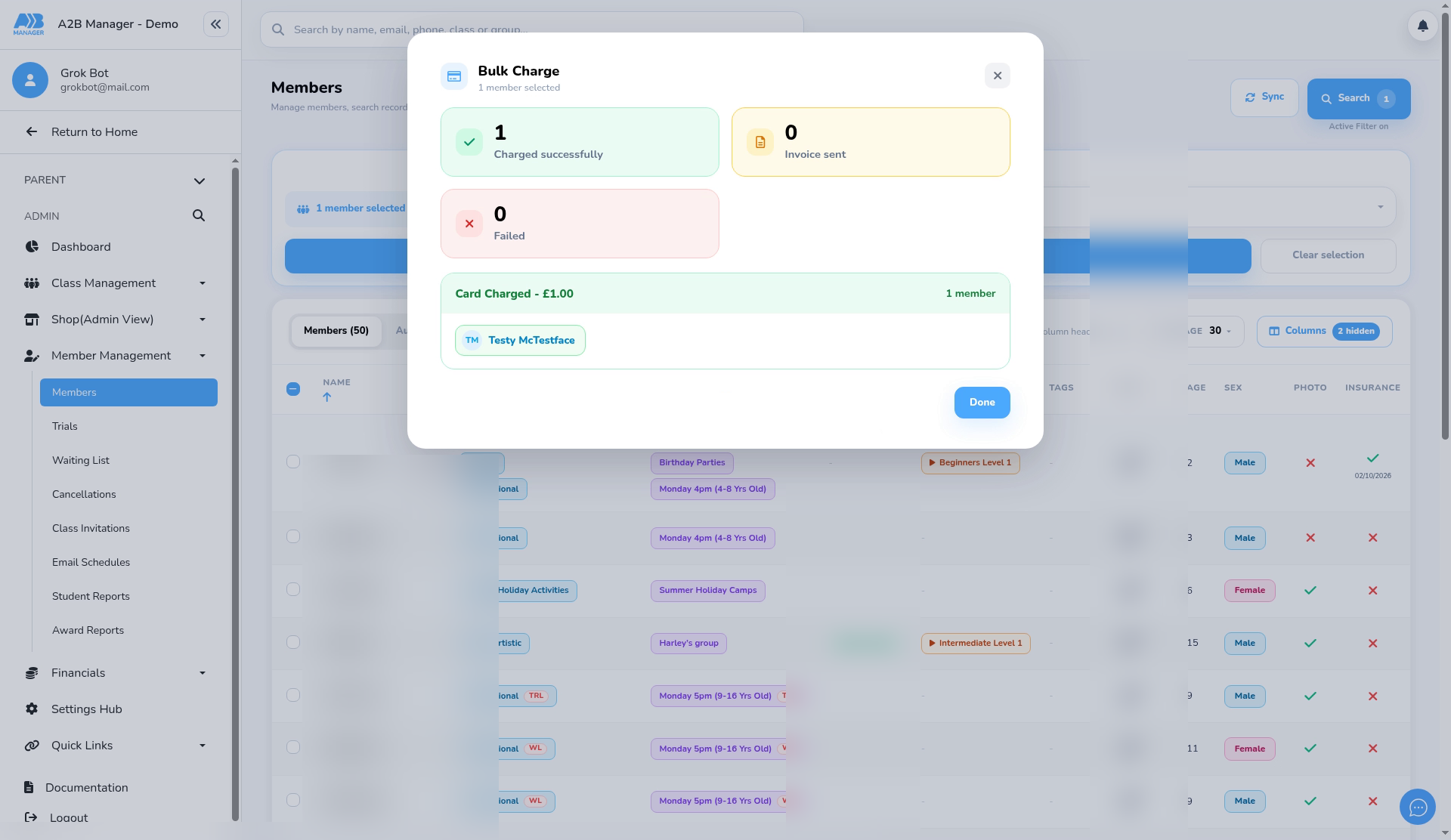
- The results show how many were Charged successfully, how many had an Invoice sent and how many Failed, with the members’ names. Click Done.
- If you charge more than one member, it runs in the background. Follow progress in the notification at the top right, then view the results there.
Step 6: Check the payment (1:25) #
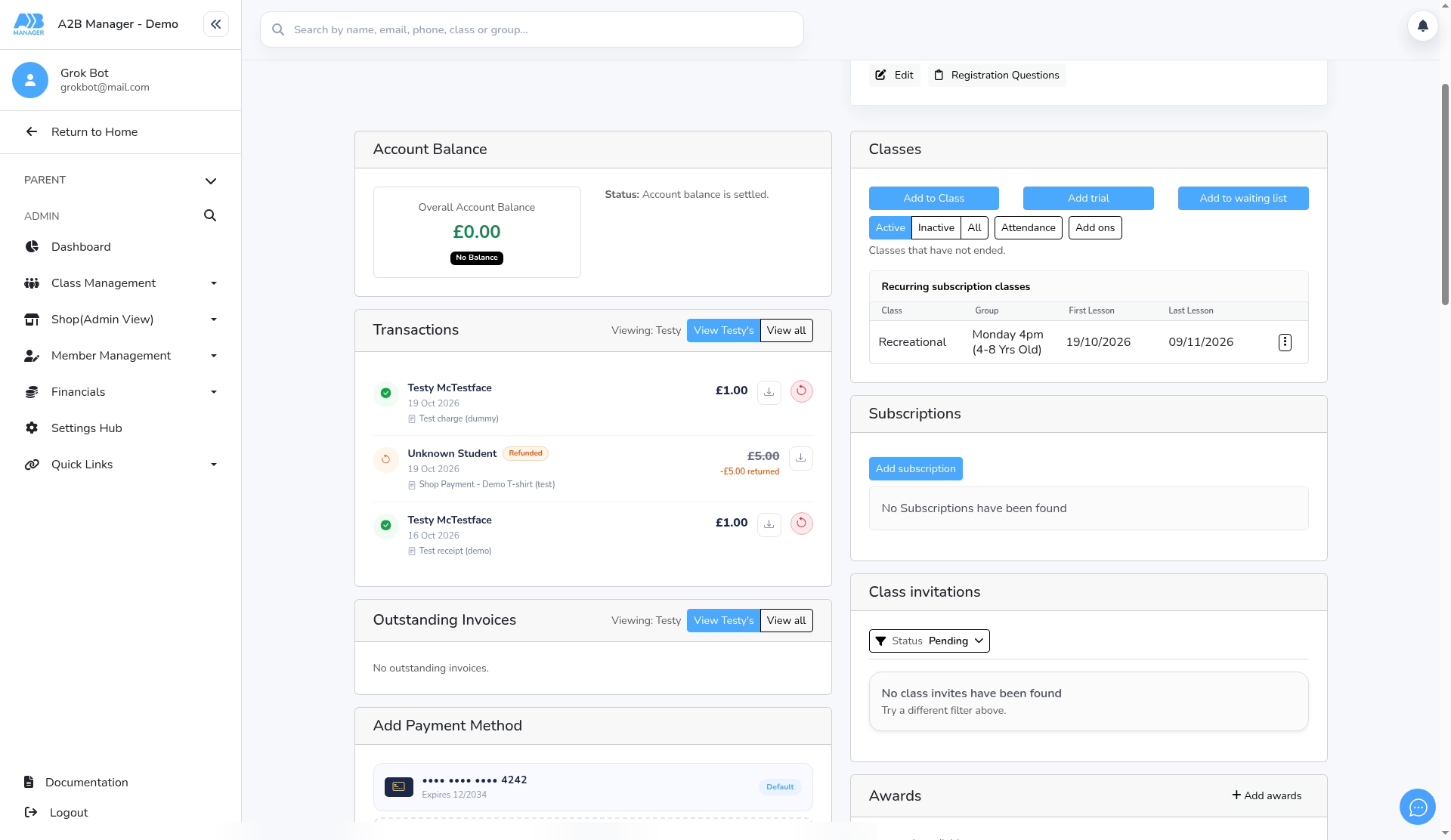
- Open the member’s profile. The charge shows under Transactions with the date, amount and reason.
- The parent is emailed to say their card has been charged, with the reason and amount.
If a card payment fails #
- If the card is declined, or the parent has no saved card, an invoice for the amount is emailed to the parent instead, with your due date.
- The parent can pay it from the link in the email, or from the Payments section of their parent dashboard.
- You’ll find unpaid invoices under Financials > Outstanding Invoices.
Charging one member from their profile #
- On a member’s profile, click Charge to open the same window for just that member. The button shows once the parent has a payment account set up.
Refunding a charge #
- Go to Financials > Successful Payments and find the payment (it’s listed under the parent’s name).
- Click the refund icon, check the amount and click Issue refund. The payment then shows as Refunded.
- You can also refund from the refund icon next to the payment in the member’s Transactions.
Good to know #
- The charge goes to the parent’s saved card straight away, so double-check the members and amount first.
- Parents are always emailed, whether the card is charged or an invoice is sent.
- The charge reason appears in the parent’s email and on the member’s transactions, so keep it clear.
Tip: Charging just one member? Use the Charge button on their profile, so there’s no chance of picking the wrong row.
FAQs #
- Is there a confirmation step? No. Clicking Charge takes the payment straight away.
- What if the parent has no card saved? They’re emailed an invoice to pay instead.
- Can I charge less than £1? No. The smallest amount is £1.
- Can I undo a charge? You can refund it from Successful Payments.


