

Table of Contents
Your club’s booking pages live under a short URL name (for example norwich in /club/norwich/…). Club admins can change that URL name on the Organisations page. Changing it updates staff roles to match the new name — and breaks every old booking link, so plan the change carefully.
Before you start #
- You need admin access to Settings Hub > Member Management > Organisations.
- Choose a short URL name with no spaces. It appears in every club link as
/club/your-url-name/…. - Warning: changing the URL name stops old booking links working (website buttons, QR codes, emails, bookmarks). Update those links in the same change window. Prefer setting the name once and only changing it when you must.
Changing your club URL name #
Step 1: Open Organisations (0:00) #
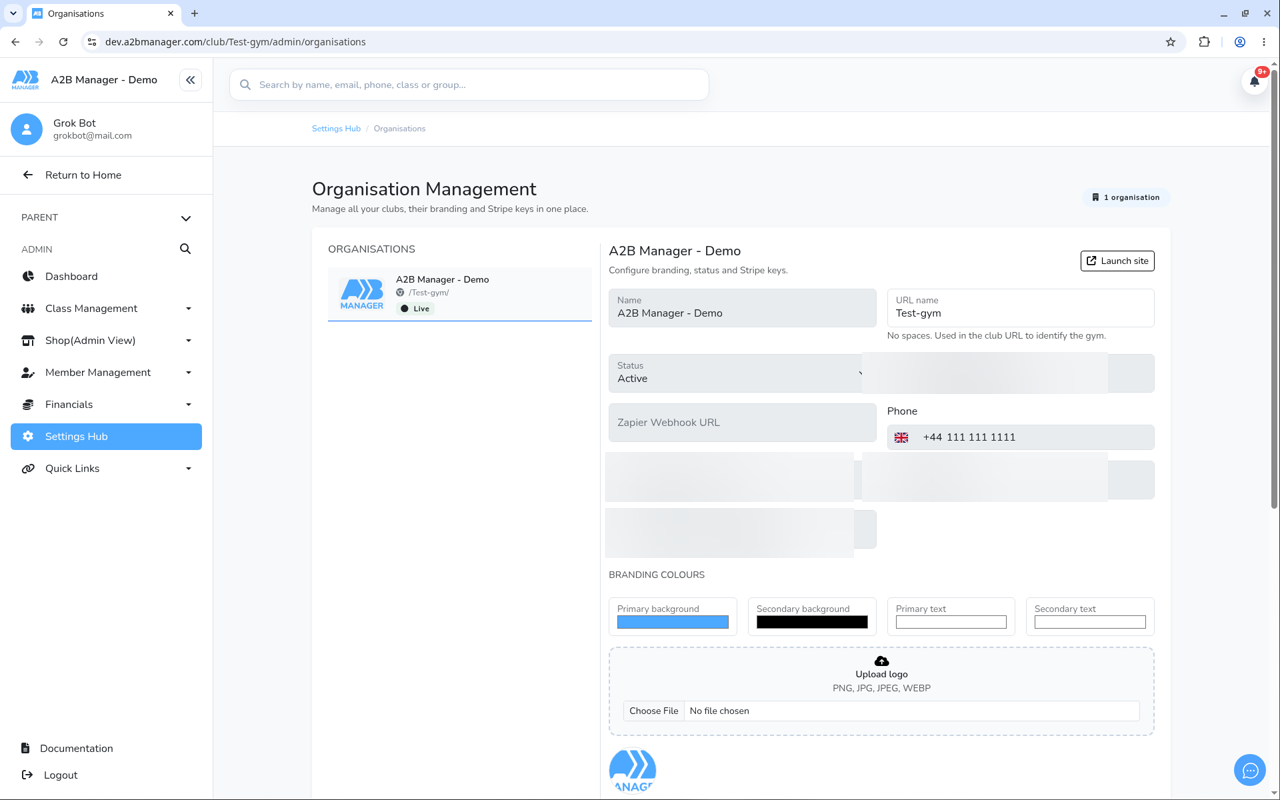
- Go to Settings Hub > Member Management > Organisations.
- You are on the Organisations page (
/club/your-club/admin/organisations).
Step 2: Find URL name for your club (0:08) #
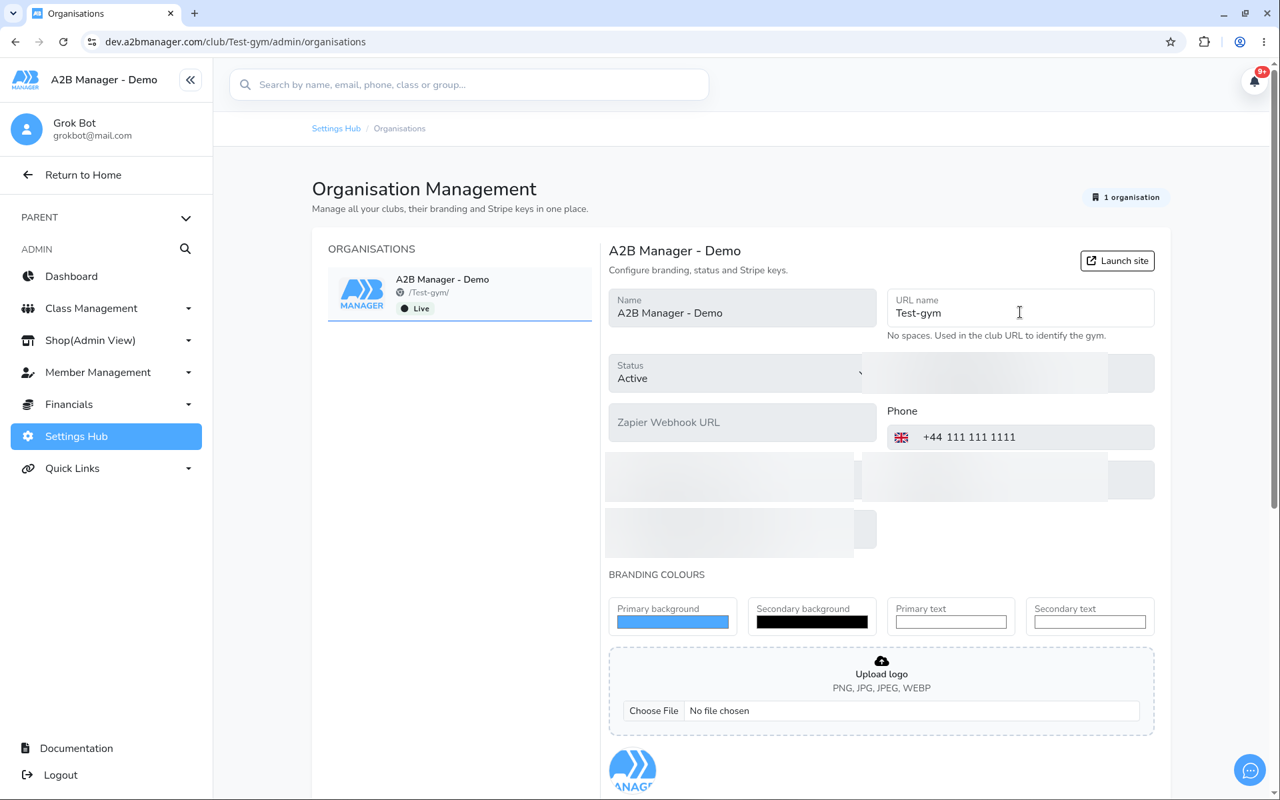
- Select your club in the Organisations list on the left.
- Find the field labelled URL name.
- Help text under the field: No spaces. Used in the club URL to identify the gym. Placeholder example: norwich.
- Other organisation fields (Name, Status, Stripe keys, phone, and similar) stay locked for club admins — only URL name is editable by club admins here.
Step 3: Enter the new URL name (0:20) #
- Type the new URL name with no spaces. Keep it short, unique, and stable (letters and numbers work best).
- Do not change it lightly: every public booking link that used the old name will stop working until you update it.
Step 4: Save and update every old link (0:32) #
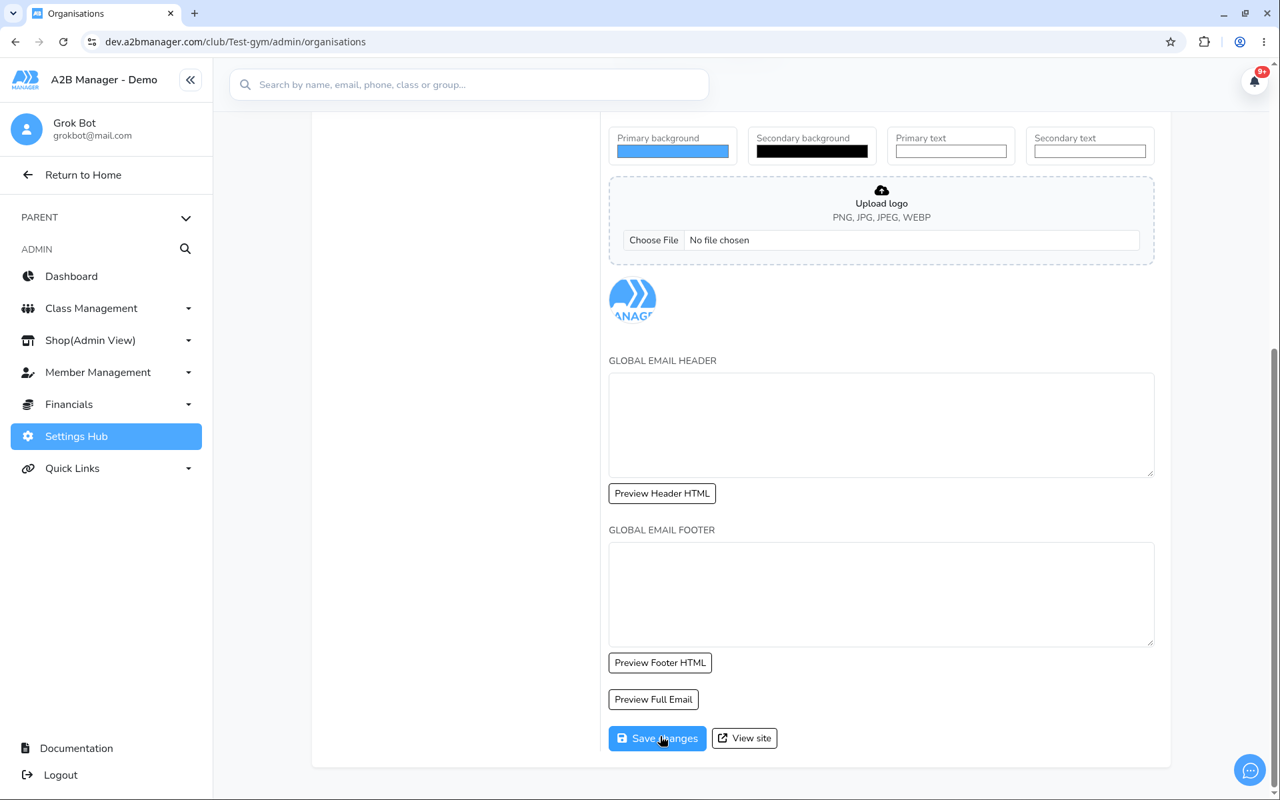
- Press Save changes.
- Staff roles that used the old URL name are renamed to match the new one.
- Update your website buttons, QR codes, emails, and any printed materials so they use the new
/club/your-new-url-name/links.
Good to know #
- There is no automatic redirect from the old club URL. Families and staff must use the new path.
- After a rename, staff may need to sign in again so their access matches the new role names.
- If Save does not seem to stick, check the URL name is unique and try again — then confirm the new
/club/…page opens before you change public links. - Super admins can still edit the other organisation fields on this page; club admins only change URL name here.
- Category and location booking links also use your URL name, so they stop working too if you change it. See How to Share a Booking Link for One Category or Location.
Tip: Treat the URL name like a public address: pick it once, write it everywhere you need it, and only change it when you have a clear plan to replace every old link the same day.


