

Table of Contents
You can send a photo, video or voice note to a child’s parent straight from the register. It appears on the parent’s dashboard until the expiry date you choose, and you can email them about it too.
Sending media from the register #
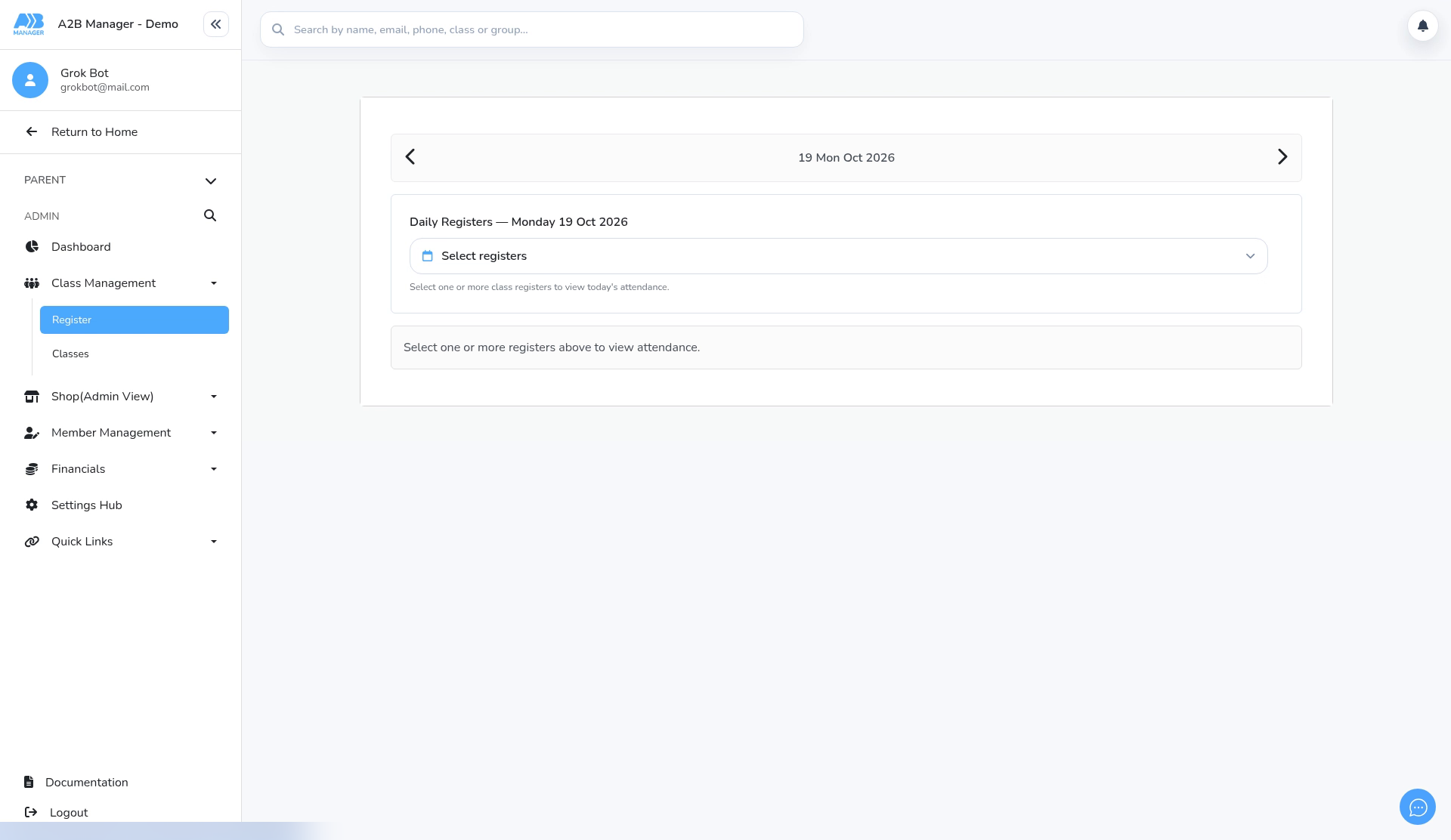
Step 1: Open the Register (0:00) #
- Go to Class Management > Register.
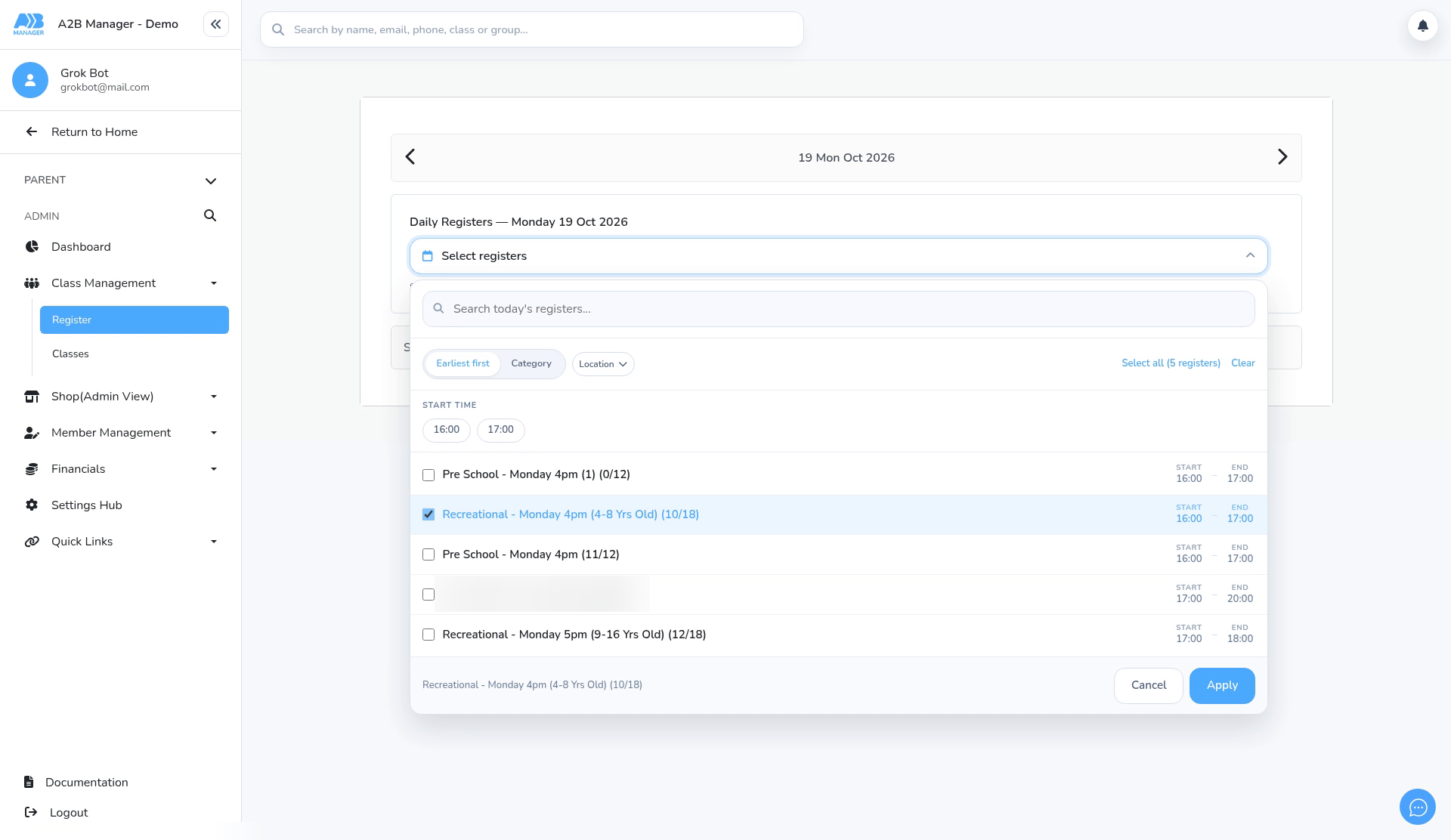
Step 2: Choose the class register (0:04) #
- Pick the date, click Select registers, tick the class and click Apply.
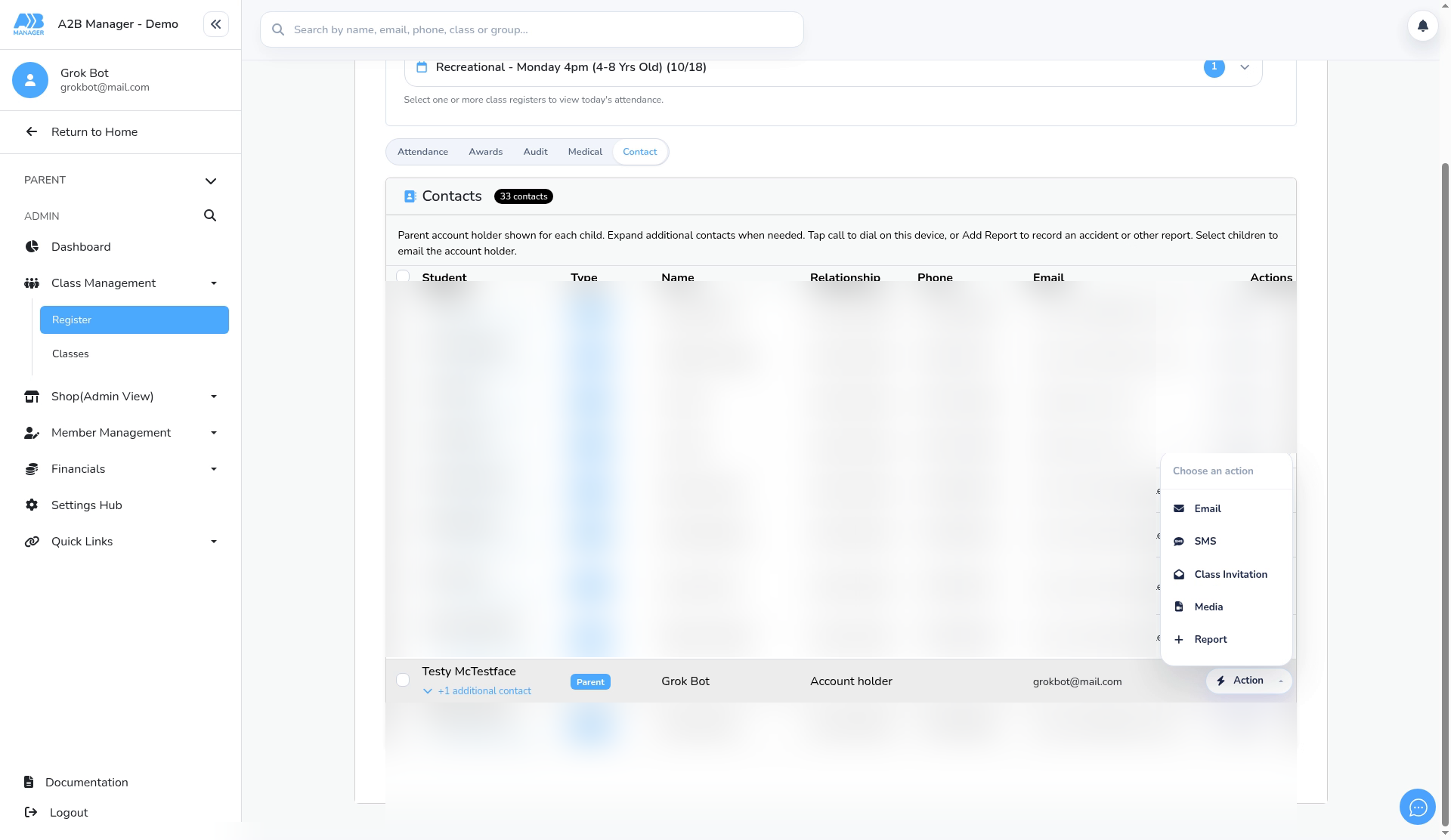
Step 3: Find the child and open Action (0:15) #
- Click the Contact tab and find the child.
- Click Action on their row. The menu offers Email, SMS, Class Invitation, Media and Report.
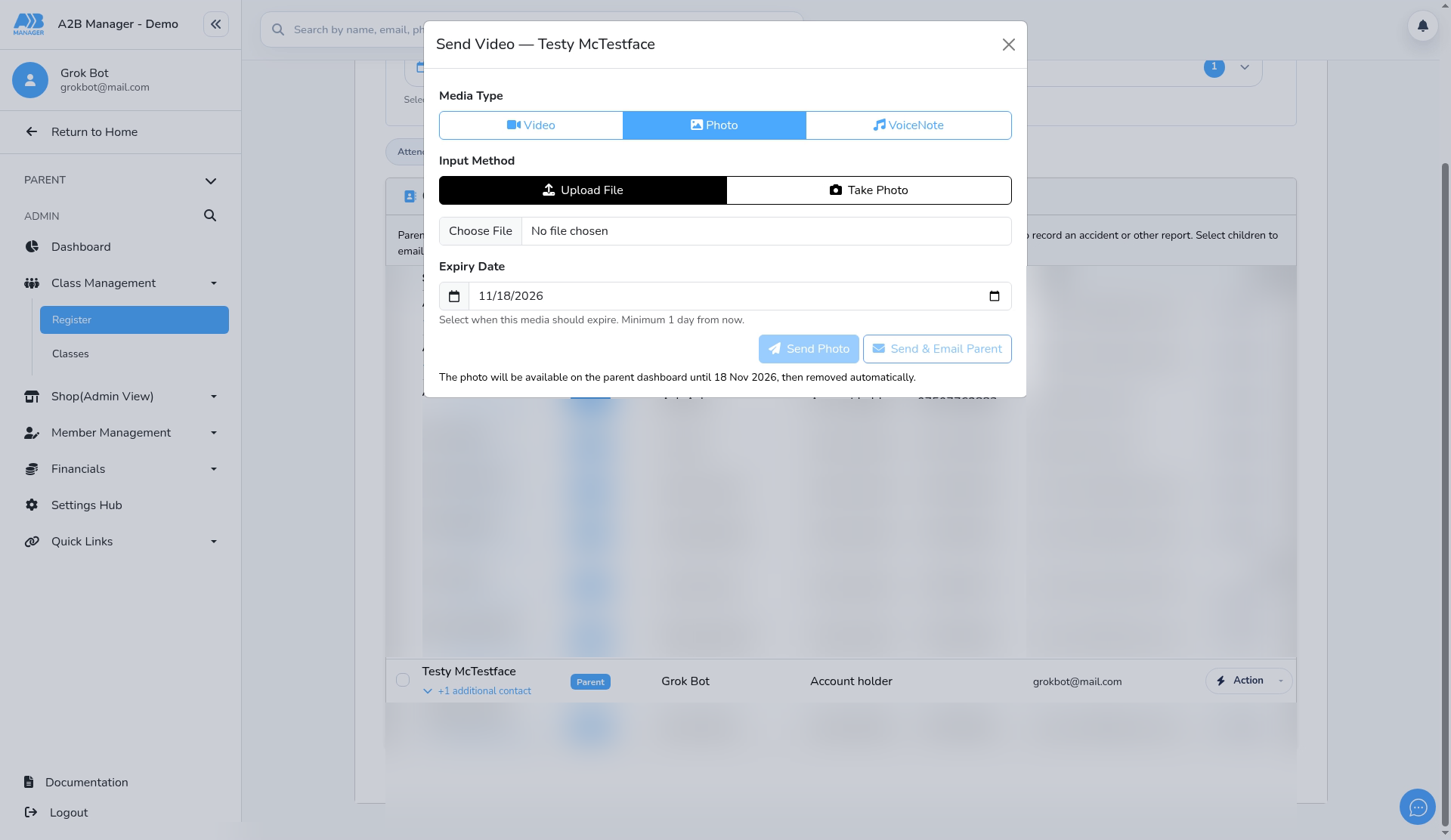
Step 4: Choose Media and the type (0:24) #
- Choose Media.
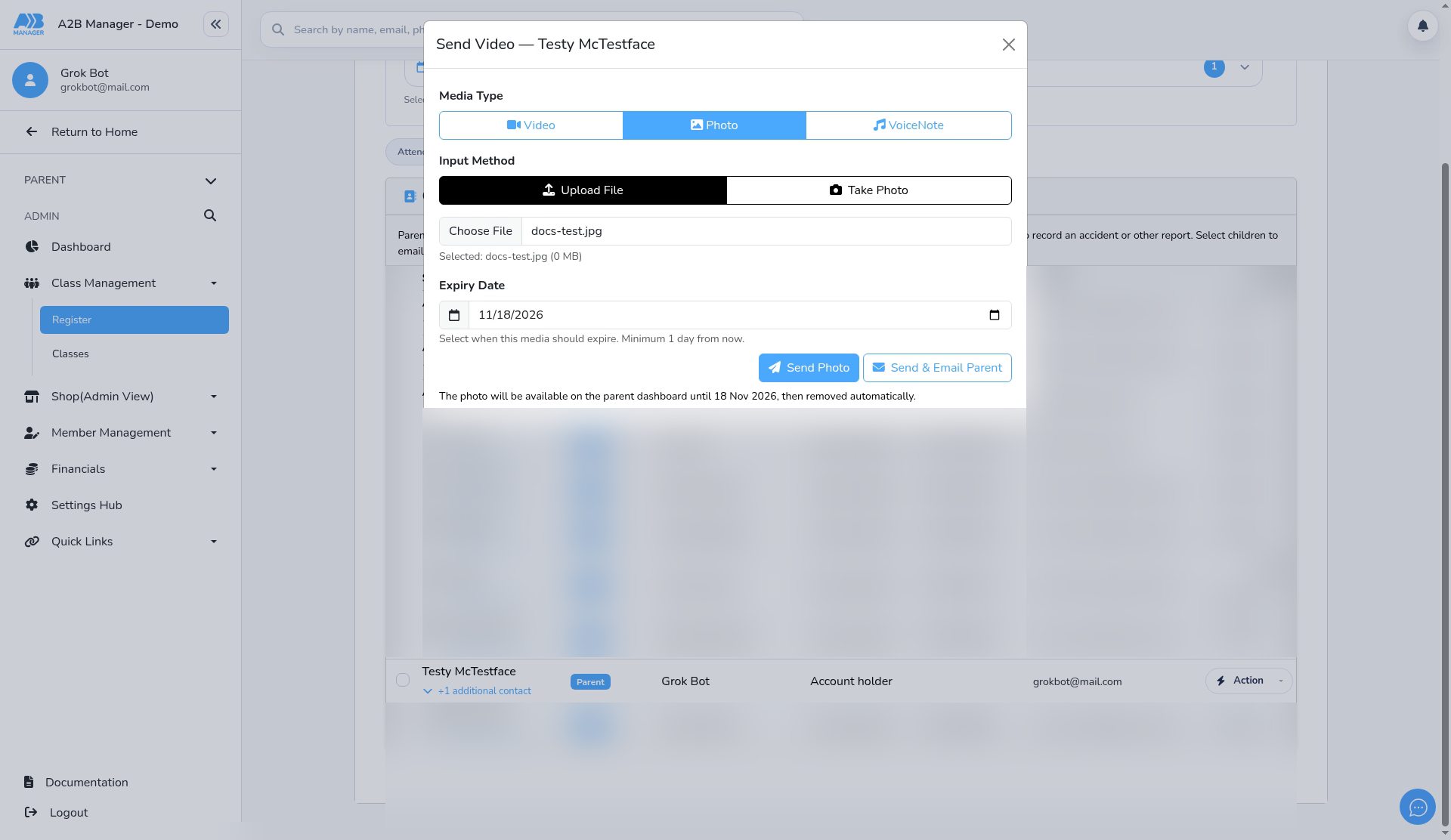
- Under Media Type, pick Photo, Video or Voice note.
- Under Input Method, choose Upload File to pick a saved file, or record one there and then (Take Photo or Record Video) on a device with a camera.
Step 5: Attach the file and check the expiry (0:36) #
- Click Choose File and select the file.
- Check the Expiry Date. The media stays on the parent’s dashboard until then and is removed automatically. The minimum is one day from today.
Step 6: Send it to the parent (0:49) #
- Click Send (for example Send Photo) to put the media on the parent’s dashboard.
- Or click Send & Email Parent to also email the parent to let them know.
- In the video we close the window without sending, so nothing reaches a parent.
Good to know #
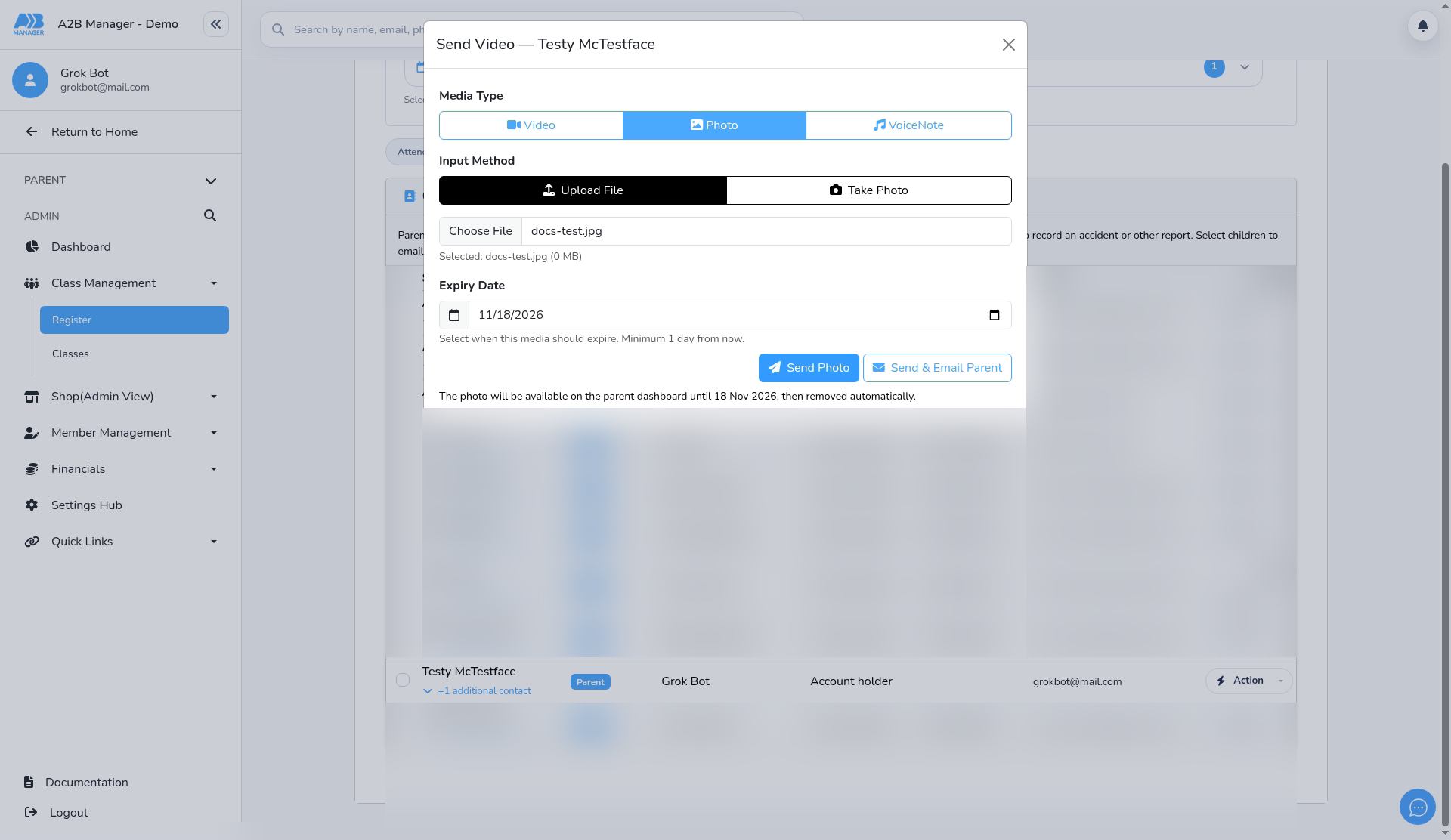
- The window’s title may say Send Video whichever type you choose. Check the Media Type buttons instead.
- Only send media to the child’s own parent, and follow your club’s safeguarding and photo consent policy.


