

Table of Contents
- Before you start
- Stock, payments, order states and refunds
- Step 1: Set variant prices and stock (0:05)
- Step 2: Check prices and stock (0:45)
- Step 3: Find the paid order (0:59)
- Step 4: Mark it ready, then collected (1:06)
- Step 5: Give a partial refund (1:32)
- Step 6: Refund the rest (full refund) (1:50)
- Step 7: Put stock back yourself (2:11)
- Step 8: Check the member's profile (2:21)
- Good to know
- See also
This guide fills in the details the other Shop Admin guides don’t cover: how variant prices and stock work, when stock goes down, what each order state means, what the parent is emailed, and how partial and full refunds affect the order and your stock.
Before you start #
- This guide assumes you already know how to create a category and a product. See also: How to Add and Manage Shop Categories and See also: How To Create Products In The Shop.
- Admins manage the shop from Shop(Admin View) in the left-hand menu.
Stock, payments, order states and refunds #
Step 1: Set variant prices and stock (0:05) #
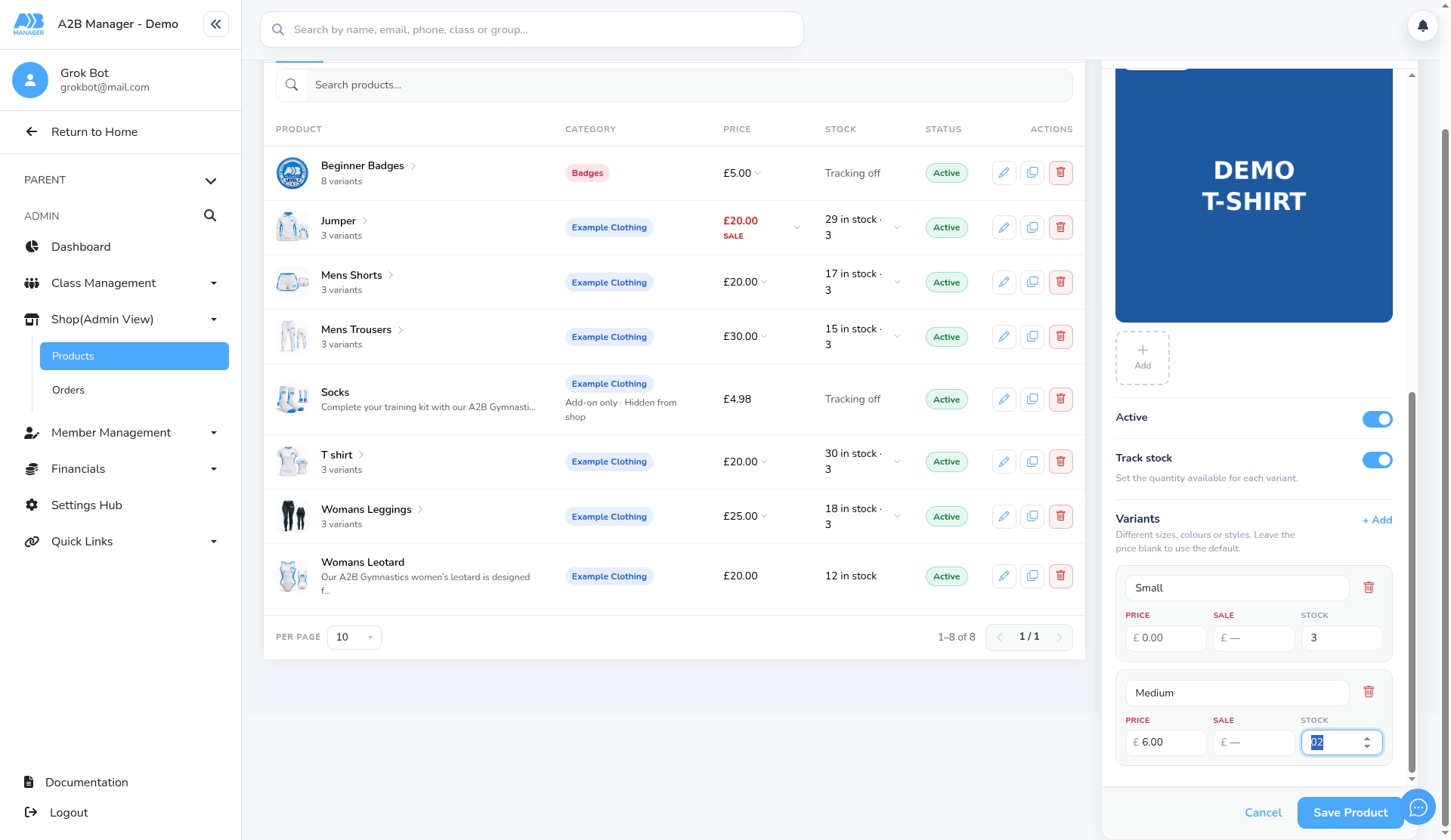
- Click Add Product and fill in the name, description and category as usual (see the products guide linked above).
- Choose Has variants and set a Default price. A variant with no price of its own uses the default price.
- With Track stock on, add each variant and set its stock. Parents can’t add more than you have in stock.
- Photos: PNG, JPG or WebP, up to 5 MB.
- Make sure Active is on, then click Save Product.
Step 2: Check prices and stock (0:45) #
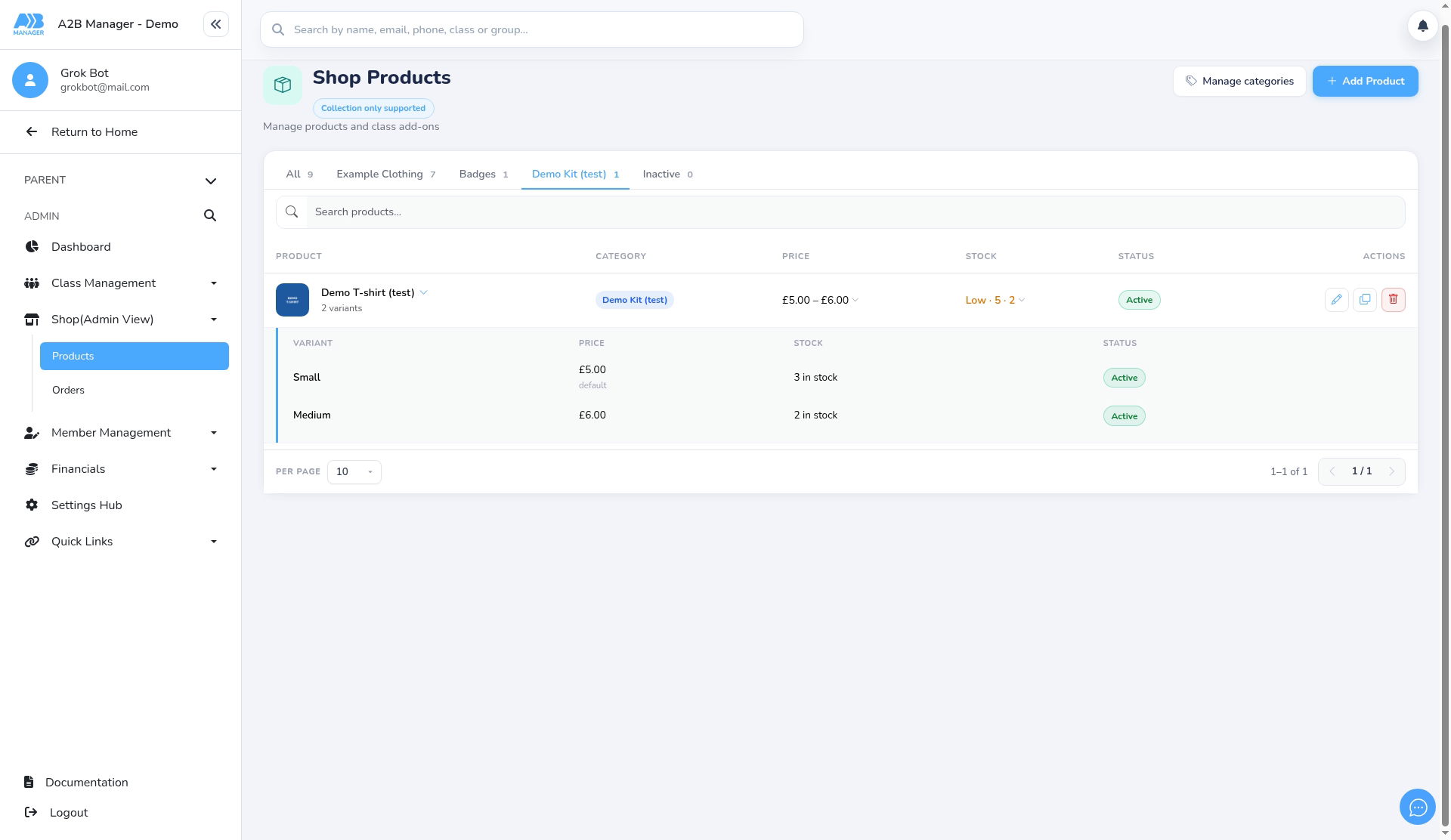
- The product list shows the price range (for example £5.00 – £6.00) and the stock level.
- Click a product’s name to expand it and see each variant’s price and stock. A variant using the default price is marked default.
- Stock goes down only when a parent’s card payment completes, not when they add an item to their basket.
Step 3: Find the paid order (0:59) #
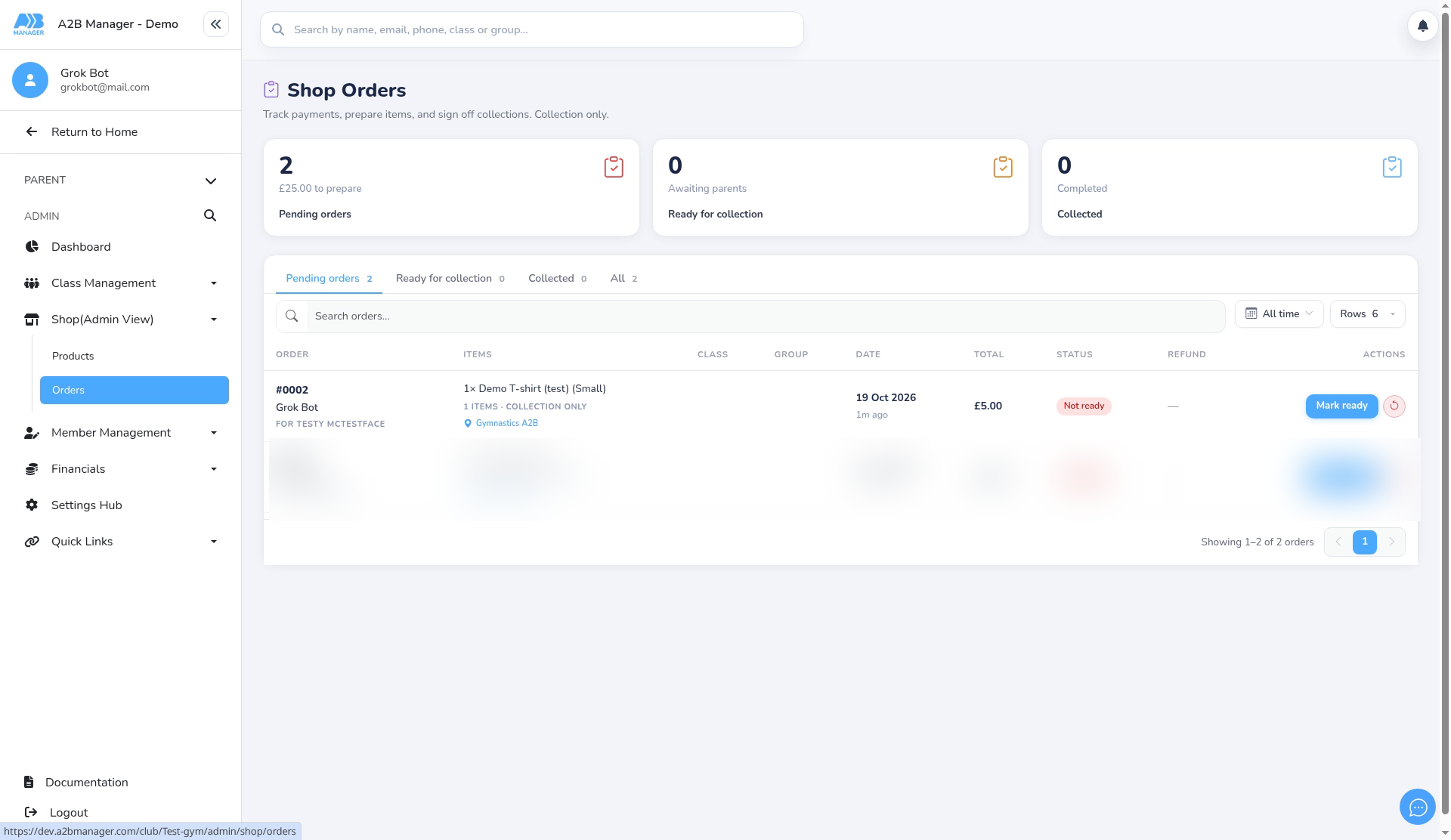
- Open Orders. An order only appears once the parent’s payment has gone through, so every order you see has been paid.
- Parents pay through your club’s normal card payments (Stripe), in the same basket and checkout as class bookings.
- New orders start in Pending orders.
Step 4: Mark it ready, then collected (1:06) #
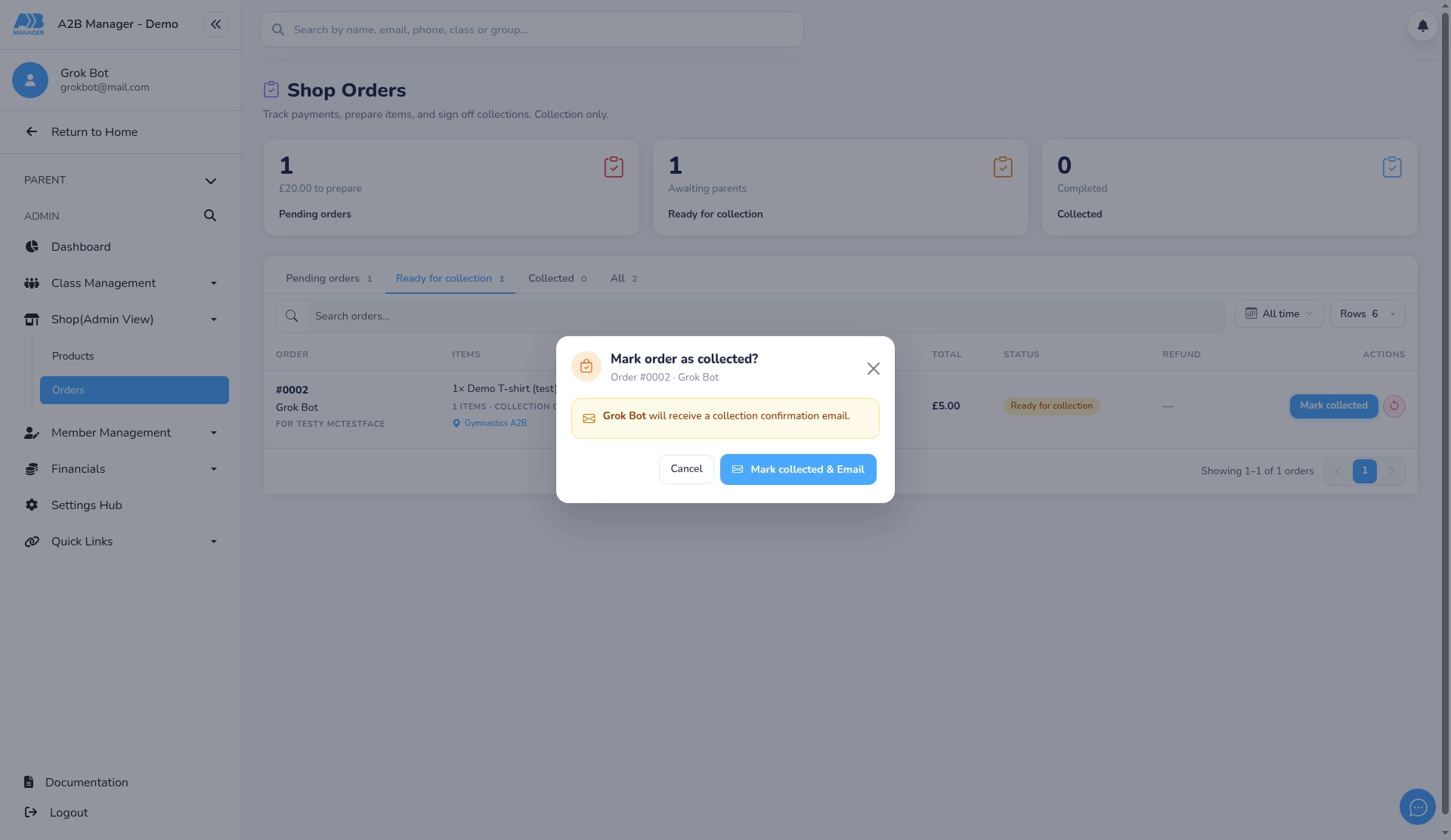
- Click Mark ready. The pop-up shows who will be emailed. Confirm with Mark ready & Email and the order moves to Ready for collection.
- When it’s picked up, open the Ready for collection tab and click Mark collected, then Mark collected & Email. The order moves to Collected.
- The parent is emailed at each stage only if the matching email template (Order Ready to Collect, Order Collected) is active. The confirmation shows Email sent when it goes.
- See also: How to Mark Shop Orders Ready and Collected.
Step 5: Give a partial refund (1:32) #
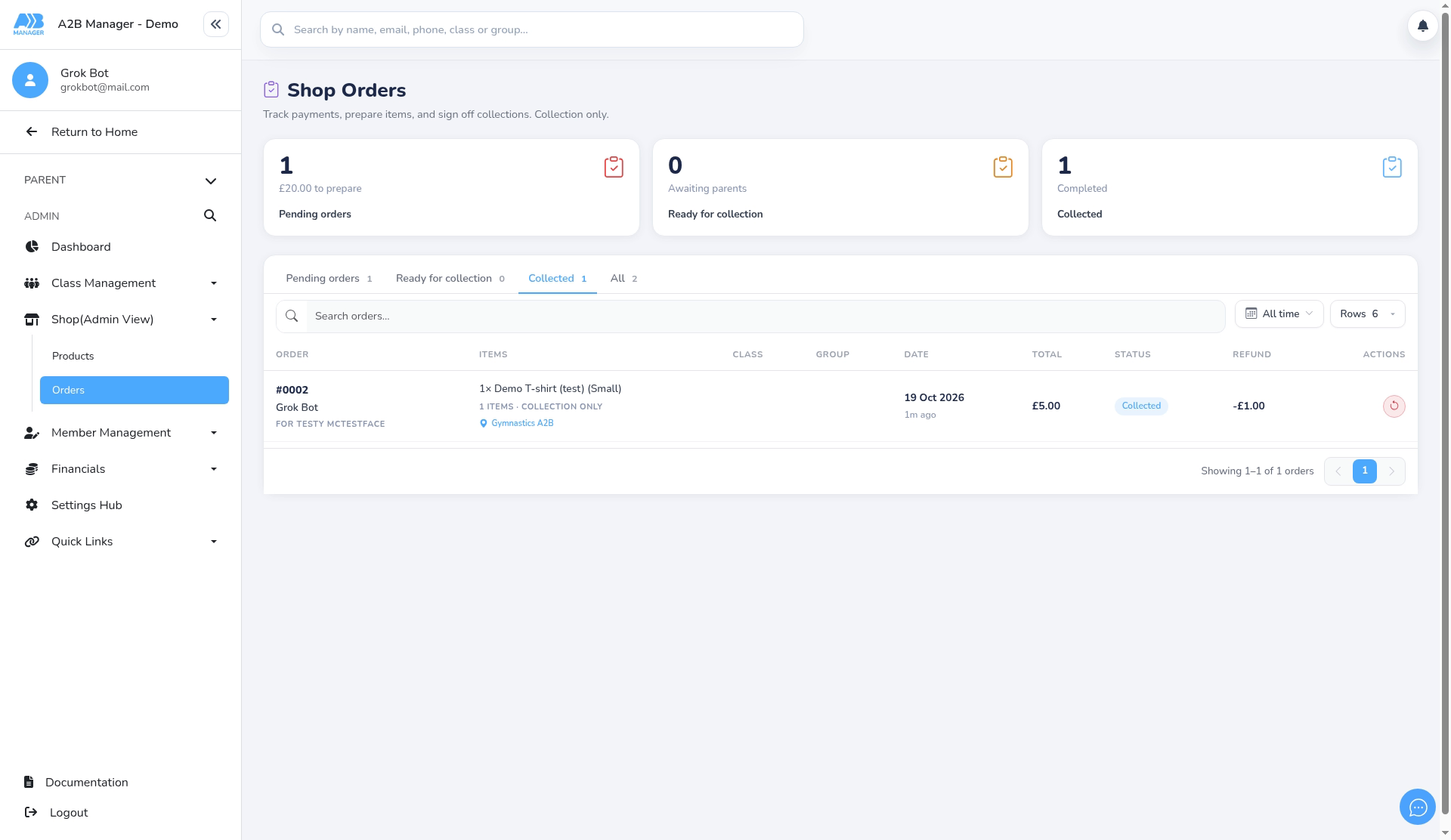
- Click the refund button on the order, enter any amount up to what’s left to refund, then confirm.
- After a partial refund, the order keeps its current status (for example Collected) and the Refund column shows the amount refunded, such as -£1.00. You can refund again later.
Step 6: Refund the rest (full refund) (1:50) #
- Refund the remaining amount the same way.
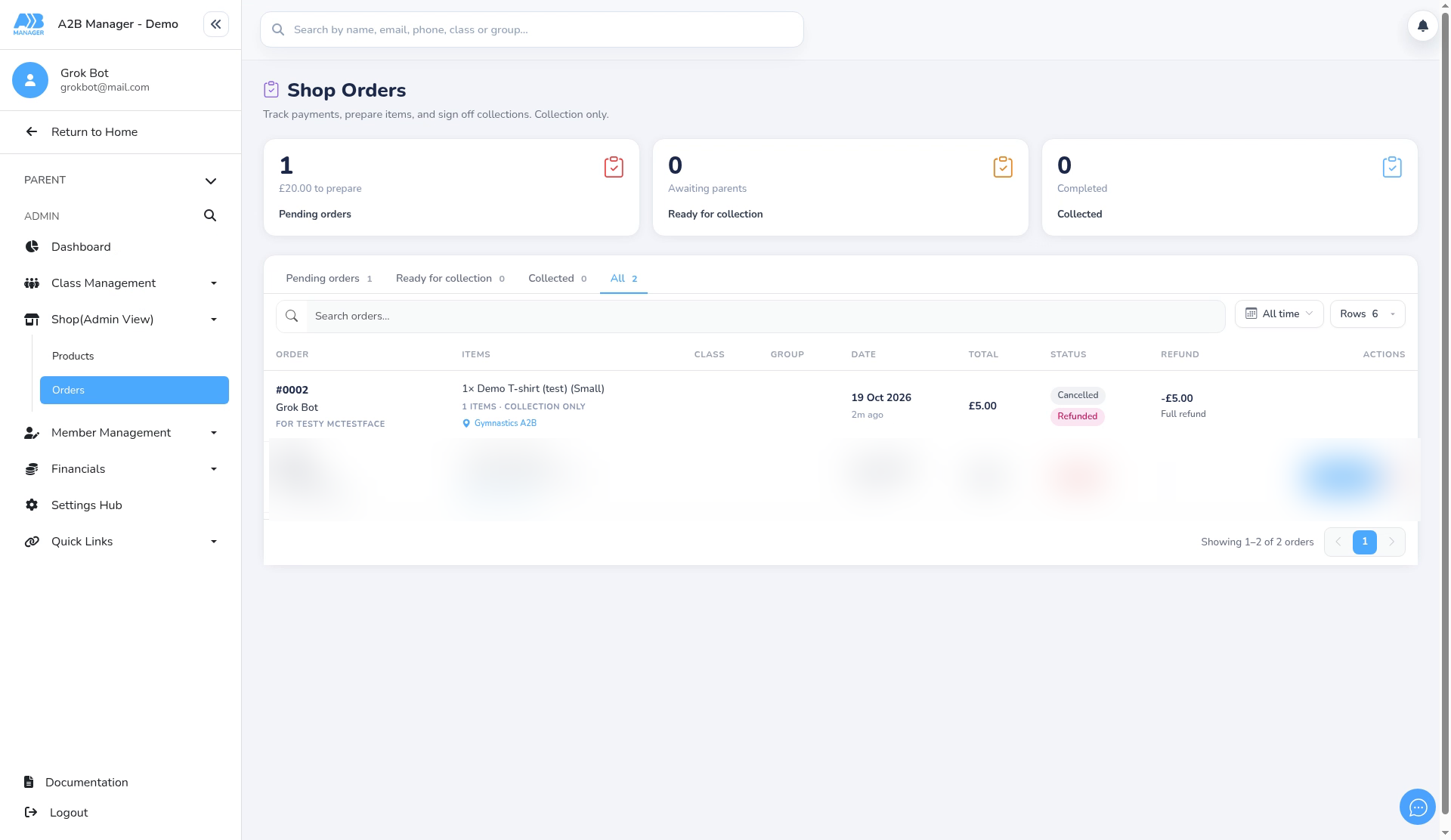
- The order is then marked Cancelled and Refunded, with Full refund under the amount, and it drops out of the Pending, Ready and Collected counts.
- The Remaining balance in the refund confirmation doesn’t take earlier refunds into account, so check the order row for the true position.
- Parents aren’t emailed about refunds, so let them know yourself.
Step 7: Put stock back yourself (2:11) #
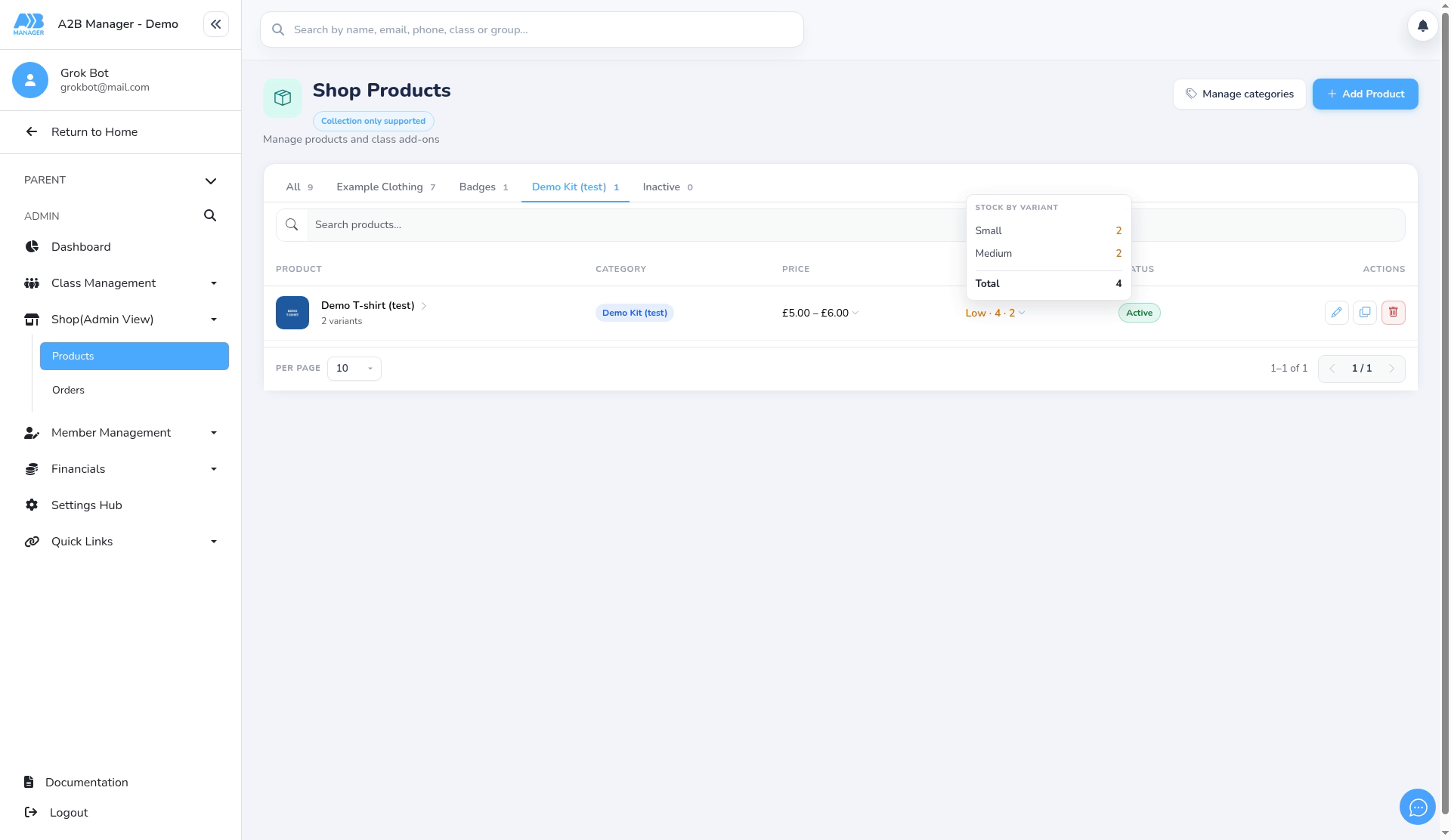
- Refunds don’t put items back into stock: after this refund, Small still shows 2.
- If the item comes back to you, edit the product and increase the stock yourself.
Step 8: Check the member’s profile (2:21) #
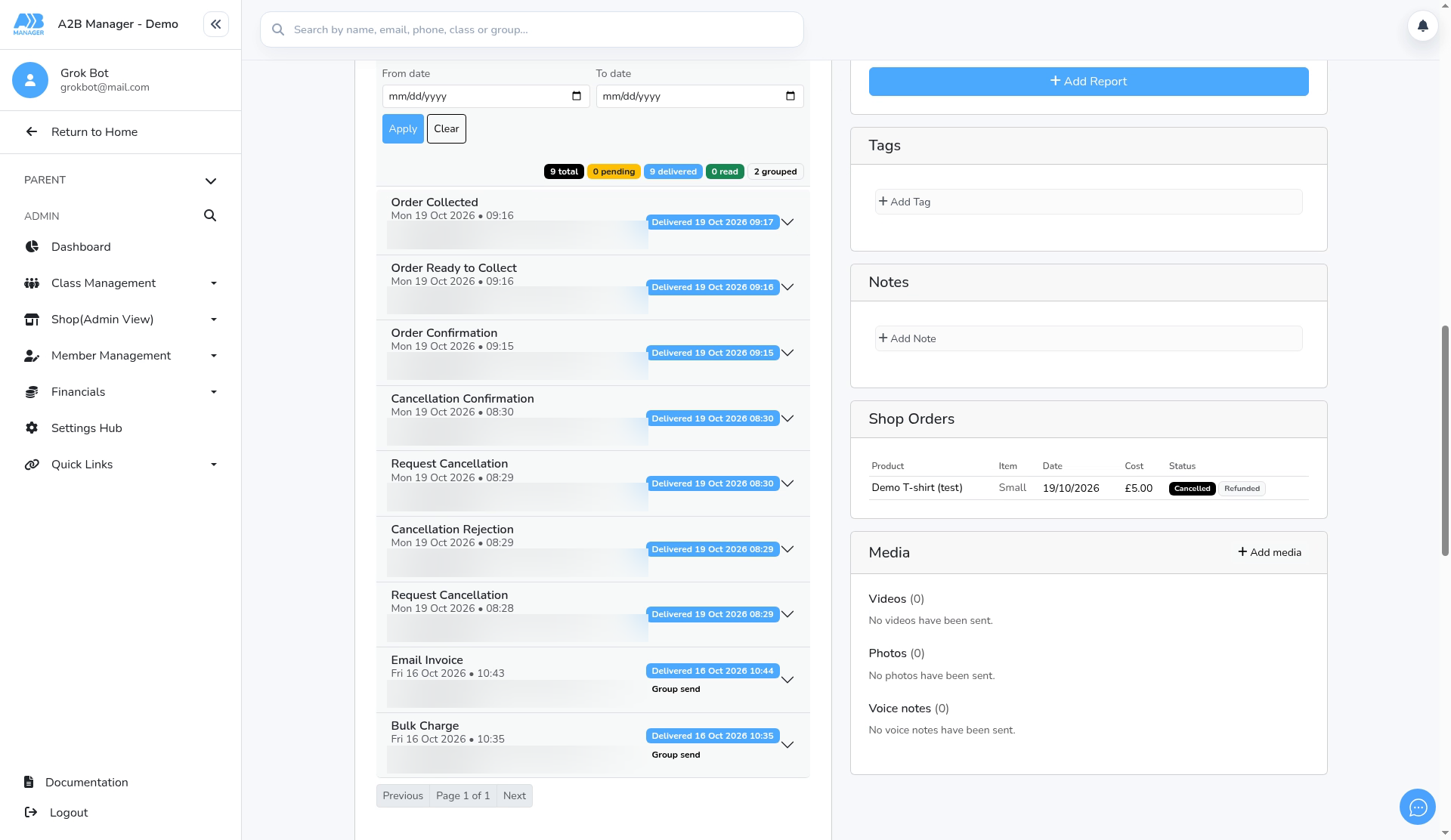
- On the child’s member profile, scroll down to the Shop Orders section to see each order and its status (for example Cancelled and Refunded).
- The email log on the same page shows the order emails that were sent, such as Order Confirmation, Order Ready to Collect and Order Collected.
Good to know #
- Order email templates are in your email settings. If a template isn’t active, that email isn’t sent.
- Emails go from your club’s default approved sender address unless the template has its own sender chosen.
See also #
- See also: How to Add and Manage Shop Categories
- See also: How To Create Products In The Shop
- See also: How to Mark Shop Orders Ready and Collected
- See also: How parents order products from your shop
Tip: Turn on Track stock for sized kit so parents can’t buy sizes you’ve run out of.


