

Table of Contents
Close the whole gym for bank holidays, Christmas or any other break. Bookings are blocked on those dates, and recurring sessions are skipped automatically.
Adding a whole-gym closure #
Step 1: Open Closed dates (0:00) #
- In the left-hand menu, click Settings Hub.
- Scroll down to the System Settings section and click the Settings card (Configure general platform settings.).
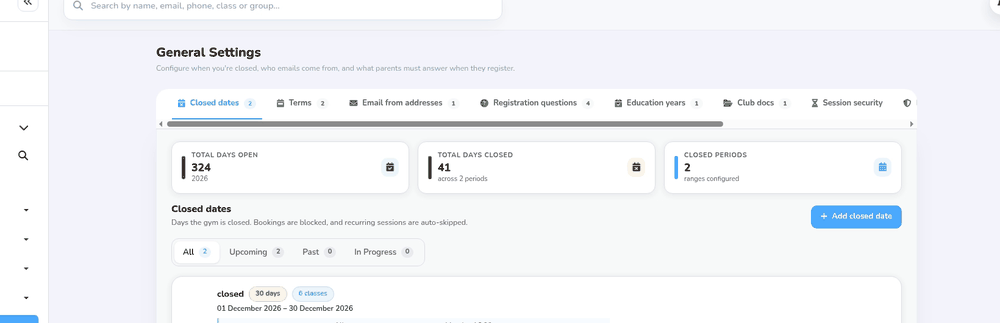
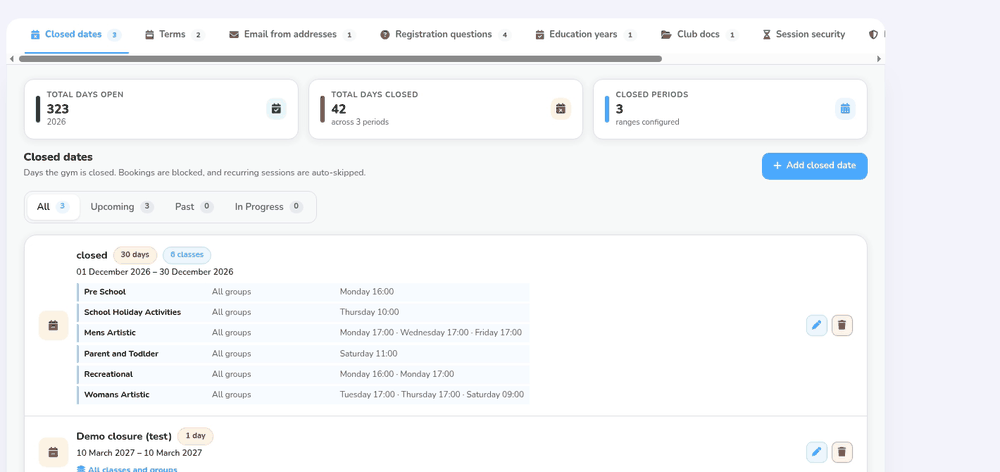
- The General Settings page opens on the Closed dates tab. At the top you’ll see Total days open, Total days closed and Closed periods, with your closures listed below.
Step 2: Add the dates (0:30) #
- Click + Add closed date. The Add closed date window opens.
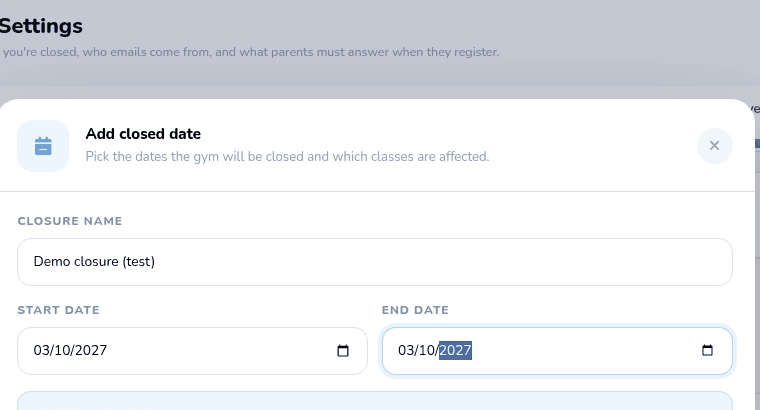
- Under Closure name, enter a name such as Christmas, so you can recognise it in the list.
- Enter the Start date and End date using the date picker or in the format shown. For a single day, use the same date for both. The end date can’t be before the start date.
- The window confirms how long the closure is, for example Closed for 1 day.
Step 3: Close every class (1:03) #
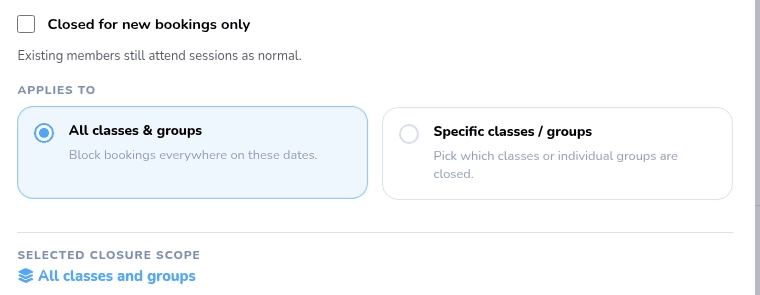
- Leave Closed for new bookings only unticked to close the gym completely. If you tick it, existing members still attend sessions as normal and only new bookings are blocked (see How to Close Your Gym for New Bookings Only).
- Under Applies to, make sure All classes & groups is selected. To close only some classes, choose Specific classes / groups instead (see How to Set a Close Date for Specific Classes).
Step 4: Save the closure (1:14) #
- Click Add closed date at the bottom of the window.
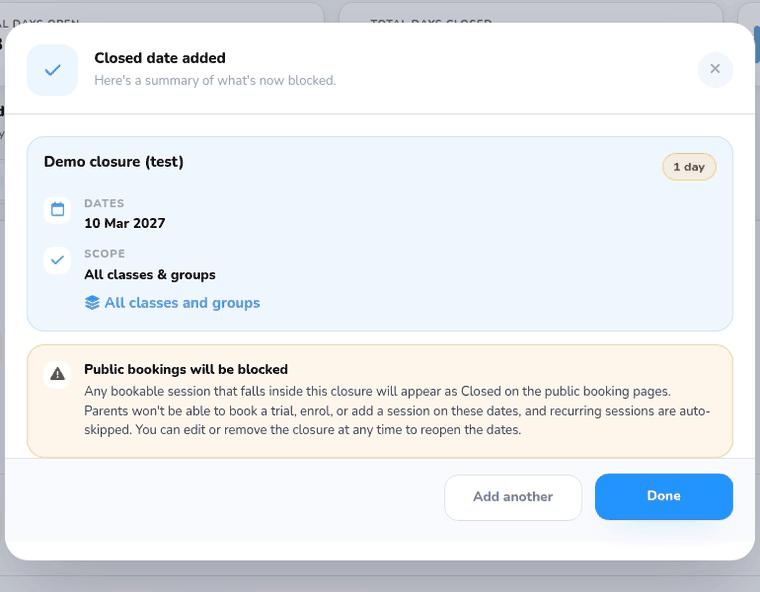
- A Closed date added panel summarises the dates and scope that are now blocked, under the warning Public bookings will be blocked: any bookable session inside the closure will appear as Closed on the public booking pages. Click Done, or Add another to add the next closure.
- The closure now appears in the list, showing how many days it lasts.
Editing or removing a closure #
- Click the pencil on a closure to change its name, dates or scope.
- Click the bin to delete it. A Delete closed date? box explains: This will reopen the dates for new bookings. It names the closure and its dates, and warns that anyone booking sessions on those dates will be able to do so again.
- Click Delete to confirm, or Cancel to keep it. A message confirms that the closure has been deleted.
What a closure does #
- Bookings: parents can’t book trials, single sessions or new places on closed dates.
- Registers: sessions on those dates are marked closed on the registers and on your dashboard schedule.
- Term charges: closed sessions are left out of term totals, so members aren’t charged for them when the closure is added before they join or pay for the term.
- Monthly subscriptions: currently, monthly subscriptions are not automatically adjusted or credited for closed dates. Closures don’t create credits or refunds, so adjust members’ accounts yourself if needed.
- Emails: no emails are sent when you add a closure, so let parents know yourself.
What parents see #
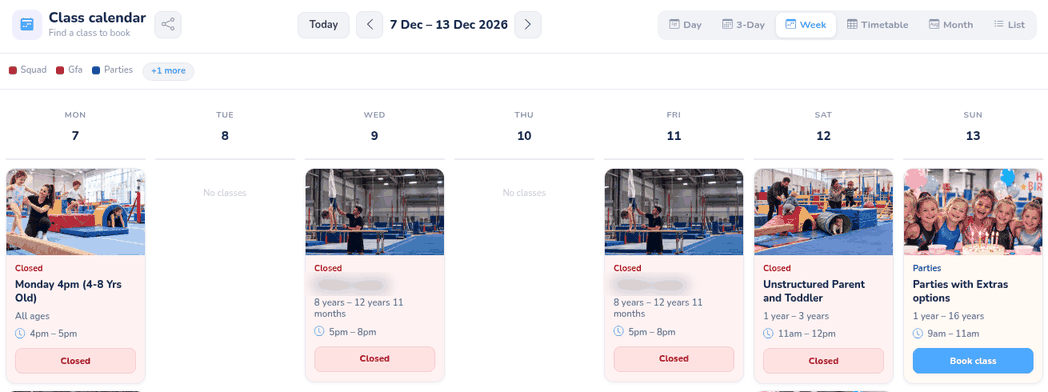
- Closed dates stay visible on the public class calendar. Each class card for a closed date turns pink, shows a red Closed label instead of its category, and has a pale red Closed button instead of a booking button.
- Only classes included in the closure show as Closed; if you chose Specific classes / groups, other classes stay bookable.
Tip: If you don’t want to charge term groups for dates when you’re closed, add those closed dates before people join or pay for the term. A closure added later doesn’t change what’s already been charged.
Good to know #
- Use the All, Upcoming, Past and In Progress filters to find a closure.
- You can also add closed dates in the Setup Wizard, at the Closed Dates step.


