

Table of Contents
When several classes run at the same time, you can view their registers together. Select two or more registers and they’re merged into one table, so every child appears in a single list.
Merging registers #
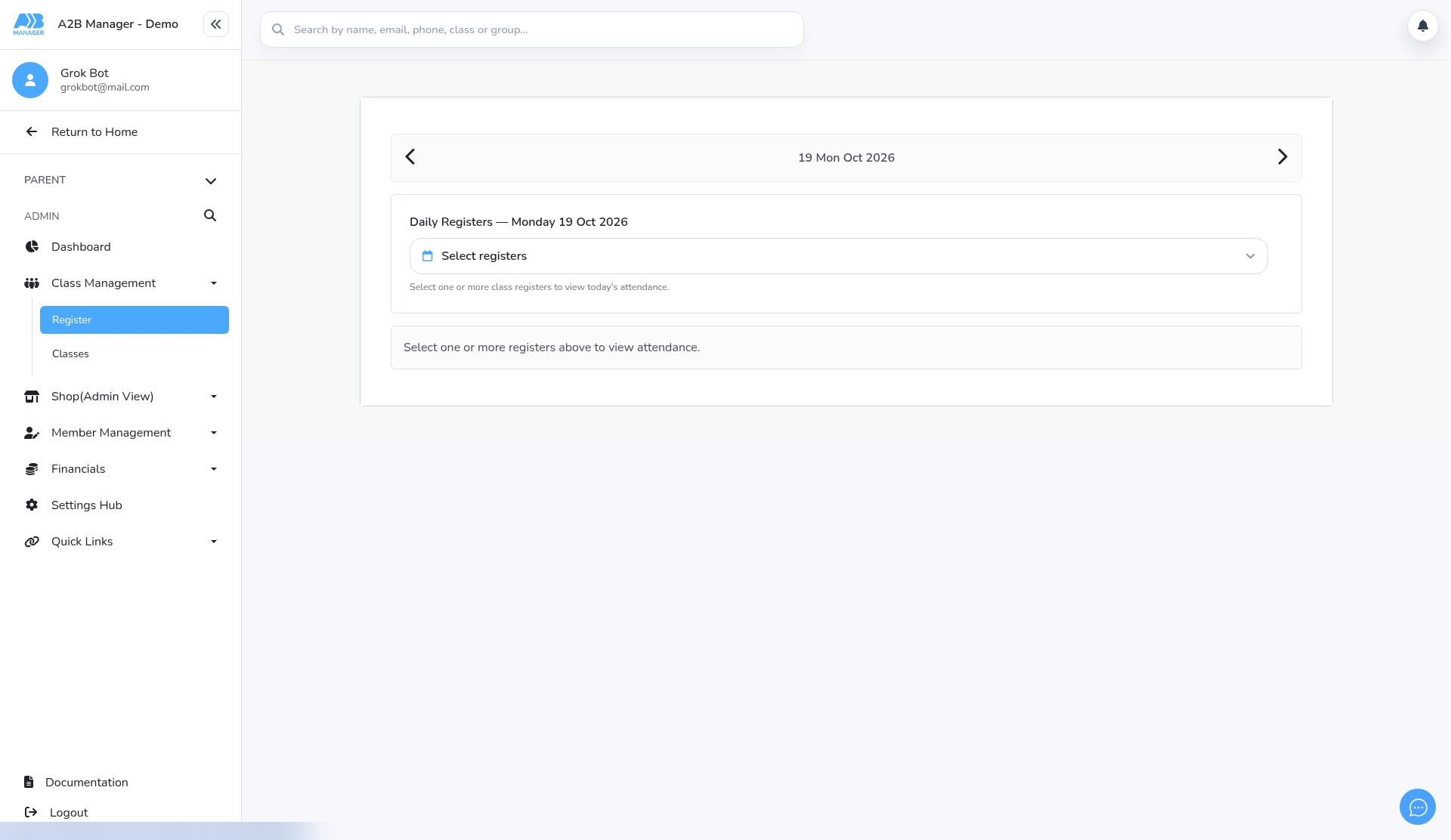
Step 1: Open the Register (0:00) #
- Go to Class Management > Register and pick the day.
Step 2: Choose the registers (0:06) #
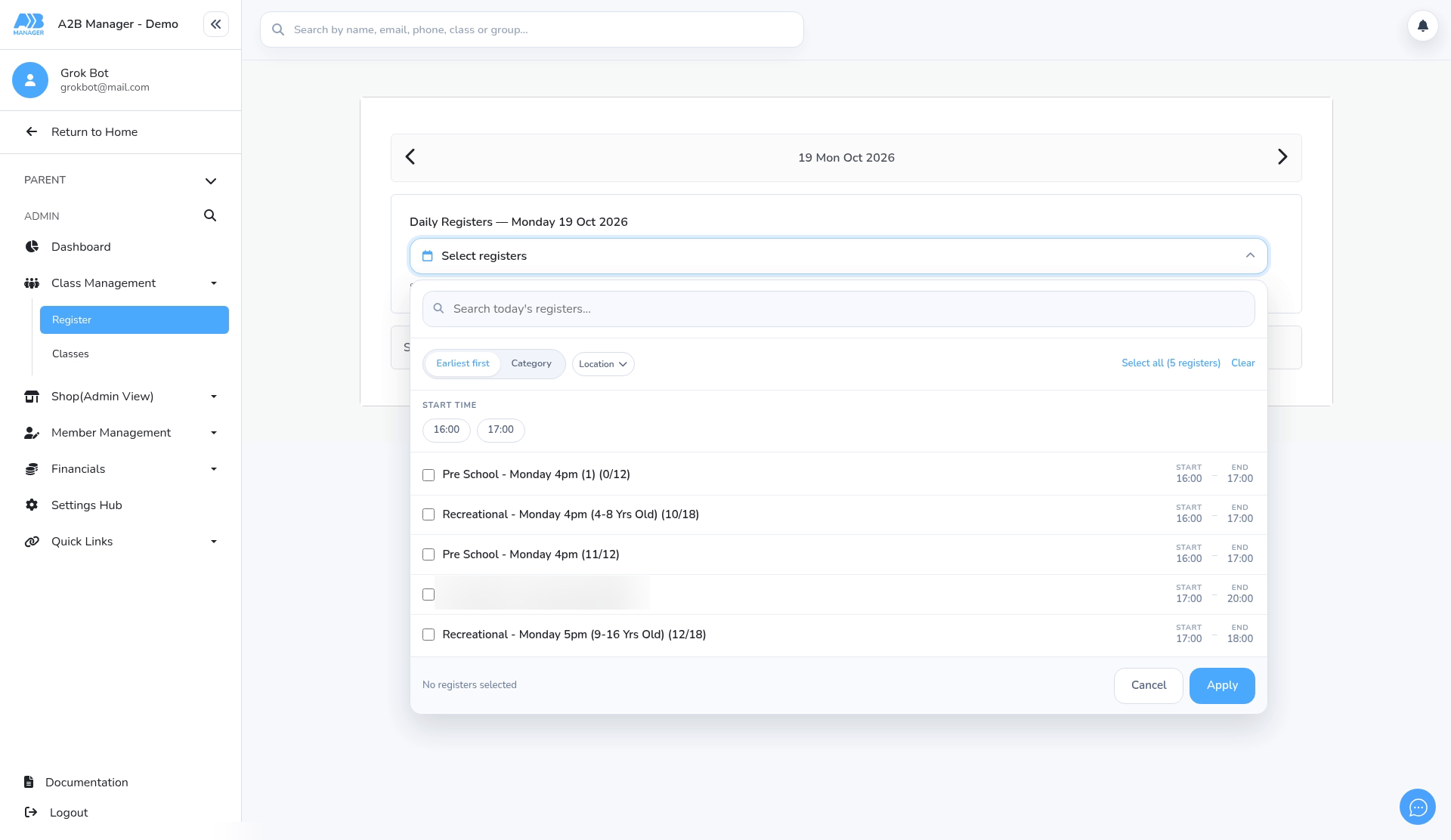
- Click Select registers. You can search, and switch the list between Earliest first and Category.
- Filter by Location, or use Select all and Clear.
- Tap a start time, for example 16:00, to tick every register at that time.
- Click Apply.
Step 3: See them merged into one table (0:37) #
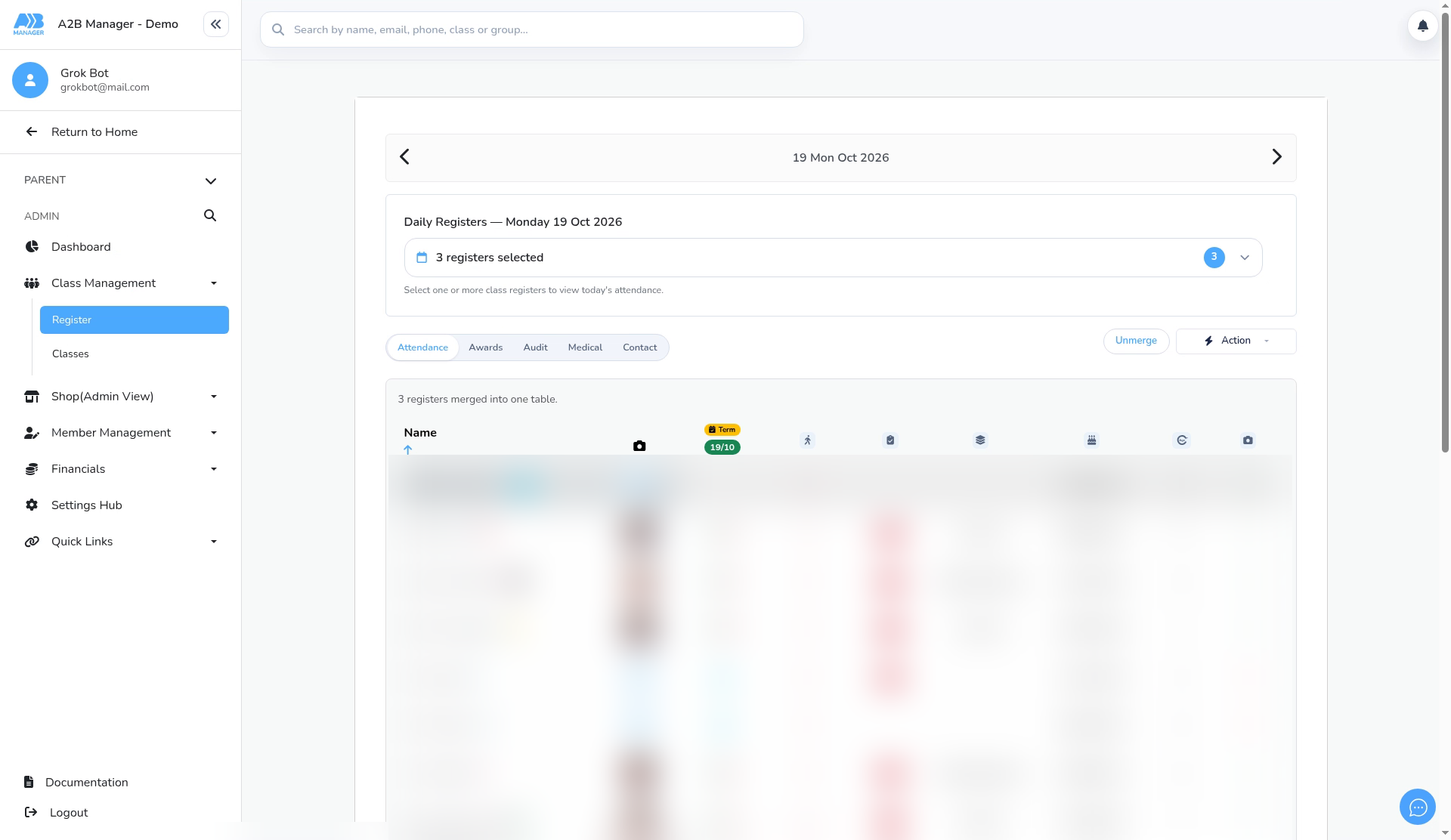
- When you apply two or more registers, they’re merged automatically. A message confirms how many registers were merged into one table.
Step 4: Sort the combined register (0:52) #
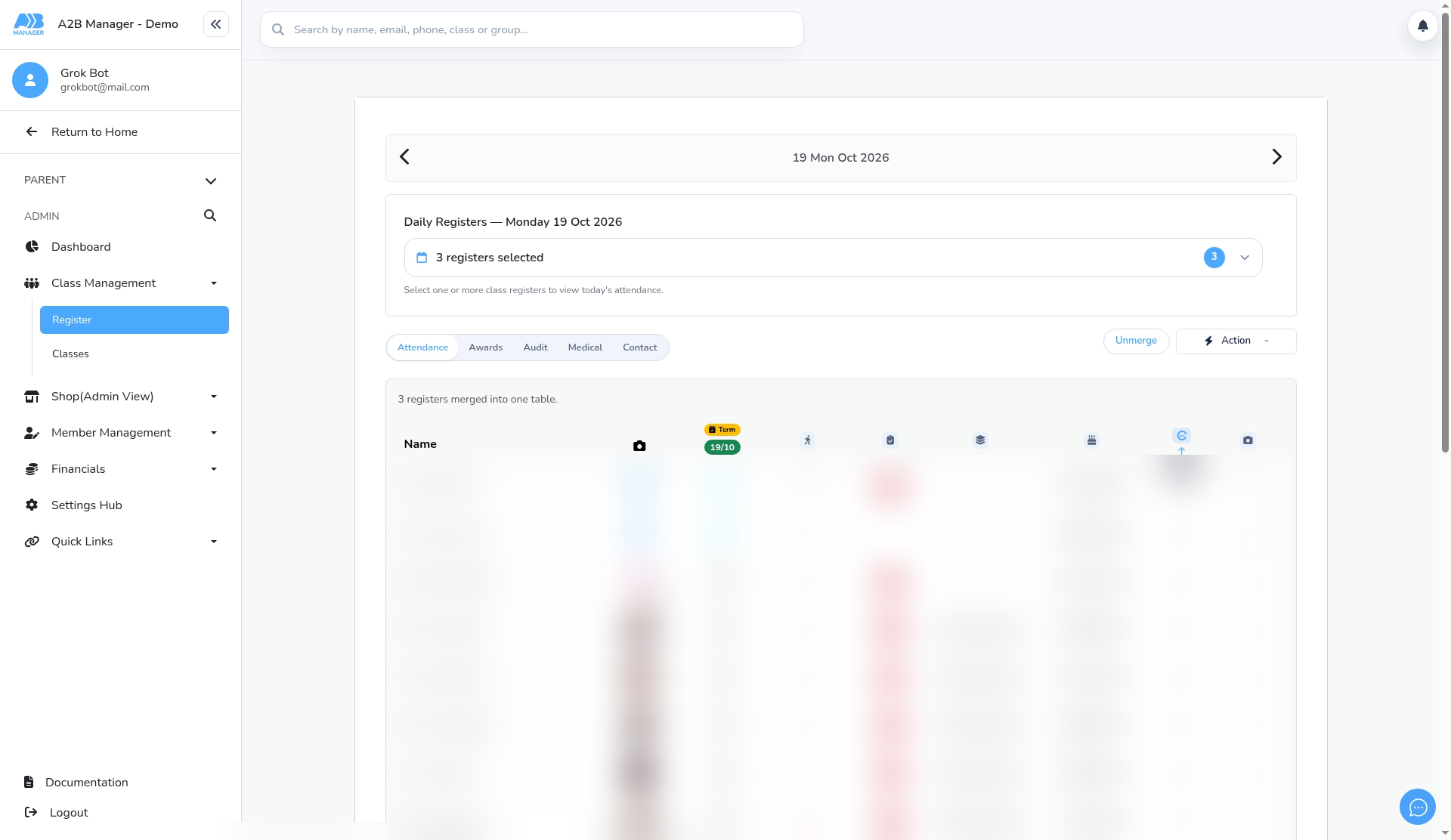
- Click a column heading, such as Name or Age, to sort the whole list.
Step 5: Use the other tabs (1:08) #
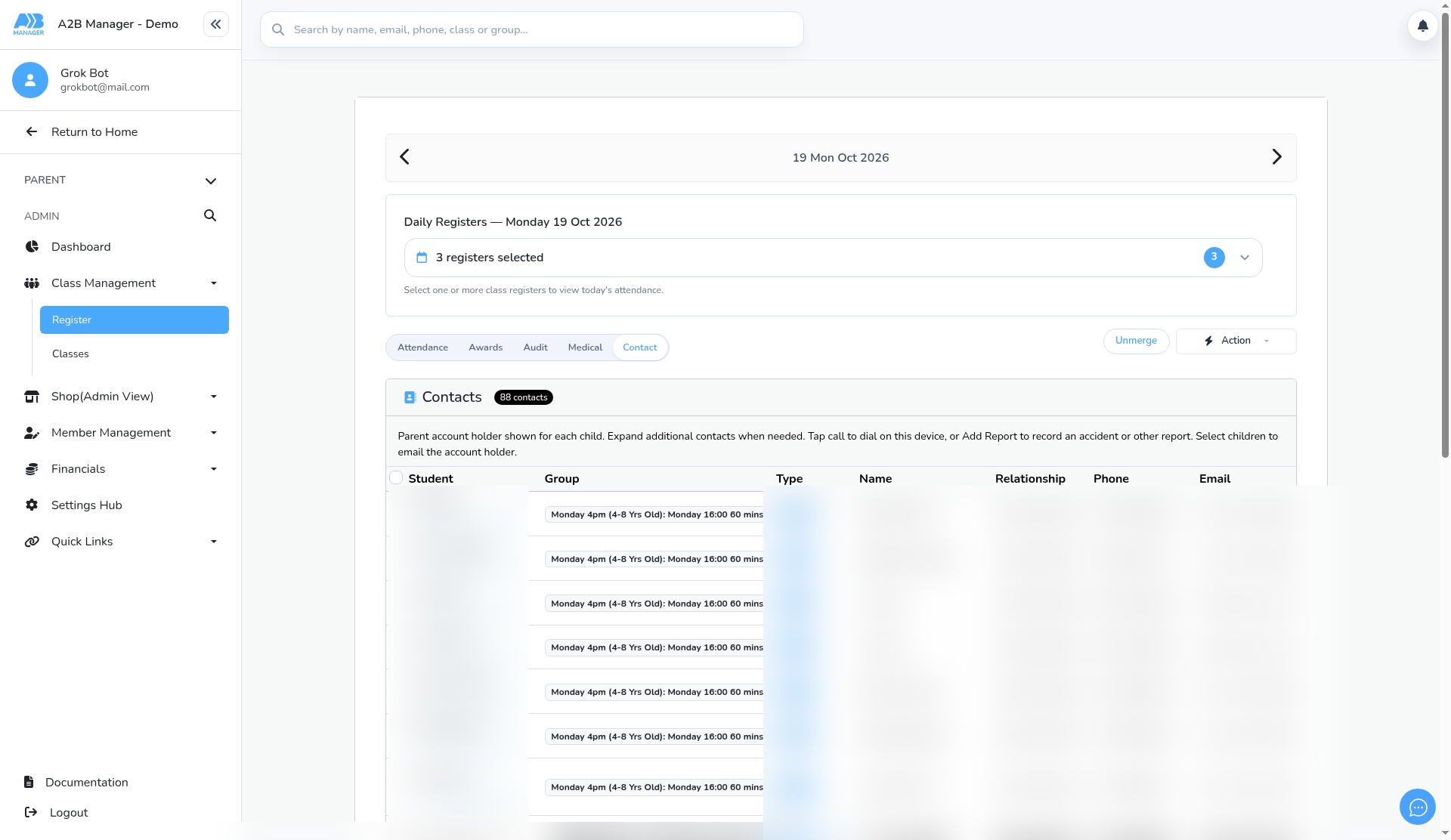
- The merged list also works on the Awards, Audit, Medical and Contact tabs.
- The Contact tab adds a Group column so you can see which class each child is in.
Step 6: Unmerge or merge again (1:16) #
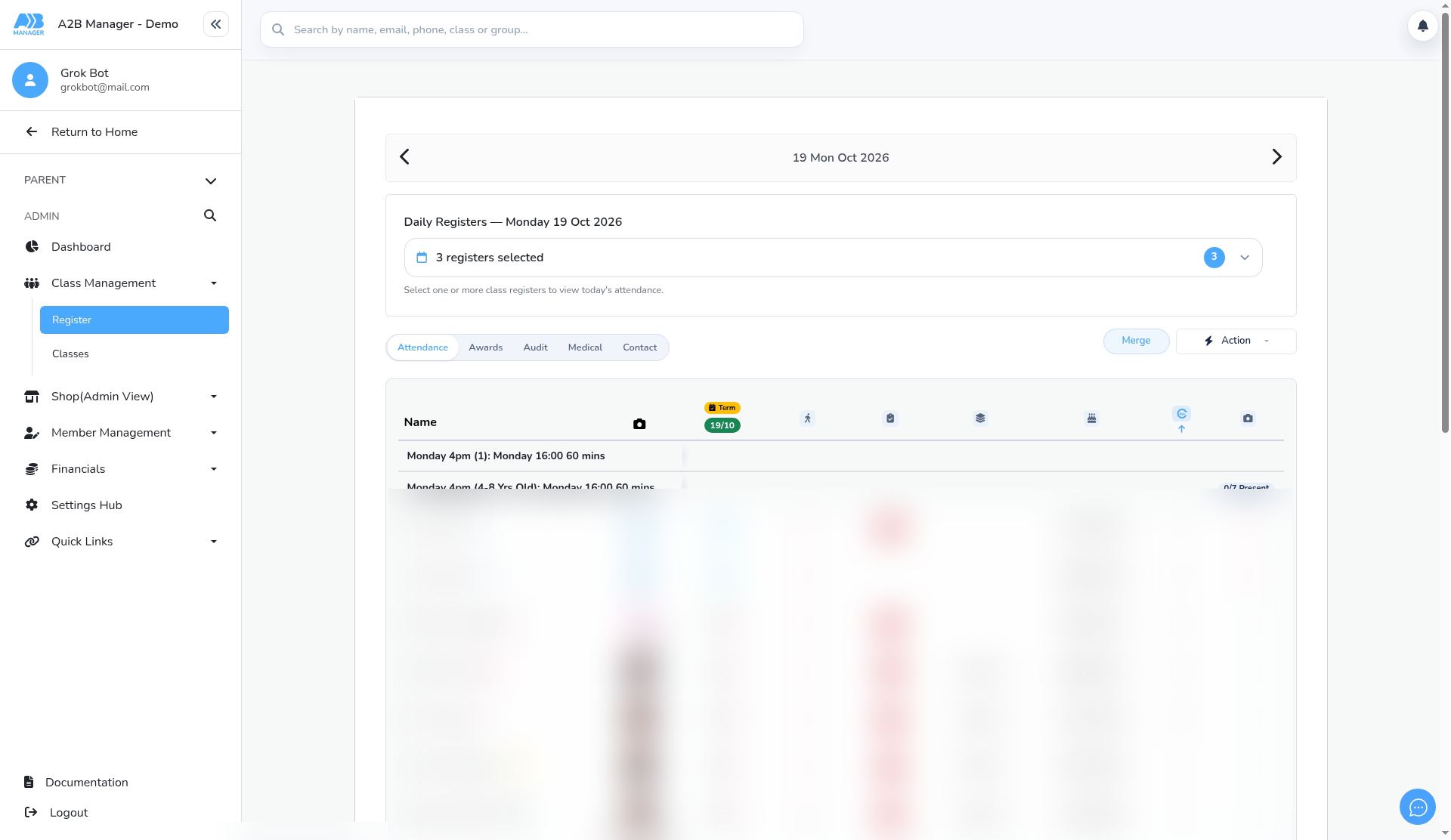
- Click Unmerge to show a separate section for each register.
- Click Merge to join them again.
FAQs #
- Do I need to click Merge? No. Selecting two or more registers merges them automatically. Merge is only needed after you’ve clicked Unmerge.


