

Table of Contents
Use Closed dates to block bookings on chosen days. You can close the whole gym, or just certain classes or groups. You tick the classes and groups that will close, not the ones that stay open.
Closing specific classes #
Step 1: Open Closed dates (0:00) #
- In the left sidebar, click Settings Hub.
- Scroll down to System Settings and click Settings.
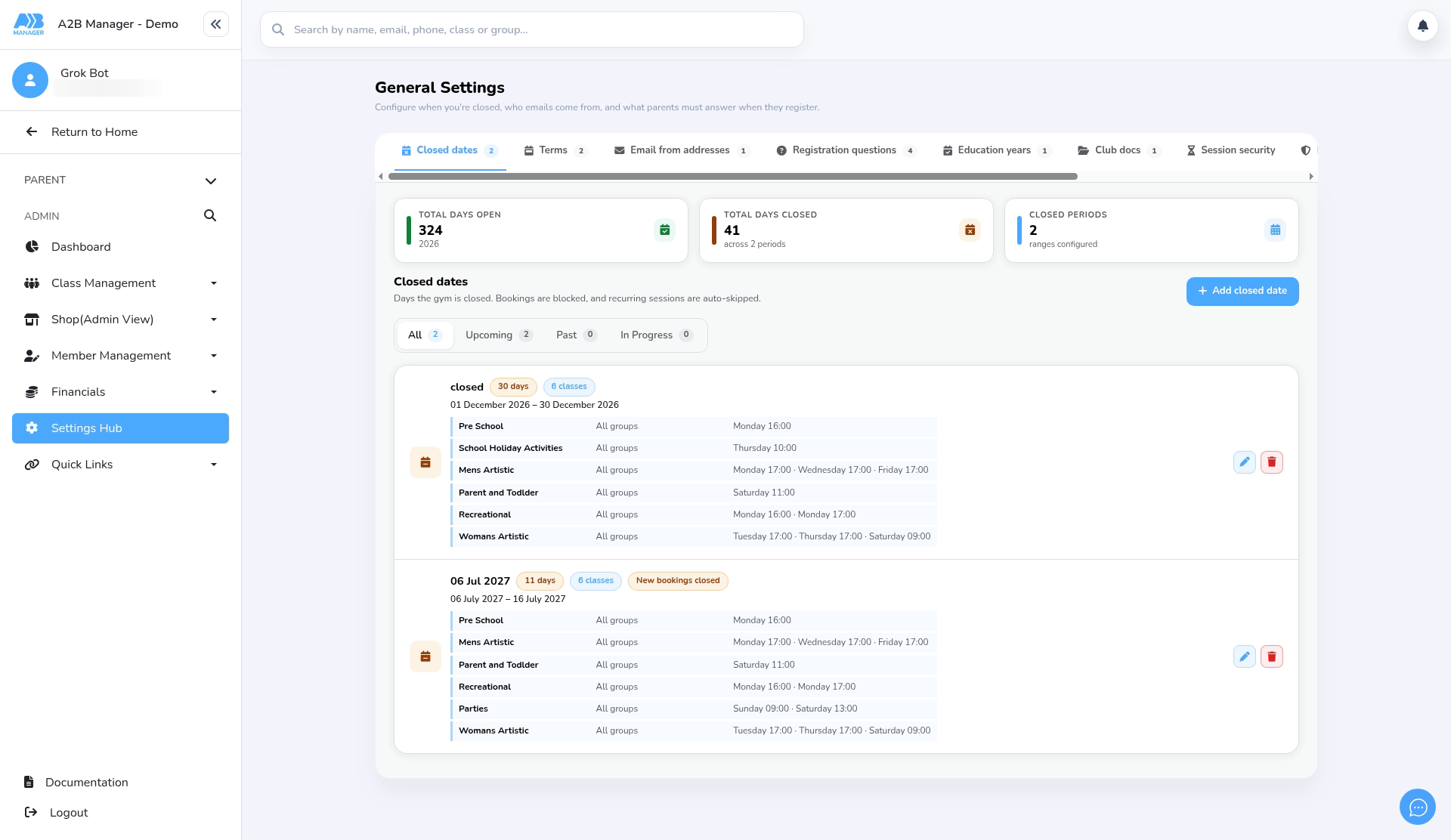
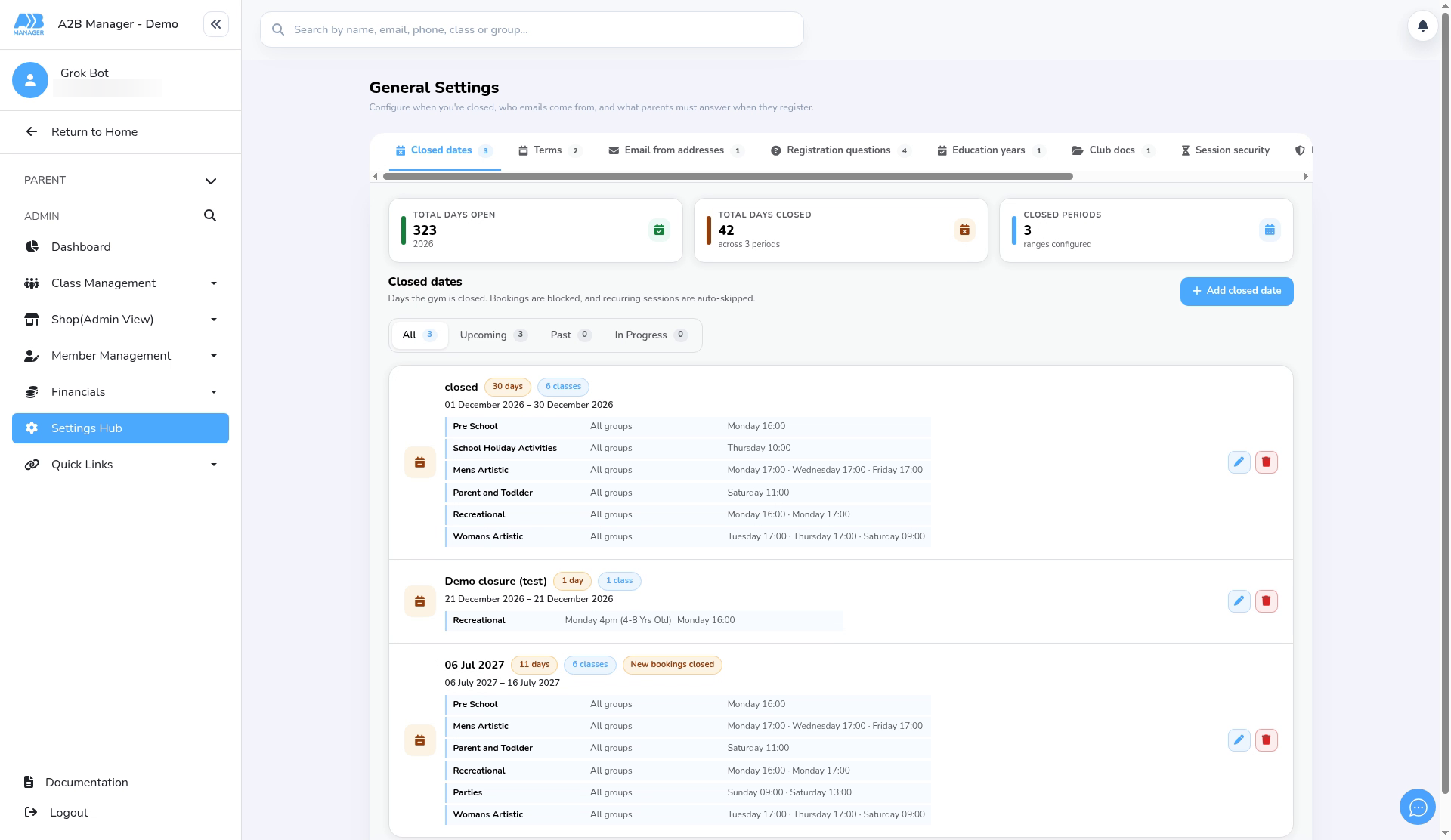
- General Settings opens on the Closed dates tab. It lists your closures and shows the total days open, total days closed and number of closed periods.
Step 2: Add the closure name and dates (0:18) #
- Click Add closed date.
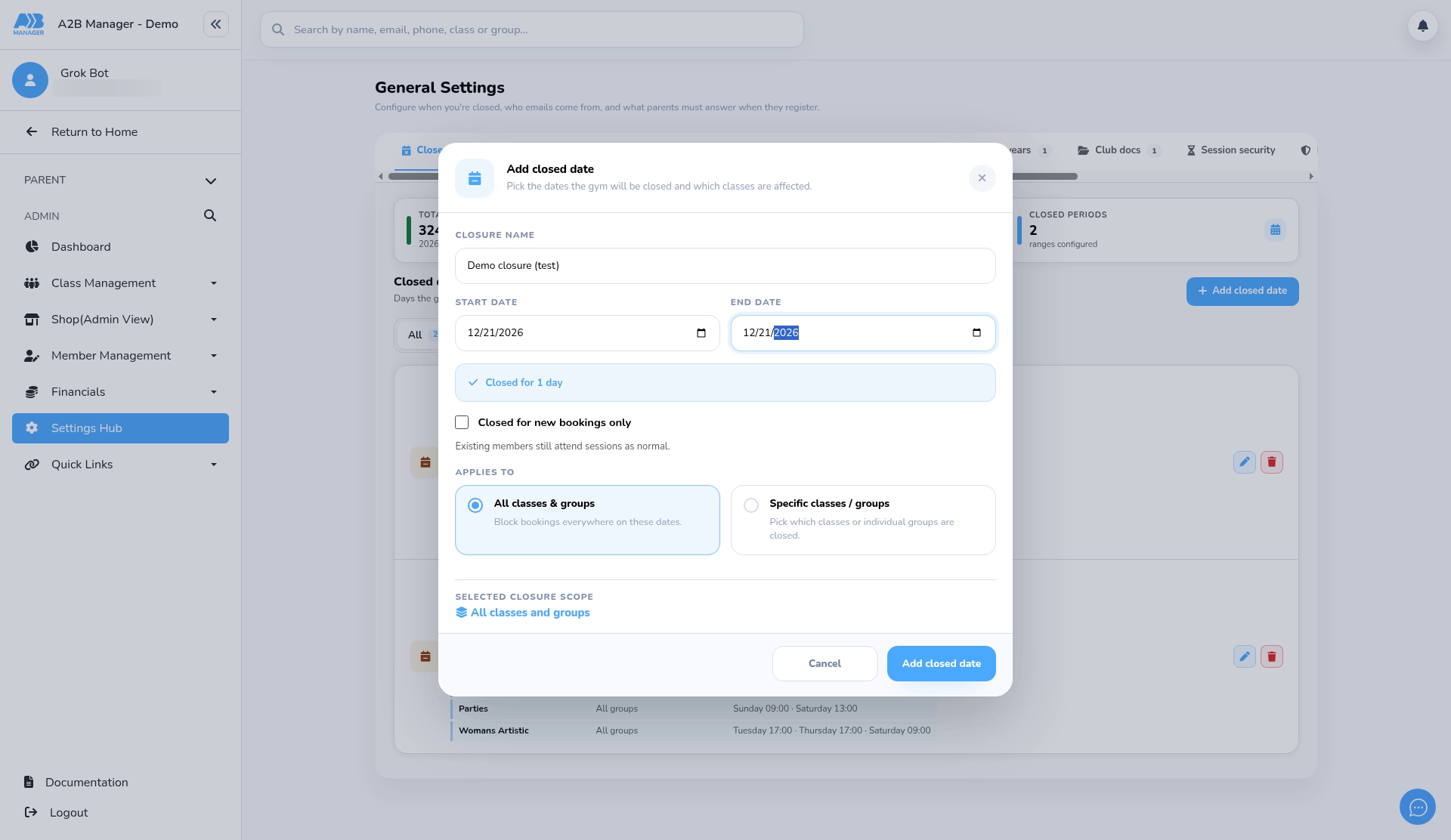
- Enter a Closure name, for example “Coach training day”.
- Choose the Start date and End date. For a single day, use the same date for both. The date pickers use your browser’s date format, so they may show month/day/year.
- Tick Closed for new bookings only to stop new bookings on these dates: nobody can join, book a trial or add a session for the chosen classes on the public booking pages. Existing members’ regular sessions carry on as normal: they still run, appear on registers and attendance, and are still charged. Leave it unticked to close the sessions completely, so they’re skipped for everyone.
Step 3: Choose the classes or groups to close (0:54) #
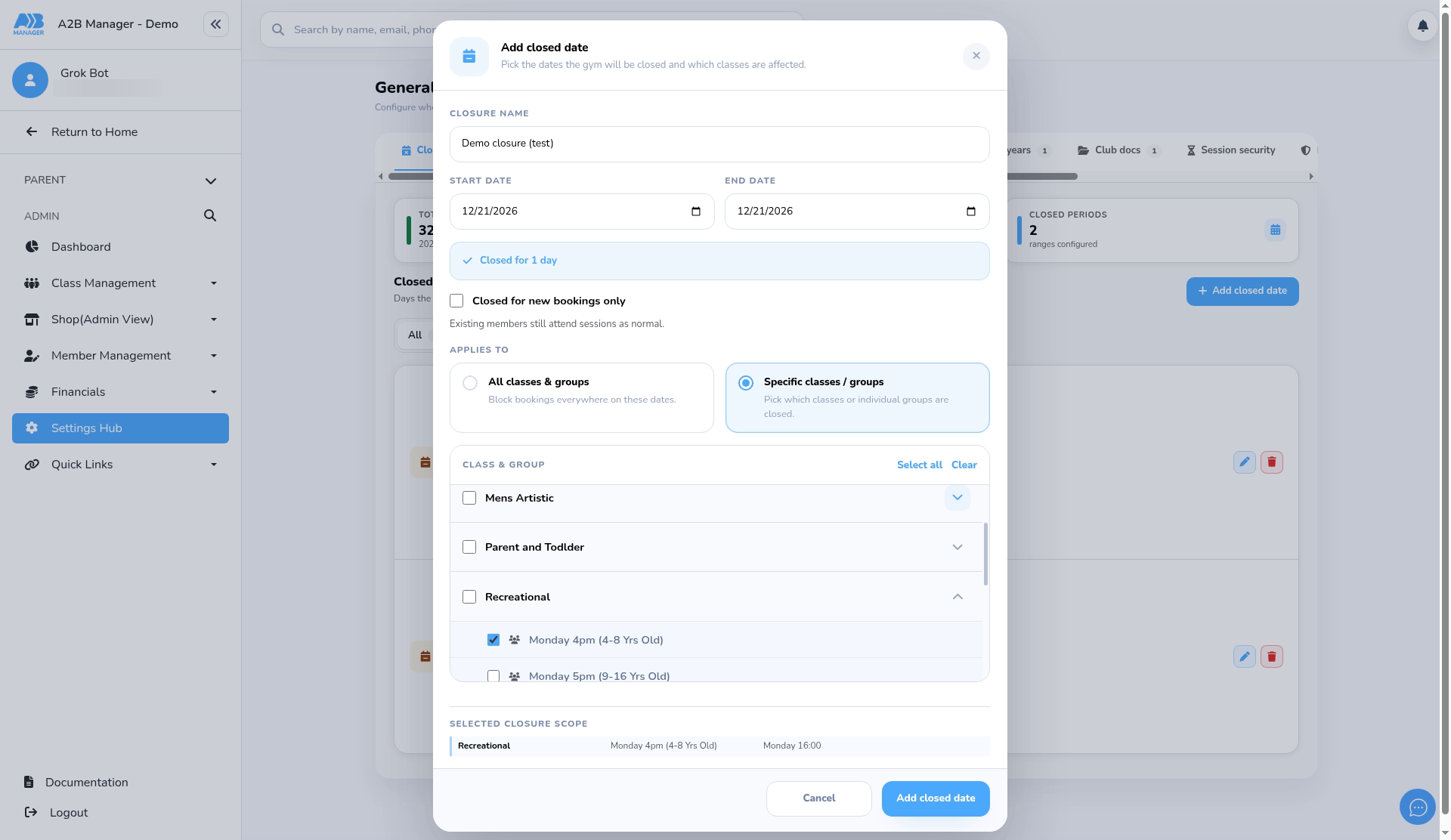
- Under Applies to, click Specific classes / groups.
- In the Class & group list, click the arrow next to a class (for example Recreational) to show its groups, then tick the group you want to close (for example Monday 4pm (4-8 Yrs Old)).
- Ticking the class itself closes all of its groups. Use Select all or Clear to speed things up.
- Check the Selected closure scope box. It lists exactly what will close. You must pick at least one class or group.
Step 4: Save and check the summary (1:23) #
- Click Add closed date. The button stays greyed out until at least one class or group is ticked.
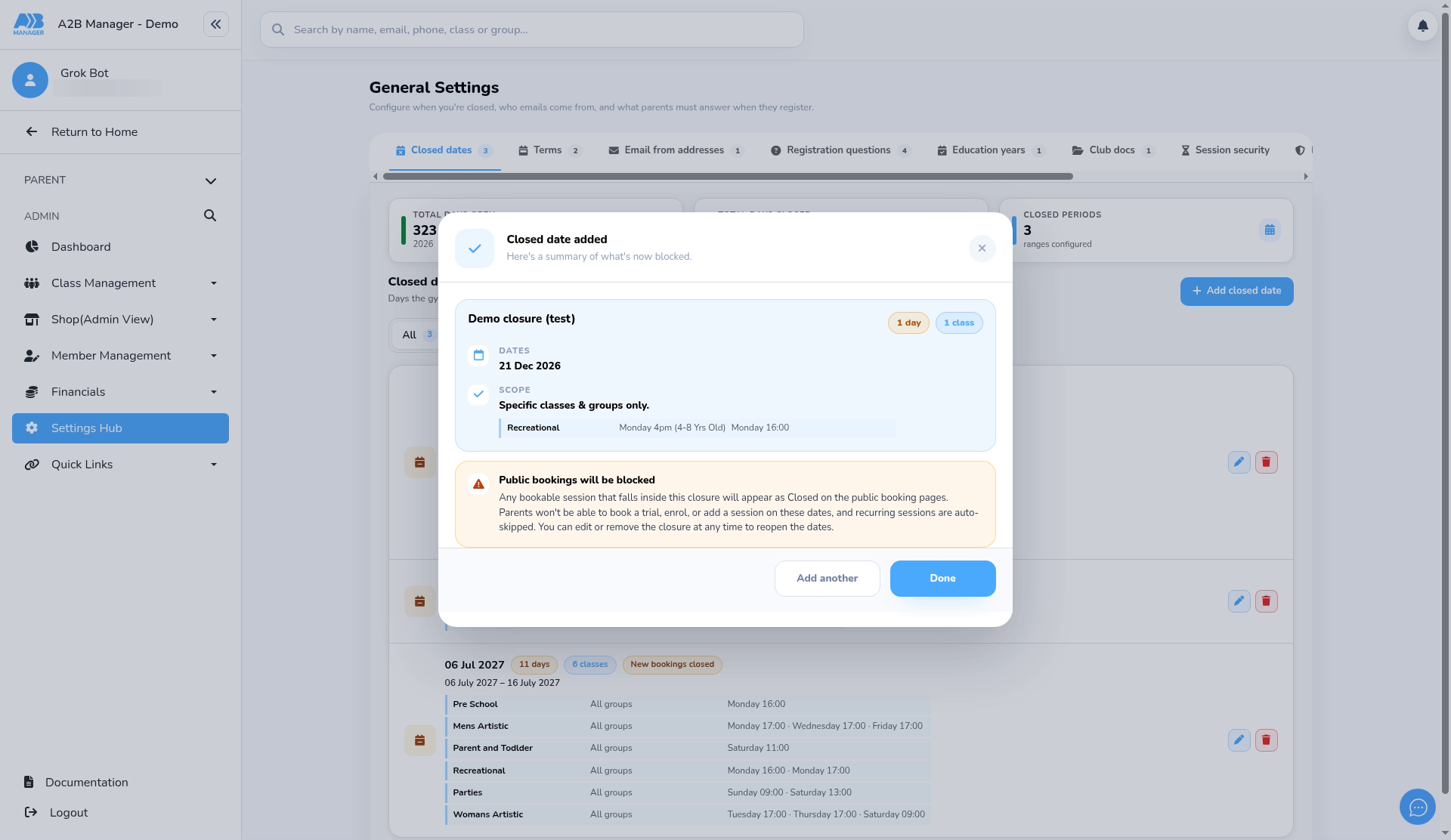
- A summary shows the dates and the classes or groups now blocked, with a warning that public bookings will be blocked.
- Click Done, or Add another to set up a further closure.
Step 5: Check the closure in the list (1:34) #
- The closure appears in the list with pills showing its length and scope, for example 1 day and 1 class, followed by the classes, groups and times it covers.
- Use the pencil to edit it or the bin to delete it.
Good to know #
- Closing everything: choose All classes & groups instead. See How to Add Closed Dates for the Entire Gym.
- What a full closure does: sessions on closed dates can’t be booked, recurring sessions skip those dates, and the registers show them as closed.
- New bookings only vs full closure: with Closed for new bookings only ticked, the class stays open for existing members (sessions, registers, attendance and charges carry on as normal), but the public booking pages show New bookings closed and nobody, including existing parents, can book extra sessions or trials there. A full closure skips the sessions for everyone and marks them Closed. To do this for the whole gym, see How to Close Your Gym for New Bookings Only.
- No automatic credits or refunds: closing a class doesn’t refund or credit members. Handle any credits separately.
- Deleting a closure reopens those dates for booking.
- Use the Upcoming, Past and In Progress filters to find a closure. Closed dates are also in the Setup Wizard.
Tip: Tick the classes and groups that will close. Older versions of this guide said to tick the classes that stay open, which is the wrong way round.


