

Table of Contents
- Setting up and sending texts
- Step 1: Open the Text messages settings (0:00)
- Step 2: Check your credit (0:18)
- Step 3: Buy credit (0:29)
- Step 4: Automatic top-up (optional) (0:40)
- Step 5: Switch texts on and set your sender name (0:49)
- Step 6: Check Credit history and Texts sent (1:01)
- Step 7: Send a text to one parent
- Step 8: Send a text to several parents (1:14)
- Step 9: Check delivery (1:53)
- What a text costs
- The closing line on every text
- Marketing texts and opting out
- Good to know
- FAQs
You can text parents straight from A2B Manager, for example to tell them a class is cancelled. Texts are paid for from a credit balance that you top up in Settings. Each text costs 6p, which is taken from your credit until it reaches zero. This guide shows you how to set texting up, how to send a text to one parent or to several, and how to check that your texts were delivered.
Setting up and sending texts #
Step 1: Open the Text messages settings (0:00) #
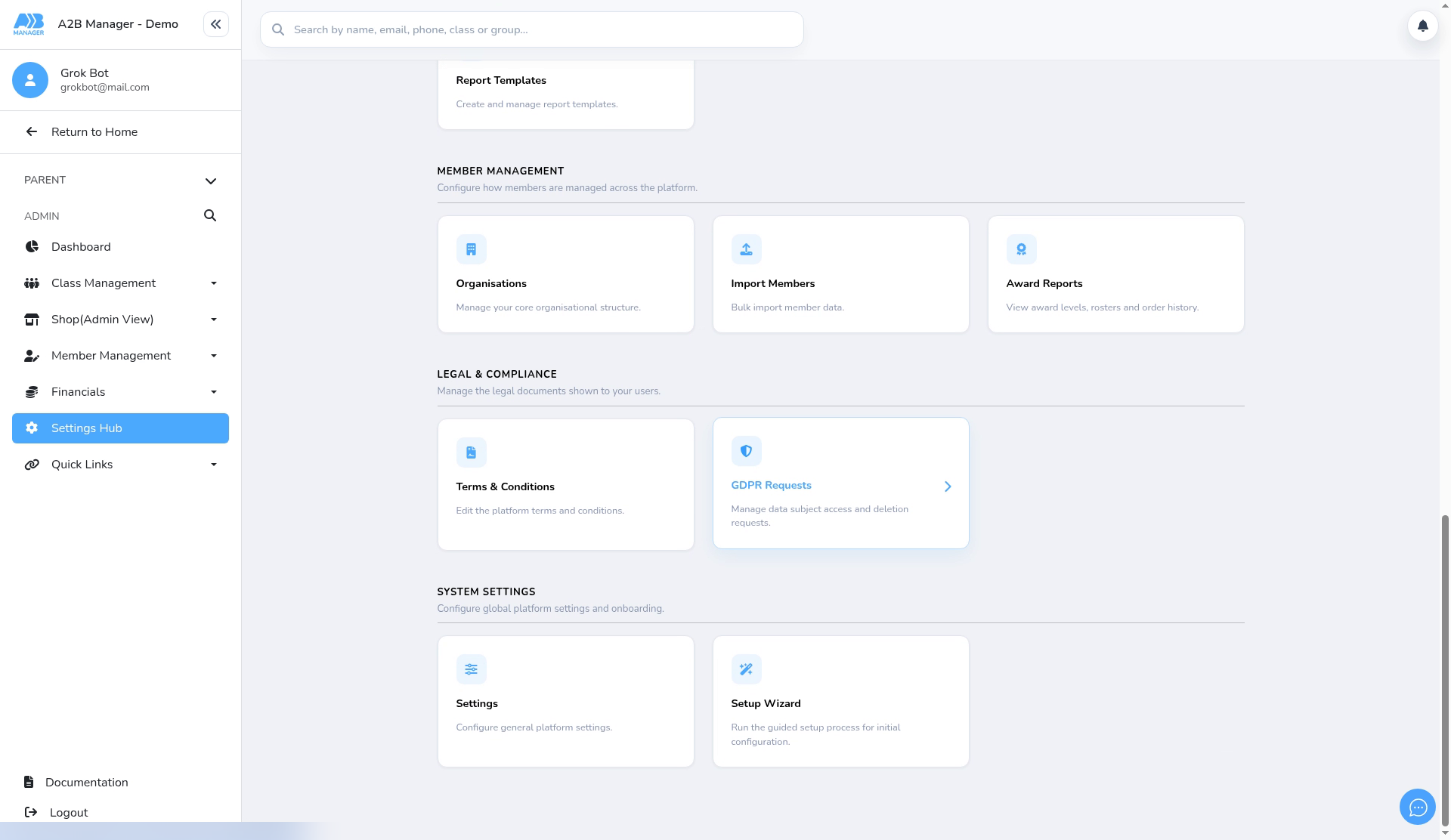
- In the left-hand menu, click Settings Hub.
- Scroll down to System settings and click Settings.
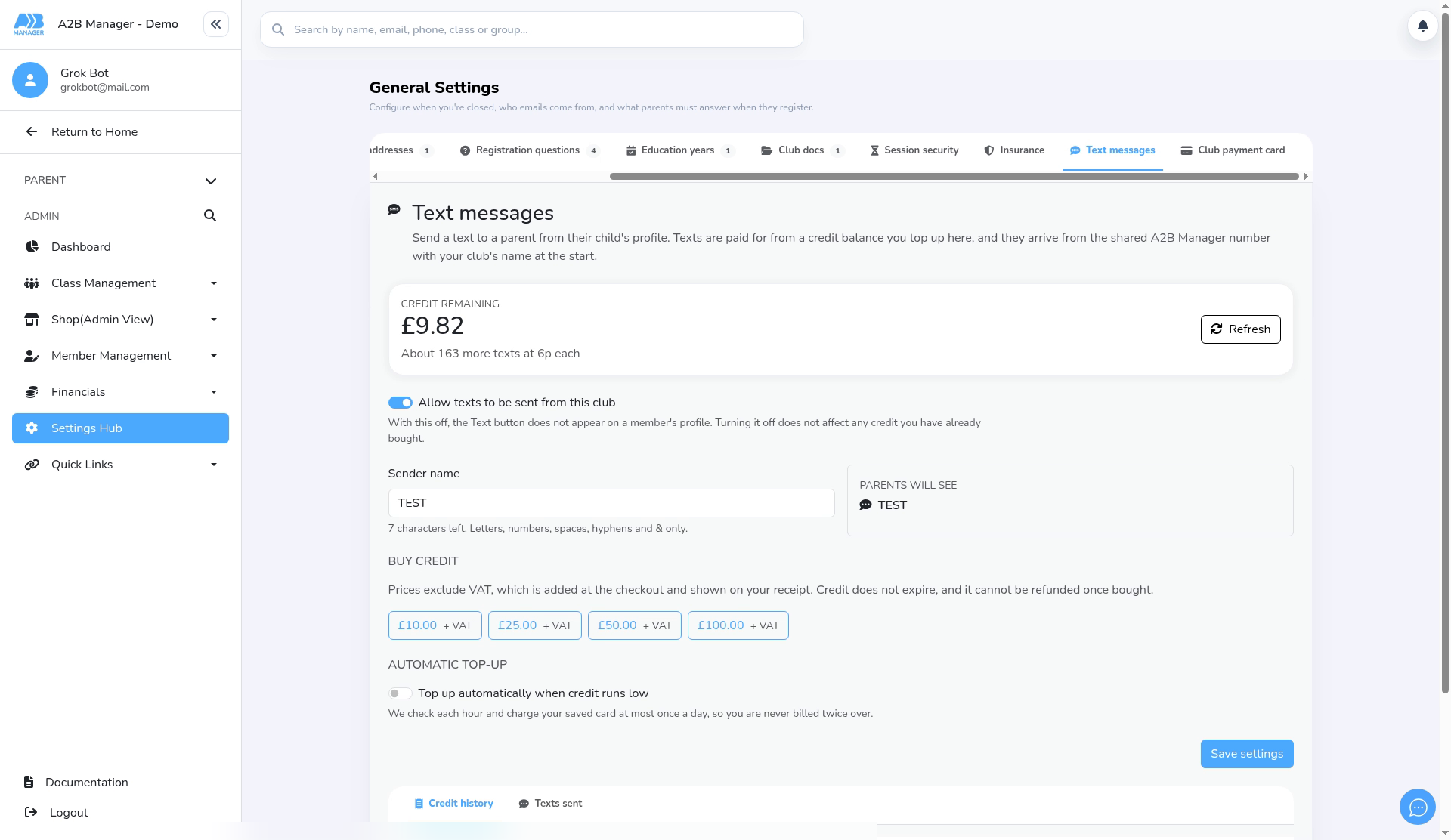
- Scroll the row of tabs along and click Text messages.
Step 2: Check your credit (0:18) #
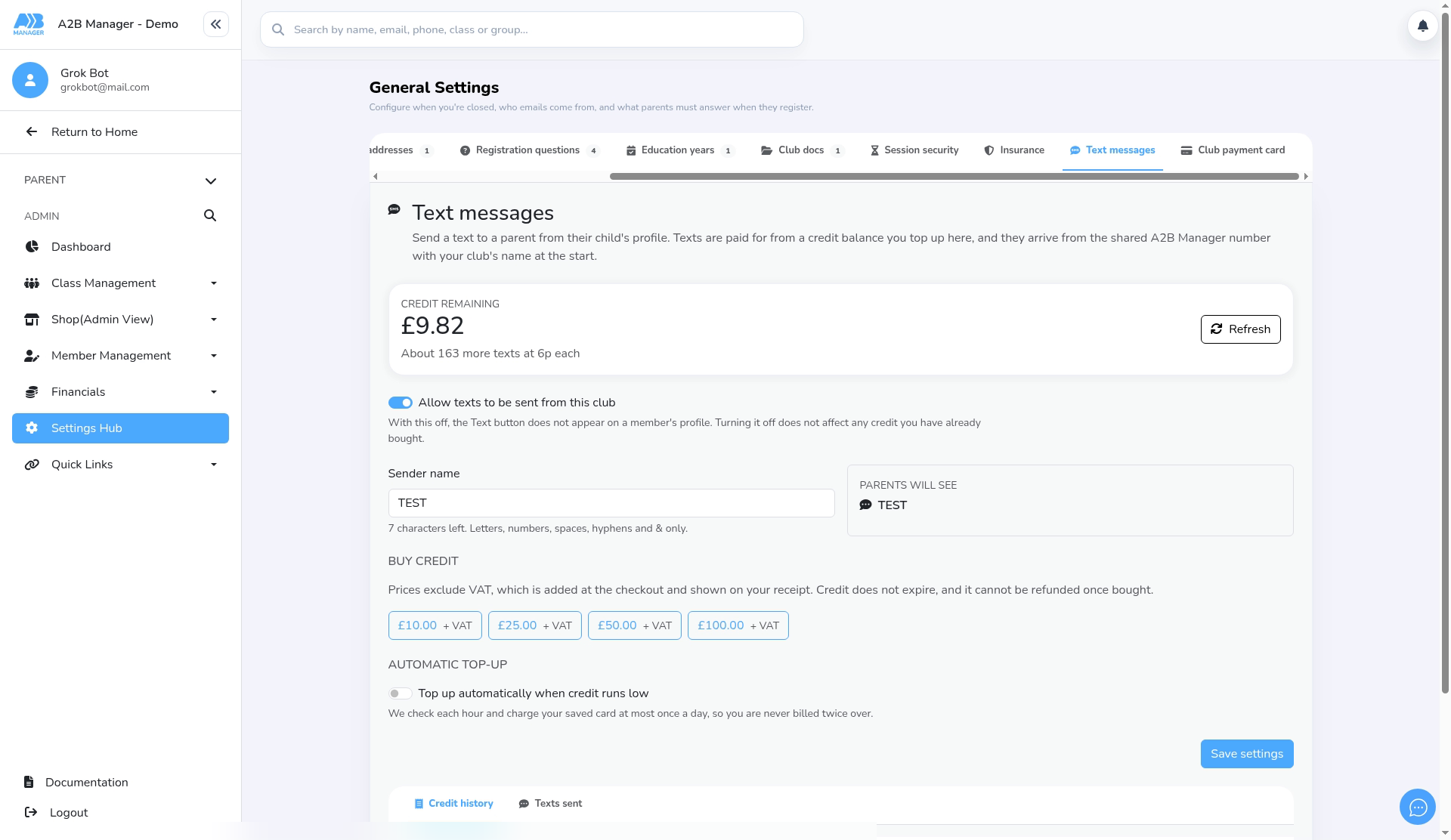
- Credit remaining shows your balance and roughly how many more texts it covers, for example About 163 more texts at 6p each.
- Each text costs 6p. It’s taken from your credit balance until the balance reaches zero.
- Click Refresh to update the balance, for example straight after buying credit.
- When your credit runs out, no texts can be sent until you top up.
Step 3: Buy credit (0:29) #
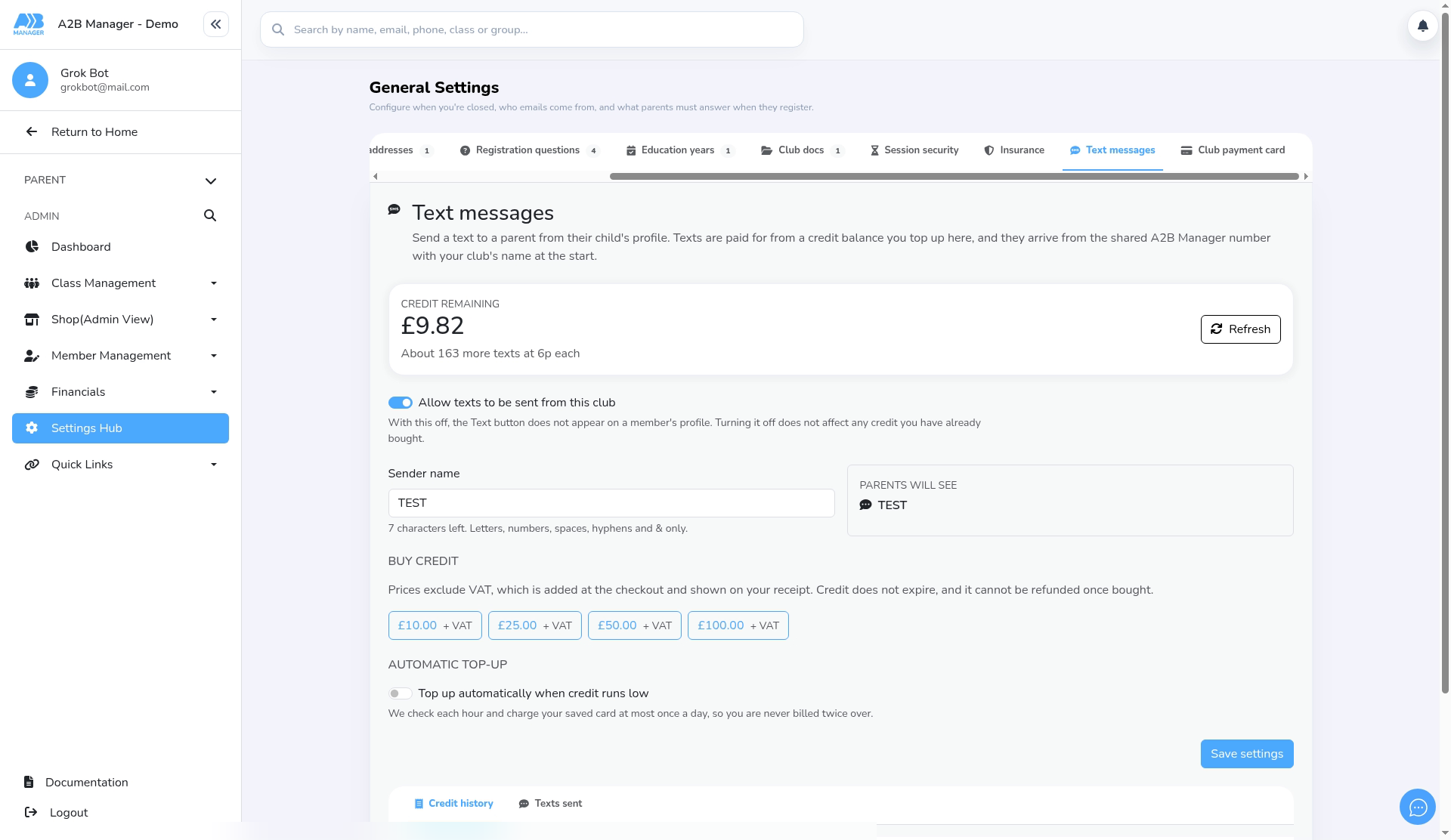
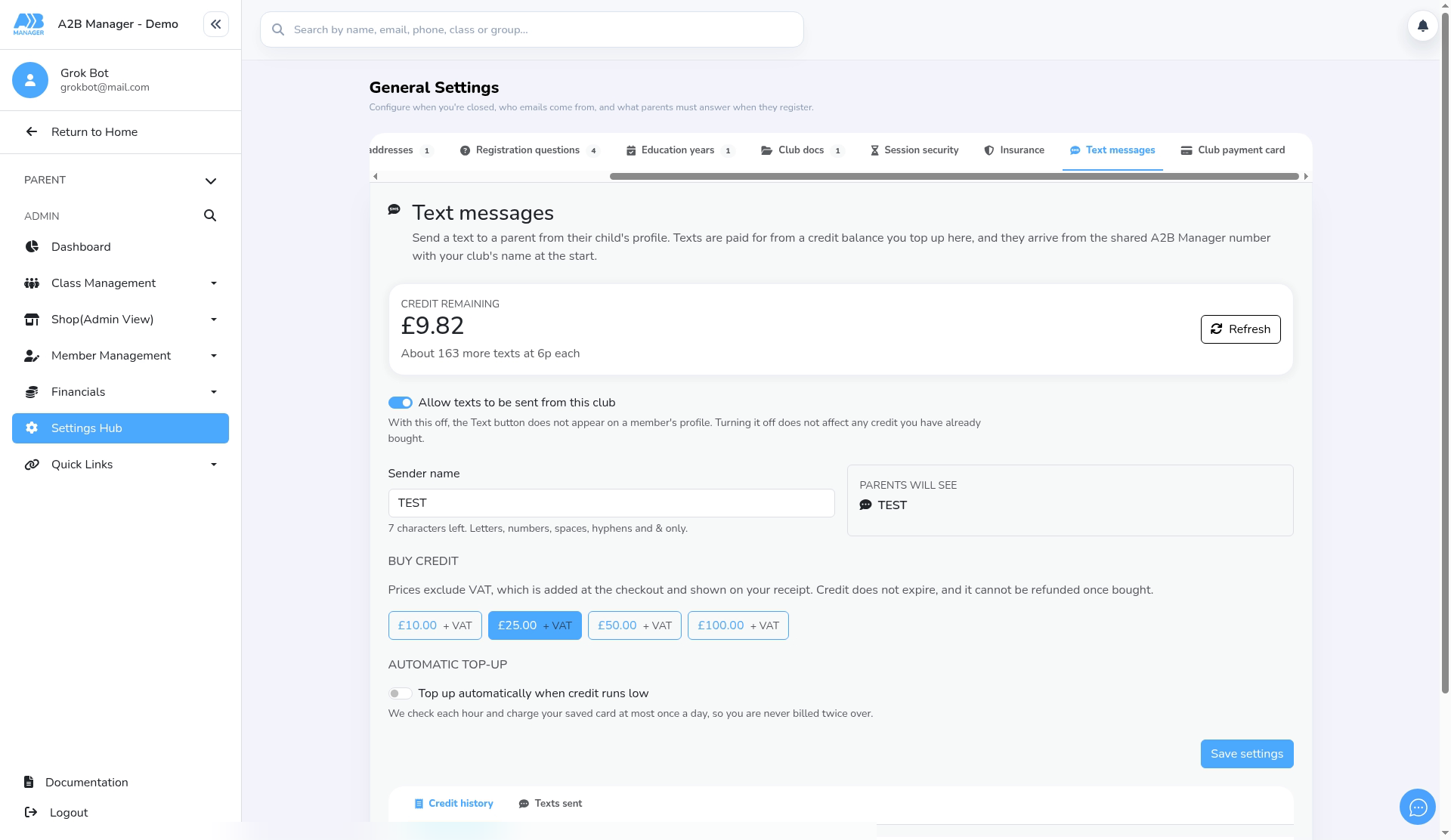
- Under Buy credit, click the amount you want: £10, £25, £50 or £100, each plus VAT. For example, £10 of credit costs £10 plus VAT.
- You pay by card at the checkout, and VAT is shown on your receipt. The credit then appears in your balance (click Refresh if it hasn’t shown yet).
- Credit doesn’t expire, but it can’t be refunded once bought.
Step 4: Automatic top-up (optional) (0:40) #
- Automatic top-up buys more credit for you when your balance runs low, so you don’t run out. Each top-up is a real charge to your saved card.
- It becomes available after your first credit purchase, which saves your card.
- To use it, switch on Top up automatically when credit runs low, choose When credit falls below (£2, £5, £10 or £20) and Top up by (£10, £25, £50 or £100, plus VAT), then click Save settings.
- The balance is checked every hour, and your card is charged at most once a day. If the card can’t be charged several times in a row, automatic top-up switches itself off until you buy credit again.
Step 5: Switch texts on and set your sender name (0:49) #
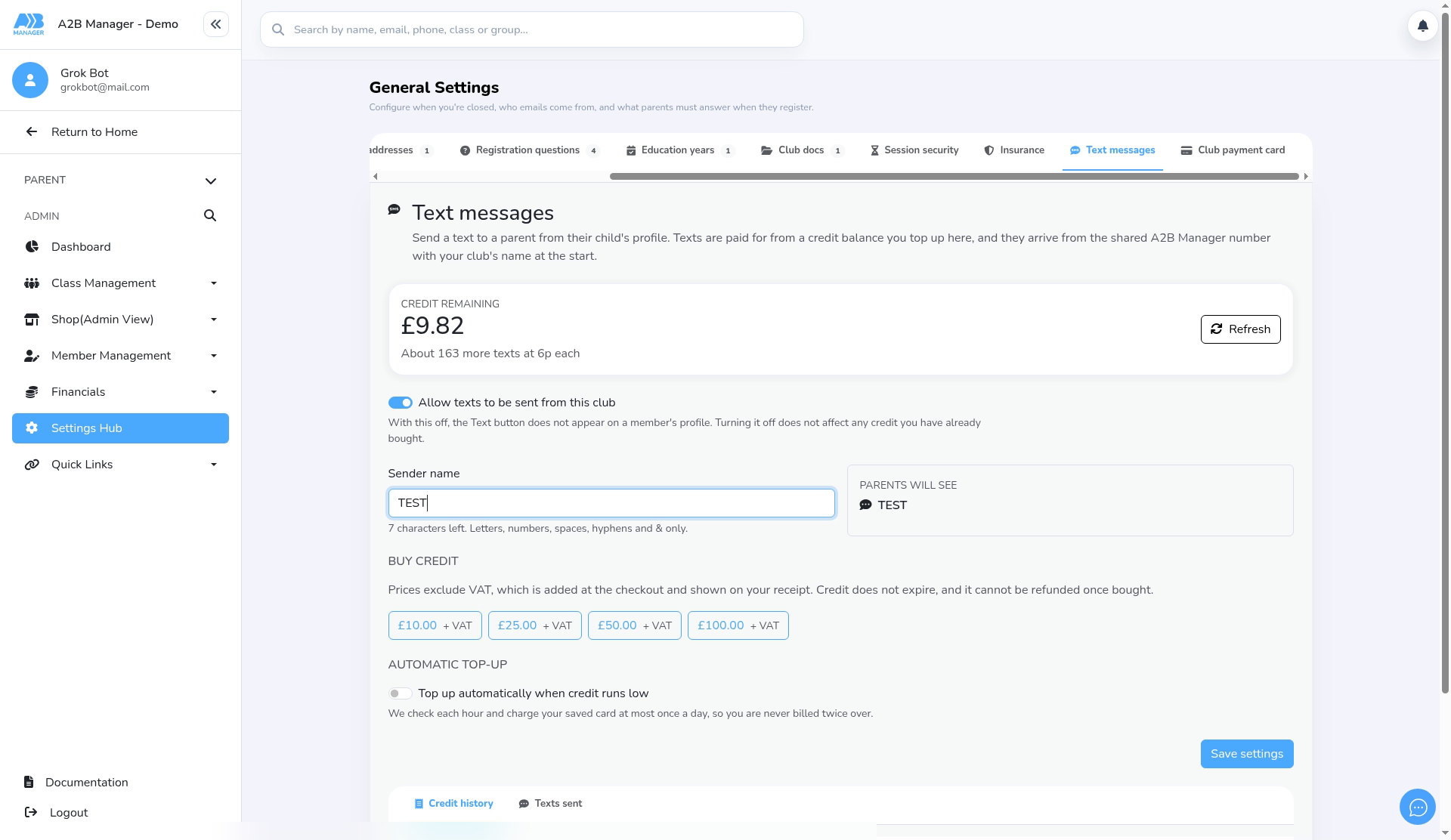
- Check that Allow texts to be sent from this club is switched on.
- Under Sender name, enter the name parents will see as the sender (up to 11 characters), then click Save settings. Parents will see previews it.
- If you leave the sender name empty, texts come from A2B Manager and your club’s name is added to the start of every text.
Step 6: Check Credit history and Texts sent (1:01) #
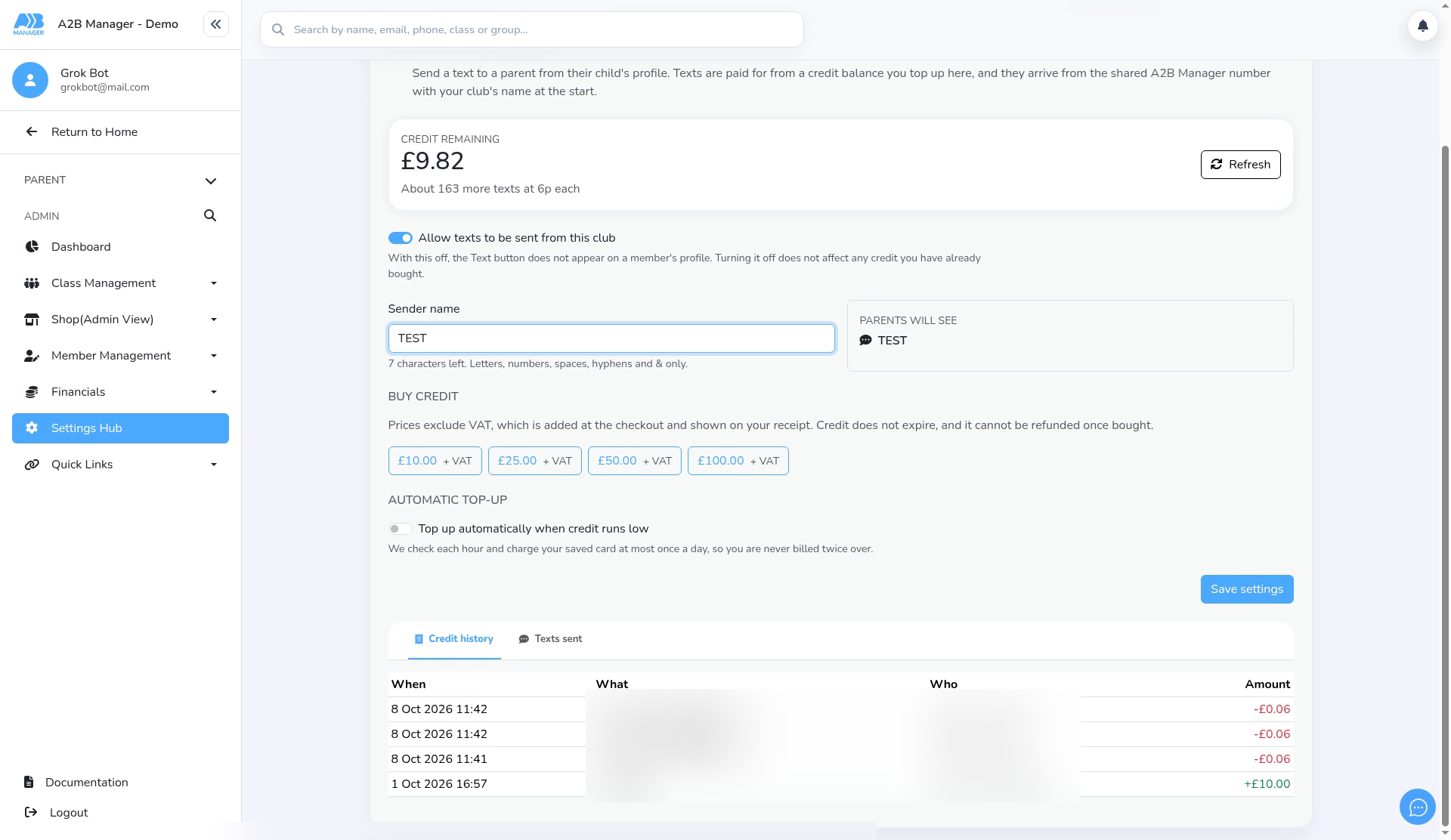
- At the bottom of the tab, Credit history lists every credit purchase and every text charged to your balance.
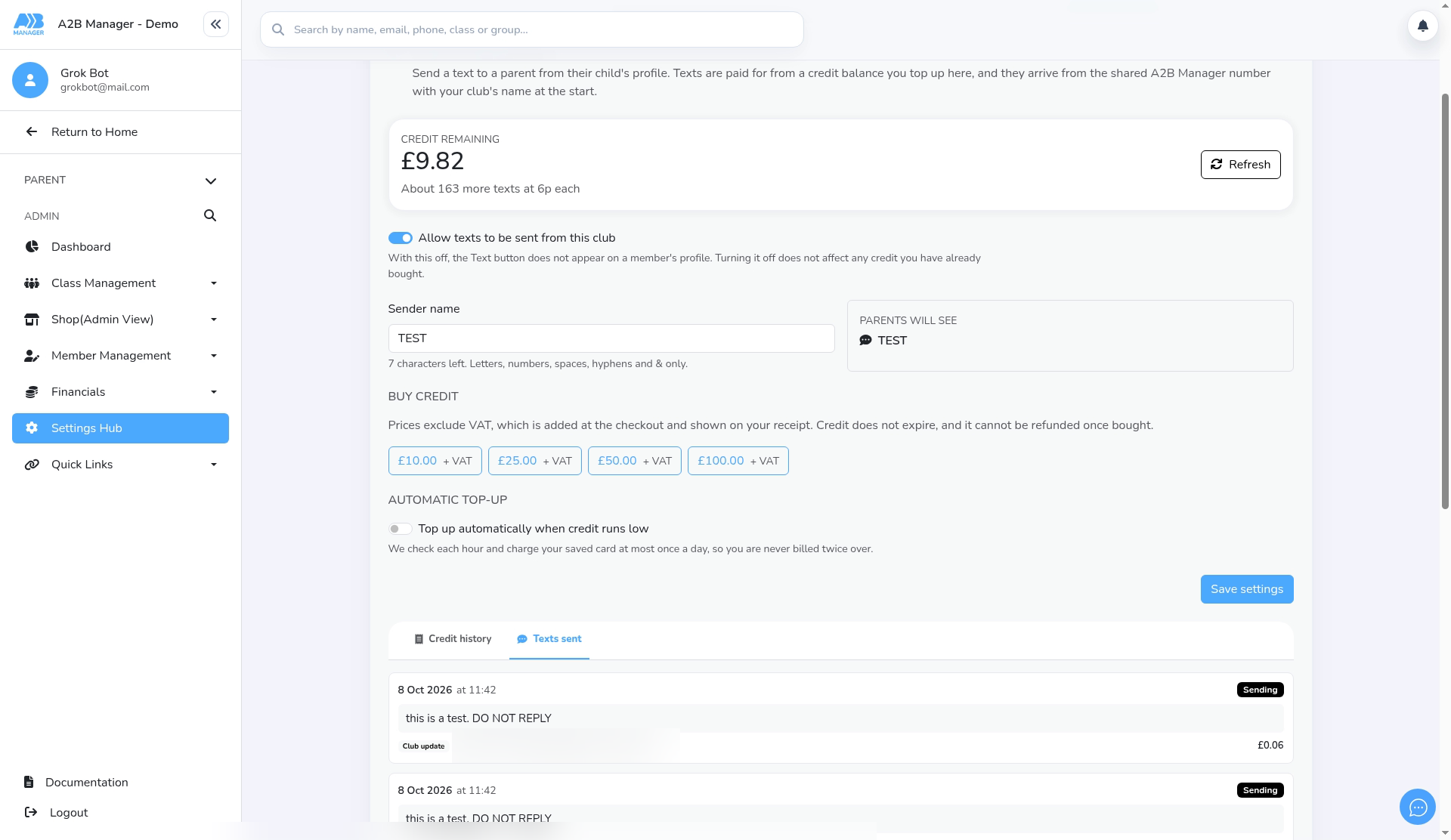
- Texts sent lists each text with its message, who it went to, what it cost and its delivery status.
Step 7: Send a text to one parent #
- Open the child’s profile. On the parent’s card, click Text. The button appears when the parent has a UK mobile number saved.
- The Send a text window opens, showing the parent’s name and number.
- Choose what the text is for: Club update (cancellations, time changes, reminders) or Marketing (open days, holiday camps, offers). See Marketing texts and opting out below.
- Type your message. The box shows the closing line that’s added for you, and your club’s name at the start if you haven’t set a sender name.
- Under the message you’ll see the character count, how many texts it uses and the cost, for example 1 text · £0.06, plus your balance and what it will be after sending.
- Click Send text. The text goes straight away, with no second check, so read it through first.
- Text sent confirms how many texts were used, what they cost and your new balance. Click Done.
Step 8: Send a text to several parents (1:14) #
- In the left-hand menu, open Class Management, click Classes and open the group.
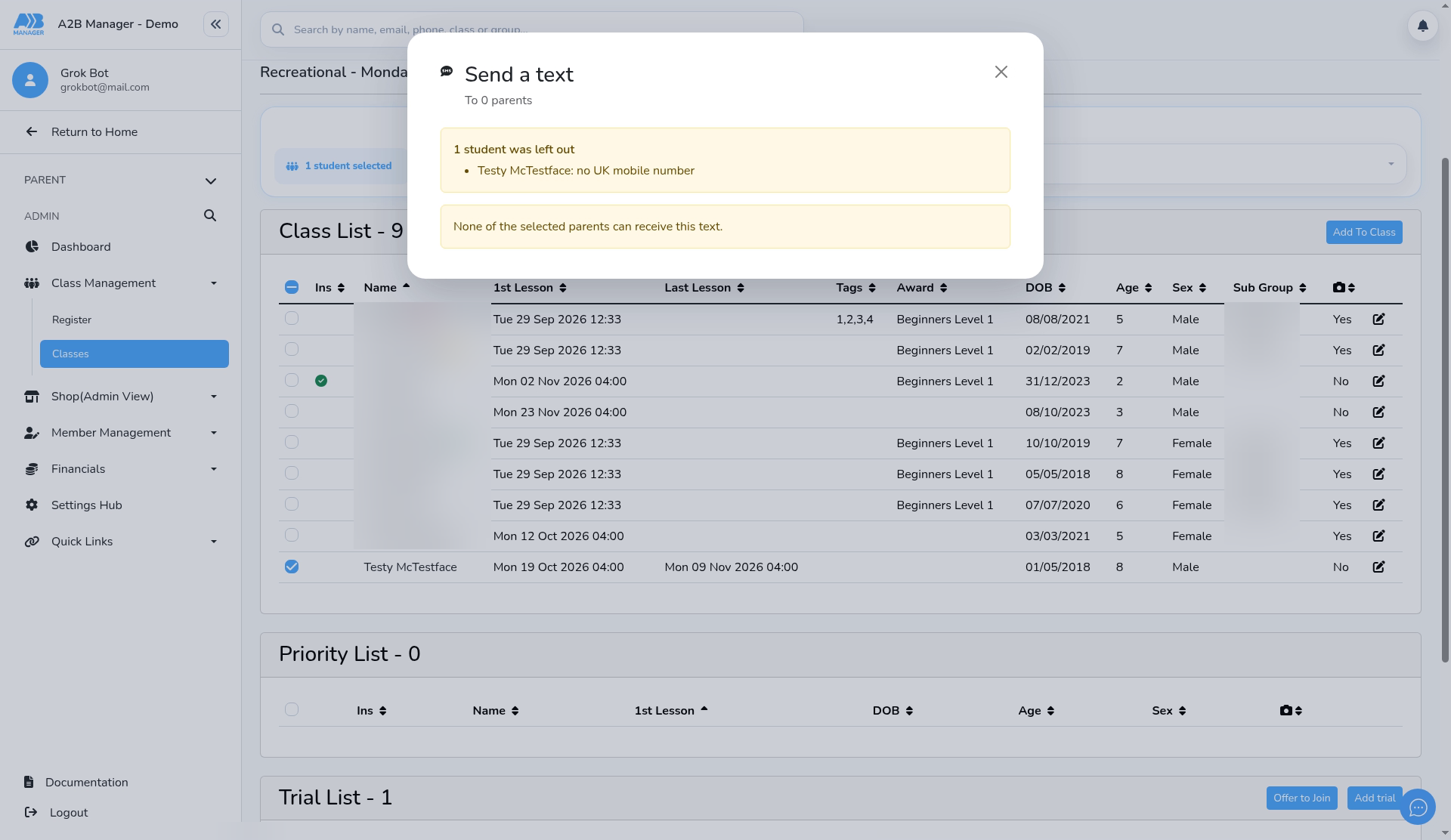
- In the class list, tick the members whose parents you want to text, then choose SMS under Action type.
- You can also text several parents from the All Students list (Action type > SMS) and from a group’s View Contacts list (the SMS button).
- The Send a text window lists anyone left out, for example a parent with no UK mobile number or one who has opted out. If several ticked members share a parent, that parent gets one text.
- Write your message as in step 7. You need enough credit for the whole batch before you can send it.
- Click Send text. As with a single text, it goes straight away. Text sent shows how many parents were texted, the cost, your new balance and any texts that couldn’t be sent.
Step 9: Check delivery (1:53) #
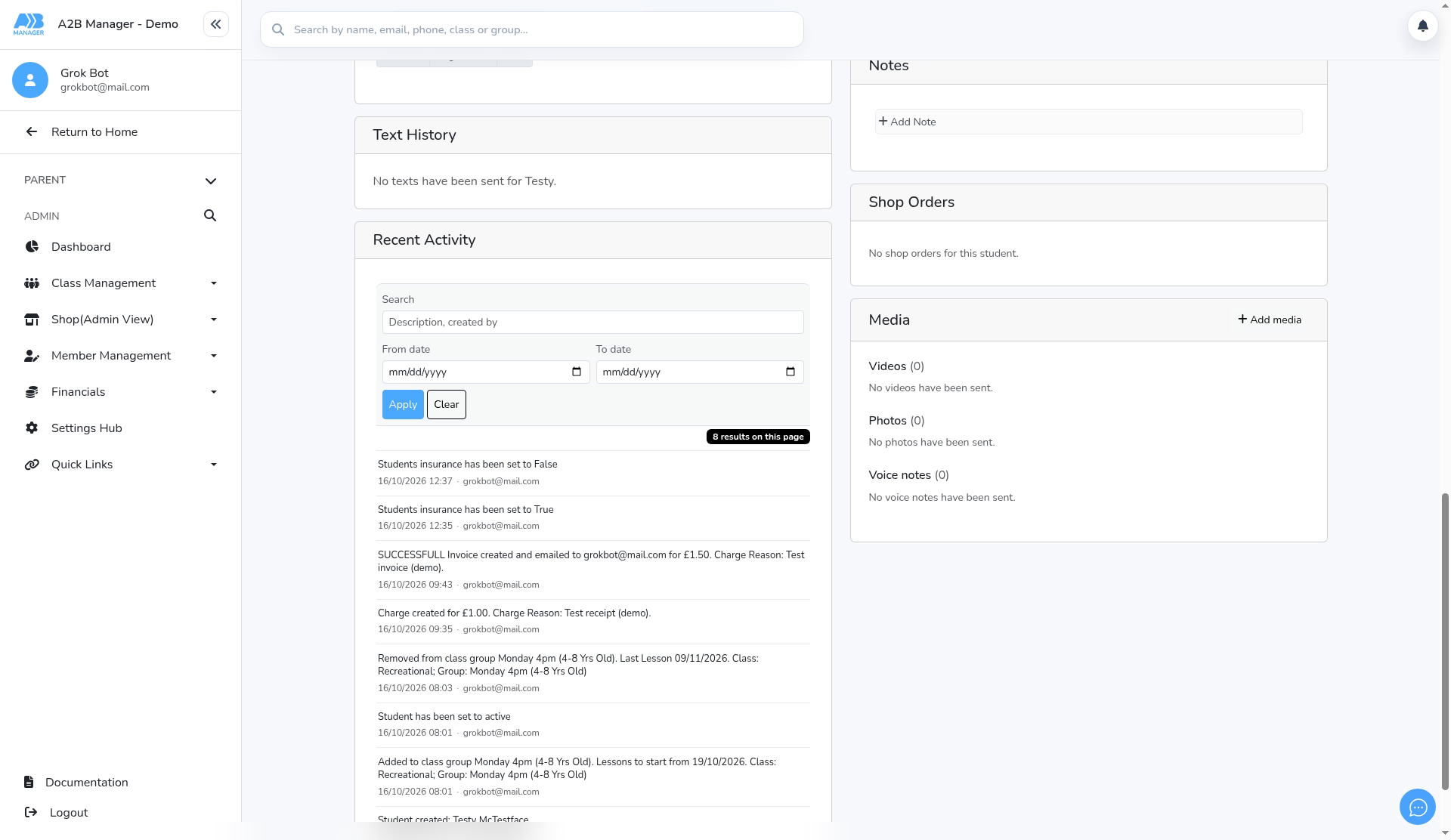
- Each child’s profile has a Text History card listing the texts sent to their parents. All your club’s texts are also listed in Settings > Text messages > Texts sent.
- Each text shows its status: Sending, Delivered, Not delivered or Rejected.
- Texts that end up Not delivered or Rejected aren’t refunded.
What a text costs #
- One text holds up to 160 characters and costs 6p. A longer message is split into several texts of up to 153 characters each, and each one costs 6p.
- Emojis and some special characters reduce each text to 70 characters (67 when the message is split). The window warns you and names the characters, so you can remove them.
- The closing line, and your club’s name at the start if you haven’t set a sender name, count towards the length.
- One message can be at most 10 texts long.
The closing line on every text #
- Every text ends with a closing line that’s added for you, because replies aren’t monitored.
- Club updates end with: DO NOT REPLY
- Marketing texts end with: Do not reply. Opt out in your A2B account.
Marketing texts and opting out #
- Club updates can go to any parent with a UK mobile number who hasn’t opted out.
- Marketing texts can only go to parents who’ve agreed to marketing texts. Parents can turn this on in their own account, or you can tick it on the member’s details if they’ve told you they’re happy to receive them.
- To stop texting a parent, click Never text this parent in the Send a text window. To undo it, open the window again and click Allow texts again.
Good to know #
- Texts can only be sent to UK mobile numbers.
- If you switch Allow texts to be sent from this club off, the Text button still shows on profiles. Clicking it tells you that texting is switched off for your club.
- Switching texts off doesn’t affect the credit you’ve already bought.
- There are no text templates and no scheduled texts. Each text is written and sent there and then.
- Replies to texts aren’t monitored, which is why every text ends with a closing line.
Tip: Keep messages short and avoid emojis. A message that fits in one text costs 6p per parent.
FAQs #
- Why can’t I see the Text button? The parent doesn’t have a UK mobile number saved. Add one to their details.
- How much does a text cost? 6p per text, taken from your credit balance. Longer messages and emojis can use more than one text.
- Can I get a refund for a text that wasn’t delivered? No. Texts that end up Not delivered or Rejected aren’t refunded, and bought credit can’t be refunded either.
- Can I schedule a text or save a template? Not at the moment. Texts are sent as soon as you click Send text.


