

Table of Contents
A multi-event class holds one-off dated events, such as holiday camps or competitions, that parents book and pay for per session. The structure is: Class, then a Multi Event group, then the events. Each event has its own date, time, capacity and price.
Setting up the class and group #
Step 1: Open the group settings (0:00) #
- Go to Settings Hub > Add/Edit Classes. To start from scratch, click New Class and fill in the class details (Category, Class Name, Class Icon, Short Description, Notes, Status, Visibility).
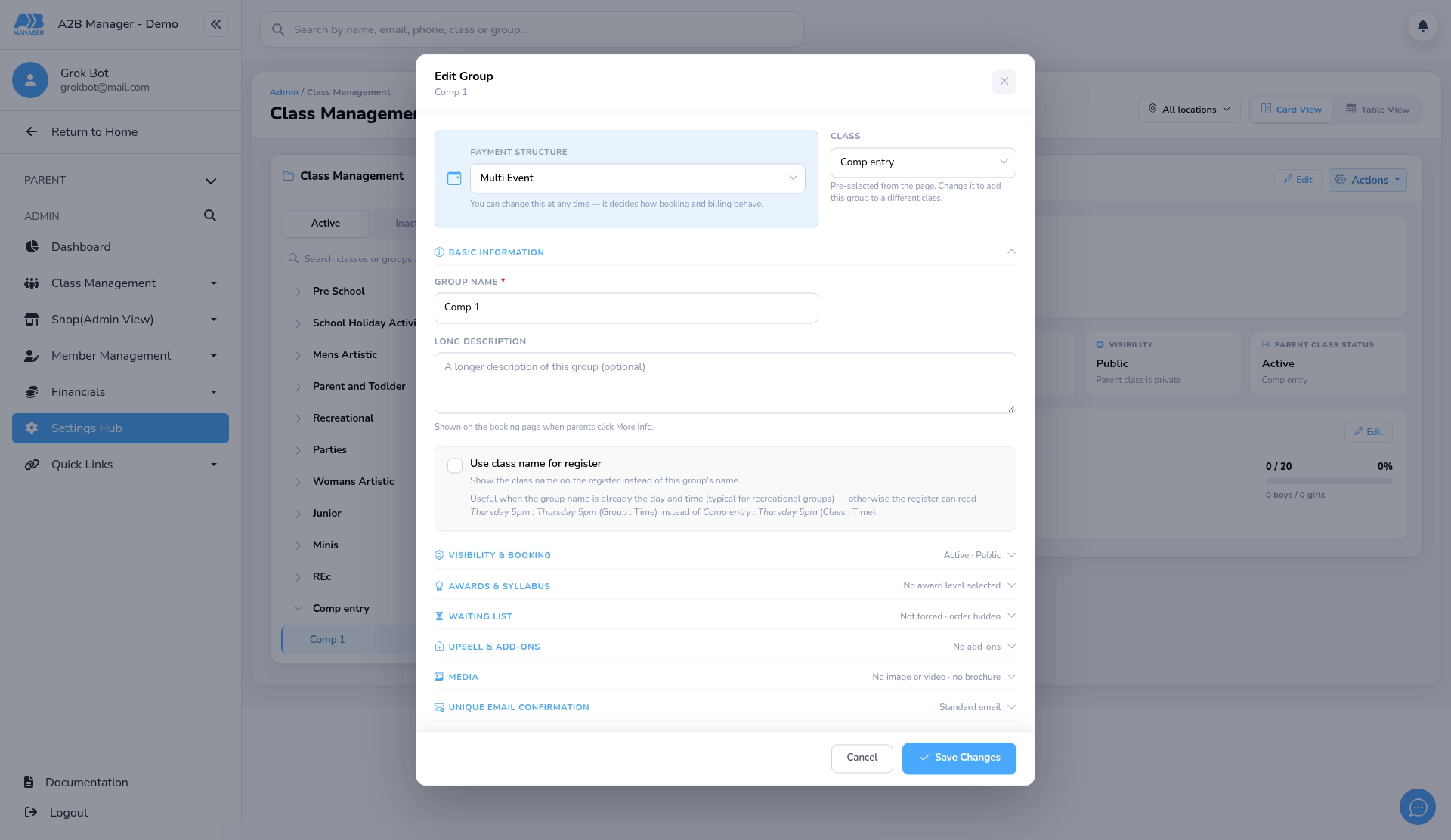
- To add a group, click + next to the class and choose Multi Event. To change an existing group, open it and click Edit group.
- Check Payment Structure is Multi Event, then fill in the Group Name, Long Description, Status and Visibility. Choose Private while you’re building it.
- Further down you’ll find the waiting list options, shop items to offer, Media (a group image or YouTube video), Group Brochure (PDF) and a Unique email confirmation.
- There’s no price on the group. Each event has its own price.
Step 2: Open Class Events (0:47) #
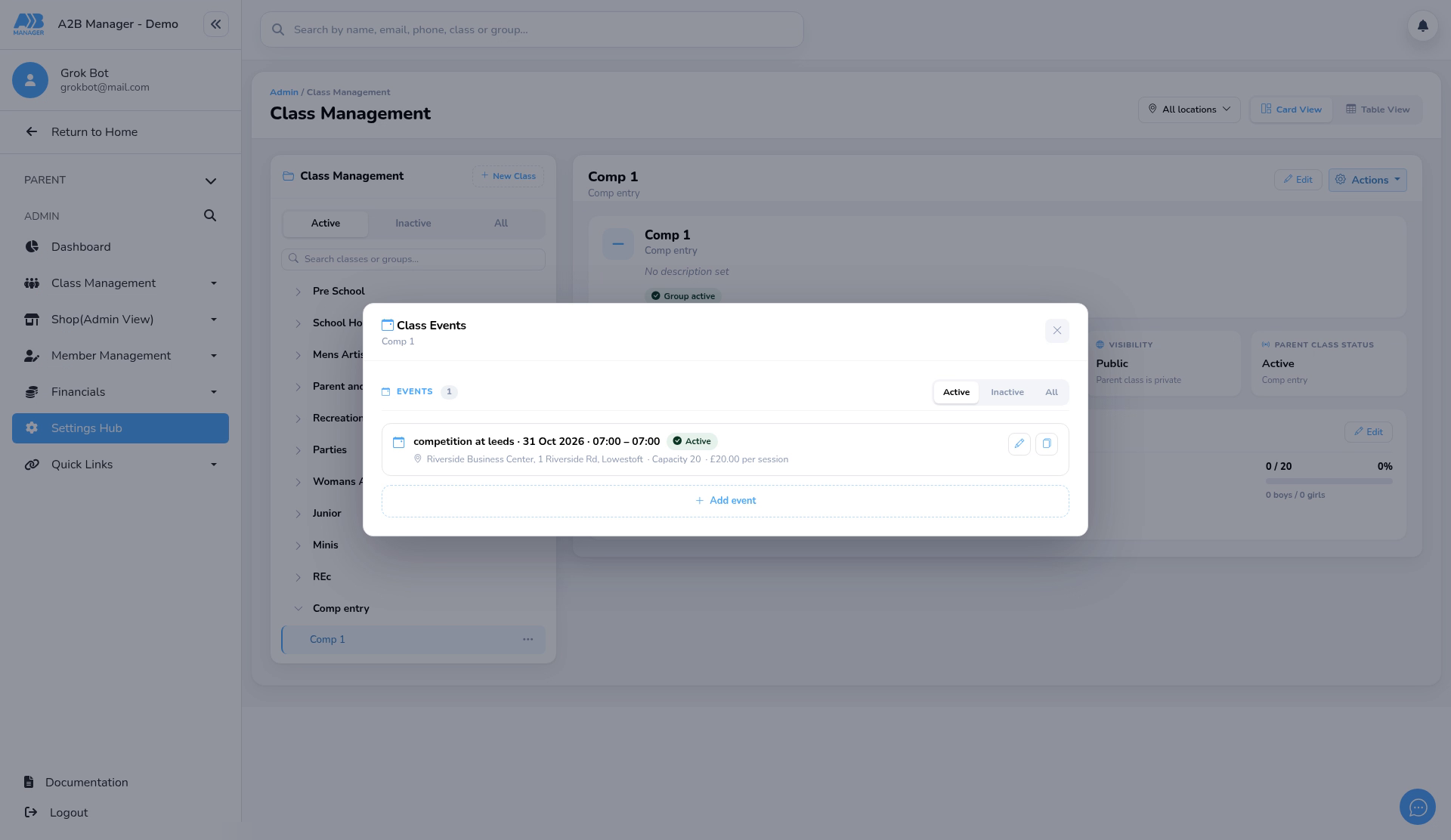
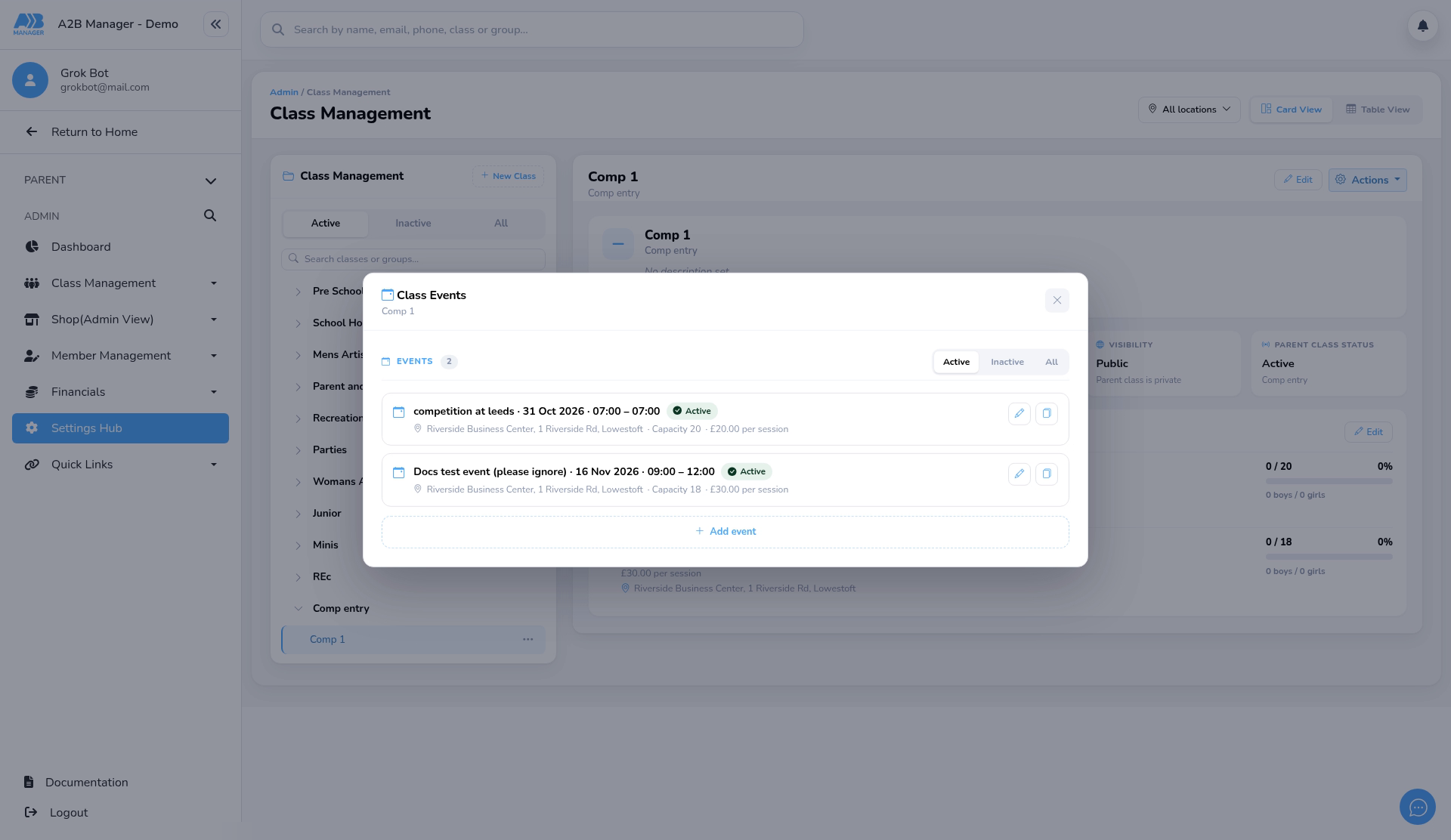
- On the group page, find the Events card and click Edit. The Class Events window opens, listing the group’s events.
Step 3: Add an event (1:01) #
- Click + Add event.
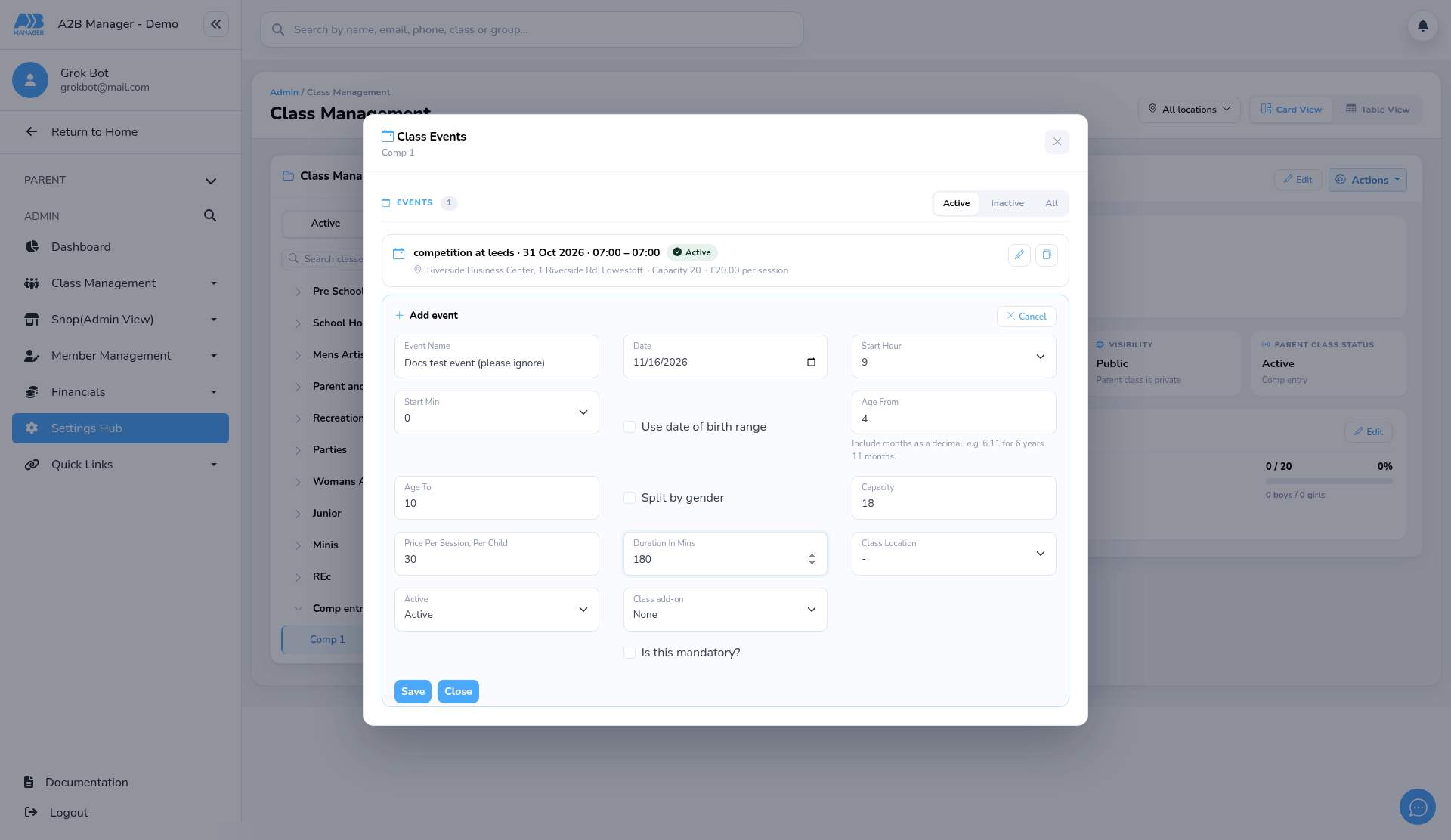
- Enter the Event Name, Date, Start Hour and Start Min.
- Set the age range with Age From and Age To, or tick Use date of birth range.
- Enter the Capacity. You can tick Split by gender to set places for boys and girls.
- Enter the Price Per Session, Per Child and the Duration In Mins.
- Leave Active set to Active. A Class add-on is optional.
Step 4: Choose a location and save (1:38) #
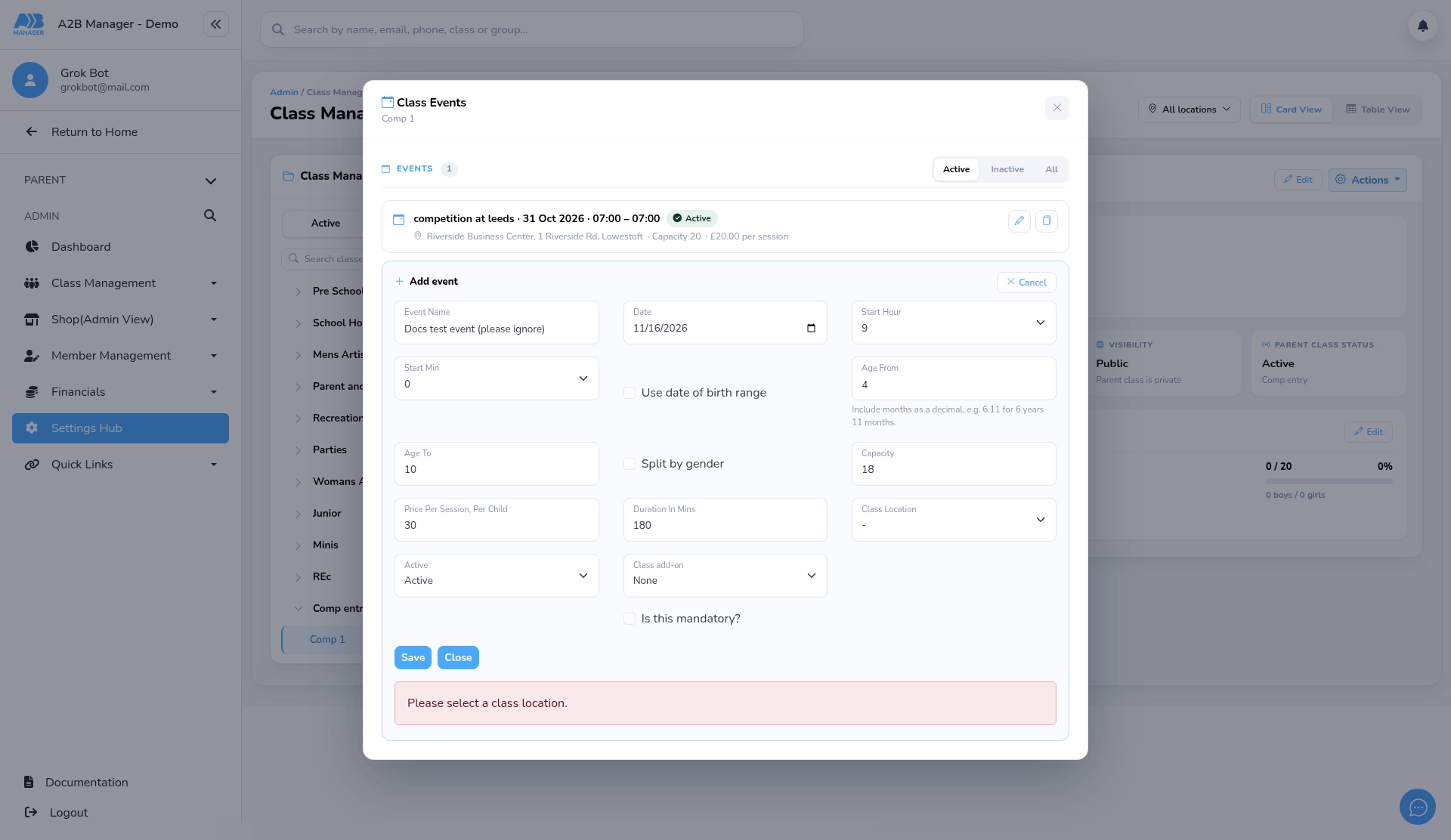
- Choose the Class Location. It’s required: without it, saving shows Please select a class location.
- Click Save.
Step 5: Check the event (1:58) #
- The event appears in the Class Events list with its date, times and price.
- To add another event, click + Add event again, or use Duplicate on an event and change the date.
Step 6: Make an event inactive (2:08) #
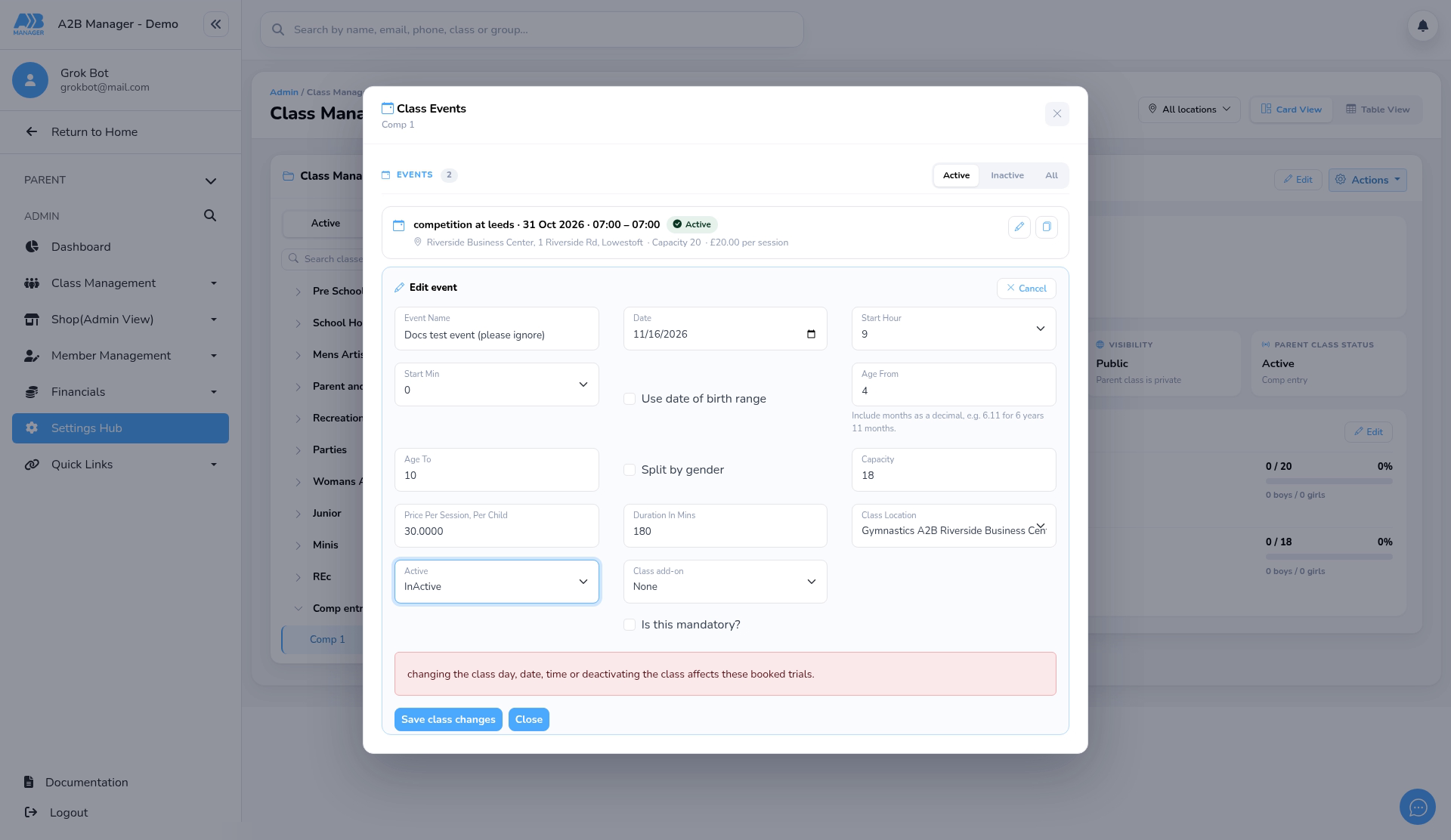
- Events can’t be deleted. To stop one being booked, click Edit on it, set Active to InActive and click Save.
- If anyone has booked a trial, you’ll see a warning. Click Save class changes to go ahead.
Good to know #
- Classes, groups and events can’t be deleted, only made inactive.
- Keep the group Private until all events are ready, then set it to Public.
- Before changing a group’s payment structure once it has bookings, check with your team how it will affect those bookings.
Tip: Running several camp days? Set up one event, then use Duplicate and change the date for each extra day.
FAQs #
- Where do I set the price? On each event, in Price Per Session, Per Child.
- Why won’t my event save? Check you’ve chosen a Class Location.
- How do I remove an event? Set it to InActive.


