

Table of Contents
- Before you start
- Using Subscription Analytics
- Step 1: Open Subscription Analytics (0:00)
- Step 2: Read the main metrics (0:15)
- Step 3: Check Retention (and cancel before first session) (0:50)
- Step 4: Set the date range and filters (1:11)
- Step 5: Drill down the hierarchy (1:28)
- Step 6: Export the table (1:43)
- Step 7: How the monthly staff email works (1:54)
- Step 8: Set the staff email address (2:17)
- Step 9: Email a past month from the page (2:05)
- Counting manual adds and removals
- Good to know
- FAQs
Subscription Analytics shows how your recurring subscription classes are doing: active members, new joiners, direct signups, trial conversions, cancellations, retention, attrition, growth and capacity. Club admins can also email staff a monthly spreadsheet and a short PDF glance. Parents never receive that email. Only club admins can open this page. New members and cancellations only count paid class-page bookings (or admin adds with Count on analytics ticked) and recorded leavers.
Before you start #
- You need to be a club admin.
- You need at least one recurring subscription class or group.
- For the monthly email (or to use Send on the page), open Settings Hub > Communication > Email Template Builder > Analytics > Subscription Analytics, turn the template Active, and set a Staff email address.
- The automated email runs at 06:00 UK on the 1st of each month and covers the previous calendar month.
Using Subscription Analytics #
Step 1: Open Subscription Analytics (0:00) #
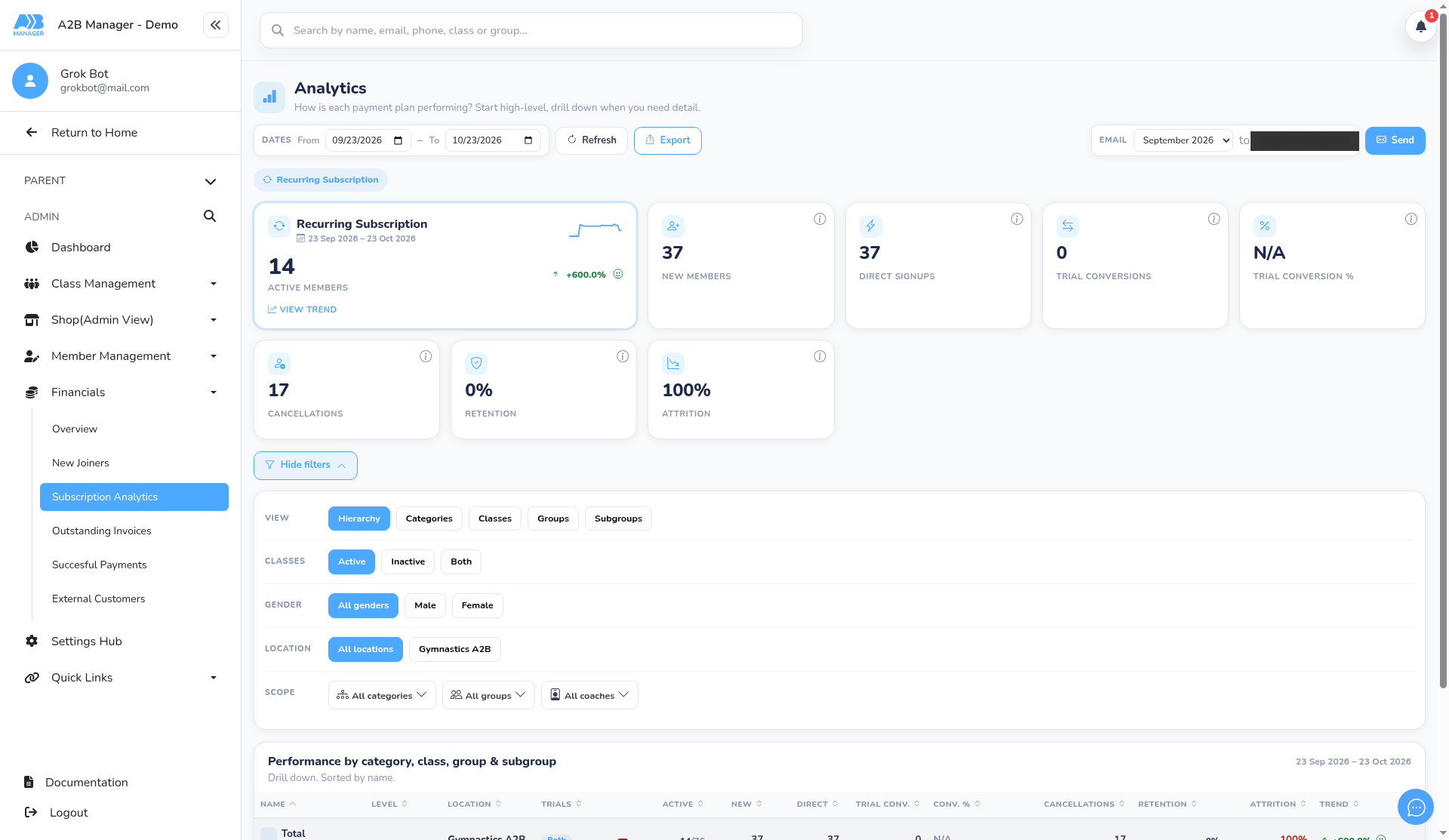
- In the left-hand menu, click Financials, then Subscription Analytics.
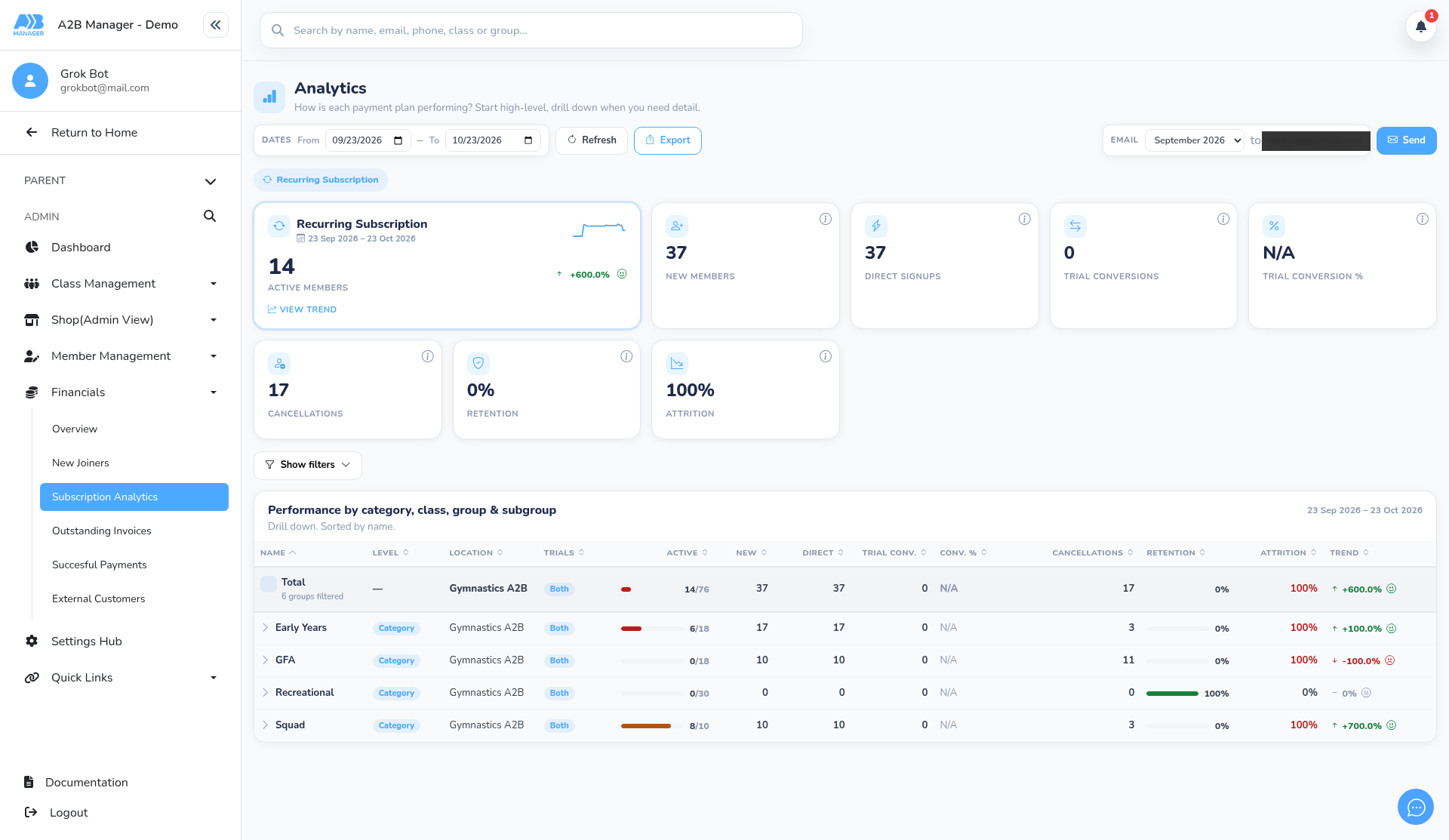
- The page is headed Analytics, with the subtitle How is each payment plan performing? Start high-level, drill down when you need detail.
- The chip Recurring Subscription shows that this report is for recurring subscription classes only.
Step 2: Read the main metrics (0:15) #
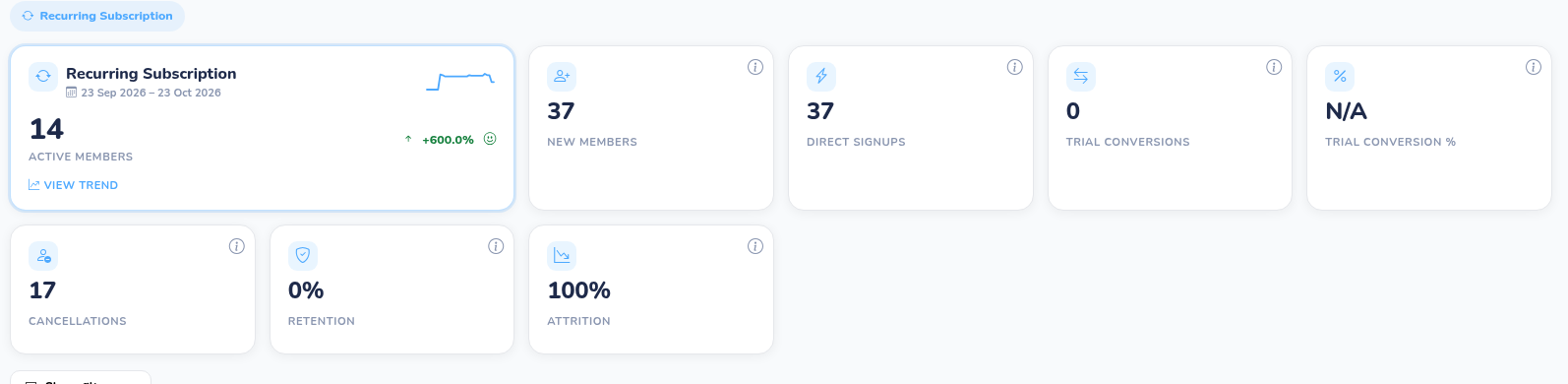
- Across the top you’ll see Active members (with View trend), New members, Direct signups, Trial conversions, Trial conversion %, Cancellations, Retention and Attrition.
- Each metric has a What does … mean? info control. Open it for a short What it means and What to aim for note.
- Active members — how many members are enrolled on the end date of your date range.
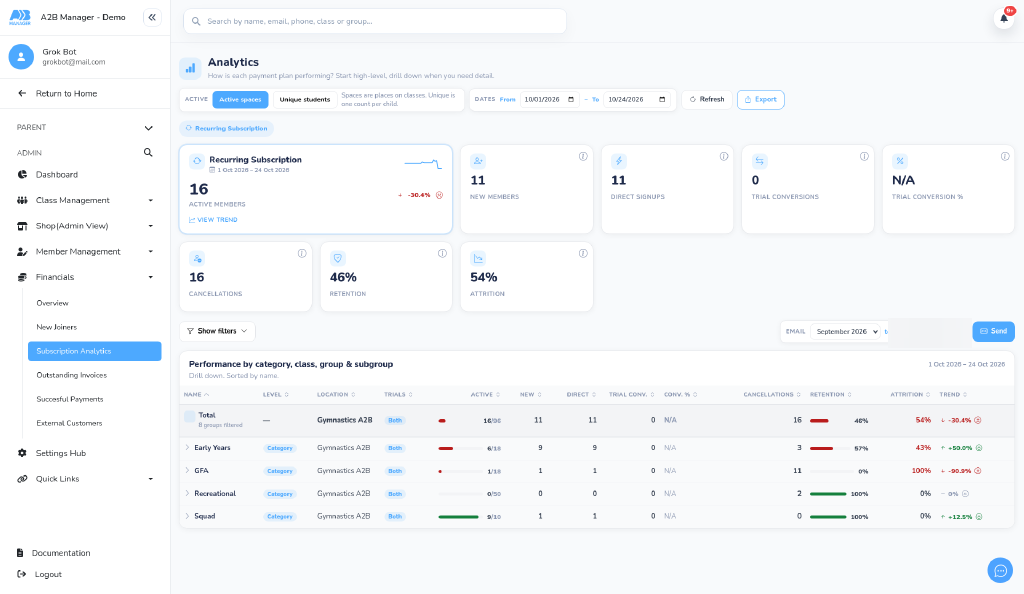
- You can switch the active count between Active spaces (each class place) and Unique students (each child once). A child in two classes counts as 2 spaces and 1 unique student. The default is Active spaces.
- Use the pill toggle beside the date range: Active spaces | Unique students. The bar tooltip reads Spaces count each class place. Unique students count each child once. Helper text: Spaces are places on classes. Unique is one count per child.
- When Unique students is selected, the main active metric is labelled Unique students instead of Active members, and the table uses the unique-student active figures.
- New members — Direct signups and trial conversions whose first lesson is in the dates you picked. A paid class-page booking counts. A child you add yourself counts when Count on analytics is ticked. Moving someone without that tick does not count.
- Direct signups — parents who booked on the class page, chose Subscription, paid, and had not booked a trial for that class — or an admin add with Count on analytics and Direct signup chosen. The first lesson is in the dates you picked.
- Trial conversions and Trial conversion % — parents who booked a trial for that class, then booked and paid — or an admin add with Count on analytics and Trial conversion chosen. The first lesson is in the dates you picked. % is conversions as a share of trials in the range (or N/A if none).
- If a child did a free trial on one class row and later took a paid place on a different class row for the same child and group, that still counts as a Trial conversion when it is a paid class-page booking (or Count on analytics Trial conversion).
- Cancellations — places whose last lesson is in these dates after a cancellation request was confirmed, Schedule to leave was used with Add to cancellation numbers turned on, or a class was removed from the student page and counted as a cancellation.
- In the table, Active can show fill against capacity. When you filter by subgroup, coach or gender, a subgroup keeps its share of the group’s capacity (capacity is split across subgroups).
- The table is headed Performance by category, class, group & subgroup, with columns including Name, Level, Location, Trials, Active, New, Direct, Trial conv., Cancellations and Retention.
Step 3: Check Retention (and cancel before first session) (0:50) #
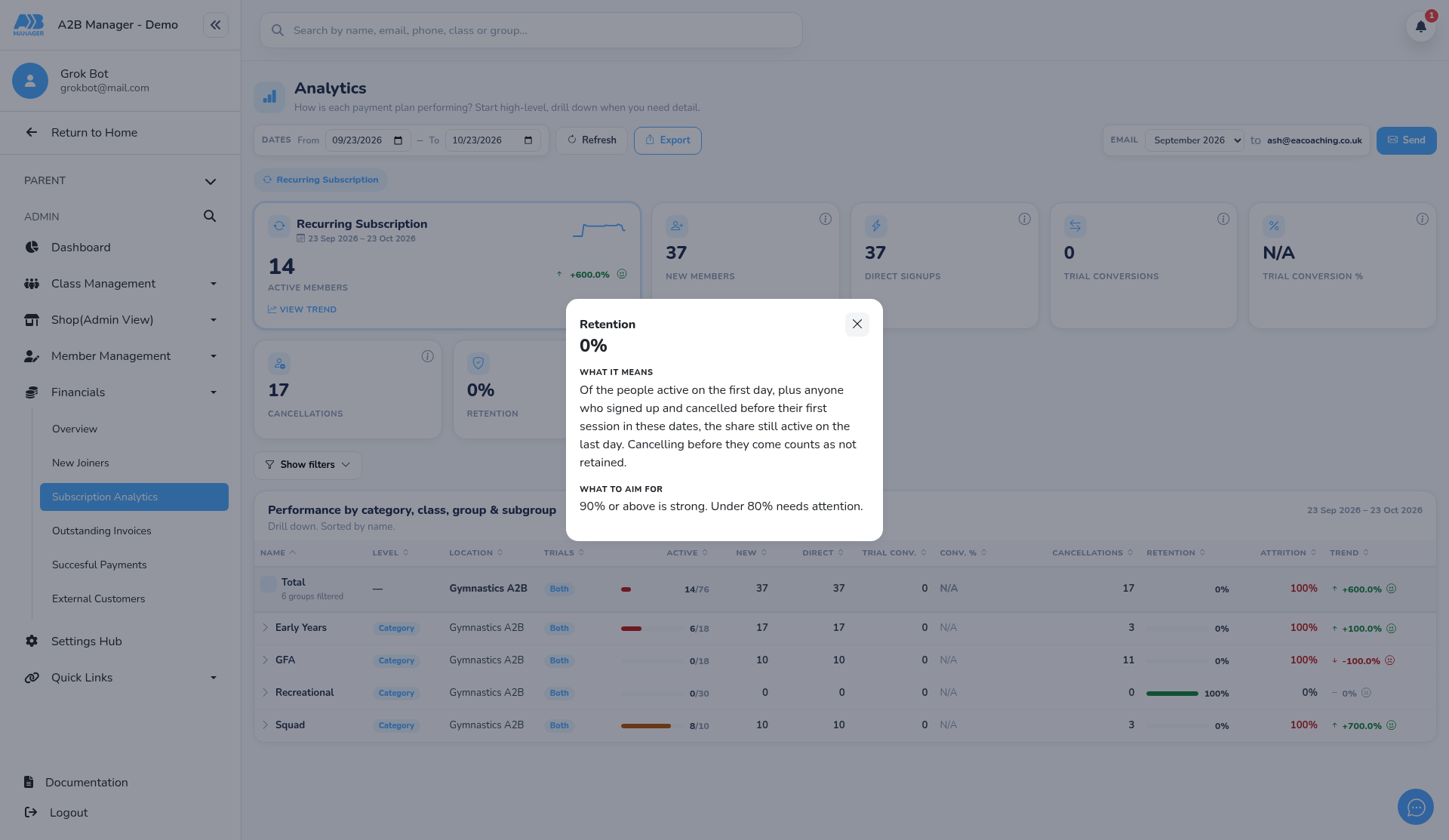
- Open the info control on Retention.
- What it means: Of the people active on the first day, plus anyone who signed up and cancelled before their first session in these dates, the share still active on the last day. Cancelling before they come counts as not retained.
- So if someone cancels before their first session or attendance, Retention treats that as 0% retained for them — not 100%.
- What to aim for: 90% or above is strong. Under 80% needs attention.
- Attrition is 100% minus Retention (aim under about 10% as a healthy guide on the page).
Step 4: Set the date range and filters (1:11) #
- At the top, set From and To. By default this is about the last month up to today. Click Refresh to reload the latest data.
- Beside the dates, the Active spaces / Unique students pills switch how active counts are shown (see Step 2).
- Use Show filters / Hide filters (a badge shows how many filters are active).
- View — Hierarchy (default), Categories, Classes, Groups or Subgroups.
- Classes — Active, Inactive or Both.
- Gender — All genders, Male or Female.
- Location — All locations or a named site (and Multi Location where a group uses more than one).
- Narrow further by category, group or coach scope.
- If nothing matches, you’ll see No recurring subscription classes match these filters.
Step 5: Drill down the hierarchy (1:28) #
- In Hierarchy view the table runs Total → Category → Class → Group → Subgroup. A subgroup is a coach slot; members with no coach show as Unassigned.
- Click the chevron on a row to expand or collapse its children. The Total row is always there.
- Groups are listed Monday to Sunday by their earliest session time, then by name.
- Click a column heading to sort.
Step 6: Export the table (1:43) #
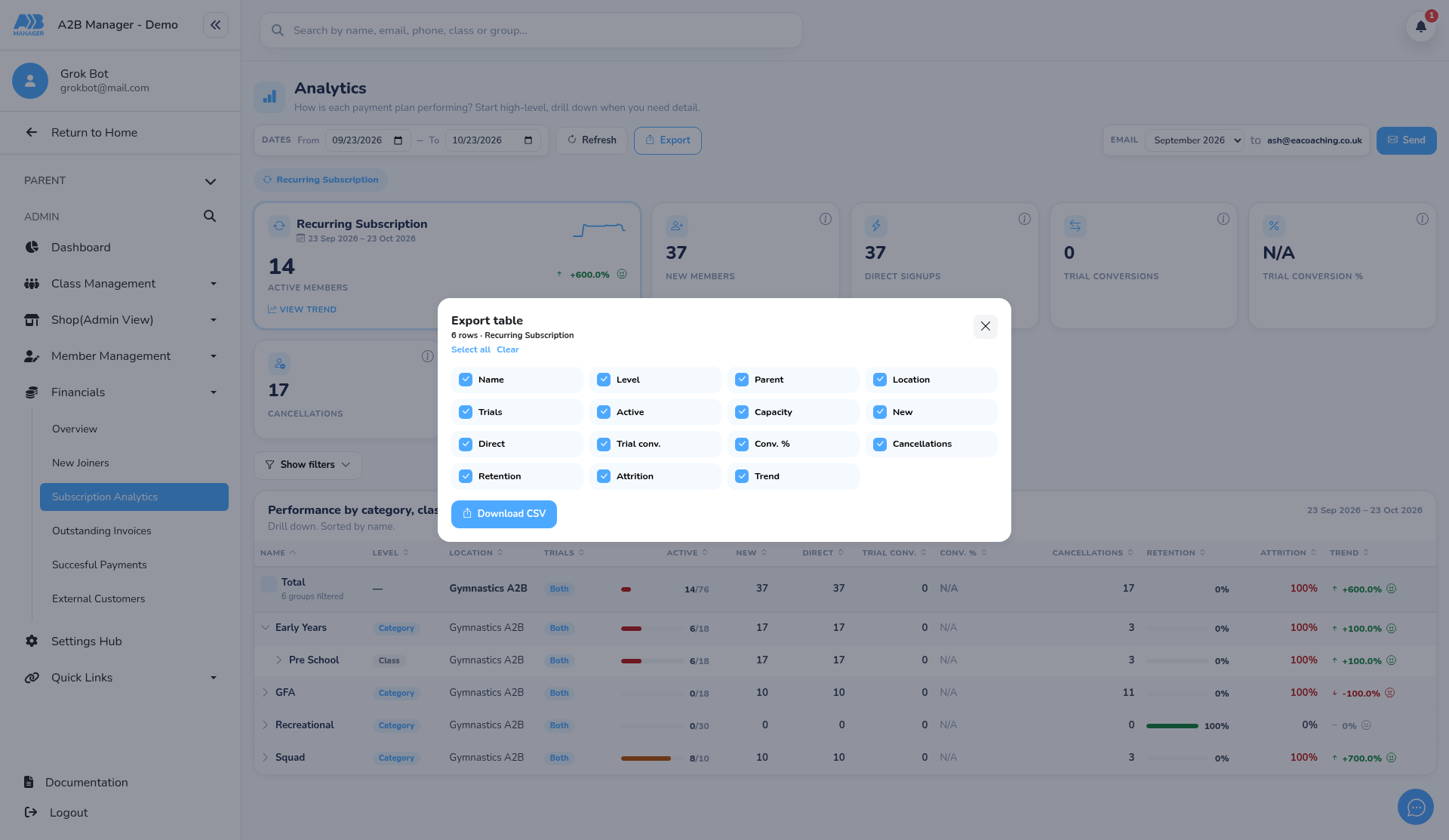
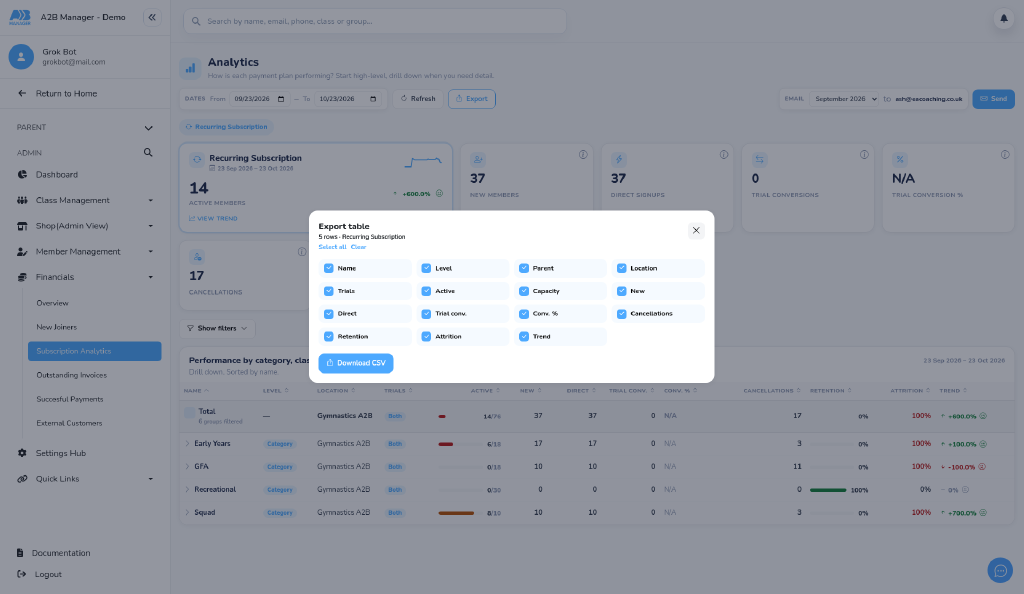
- Click Export to open Export table.
- The file covers the rows currently on screen (your view, filters and expand state).
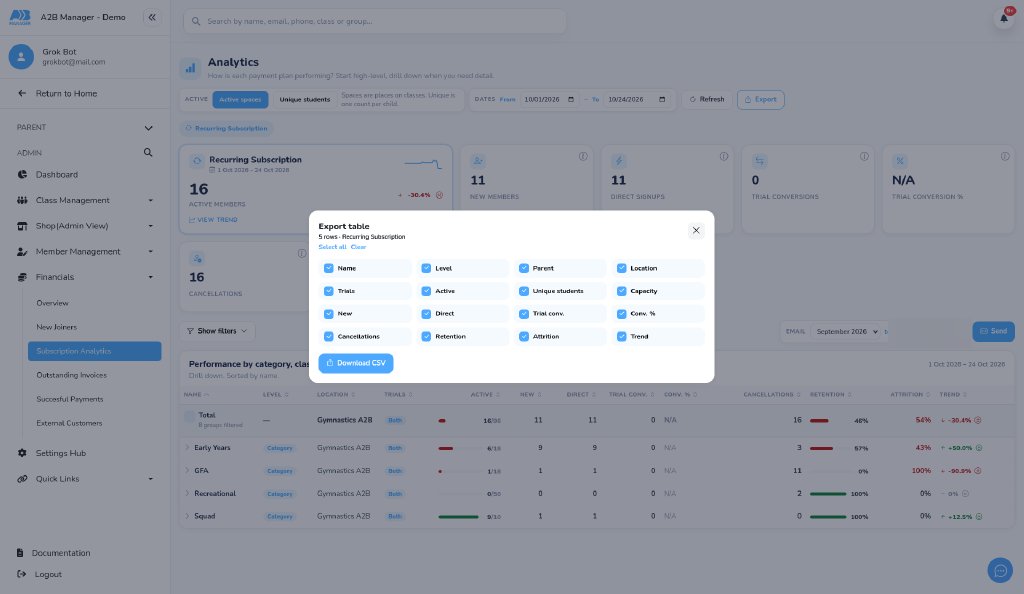
- Tick the columns you want. The list includes both Active and Unique students — both are selected by default when you open Export, so the download can include both counts.
- Typical columns: Name, Level, Parent, Location, Trials, Active, Unique students, Capacity, New, Direct, Trial conv., Conv. %, Cancellations, Retention, Attrition and Trend.
Step 7: How the monthly staff email works (1:54) #
- On the 1st of each month at 06:00 UK, A2B Manager emails the previous calendar month to the staff address on your Subscription Analytics template.
- Parents never receive this email. It only goes to the staff address you set.
- The email attaches a full spreadsheet of the hierarchy and a short PDF called Subscription analytics glance.
- The PDF opens with a bottom-line summary and a club snapshot, then categories and classes, groups to watch, coaches (including Unassigned), and suggested next steps.
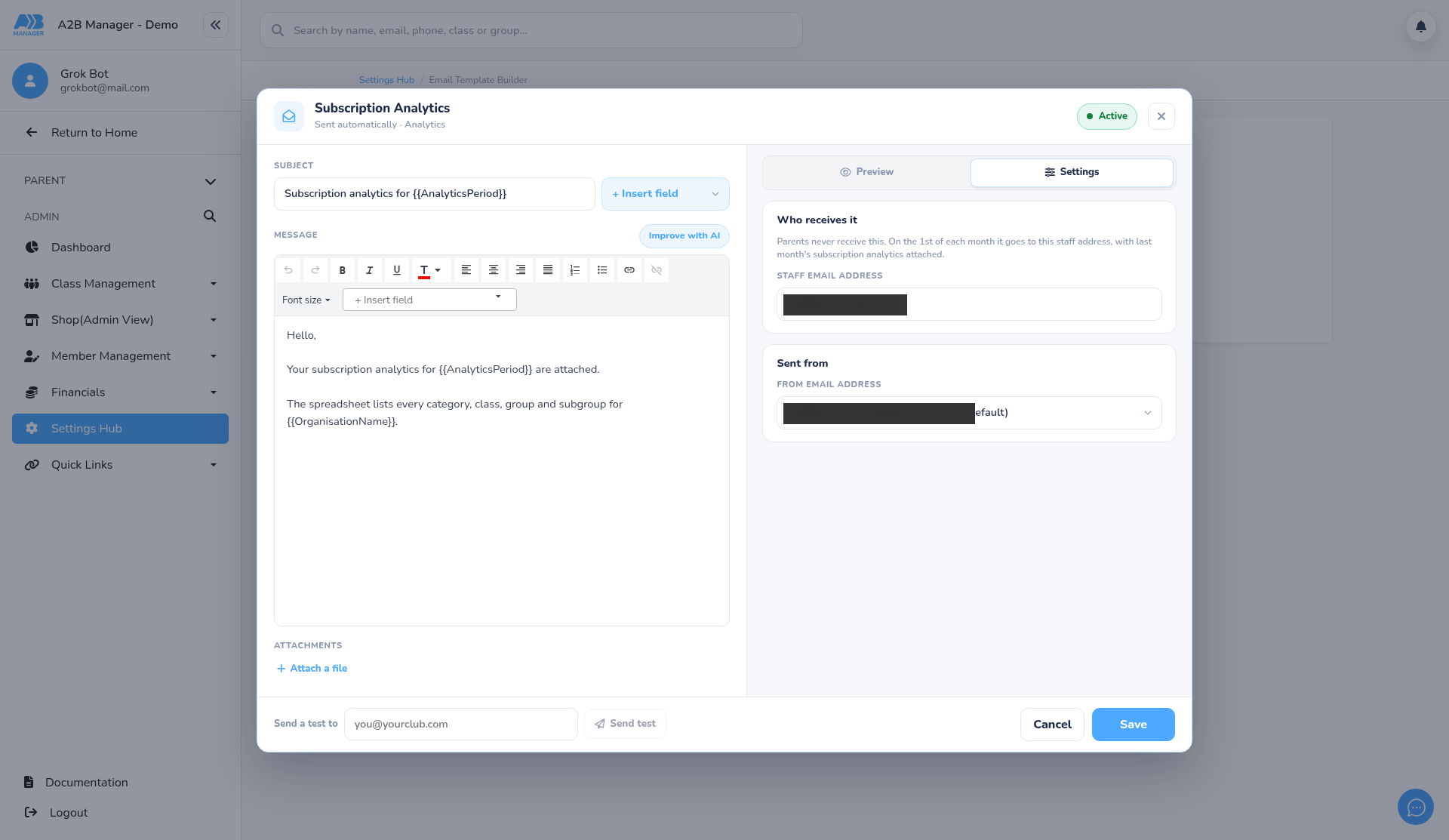
- The default subject pattern is Subscription analytics for {{AnalyticsPeriod}}. Useful tags include {{AnalyticsPeriod}} and {{OrganisationName}}.
- Each full month is only sent once for that period once the send has completed successfully.
- The club snapshot on the glance PDF can mention unique students in the totals where that figure is shown.
Step 8: Set the staff email address (2:17) #
- Go to Settings Hub > Communication > Email Template Builder.
- Open the Analytics category, then Subscription Analytics.
- On the Settings tab under Who receives it, enter the Staff email address.
- The page reminds you: parents never receive this; on the 1st of each month it goes to this staff address, with last month’s subscription analytics attached.
- Turn the template Active. The monthly report is not sent until the template is on and a staff address is filled in.
Step 9: Email a past month from the page (2:05) #
- On Subscription Analytics, the Email strip sits beside the dates toolbar.
- Choose a Month to email from the list (the last 12 months, including the current month). The default is the previous month.
- The strip shows the staff address from your template (or that no staff address is set yet).
- Send emails that month’s spreadsheet and PDF glance to the staff address when the template is Active and an address is set. Parents never receive it.
- Only use Send when you intend to email your club’s staff for that month. If the staff address isn’t set, add it on the template first (Step 8) — the page will tell you if the template is missing, inactive, or has no staff address.
- If you choose the current (in-progress) month, the report runs up to today.

Counting manual adds and removals #
- When you add a child to a class from their profile, tick Count on analytics and choose Direct signup or Trial conversion if they should count — dated by their first lesson. See the add-a-member-to-a-class guide.
- When you remove a class from the student page, the app asks Count as a cancellation on analytics? Choose Yes or No. See the delete-class-sessions guide.
- Manual moves without the tick, and removals that are not counted as cancellations, do not change New members or Cancellations.
Good to know #
- Active spaces counts each class place; Unique students counts each child once. The download can include both columns.
- This page covers recurring subscription classes only — not PAYG or one-off bookings.
- Cancelling before the first session counts as not retained (Retention 0% for that person in the cohort), matching the Retention info text on the page.
- A free-trial-to-paid path that uses two different class rows for the same child and group still counts as Trial conversion, not Direct.
- The automated email and the on-page Send both use the same staff template, spreadsheet and PDF glance.
- Filtering to one coach or subgroup keeps that slot’s share of group capacity; it does not reallocate the whole group’s places to the filtered row.
- If you don’t see the Subscription Analytics template yet, add it under Analytics in the Email Template Builder (or generate default templates if your club is new).
Tip: Put a shared office or treasurer address on the template if more than one person needs the monthly pack — parents will never be emailed this report by mistake.
FAQs #
- Why did New members or Cancellations change after the update? Manual adds without Count on analytics, and removals that were not recorded as cancellations, no longer count.


