

Table of Contents
On Outstanding Invoices you can text selected parents a reminder that includes each invoice’s Stripe pay page and a link to their club payments page. One parent with several invoices gets one text with every pay link in it. Only club admins can use this action.
Before you start #
- You need to be a club admin.
- SMS must be turned on with credit available. Open Settings Hub > Settings > Text messages. See also How to Set Up and Send SMS Text Messages.
- Parents need a UK mobile on a child that can receive the text.
- Important: Send text sends a real SMS and spends credit.
Texting outstanding invoices #
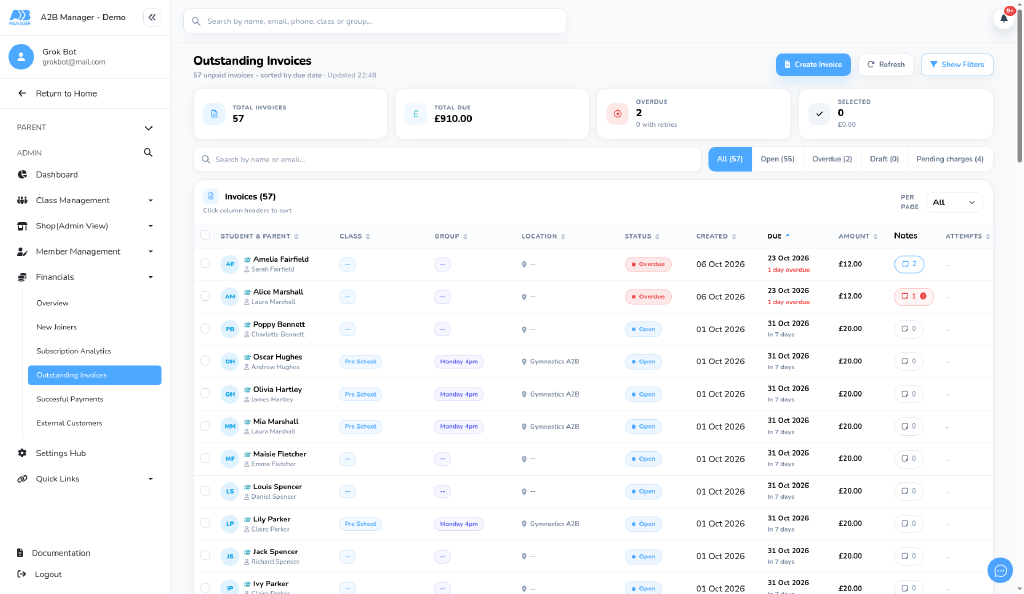
Step 1: Open Outstanding Invoices (0:00) #
- In the left-hand menu, click Financials, then Outstanding Invoices.
- The page is headed Outstanding Invoices.
Step 2: Select the invoices (0:13) #
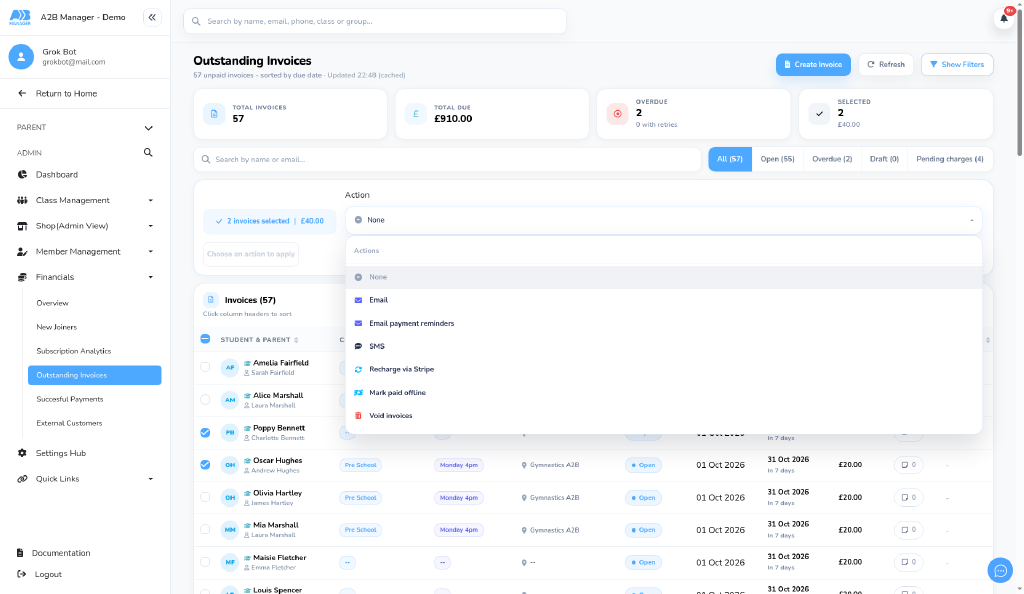
- Tick the invoice rows you want to chase.
- Open the actions menu. You’ll see SMS among the actions.
Step 3: Choose SMS (0:39) #
- Click SMS.
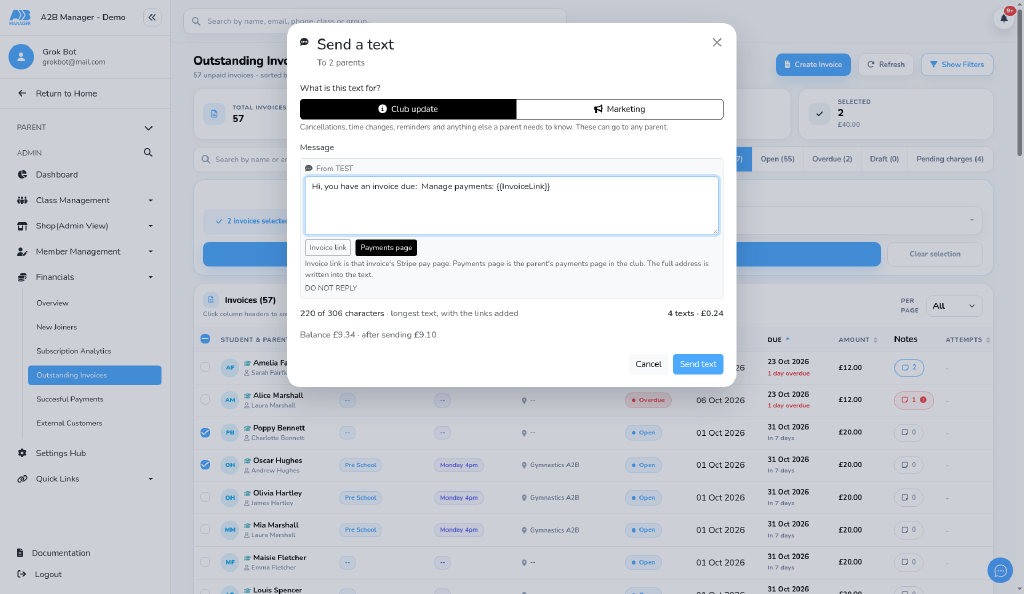
- The compose modal opens with a recipient preview (the children used as SMS targets — the mobile lives on the child).
- If any selected invoices have no student attached, a notice shows how many will not be texted.
Step 4: Write the text and insert links (0:59) #
- Type your message in the box.
- Use Invoice link and/or Payments page under the compose box (each can be inserted once).
- Invoice link becomes that parent’s Stripe pay page address(es). If they have several invoices selected, every distinct pay page is included (one per line).
- Payments page becomes the parent’s payments page for your club (the full URL is written into the text). Insert it when you want that link in the message.
- When links are in the message, the character count uses the longest filled version (with the links added).
- Check units, estimated cost and your SMS balance.
Step 5: Check cost and send (1:51) #
- Review the recipients and the filled message.
- Click Send text only when you intend to send a real SMS.
- Parents without a suitable UK mobile, who have opted out, or when there isn’t enough credit, are left out — the same rules as other bulk SMS.
Good to know #
- One parent with several invoices (including for different children) gets one text that includes every pay link.
- Invoices with no student attached are skipped; the modal shows a banner when that happens.
- SMS must be set up with credit before this action works.
- This is separate from emailing an invoice — see Email Invoice for the email path.
Tip: Write a short reminder first, then insert Invoice link and Payments page so parents can pay from either the Stripe page or their club payments page.


