

Table of Contents
Parents can buy uniform, badges and other items from your club shop. Orders are collected in person from the club.
Ordering from the shop #
Step 1: Open the shop (0:00) #
- Log in, click your initials at the top right, and choose Shop.
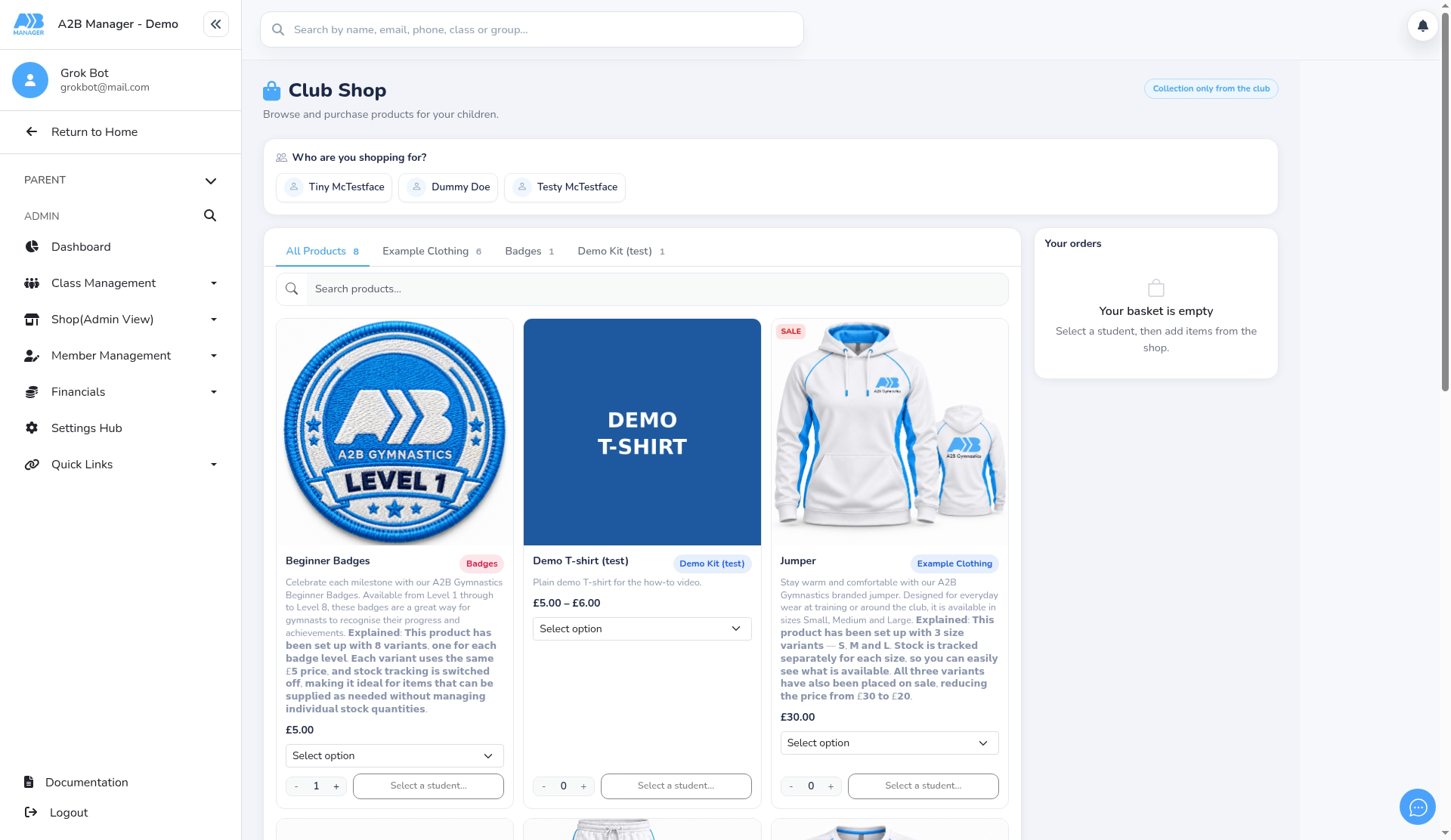
Step 2: Choose your child (0:15) #
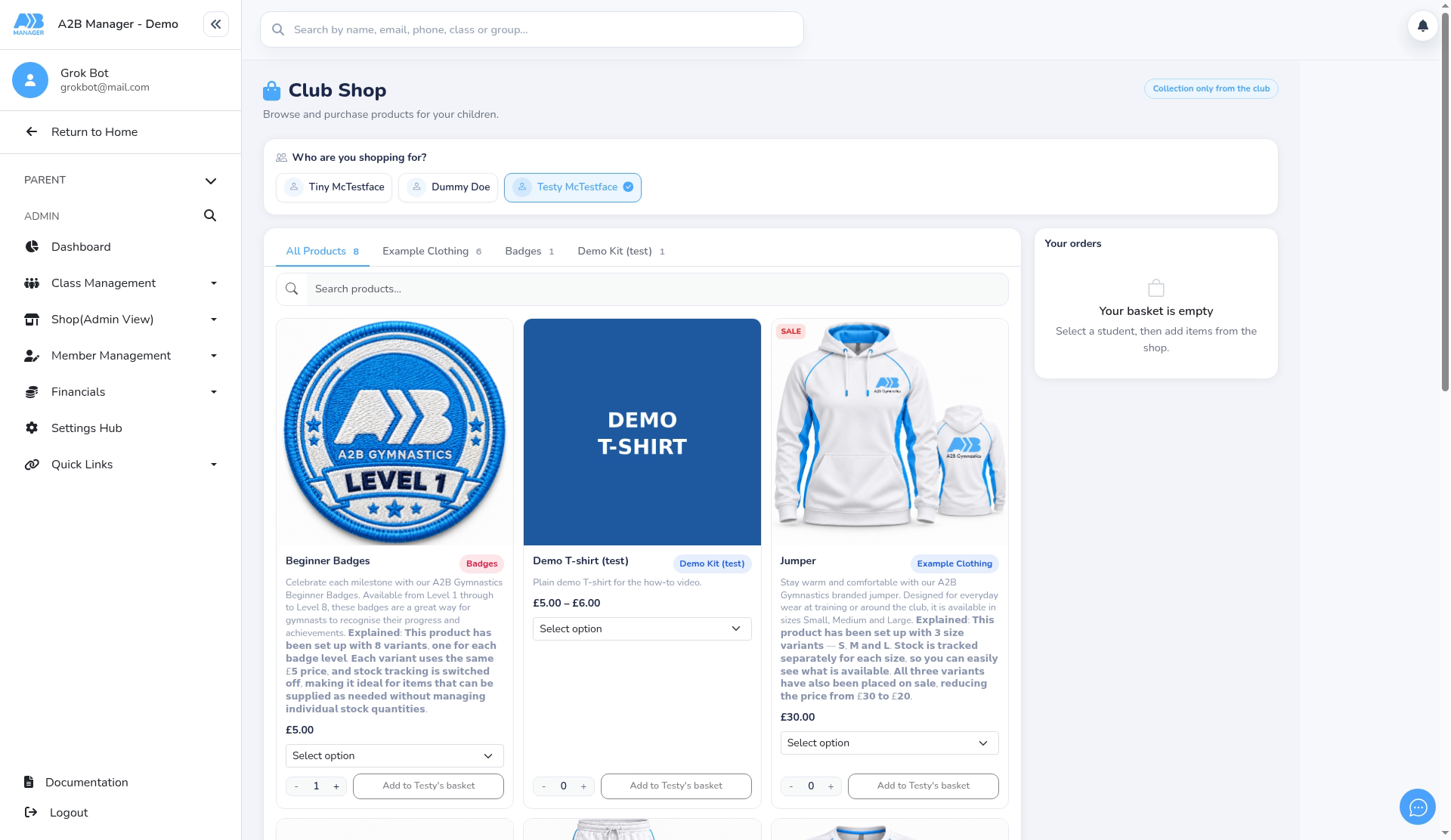
- Under Who are you shopping for?, pick your child.
- The shop shows Collection only from the club, so there’s no delivery address.
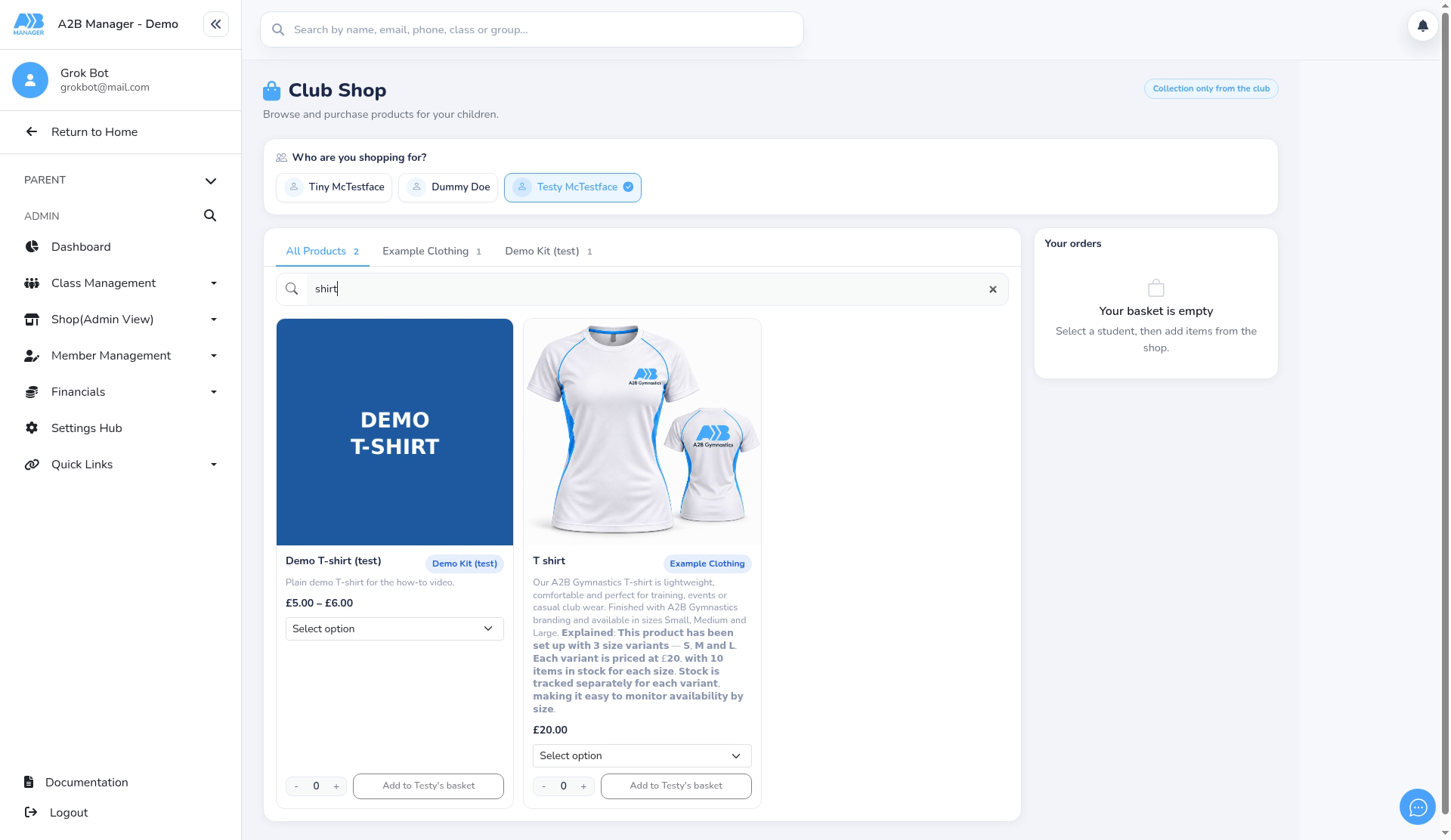
Step 3: Find a product (0:23) #
- Use the category tabs, or type in Search products…, for example shirt.
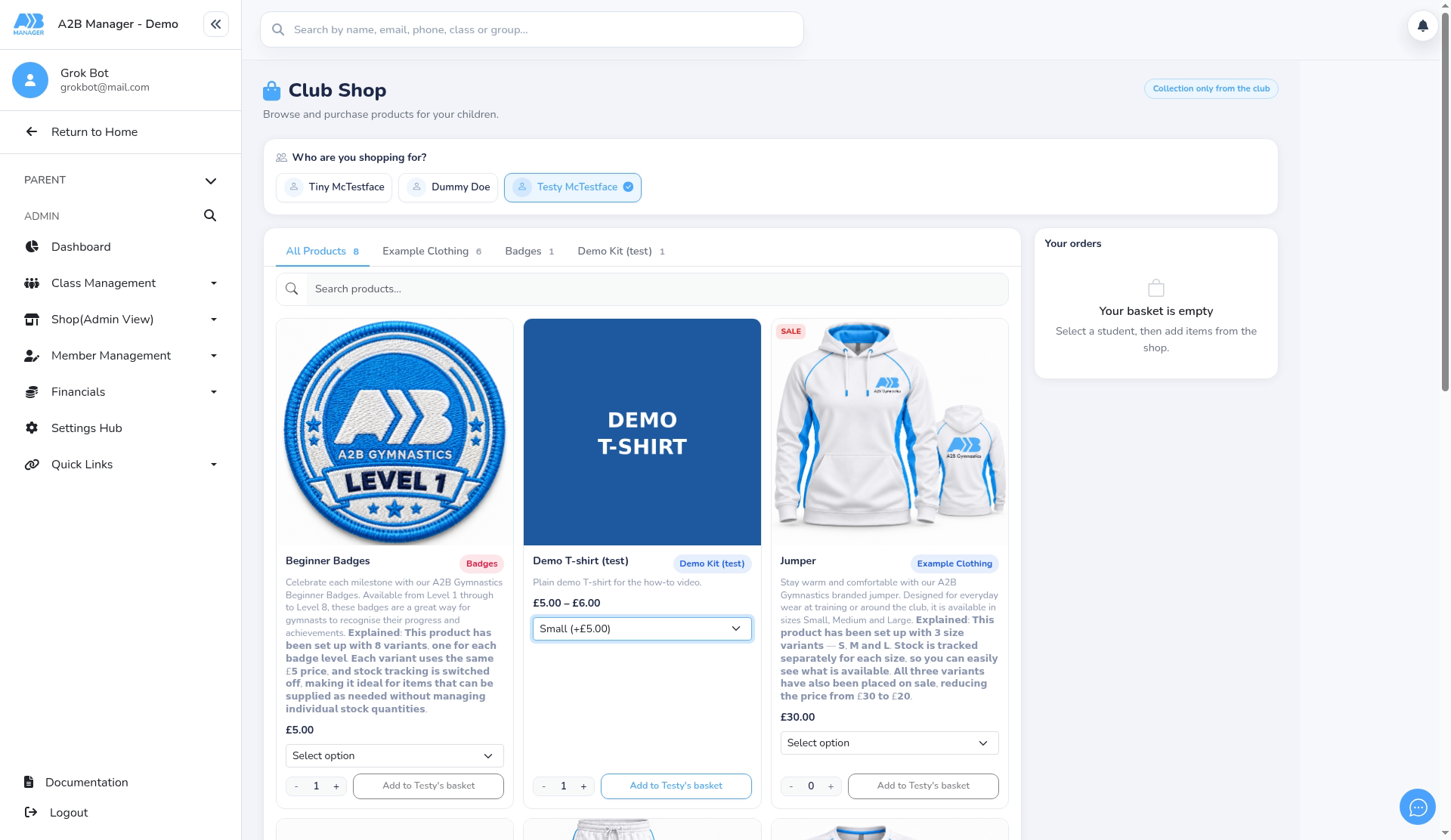
Step 4: Choose options and add to basket (0:32) #
- On the product, choose an option in Select option, for example a size.
- Use − and + to set the quantity.
- Click the add button to put it in your basket.
Basket, payment and confirmation #
- The basket on the right groups items by child. Change the quantity or remove an item, and check the Subtotal and Total.
- Check the Pickup location, then click Continue to basket.
- Pay by card on the secure Stripe checkout. Afterwards you’ll see a confirmation page with your order, and you’ll get a confirmation email.
Good to know #
- The shop is only available when you’re logged in.
- Items on sale show a SALE badge. Out-of-stock items can’t be added.
- Your past orders are listed under Your orders on the shop page.


