

Table of Contents
A class type is the activity itself, such as Beginners or Squad. It belongs to a category, and the bookable groups and times sit inside it. You can add class types quickly in the Setup Wizard, then add their details in Class Management.
Part A: Add class types in the Setup Wizard #
Step 1: Open the Class Types step (0:00) #
- Open the Setup Wizard and go to step 5, Class Types. Your class types are listed under each category.
- To add lots at once, click Example File to download a spreadsheet with two columns, Category and Class Type. Fill it in and upload it with Import File.
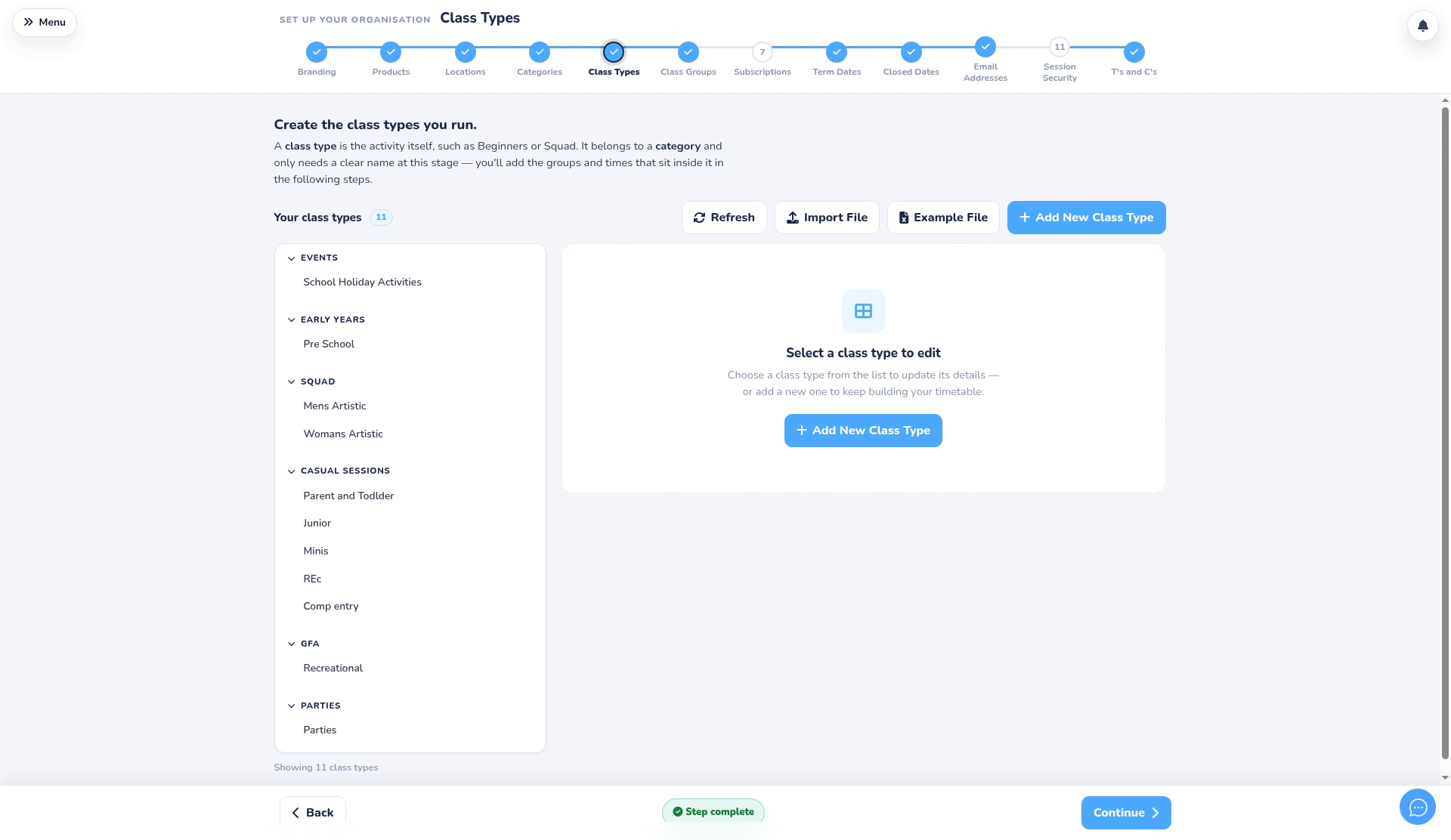
Step 2: Add your class types (0:13) #
- Click Add New Class Type.
- Choose a Category and type the Class type name, for example Freestyle Gymnastics.
- Click Add another row to add more, then click Save Class Types to create them all together. Nothing is created until you save. Click Cancel to close without saving.
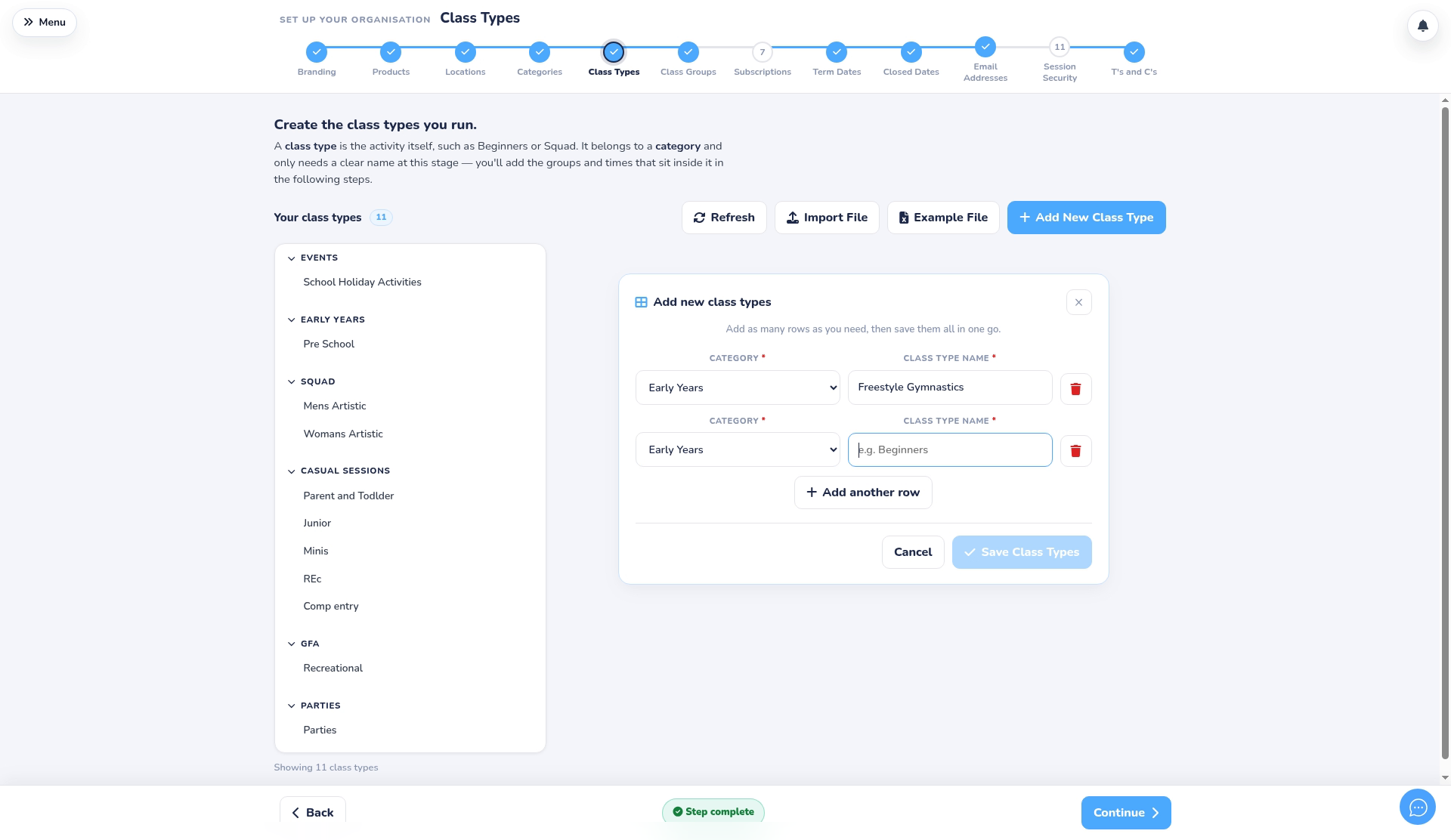
Part B: Add the class details #
Step 3: Open the full class form (1:23) #
- Go to Class Management > Classes to open Class Management.
- Choose the class in the list and click Edit. To start a new one here instead, click New Class.
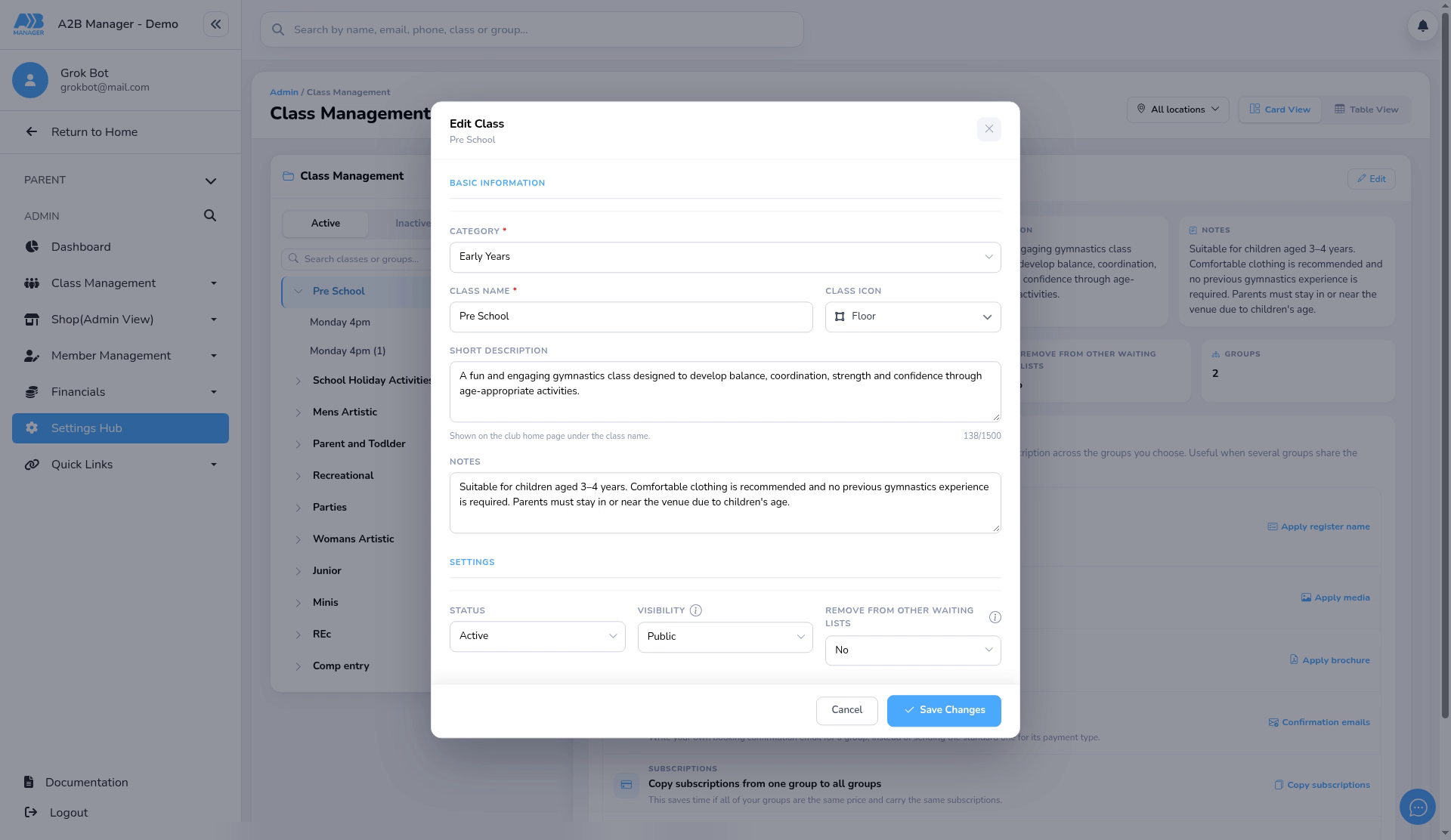
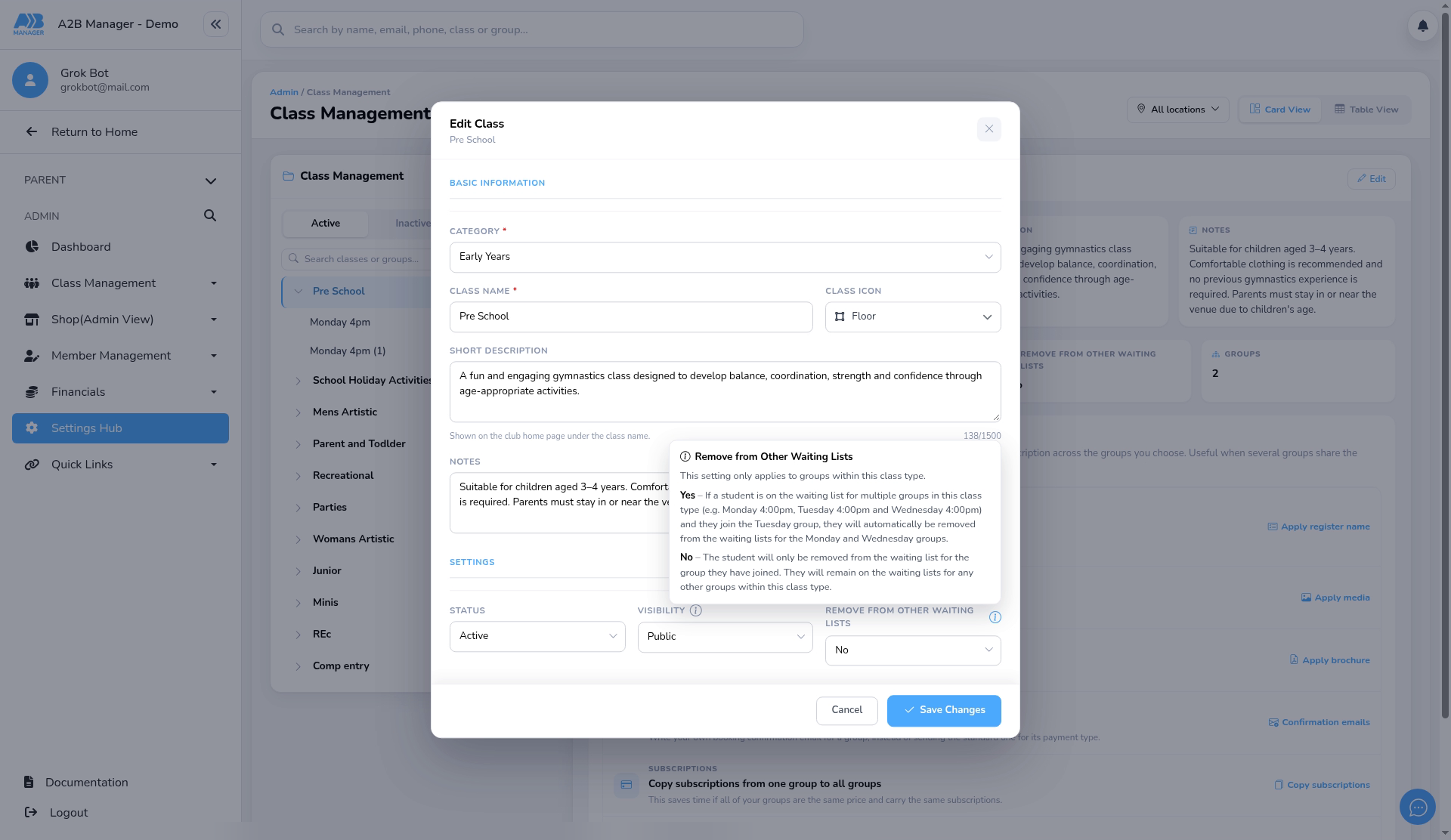
Step 4: Name, icon, description and notes (2:05) #
- Check the Category and Class Name, and choose a Class Icon.
- Add a Short Description. It’s shown on your club home page under the class name.
- Use Notes for anything parents need to know, for example that parents must stay and watch.
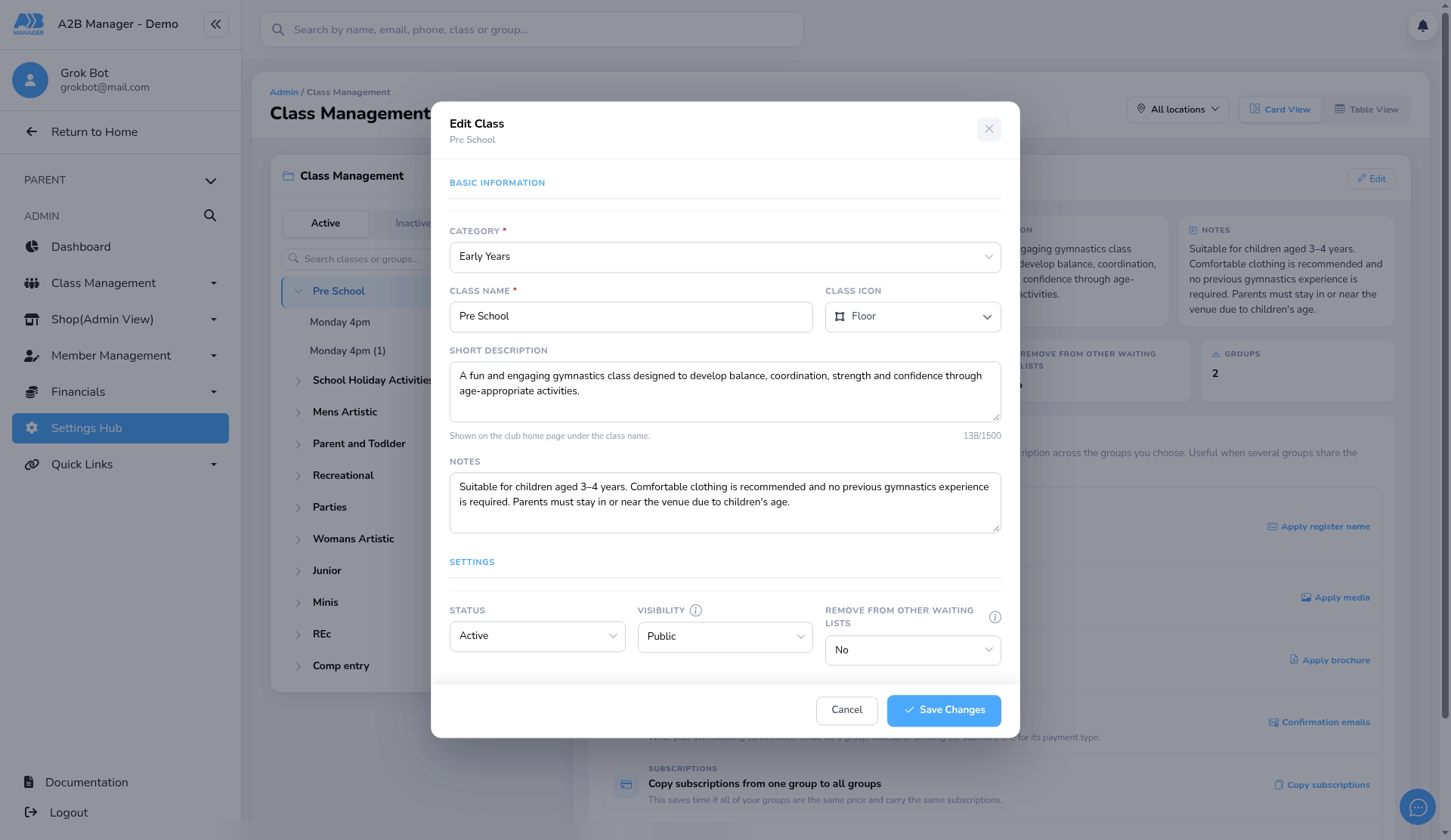
Step 5: Status, visibility and waiting lists (2:27) #
- Set Status to Active so the class can be booked.
- Choose Public, or Private for classes such as squads that the public shouldn’t book.
- Remove from other waiting lists: choose Yes so that when a child joins one group in this class type, they’re taken off the waiting lists for its other groups.
- Click Save Changes (or Save Class for a new class), or Cancel to close without saving.
Good to know #
- Awards are now set for each group, not the class. Use Awards & Syllabus in the group’s settings. See How to Set Up Class Groups.
- Next, add the groups families book. See How to Set Up Class Groups.


