

Table of Contents
Until you add your own, system emails come from A2B Manager’s address, no-reply@a2bmanager.com. Add and verify your club’s email address so parents see emails coming from you. Everyone can send from the club default. A personal verified address can only be used by the person whose login email matches it.
Before you start #
- You need admin access to Settings Hub > Settings > Email from addresses.
- Adding an address or clicking Send verification / Send test email sends a real email — use a mailbox you control.
Adding and verifying a sender address #
Step 1: Open Email from addresses #
- Go to Settings Hub > Settings and open Email from addresses.
- If no addresses have been added yet, you’ll see that none are configured, and emails are sent from no-reply@a2bmanager.com.
Step 2: Check your addresses #
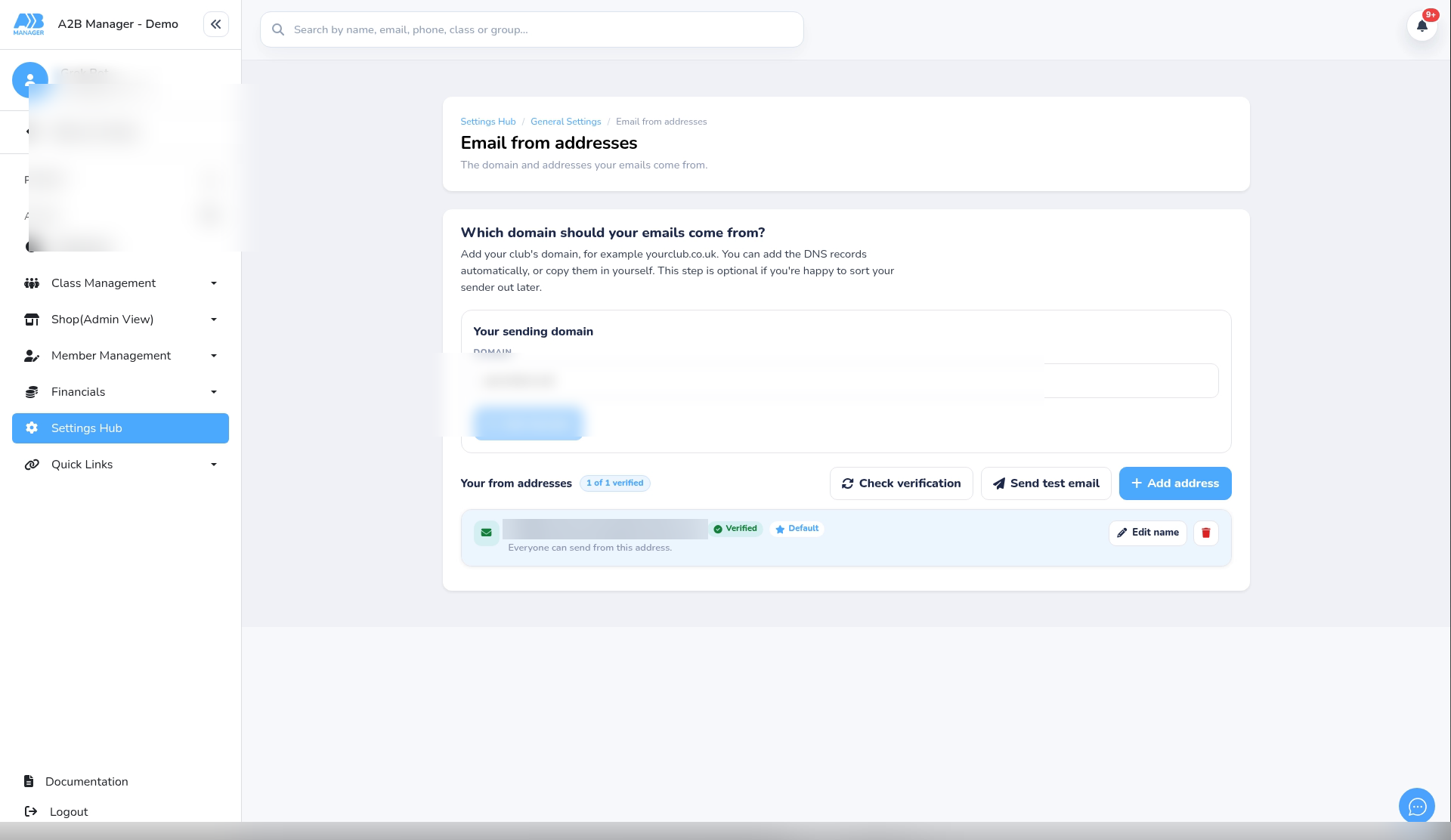
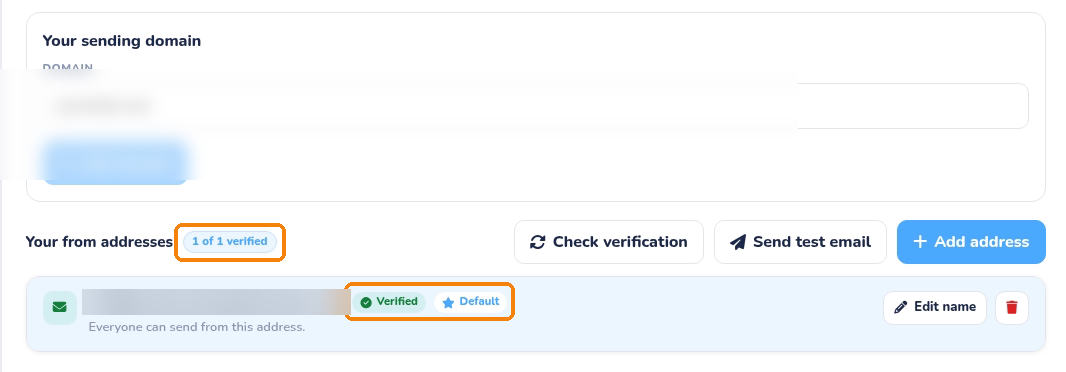
- The header shows how many addresses are verified. Only verified addresses are used to email parents.
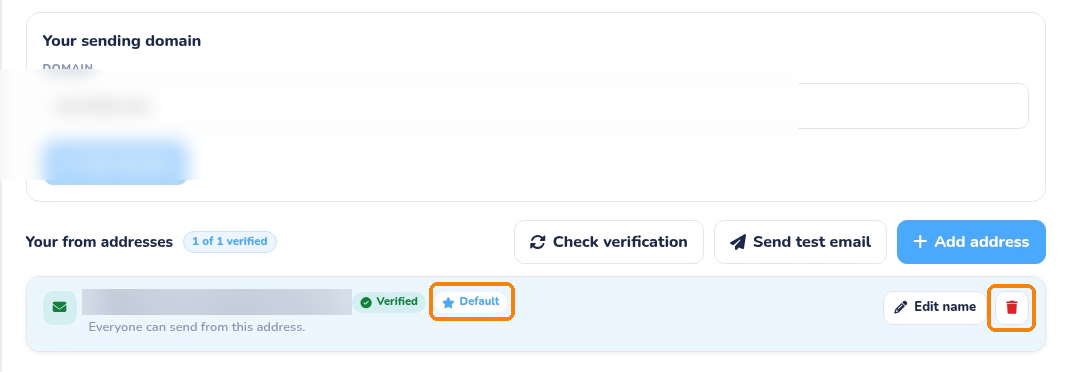
- Each address shows Verified or Pending verification. The Default address is used when a personal from-address is not available.
- The club default shows that Everyone can send from this address.
Step 3: Add an address #
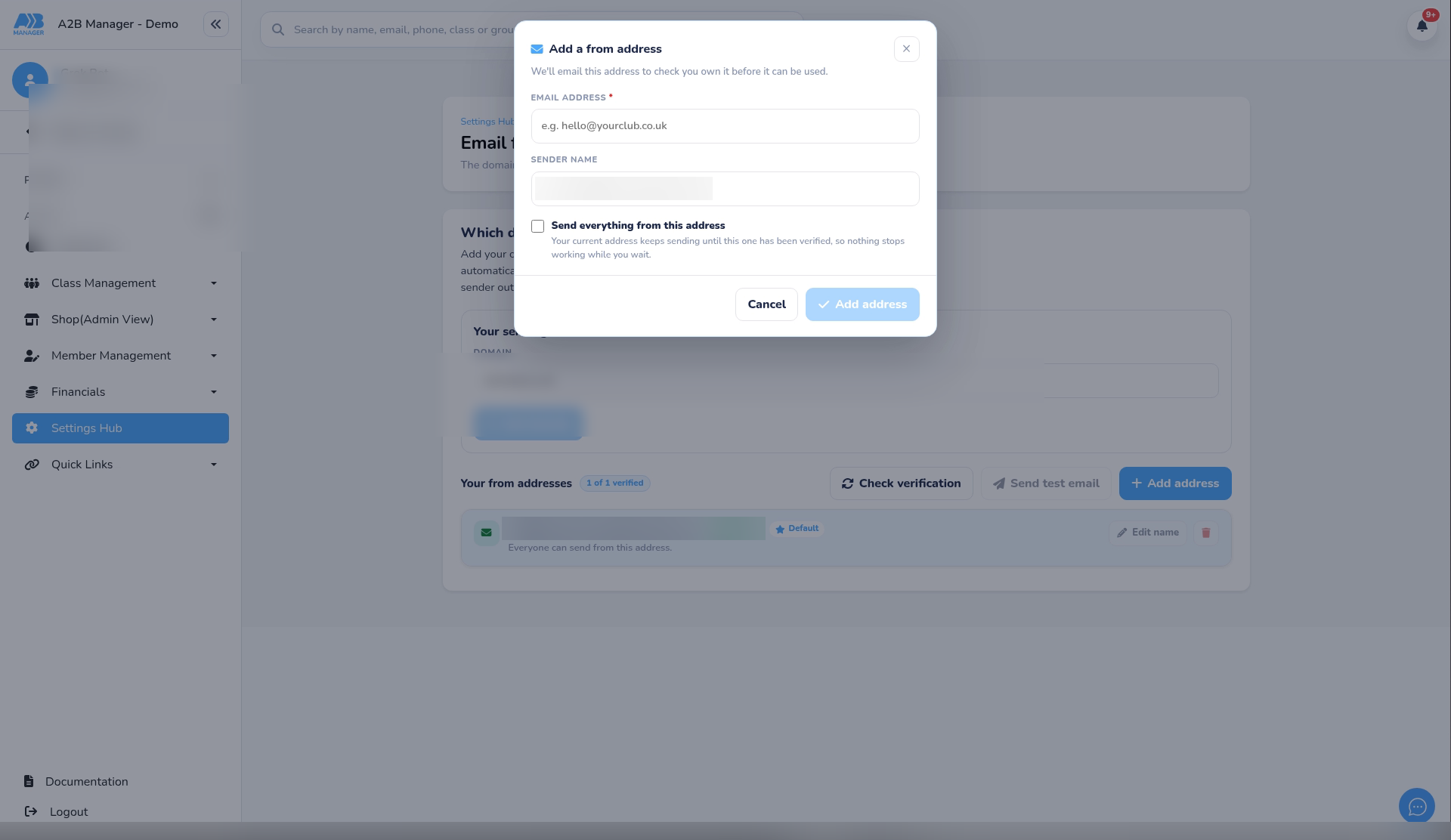
- Click + Add address.
- Enter the Email address and a Sender name (the name parents see).
- Tick Send everything from this address if you want this to be the club default.
- Click Add address. A verification email is sent to that inbox.
Step 4: Verify it #
- The new address shows Pending verification. Open the verification email in that inbox and confirm it.
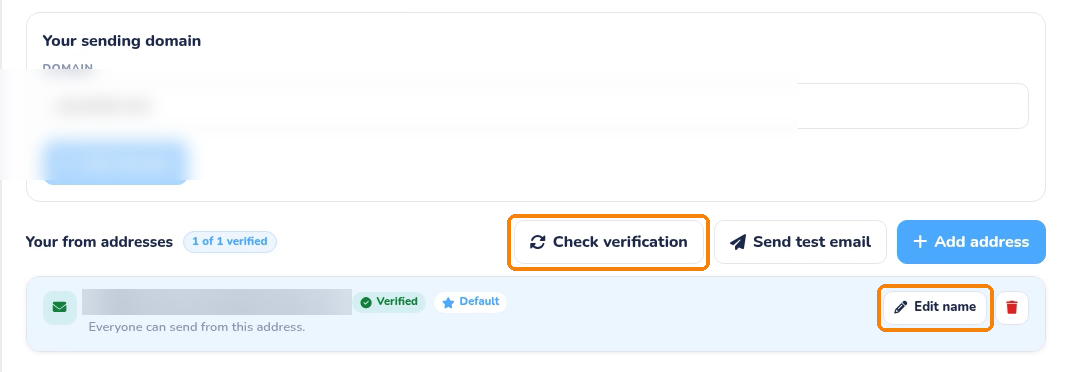
- Back on the tab, click Check verification to refresh the status. It also refreshes each time you open the page.
- Can’t find the email? Check spam, or use Send verification on the address to send it again.
- Use Edit name to change the sender name.
Step 5: Default sender and removing #
- Once you have more than one verified address, you can make another verified address the default.
- Click the bin to remove an address and confirm. Emails can no longer be sent from it, but emails already sent aren’t affected.
Step 6: Send a test email #
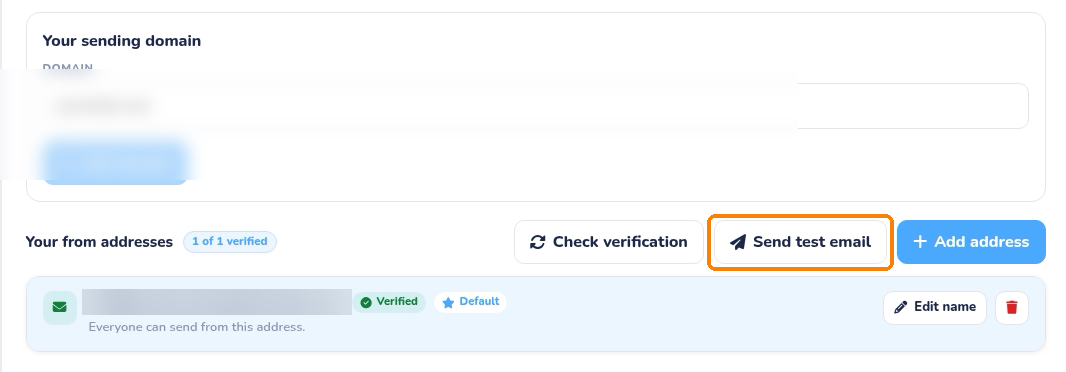
- Use Send test email in the toolbar when you want to check delivery.
- Choose who to send to and which verified From address to use, then send and check that inbox (and spam).
Using your sender addresses #
- Everyone can use the club default From address.
- A personal verified address only appears for the person whose login email matches that address. Colleagues’ personal addresses are not offered to you.
- When you write an email or open a template, the From address defaults to your own verified address if you have one, otherwise the club default.
- If a template was saved with someone else’s personal address, it switches to the club default when you open it.
FAQs #
- Why isn’t my address in the From list? It hasn’t been verified yet, or it does not match your login email.
- Why can’t I see my colleague’s from-address? Personal addresses are only for the matching login. Everyone can still use the club default.
- Does removing an address affect emails I’ve already sent? No.
Tip: Have each coach add and verify their own address that matches their login — then they send as themselves, and everyone else still has the club default.


