

Table of Contents
Parents can ask to cancel a class from their dashboard. They get an email confirming the request, and it waits for you to accept or reject it.
Requesting a cancellation (parent view) #
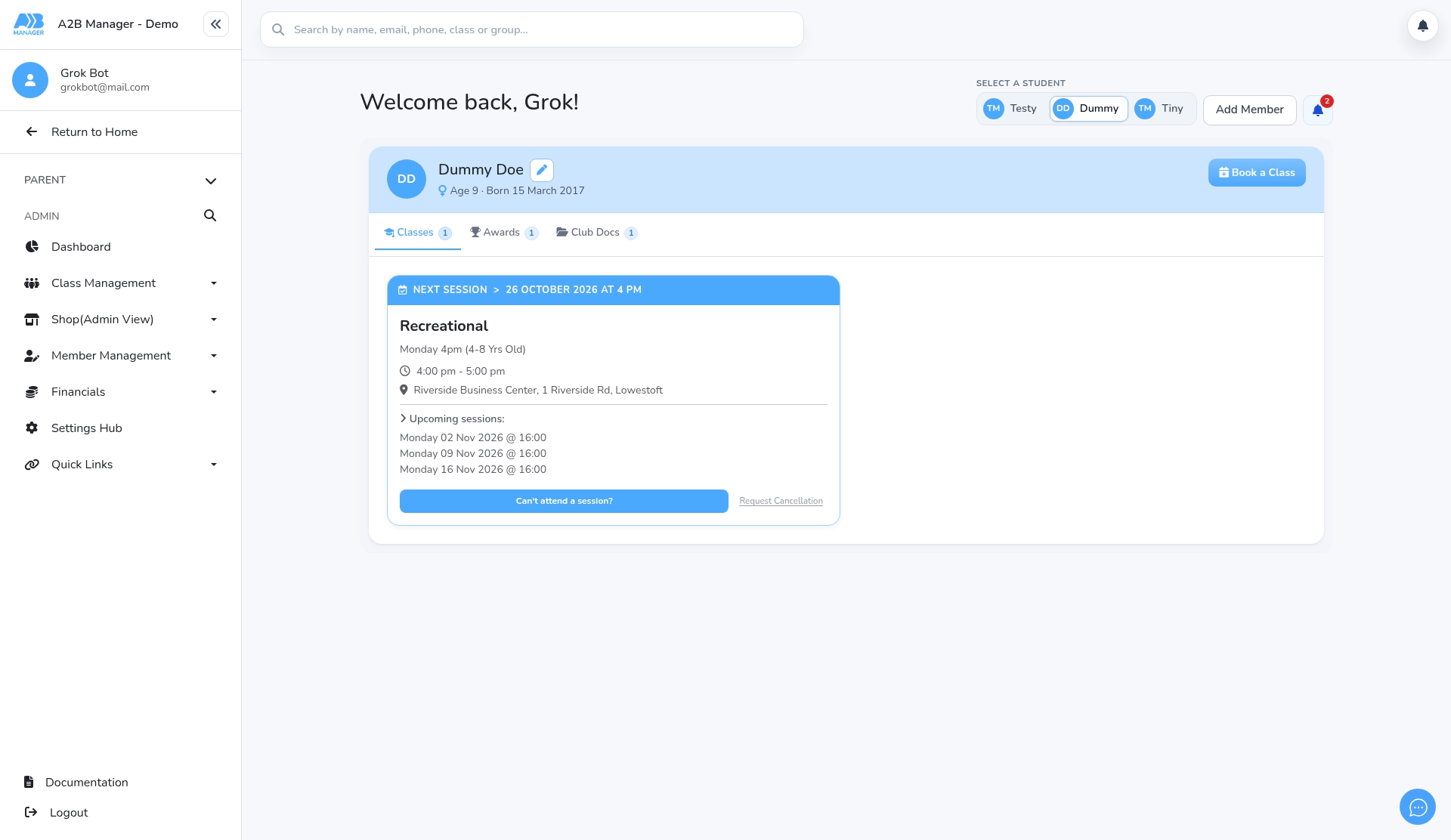
Step 1: Open the child’s class card (0:00) #
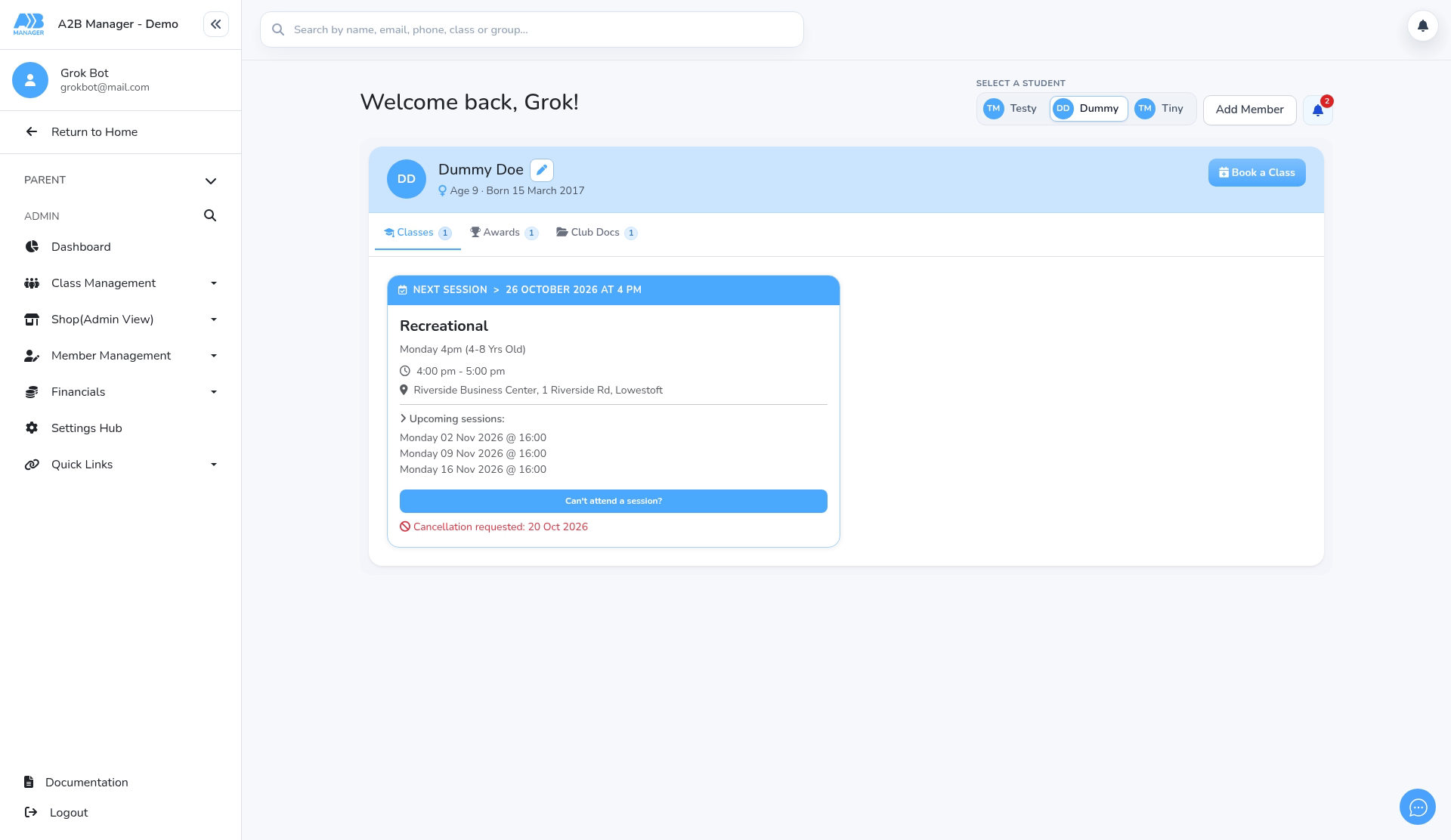
- The parent logs in and picks the child under Select a student.
- Each class card shows Can’t attend a session? and a Request Cancellation link.
Step 2: Click Request Cancellation (0:10) #
- Click Request Cancellation on the card.
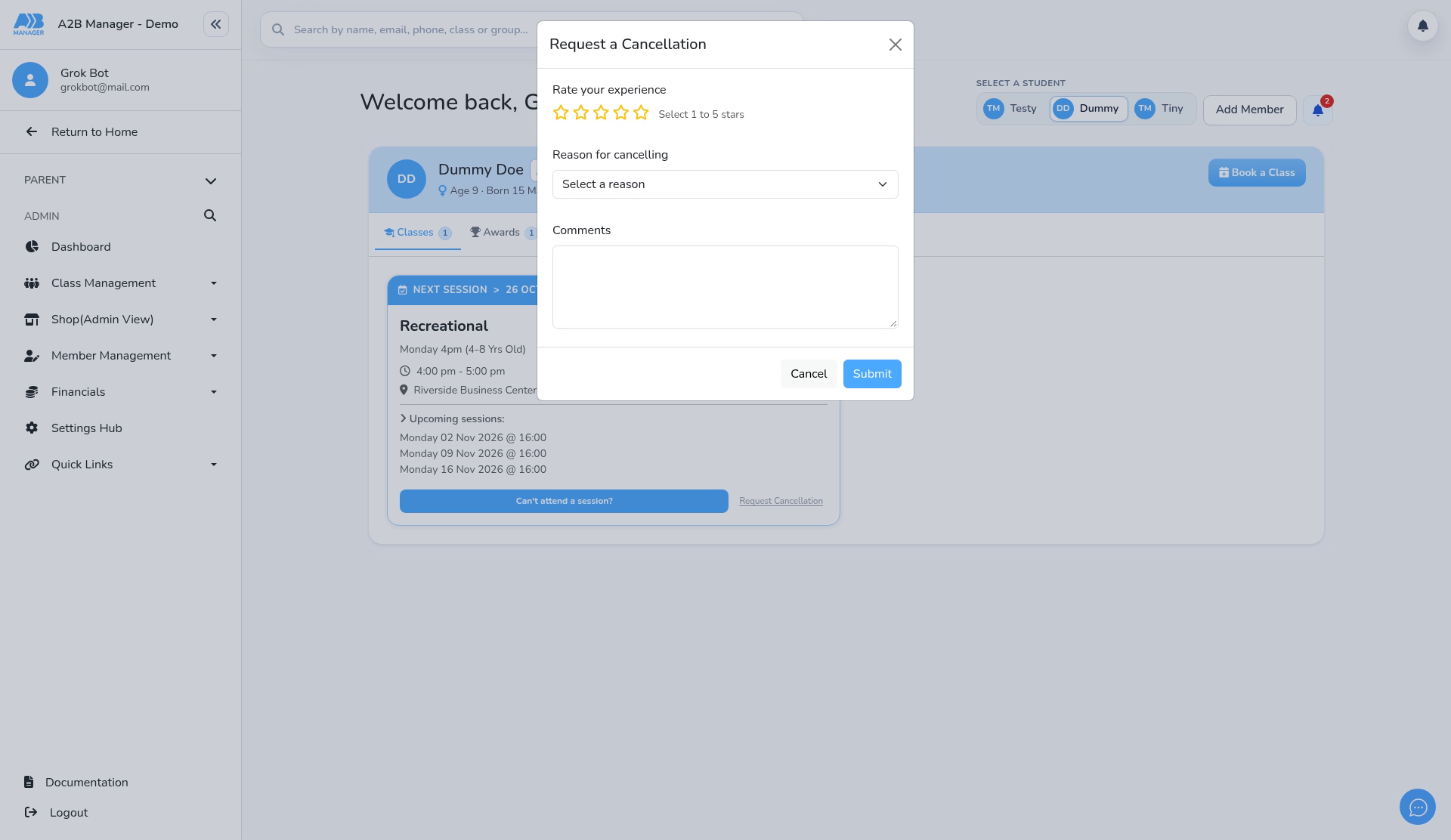
Step 3: Rate and give a reason (0:13) #
- Under Rate your experience, choose 1 to 5 stars.
- Pick a Reason for cancelling. If none fit, choose Other.
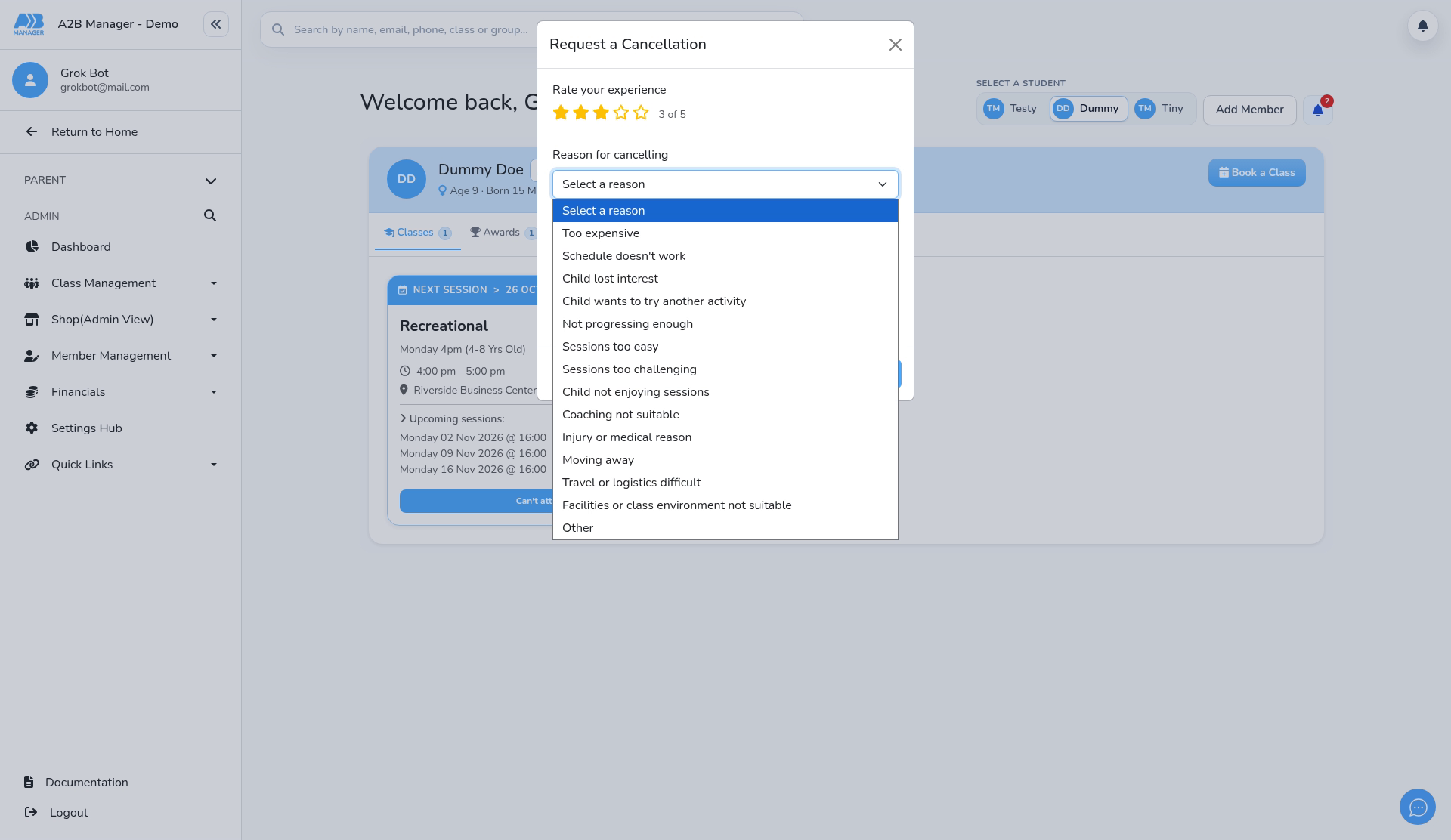
Step 4: Add comments and submit (0:32) #
- Add any Comments, then click Submit.
Step 5: Request sent (0:46) #
- The card now shows Cancellation requested: <date>, and the link disappears while the request is pending.
- The parent is emailed straight away, and the request appears in Member Management > Cancellations as Pending.
The Request Cancellation email #
- Find it under Settings Hub > Email Templates > Request Cancellation. Term groups use Term Request Cancellation instead.
- The default message is: Dear {ParentFirstName} {ParentLastName}, We have received your cancellation request for {StudentFirstName} {StudentLastName}. {ClassName} {ClassGroupName} Thank You.
- It confirms the request has been received; nothing is cancelled until you accept it.
When the link shows #
- There’s no setting for it. It’s hidden while a request is pending, and after a request has been accepted.
- If a request is rejected, the link comes back so the parent can ask again.
- For pay-as-you-go and multi-event classes, parents cancel individual sessions instead.


