

Table of Contents
Record whether members are registered with your governing body (for example British Gymnastics), with their cover expiry date and insurance level. This is a record only. It doesn’t take any payment.
Setting affiliation #
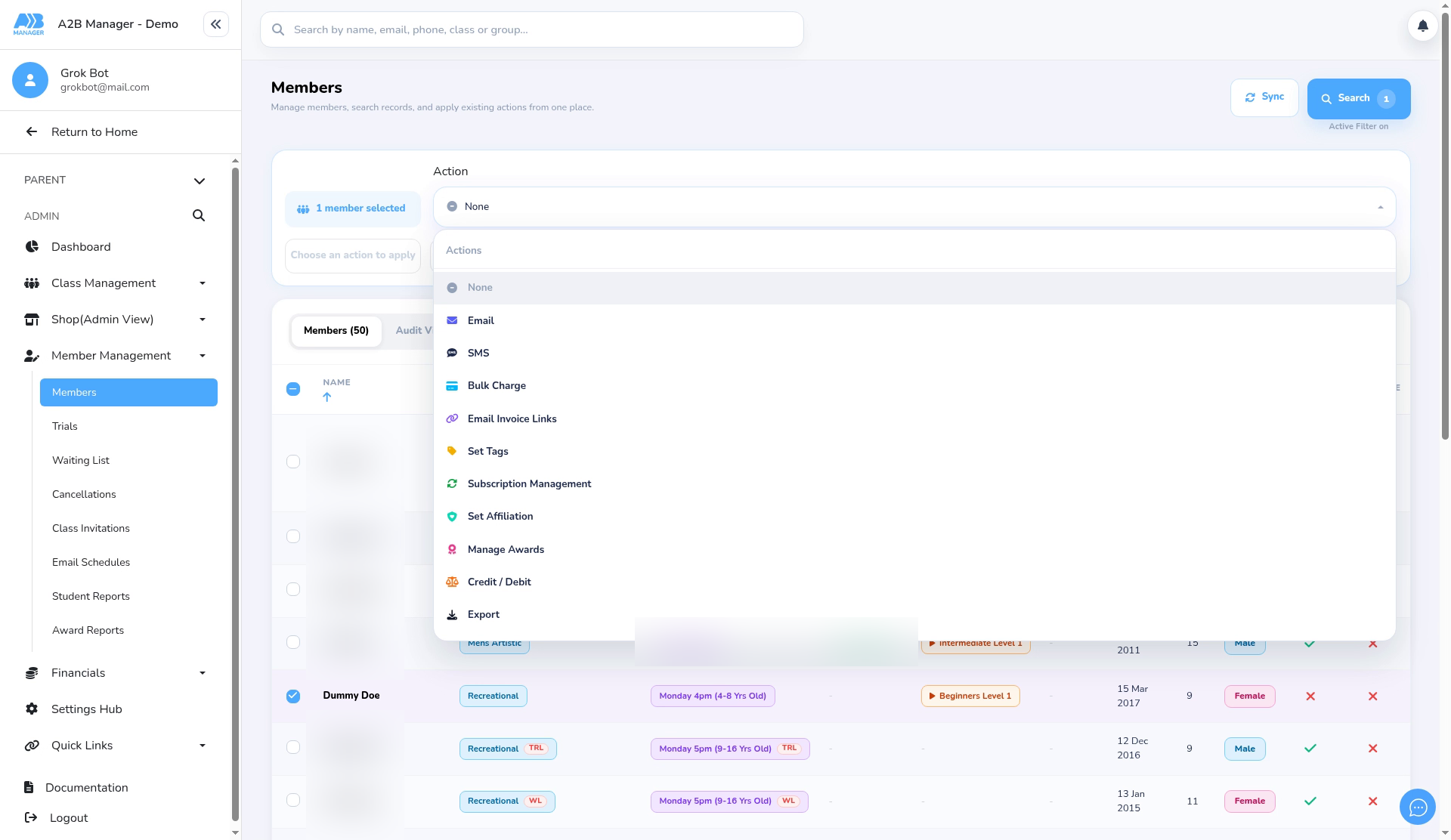
Step 1: Choose Set Affiliation (0:00) #
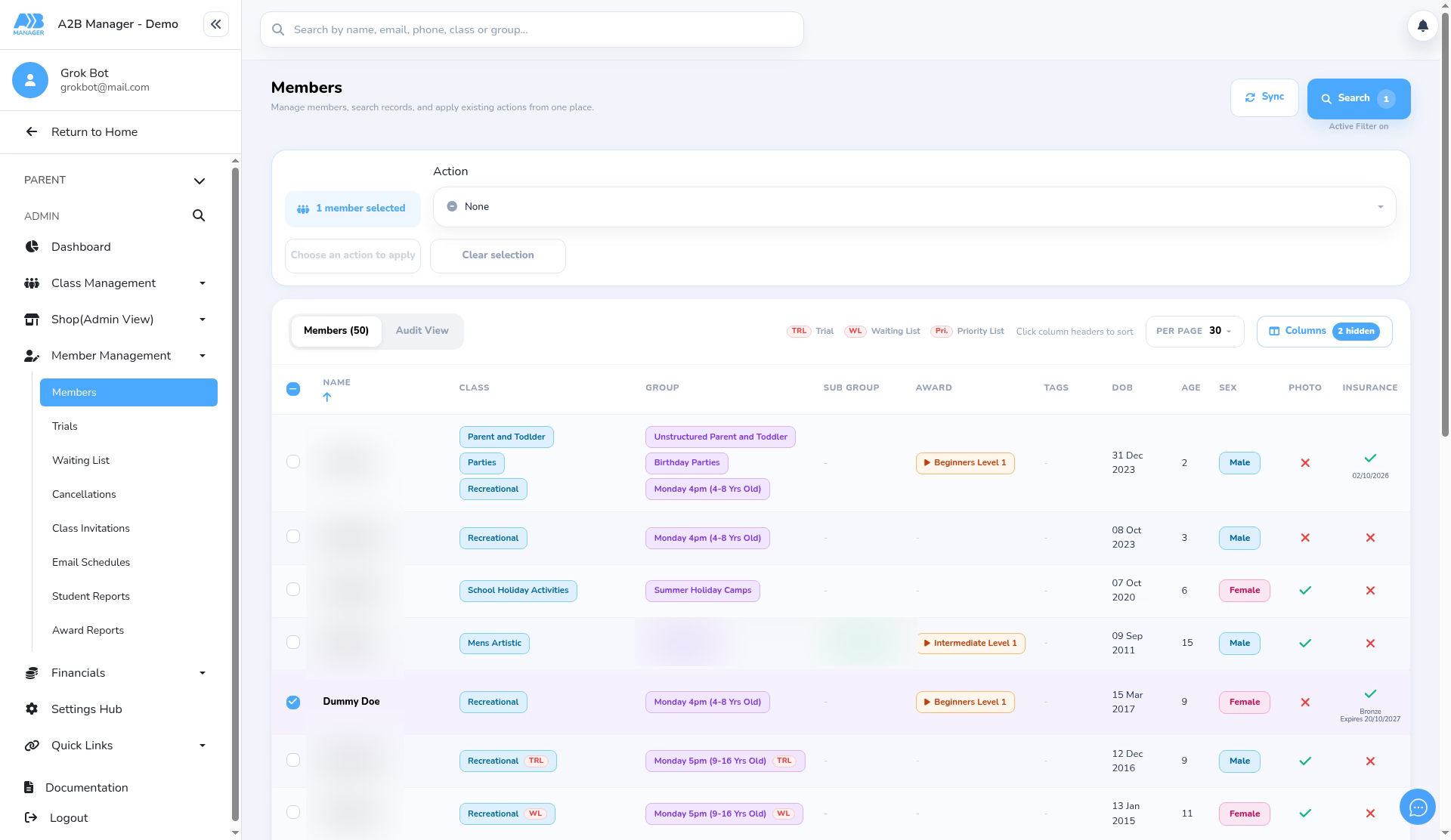
- Go to Member Management > Members and tick the members you want to update.
- Open the Action list and choose Set Affiliation.
- You can also do this from a class list: tick the members there and choose Set Affiliation from its actions.
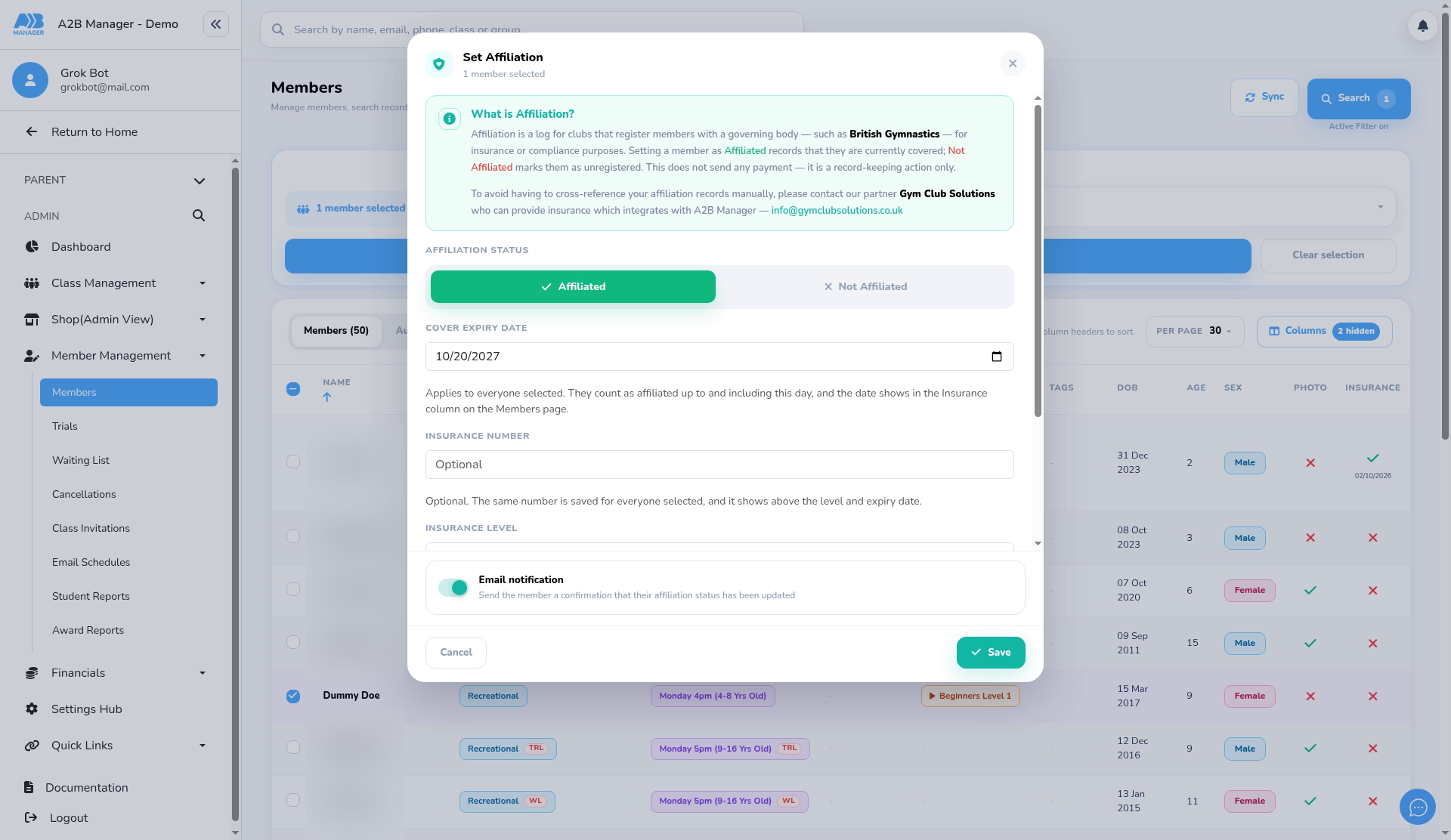
Step 2: Set the status and expiry (0:10) #
- Choose Affiliated or Not Affiliated.
- For Affiliated, set the Cover expiry date. Members count as affiliated up to and including this day.
- Insurance number is optional. The same number is saved for everyone selected.
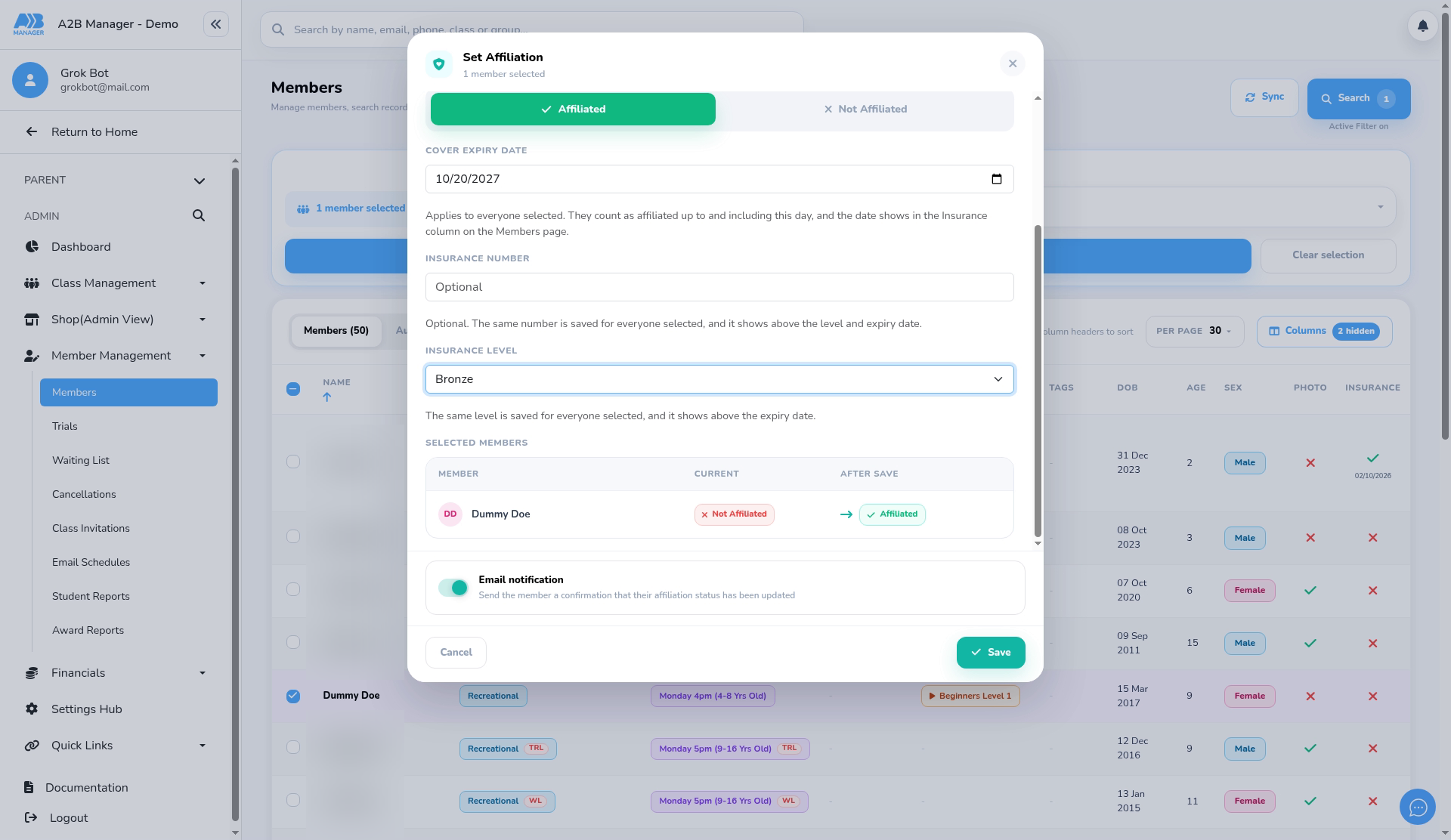
Step 3: Choose the insurance level (0:27) #
- Pick an Insurance level. If your club has levels set up, you must choose one for Affiliated. Saving without one does nothing.
- Selected members shows each member’s current status and the status after you save.
Step 4: Save (0:46) #
- Leave Email notification on to email the parent, or turn it off to save without emailing.
- Click Save. You’ll see Affiliation updated with the members that were changed.
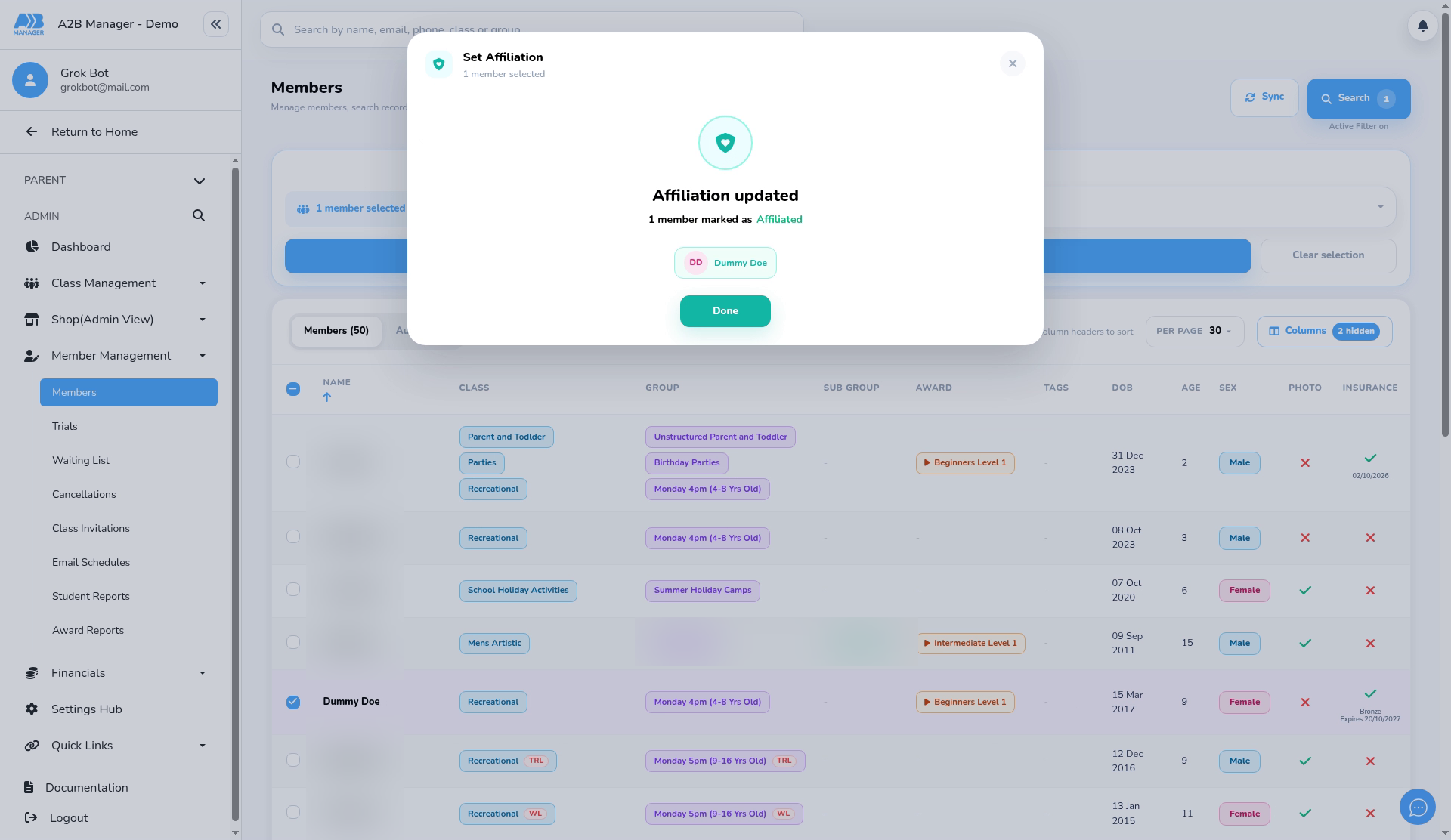
Step 5: Check the Insurance column (0:53) #
- Click Done. The Insurance column on the Members page shows a tick with the level and expiry date.
The Set Affiliation email #
- With Email notification on, each member’s parent gets the Set Affiliation email. Edit it under Settings Hub > Email Templates > Set Affiliation.
- The default message is: Dear {ParentFirstName} {ParentLastName}, {StudentFirstName} {StudentLastName} affiliation status has been set as {AffiliationStatus}.
Good to know #
- Setting a member to Not Affiliated clears their expiry date, insurance level and insurance number.
- If your club uses automatic insurance tracking, the level isn’t asked for.


