

Table of Contents
When a coach marks a student as failed on an award item, the parent is emailed automatically with the Award Failed email.
Marking the outcome #
Step 1: Open View awards (0:00) #
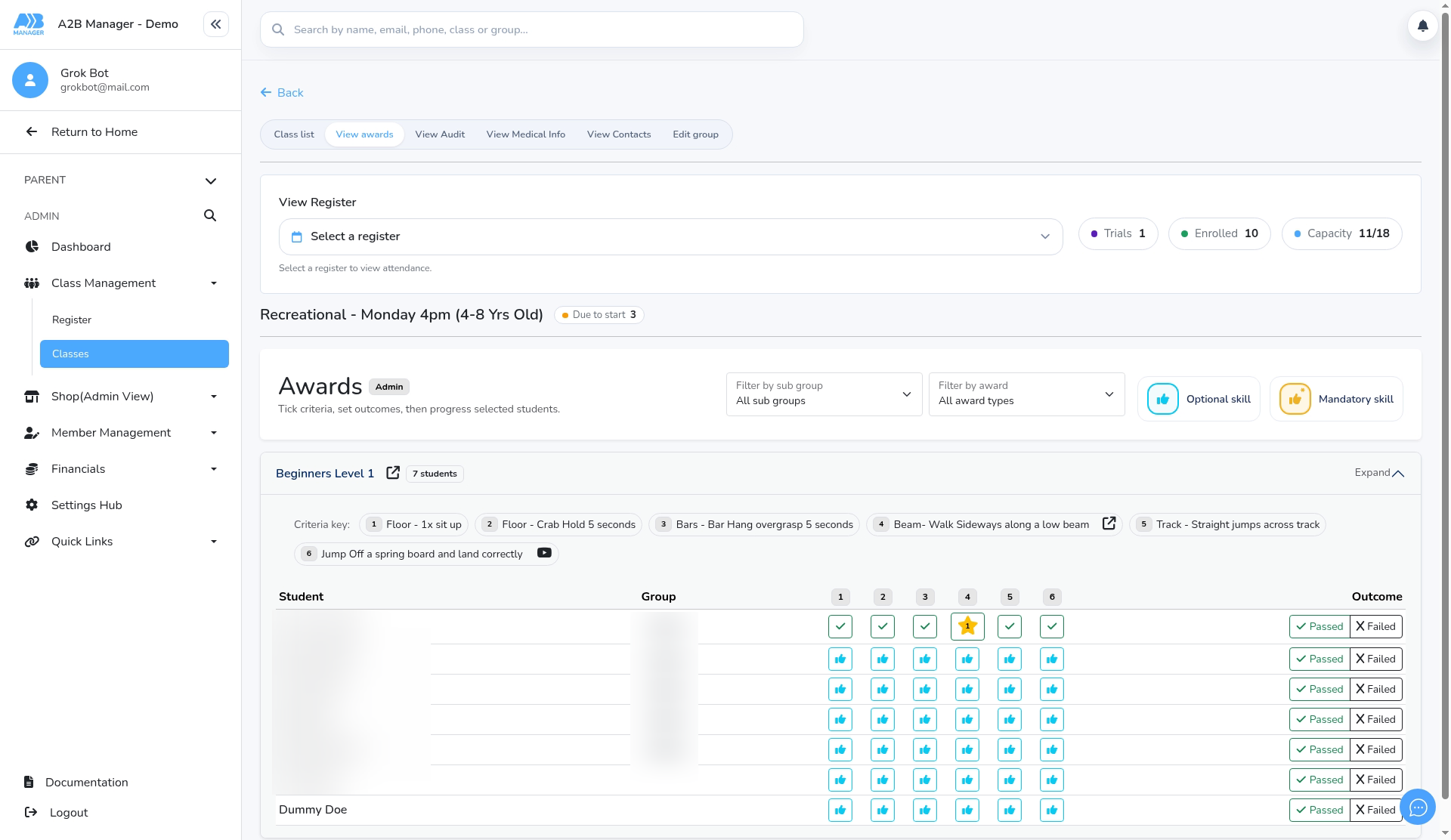
- Open the class and click View awards.
- Each student has a row with the criteria ticks and, under Outcome, Passed and Failed.
Step 2: Mark the student as failed (0:12) #
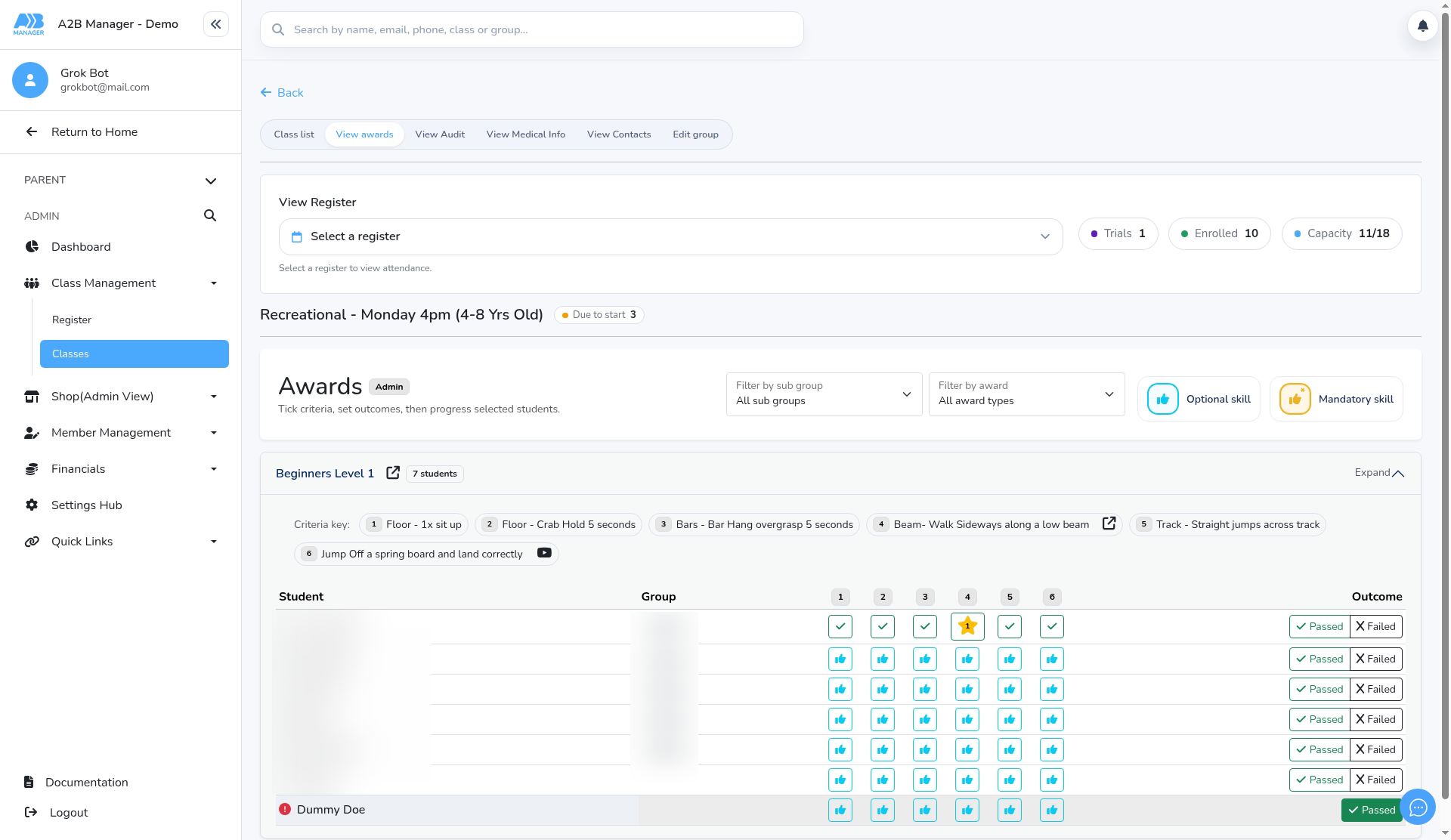
- Click Failed on the student’s row.
- A red ! appears next to their name; hover it to see the fail date. Failed can be used once per student per award each day, so the button is replaced with Passed.
- The Award Failed email is sent to the parent straight away. There’s no option to skip it.
The Award Failed email #
- Find it under Settings Hub > Email Templates > Award Failed. You can change the wording, for example to add next steps or a link.
- The default message is: Dear {ParentFirstName} {ParentLastName}, {StudentFirstName} {StudentLastName} has failed {AwardDetails}
- It goes to the student’s parent.


