

Table of Contents
Record an accident, incident or feedback report for a student, and email the parent to let them know it’s there.
Adding a report #
Step 1: Add a new report (0:00) #
- Go to Member Management > Student Reports and click Add New.
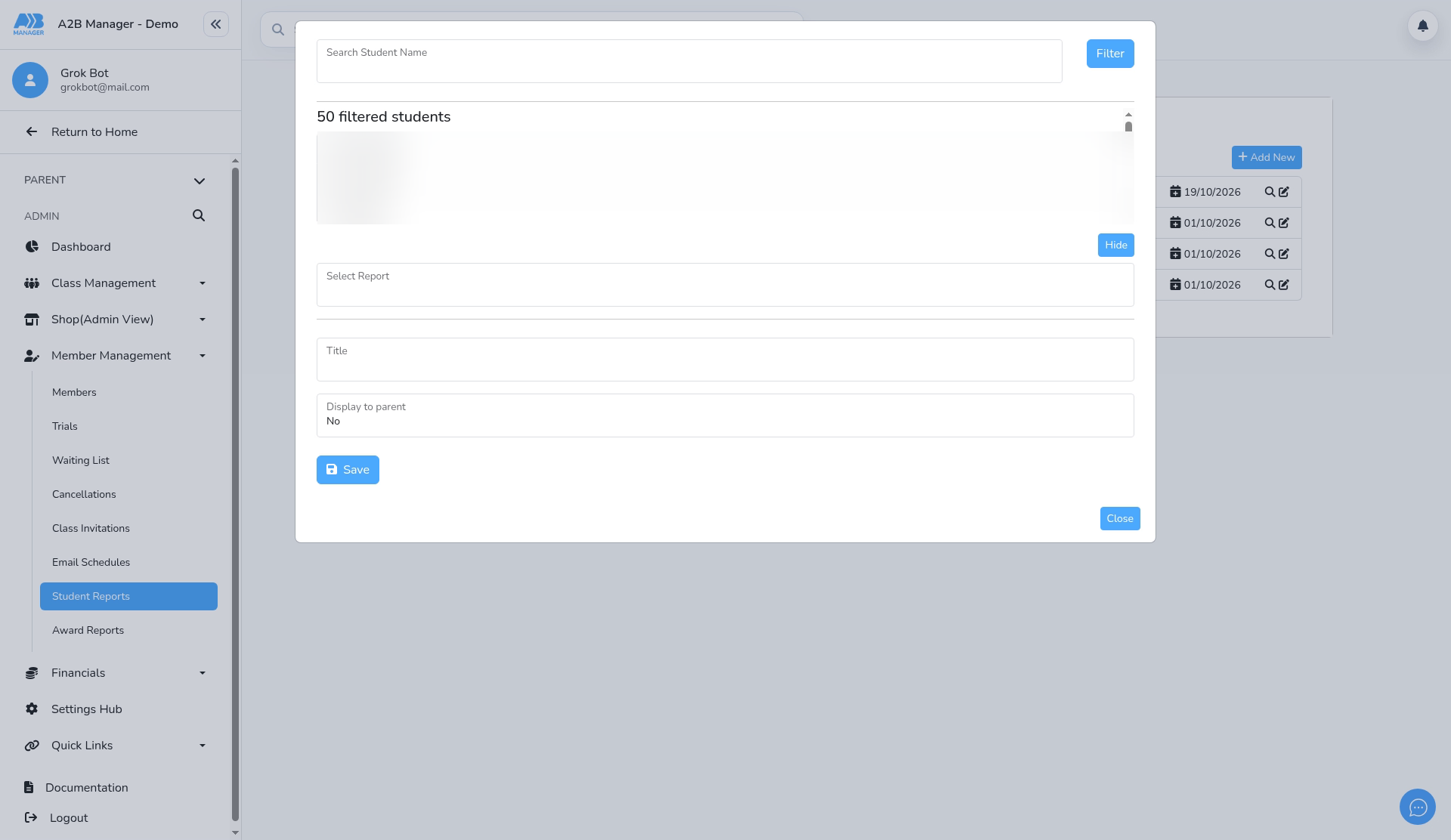
Step 2: Choose the student (0:21) #
- Type in Search Student Name and click the student. The form shows 1 student(s) selected.
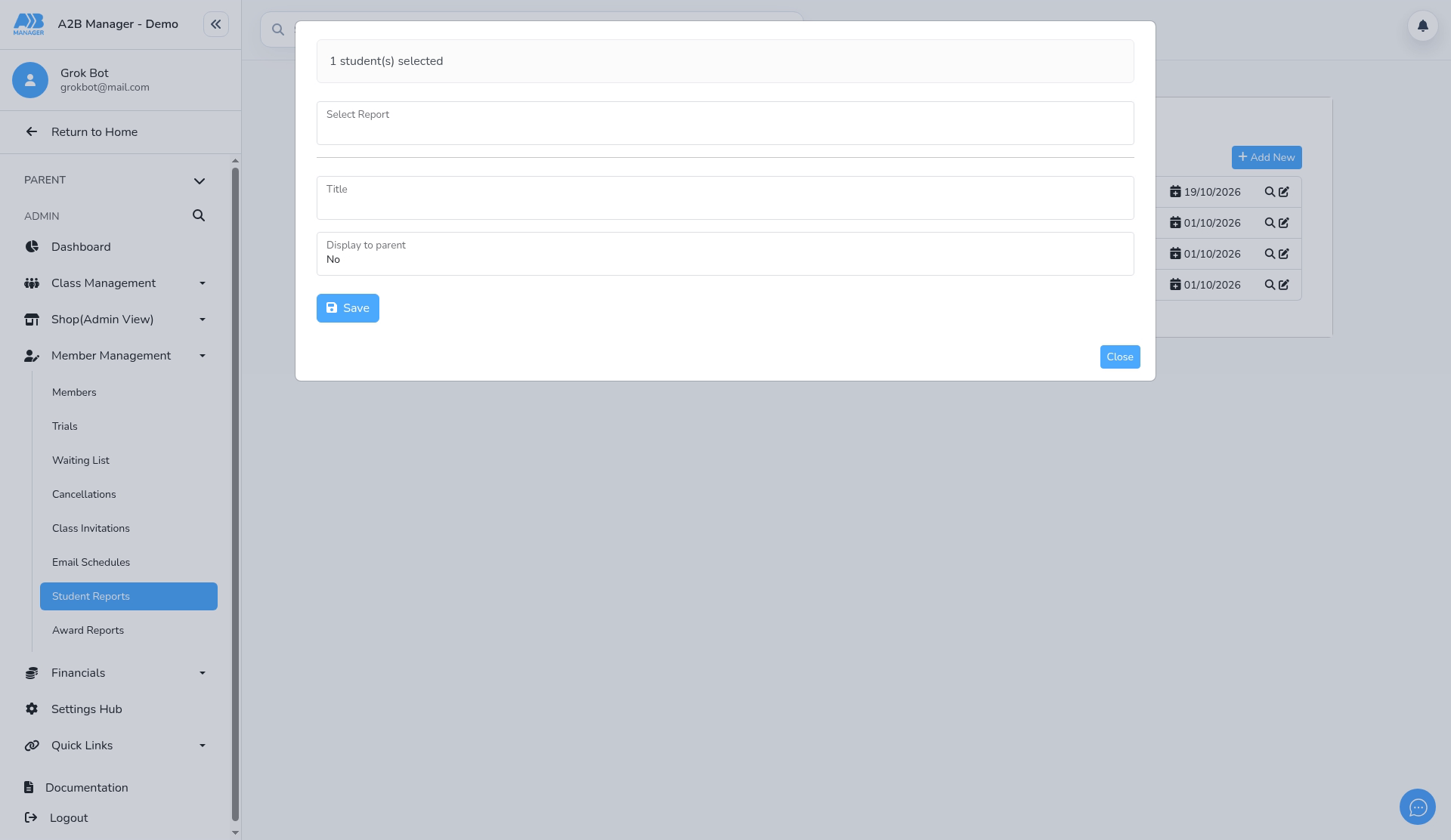
Step 3: Choose the report (0:35) #
- Pick a report in Select Report, for example Accident Report. Its questions appear below.
- Report types and questions are set up in Settings Hub.
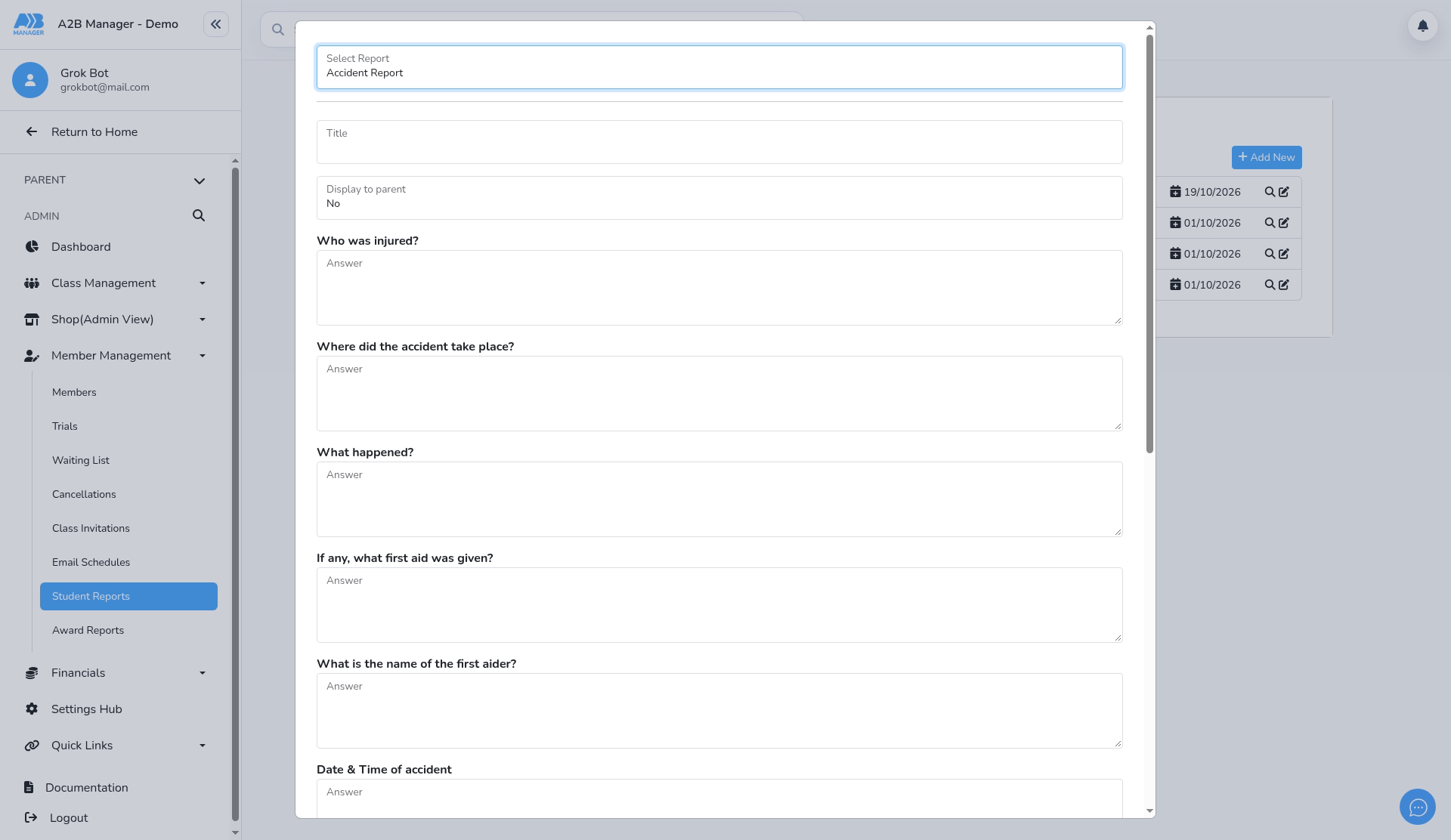
Step 4: Title and visibility (0:46) #
- Enter a Title.
- Set Display to parent to Yes if the parent should see it. The Save & Email Parent button only appears when this is Yes.
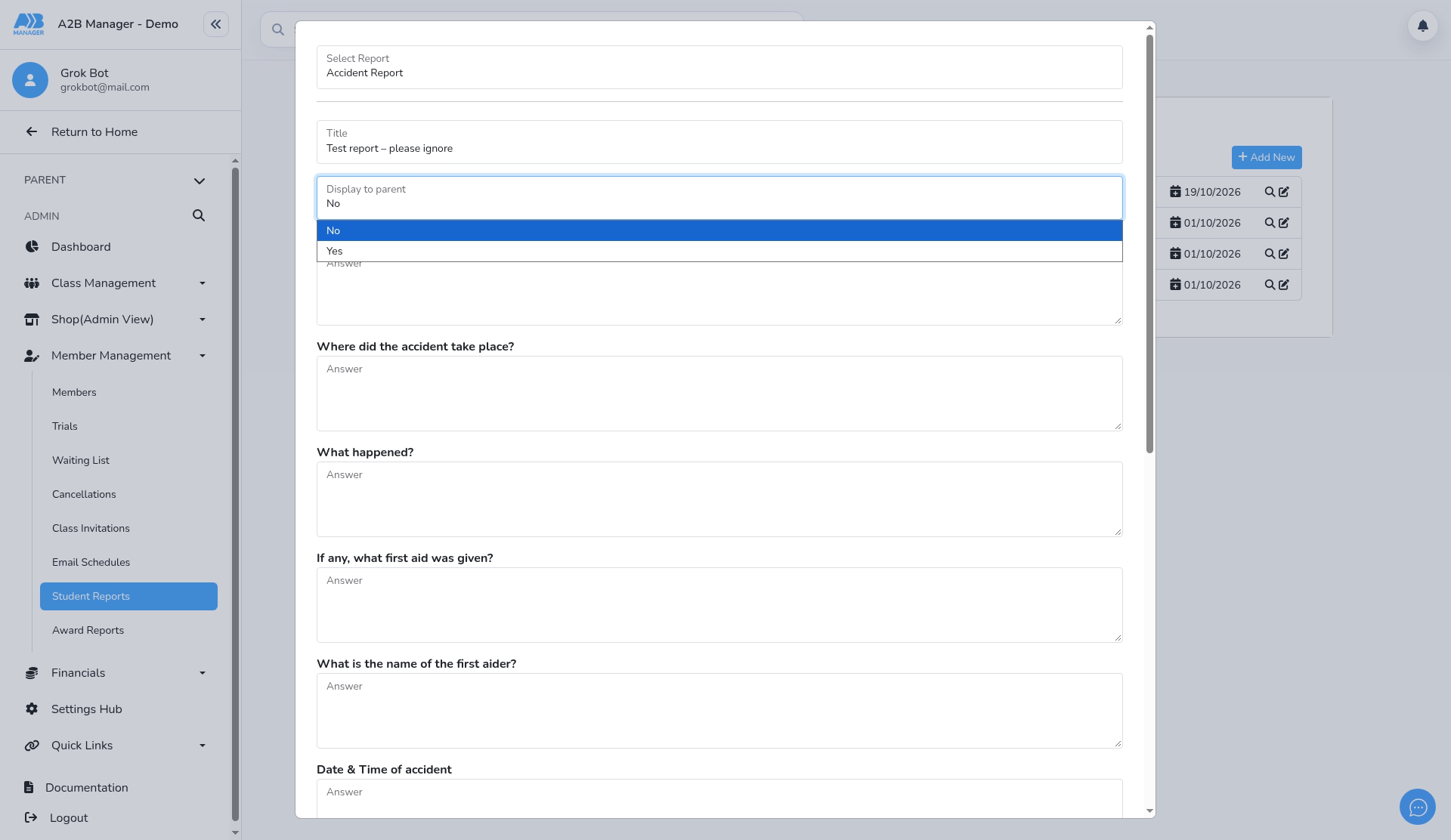
Step 5: Answer every question (1:04) #
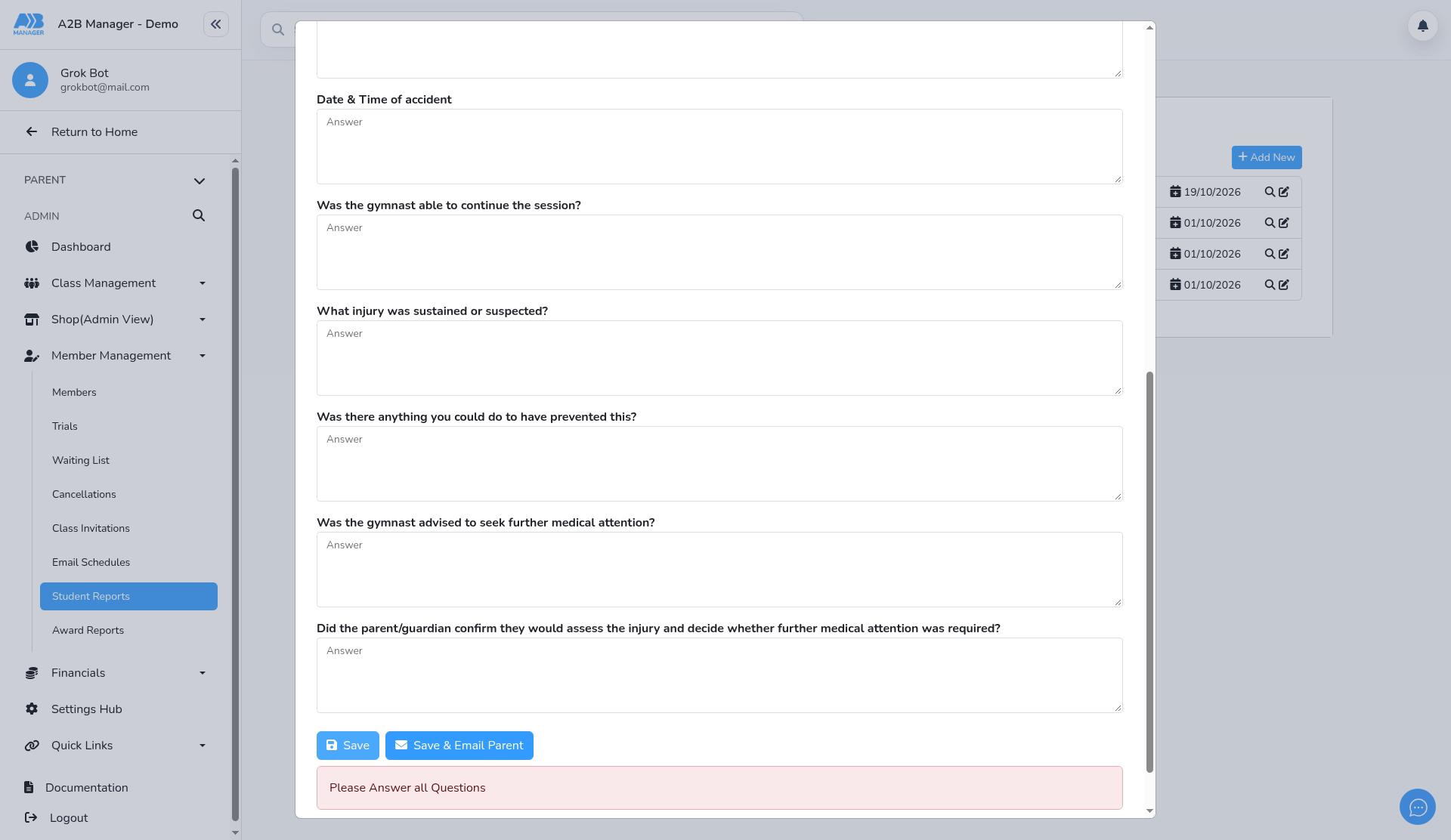
- Every question must be answered. If any are blank, saving shows Please Answer all Questions.
Step 6: Complete the answers (1:36) #
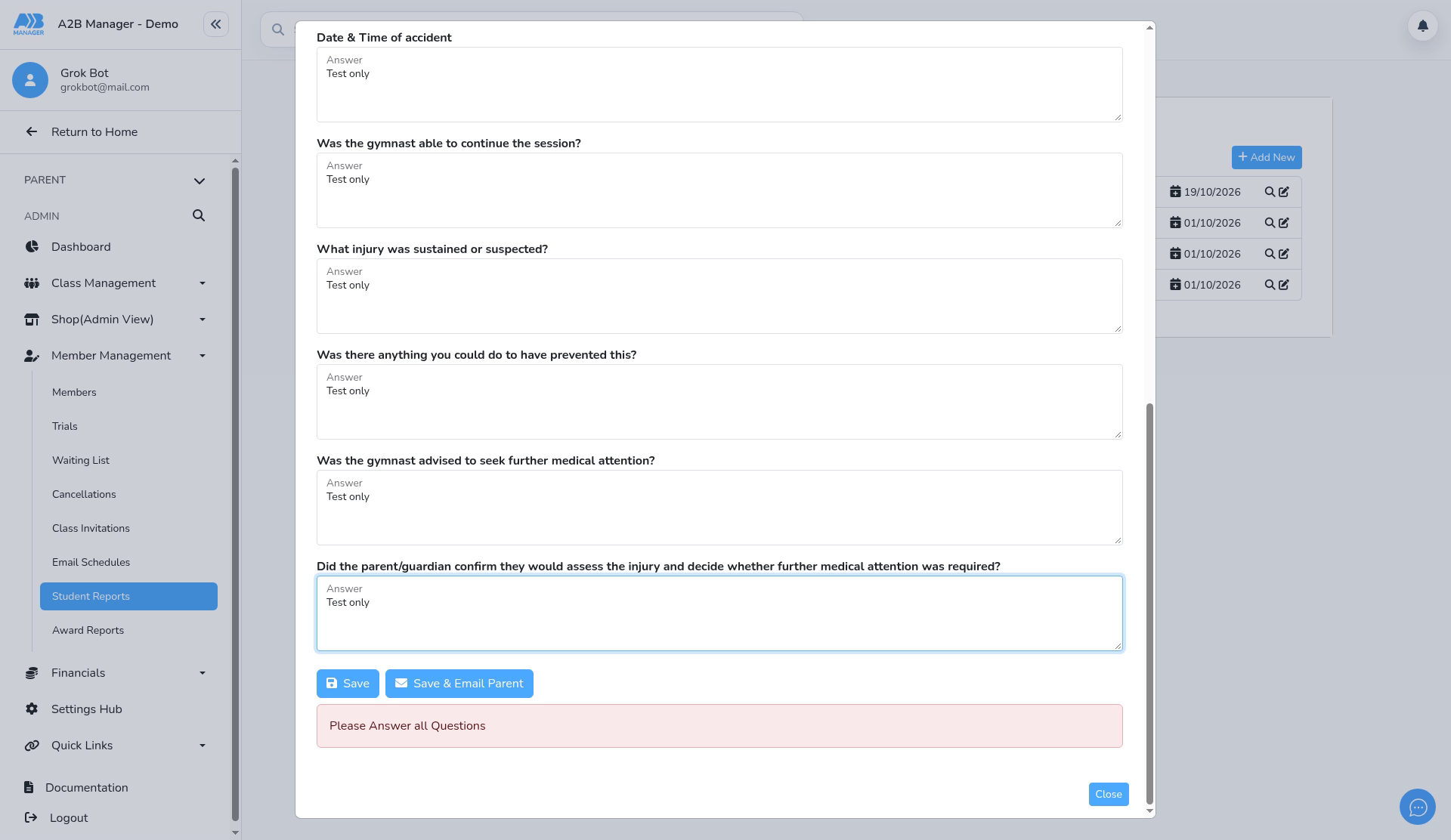
- Fill in any answers you missed.
Step 7: Save and email the parent (1:52) #
- Click Save to save only, or Save & Email Parent to also email the parent.
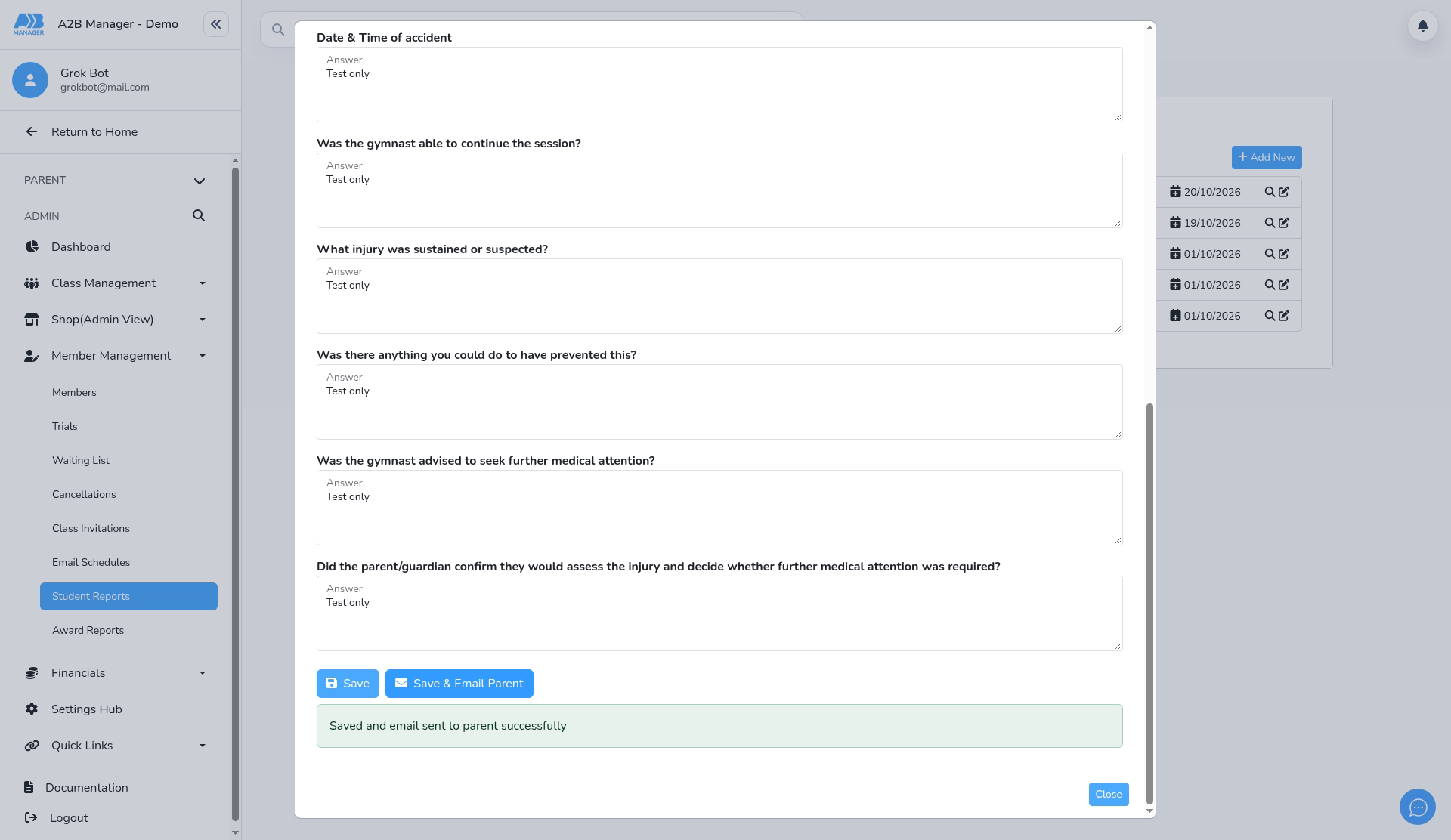
- You’ll see Saved and email sent to parent successfully, and the report is added to the list.
The Report Added email #
- Save & Email Parent sends the Report Added email. Edit it under Settings Hub > Email Templates > Report Added.
- The default message is: Dear {ParentFirstName} {ParentLastName}, A new report has been added for {StudentFirstName} {StudentLastName}. Please log into your account to view the report.
- You may want to add a link to the parent portal.
Good to know #
- Reports can’t be deleted once saved, so check the student and details before saving.


