

Table of Contents
Manage the cards saved for a member’s account: add a card, choose which card is used for payments, and remove cards that are no longer needed.
Managing payment methods #
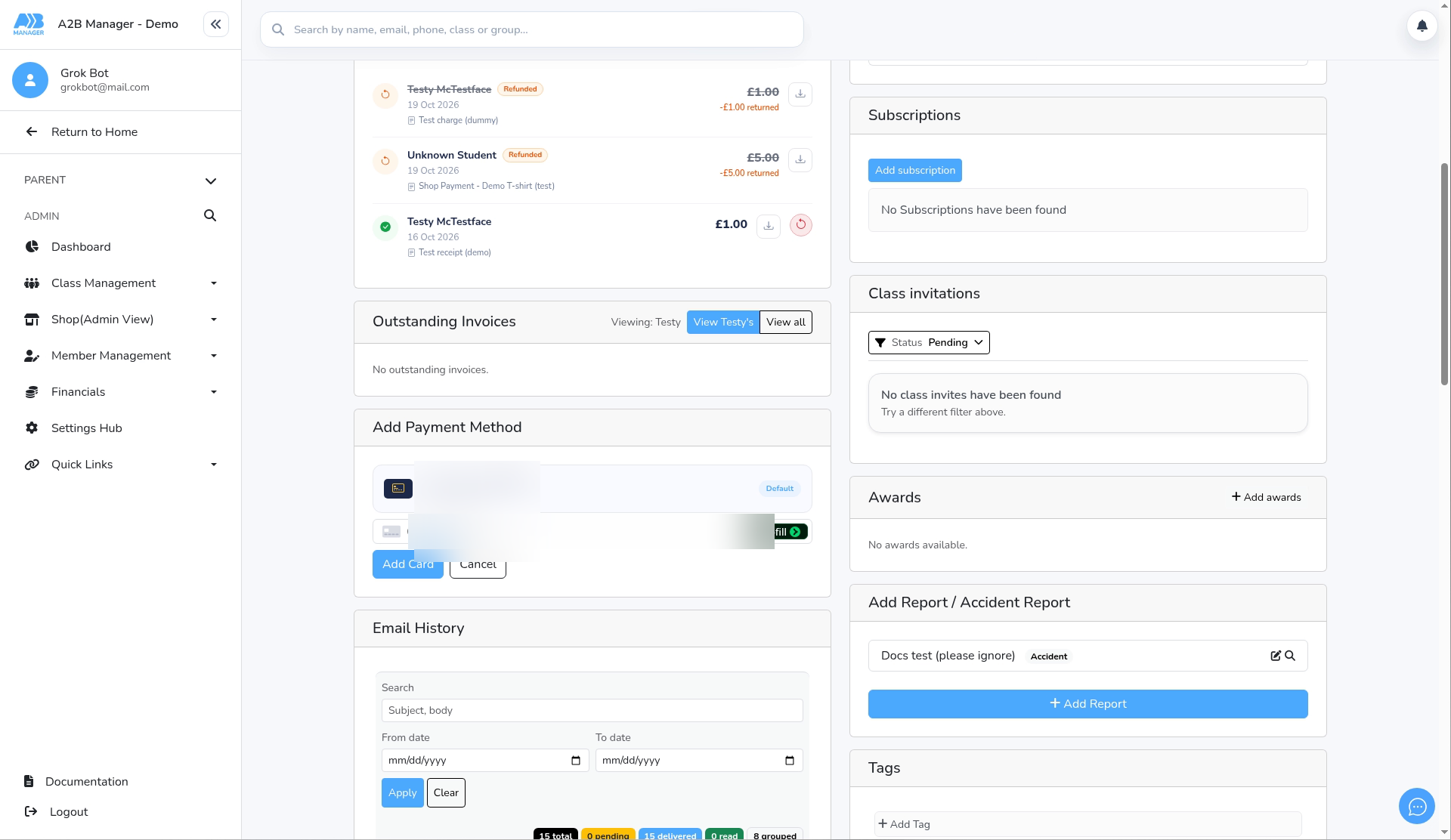
Step 1: Click Add a new card (0:00) #
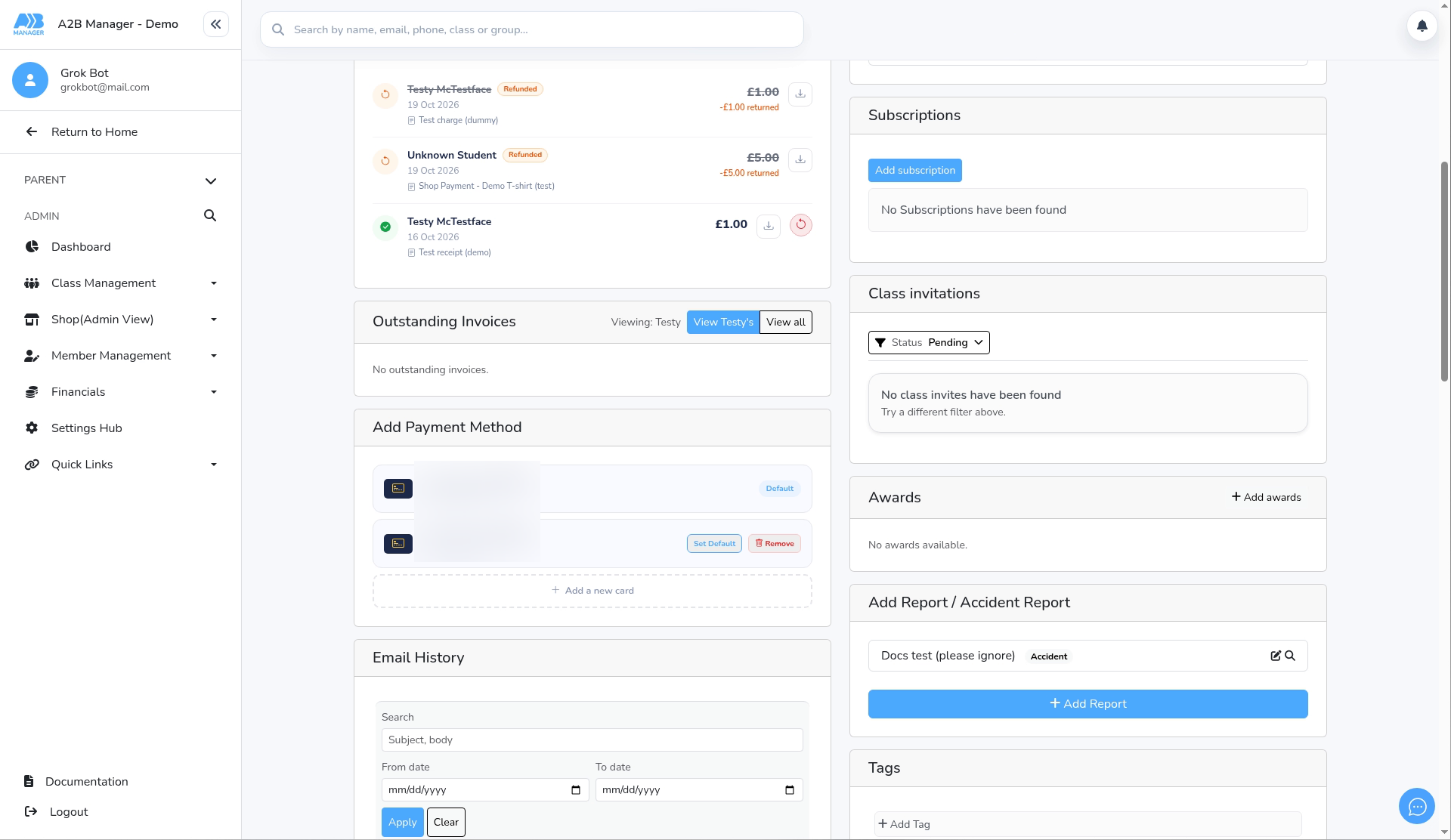
- Open the member’s profile and find the Add Payment Method card. It lists saved cards with their last four digits and expiry date. The default card has a Default label.
- Click Add a new card.
Step 2: Enter the card details (0:20) #
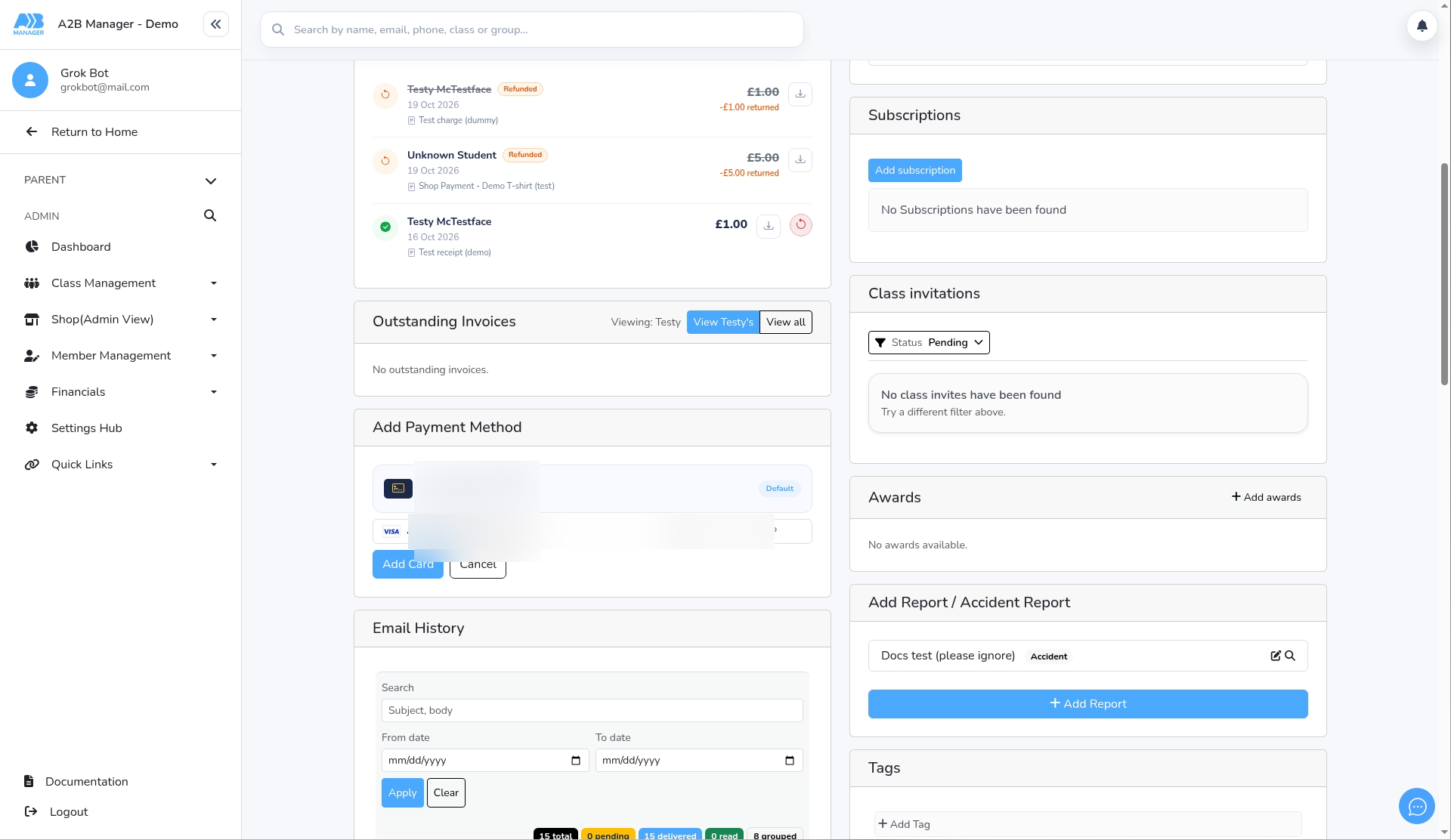
- Enter the card number, expiry date (MM/YY), security code (CVC) and postcode.
- The postcode box is controlled by Stripe and follows the card’s country. For a US card it shows ZIP and only accepts numbers. UK cards accept a normal UK postcode.
Step 3: Add the card (0:34) #
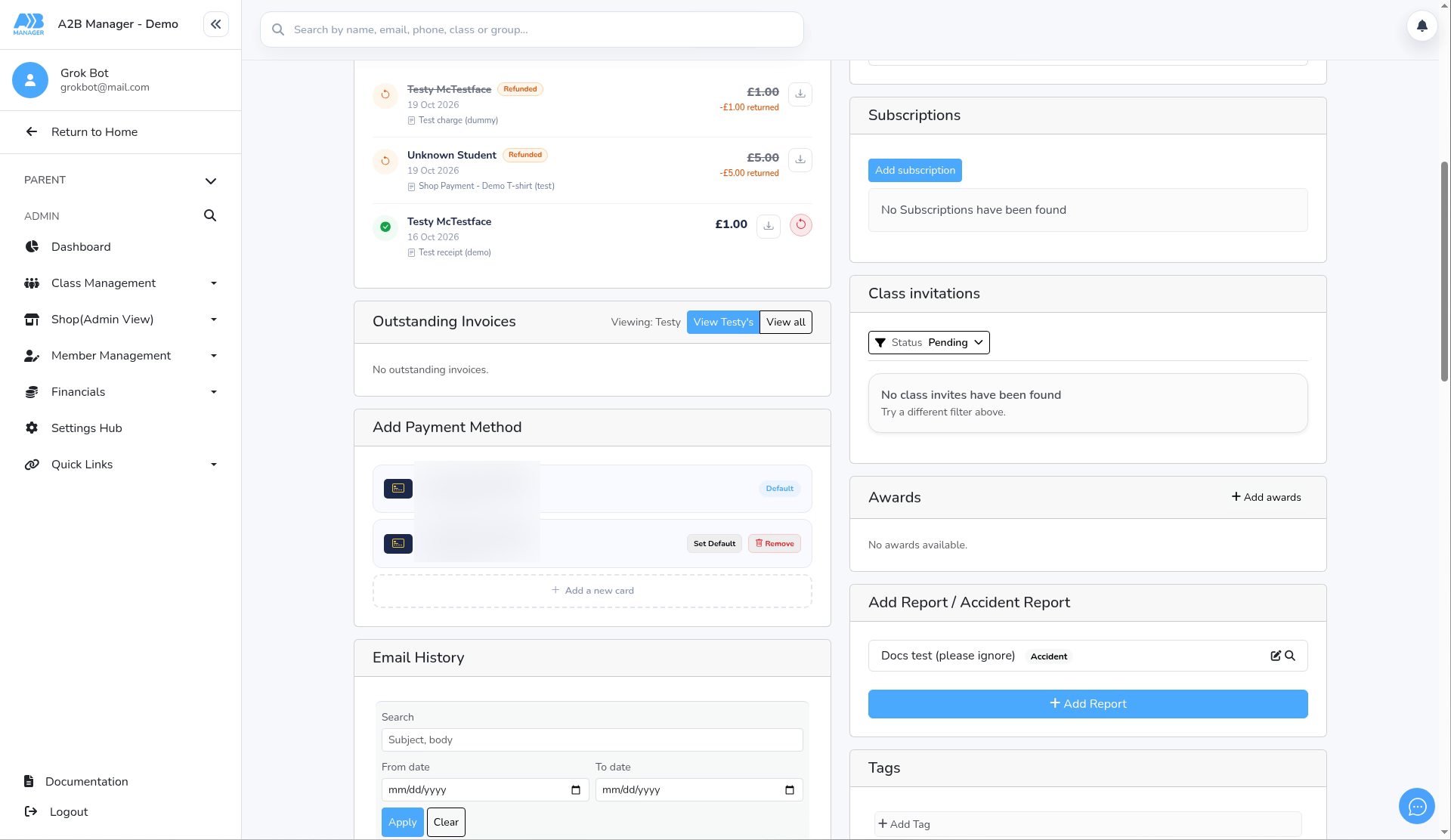
- Click Add Card. The card appears in the list.
- If this is the member’s first card, it becomes the default automatically.
Step 4: Set a default card (0:42) #
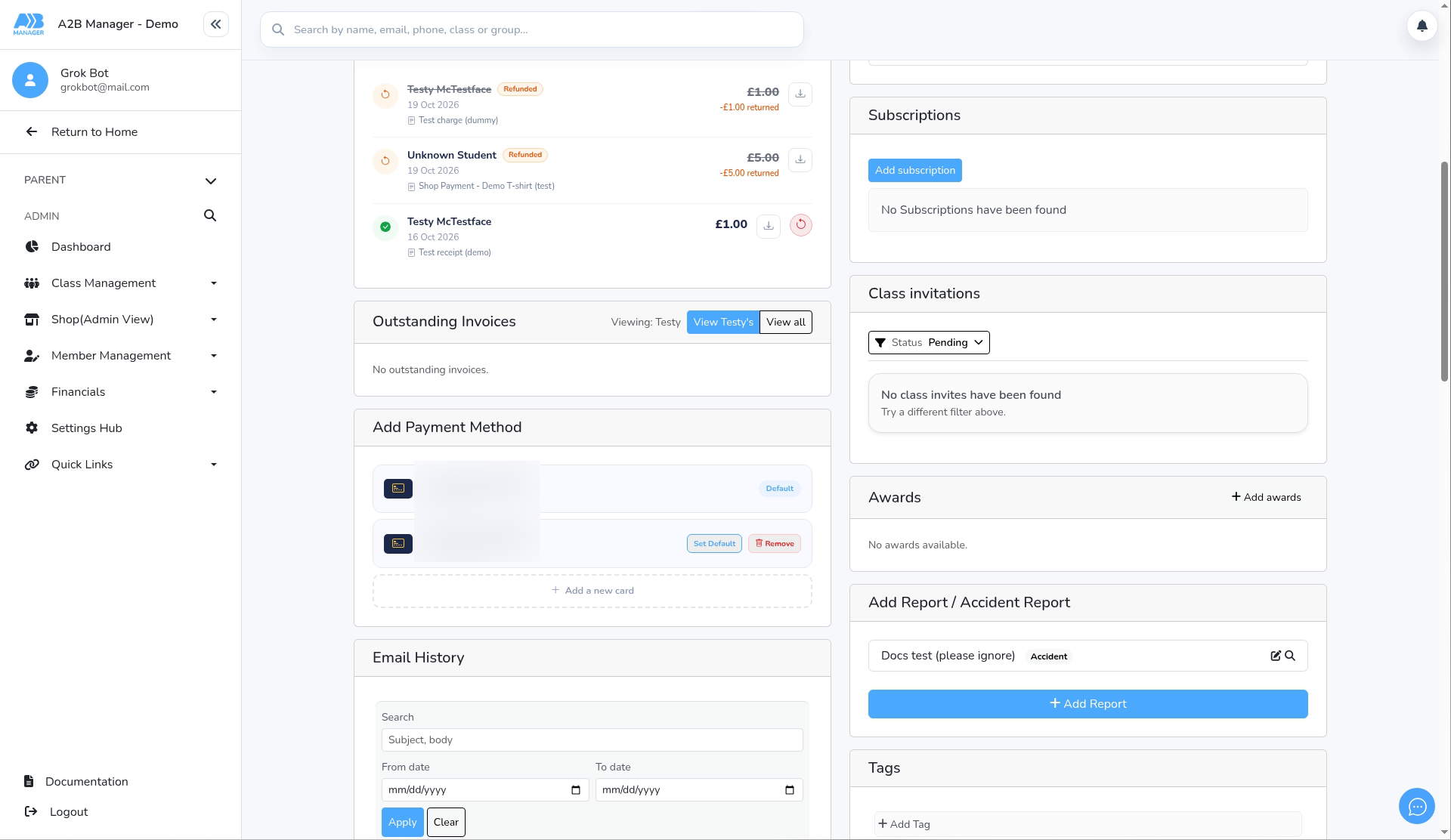
- Click Set Default on the card you want future payments to use. It moves to the top with the Default label.
Step 5: Make another card the default (0:51) #
- You can only remove a card that isn’t the default. To remove the default card, first click Set Default on a different card.
Step 6: Remove a card (0:57) #
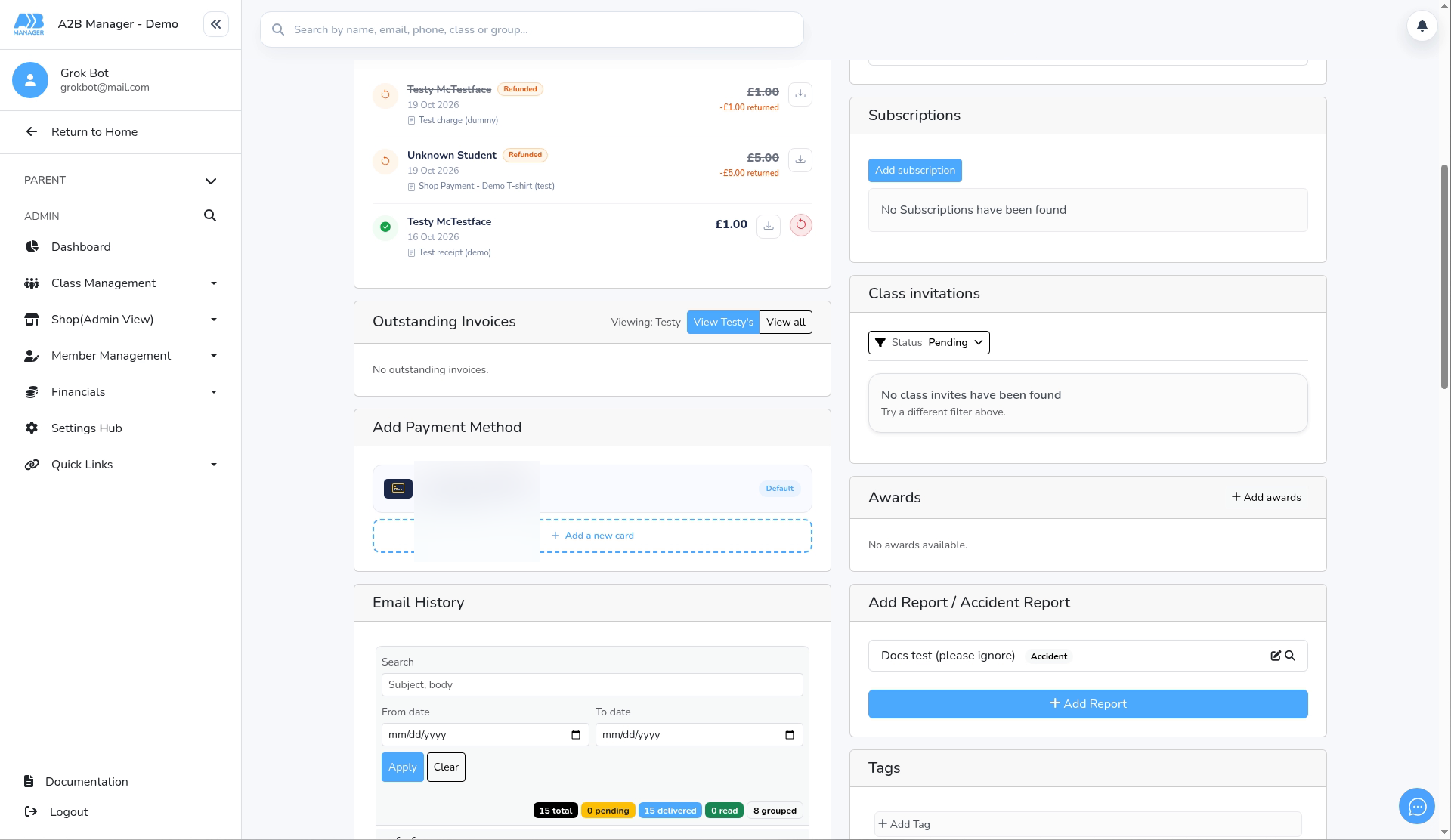
- Click Remove on a non-default card.
- There’s no confirmation step. The card is removed from the member’s Stripe account straight away, so check you’ve picked the right one.
Good to know #
- The default card is used for future payments, such as subscription charges.
- The list can also show bank accounts (BACS or SEPA Direct Debit) if the member has set them up.
- Parents can manage their own cards from their dashboard.


