

Table of Contents
If a parent wants to use a different email address, you can change it for them in Manage Parents. A parent’s email address is also what they log in with, so changing it updates their login straight away. Their password stays the same.
Before you start #
- You need club admin access to Settings Hub.
- Double-check the new address with the parent before you save. As soon as you save, it becomes the email they log in with.
- No confirmation email is sent to the old or the new address, so let the parent know yourself once it’s done.
Changing a parent’s login email #
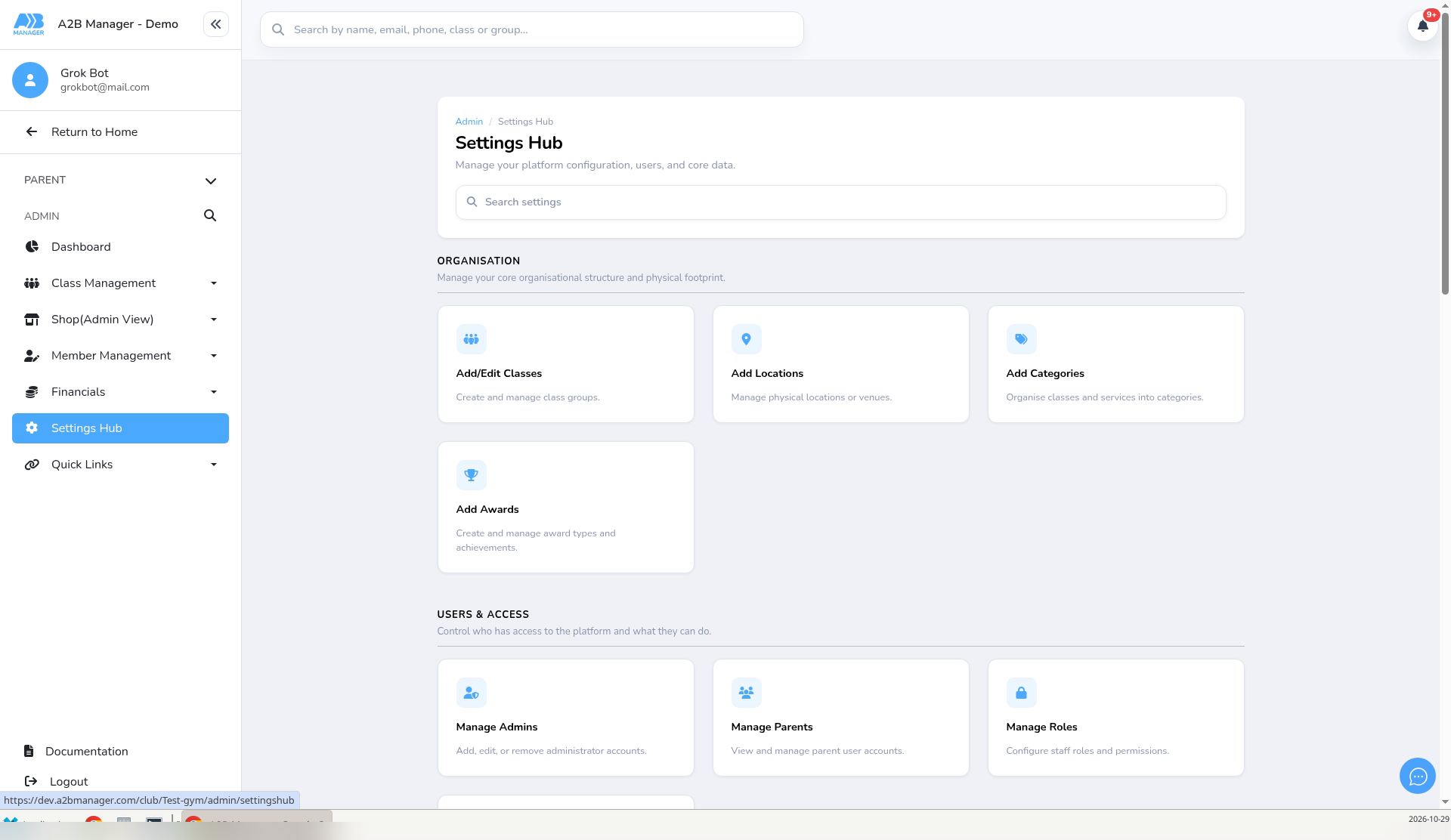
Step 1: Open Manage Parents (0:00) #
- In the menu on the left, click Settings Hub.
- Under Users & Access, click Manage Parents.
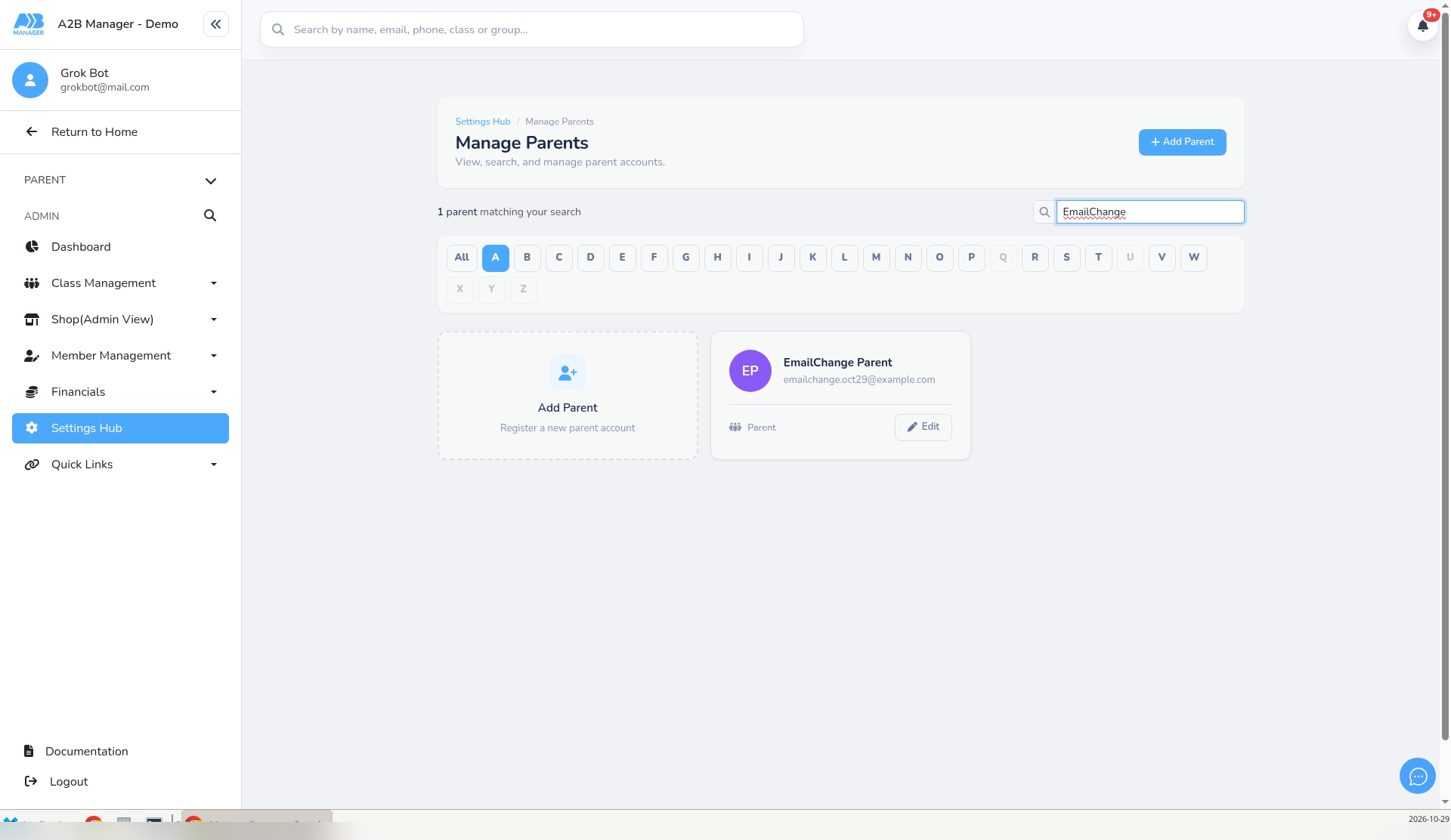
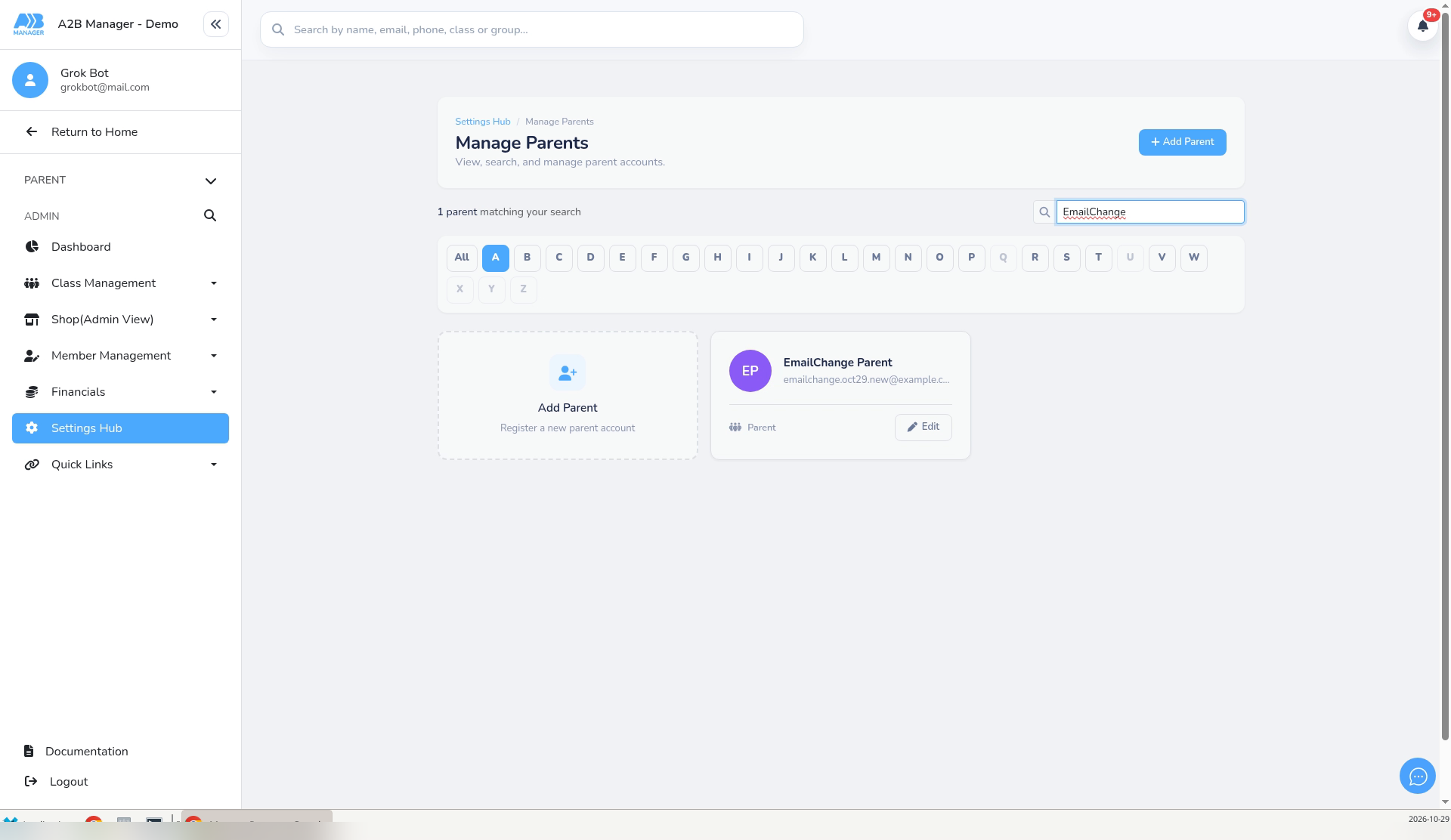
Step 2: Find the parent (0:11) #
- Click the Search by name or email… box and type the parent’s name or their current email address.
- When their card appears, click Edit.
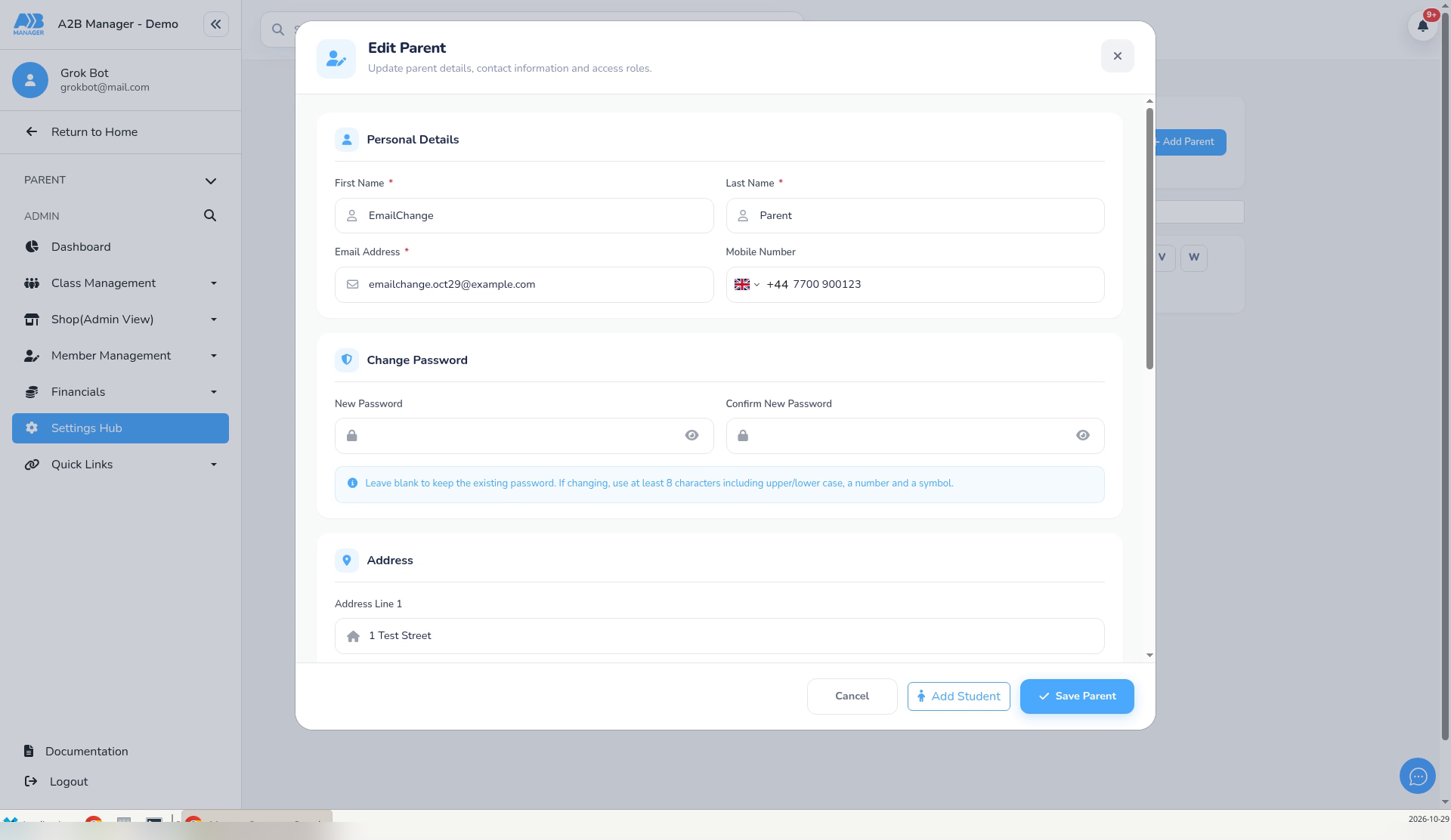
Step 3: Open Edit Parent (0:24) #
- The Edit Parent pop-up opens.
- Under Personal Details, the Email Address field shows the email they log in with now.
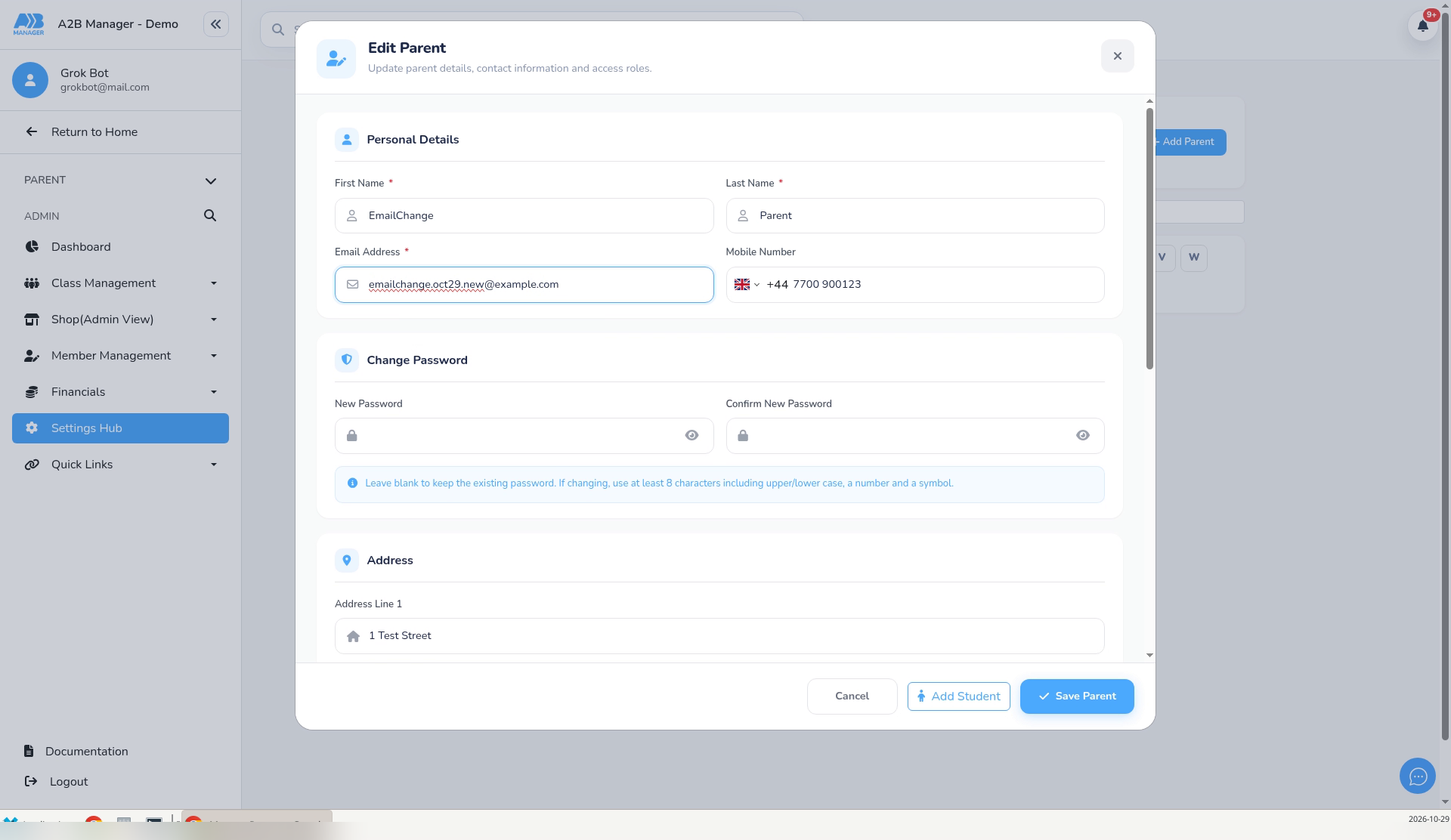
Step 4: Change the email and click Save Parent (0:31) #
- Clear the Email Address field and type the new email address.
- Leave New Password and Confirm New Password blank. That keeps the parent’s existing password.
- Click Save Parent.
- There’s no success message: the pop-up closes when it’s saved. If the pop-up doesn’t close, click Save Parent again.
Step 5: Check the new email and tell the parent (0:50) #
- The parent’s card now shows the new email. You can reload the page and search again to double-check.
- Tell the parent to log in with their new email address and their same password.
- If the parent is already logged in, ask them to log out and log back in with the new email.
What happens when you save #
- The change takes effect straight away. The new email address is now the parent’s login.
- Their password doesn’t change.
- No confirmation email is sent.
- The old email address stops working. If the parent tries it, they’ll see Invalid login attempt.
- If the parent was already logged in when you made the change, they stay logged in and may still see their old email until they log out and back in.
If you see an error #
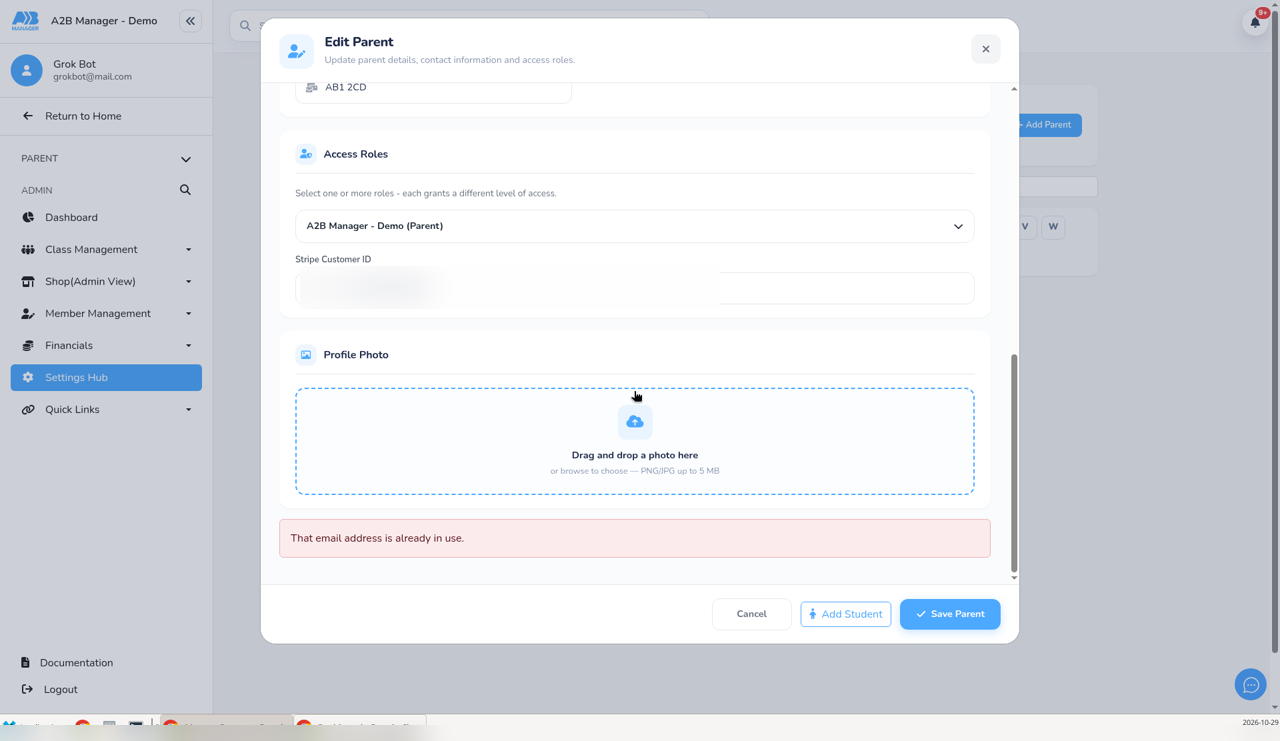
- That email address is already in use. Another account already uses that email. The message appears in red at the bottom of the Edit Parent pop-up, so scroll down if nothing seems to happen when you click Save Parent. Nothing is saved. Search Manage Parents for that email to check whether the family has a second account.
- Please enter a valid email address. The address isn’t in the right format (for example, it’s missing the @ or the ending). This appears under the Email Address field. Correct it and click Save Parent again.
Tip: Parents can also change their own login email in My Details (see How parents update their details). If a parent has forgotten their password, see How to reset a parent’s password. If you’re asked for address details when saving, What Parents Are Asked When They Create an Account explains which details a parent account needs.


