

Table of Contents
- Before you start
- The choices at a glance
- Choosing how parents cancel
- Step 1: Open the Cancellations settings (0:00)
- Step 2: Choose what happens for subscription classes (0:27)
- Step 3: Ask the club to confirm (0:37)
- Step 4: Cancel straight away (1:13)
- Step 5: End after a final payment, with notice (1:57)
- Step 6: Pro rata (2:44)
- Step 7: Choose what happens for term classes (3:28)
- Step 8: Save your choices (3:41)
- Good to know
Choose what a parent sees when they click Request Cancellation on their dashboard. For subscription classes you can pick Ask the club to confirm, Cancel straight away, End after a final payment or Pro rata, and you can set how many days’ notice parents must give.
Before you start #
- You need club admin access to Settings Hub.
- The Cancellations page has one dropdown for Subscription classes and one for Term classes, plus Notice required.
- After you save, the parent sees the new choice once their dashboard is reloaded.
The choices at a glance #
Subscription classes:
- Ask the club to confirm: the parent sees a request form with no last class and no price.
- Cancel straight away: the parent picks a last class and sees a quote.
- End after a final payment: the parent picks a last month and sees a quote.
- Pro rata: the parent picks a last class and sees a quote.
- Term classes: the dropdown offers Ask the club to confirm, Cancel straight away and Pro rata refund.
Choosing how parents cancel #
Step 1: Open the Cancellations settings (0:00) #
- In the menu on the left, click Settings Hub.
- Scroll down to System Settings and click Settings.
- In General Settings, under Club, click Cancellations.
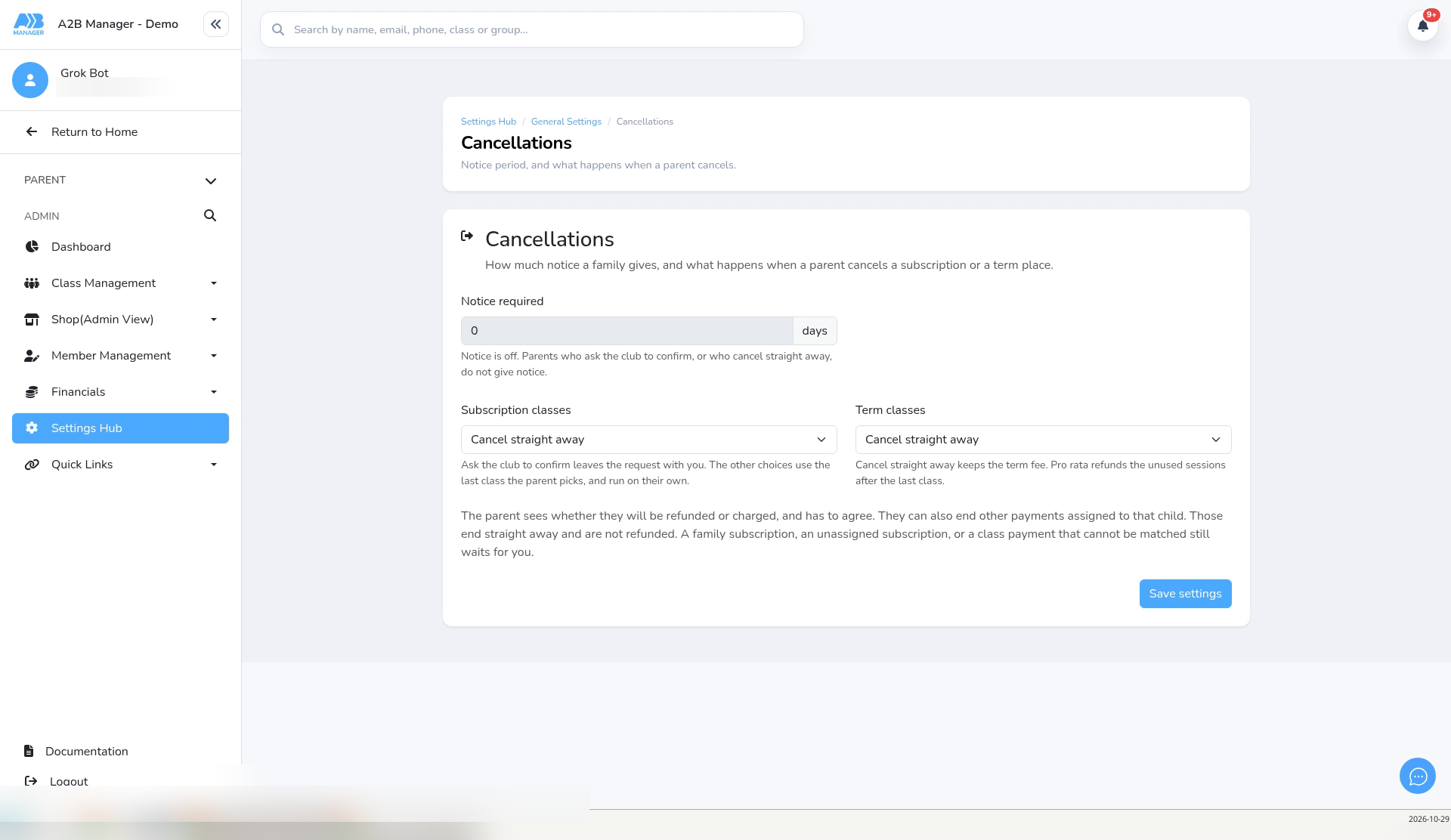
- The page shows Notice required, Subscription classes and Term classes. Under them, the page says: “The parent sees whether they will be refunded or charged, and has to agree. They can also end other payments assigned to that child. Those end straight away and are not refunded. A family subscription, an unassigned subscription, or a class payment that cannot be matched still waits for you.”
Step 2: Choose what happens for subscription classes (0:27) #
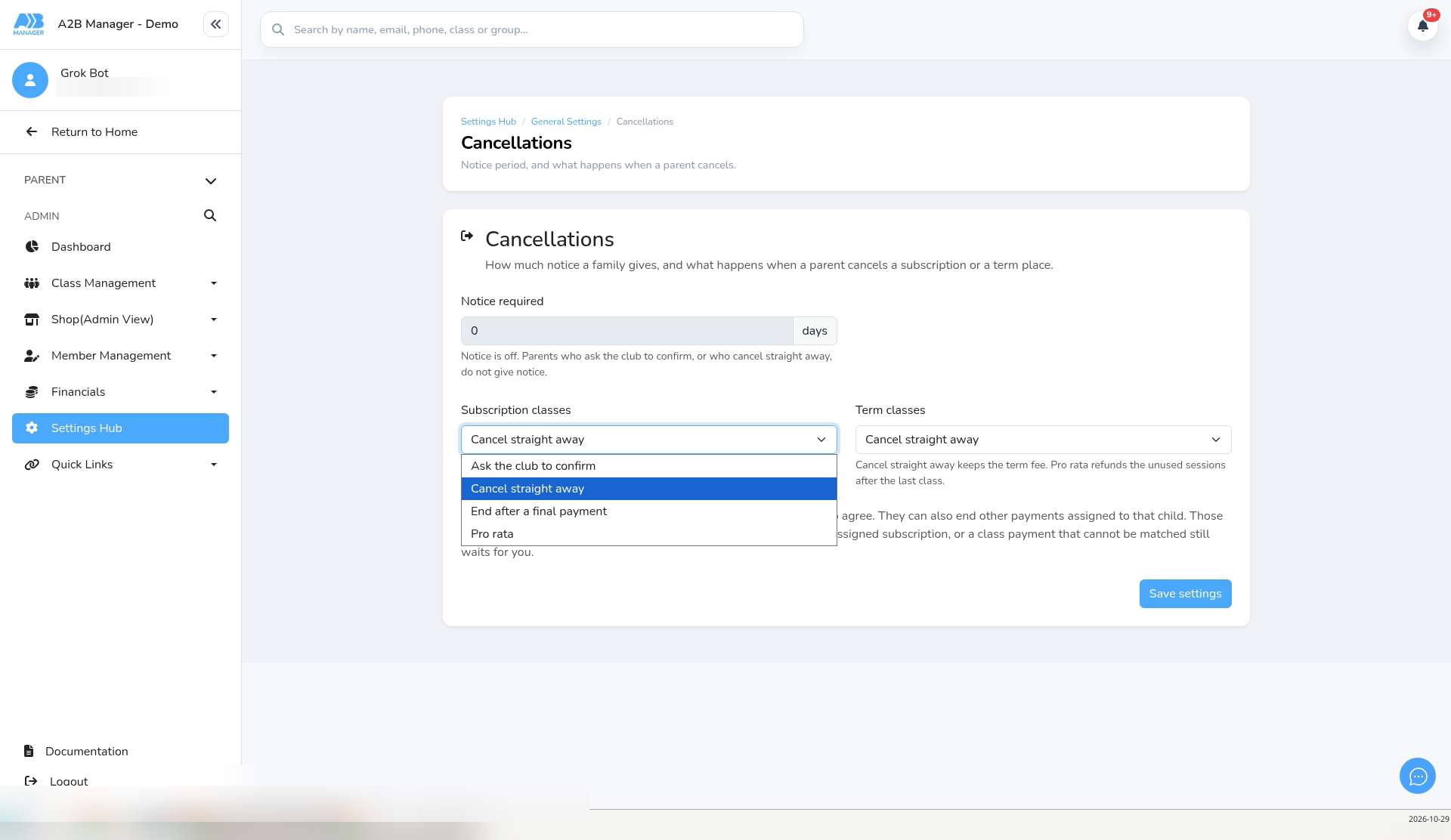
- Open the Subscription classes dropdown.
- Choose Ask the club to confirm, Cancel straight away, End after a final payment or Pro rata.
- Click Save settings. You’ll see Cancellation settings saved.
- Steps 3 to 6 show what the parent sees with each choice, after their dashboard is reloaded.
Step 3: Ask the club to confirm (0:37) #
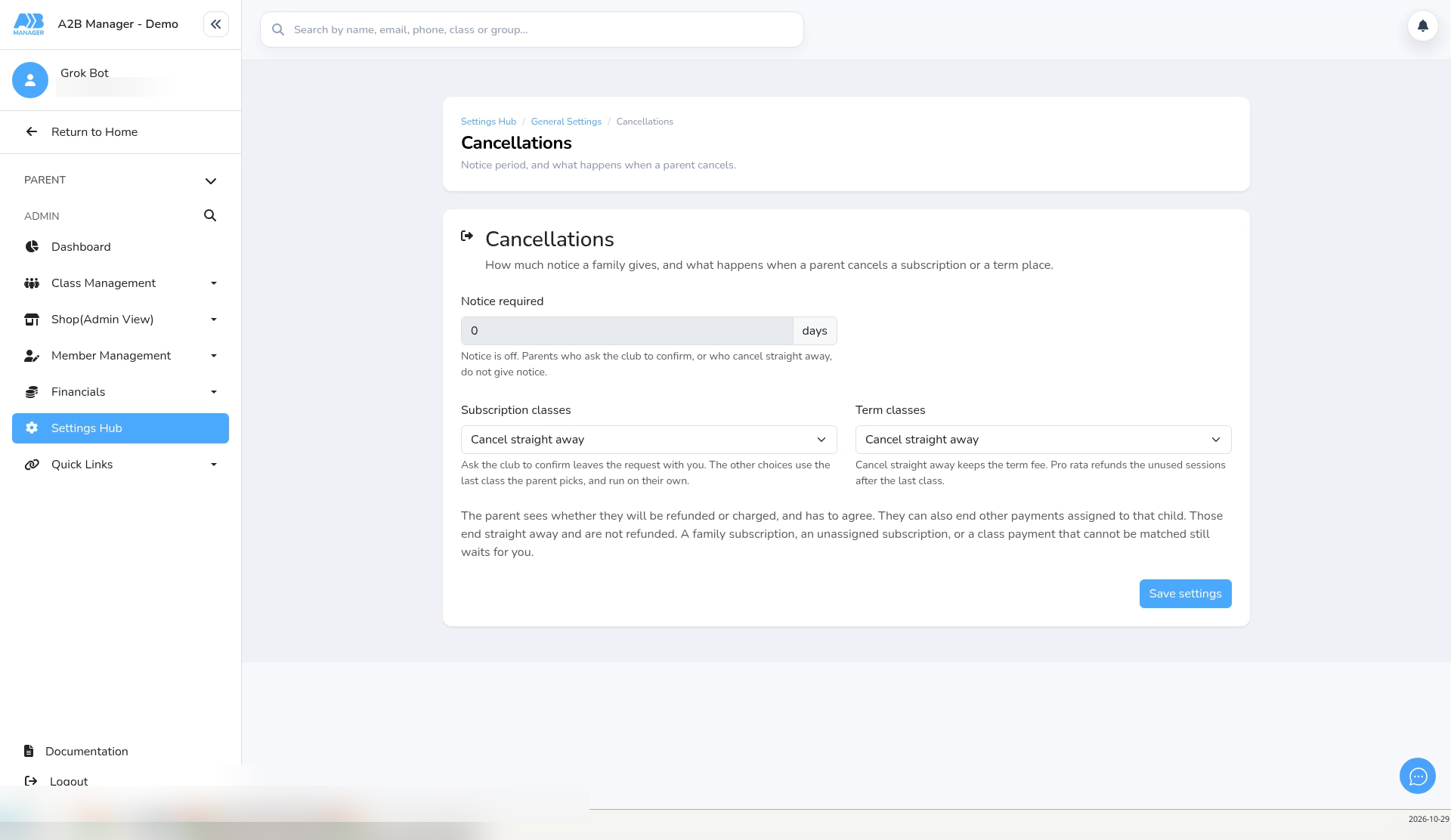
- Notice required is greyed out. The page says: “Notice is off. Parents who ask the club to confirm, or who cancel straight away, do not give notice.”
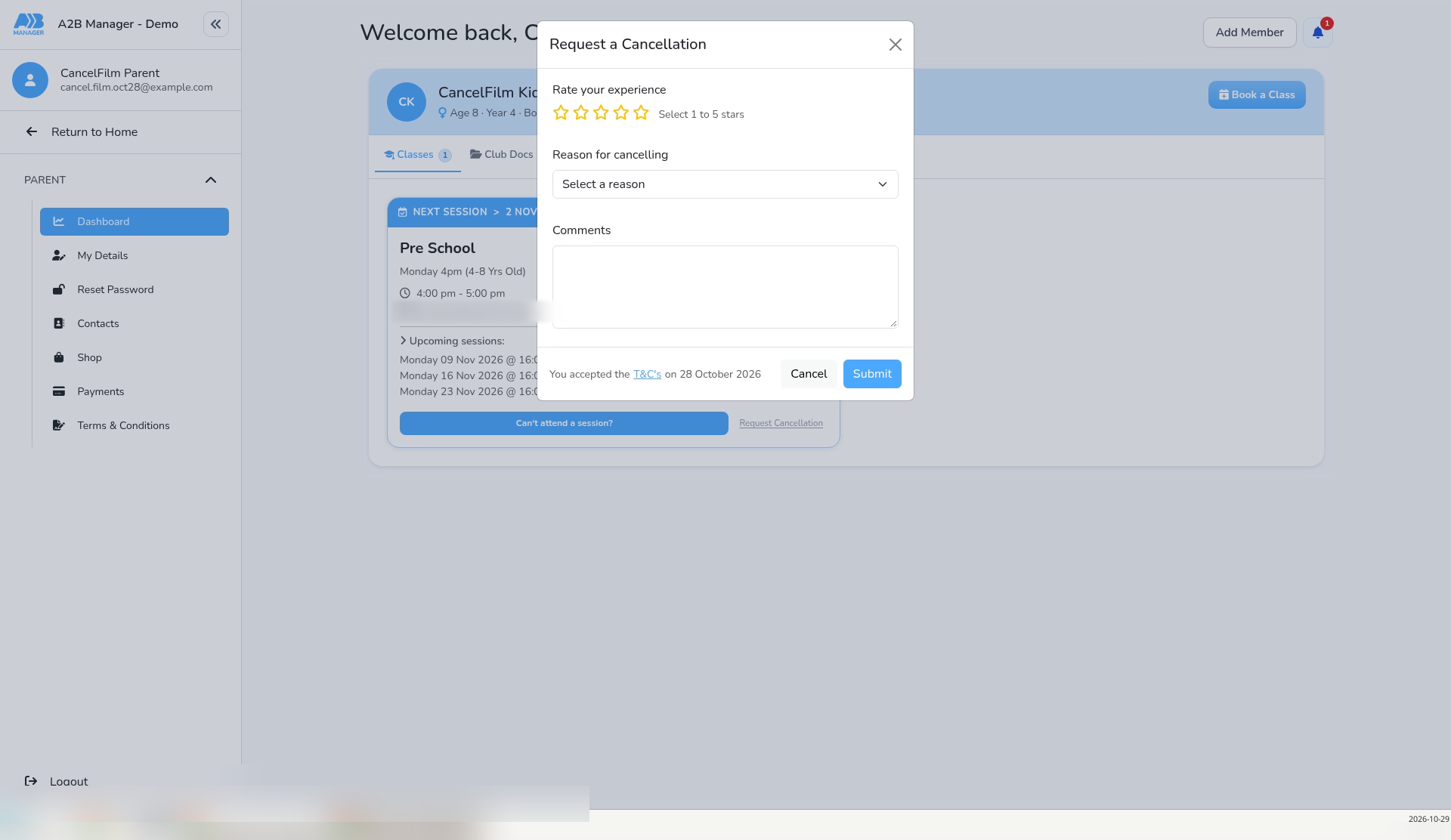
- On the parent’s dashboard, the class card has a Request Cancellation link. It opens Request a Cancellation.
- The pop-up has Rate your experience, Reason for cancelling and Comments, with Cancel and Submit buttons. There’s no last class to choose and no price.
Step 4: Cancel straight away (1:13) #
- Choose Cancel straight away and click Save settings. Notice required stays greyed out.
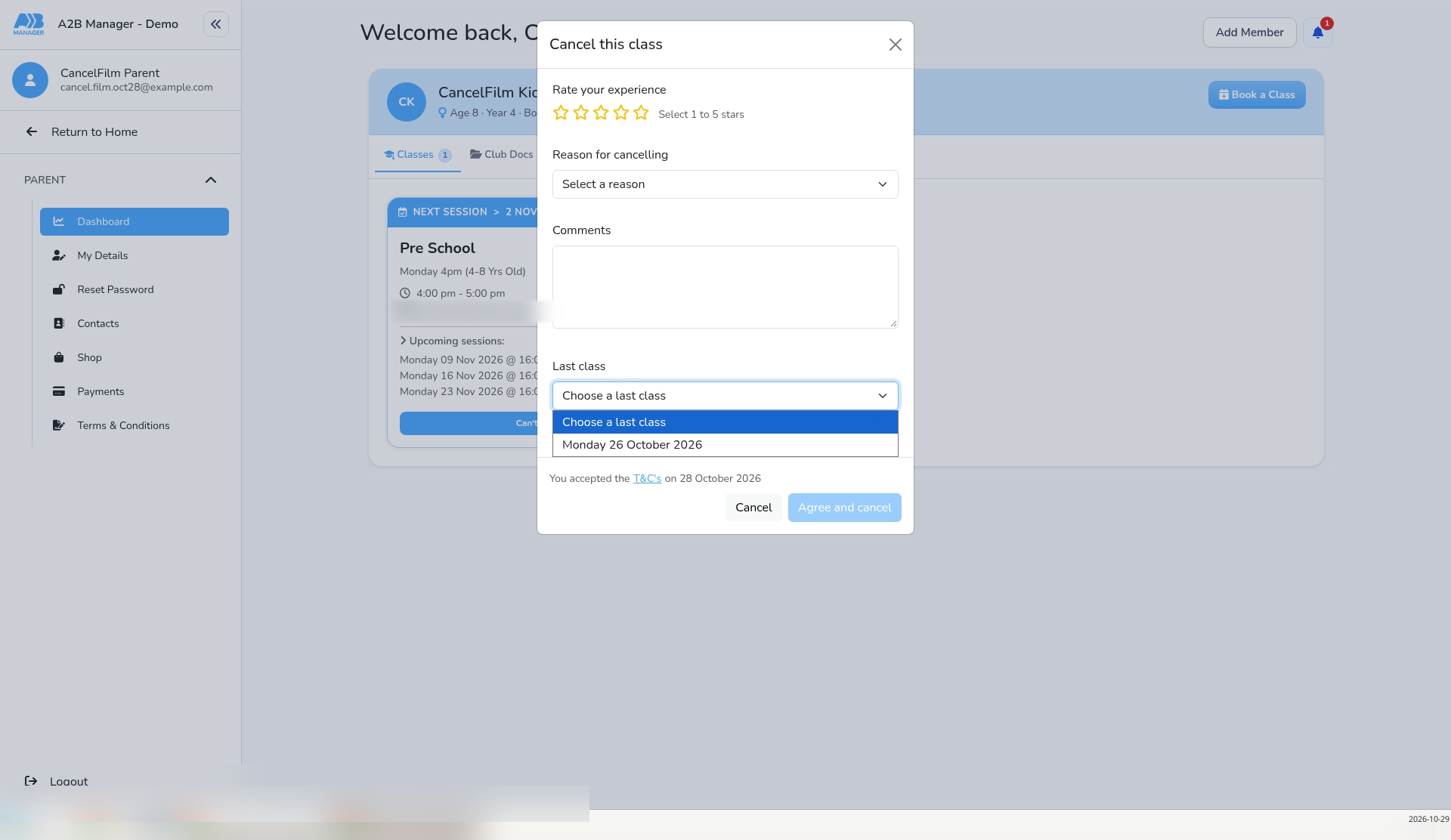
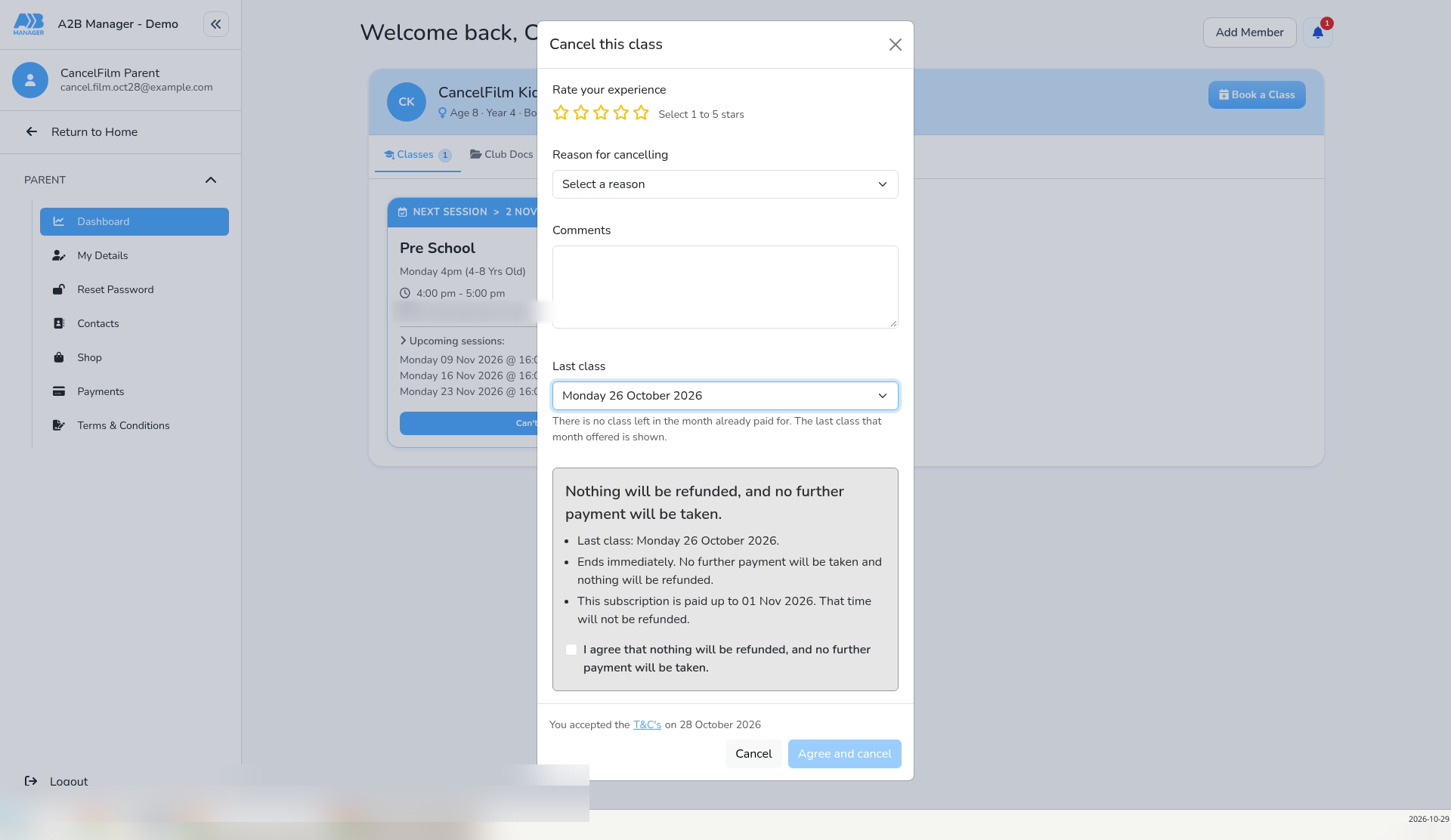
- The parent’s Request Cancellation link now opens Cancel this class, with a Last class list as well as the rating, reason and comments.
- In this example, the list offers only Monday 26 October 2026, and the hint reads “There is no class left in the month already paid for. The last class that month offered is shown.”
- If the child has no payment due, for example they have no subscription of their own, the Last class list stops at the end of this month. If no class is left this month, the list offers this month’s last class instead, even if it has already taken place.
- The quote reads Nothing will be refunded, and no further payment will be taken. It also lists “Ends immediately. No further payment will be taken and nothing will be refunded.” and “This subscription is paid up to 01 Nov 2026. That time will not be refunded.”
- Under the quote is the box I agree that nothing will be refunded, and no further payment will be taken. While it’s unticked, Agree and cancel is greyed out.
Step 5: End after a final payment, with notice (1:57) #
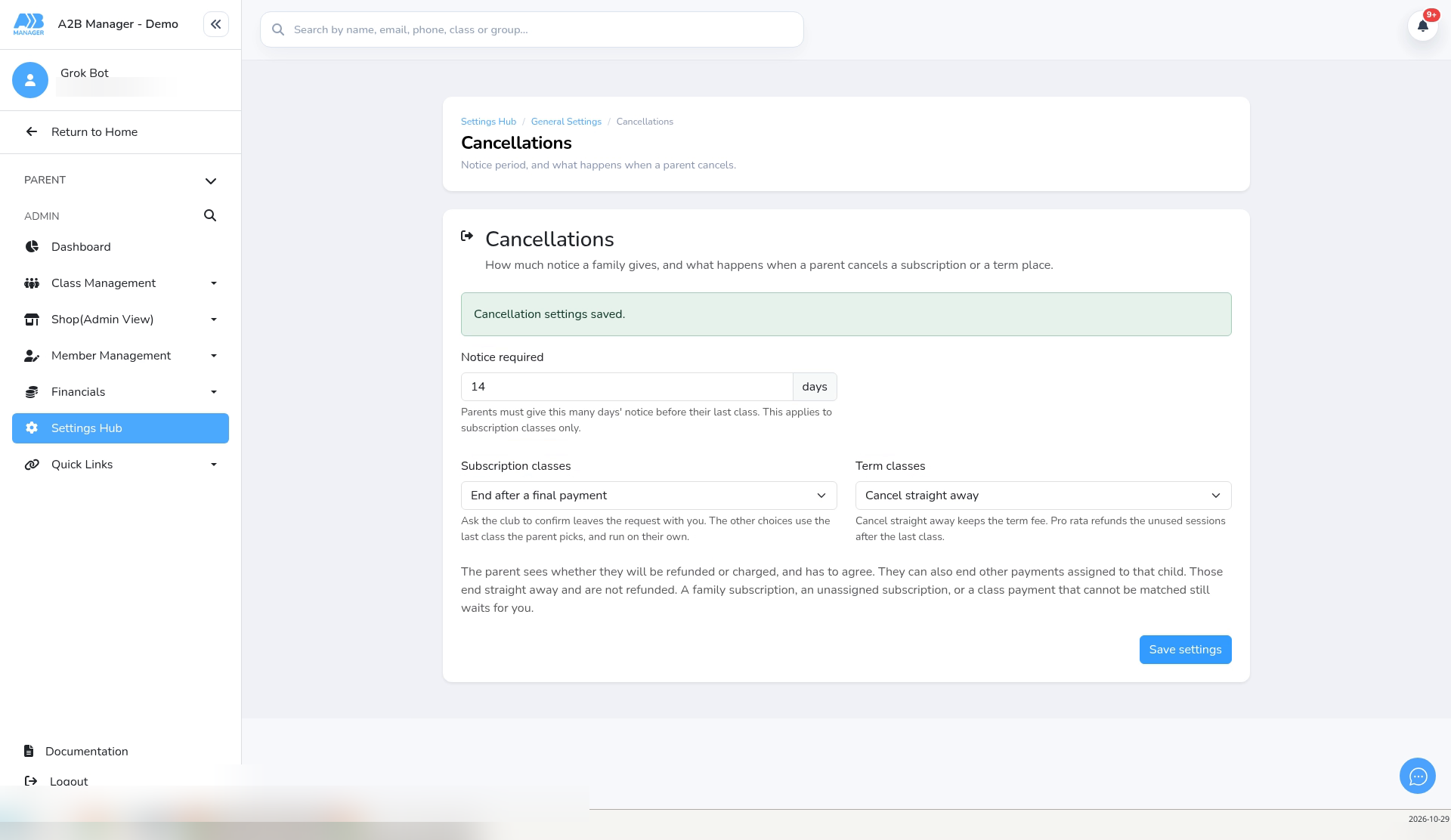
- Choose End after a final payment. Notice required is no longer greyed out. This example uses 14 days, and the page says: “Parents must give this many days’ notice before their last class. This applies to subscription classes only.”
- Click Save settings.
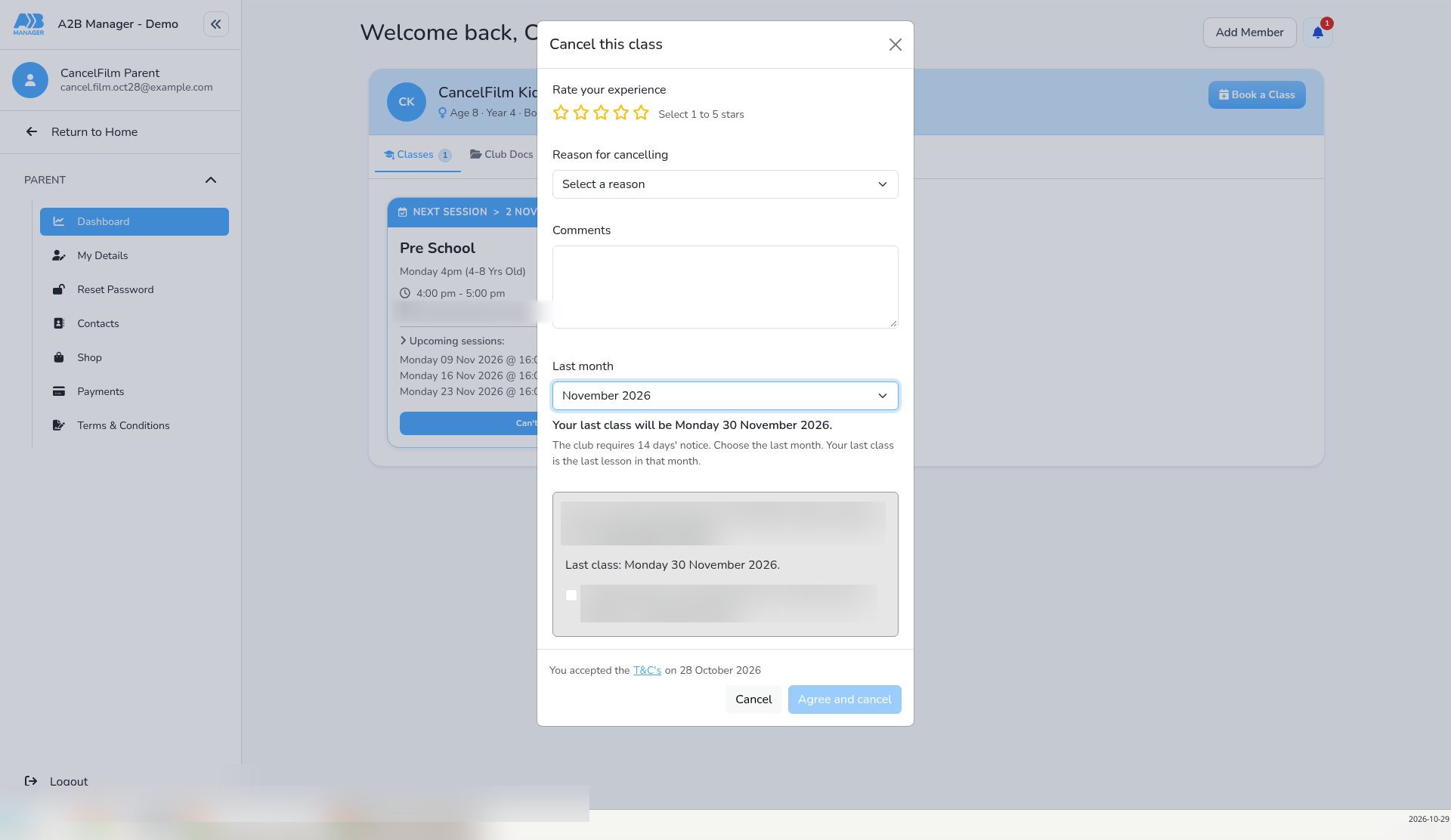
- On the parent’s side, Cancel this class asks for a Last month. In this example the list runs from November 2026 to May 2027, and the hint reads “The club requires 14 days’ notice. Choose the last month. Your last class is the last lesson in that month.”
- Choosing November 2026 shows Your last class will be Monday 30 November 2026. The screen also shows the amount of the parent’s normal payment and when it will be taken.
- Choosing December 2026 gives a last class of Monday 28 December 2026, with a quote ending “…will continue until 1 December 2026.”
- Under the quote is an agreement box to tick. While it’s unticked, Agree and cancel is greyed out.
Step 6: Pro rata (2:44) #
- Choose Pro rata and click Save settings. Notice required still shows 14 days in this example.
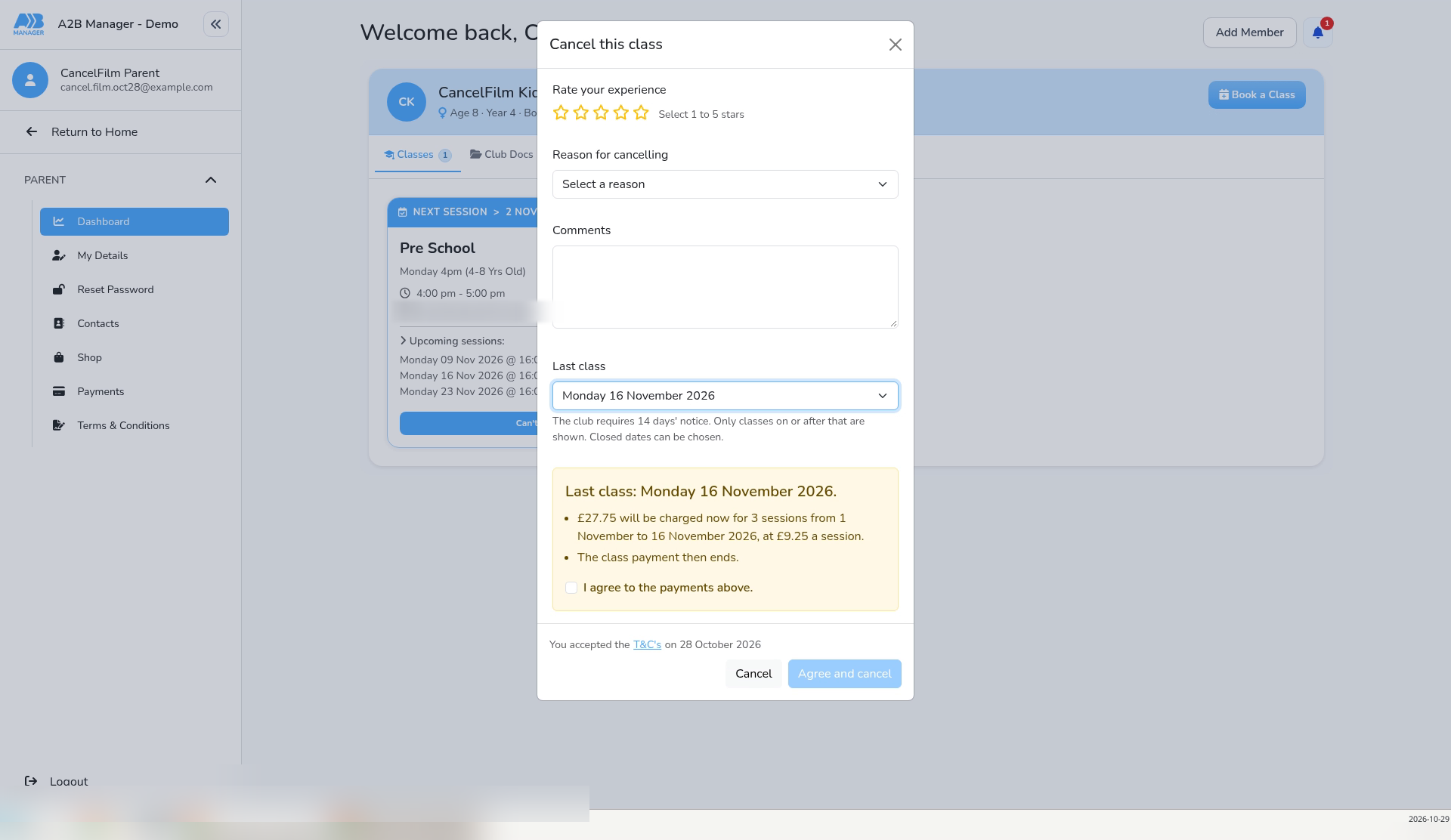
- The parent chooses a Last class. In this example the list starts at Monday 16 November 2026, and the hint reads “The club requires 14 days’ notice. Only classes on or after that are shown. Closed dates can be chosen.”
- Choosing Monday 16 November 2026 shows Last class: Monday 16 November 2026. and £27.75 will be charged now for 3 sessions from 1 November to 16 November 2026, at £9.25 a session. followed by “The class payment then ends.”
- Choosing Monday 23 November 2026 shows £37.00 to be charged for 4 sessions.
- Under the quote is the box I agree to the payments above. While it’s unticked, Agree and cancel is greyed out.
Step 7: Choose what happens for term classes (3:28) #
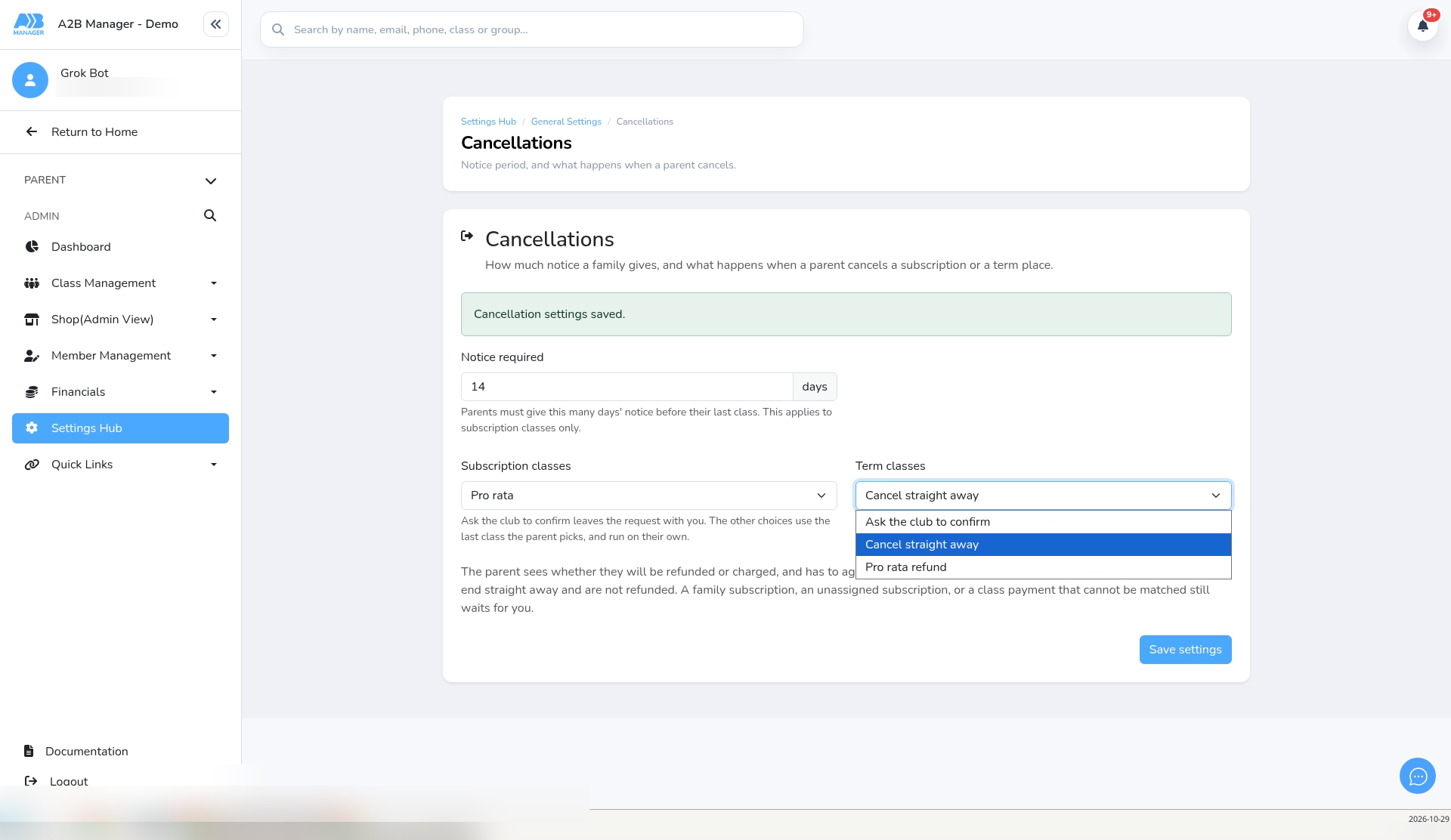
- Open the Term classes dropdown. It offers Ask the club to confirm, Cancel straight away and Pro rata refund.
- Under the dropdown, the page says: “Cancel straight away keeps the term fee. Pro rata refunds the unused sessions after the last class.”
Step 8: Save your choices (3:41) #
- Set both dropdowns, and Notice required if it isn’t greyed out, the way you want them.
- Click Save settings. You’ll see Cancellation settings saved.
- After a reload, the page keeps your saved choices. In this example, both dropdowns are back to Cancel straight away, and Notice required is greyed out.
Good to know #
- In the parent’s pop-up, clicking Cancel closes it without sending or cancelling anything.
- If a child’s class payment can’t be matched, End after a final payment and Pro rata show The class payment could not be matched. instead of a price.
Tip: To see the exact wording your parents will get, try a cancellation on a dummy parent account and click Cancel in the pop-up instead of finishing.


