

Table of Contents
A parent’s login is the email address on their own parent account. People can get copies of the club’s emails without having a login of their own, for example as an additional contact with CC ticked. So getting emails from the club at an address doesn’t always mean that address can log in. This guide shows how to read the login error, and what you can check as a club.
Why it happens #
- The login uses the email address on the parent’s own account.
- An additional contact with CC ticked gets copies of the club’s emails, but can’t log in with that email address.
- The login page shows the same “Error: Invalid login attempt.” when the email address isn’t on any account and when the password is wrong. So it’s easy to think the email isn’t recognised.
What to Check, Step by Step #
Step 1: Read the login error (0:00) #
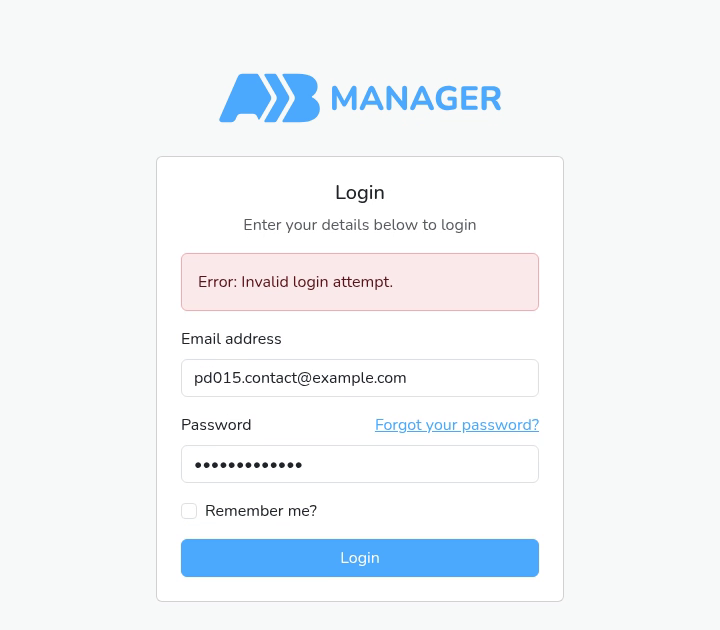
- “Error: Invalid login attempt.” on its own means the email address isn’t on any account. An additional contact’s email address gives the same message (see Step 3).
- If there’s a second line, such as “5 attempts remaining before temporary lockout.”, the email address is on an account. It’s the password that’s wrong. Go to Step 6.
- Capital letters don’t matter. In our test, the same email address typed in capitals logged straight in.
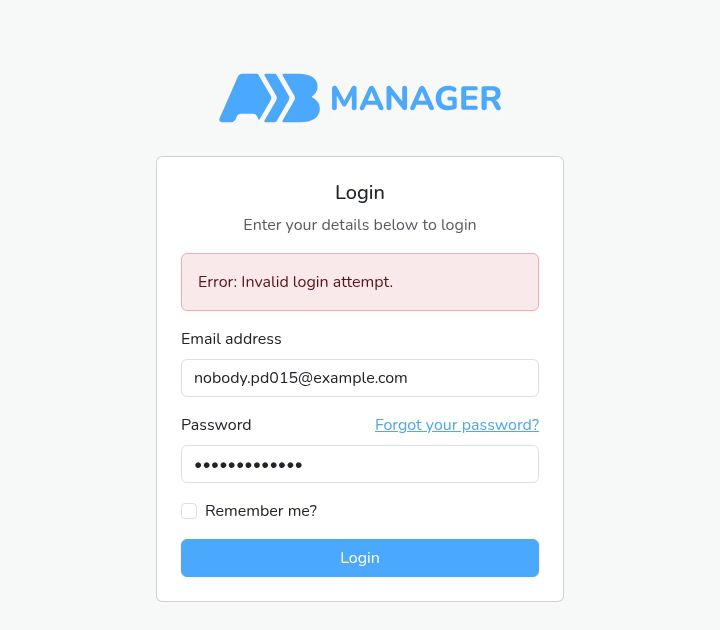
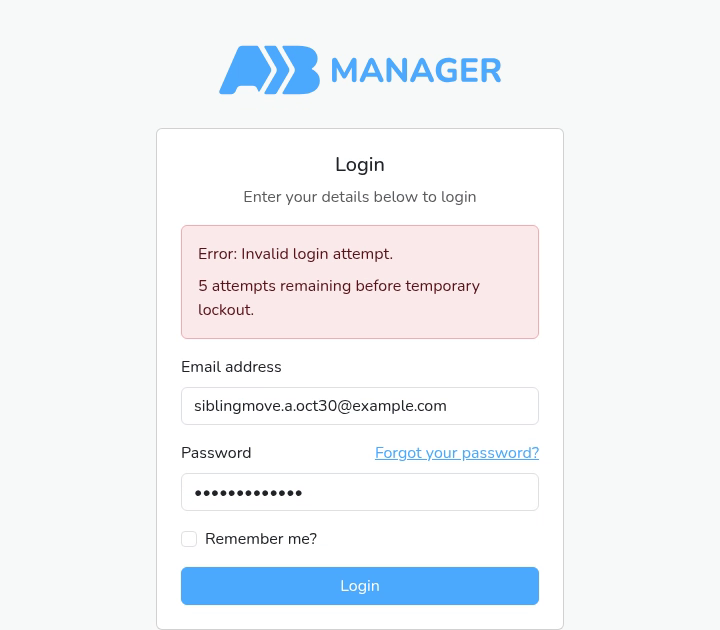
Step 2: Search Manage Parents (0:38) #
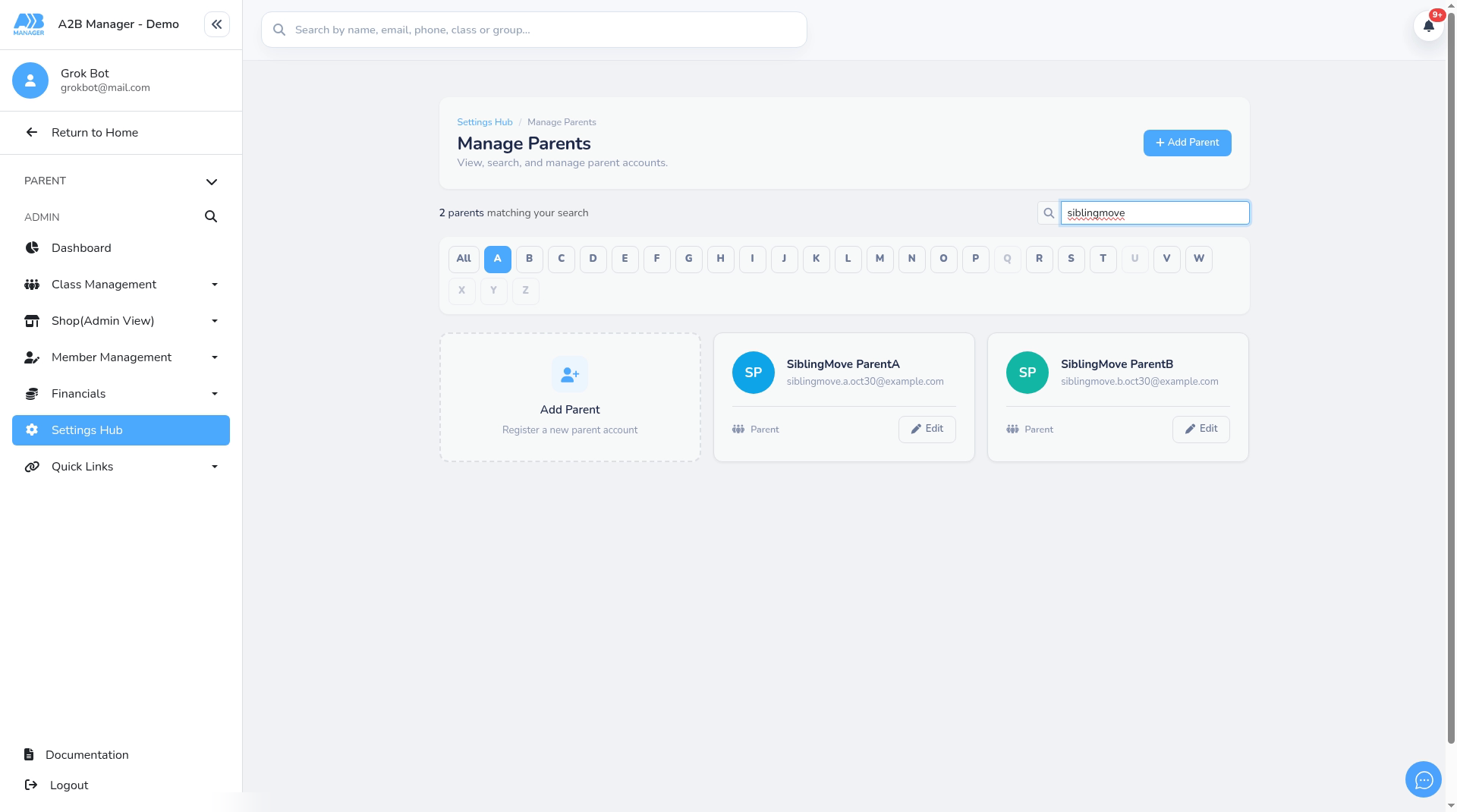
- Go to Settings Hub > Manage Parents.
- In Search by name or email…, search for the parent’s name, then for the email address they’re trying to log in with.
- Each card shows the parent’s name and login email, with a Parent badge and an Edit button.
- Not listed? Go to Step 3. Listed? Go to Step 5.
Step 3: Not listed? Check the child’s Additional Contacts (0:48) #
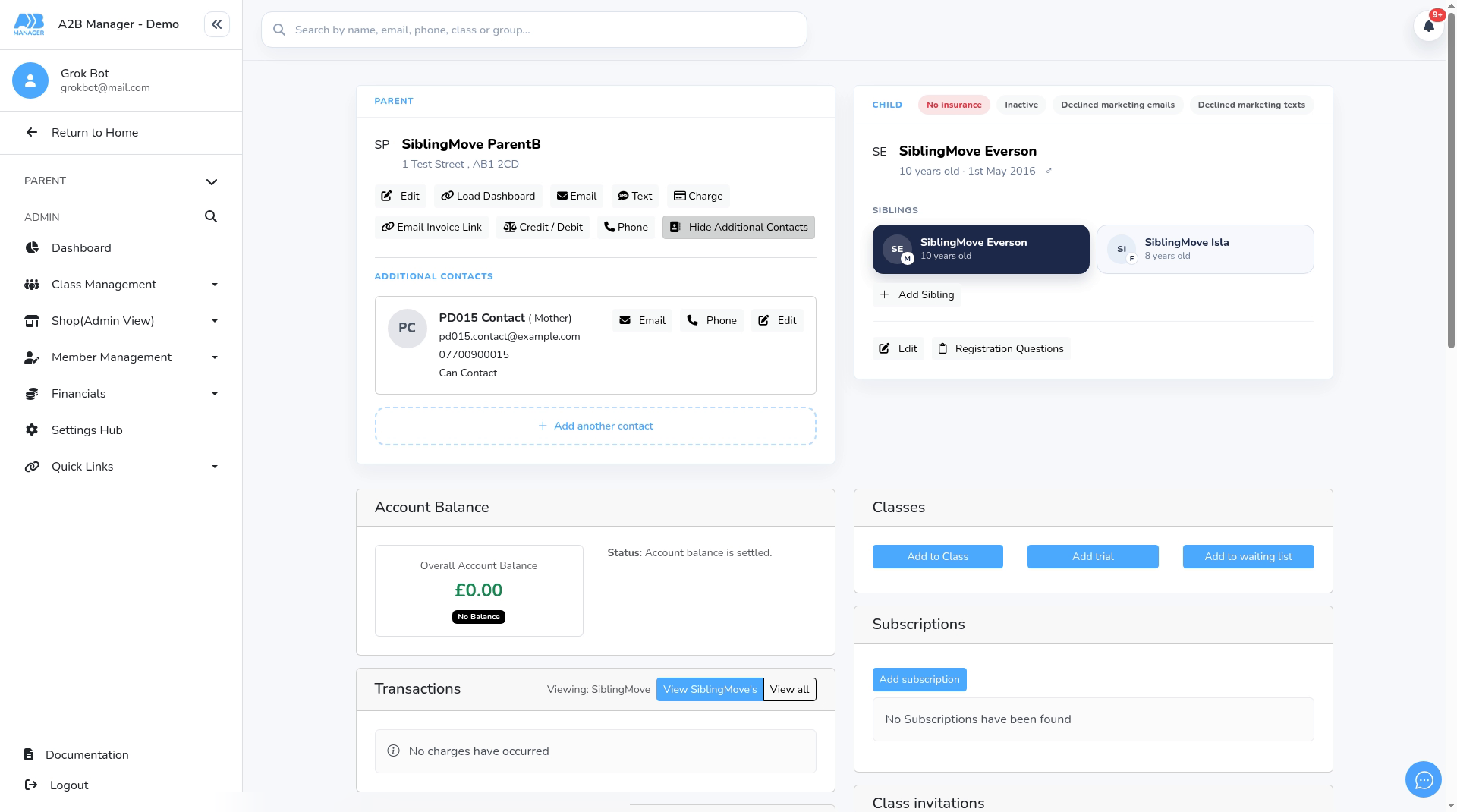
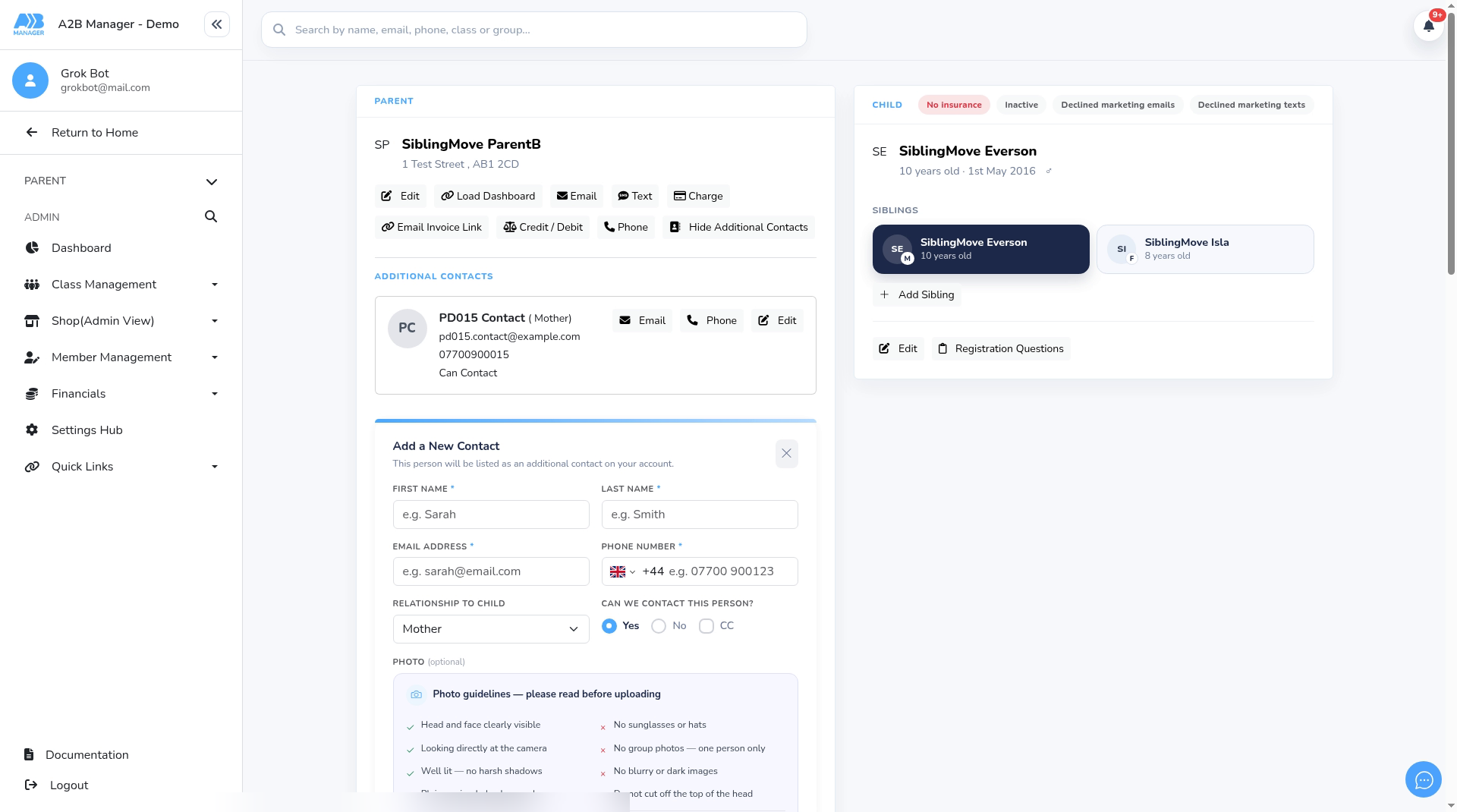
- Open the child’s profile. On the Parent card, click Additional Contacts.
- Look for the email address the parent is using. Each contact card shows the name, relationship, email address, phone number and Can Contact.
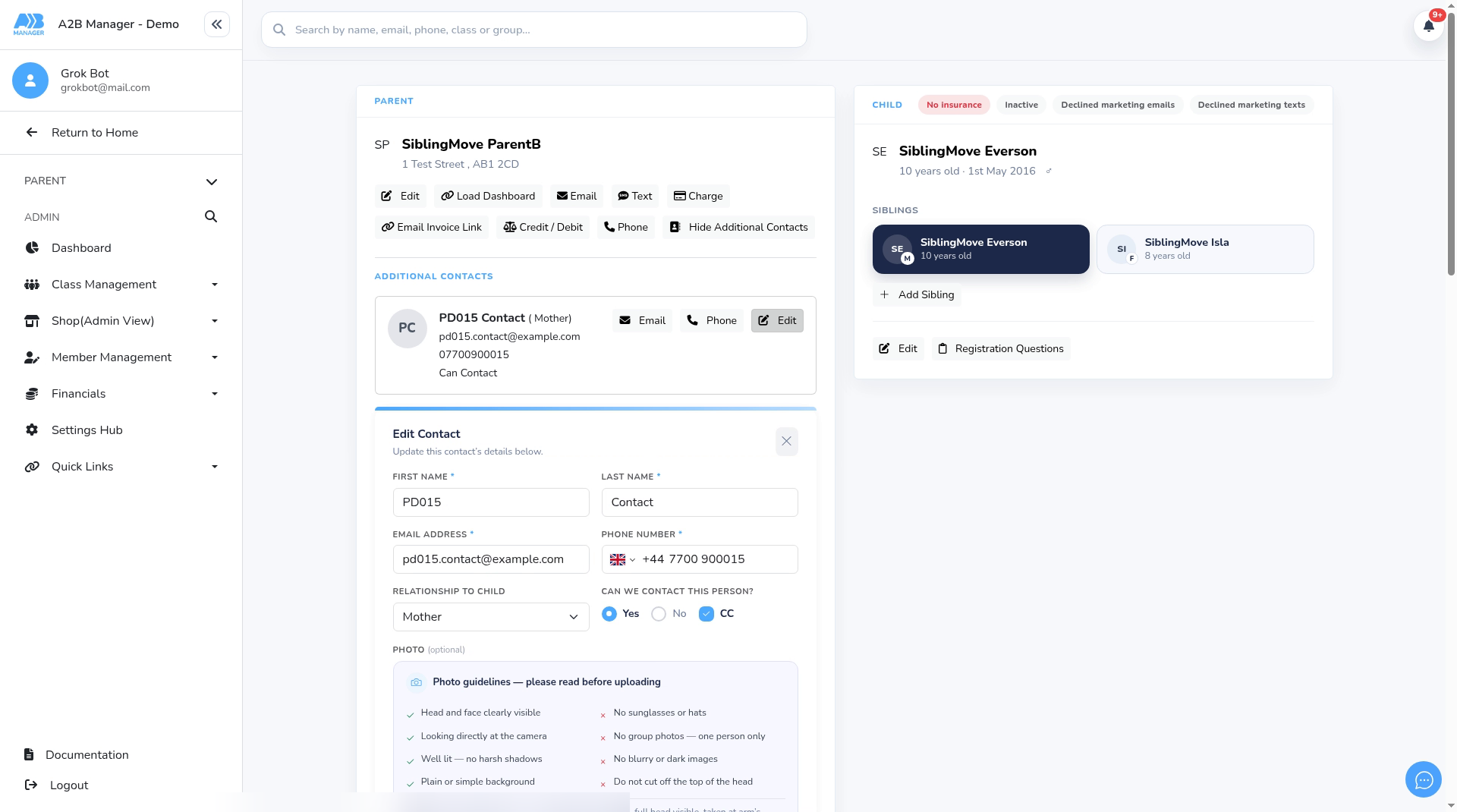
- Additional contacts can have CC ticked, so they receive copies of the club’s emails (see How parents add emergency and additional contacts). The CC tick box sits next to Can we contact this person? on the contact form.
- The contact card doesn’t show whether CC is ticked. To check, click Edit on the contact.
- A contact’s email address can’t be used to log in. In our test, it gave “Error: Invalid login attempt.” with no attempts line. If the parent is a contact, go to Step 4.
Step 4: Give a contact their own account (1:41) #
- To log in, a contact needs a parent account of their own. There are two ways:
- The parent clicks Register on your club’s page and fills in Create an account. (The Register link is on your club’s page, not on the login page.)
- Or you add them yourself with Add Parent in Manage Parents.
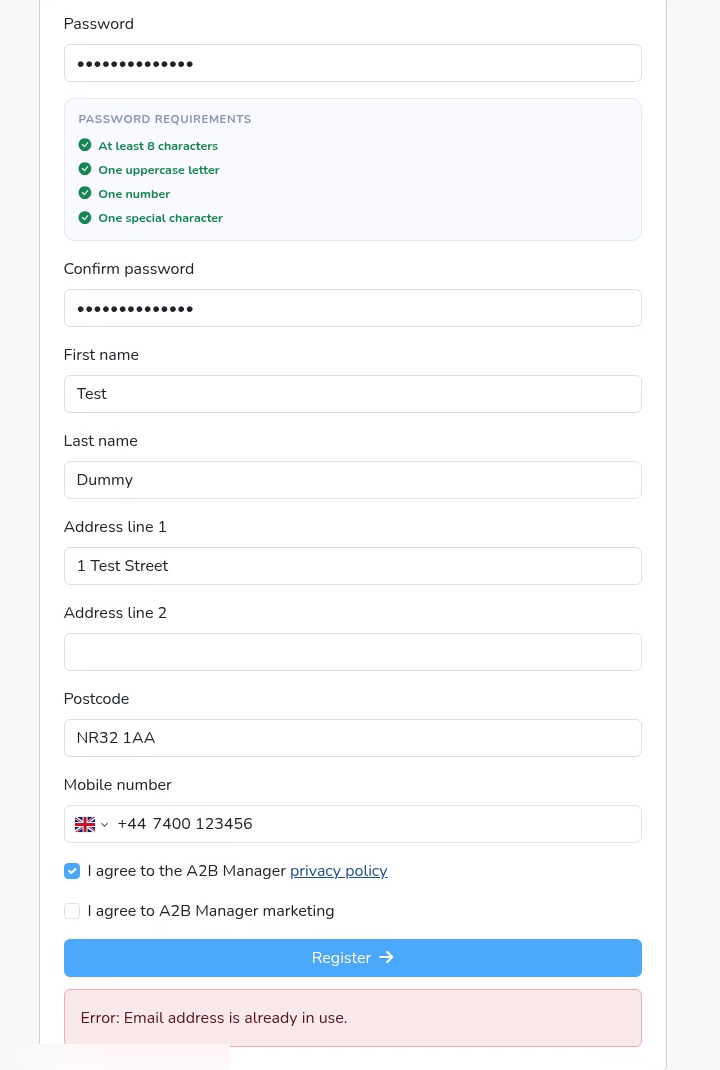
- If the email address already has an account, Register shows “Error: Email address is already in use.” That tells the parent they already have an account, so it’s the password they need (Step 6).
Step 5: Listed? Check the login email (2:05) #
- In Manage Parents, click Edit on the parent’s card.
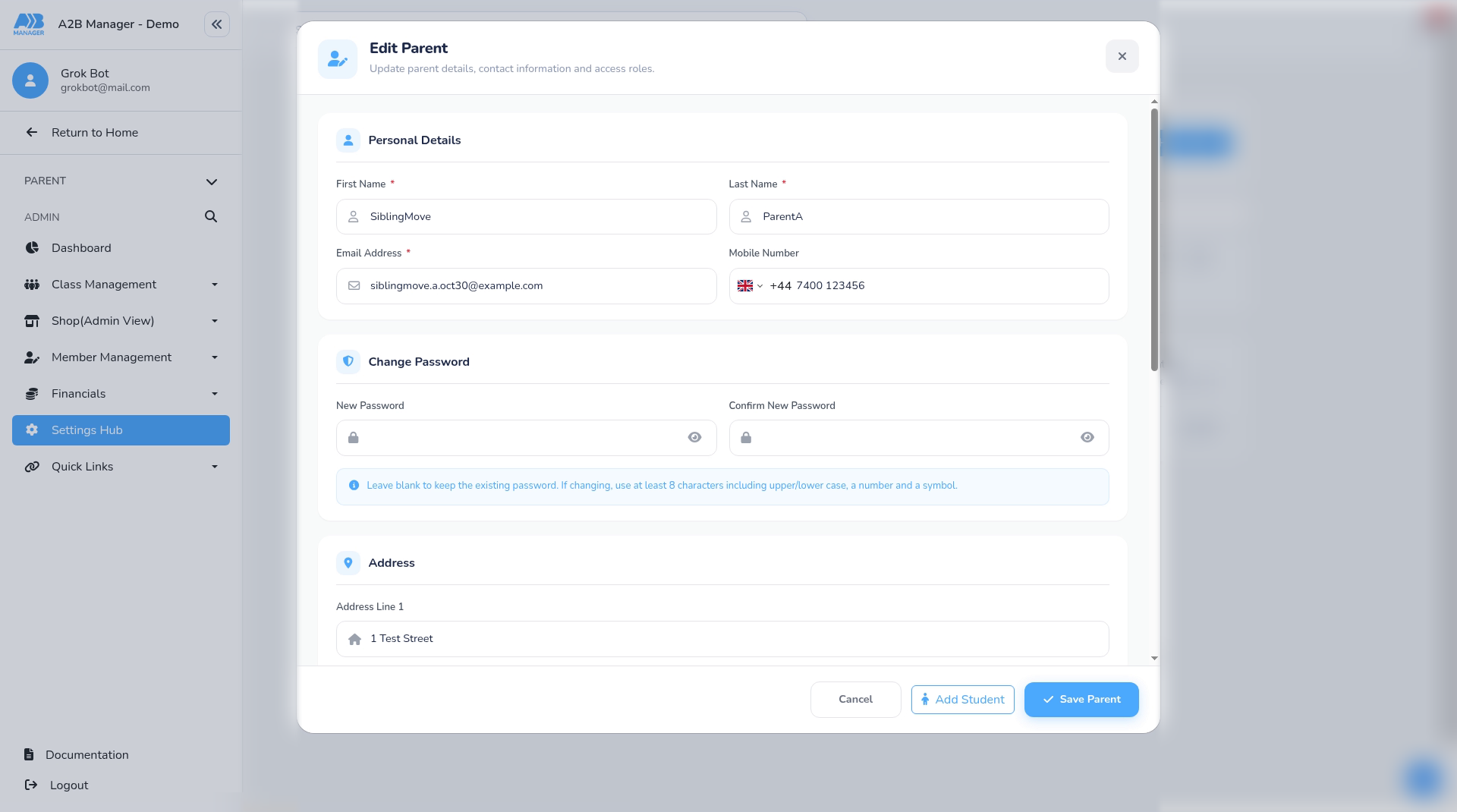
- In the Edit Parent pop-up, check the Email Address is exactly the one the parent types.
- If it’s wrong, follow How to Change a Parent’s Login Email.
Step 6: Email right? It’s the password (2:23) #
- If the email address is right, the password is the problem.
- The Edit Parent pop-up has a Change Password section. To set a new password for the parent, follow How to reset a parent’s password (admins).
- Or the parent can reset it themselves: on the login page, they click Forgot your password?, enter their email address and click Reset password. See How parents reset their password.
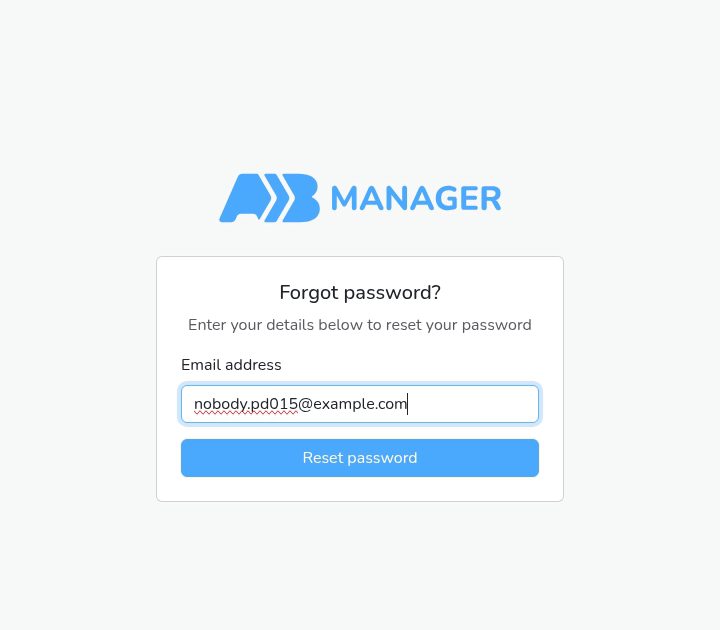
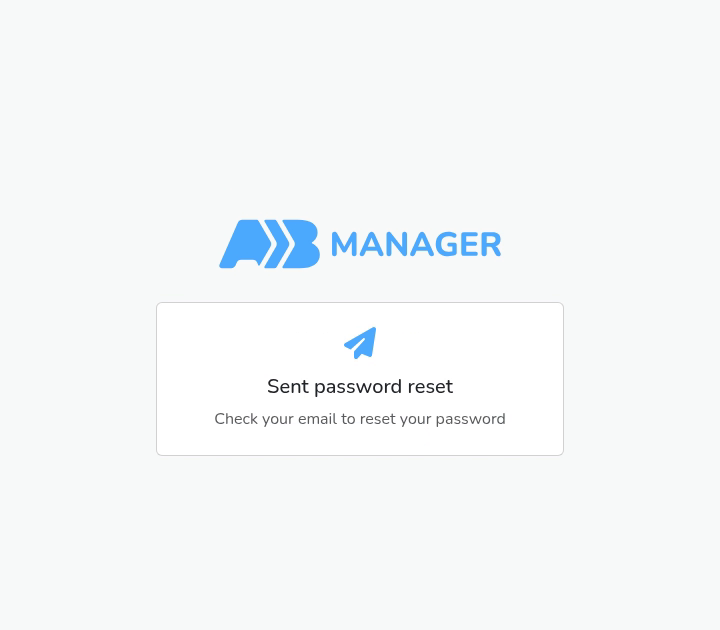
Tip: The Forgot password? page always says “Sent password reset” and “Check your email to reset your password”, even when the email address isn’t on an account. If no reset email arrives, check the parent’s address in Manage Parents (Step 2).


