

Table of Contents
Parents can book a pay-as-you-go session up to 5 minutes before it starts. After that, today’s session drops off their booking list. If a parent has missed the cut-off, or has booked a later date instead, you can still put their child into today’s session yourself. This guide explains why parents can’t book, and shows you three ways to do it.
Which option to use #
- Before the session starts, move the child’s existing booking to today with Change session date (Option 1), or give them a new place with Add to Class (Option 2).
- Once the session has started, add them to today’s register with Add Guest (Option 3).
- You do all of these as a club admin, from the child’s profile or the register.
Why parents can’t book today’s session #
Step 1: What parents see after the cut-off (0:00) #
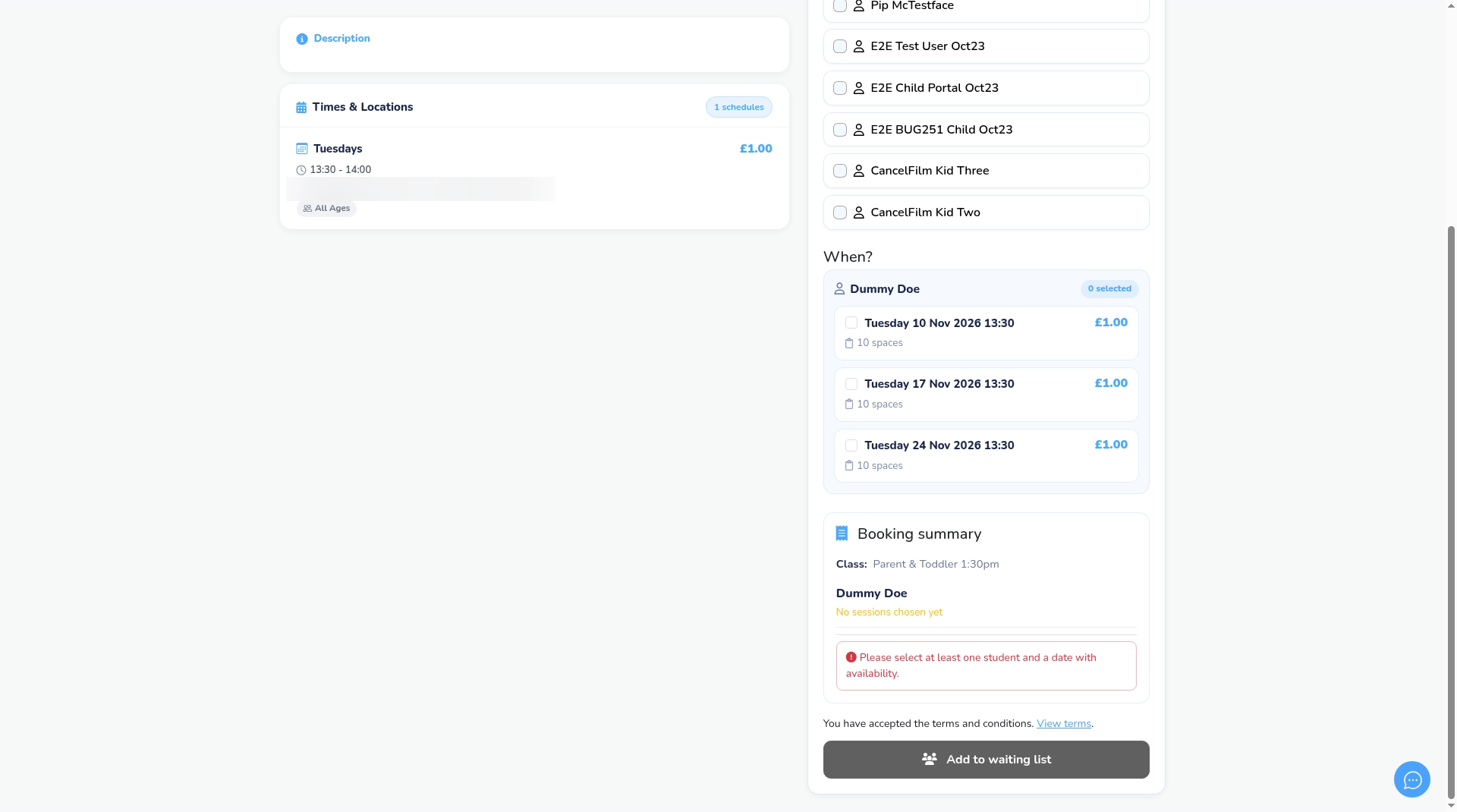
- Parents can book a pay-as-you-go session up to 5 minutes before it starts.
- After that, today’s session no longer shows in the When? list when they book. Later dates are still listed.
- This cut-off is fixed. It isn’t a club setting, so it can’t be changed.
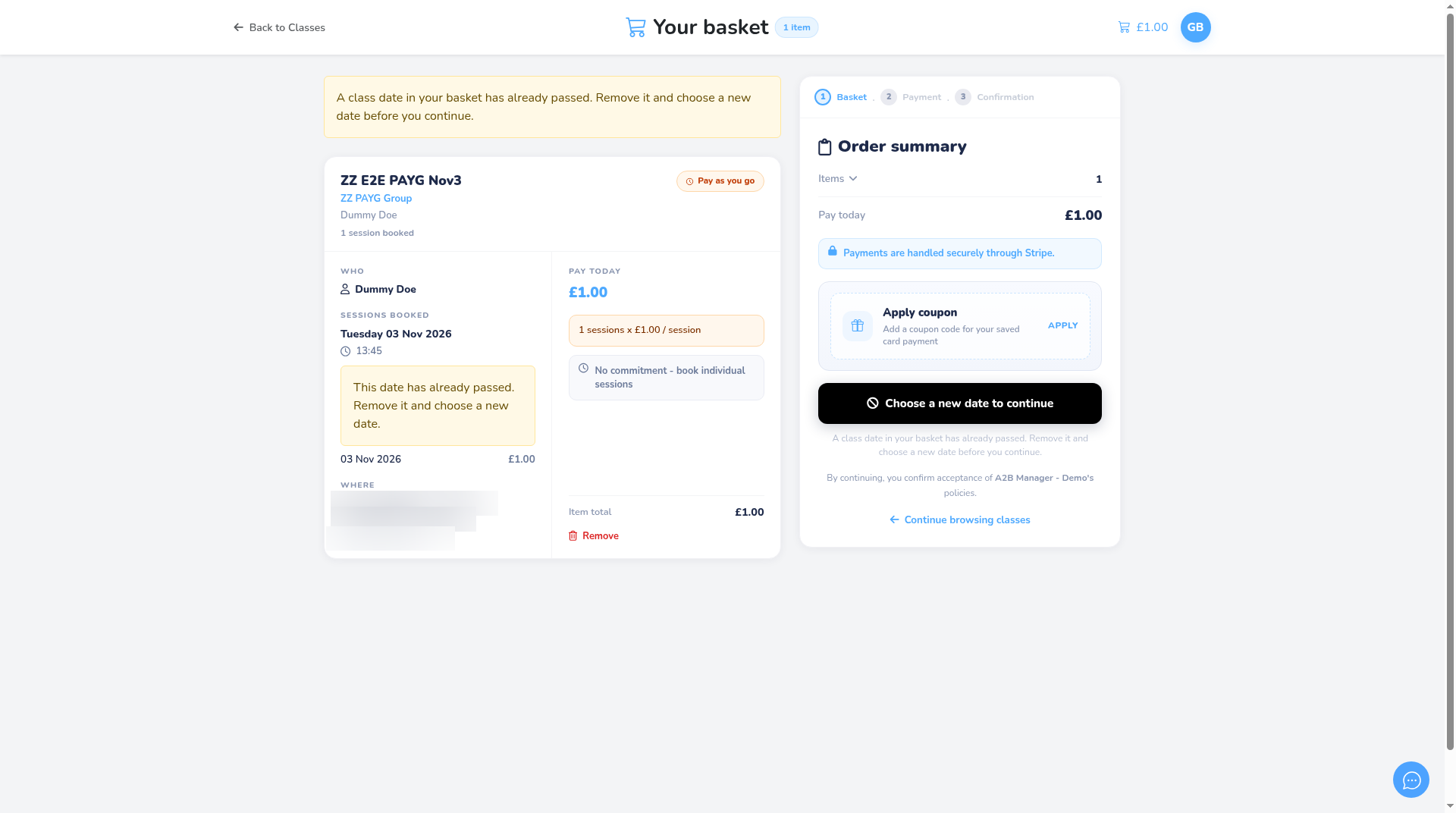
- If today’s date is already in a parent’s basket when the cut-off passes, checkout shows: A class date in your basket has already passed. Remove it and choose a new date before you continue. They can’t pay until they remove it.
Option 1: Move their booking to today (before the session starts) #
Step 2: Open the child’s profile (0:37) #
- Use this when the child already has a pay-as-you-go booking for another date, for example tomorrow or next week.
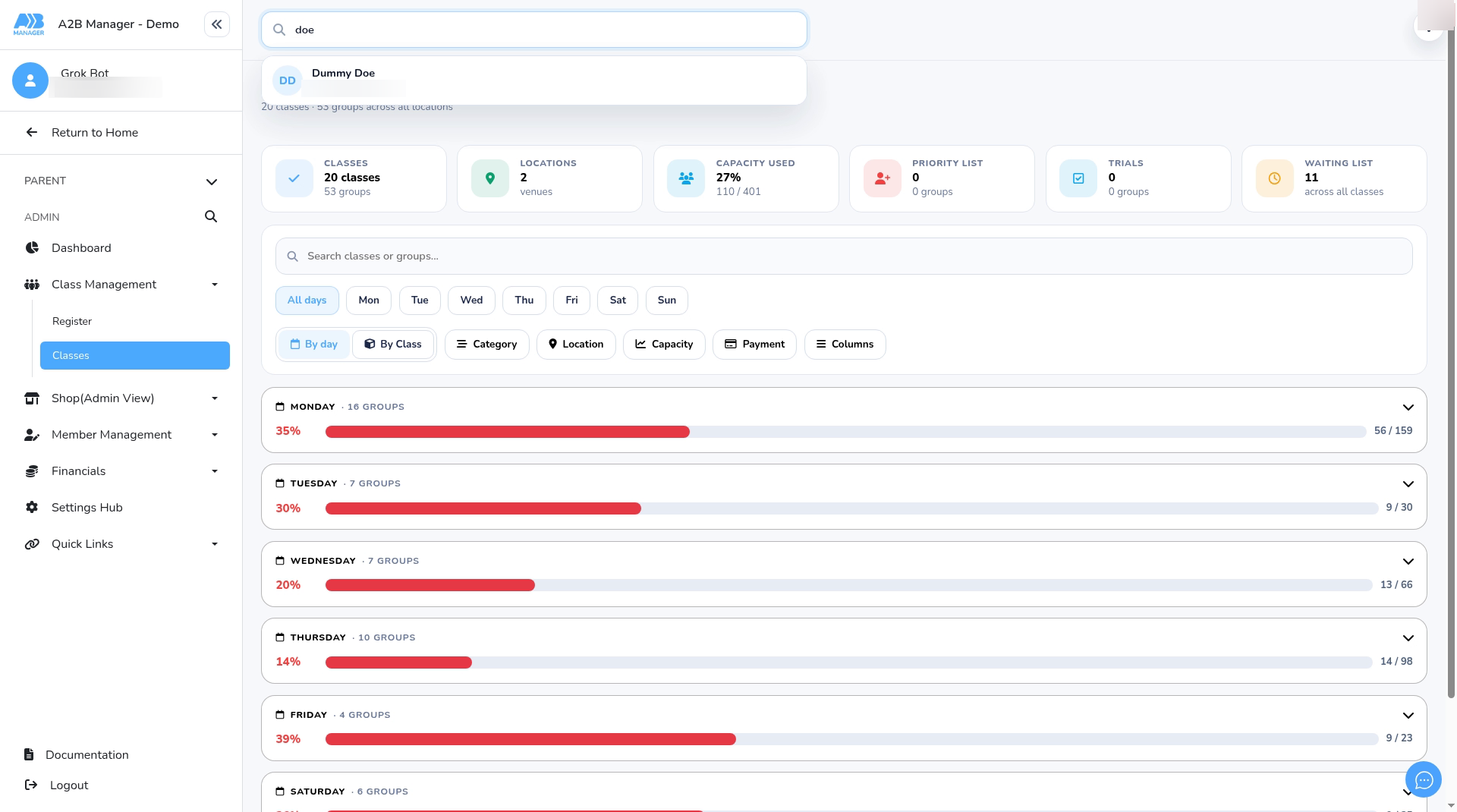
- In admin, type the child’s name in the search bar at the top of the page.
- Click the child in the results to open their profile.
Step 3: Choose Change session date (0:49) #
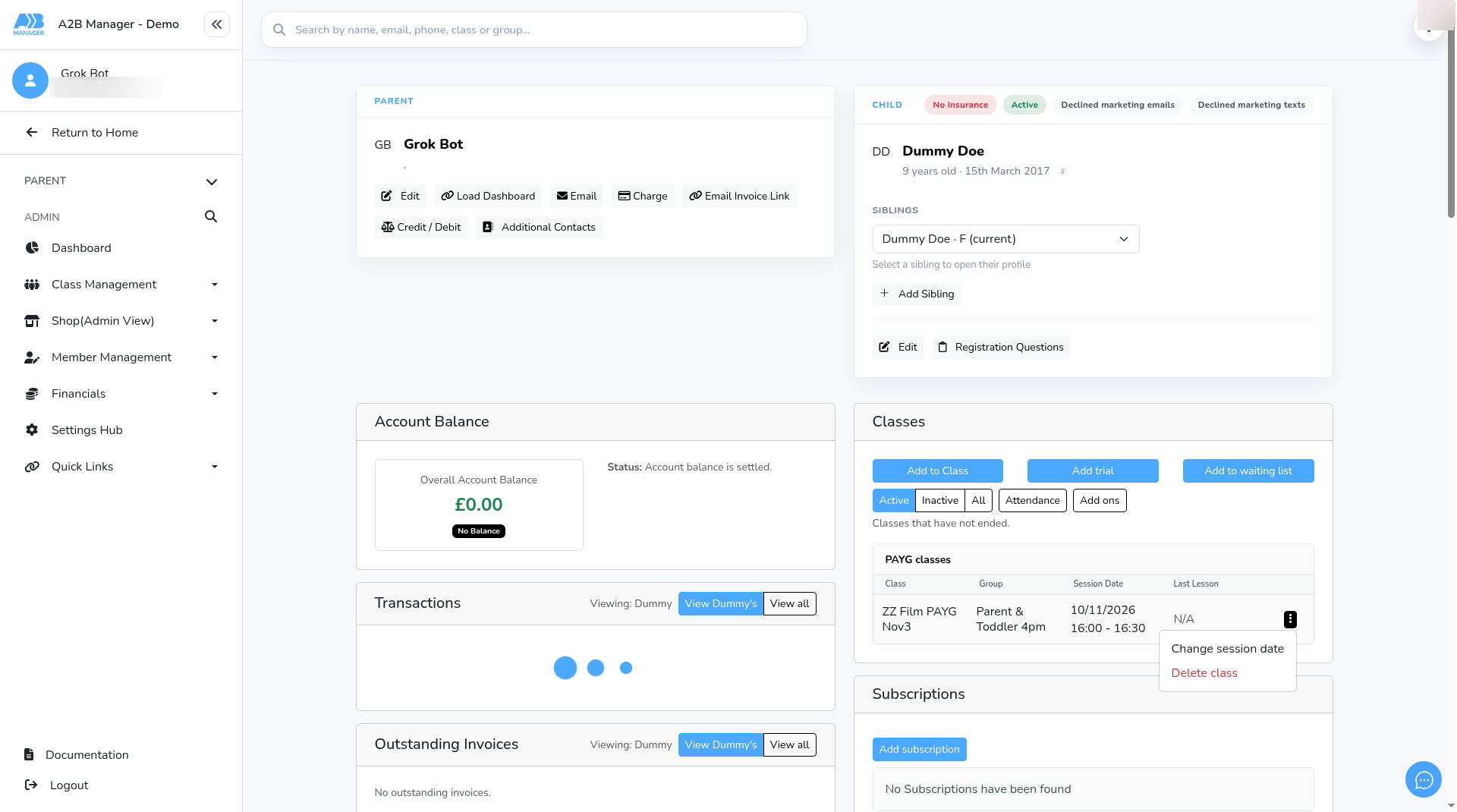
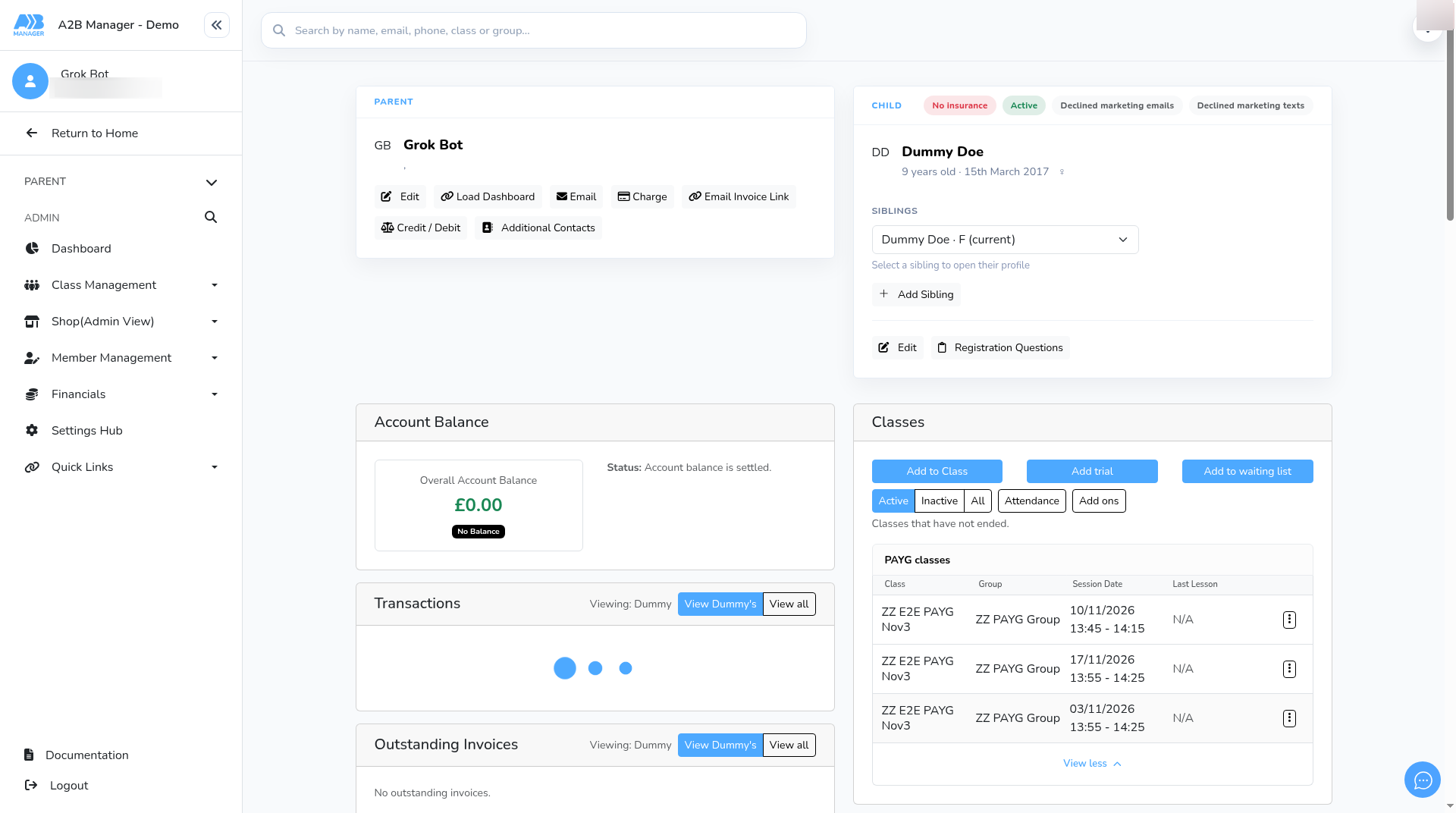
- In the Classes panel, find the booking under PAYG classes.
- Click the ⋮ (three dots) on that row and choose Change session date.
- The panel explains: Choose a new session date. This removes the member from the current session and adds them to the selected one.
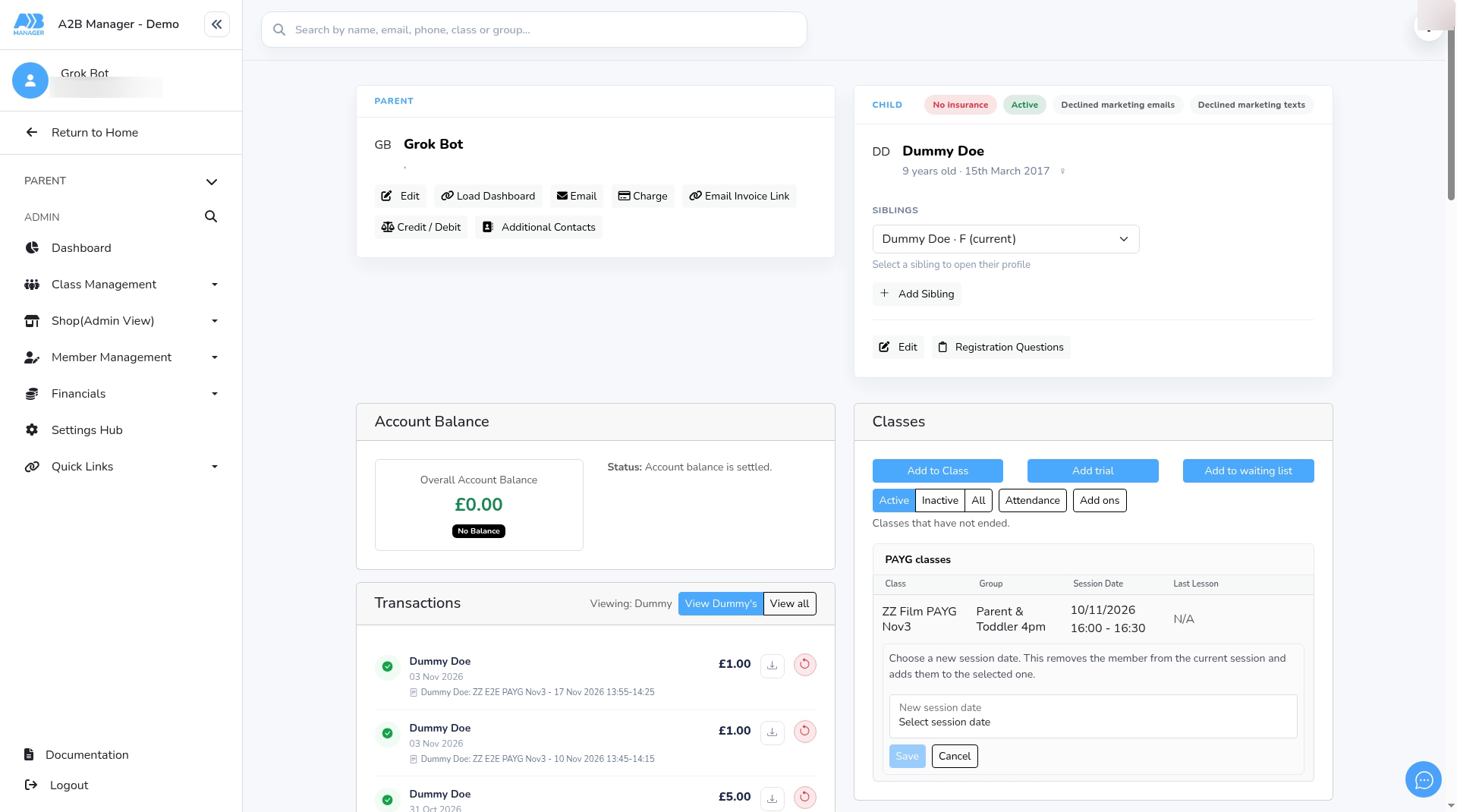
Step 4: Pick today’s session and save (1:07) #
- Click New session date and choose today’s session, for example Tue 3 Nov 4:00pm.
- Today’s session is offered right up until it starts, even after the parents’ 5-minute cut-off has passed.
- Click Save. The booking now shows today’s date and time.
- Nothing is charged or refunded, and you aren’t asked for a payment.
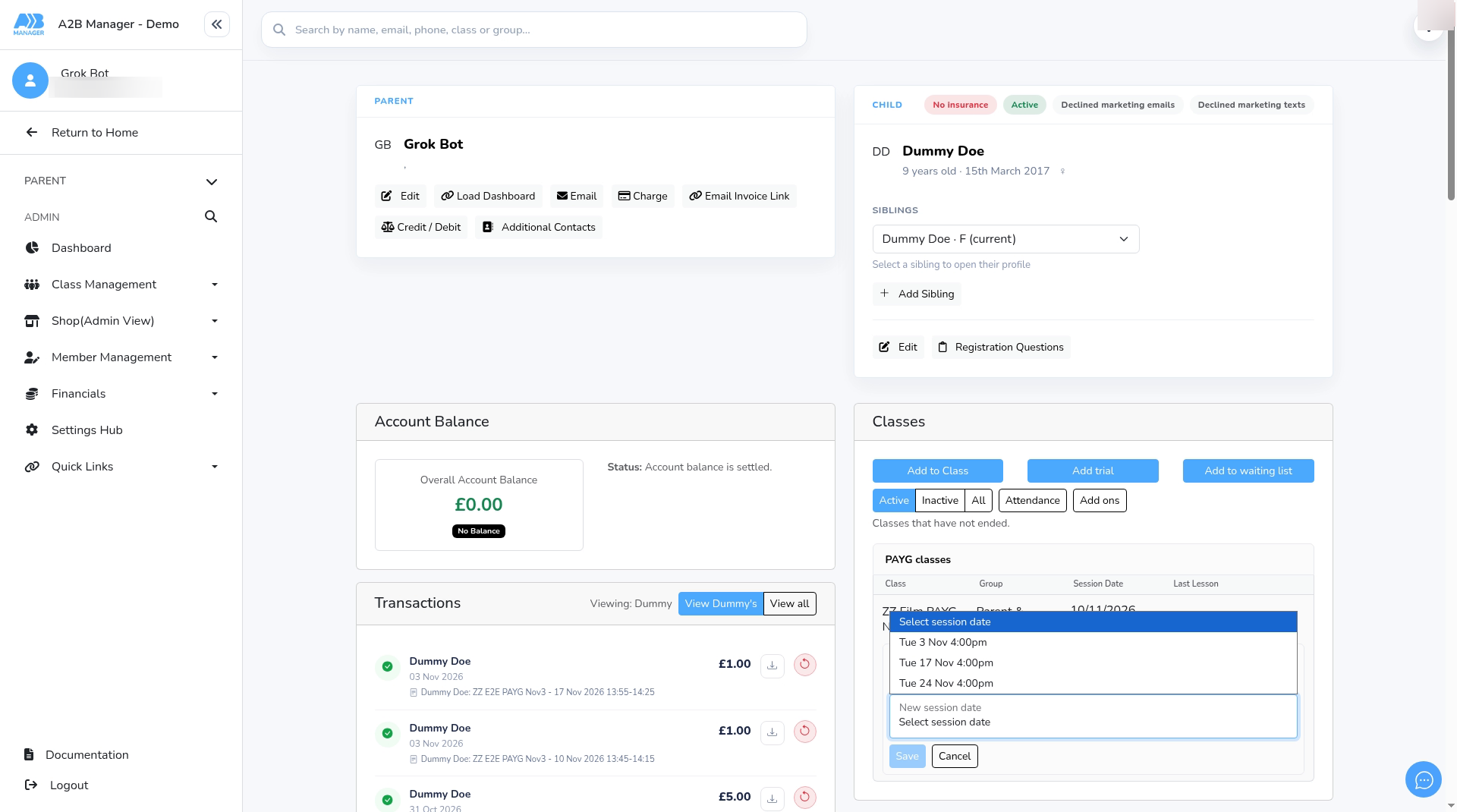
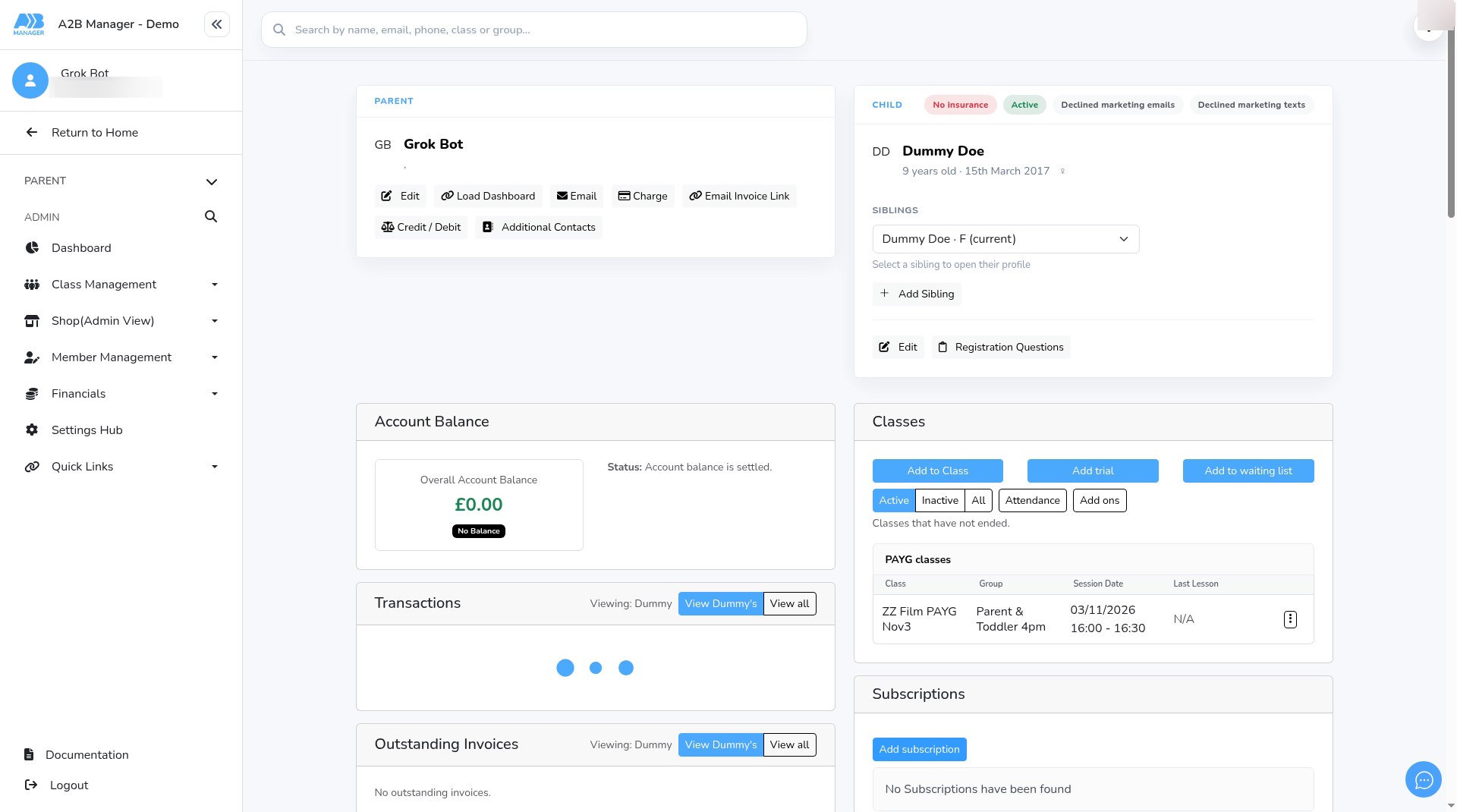
Step 5: Check today’s register (1:20) #
- Go to Class Management > Register.
- Click Select registers, tick today’s session and click Apply.
- The child is now on today’s register.
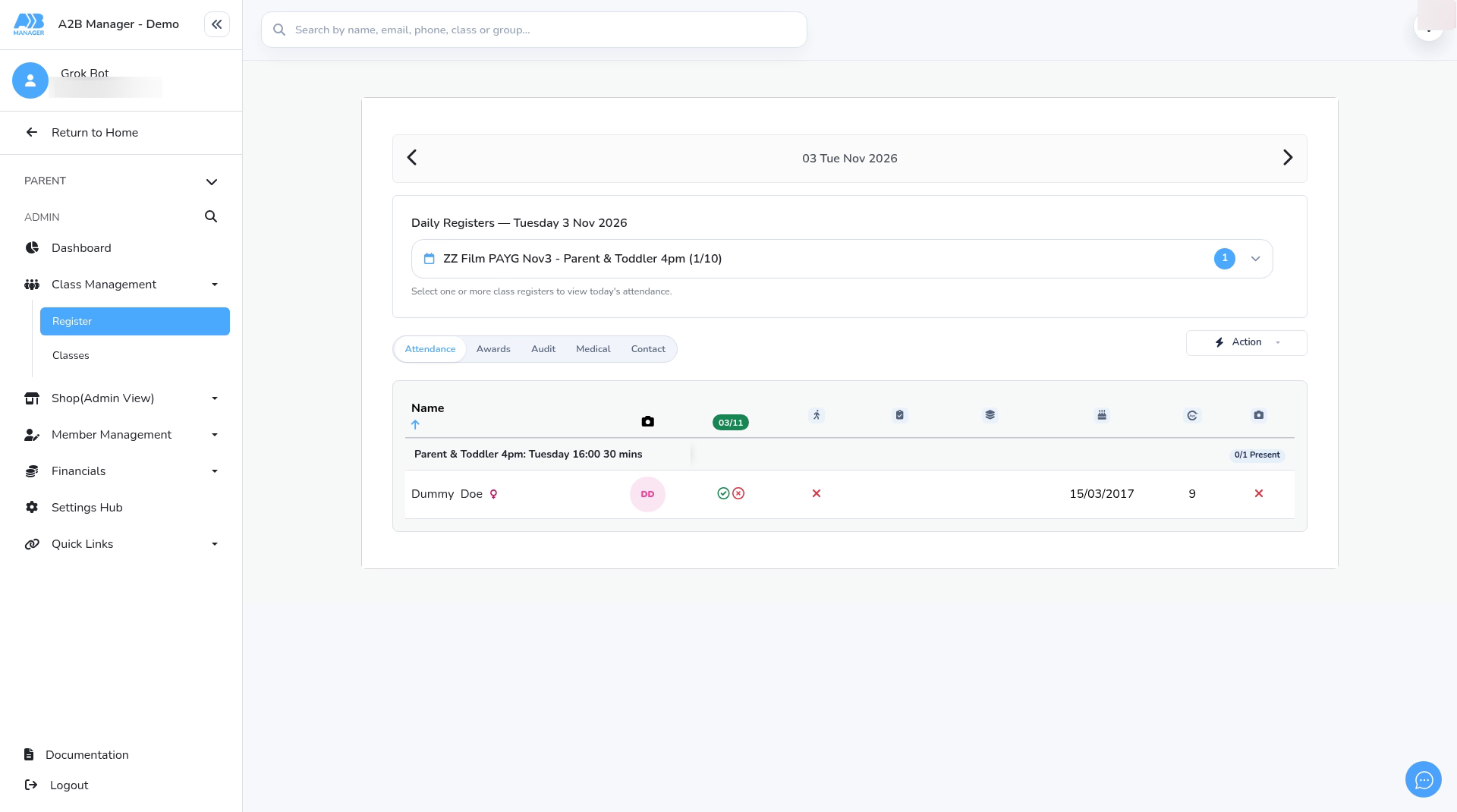
Option 2: Add a new place for today (before the session starts) #
Step 6: Add them with Add to Class #
- Use this when the child doesn’t have a booking you can move.
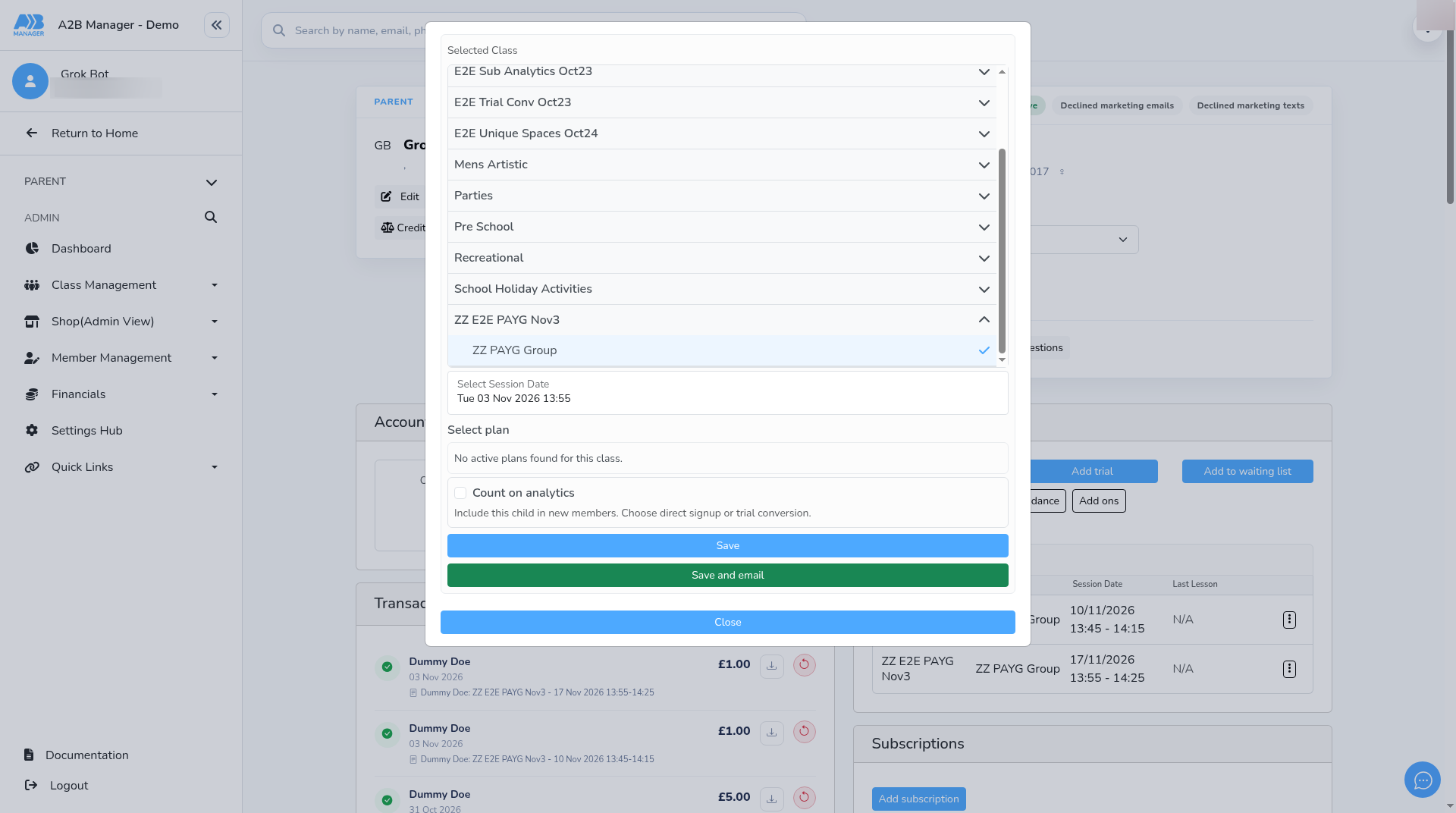
- On the child’s profile, click Add to Class in the Classes panel.
- Open the class, choose the group, then pick today’s session under Select Session Date. Today is offered even after the parents’ 5-minute cut-off.
- Click Save, or Save and email.
- Nothing is charged when you add a child this way, so take payment separately if you need to.
Option 3: Add them as a guest once the session has started #
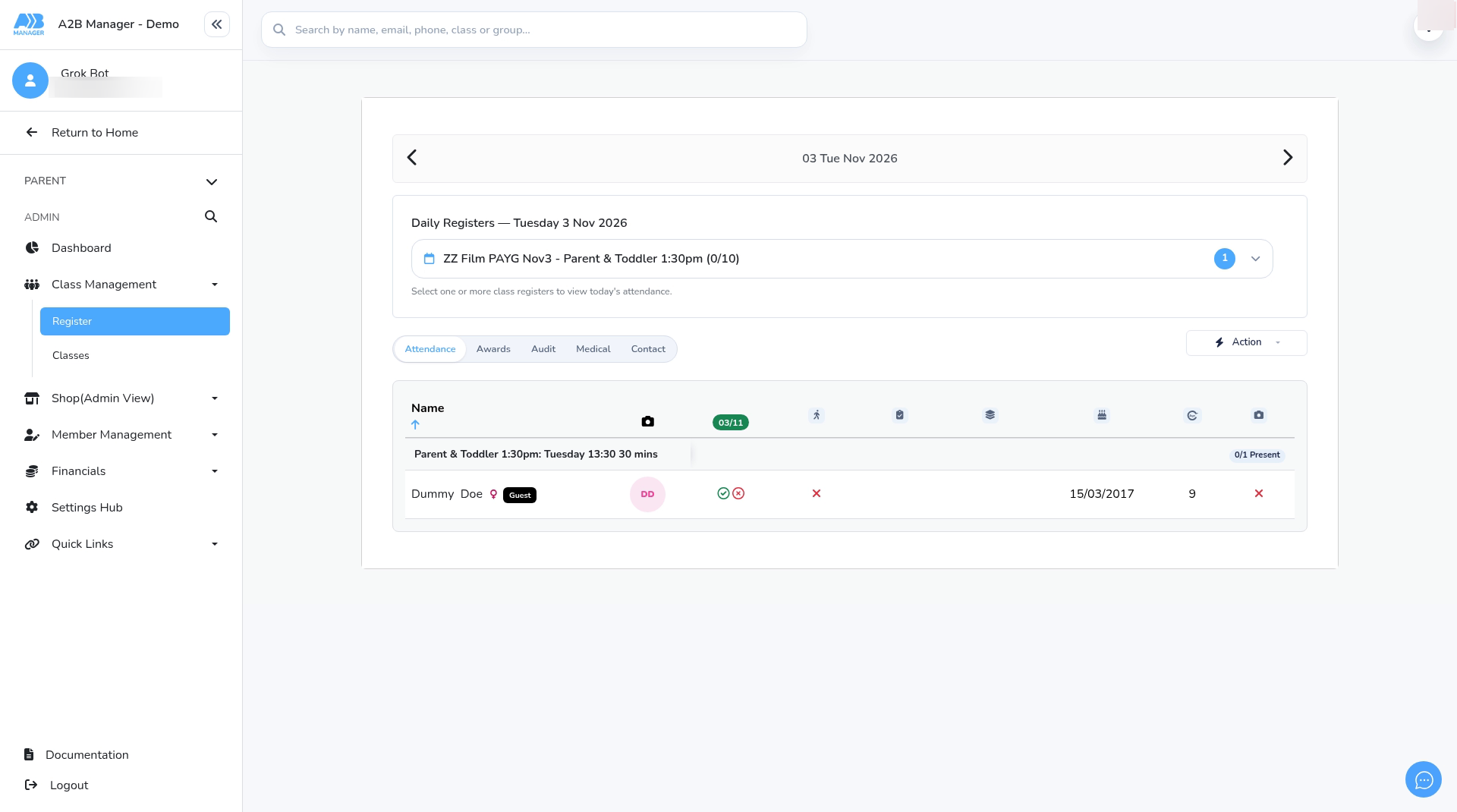
Step 7: Open the register for a session that has started (1:42) #
- Once a session has started, Change session date no longer offers it. Add the child to the register instead.
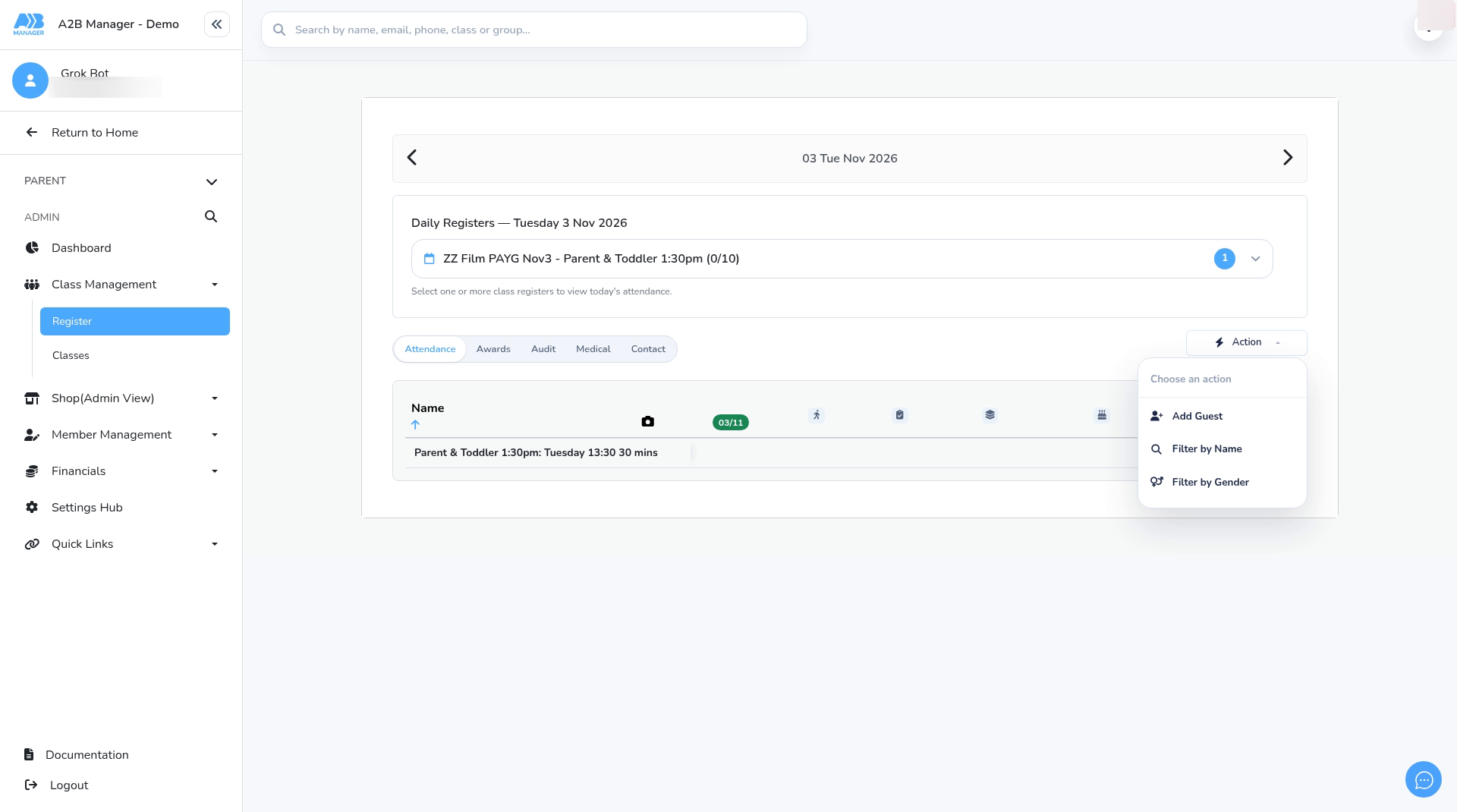
- Go to Class Management > Register.
- Click Select registers, tick the session that has started and click Apply.
- Click Action and choose Add Guest.
Step 8: Add the child as a guest (2:00) #
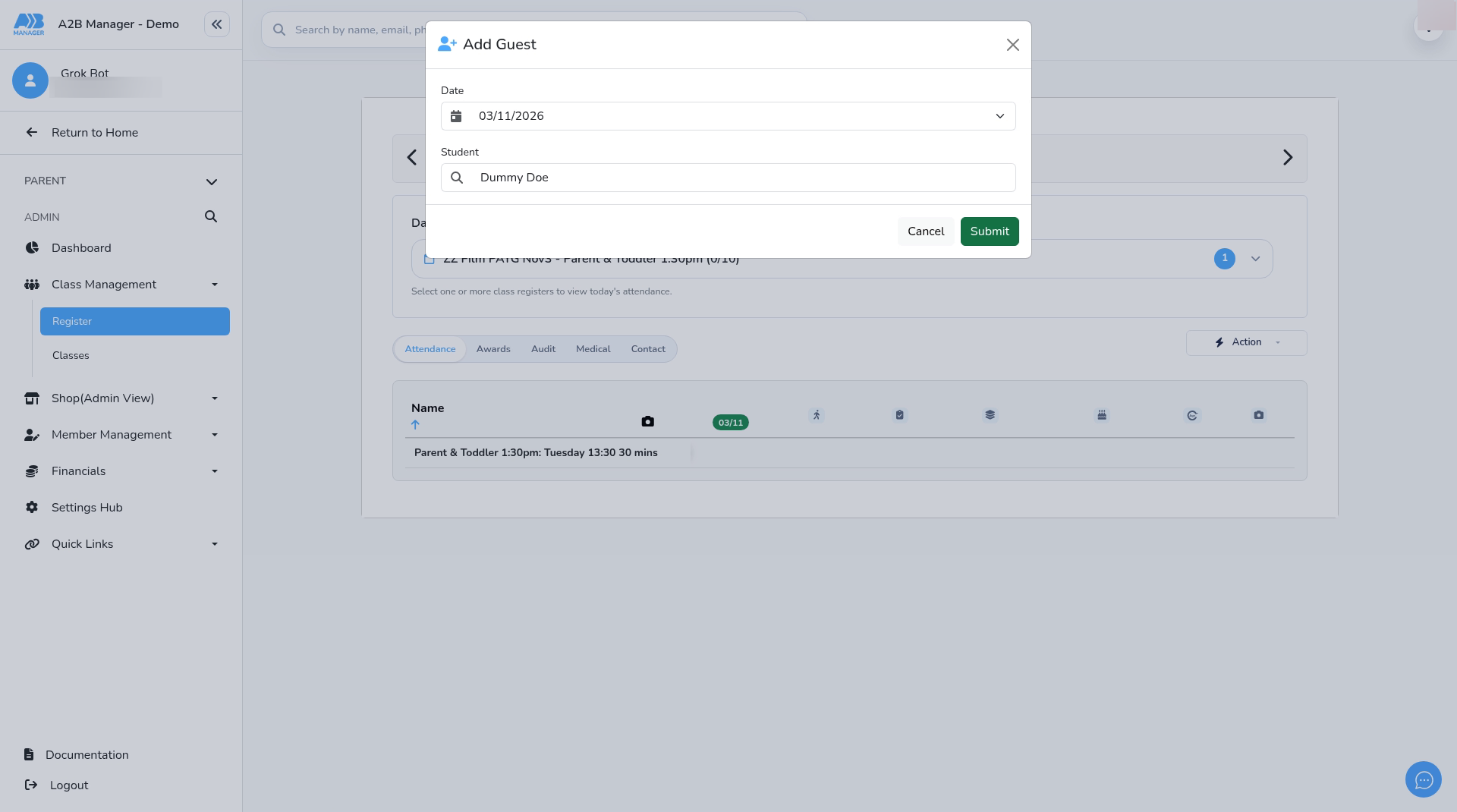
- Check the Date is today.
- Under Student, search for the child and click Select next to their name.
- Click Submit. The child is added to that day’s register as a guest.
- Add Guest only adds them to today’s register. It doesn’t change or cancel their other bookings, so remove a later booking yourself if they no longer need it.
Good to know #
- To remove a booking the child no longer needs, click the ⋮ next to it on their profile and choose Delete class. You’re asked Count as a cancellation on analytics? No refund is offered, so deal with any refund separately.
- Changing a group’s session time doesn’t move bookings that already exist. They stay at the old time.
Tip: Let parents know that online booking closes 5 minutes before a pay-as-you-go session starts. If they’re running late, they can contact you and you can add their child yourself.


